In this day and age, just about everyone uses wireless devices to send sensitive and personal information over WiFi.
The risk that comes with this activity is that it provides hackers with the opportunity to steal this information as it’s sent through the air between devices.
Thankfully, there are devices in your home network that can help protect you when you’re sending data wirelessly.
Your router is a perfect example of this.
So how does your router protect your personal information that’s sent over WiFi? Does a router encrypt your data, or is there a different way that it protects your communications?
In general, all modern routers encrypt communications with devices connected to their wireless networks. Encrypting communications between devices on the network ensures that data sent over WiFi cannot be read by nearby devices that are not intended to receive it.
In this post, I’ll break down how routers protect their communications using encryption. I’ll also talk about how you can verify that your router’s encryption settings are configured correctly.
How Do I Know if My Router Is Encrypted?
When it comes to router encryption, I have some good news and bad news.
I’ll start with the good news first.
The good news is that your router most likely has encryption enabled by default. In other words, your router will automatically encrypt communications between it and your devices.
And the bad news?
The bad news is, even if your router has encryption enabled, your data might not be totally safe.
The reason for this is because the safety of your devices’ communications depends upon the type of encryption that your router is using.
Unfortunately, not all encryption is created equal.
The fact is, some encryption methods don’t do a great job of protecting your data because they can be cracked by hackers.
For example, if a given encryption key isn’t strong enough, hackers can actually reverse engineer the encryption key that’s being used. Once they’ve figured out the encryption key used in a message transmission, they can read the messages between your device and your router.
It doesn’t matter that the communication was encrypted.
So even if your router has encryption enabled, you need to verify that the right encryption settings are in place.
If any of this information is confusing to you, don’t be overwhelmed. The next sections will hopefully clear up any confusion you have.
How Does Router Encryption Work?
When it comes to protecting your data, your router has quite a bit of functionality.
Of utmost importance is it’s ability to protect the data that’s sent between it and your devices.
This is where encryption comes in.
So how exactly does a router encrypt your data?
Router encryption starts with the identification of the devices it trusts. Although this might sound complicated, it’s really not.
Your router trusts the devices that’re able to connect to it by providing the correct password for its wireless networks. After all, the only devices that’re connected to a router in the first place should be the ones that have been trusted with the password for the network.
This highlights the need for unique passwords for your router’s wireless networks, but that’s a topic for a another time.
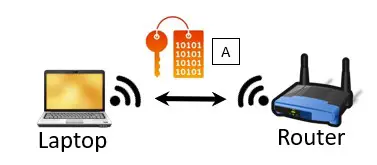
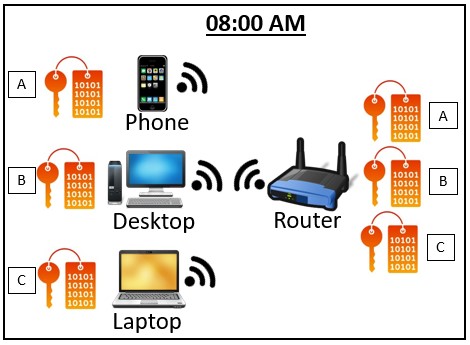
When a device joins a router’s wireless network, an encryption key is established between the device and the router. This encryption key is used to scramble the data that the two devices send to each other.
When a device joins a router’s network, an encryption key is shared between the devices
Think of the encryption key like a decoder ring.
When data is sent from a device to the router, the decoder ring is used to scramble the message. When the router receives the message, it uses the same decoder ring to translate the message so that it’s readable.
This is what prevents a hacker or malicious user from listening in on your device’s conversation with your router. They’re welcome to listen in on the conversation between your device and your router, but the messages won’t be useful.
In other words, the hacker doesn’t have access to the decoder ring that your device and router used to scramble the message.
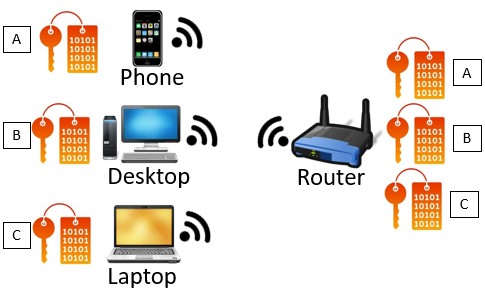
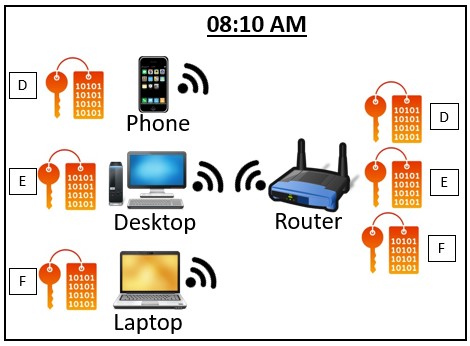
To make things more secure, each device that connects to the router will have a different encryption key (or decoder ring) to scramble the data between the two devices.
A router uses different encryption keys for each device connected to it
On top of that, depending upon the type of encryption that’s used, the router and device connected to it will periodically change the decoder ring they’re using.
Talk about a headache for anyone that’s trying to listen in on the conversation.
That’s exactly the point.
What Does Router Encryption Protect?
There’s an important distinction that needs to be made when it comes to your router’s ability to encrypt communications with your devices.
You need to understand that router encryption will only protect communications on your local network. To put this another way, your router’s encryption will not protect your devices’ communication on the open internet.
Let me break this down.
As I previously mentioned, when a device joins a router’s network, the device and router share an encryption key.
The key here (pun intended) is that this encryption key only protects WiFi communication between that device and the router.
Any communication that happens beyond the device and router communicating directly with each other isn’t protected by the router’s encryption.
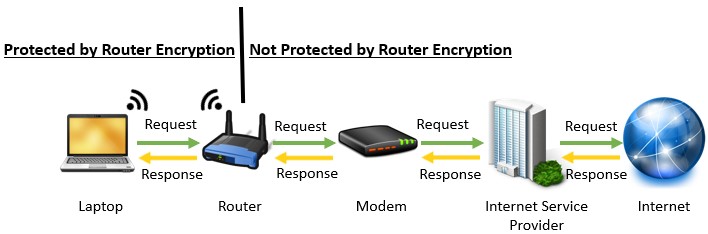
For example, when a router sends an internet request to a router, the router only encrypts the request coming to the router. Once that request is passed to the public internet, the request is no longer protected by the router’s encryption. That’s because this communication isn’t happening over WiFi. It’s happening over the internet’s backbone of wired connections.
Router encryption only protects WiFi communications between the router and the device
To put this another way, if your device is accessing a website on the internet, this traffic could still potentially be stolen by hackers on the open internet.
There’s a totally separate encryption method for communication between devices and web pages, which is called Transport Layer Security (TLS).
If TLS is in place on a website, the communication between your device and the website will be protected as well.
TLS is a topic for another post, but the bottom line here is that you should recognize that a router using encryption doesn’t mean all your traffic is protected.
It just means that the local communication over WiFi between the router and device will be protected.
How to Check Your Router’s Encryption Settings
If you’re not sure what your router’s encryption settings are, you should verify that it has the proper encryption configuration is in place.
There’s too much at stake with your personal data to risk not encrypting your data with the strongest encryption keys.
To do this, you first need to access your router’s settings.
If you’re not sure how to log in to your router’s settings, fear not. I have included the necessary steps for logging in to your router in a previous post I’ve written about updating your router. Check out this post for guidance on how to log in to your router’s settings.
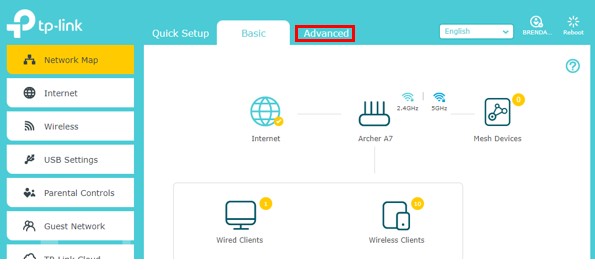
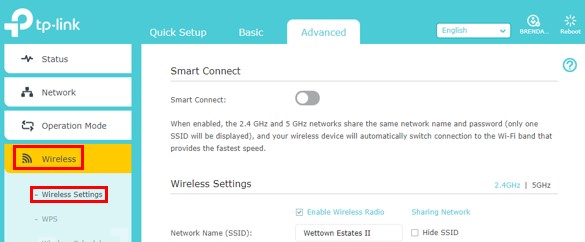
Once you’ve logged in to your router’s settings, you need to go to the Advanced Settings tab.
In the Advanced settings tab, I had to go under the “Wireless” header and select “Wireless settings”. This brought me to my router’s encryption settings.
Accessing your router’s encryption settings might be slightly different for you depending upon the make and model of your router. With that said, it’s a safe bet that the encryption settings will be in the Advanced settings section.
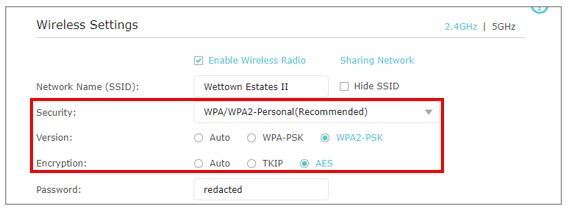
Now that you’ve accessed your router’s encryption settings, we need to make sure they’re set correctly.
The router encryption settings you should be concerned about are the security setting, the version of encryption, and the encryption algorithm
The settings you should have in place on your router are as follows:
WPA/WPA2-Personal for the security setting. If the router you’re configuring is for your home network, you’ll want to select “Personal” here. The “Enterprise” security version is for routers that are used in businesses and offices.
WPA2-PSK (WiFi Protected Access 2 Pre-Shared Key) for the encryption version. WPA2 was developed more recently than WPA-PSK and it provides security advancements to better protect your communications.
AES (Advanced Encryption Standard) for the encryption algorithm. This is the strongest available encryption algorithm available.
As a side note, you don’t want to select “Auto” for any of these options.
When Auto is selected, it lets the device determine the encryption method and algorithm that’s used.
You want to ensure that the strongest encryption standards are always used for communication between your devices and your router. That’s why you should explicitly select the settings above. This puts your router in control of the encryption methods used to protect your data.
Wrap Up
At this point, you should be able to access your router’s settings and ensure that the strongest encryption settings are in place.
If you have any questions about the information presented in this post, please drop a comment below.
For more fascinating information on similar topics, check out these other posts I’ve written:
If you’ve spent any amount of time on the internet, you’ve probably heard of the “dark web”.
But did you know that the dark web is accessed using something called the Tor browser? Did you also know that Tor is readily downloadable and free to use by anyone?
I know what you might be thinking.
Believe it or not, Tor is not just for hackers and criminals. It provides benefits to regular, law-abiding citizens as well.
So what is the Tor network and how does it work, exactly?
The Tor network allows you to use the internet anonymously without having to worry about your activity being tracked. This is achieved by encrypting your traffic and bouncing it around three nodes on the Tor network before sending your internet request to the website you want to access. This in effect hides the IP address of your device. Without the true IP address of the source device that sent the internet request, websites (and other watchful eyes) will not be able to determine the origin of your request.
This complete guide will take an in-depth look at how Tor works, as well as the benefits (and shortcomings) of using the browser. The information provided will allow you to decide if you want to consider Tor when using the internet.
Let’s get into it.
What does Tor stand for?
Tor stands for The Onion Router. It’s an internet browser just like the one you’re using now.
It allows you to search the internet and access websites just like your Google Chrome or Mozilla Firefox browsers do. But there’s more.
Tor isn’t your ordinary browser.
What is Tor used for?
Anonymous internet browser
When using Tor, your online activity is anonymous.
This means you can’t be tracked by your internet service provider (ISP), Google, or any other third parties that keep a record of your online activity.
This is a problem that many people don’t even realize the extent of. Google and other third-party companies are taking note of every search you perform and website you visit online. They sell this information about you to marketing companies. The marketing companies then serve you targeted ads in an effort to get you to buy the products of their clients, whether you really need them or not.
To put it simply, Tor provides the privacy that many internet users want, but very few have.
Portal to the dark web
As mentioned at the beginning of this article, Tor also provides you with access to the dark web.
What exactly is the dark web?
The dark web consists of all the websites that can only be accessed by Tor. These websites are not indexed by the other popular web browsers like Google Chrome or Mozilla Firefox. This basically means that there are sites on Tor that are “invisible” to the rest of the internet. That’s why it’s called the dark web.
Tor gives you the keys to the dark web, but you must enter at your own risk. We will explain this in further detail later on.
How does Tor work?
Tor allows you to browse the internet anonymously, but how does it do this?
The answer here involves hiding your actual IP address from the rest of the internet.
For those of you not familiar, an IP address is basically an identifier that is assigned to all devices that are connected to the internet. That’s how websites are able to send your browser the websites you want to see. They answer your internet requests by listing your IP address as the destination of their responses.
Normally when you go to a website on your internet browser, your ISP, Google, other third parties, and the websites you visit are all able to see that your internet requests are coming from your IP address. If you mask your true IP address when you submit your internet requests, they won’t be able to determine that the internet activity came from you. Thus, you have achieved internet anonymity.
Easy enough right?
Let’s dive into the components involved with Tor.
Tor nodes
The Tor network is made up of many servers and computers that are used to make requests on behalf of the user (you). These systems are called nodes or relays, and without them Tor wouldn’t be able to function.
In fact, any Tor user can set up their device as a Tor relay if they so desire. The more relays that make up the Tor network, the faster and more efficient the experience will be for those who use it.
Tor node hosting considerations
If you’re thinking about hosting a Tor node, it’s important to know that all nodes in the Tor network are visible in a public directory. In other words, if someone knows your IP address, they’d be able to tell if you’re running a Tor node.
If you’re the host of a Tor relay, the government may be suspicious of you because of the illegal activities that occur using Tor. This may attract unwanted attention from the government if they know you’re an active contributor to Tor. That said, if you’re not doing anything illegal this is nothing to worry about.
Another important consideration is if you run a relay on Tor, you may become a target of hackers. If a Tor node becomes compromised by a hacker, the hacker will be able to see the IP addresses that are using the node. If multiple nodes become compromised by the same hacker, they may be able to piece enough information together to identify a Tor user.
This has happened in the past where criminal users on Tor have been identified (detailed later).
Tor proxies
When a request is made in Tor, it goes through three Tor proxies before reaching the intended website. The purpose of the three proxies is to hide your IP address from the website you’re visiting. The connections between the proxies is also encrypted to prevent others from listening in on your requests.
Each proxy adds another layer of encryption on top of the previous proxy, like layers of an onion (hence the name The Onion Router). When a request is sent to a website, a layer of encryption is peeled off at each proxy until it gets to the site. This ensures that the Tor traffic is all encrypted from the user to the exit node.
The three proxies used in a Tor request are:
Guard node
The guard node (or entry node) is the first proxy that your Tor requests will go to.
When you log into the Tor browser for the first time, a small random set of guard nodes is assigned to your device. These nodes have been identified as extremely secure and unlikely to be compromised. If the guard node isn’t compromised, you can be confident that you won’t be identified when using Tor.
Each time the Tor browser is used, the guard node is assigned from the small set that was randomly assigned to your device.
Middle node
The middle node is the second proxy that your request will go to.
Once a guard node is chosen for a connection (also known as a circuit), the middle node is randomly chosen from the list of public tor nodes.
Exit node
The exit node is the last proxy your request will go through. It communicates directly with the destination website that was entered into the Tor search bar.
Much like the middle node, the exit node is randomly assigned from the list of public Tor nodes.
Node assignment
One item of note is that the exit node for one Tor user could be the middle node for another user. Every user will use different nodes for each of the three proxies. This unpredictability adds another layer of security to the Tor network. The more nodes in the Tor network, the more difficult and confusing it is to determine the real IP address of a Tor user.
Tor process
Now that you understand the Tor network and the proxies it uses, let’s go through the process of sending an internet request through Tor.
Request
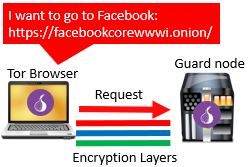
The process begins when you’ve opened the Tor browser and enter a website you want to navigate to. In this case let’s use the Tor version of Facebook (with a .onion domain).
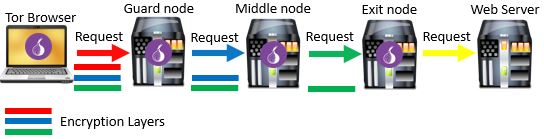
At this point, the public directory of all Tor nodes is accessed and a node is chosen at random to serve as the first Tor proxy, or the guard node. The connection between the user’s device and guard node includes three layers of encryption to ensure confidentiality of the request. There’s one layer of encryption for each of the three Tor proxies that will be used. Each of the three layers of encryption is peeled off at each Tor proxy in the process.
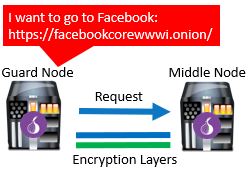
From the guard node, the request is sent to a second proxy. The second proxy is the middle node. Much like the guard node, the middle node is also selected at random from the Tor node directory.
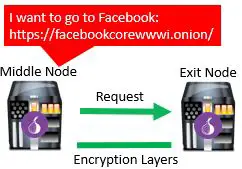
Once the middle node receives the request, a second layer of encryption is removed. At this point only one layer of encryption exists on the traffic. At this time, an encrypted connection to the last proxy is established. This is the exit node.
Once again, another layer of encryption is removed, but this time between the middle node and exit node.
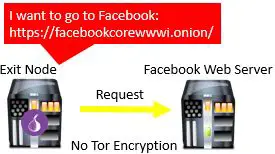
From the exit node, the request is sent to the website that the user searched for.
Due to the fact that the requested website is not part of the Tor network, there is no encryption built into the final leg of the process. However, if the website that was entered into the search bar uses https (as most do) or has a .onion domain name, the connection between the exit node and website will be encrypted as well.
The entire request process using Tor looks like this:
Response
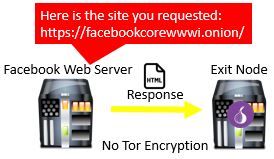
When the website receives a request for its webpage, it treats it like any other internet request. The website will see that the request came from the Tor exit node, as that is the IP address that requested the website. It will reply to the Tor exit node with the webpage that was requested.
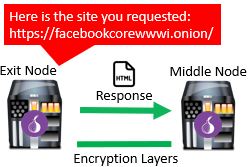
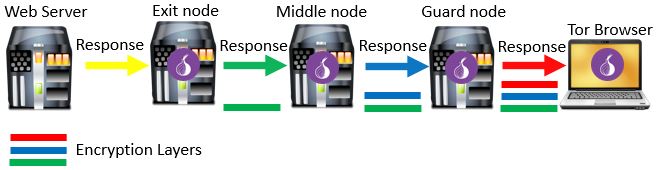
At this point the Tor exit node receives the webpage from the website. In reverse fashion, the exit node adds a layer of encryption to the connection between the exit node and middle node. Over this encrypted connection, it sends the requested webpage to the middle node.
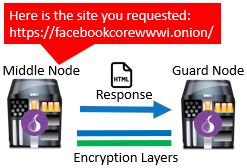
The middle node receives the webpage from the exit node. It follows suit and adds a second layer of encryption between it and the guard node. The requested webpage is then sent to the guard node over the encrypted connection.
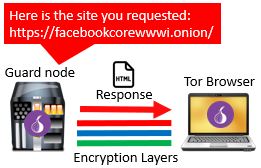
The last leg of the response is between the user’s device and the guard node. The guard node will receive the requested webpage from the middle node and add the final layer of encryption to it. After adding the final layer of encryption, the webpage is sent to the Tor user’s device.
The Tor user’s device receives the requested webpage from the guard node. It then strips the three layers of Tor encryption from the message so the webpage can be viewed in the browser. This completes the process of a request using the Tor browser.
The complete response process looks like this:
Could I still be identified on Tor?
Using Tor to browse the internet anonymously isn’t foolproof.
There have been cases where Tor users have been identified and arrested for illegal activity.
How does something like this happen? Let’s take a closer look.
Compromised Tor nodes
As mentioned earlier, if all three of the Tor nodes that your connection uses are compromised, you can be identified.
Granted, this is extremely difficult because there are many Tor nodes that make up the network.
Tor also takes extra precaution when assigning the guard node. If a node doesn’t meet the strict security requirements established by Tor, it can’t be used as a guard node. On top of this, the middle and exit nodes are selected at random when you start a Tor session.
Despite all these precautions, Tor users have been identified in the past.
There are even suspicions that the federal government hosts nodes on Tor. If you host a Tor node, you can see all the traffic coming into and out of that host. This can provide valuable hints when trying to piece together a Tor user’s identify.
To be clear, if you’re acting lawfully while using Tor you have nothing to worry about. Just know that you may not be as anonymous as you think if you’re doing things you shouldn’t be doing.
Signing into accounts
Just because you’re using Tor doesn’t mean you’re invincible.
This may seem obvious, but logging into your social media or Gmail accounts while using Tor will give away your identity.
If you want to stay anonymous, don’t do this. If you’re going to be logging into one of your personal accounts, you might as well use a regular browser.
Using JavaScript
Another way you can be identified when using Tor is if you have JavaScript enabled. JavaScript can be used to initiate a direct connection to a Tor user, giving away their IP address. Once your IP address is uncovered, you’re no longer anonymous.
So you just need to disable JavaScript in Tor and you’re all set?
Unfortunately there’s a catch here.
Many websites require JavaScript and Flash Player to work properly. If you were to disable these applications, many of the sites you want to go to won’t work as they should.
Once again, if you have nothing to hide you may want to use Tor with JavaScript enabled. Chances are, you’ll only be identified on Tor through JavaScript if the authorities are suspicious of you. On top of that, you’ll have a much better experience using Tor with JavaScript enabled.
Websites that use http
If you access a website that uses http, your activity on Tor could be tracked. This is because the last connection between the exit node and web server is not encrypted unless the website being accessed uses https or is on the .onion domain.
What’s so risky about this?
For one, you don’t know who is controlling that exit node. The host of the exit node can monitor or even alter your traffic if he or she wants to.
For example, if the federal government is hosting the exit node, when you send your internet request through Tor they can send you a website with viruses on it. If you download the virus it may identify your true IP address and expose you.
This may sound far-fetched but it has happened before. You need to be aware of this if you’re going to use Tor.
Tor pros and cons
Now that you have an idea of how Tor functions, let’s spell out the benefits of Tor, as well as its downsides.
What is Tor good for?
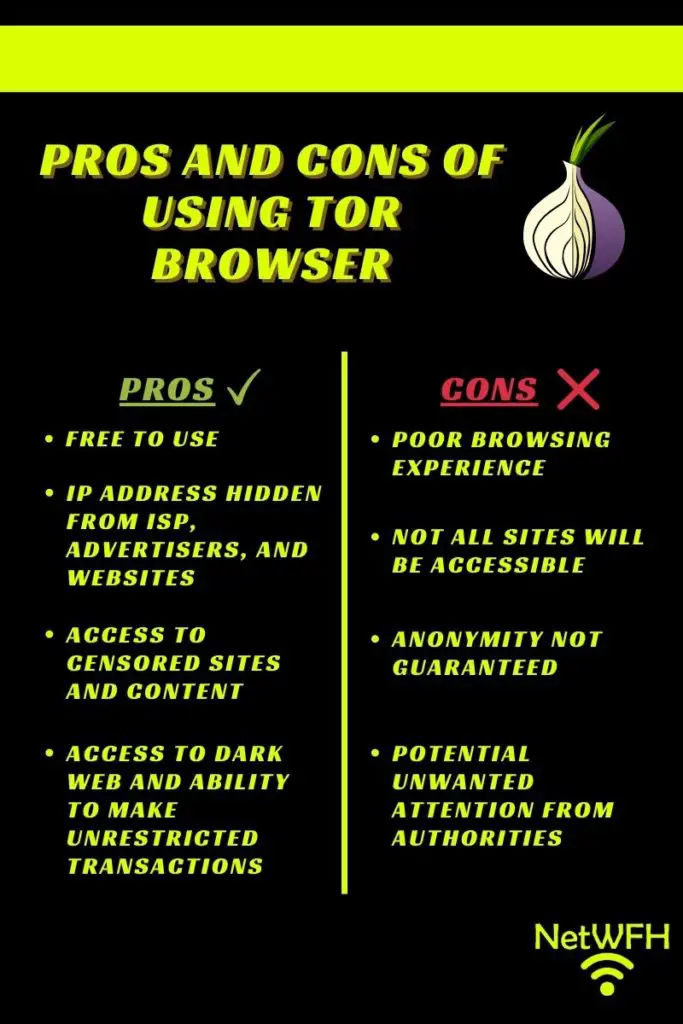
Free to use
One major benefit about Tor is that it’s free to download. If you’re curious about it, you can download it and try it out to see if you like it. Other alternatives (like Virtual Private Networks) cost money, so this could be a nice cost-free alternative for you.
Privacy on the internet
With Tor you can feel good about using the internet privately. If you’re using it correctly and not doing any illegal, you can be comfortable that your activity is most likely anonymous (see downsides section).
Access to censored sites and content
Tor masks your true location by hiding your IP address. This allows you to sidestep any restrictions that your government or organization might put on certain websites and content. In this sense, Tor provides you with more freedom on the internet.
Who can argue with that?
Dark web access
By using Tor, you’ll have access to sites and resources that other browsers don’t provide. On the dark web, you’ll be able to speak freely and make unregulated transactions with other users.
Of course, not all these transactions are legal, so you need to be careful about how you’re using Tor.
Downsides to Tor
Poor browsing experience
Browsing on Tor is much slower than using a regular browser due to the fact that each request bounces to three Tor nodes before reaching its destination. This will take longer than accessing the site directly like on a normal browser. Tor may take some getting used to and may result in some frustration when you’re starting out.
If you want to ensure anonymity when using Tor, you have to make some sacrifices. As mentioned earlier, you’ll have to disable JavaScript, which will negatively impact your experience. Many websites won’t even work without JavaScript. This is something you have to live with if you’re committed to using Tor.
Not all sites accessible
Another factor to consider is that not all websites work with Tor browser. This is something to consider if some of your favorite sites won’t work with it.
Anonymity not guaranteed
Just because Tor advertises that it provides anonymity on the internet doesn’t mean it’s foolproof. As mentioned earlier in this article, there are still ways to identify Tor users. You need to be aware of this if you’re planning to perform illegal activities on Tor.
Potential unwanted attention from authorities
Tor can have a negative reputation because it provides access to the dark web. Many people assume that Tor users access the dark web for illegal purposes as a result. Unfortunately the same is true for law enforcement. It’s impossible to say for certain, but they may pay closer attention to you if you decide to use Tor.
This isn’t meant to scare you away from using it. As mentioned several times in this article, if you aren’t doing anything illegal you have nothing to worry about.
Should I use Tor?
Tor is a great, free way to maintain your privacy on the internet. With that being said, if you decide to use Tor you’ll most likely have to make some sacrifices. It boils down to the question of how much your privacy is worth to you.
If you’re looking to remain anonymous on the internet and are willing to pay a few dollars for it, a Virtual Private Network (VPN) might be a better option for you.
VPNs are faster than Tor, and you can access all the websites that your normal browser can access. You can’t access the dark web with a VPN, but all normal internet functionality will be available to you.
You can also use Tor while connected to a VPN if you still wanted to access the dark web and remain anonymous.
VPNs hide your IP address, but they do it a little differently than Tor does. Many people are willing to pay a few dollars for anonymity and full access to the regular internet.
If you want to try Tor, you can download it from the Tor Project website. Make sure you download Tor only from this site, as other sites might include malicious software with the download.
Wrap up
Now you should have a good idea of what the Tor network is and how it works.
If you would like to learn more about other products and services that provide privacy when using the internet, check out the following posts:
Your browsing history, your Google searches, the videos you watch online? These things are all tracked.
Your geographic location, the type of device you’re using to access the internet and the time you’re using it? This information is also collected.
All of this information is sold to third parties in exchange for money. You have no idea who’s collecting your data, and who they’re selling it to.
On the bright side, there are things you can do to make your internet usage more private from prying eyes.
One of these options (that I’m sure you’ve heard of) is a VPN. So the question stands: will a VPN hide your location or will you still be tracked by third parties?
Let’s take a closer look.
What is a VPN?
VPN stands for Virtual Private Network. What a VPN essentially does is it makes a private network that you can use when accessing the internet.
Once you’re connected to a VPN, you become an anonymous user of the internet.
Your IP address becomes hidden from websites and other search engines that are trying to collect your information. With your IP address hidden, not only do third parties not know who you are, but they also don’t know where you’re located. You can’t be identified or tracked like you can if you don’t use a VPN.
On top of hiding your IP address, VPNs also encrypt your traffic. This added layer of security further protects your internet traffic from those trying to see what you’re searching.
With the combination of a hidden IP address and encrypted internet traffic, you can be confident that your internet searches are private and your location is hidden while using the internet.
VPN growth
Virtual Private Network usage has been growing at a significant rate, which highlights the value they provide. According to a study performed in 2019, the usage of VPNs is expected to grow 11% annually until 2024.
With more people working remotely and more devices connecting to the internet than ever before, it poses significant security risks to companies and individuals. It’s obvious from the expected growth rate of VPNs that this is viewed as a technology that’ll help you use the internet in a safer manner.
How does a VPN work?
Ok so when you’re using a VPN your IP address will be hidden, but how does the VPN service do that?
Let’s dig a little further into the details.
VPN request steps
When you connect to a VPN, you’re connecting to one of the VPN provider’s servers. Some VPN providers have servers located all around the world, so you may not know which one you’re connecting to.
Upon logging into a VPN service, you first need to enter your username and password. Once verified, you will be connected to the VPN and the VPN server will carry out your internet requests for you.
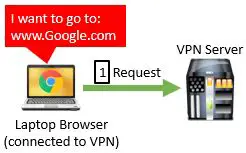
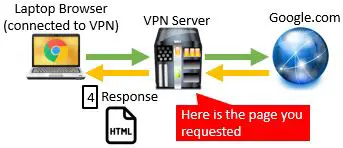
For an example, let’s say you’re connected to a VPN and you want to go to Google.com. Your device will send an encrypted request to the VPN telling it that you want to go to Google.com.
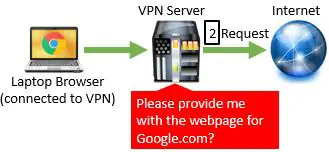
The VPN server will then send a request to Google.com asking for its webpage.
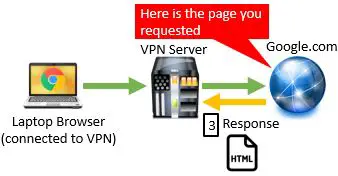
Google.com responds to the VPN server’s request with the requested webpage.
Upon receiving the webpage from Google.com, the VPN server sends the webpage back to your device over the encrypted connection.
Your browser will then load the web page that the VPN server provided.
Simple as that.
How does a VPN hide your location?
To recap, when using a VPN service the VPN server carries out your internet request for you. Using the example above, Google.com only sees that the request is coming from the VPN server. They don’t even know you exist on the other end of the connection to the VPN server.
Google.com will track the IP address of the system making the request, which in this case is the VPN server. They more than likely know that this IP address is for a VPN server, but this doesn’t affect you as the VPN user.
Other subscribers to the same VPN service will also be using that VPN server to make requests for them. As a result, your internet requests will get mixed in with other people’s. This further muddies the waters for websites that are trying to track you.
So how does this hide your location?
When making an internet request, your IP address can be tracked to a specific geographic area.
Don’t believe me? Put your IP address into the search bar on this IP location site. You can use an IP address to get the latitudinal and longitudinal coordinates of your location, which is pretty specific. Although your exact location may not be tracked, it’s a little too close for comfort.
Anyway, let’s go back to the example above. In this case, Google doesn’t know you are the one using the VPN service. They only know the IP address of the VPN server that made the request. If they were to track this IP address, they would get the geographic location of the VPN server. This doesn’t do them much good.
As a result, we can safely say that by using a VPN correctly, your location will be hidden.
Can you still be tracked when using a VPN?
Even if you’re correctly using a VPN connection and have a trustworthy VPN provider, you still need to be careful.
If you’re not connected to your VPN
One very important item to be aware of is that you need to connect to the VPN service before you start using the internet in order to be protected.
You’ll need to make sure you’re connected to the VPN each and every time you’re going to use the internet. Buying a VPN subscription does not mean your internet traffic will automatically be private and anonymous.
If you pay for a VPN subscription but aren’t connected to it when you use the internet, you’ll be exposed to prying eyes as if you didn’t have a VPN in the first place.
If you’re signed into a website’s account
When you’re using a VPN and you sign into your account for a particular website, the website will be able to collect information about you.
This is especially true for Google. If you’re signed into your Google account and performing searches, they’ll know it’s you because you’ve identified yourself.
If you’re using a VPN for privacy reasons, it defeats the purpose if Google is still tracking your activity.
When you use a VPN I recommend signing into accounts only when you need to. When you’re done with your account, make sure that you sign out of it. For example, sign out of Google once you’ve checked your email and you want to search for something on the web. This will limit the amount of information that’s tracked about you.
Another thing you’ll have to worry about is the VPN provider you choose (we will discuss this later).
Are there alternatives for hiding your location on the internet?
Many people are under the misconception that using private mode on your browser will hide your location on the internet. This is not the case.
Private mode will not make you anonymous on the internet.
If you want to be anonymous on the internet, another alternative is to use Tor.
Tor stands for “the onion router”. It’s an internet browser that makes you anonymous on the internet. It’s a free alternative to using a VPN which is nice, but the internet experience it provides is not as seamless as using a VPN.
If you would like to learn more about why private mode doesn’t make you anonymous on the internet or the pros and cons of using Tor, check out our previous post: What is Incognito Mode Used for?
What are the best uses for a VPN?
Now we know what a VPN can do and how the service works.
Let’s discuss the reasons why you’d want to use a VPN.
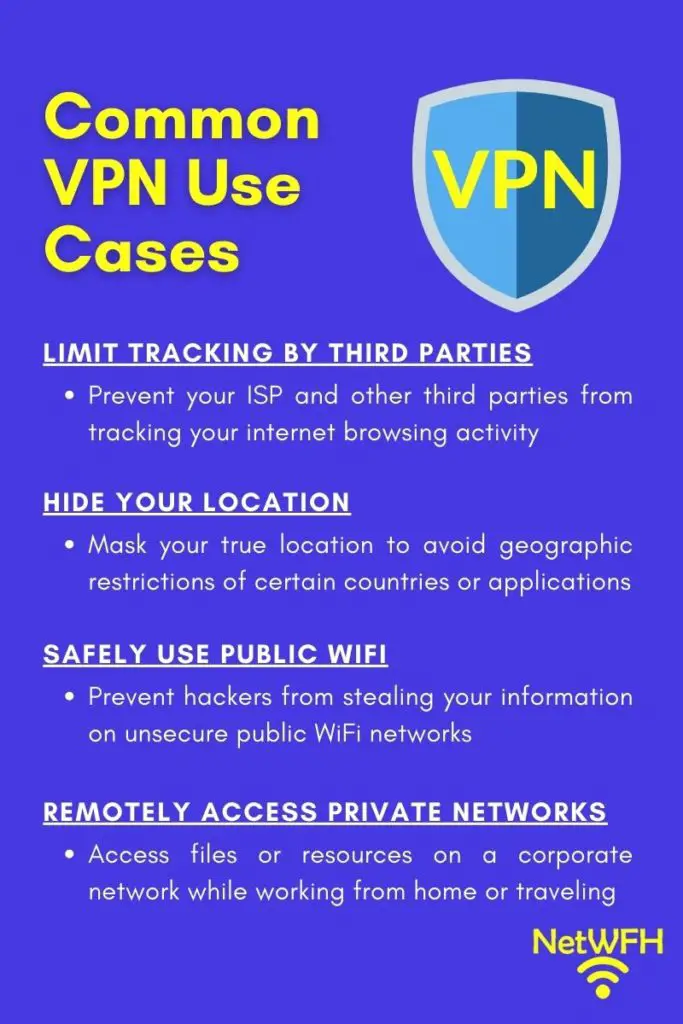
To prevent tracking by ISP and third-parties
As previously mentioned, when use the internet without a VPN your internet service provider and many other third parties are collecting and selling information about you.
With a VPN you don’t have to worry about this. All your ISP will be able to see is that you connect to a VPN. They’ll track the IP address of the VPN server and the time you connect to it, but other than that they’ll have no insight into your internet activity or browsing habits.
In addition, Google won’t be able to collect any specific information about you if you’re using a VPN and you aren’t signed into your account. They are notorious for being the worst in terms of tracking your internet activity, so this is a big reason for using a VPN.
Hiding your location
As previously mentioned, websites won’t be able to see your IP address when using a VPN. They’ll only be able to see the IP address of the VPN server you’re using, which hides your location from the site. In fact, the website will think you’re located at the geographic location of the VPN server.
This is especially useful if a website only works in a particular geographic area.
Let me provide an example.
If you live in the United States and have a Netflix account (as I’m sure many of us do), you can’t access the US library of content if you’re outside the United States.
Let’s say you’re traveling abroad on vacation and want to watch your favorite Netflix show at the end of a long day. If the show is part of Netflix’s US-only catalog of content, you’ll be out of luck.
That is unless you have a US-based VPN. If you’re connected to a US based VPN, Netflix will think you’re located in the US…
Do you see where I’m going with this?
This is also useful in countries like China where services like Facebook aren’t available. If you subscribe to a VPN service located in a country that has Facebook, you’ll be able to access it as if you’re sitting in that other country.
Browsing safely on public networks
Raise your hand if you use public WiFi networks when you’re traveling or away from home. I’m sure that is just about all of us.
I’m talking about airports, hotels, coffee shops, and other public areas. These places provide everyone with free access to their internet, but their networks come with a lot of risks.
In many cases these public networks are not as secure as they should be. Combined with the fact that there are hundreds of people that connect to these networks every day, public WiFi is a perfect target for hackers.
The good news is with a VPN on your mobile device, you won’t have to worry about this. Once you’re connected to your VPN service, hackers won’t be able to “listen in” on your internet connection to steal your personal information, passwords, or bank account numbers.
Disclaimer about VPNs and internet security
There’s a common misconception about VPNs that I need to address.
This misconception is the belief that if you use a VPN you are safe from viruses and other malicious downloads. This is not true.
VPNs don’t protect you from downloading harmful software on your devices.
Although they improve your internet security by making it harder for bad guys to steal information about you and your accounts, VPNs don’t stop you from clicking on sketchy links or pop-ups that you shouldn’t.
All this is to say that even with a VPN, make sure you practice good cyber hygiene. Don’t click the link that promises you a trip or the newest iPhone for free.
Here is a good rule of thumb to follow: if something seems too good to be true, it isn’t. Especially on the internet.
Accessing corporate networks
You can also use a VPN to access another network that’s not available to the public internet. I’m sure you’ve seen this if you work remotely from home.
By remotely connecting to your company’s network with a VPN, you can access the company’s shared documents and internal sites. In other words, a VPN gives you the same remote access to your company’s network as if you were sitting onsite. General users of the internet won’t be able to access these sites and documents from the internet without a VPN.
You can also use a VPN to connect to your home network if there are resources you’d like to access while you’re away.
How do you get a VPN?
VPNs come in the form of software applications. With more people than ever using mobile devices to access the internet, most VPN services are available for both computers and mobile devices.
When you purchase a VPN service, the VPN application will either be installed on your computer, or there’ll be a website you need to go to in order to connect to it.
Once you create a username and password for your account you’ll be off and running. There are no changes you need to make to your device or network.
In some cases employers will provide you with one-time password tokens that are used to generate passwords for your VPN account, but these not required for a VPN to work properly.
What should you consider when getting a VPN?
There are many VPN services on the market, so it’s important to do your homework when finding the service that works best for you.
Let’s dive into some factors that you may want to consider when picking a VPN.
Cost
You may find some free VPN services on the internet, but very rarely do these offer the protection or performance you would want.
The good news is some VPN services will allow you to try their product for free for a short period of time. I would recommend doing this if you are unsure what service you want.
The majority of VPN services will charge you on a monthly basis and they will cost anywhere between $5-$15 per month.
Although this is an important factor, you shouldn’t be picking your VPN solely on how much it costs. You need to consider all the factors that make up the service.
Does the VPN work on mobile?
Most VPN services today come with a mobile option, but you’ll want to verify this before you sign up for a subscription.
More people than ever are accessing the internet on mobile devices, so you need to make sure you can protect yourself while you’re using them.
This is especially important if you’re looking to protect yourself when using public WiFi networks. You’ll most likely be using your phone or tablet when you’re on these networks. Make sure the service you get will work on these devices.
Privacy the VPN service provides
By sending all your internet requests to a VPN server, the VPN service could theoretically have a record of all your internet activity. If your VPN provider chose to sell your information, they could do that. Worse still, if the authorities were investigating you and requesting your internet search history, they may hand it over.
With that said, there are many VPN providers who vow not to sell your information, if they even track it in the first place. You just need to do your homework to make sure you choose a provider you can trust with your information.
Number of devices supported per subscription
Some services will have subscription prices per device, while other subscriptions will support multiple devices.
With that said, you need to know how many devices will be using the VPN. Pay attention to the number of devices the subscription supports to make sure you get the right service.
Does the VPN have a kill switch?
If you are serious about your privacy on the internet, you’ll want a VPN service with a kill switch.
Have you ever thought about what would happen if you’re using the internet and your connection to the VPN gets dropped or interrupted?
If your VPN doesn’t have a kill switch, you and all your browsing activity will be exposed until the connection to the VPN service is restored.
A VPN kill switch will disconnect you from the internet until the VPN connection is back up and running. In other words, a kill switch ensures you only use the internet while connected to your VPN service.
Most good VPN providers include a kill switch as part of their service, but you’ll want to double check to make sure.
Does the VPN block ads?
When surfing the internet, ads can be both annoying and dangerous. In fact, infected websites often display pop-up ads that contain viruses and other malicious software.
If you can, you’ll want to avoid pop-ups entirely. This will not only speed up your internet because your browser won’t have to load the pop-ups, but you’ll be safer when using the internet as well.
As with most of the other VPN features mentioned, the good VPN services will include ad blocking. To get the most out of your internet experience you’ll want to ensure your VPN has an ad blocker.
Wrap up
Now that you know what VPNs are and how they are commonly used, you can decide if a VPN service would be a good fit for you. You also know what to look for when deciding which VPN service best fits your needs.
If you want to look at alternatives you can learn more about why Incognito Mode (AKA Private Mode) is not a good choice by checking out our blog post detailing Incognito Mode.
As always, feel free to comment below to ask me any questions you may have or if there’s anything in particular you’d like me to write about. After all, my goal is to help you safely get the most out of your internet experience.
Do you have an embarrassing question you want to ask the internet?
Are you sick of seeing targeted ads of recent products you searched for online?
Are you afraid that all your internet activity is being tracked?
If you’re looking to use the internet more privately, you’re not alone. The good news is there are several solutions available that aim to provide users with more privacy on the internet. One solution that you’ve probably heard of is called Incognito Mode.
But what exactly is incognito mode and what is incognito mode used for? Is it a good option for using the internet privately?
Read on and you’ll have the answers to those questions.
What is incognito mode?
Incognito mode is basically a more private version of your web browser. For the most part, incognito mode looks and acts like a regular internet browser. You can use it to go to your favorite websites, check your email, and watch YouTube videos just like you normally would.
The difference between incognito mode and your regular web browser is what’s happening behind the scenes.
Privacy on the internet
Hopefully this doesn’t come as a shock to you, but when you’re using the internet there’s a lot of information collected about you.
Every time you perform a Google search, visit a website, or scroll through your social media, it’s recorded by multiple parties (but especially Google). With this information, companies build a profile about you and make assumptions about your interests. If you think about it, your internet search history gives a pretty good indication about the type of person you are.
What happens with your profile?
It gets sold to third-party marketing companies who use your data to create ads personalized for you.
Ever wonder why you search online for something online and then you see ads about it when you visit a different website?
That is exactly what’s going on when that happens. There’s no way to know exactly what information is being collected about you and to whom it’s being sold. In other words, companies are getting paid to spy on you and your browsing habits.
If this doesn’t make you nervous or upset, it should.
The internet should be used as a useful resource to connect people and make their lives better. People shouldn’t have to worry about who is looking over their shoulder every time they type a personal question about themselves into their browser.
Enter incognito mode.
What does incognito mode do?
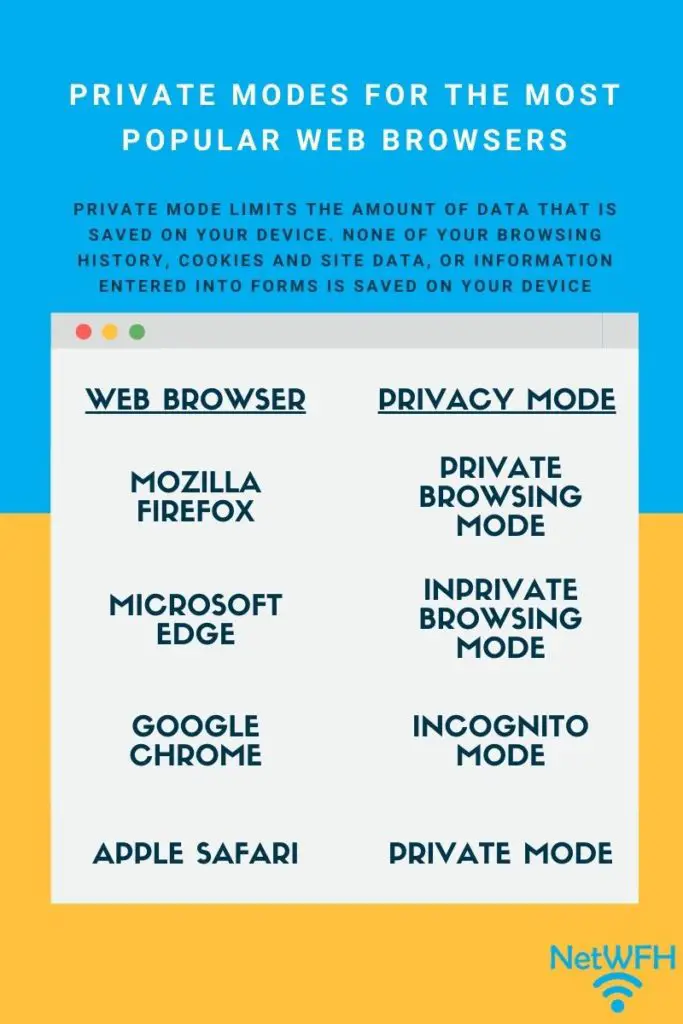
Incognito mode allows you to search the internet more privately on your device. When using incognito mode, none of your browsing history, cookies and site data, or information entered in forms is saved to your device. In simpler terms, you can use the internet without your device keeping track of what you’re doing.
Incognito mode is the private browser version for Google Chrome, but there are private browser versions for all the most popular browsers. They just have different names.
Here is a table of the incognito mode equivalents on the most popular browsers:
It’s very easy to use the private modes of these popular browsers. In fact, they’re so easy to use that people don’t think twice about browsing with them when they want to browse privately.
But there is a problem with this.
Many internet users turn to private mode without knowing the full scope of its benefits…or its limitations. As a result, they think they are using the internet anonymously.
In reality that is far from the case.
Is incognito mode private?
Go back and reread the previous section that details what private mode does. Is there anything interesting that sticks out to you?
Private mode seems to do a lot for keeping your browsing habits from being saved on a particular device. Does this mean your browsing information is private from everyone else on the internet?
Unfortunately not.
Even though your device will not keep a record of your search history, third parties can still keep track of what you are doing.
To spare you the technical details, there is nothing hiding your IP address or identifying information from the network when you are in private mode.
If you are at home, your ISP will still be able to see every website you visit.
If you are at work or school, your employer or university will be able to track your browsing habits.
Every website you visit? Although they won’t know for sure that it’s you (unless you sign into an account), they will recognize your device by its IP address when you visit the site.
These examples are all common misconceptions about private mode. It’s easy to use and the web browsers do a good job of advertising private mode as a way to make your internet usage anonymous.
Does this mean you should never use incognito mode?
No. It still has some benefits. You just need to understand the best times to use it.
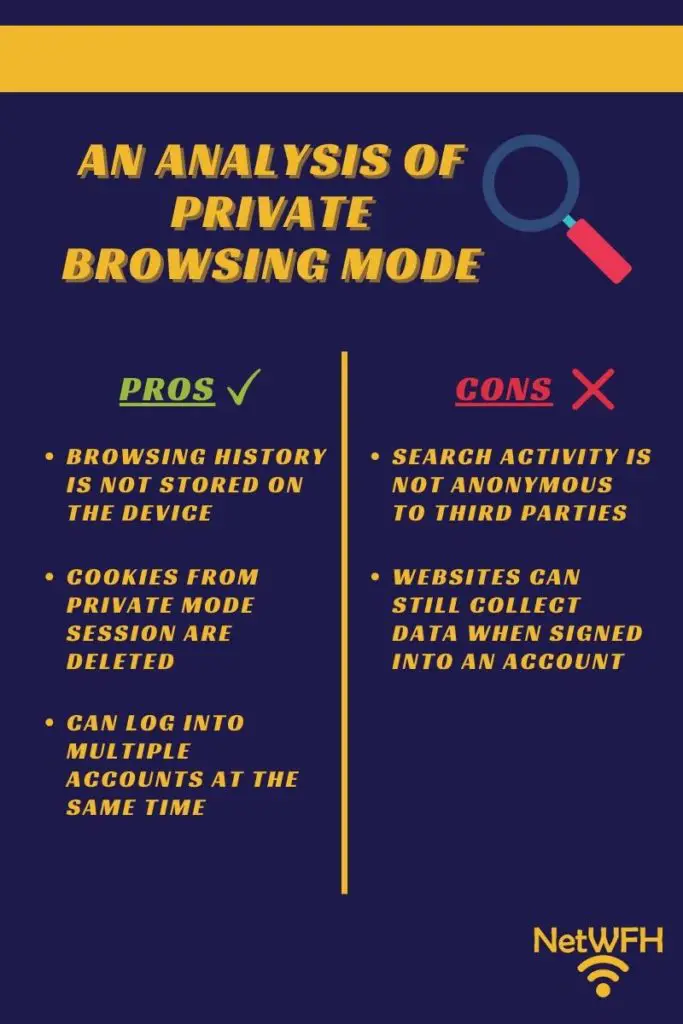
Private mode pros and cons
Private mode may not be all it’s cracked up to be, but that doesn’t mean it’s useless. It’s important you have a full understanding of what’s happening when you use it.
What better way to do this than with a pros and cons list.
Benefits of private browsing
Your browsing history is not stored on your device
This can be useful when multiple people use the same device (like a laptop). Private mode is a great tool to use if you don’t want other people that use the device to see the sites you’ve visited. It’ll be as if your browser session didn’t even happen.
Cookies from the browsing session are deleted
Cookies are small files that are saved in your browser when you visit a new website. They remain in your browser and store information about you and your activity on each particular site you visit. That way, without even signing into an account, a website will remember what you have previously done on the site.
Cookies allow sites to personalize your experience, but they also limit your privacy. There are even some cookies in your browser that are there to spy on you without your knowledge.
It’s important to note that these browser cookies will only be deleted when you close the private mode session. If you keep you private mode session open and never close it, the cookies will continue to build information about your browsing habits.
If you make it a habit to close your session when you have finished browsing, the cookies will have to be recreated every time you start browsing again. This makes it much harder for websites to track information about you because they are starting from scratch each time you go to their site.
You can sign into multiple accounts at the same time
Private mode allows you to sign into the same website on multiple accounts at once. You can do this by starting a regular session and private mode session at the same time. The private session is totally separate from your regular session when you do this. The private session is treated separately from the regular session, so you can sign in with any account you want. If you tried to do this in a regular session on two separate tabs, you wouldn’t be able to sign into two different accounts at the same time.
This can be useful for business purposes if you have personal and business accounts and you want to use them at the same time.
Negatives of private browsing
Your browsing activity is not anonymous
As mentioned earlier, private mode only prevents your browsing history from being tracked on the device you’re using. Your IP address won’t be hidden from the third parties that are monitoring you. In this sense, other parties that are tracking your activity in a normal session will still be able to do so when you’re in private mode.
If you’re looking for total privacy on the internet, private mode is not an option.
Websites can still collect data about you
If you open a private mode session and sign into your account on a website, the site will be able to build on the existing profile they have about you. By signing into your account, you have identified yourself to the site. All bets are off when it comes to your activity being tracked.
When to use incognito mode
Ok we get it. Privacy mode won’t make you anonymous on the internet.
Should you abandon private mode and look for alternatives that allow you to browse the internet without worrying about third parties tracking you?
That depends what your intent is.
When multiple people share the same device
For example, let’s say you have a laptop (or other device) that is used by multiple people. If you don’t want others to see what you’ve been doing on the internet, incognito mode is a great solution.
This is especially important when planning surprises or buying gifts for a loved one. If that person uses the same device as you, private mode is a good option. By using privacy mode to do your buying or research, the other person won’t be able to see what you’ve done.
This is also useful when you have a personal or embarrassing question you want to Google. In these cases you will want your privacy from other people that use the device. Incognito mode will do the trick.
To put it simply, use incognito mode when you’re looking for privacy on a shared device. When you want privacy from everyone else (including third parties), you’ll want to use a different solution.
To get better prices on flights?
One myth about incognito mode that I must address is regarding travel purchases. There are many resources online telling people to use privacy mode to buy plane tickets and travel purchases.
Don’t listen to these people.
Multiple travel bloggers have run experiments on this, and they found that using privacy mode doesn’t affect the cost of purchases like plane tickets. Using private mode for these purchases won’t hurt you, but you should be aware that it won’t help you either.
How to browse in private mode
Ok. Now you know when you to use private mode.
Let’s walk you through the process of opening a private mode window for each popular browser.
Google Chrome
On a computer
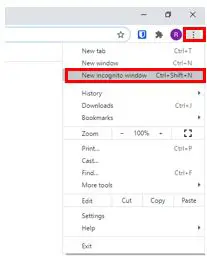
To open an incognito session in Google Chrome, first open a regular session window. In the top-right corner of the regular session window, click the three dots. In the dropdown that opens, select “New incognito window”.
You can also open a new incognito window by pressing the control, shift, and “n” keys at the same time. You can do this from a normal session window or an existing incognito mode window.
On a mobile device
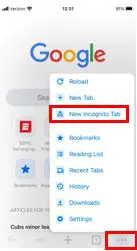
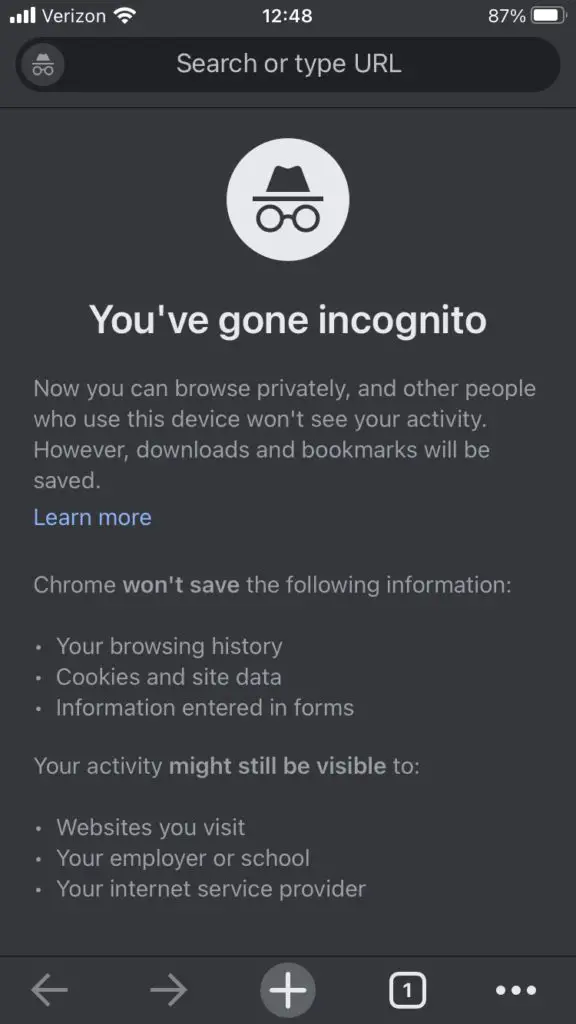
If you are on a mobile device, open a regular browsing window. Select the three dots at the bottom right of the screen and select “New Incognito Window”. This will open a private browsing window on your mobile device.
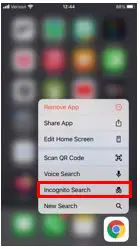
Another option is to access incognito mode from the home screen. On the home screen, select and hold the Google Chrome app until a menu opens. Then select “Incognito Search”.
A new incognito window will open.
Microsoft Edge
On a computer
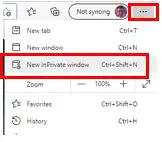
Opening an InPrivate window is similar to opening an incognito mode window. Open a normal Microsoft Edge session and click the three dots in the top-right corner. Then select “New InPrivate window”. This will open a new InPrivate window.
You can also open an InPrivate window by pressing the control, shift, and “n” keys at the same time while the browser is open.
On a mobile device
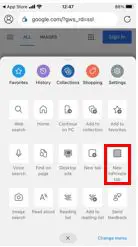
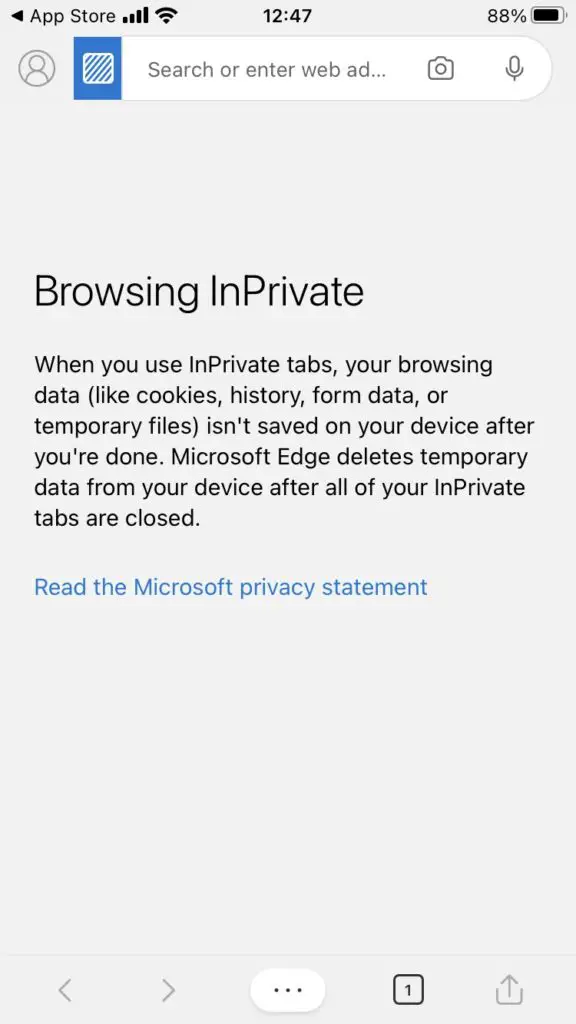
With a regular Microsoft Edge window open, select the three dots at the bottom of the screen.
In the popup that opens, select “New InPrivate tab”.
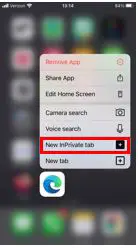
Similar to Google Chrome, you can open an InPrivate browsing window from the home screen. Hold the Microsoft Edge icon and select “New InPrivate tab”.
Both of these options will open a new InPrivate window.
Mozilla Firefox
On a computer
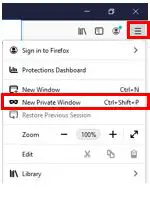
Open a private window in Mozilla Firefox by pressing the three lines in the top-right corner of a normal session window. Then select “New Private Window”.
You can also press the control, shift, and “p” keys at the same time to open a private window. You can do this from a normal session window or an open private session window.
On a mobile device
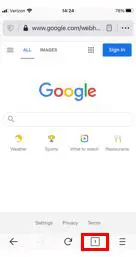
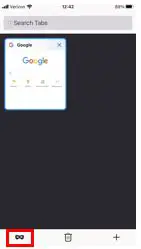
In a normal session window of Mozilla Firefox on your mobile device, select the square at the bottom of the screen.
This will take you to the tab overview screen. On this screen, select the mask.
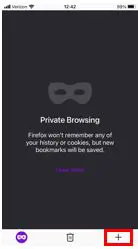
This will take you to the private browsing tab overview. Select the “+” sign.
A new private browsing window will open. You can tell it’s a private window because there will be a mask above the tab indicator.
Apple Safari
On a computer
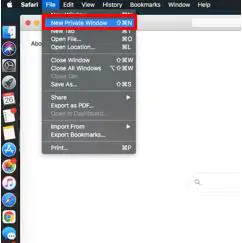
In Apple Safari, opening a new private browsing window is a little different from the other major browsers. To open a private browsing window, in a normal session window select the File dropdown in the top-left hand corner. In the dropdown select “New Private Window”.
A new private browsing window will open.
You can also press the command, shift, and “n” button from an existing window to open a new private browsing window.
On a mobile device
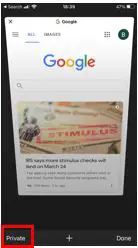
Open a normal session of Apple Safari. In the bottom-right hand corner of the screen, select the symbol that looks like two squares.
This will open the tab overview. From here, select “Private” in the lower-left hand corner of the window.
A new private browsing mode window will open.
Private mode alternatives
When deciding to use private mode, you need to ask yourself what your goal is.
Are you just trying to hide the history of your internet searches on the device you are using? Are you ok with third parties tracking your internet activity and selling your information?
What if you want more privacy on the internet? If you aren’t comfortable with third parties spying on you, thankfully you have other options.
DuckDuckGo
If you are looking to increase your internet search privacy, DuckDuckGo is an easy option.
DuckDuckGo is a search engine that promises to keep all your internet searches from prying eyes. You can use it on any web browser to perform your searches. It’s an alternative to searching for things using Google.
The focus of DuckDuckGo is to provide internet users with a way to privately search the web. They don’t keep any of your search history and they prevent third parties from spying on you.
It’s important to note that DuckDuckGo may not be able to completely hide your search information from your internet service provider (ISP), but it’s definitely a step up from using incognito mode. In addition, websites will be able to identify you by your IP address (and account if you log into a site) but they won’t know what search terms you used to find their site.
One knock on DuckDuckGo is that you may find less results for your searches than if you were searching on Google. With that said, you’ll certainly be able to find what you’re looking for. For some, the added privacy of using DuckDuckGo is well worth it.
Virtual Private Network
If you want to take your internet privacy a step further, you can use a virtual private network (VPN).
Virtual private networks provide total anonymity on the internet by hiding your IP address. Without your IP address, websites won’t be able to identify you as they normally would. On top of that, your ISP will only be able to see when you connect to your VPN. They will have no insight into the websites you go to and the things you search for.
In this sense, a VPN provides more protection than using a private search browser. You won’t have to worry about who’s looking over your shoulder and tracking your activity. Internet traffic is also encrypted so you’ll be totally anonymous once you’re connected to the VPN.
The catch with VPNs is that you’ll have to pay to use a good one. You’ll need to do your research when deciding which one to pick. There are different restrictions and features that they offer, so you need to make sure you find one that fits what you’re looking for.
In addition, you’ll want to make sure you know what the VPN vendor does with your data. Some VPNs sell your information to third parties to make money. I am assuming you don’t want something like that if you’re getting a VPN to make your internet use more private.
The Tor browser is another alternative for making your internet searches more private. It offers many of the same features as a VPN, but there are a few differences you should be aware of.
Tor stands for “The Onion Router”. It is a non-profit organization who’s sole goal is to make your internet experience totally private. By using the Tor browser, you’ll be totally anonymous on the internet (as long as you don’t sign into any accounts).
Essentially what the Tor browser does is it bounces your internet traffic off of several different locations before going to the site you want it to. That way, the website doesn’t know it’s you on their site. They see the traffic coming from a random IP address that isn’t yours. In addition, your traffic is encrypted, so anyone trying to listen in won’t be able to see what sites you’re going to and what you’re searching for.
One advantage the Tor browser has over a VPN is that it’s free to use. The catch is that the Tor browser is generally slower than a VPN.
In addition, due to the privacy it provides, some people use Tor for illegal activity. There are many websites that can only be found through Tor, which is why it’s often referred to as the “dark web”. As a result, Tor has a negative reputation, which has caused many web services to block access from Tor. This is another downside of using Tor. You won’t be able to use all the websites you’re used to going to.
Overall, Tor can be a good alternative if you want a private internet experience and aren’t willing to pay for a VPN.
Wrap up
You should now have all the information you need to decide if and when to use incognito mode.
If you want to make it harder for your internet service provider to track your internet searches (in a normal or private mode session), you can change the domain name server (DNS) that your devices are using. You can find all the information you need to make this easy change in our previous post about changing your DNS. You’ll also give your internet searches a speed boost by making the switch.
Did I mention it’s free to change your DNS?
As always, if you have any questions or if there is a topic you’d like me to write about, feel free to reach out in the comment section or my Contact Me page.