Category: Routers

This category pertains to content related to routers

  • How Do I Reset My Modem Password?

    How Do I Reset My Modem Password?

    Reset modem password title page

    Did you know that you can log in to your modem to change its password and reboot it? Did you also know that when you buy a modem it comes with a default username and password?

    Many people never log in to their modem, much less change its password. This is a big mistake.

    Changing your modem’s password makes it much more secure from hackers.

    What happens if you can’t log in to your modem or forget the password you set for it? How can you reset your password?

    If a password for a modem’s settings is forgotten, the password can be reset to the factory default value that came with the modem. Pressing and holding the Reset button on the back of the modem for seven seconds will return the modem to its default settings and restore its default username and password.

    In this post I’ll give you all the information you need to reset your modem’s password.

    Why Should You Reset Your Modem Password?

    If you want to log in to your modem, you’ll need to know your username and password.

    If you aren’t sure what your username and password are, the only way you’ll be able to log in to your modem is to reset it to its factory settings. Resetting your modem will reset its username and password to their default settings. These default credentials will give you access to the modem.

    Once you can access your modem, you really shouldn’t need to reset your password again for any reason. That is, unless you forget your password again.

    Before you run off and reset your modem to its factory settings, however, you should try logging in with your default username and password.

    How Do I Find My Modem’s Default Password?

    If you’ve never logged in to your modem before, you’ll be able to do so with the default username and password that come with the modem.

    Where can you find this information?

    There are a few different places to look.

    Finding the Default Password on the Modem’s Sticker

    A good place to start is by looking at the sticker on your modem. This sticker will provide a lot of useful information like:

    • The default username and password to log in to the modem
    • Your modem’s make and model
    • The IP address of your modem, which you can use to access the device’s management console

    On my Netgear CM600 modem, the sticker is on the bottom of the device.
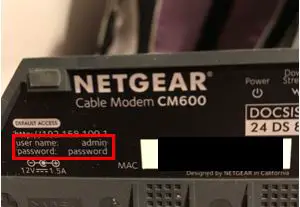
    Modem username and password sticker

    As you can see, the default username of my device is “admin” and the default password is “password”.

    If for some reason the sticker on your device doesn’t have this information, all hope is not lost.

    Finding the Default Password in the Modem’s User Manual

    Another place where you can find the default username and password of your modem is in the user’s manual for the device.

    Even if you don’t have the hard copy of your manual, you’ll probably be able to find a digital copy online. For example, the owner’s manual of my Netgear CM600 can be found on Netgear’s website.

    Within the digital user manual, there’s a section that details how to change the device’s password.
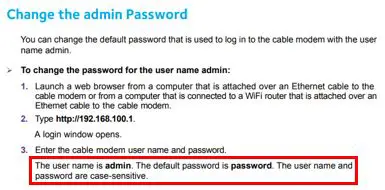
    Modem user manual default username and password

    In this section the default username and password are provided. As you can see, this is the same information that is displayed on my modem’s sticker.

    Finding the Default Password in Online Forums

    If for some reason you still can’t find the default username and password for your modem, there’s one final place you can check.

    Many online forums list the default usernames and passwords for a lot of common modems and routers. For example, check out this list of usernames and passwords for Netgear routers.

    The username and password for my CM600 modem is not on this list, but take a step back and look at what most of the default login credentials are. The vast majority of them have the same default username (“admin”) and password (“password”).

    Based upon this information alone, it would make sense for me to try “admin” and “password” to log into my modem. In my case, this would be the correct information if I have never changed my modem’s password before.

    Although this is convenient for those who are looking to log in to their modems, it’s also a serious security risk for the owners of these devices. We will get into this in more depth later.

    How to Reset Your Modem’s Password

    As mentioned above, resetting your modem’s password is done by resetting your modem to its factory settings.

    The first step in doing this is to locate the reset button on your modem. In many cases it will be located on the back of your modem. It should also be clearly marked.
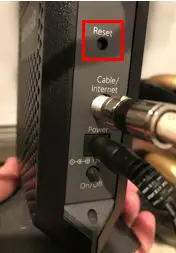
    Modem reset button

    You’ll notice that the reset button is a small hole in the modem. It’s designed this way so that you don’t accidentally press it when you don’t mean to.

    In order to press the reset button on your modem you’ll need something with a point, like a paper clip.

    Once you have a paperclip in hand, complete the following steps:

    • Unfold the paperclip so that part of it is straight.
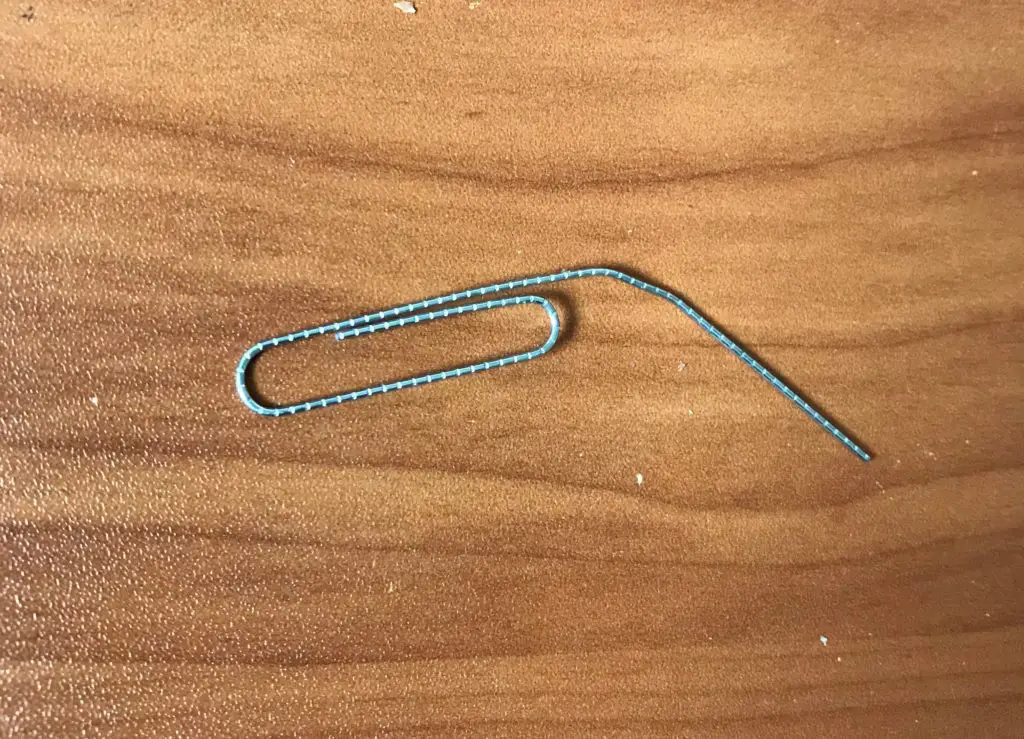
    Unfolded paperclip to reset modem
    • Put the tip of the paperclip into the reset button hole in your modem until the button clicks.
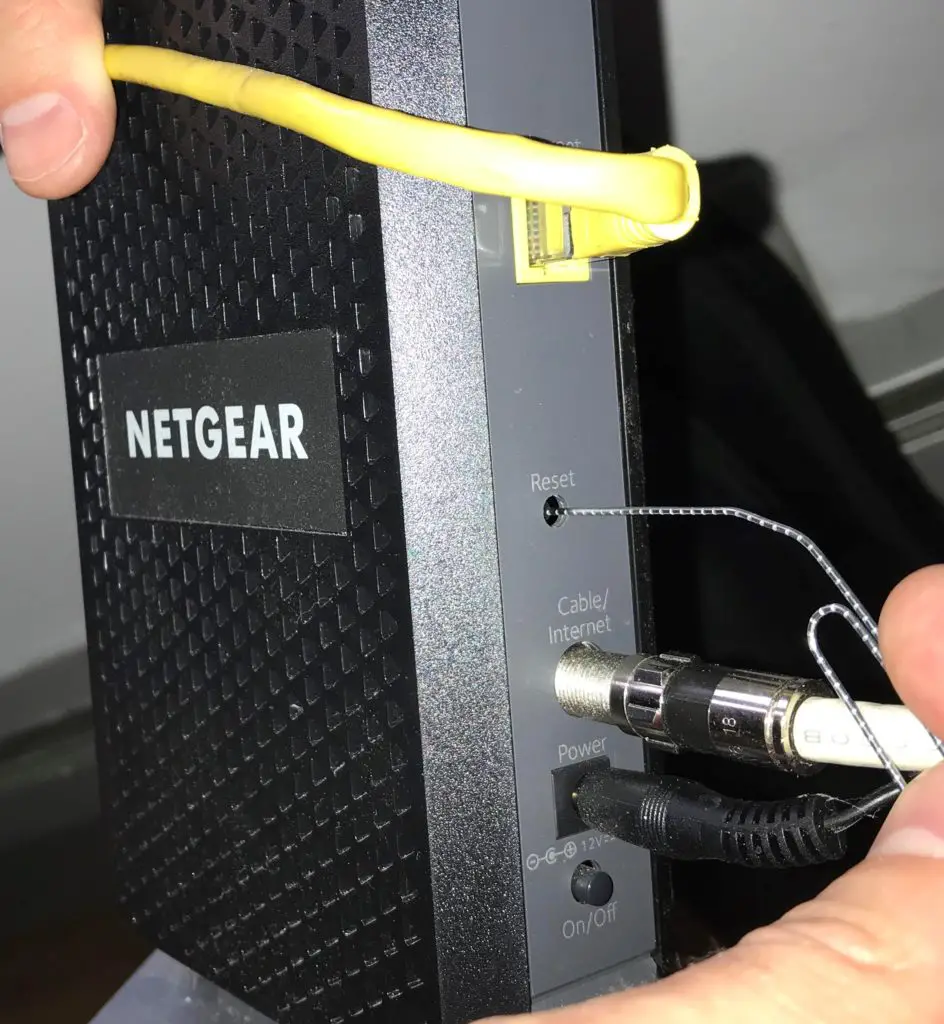
    Resetting modem to factory settings
    • Hold the reset button down for 7 seconds.
    • Release the reset button.

    Upon releasing the reset button, your modem will reboot. Wait a few minutes for it to complete its initial setup.

    Once the modem has completed its initial setup, it will have all the initial settings it came with.

    This means the username and password will be their default settings as well.

    How to Change Your Modem’s Password From the Default Setting

    Now that you’ve set your modem username and password to their default settings, you’ll want to make sure you change your password.

    I know what you’re thinking. Why do I need to change my password? I just changed it by resetting it.

    The reason for this is that the default password of your modem isn’t a secret. If you can remember, we previously described how there are forums online that list the default passwords of commonly used modems and routers.

    If your modem has a default password, it makes it very easy for hackers to log in to it. All they have to do is find a way to connect to your home network and the rest is easy from there.

    There’s no limit to what hackers can do to your network and devices if they get access to your modem, so it’s best to make it as secure as possible.

    Try to think of a long passphrase that you won’t forget, or use a password manager to generate a password for you. This simple step of changing your password away from the default password goes a long way toward securing your home network.

    How Can I Change My Modem’s Password Without Resetting It to the Factory Default Setting?

    Now that you can log in to your modem with its default username and password, you can change your password pretty easily.

    The first thing you have to do is log into the modem’s management page.

    To do this, identify what the IP address of your modem is. As mentioned before, this can be found on the sticker of your modem.
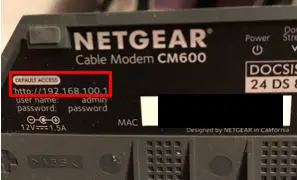
    Modem IP address

    Now type the modem’s IP address into an internet browser search bar, like Google Chrome. For my modem I have to enter http://192.168.100.1.
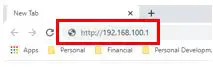
    Modem IP address in browser

    Next, you will be prompted to enter your modem’s username and password to log in. Now that you have reset your modem, this will be the default username and password for the device.
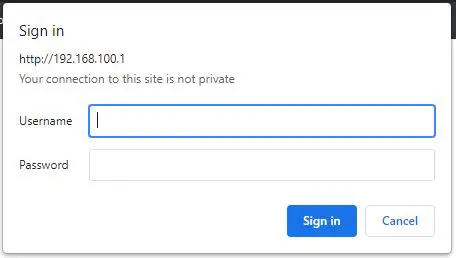
    Modem login prompt

    Once you are signed into your modem, you’ll be able to access the password settings. In order to change my password, I need to go to the Advanced tab.
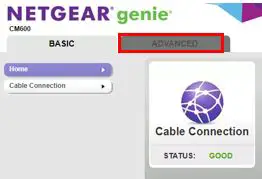
    Modem advanced settings tab

    Within the Advanced tab, I can select the Administration header. The Administration header dropdown will then let me select Set Password.
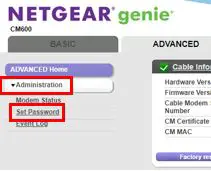
    Modem set password selection

    On the Set Password screen, you can change your password to whatever you want. Enter the strong password you want to change it to and select Apply.
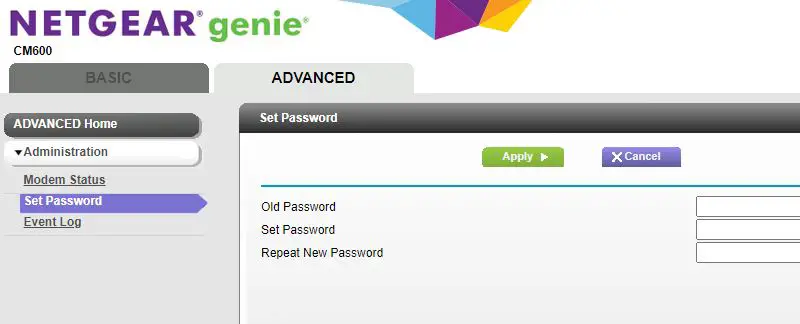
    Modem set password screen

    Congratulations, you’ve made your modem (and home network) more secure.

    Do I Need to Regularly Change My Modem Password?

    If you choose a strong password to protect your modem, you shouldn’t have to change it very often.

    The longer your password is, the harder it is to crack. For example, if your password is 16 characters or longer, you shouldn’t worry too much about changing it.

    If you want to be extra safe, I would recommend changing your password on a yearly basis if you’re using strong passwords.

    The fact of the matter is, as long as it’s not the default password you should be in good shape. Most hackers will reach for the low hanging fruit, in this case the people that don’t change their default password.

    Wrap Up

    The reset button on your modem is a very useful tool if you ever forget its password. The downside is that whenever you factory reset your modem, all other changes you’ve made to it will be erased.

    After a factory reset, make sure you go through each modem setting so that it’s set up properly for your home network.

    If you run into any problems or have any questions about the information provided in this post, drop a comment below.

    If you found this post useful, check out some related content that I’ve published:

    Does Your Modem Affect Your Internet Speed?

    Why Do Modems Need to Be Rebooted?

    What Do the Lights on My Modem Mean?

    Can a Modem Overheat? What to Look For

    How to Automatically Reboot Your Router for Better Internet Connections
  • How to Automatically Reboot Your Router for Better Internet Connections
    How to Automatically Reboot Your Router for Better Internet Connections
    Automatically reboot router title page

    When you’re having problems with your home internet, the most common advice you’ll receive is to reboot your router.

    More often than not, this seems to give your internet a boost and clear up any issues you’re experiencing. What most people fail to mention, however, is that you can set your router to reboot automatically.

    That’s right. Once it’s set up, you don’t to do anything. Your router will reboot on its own.

    So how do you go about setting your router to reboot automatically?

    Routers can be set to automatically reboot by accessing the router’s settings page. The router’s reboot schedule can normally be set in the Advanced Settings page. Parameters such as the frequency of reboot and the time the reboot occurs can usually be determined in these settings.

    In this post, we’ll look at the benefits of resetting your router, and the steps you need to take to set your router to automatically reboot.

    What Does It Mean to Reboot Your Router?

    Before we dive into the benefits of rebooting your router, let’s cover what a reboot is.

    A reboot is the cycling of power on a device. In other words, it’s turning the device off and then turning it back on after a set period of time.

    What Are the Benefits of Rebooting Your Router?

    We’re instructed to occasionally reboot many of our electronic devices like our phones, computers, and tablets. Routers are no different.

    Why are we instructed to do this?

    Rebooting your devices provides numerous benefits.

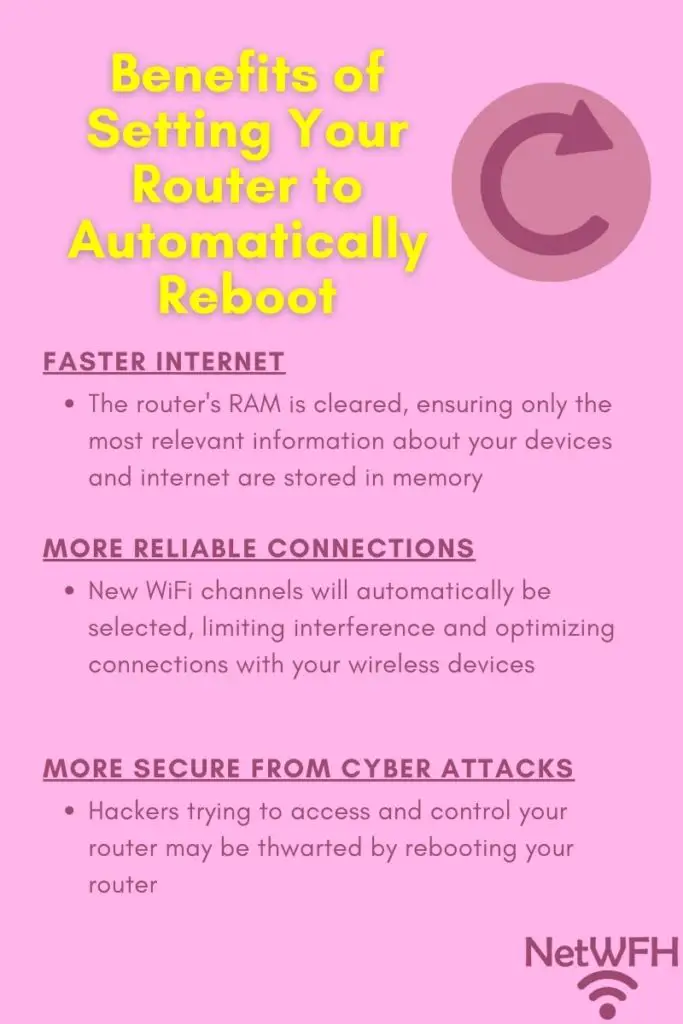
    Benefits of setting your router to automatically reboot

    When it reboots, your router:

    • Clears its memory to make sure it’s not bogged down by storing useless information
    • Automatically selects the best wireless channels to use when communicating with your devices
    • May be better protected from cyber attacks

    Let’s discuss these benefits further to explain what each of these mean.

    Memory Is Cleared When a Router Is Rebooted

    Routers are basically scaled-down computers. This means they have storage, memory, and processors that allow it to function, just like your laptop does.

    The difference between your laptop and router is that we ask our routers to run 24 hours a day and 7 days a week. Your demands for your laptop are much more relaxed, as it gets powered on and off as you need it.

    What are the consequences of this?

    The biggest impact this has is on your device’s memory.

    Computers (and routers) have memory that gets reset each time the device is powered off. This is called random access memory, or RAM.

    While it’s operating your router stores information in RAM such as:

    • Information about the devices connected to it
    • The fastest ways to send data to different locations
    • Any changes to the router’s configuration settings while it’s running

    The longer your router is running without being powered off, the more information it will have stored in RAM. Over time, more devices will connect to your router, changes will be made to the router’s configuration, and more information about the best ways to route data will be recorded.

    Why is this a bad thing?

    Your router has a limited amount of memory. If it runs for a long period of time without rebooting, it can run out of memory. When this happens it won’t be able to work as quickly, which slows down your internet connections.

    By rebooting your router, you give its memory a clean slate to work with. It will ensure that any unnecessary information is cleared from memory to make sure it isn’t taking up precious space.

    The Best Wireless Channels Are Automatically Selected After a Reboot

    We all know that your router provides wireless internet connections to your devices. What’s less known is that there are multiple channels that your router and devices can communicate over.

    For example, a router that operates on a 2.4 gigahertz network and 5 gigahertz network (which is the standard for new routers) has 56 different channels it can communicate on. The 2.4 gigahertz network has 11 channels and the 5 gigahertz network has 45 channels.

    WiFi channels are like the channels of a hand-held two-way radio, or walkie talkie device. There are some channels that will be congested with other people using them, while others will allow for clear communication because no one is using them. For the best communication, you need to find a channel that doesn’t have any interference.

    Routers work the same way.

    When your router powers on, it will scan through the available WiFi channels to find the ones that allow for the best connection. It will automatically select the best channels to use and it will use those channels to communicate with your devices.

    The problem with this is that your router selects the best wireless channels to use only when it starts up. It doesn’t adjust the WiFi channels it uses while it’s operating because it could confuse your devices.

    This presents a problem when other people and devices start using the same channels that your router chose when it powered on. If more people start using the same WiFi channels as your router, it will interfere with your connections. Interference will lead to a slower internet connection for your devices because the communication with your router won’t be as seamless.

    By rebooting your router, you can be confident that the wireless channels being used won’t be too crowded by other devices.

    Rebooting Your Router Helps Protect Against Cyber Attacks

    Back in 2018, the Federal Bureau of Investigation (FBI) asked all United States citizens to reboot their routers. The FBI had information that a cyber attack from a foreign country was trying to gain access to people’s home routers. Rebooting the router prevented the attackers from maintaining access to the devices. This also bought time to update and patch the routers so they wouldn’t be vulnerable to the attack moving forward.

    Although this is just one example, it shows how important rebooting your router can be. Cybersecurity has become more of an emphasis in recent years as more and more devices are connected to the internet.

    We see news about cyber attacks every day, and this isn’t a trend that’s going to stop any time soon. As a result, you should be doing everything you can to protect yourself and your devices. Even if rebooting your router provides only a minimal amount of added protection, it’s definitely worth the effort.

    This is why setting up your router to reboot automatically is so valuable. You can added protection against cyber attacks without having to think about it.

    The tricky part about this benefit is that you probably won’t even know if you’re avoiding a cyber attack by rebooting your router. In any case, it should give you peace of mind to know that you may be more secure.

    How Often Should You Reboot Your Router?

    Rebooting your router is not a perfect science.

    Everyone will have a different experience based upon:

    • The age of their router
    • How many devices they have connected to their network
    • The amount of interference from other devices
    • How their router is set up
    • The reliability of the internet connection with the Internet Service Provider (ISP)

    Because of these factors, some people will need to reboot their router more often than others.

    I would suggest rebooting your router every few months to start. That is a good place to start.

    From there, just monitor your internet’s performance and go from there. If you find that your internet connection is still sluggish at times, reboot it monthly (or more often).

    Do some experimenting to find the right schedule for you and your network. With that said, if you find that you have to reboot your router on a daily basis, you may want to think about getting a new one.

    You shouldn’t have to reboot your router every day to get it to work properly.

    When Should You Reboot My Router?

    Finding a good time to reboot your router is pretty easy to do. Just pick a time where you’re not using the internet.

    For most people, this is in the middle of the night when they’re sleeping. How often are you awake and using the internet at 3 a.m. on a Monday?

    I didn’t think so.

    If you work in an office building and are away from home all day, that’s another good window where you can reboot your router.

    The thing to keep in mind here is that rebooting your router should take less than 10 minutes. I’m sure there are 10 minute spans throughout the day (or on a certain day of the week) where you’re not using the internet.

    Just find the day and time that works best for your internet usage pattern and daily schedule.

    How to Automatically Reboot Your Router

    In order to set your router to reboot automatically, you’ll need to access your router’s settings.

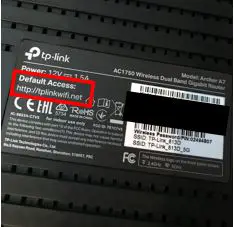
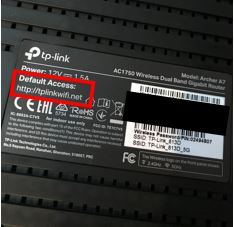
    To do this, start by entering the default address of your router in your browser search bar. You can most likely find the default access location of your router on a sticker on the router itself. For example, the default access location for my TP-Link Archer A7 router is http://tplinkwifi.net.

    Archer A7 Default Access Location

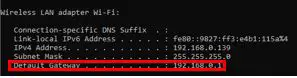
    You can also access your router’s settings by typing its IP address into the browser search bar. If you have a Windows system, you can find the IP address of your router by opening a command prompt window and typing “ipconfig” and pressing enter.

    Your router’s IP address will be listed as the default gateway in the resulting information. As you can see, my default gateway IP address is 192.168.0.1. This is the IP address of most people’s routers.

    Default gateway ip address

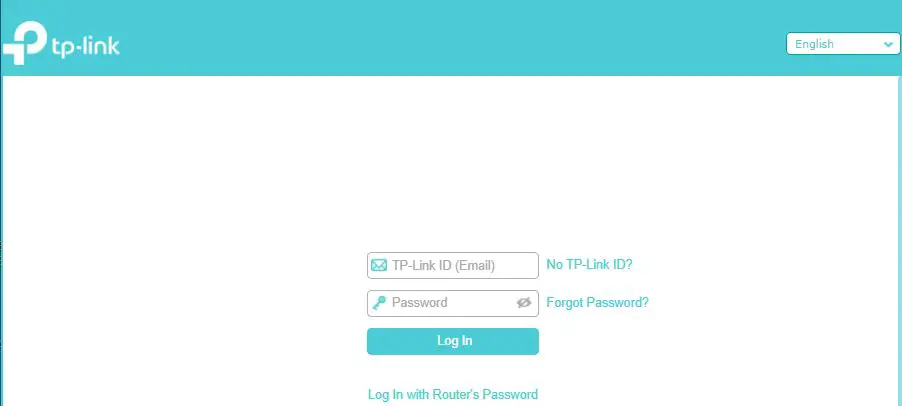
    After typing in the default address location or IP address of your router into the search bar, enter your login credentials for your router.

    Router login screen

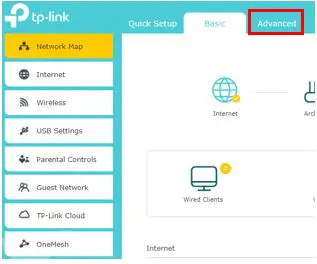
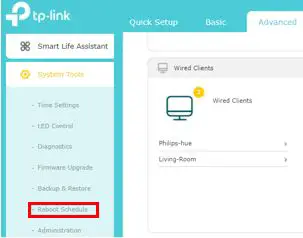
    Once you have logged into your router, go to Advanced Settings.

    Router advanced settings

    In Advanced Settings, there should be an option to change the system settings for the router.

    On my router, this section is called “System Tools”. In Seystem Tools there’s a section called “Reboot Schedule”.

    Router reboot schedule

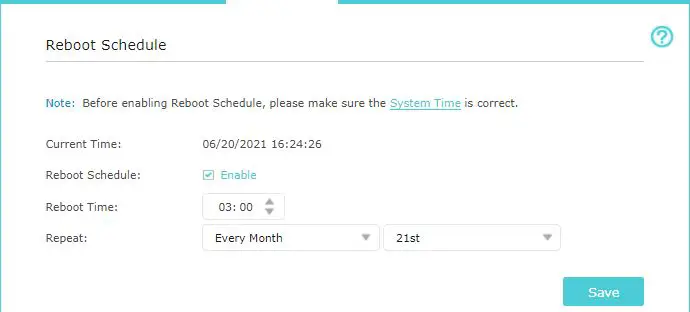
    In the reboot schedule settings, you can select the time and frequency that you want your router to reboot.

    Router reboot schedule settings

    After setting your router to reboot at a time that fits your internet usage schedule, select “Save” to lock in your changes.

    Your router will now reboot automatically at the scheduled time without any further action on your part.

    How to Reboot Your Router Manually

    If for some reason it’s not convenient to reboot your router on an automatic schedule, you can also reboot it manually.

    Thankfully, it’s very easy to do. There are different steps you can take to reboot your router depending upon if it has a power button or not.

    How to Reboot Your Modem if Your Router Has a Power Button

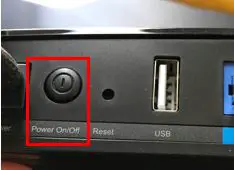
    Look at the back of your router. Check to see if your router has a power button on it. It should look something like this:

    Router power button

    If your router has a power button, press it to turn the router off.

    Now wait 30-60 seconds and press the power button again. This will turn the router back on.

    Once the router has powered up and finished its initial setup, the reboot will be complete.

    As an important note, on the back of your router you may notice a “Reset” button. For an example, refer to the picture above. Next to the “Power On/Off” button on my router is a “Reset” button.

    This button is not used to reboot your router so do not press it. It will restore your router to its original factory settings and remove any changes you have made to its configuration.

    Use the power button or the following method to reboot your router.

    How to Reboot Your Router if Your Router Doesn’t Have a Power Button

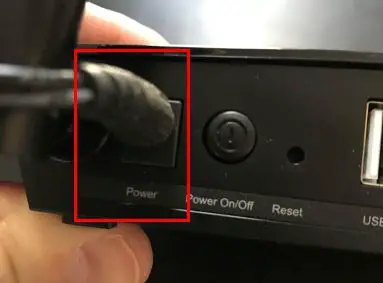
    If your router doesn’t have a power button on the back, locate the power cord. It should be plugged into the back of your router and will look something like this:

    Router power cable location

    Remove the plug from the back of the router to turn it off.

    Now wait for 30-60 seconds.

    After 30-60 seconds has gone by, plug the power cord back into the back of the router. This will power it back on.

    Once the router has powered up and finished its initial setup, the reboot will be complete.

    Wrap Up

    Setting up your router to automatically reboot on a schedule has multiple benefits. You should now have all the information you need to get your router to do this, if you so choose.

    If you have any questions about this information or are having trouble getting your router to reboot automatically, feel free to drop a comment below.

    To learn more about your router and how it affects your internet, check out the previous posts:

    Does a Router Affect Your WiFi Speed?

    What Is the WAN Port for on a Router?

    Can a Router Overheat? A Detailed Analysis

    Why Do Routers Have Multiple Antennas?

    What Do My Router Lights Mean?

  • What Is the WAN Port for on a Router?

    What Is the WAN Port for on a Router?

    WAN Port on router title page

    I’m sure you’ve noticed that there are several ports on the back of your router. Are you unsure what the one labeled “WAN” is for?

    If so, you’re not alone.

    Depending how it’s labeled, the WAN (or internet) port can be confusing.

    The WAN port on a router is an ethernet port that is used to provide the router with access to the internet. To get a connection to the internet, an ethernet cable is plugged into the WAN port of the router, and the other end is connected to a modem with an active internet connection.

    To put it simply, if your router isn’t connected to a modem through its WAN port, it won’t have internet.

    In this post I’ll perform a deep dive into the WAN port on your router and explain how it’s used. I will also be answering a few commonly asked questions about the WAN port.

    What Does WAN Stand For?

    Most of the confusion with the WAN port comes from the fact that people don’t know what WAN means.

    WAN stands for Wide Area Network.

    When it comes to your home network, when we talk about a WAN we are referring to the internet.

    What Is a WAN Connection?

    A Wide Area Network is a communications network that spans a large geographic area. The biggest (and most widely used) WAN in the world is the internet.

    It’s easiest to think of it this way: all devices that are connected to the public internet are accessing the same WAN. This includes:

    • Mobile phones
    • Laptops
    • Internet of Things devices (e.g. security cameras and baby monitors)
    • Web servers
    • Smart televisions

    The list goes on and on.

    Any time you connect a device to the internet, it has access to the other devices that are publicly available on the internet WAN.

    Let’s look at an example.

    I’m sure you access your favorite websites with your laptop or mobile device on a daily basis. You can only do this because your internet device and the web servers that host your favorite sites are connected to the same WAN. In other words, they are both connected to the internet.

    What would happen if your mobile device wasn’t connected to the same WAN as the web servers that host your favorite sites?

    Quite simply, you wouldn’t be able to connect to them.

    This is why we need a modem and router in our home network. They allow us to connect our devices to everything else that’s connected to the largest WAN in the world.

    What Is a Router’s WAN Port Used For?

    Hopefully now you understand the importance of the WAN port on your router. The WAN port is used to provide your devices with access to the the internet.

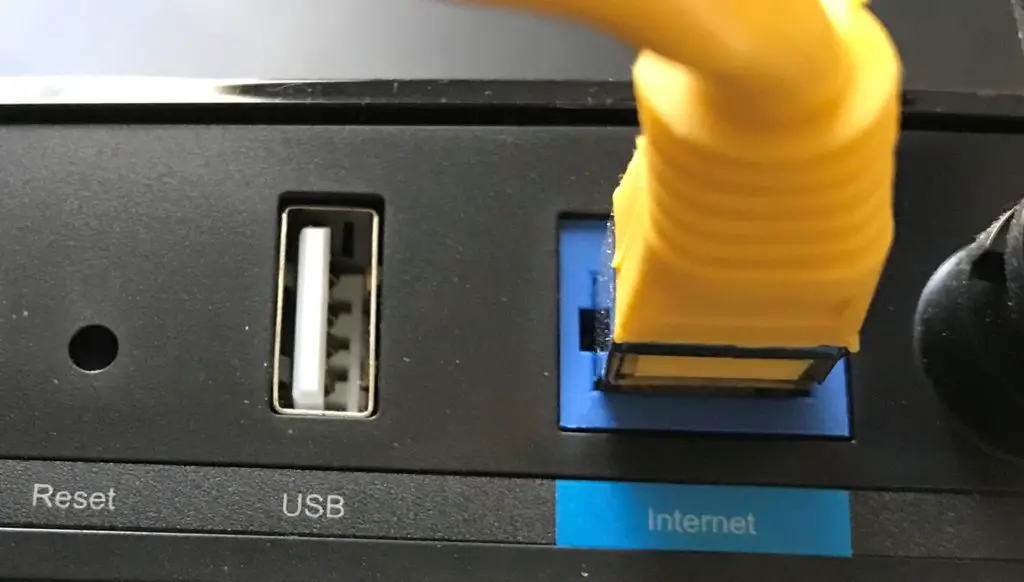
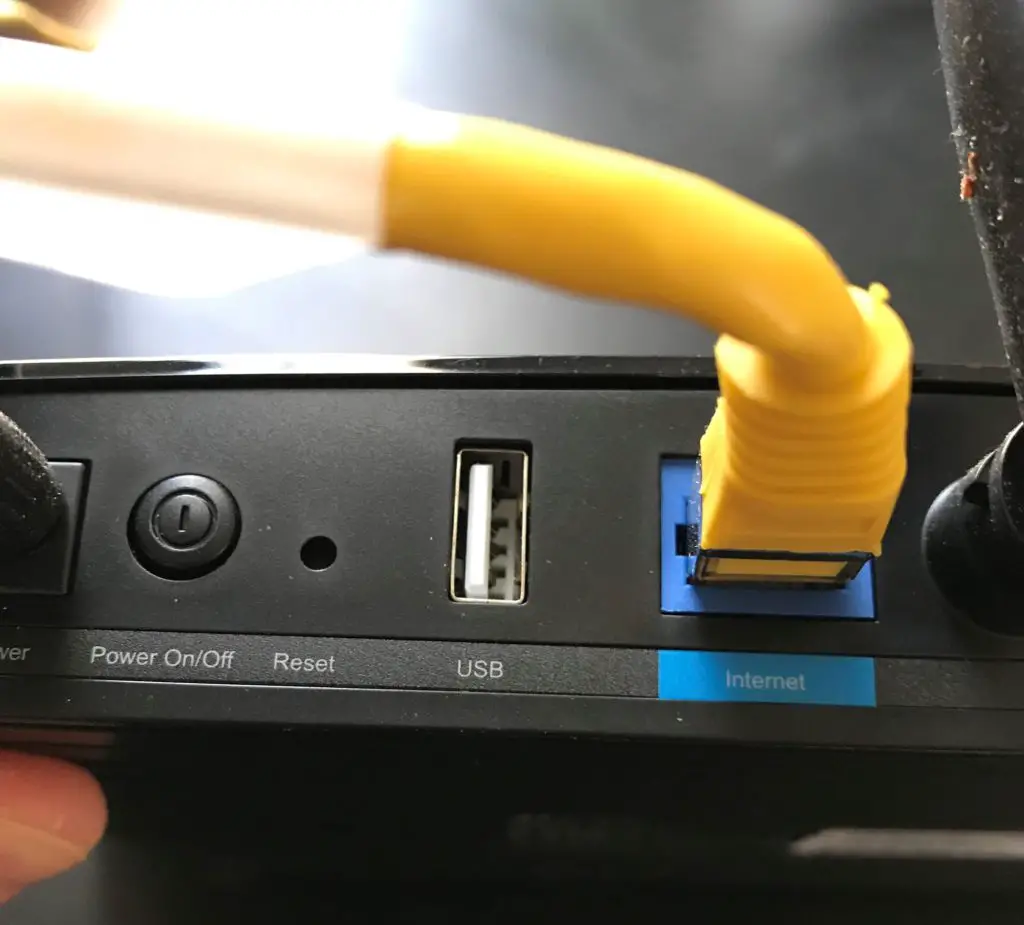
    Take a look at the back of your router. If you don’t see a WAN port, it’s probably because it’s labeled “Internet”. Regardless of how the port is labeled, they are one in the same.

    That’s the case with my TP-Link Archer A7 router:

    Router internet port

    I’m not sure if TP-Link did this because people were getting confused about what the WAN port is for, but labeling the port “Internet” is much easier to understand.

    Your router uses the WAN port to relay signals from your devices to your modem. Your modem will then forward those messages out to the desired internet location.

    When sites or information are being sent to your devices from the internet, the data flows in the opposite direction. Your modem will receive the requested information from the internet and pass it along to your router via the WAN port. Your router will then send that information to the device that requested it.

    Of course I’m simplifying things a bit here, but that’s essentially how the WAN port works.

    What Do You Connect to a Router’s WAN port?

    If your modem and router are separate devices, you’ll need to connect them. This is done through the WAN port on your router.

    All you’ll need to connect your router to your modem is an RJ45 ethernet cable. RJ45 is a standard type of ethernet cable, so almost any ethernet cable you find will fit the bill here. It will be safest to go with the most common type, which is a T-568B cable.

    When buying an ethernet cable to connect your modem and router, the most important consideration is the speed the cable supports. You need to make sure the speed supported by the ethernet cable is greater than or equal to the speed of your internet plan (and your WAN port). The last thing you want is for your ethernet cable to slow down your connection.

    For more information on selecting the proper ethernet cable for your home network, check out our previous post: Can an Ethernet Cable Slow Your Internet Speed?

    One thing to note here is if your modem and router are combined into one device, your job is really easy. They’re already connected so there is no action required on your part. In fact, you won’t even have a WAN port on your device.

    What Device Does a Router’s WAN Port Connect to?

    Ok, so you need an ethernet cable to connect to your router’s WAN port. Let’s do that first.

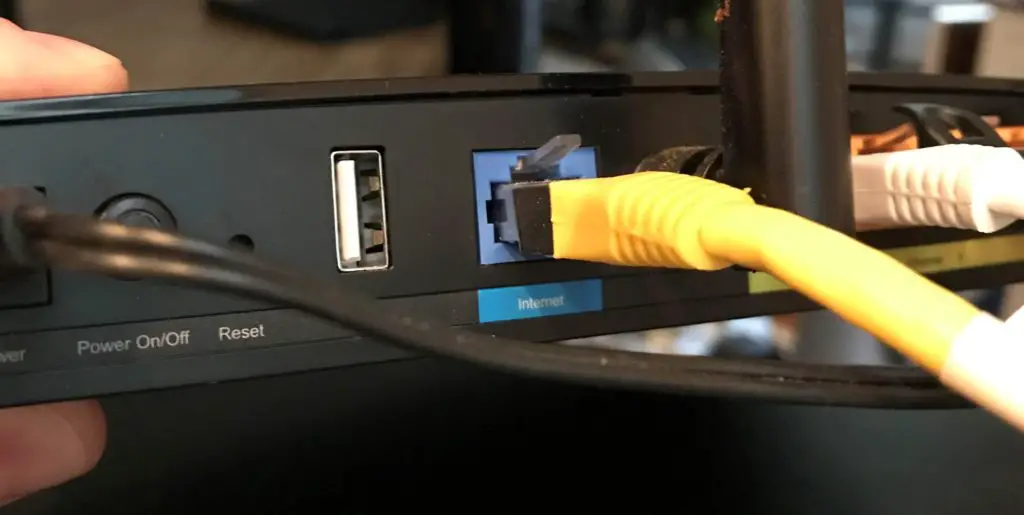
    Once you’ve connected an ethernet cable to the WAN (or Internet) port, it will look like this:

    Router internet connection

    What about the other end of the cable? What does that connect to?

    The other end of the ethernet cable will connect to your modem. It shouldn’t be difficult to determine the port to connect the ethernet cable to.

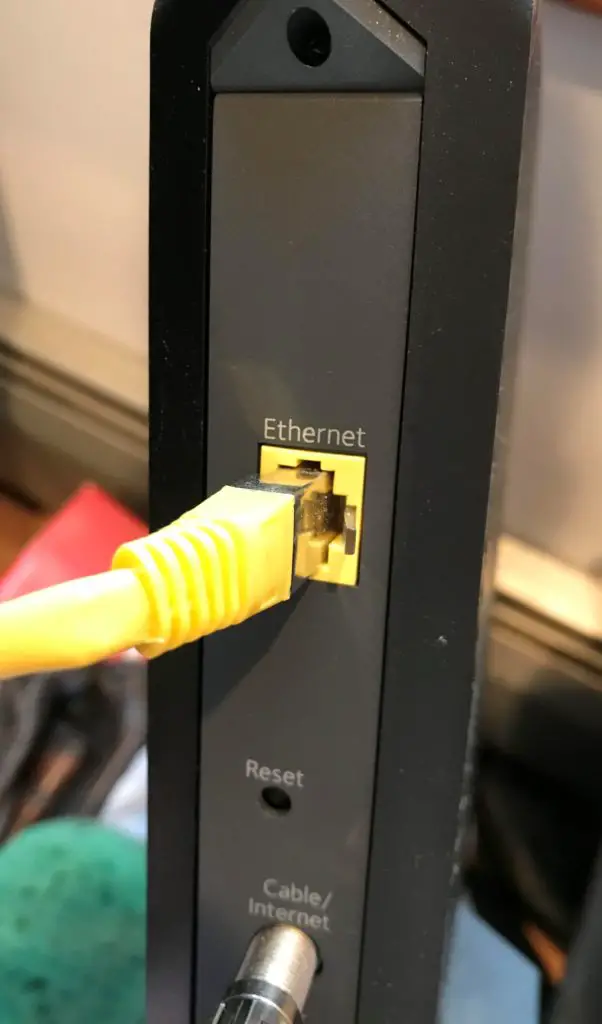
    On my router, the port is labeled “Ethernet”. To make things easy, it’s the only ethernet port on the back of my modem. Once we connect my yellow ethernet cord to the Ethernet port on my modem it will look like this:

    Modem ethernet connection

    See? It’s very hard to mess up.

    Now your modem can pass your router the internet signals it receives from the internet. In other words, if your modem and router are powered on and your modem is connected to the internet, your router should be connected to the internet as well.

    You can check to make sure your router has internet access by looking at the lights on it. The internet light on your router will tell you if it’s connected to the internet or not.

    What Is the Speed of My Router’s WAN Port?

    The speed that your WAN port supports is important to know. It will determine the internet speeds that your router can provide to your internet devices.

    So how do you find out the speed that your WAN port supports?

    As mentioned previously, the WAN port is an ethernet port. You can look up the specifications of this port by searching for the technical details of your router.

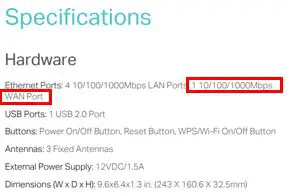
    I have a TP-Link Archer A7 router, so with a simple Google search I was able to find what I was looking for.

    TP-Link Archer A7 Router WAN Port Speed

    As you can see, my WAN port is a 10/100/1000 megabits per second (Mbps) ethernet port.

    What does this mean?

    It means that the port can support speeds up to 1,000 megabits per second (or 1 gigabit per second) between my modem and router. This tells me that the fastest that my modem and router can exchange data is at a 1 gigabit per second (Gbps) rate.

    In other words, I can’t expect my internet to be faster than 1 Gbps at any given time.

    1 Gbps is the fastest ethernet port currently available, so you’ll want to make sure your router has a 10/100/1000 Mbps port as well. If you have a 10/100 Mbps WAN port on your router, you may experience slow internet speeds when multiple devices are using the internet.

    The good news is that any newer router will have a 10/100/1000 Mbps port, so you only have to worry about this with an older router.

    Is a Router’s WAN Port the Same as an Ethernet Port?

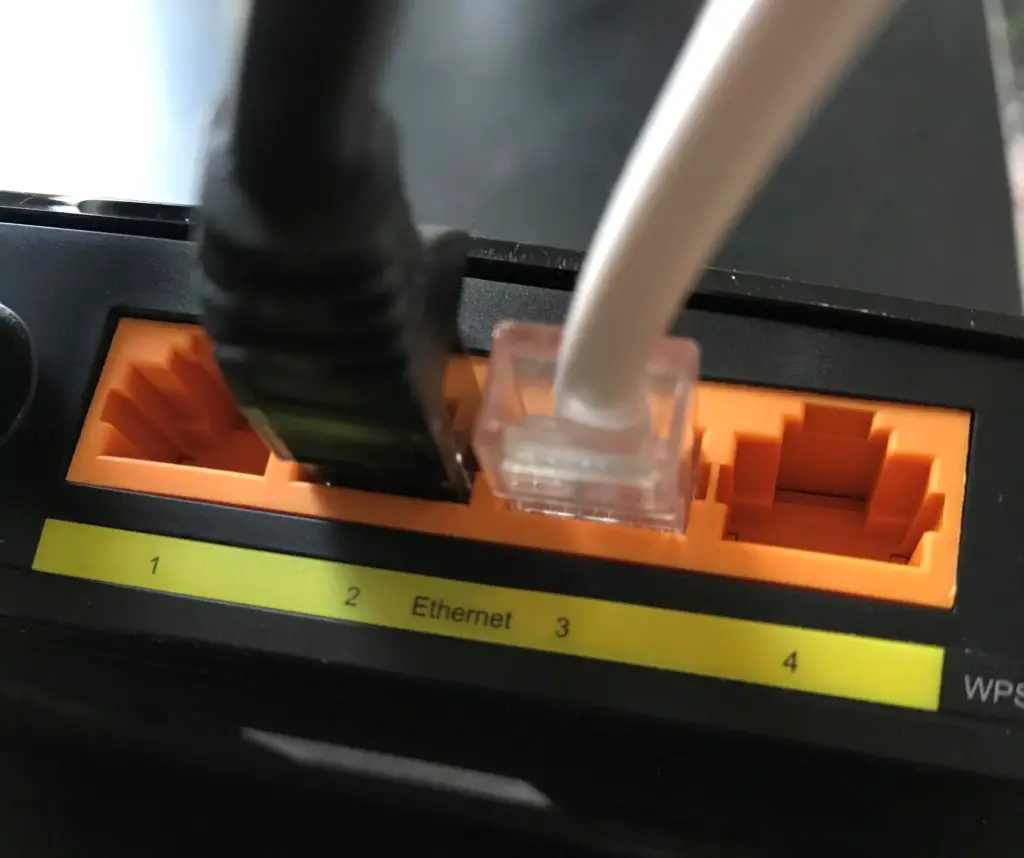
    If you take another look at the back of your router, I’m sure you’ll notice it has ethernet ports in addition to the WAN port.

    Ethernet ports on the back of a router

    These ports allow your devices to connect to the internet with a wired connection.

    You’ve also probably noticed that there’s no difference between these ports and the WAN port on your router. RJ45 ethernet cables will fit into both port types.

    This begs the question: is the WAN port the same as a regular ethernet port?

    The answer is no.

    The WAN port is designed to connect to a modem to receive an internet signal. You can’t use it to connect an additional device to the router if all the ethernet ports are being used.

    If you plugged a device into the WAN port on your router, the router wouldn’t have an internet signal. This is the reason why people use routers in the first place. If you just need to connect multiple devices and don’t need access to the internet, you can use an ethernet switch instead.

    Wrap Up

    The WAN port provides a means for your router to connect to the internet. Without it, your router wouldn’t be able to perform its main function of providing your devices with internet connections.

    Do you have any additional questions about the WAN port on your router? If so, feel free to drop a comment below.

    If you would like to learn more about your router and how it functions, check out our previous articles:

    Can a Router Overheat? A Detailed Analysis

    Why Do Routers Have Multiple Antennas?

    What Do My Router Lights Mean?

    Does a Router Affect Your WiFi Speed?

  • Can a Router Overheat? A Detailed Analysis

    Can a Router Overheat? A Detailed Analysis

    Can a router overheat a detailed analysis

    Your router is one of the most important internet devices in your home. Without one, you’d be stuck using the data plan on your mobile phone every time you wanted to use the internet.

    With this in mind, you’d think people would take better care of their router.

    In reality, quite the opposite happens.

    Once a router is set up and delivering blazing WiFi speeds to your devices, it often becomes an afterthought. This is risky behavior, as it can lead to issues with your router.

    One of the biggest issues you could run in to is your router overheating.

    Routers can overheat if they are exposed to harsh environmental conditions or not maintained properly. If a router overheats, it can result in a slow or dropped internet connection. It is also possible that a router will need to be replaced if it gets too hot or overheats for too long.

    In this post I’ll detail what to look for if you think your router is overheating. I’ll also explain what you can do to prevent it from happening in the first place.

    What Does It Mean for a Router to Overheat?

    Routers overheat when they operate at higher temperatures than they’re designed for.

    Routers are similar to modems and other electronic products. When they are powered on, the electricity running through them generates heat. The heat will raise the temperature of the circuits in the device unless it’s released into the surrounding air.

    Electronic devices don’t work well in hot conditions, and they can even malfunction if they operate at a high temperatures for too long.

    This is why it’s so important to make sure your router doesn’t get too hot. I know you don’t want to pay for a new one.

    Thankfully you’re not on your own to solve this problem.

    The wonderful designers of your router have thought of this. If you look closely you’ll find vents on your router. These vents allow air to flow through your device to help cool it down.

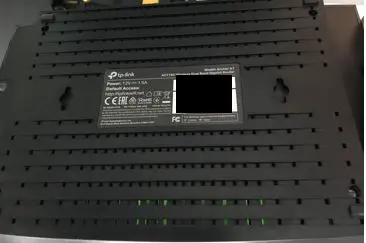
    For example, here is the bottom of my Tp-Link Archer A7 router:

    Router vents bottom

    All the holes help air flow through the router to cool it off.

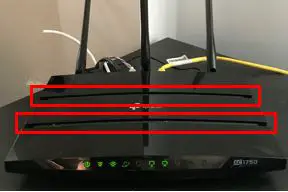
    There are even some vents on the top panel, but they’re harder to see.

    Router vents top

    Here’s a closer view of the top vents from the side.

    Router vents side

    With vents on the router, it makes it easier to keep it from overheating. Just follow the tips that I provide later in this article and you’ll be all set.

    Now let’s dive into how to know if you’re router is overheating.

    How to Tell if a Router Is Overheating

    It isn’t very hard to tell if something is wrong with your router. It’s a little more difficult to tell if your router is overheating.

    I view it as a two-step process.

    The Internet Connection Will Slow Down or Drop Altogether

    Your router serves as the director for all your internet traffic. It tells all the traffic where to go, and it coordinates the traffic being sent to and from the internet. Without a router, you wouldn’t be able to wirelessly connect to the internet.

    I’m sure it comes as no surprise, then, that when something’s wrong with your router, it affects your internet connections.

    If your router is having problems (e.g. overheating), you’ll notice that your internet slows down. Your connections may slow to a crawl, or you may lose your connection to the internet entirely.

    Unfortunately, if you lose your internet connection, you can’t conclude that your router is overheating. There are many different reasons why you could lose your internet connection.

    There could be:

    • Problems with your internet service provider (ISP)
    • Connection issues between your device and your router
    • Issues with your modem
    • Interference with your wireless signal

    The list goes on and on.

    In order to verify that your router is overheating, you have to go one step further.

    The Router Will Be Hotter Than Normal

    If your router is overheating, it will feel hotter than it usually does.

    With that said, your router will always be warm when it’s powered on and working. To help troubleshoot issues with your router, it’ll be helpful for you to get a general idea of how warm it normally is.

    If your router is on and in use (i.e. devices are using the internet), put your hand near it. You should be able to feel the heat it’s giving off. You should even be able to touch it because it shouldn’t be too hot.

    Do this a few times over a period of a few hours. This will give you a general sense of how hot your router normally is.

    Now that you know what your router “normally feels like”, you can tell when it’s overheating.

    This is why this is an important check when determining if your router is overheating. You can’t be expected to periodically feel the temperature of your router every day. If your internet stops working, however, this is a useful second step.

    For example, if your internet connection drops and your router feels hotter than usual, it’s likely that it’s overheating.

    On the other side of the coin, if you lose your internet connection and your router isn’t hot to the touch, you probably didn’t lose your internet because of the router overheating. You will have to do more troubleshooting to find out what happened.

    What Causes a Router to Overheat

    There are generally two main ways a router can overheat. The router is either generating more heat than it normally does, or it isn’t cooling as quickly as it should.

    In both of these cases, the router will operate at a high temperature and be at risk of overheating.

    Let’s look into both cases.

    The Router Is Generating More Heat Than It Normally Does

    When a router is generating more heat than usual, it’s working too hard.

    Routers have processors in them that serve as the brain of the device. The processor does all the coordinating of incoming and outgoing internet traffic. The more traffic the processor has to direct, the harder it has to work.

    The harder it has to work, the hotter it will become. A router can become overwhelmed if there’s too much traffic on the network at once.

    To account for this, manufacturers occasionally issue firmware updates for their routers. For those unfamiliar, firmware is essentially the software of the processor. Updating the firmware of your router allows the processor to direct internet traffic more efficiently.

    As you may have guessed, if a processor can direct traffic more efficiently, it doesn’t have to work as hard. When it doesn’t have to work as hard, it generates less heat.

    On the other hand if your router firmware is outdated, the opposite happens. Your router has to work harder than it should, and it generates more heat. This can lead to overheating if the router is working too hard for an extended period of time.

    The Router Isn’t Cooling as Quickly as It Should

    It’s possible for a router to overheat during normal operation even if the processor isn’t working harder than usual.

    How so?

    If the router isn’t removing heat from it’s electrical parts fast enough, it can still overheat.

    There are multiple reasons why this may be the case.

    Restricted Airflow

    Proper airflow is essential for the cooling of routers. If the flow of air is blocked or restricted, your router won’t be able to maintain a normal operating temperature.

    Let’s look at a few things that can result in restricted airflow through the router.

    Router Placement

    If your router is placed in a location that doesn’t get proper airflow, you’re setting yourself up for failure.

    That means you don’t want your router in a closet or closed cabinet. If you put your router in a closed space, the hot air from your router will have nowhere to go. As a result, the hot air will linger near the router. This will cause your router to run at hotter temperatures, and increase the chances of it overheating.

    If your router is in a closed space, not only will you run the risk of your router overheating, but you’ll probably have a poor internet connection too.

    Dust Buildup

    It’s inevitable that your router will collect dust. Too much dust, however, can have disastrous results.

    Dust buildup in your router will restrict the flow of air through it. As you know by now, poor airflow will cause your router to run hot.

    If your router is placed in an area that collects a lot of dust (like the floor or the corner of a room), you’re asking for trouble.

    Hot Environmental Temperatures

    A hot environment around your router will make it much harder for it to lower its temperature. Hot air won’t do much to cool your router when it flows through the device.

    If you live in a warm climate without temperature-controlled rooms, this is something to note. My Archer A7 router is designed to operate in temperatures up to 104 degrees Fahrenheit. Even though routers are pretty resilient devices that can withstand some stress, you’ll want to take action if your rooms are normally over 100 degrees Fahrenheit. Keep reading for some tips to help you keep your router cool if his is the case for you.

    This also goes for other devices that generate heat (e.g. TVs and heaters). These devices will raise the temperature of the air around the router, making it harder for it to cool down.

    Humidity of the Environment

    You won’t have to worry about high humidity causing your router to overheat. I still have to mention it because it’s possible a humid environment can lead to overheating in extreme cases.

    If the environment around your router is very humid, it will make it harder for the router to cool down. This is similar to the case of a high temperature environment in the section above. If the air running through the router is humid, it won’t have much cooling effect on the device.

    With that said, routers are pretty resistant to humid environments. As an example, my Archer A7 router can operate in indoor humidity levels up to 90%. An environment with a 90% humidity level isn’t healthy for humans to be in for an extended period. The bottom line is it isn’t realistic for you to have a 90% humidity level inside your house or office.

    How to Prevent a Router From Overheating

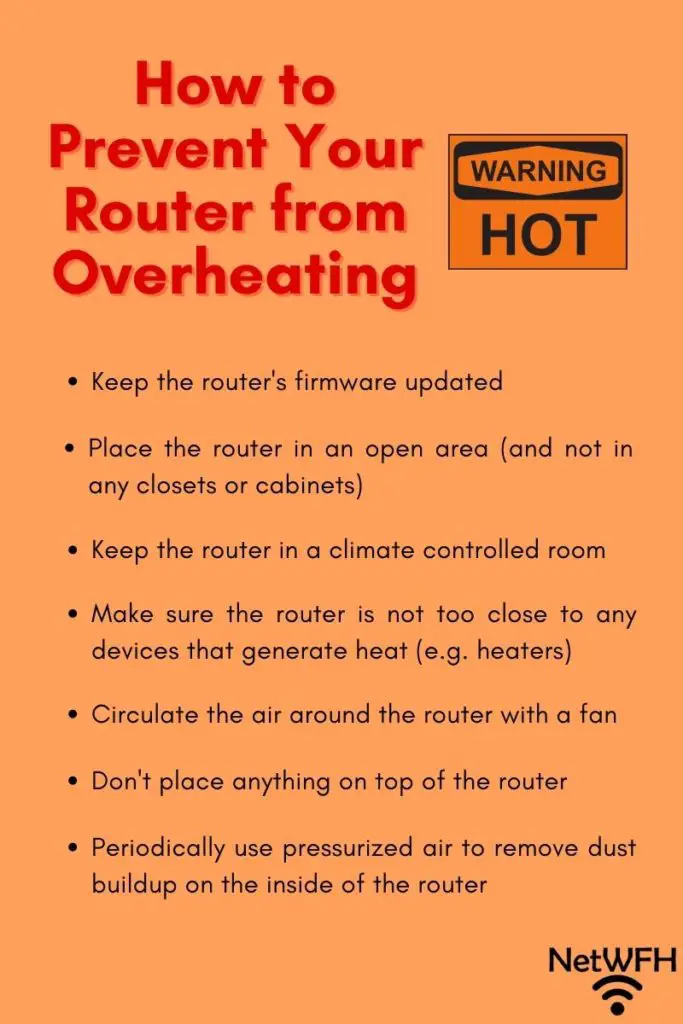
    Here is a good reference guide with tips for keeping your router cool.

    How to prevent your router from overheating

    You don’t have to do too much to prevent your router from overheating. If you keep your router in a good location and update it’s firmware on a regular basis, you won’t have anything to worry about.

    Here are some things you can do to promote a long life from your router.

    Router Maintenance

    Let me start by saying that routers don’t require much maintenance. The two things you can do to keep your router humming along are to:

    • Update the firmware when new firmware becomes available
    • Use pressurized air to clean dust from the router

    Every few months or so, it’s a good idea to see if new firmware updates are available for your router. Maintaining current firmware will prevent your router’s processor from working harder than it should. As I detailed earlier, if your router’s processor is running efficiently, it won’t generate excess heat.

    By removing dust from inside your router, it will improve the flow of air through it. Sufficient airflow is essential for your router to cool, so this is a worthwhile task every six months or so. On top of that, it will only take you a few minutes to complete the task.

    To remove dust from your router you’ll need to buy a can of pressurized air like this one. Aim the pressurized air at the vents on your router and blow short bursts of air through it. This will remove larger particles of dust that can restrict airflow through your router.

    Router Placement

    When it comes to router placement, you want to keep it in an area that promotes natural airflow through it.

    For best results, place your router in an open area. You’ll want it elevated and off the floor. This will not only promote good airflow, but it will also give you a stronger wireless signal in your house. A desk or shelf in an open room will do the trick here.

    You’ll also want to keep the vents of your router free from obstruction. In other words, don’t stack anything on top of your router. Don’t crowd your router with other objects or devices either. They can block the vents of your router and restrict the airflow through it.

    You especially don’t want to place your router near devices that generate heat. This includes TVs, heaters, or gaming systems. These devices will increase the temperature around your router, which can cause it to run hotter.

    We’ll discuss this more in the next section.

    Environment

    The best thing you can do for your router is to place it in a climate controlled-environment. If you’re able to do this, you’re pretty much all set. You won’t have to worry about your router overheating due to the surrounding environment. Both the temperature and humidity levels will be within the operating limits of the router.

    If your router will be located in a room that isn’t climate controlled, you can still take action to prevent it from getting too hot.

    If the room can get really hot, you can always use a fan to circulate air around the router. Although the air around the router will be warmer, if it’s moving faster through the router it will still cool it down. I will spare you the heat transfer lesson here.

    Wrap Up

    There you have it. That should be all you need to know in order to prevent your router from overheating. If you have any specific questions about your router, or you would like to share your story about a router overheating, leave a comment in the comments section below.

    If you liked this article, here are some related articles that may interest you as well:

    Can a Modem Overheat? What to Look For

    Why Do Routers Have Multiple Antennas?

    What Do My Router Lights Mean?

    Does a Router Affect Your WiFi Speed?

  • Why Do Routers Have Multiple Antennas?

    Why Do Routers Have Multiple Antennas?

    Routers multiple antennas title page

    Why does a router have multiple antennas?

    Would a router work the same way if it just had one antenna?

    Believe it or not, your router doesn’t have multiple antennas just for looks.

    A router has multiple antennas so it can:

    • Send and receive multiple streams of data at a time
    • Provide a wireless network that is resilient to obstruction
    • Direct its WiFi signal to multiple areas where internet usage is expected

    To put it simply, having more than one antenna on a router leads to a better internet experience.

    Who can argue with that?

    In this post we’ll dig into how router antennas function, and the benefits that multiple antennas provide.

    Why Are Router Antennas Important?

    Without antennas on your internet devices, WiFi wouldn’t be possible.

    Antennas send out radio frequency (RF) wireless signals to your devices so they can communicate with your router. WiFi standards have established that these radio signals should be sent out on two different frequencies, either 2.4 gigahertz (GHz) or 5 gigahertz (GHz).

    This is why there will be 2.4G and 5G WiFi networks in most homes. The router is able to communicate on both frequencies.

    Both your router and your wireless devices have antennas that allow them to communicate over these radio frequencies. The antennas on your router may be external and easily visible, while the antennas on most of your wireless devices will be internal to the device.

    Each of these antennas is able to send and receive data, so you technically only need one to establish communication between devices.

    As you’ll see, however, there are benefits to having more than one on your router.

    How Do Router Antennas Work?

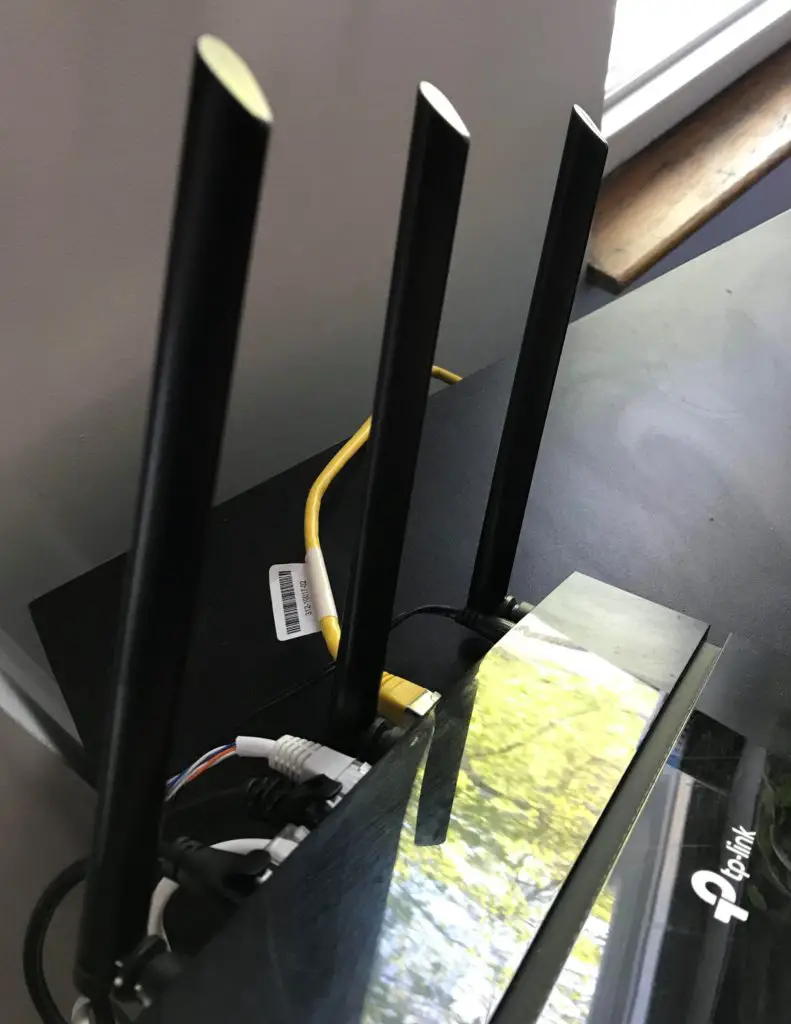
    You might notice that the antennas on your router are circular rods. Almost all routers you’ll come across with external antennas have antennas that look like this.

    Three router antennas

    This isn’t an accident.

    These antennas are called omnidirectional antennas. This means they send out radio signals equally in all directions.

    This is an important factor when you’re deciding where to put the router in your house and how to align your antennas.

    Omnidirectional antennas send out RF signals in a perpendicular direction from the antenna itself. In other words, the signal is sent straight out from the long side of the antenna.

    Let’s look at some visual examples.

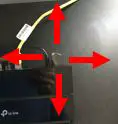
    Looking straight down on an antenna, the signal will be sent out like this:

    Router antenna signal

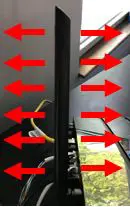
    Looking at the antenna from the side, the router will send the signals in these directions:

    Router antenna signal side view

    You should note that the wireless signal isn’t sent out from the top of the antenna. When setting up a router, many people point the tip of the antenna in the direction they want the WiFi signal to go. This is a common mistake and won’t provide you with a better signal.

    Why Do Routers Have Multiple Antennas?

    Now that you know how the antennas work, let’s look at the benefits of having multiple antennas.

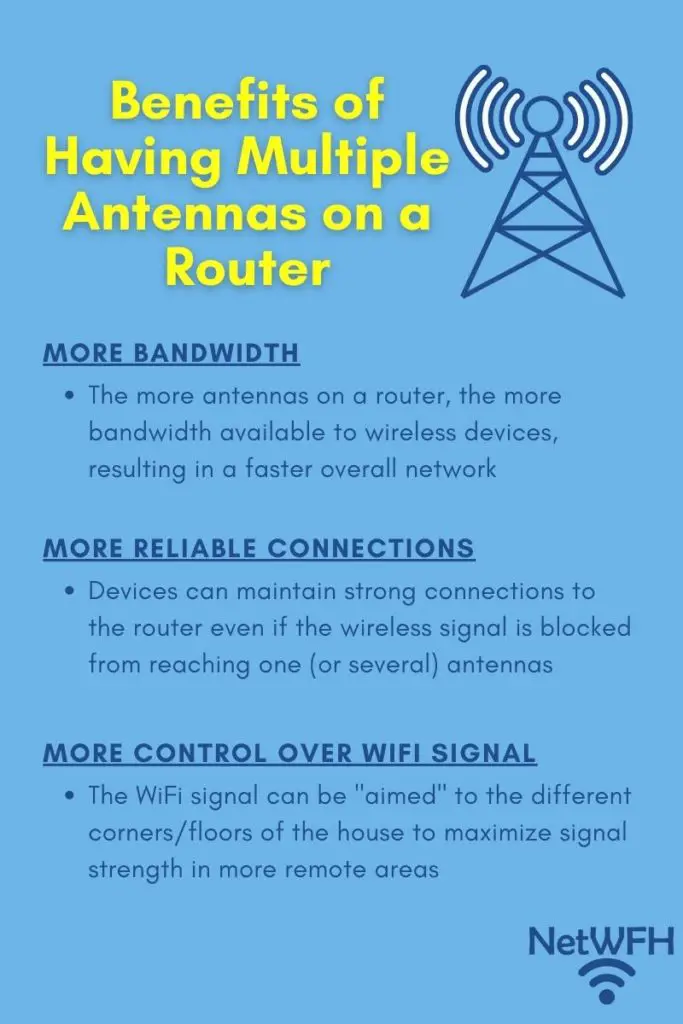
    Benefits of having multiple antennas on a router

    More Bandwidth for Your Devices

    One major benefit of having multiple antennas is that a router can provide wireless devices with faster overall internet speeds.

    Thanks to newer WiFi standards, each individual antenna on a router can send and receive wireless data from a device. When the bandwidth from multiple antennas is combined, faster data rates can be supported. Faster data rates means faster internet speeds.

    Let’s use a 5G wireless signal for example.

    One antenna giving off a 5G wireless signal can support 433 megabits per seconds (mbps) of data. If your router has two antennas, the 5G signals from each of them can be bonded together to support 866 mbps of data. Better still, if you have three antennas on your router, all three signals can be combined to support 1,300 mbps of data (or 1.3 gigabits per second).

    Can you see where this is going?

    One thing to keep in mind is that as of now, most of your wireless devices only have one antenna. This means that at most, your devices can transmit and receive 433 mbps of data. This isn’t necessarily a bad thing, because 433 mbps is more than enough to perform essentially any action on the internet.

    So what is the benefit of having all these antennas and maximum bandwidth if a device can’t use it all?

    The key here is that having multiple antennas on your router increases the total bandwidth of your network. If you had 10 devices on your network and only one antenna, they would all have to share the 433 mbps of available data that could be sent or received at any given time. With three antennas, those 10 devices are sharing 1,300 mbps of available bandwidth at any given time. As you can see, this allows each device to have a much faster connection because there are multiple antennas that can transmit and receive data.

    More Reliable Connections With Your Devices

    Not only will your router be able to provide more bandwidth to your devices, but you’ll also experience better internet connections with more than one antenna on your router.

    A good example of this is a stereo system in your house.

    Let’s say you have one speaker for your stereo system. If you’re sitting around the corner from your speaker, you may not be able to hear the music very well.

    What if you have multiple speakers placed in different locations in your house?

    With multiple speakers you’ll be able to hear the music no matter where you’re sitting. There’s a much better chance of the sound waves reaching you if there are multiple speakers. Even if you’re around the corner from one of the speakers, the sound waves from the other speakers may still be able to reach you.

    This same concept can be applied to the antennas on your router.

    As I mentioned before, antennas can both send and receive data. This means that the more antennas your router has, the more likely it’ll be able to receive a message from your devices. Only one of the antennas needs to receive a signal from a device in order for it to get the message. If the other antennas are partially blocked or don’t receive a clear signal, it doesn’t matter.

    This can be important if your router is located in a room with a lot of items that obstruct the wireless signal. Although some of the wireless signals may get blocked, it’s unlikely that all the router antennas will be unable to pick up the signal.

    With multiple antennas, you can be confident that your devices will have a strong internet connection when they are within the WiFi range of the router.

    You Can Optimize the Direction of Your Wireless Signal

    When you have more than one antenna on your router, you can direct the wireless signal in a way that best fits your house.

    Previously I described how antennas send out RF signals. You can use this to your advantage based upon the layout of your house. If your house or office is all on one level, you will want your antennas to be aligned vertically. This will provide the strongest wireless signal in a horizontal direction.

    If you live in a building with multiple floors, you may want to consider pointing an antenna in the horizontal direction. That way the radio signal will be strongest in the vertical direction.

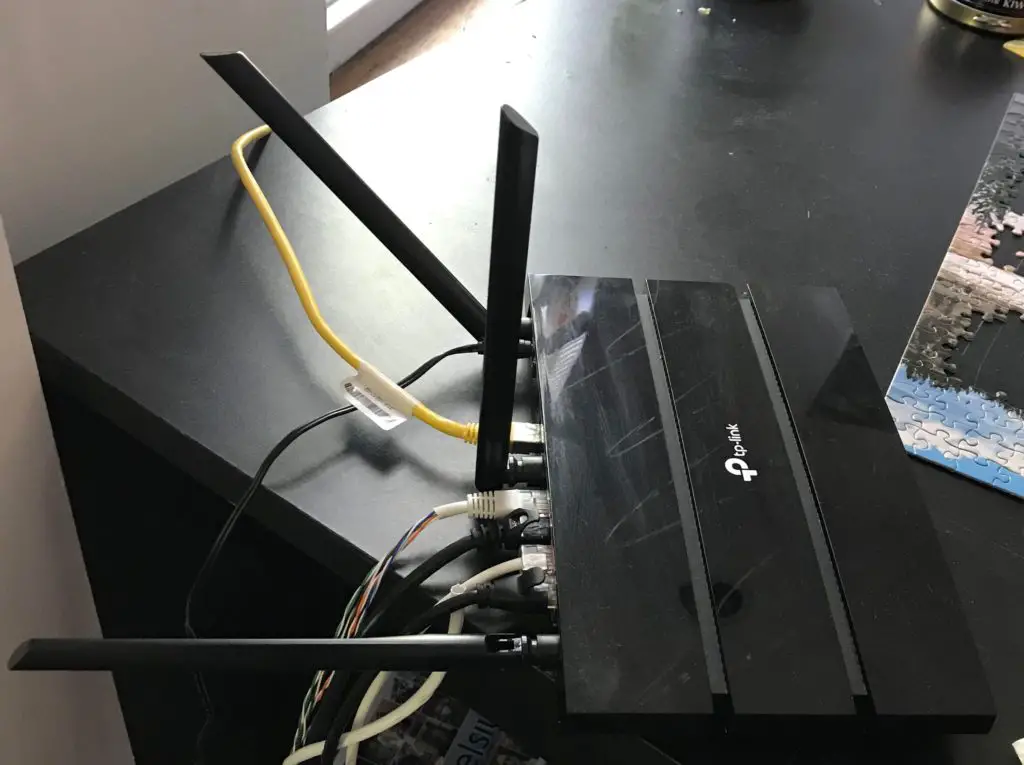
    With several antennas at your disposal, you can align them in different directions to make sure all areas of your house have the best possible signal.

    To provide an example, here’s how I’ve set up the antennas on my router to maximize my wireless signal.

    Router antenna alignment

    I live in a two story apartment, so this setup ensures that the wireless signal reaches both floors.

    One important aspect about this is that putting all your antennas in the same alignment does not give you a stronger signal in that direction. The signal won’t reach any further in the horizontal direction if multiple antennas are standing vertically. You’ll have more reliable connections in that direction by doing this (as mentioned above), but the signal won’t be extended.

    Wrap Up

    See?

    Router antennas aren’t just for looks. They help provide you with additional bandwidth to make reliable wireless connections with your devices.

    If you’d like to learn more about your router and how it works, check out our previous posts:

    What Do My Router Lights Mean?

    Does a Router Affect Your WiFi Speed?

    Why Do Routers Have Multiple Antennas?

    Can I Move My WiFi Router to Another House?

    How Many IP Addresses Should a Router Have?

    Feel free to reach out to me in the comments section of this post or the Contact Me page if you have any questions or you’d like to share your experiences.

  • What Do My Router Lights Mean?

    What Do My Router Lights Mean?

    Router lights mean title page

    Have you ever walked by your router and wondered what all the lights on it mean?

    I know I definitely have.

    The lights on your router are meant to provide you with hints about its current status. There are lights to indicate:

    • If your router has power
    • What wireless frequency bands are currently active
    • If the router is connected to the internet
    • What ethernet ports on the router are in use
    • If a USB device is connected to the router
    • If Wi-Fi Protected Setup (WPS) is active or not

    The purpose of these lights is to quickly identify if something is wrong with the router. When you can easily see what the status of the router is, you can determine what actions (if any) you need to take.

    What Does My Router Look Like?

    Before we dig into the lights on your router, let’s make sure we’re looking at the right device.

    Routers come in different shapes and sizes. In some cases, your router and modem will be the same device. This is especially true if you rent your modem and router from your Internet Service Provider (ISP).

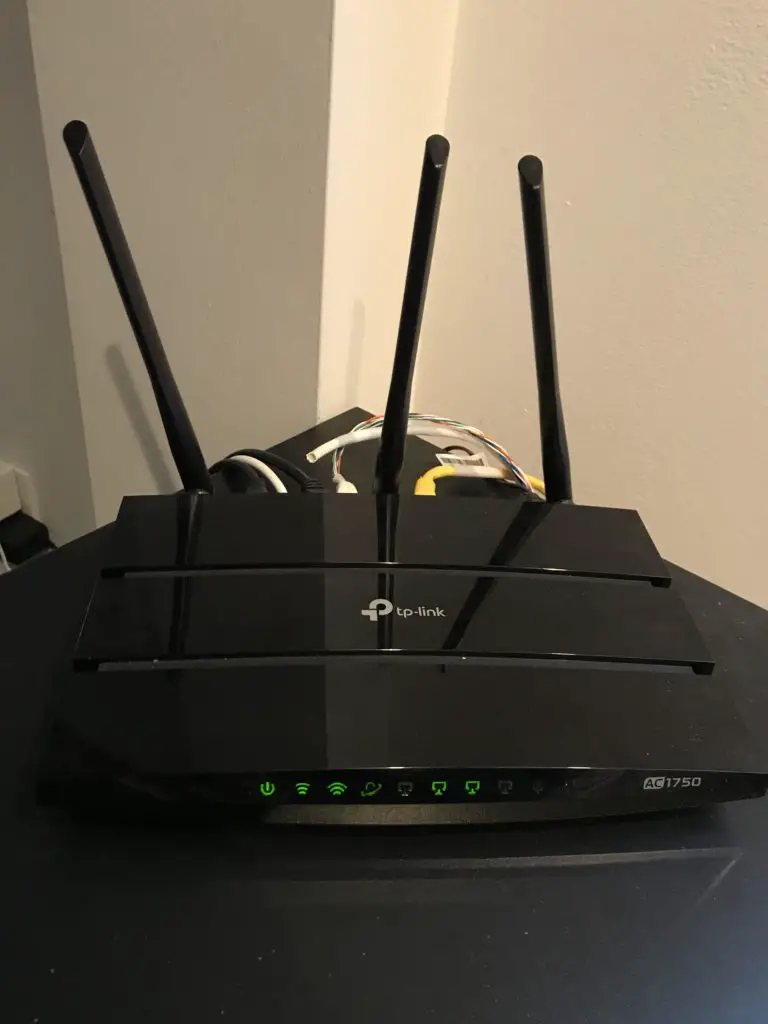
    If your router is separate from your modem, it will probably look similar to this:

    TP Link AC1750 Router

    Your router should have at least two antennas on it. In addition, it will have more connection ports on the back of it when compared to a modem.

    If you’re still unsure if you’re looking at your modem or router, find the sticker on the bottom of the device. The sticker should identify if the device is a router or modem (or both).

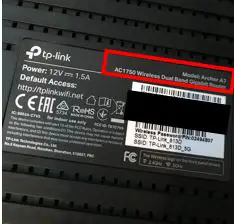
    For example, the sticker on the bottom of my router says that it’s a “Dual Band Gigabit Router”.

    Archer A7 Router Sticker Information

    If you’re still unsure if your device is a modem or router, feel free to leave a comment below and I will try to help as best I can.

    What Do the Different Lights on My Router Mean?

    Router lights cheat sheet

    In this post I’ll discuss the lights on my TP-Link Archer A7 router. Most routers will have similar lights on them.

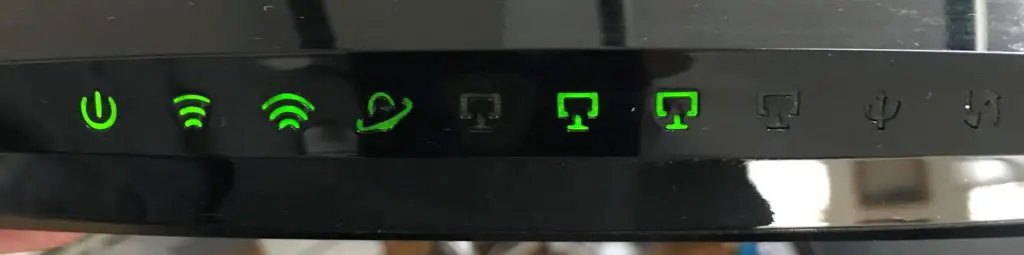
    Here are the lights on the front of my router:

    Archer A7 router lights

    As you can see, not all of the lights are on. This provides me with information about the current status of my router.

    Once we break down what each light represents, we’ll discuss the different states that each light can be in and what they mean.

    Let’s get started.

    What Does the Power Light Mean?

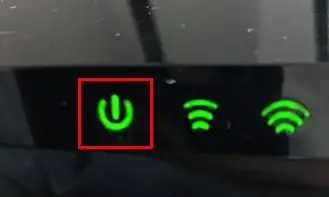
    The power light indicates if the router has electrical power or not. The symbol for power on electronic devices is universal so it will look the same on most routers.

    The power light will look something like this on your router:

    Router power light

    What Are the Different States the Power Light Can Be In?

    On

    If the power light is on and it’s not flashing, it means the router is plugged in and has power.

    Flashing

    When the power light is flashing, it means the router is starting up. This will happen shortly after it’s plugged in and powered on.

    The power light will also flash when the router’s firmware is being updated. Don’t unplug the router while the firmware is being updated. It may stop working if the update didn’t complete.

    Off

    If the light is off, it means the router doesn’t have power. If this is the case you should check to make sure the power cable is plugged into an outlet, and that it’s plugged into the correct port on the back of the router.

    My router also has a button on the back of it to turn the router on and off. It looks like this:

    Router power cable and on/off switch

    Once the router is plugged into an outlet, press the power button to turn the router on.

    What Does the 2.4 Gigahertz Wireless Signal Light Mean?

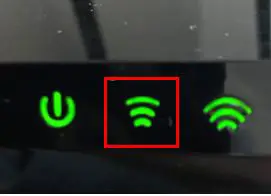
    The 2.4 gigahertz (GHz) wireless signal light indicates if the router is operating on that frequency or not.

    It looks like this:

    Router 2.4GHz light

    Most routers operate on two wireless frequency signals, 2.4 GHz and 5 GHz. The 2.4 GHz light will tell you if the router is currently providing a wireless network on this frequency that you can connect to.

    What Are the Different States the 2.4 GHz Light Can Be In?

    On

    If the 2.4 GHz light is on, it means the router is active on the 2.4 GHz frequency band. It indicates that your router is working properly and providing a wireless network for your devices.

    Off

    If the light is off, it means that you can’t connect to the router on the 2.4 GHz frequency band. This could be because this frequency was turned off in the router’s settings, or the router isn’t working properly.

    What Does the 5 Gigahertz Wireless Signal Light Mean?

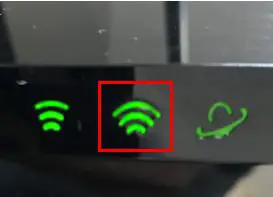
    The 5 GHz wireless signal light indicates if the router is operating on that frequency or not.

    It looks like this:

    Router 5GHz light

    Similar to the 2.4 GHz light, the 5 GHz light will tell you if the router is currently providing a wireless network on the 5 GHz frequency.

    What Are the Different States the 5 GHz Light Can Be In?

    On

    If the 5 GHz light is on, it means the router is active on the 5 GHz frequency band. It indicates that your router is working properly and providing a wireless network for your devices.

    Off

    If the light is off, it means that you can’t connect to the router on the 5 GHz frequency band. This could be because this frequency was turned off in the router’s settings, or the router is not working properly.

    What Does the Internet Light Mean?

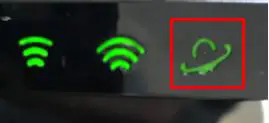
    The internet light will tell you the status of the router’s internet connection.

    It will look something like this:

    Router internet light

    You will want to pay attention to this light if your wireless devices aren’t able to connect to the internet.

    What Are the Different States the Internet Light Can Be In?

    On (green)

    If the internet light is green, it means the router has an active connection to the internet. This is what you should expect the internet light to look like most of the time.

    On (orange)

    When the internet light is orange it means that an ethernet cable is plugged into the internet port of the router, but it still doesn’t have an internet connection.

    There are a few instances when you’ll see this light.

    When you’re setting up your router and you first connect the ethernet cable from the modem to the router, you’ll see this light. This is because it takes a few moments for your router to set up a connection to the internet. After a few seconds, the light will turn from orange to green once the connection is made.

    You may also see this light if your router is connected to a modem, but the modem isn’t connected to the internet.

    Lastly, an orange light can indicate that you’re not receiving internet from your internet service provider (ISP). This may be due to an issue with your internet plan, or your ISP may be having issues with the internet.

    The first thing to do if you’re seeing this orange light is to check all your connections.

    You’ll want to check the:

    • Router’s internet port on the back
    • Ethernet connection between the router and modem
    • Connection from the modem to your ISP

    For your reference, the internet port on the back of the router should be clearly marked.

    Router internet ethernet cable
    Off

    If the internet light is off, it most likely means that no ethernet cable is connected to the internet port on the router. You’ll want to double check your connections if this is the case.

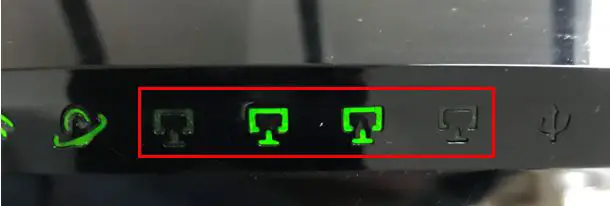
    What Do the Ethernet Connections Lights Mean?
    The ethernet lights on your router will indicate if there are devices connected directly to your router. This will provide some of your devices with wired connections to the internet (as opposed to wireless connections).
    My router has four ethernet lights on it, because it has four ethernet ports on the back.

    Router four ethernet lights

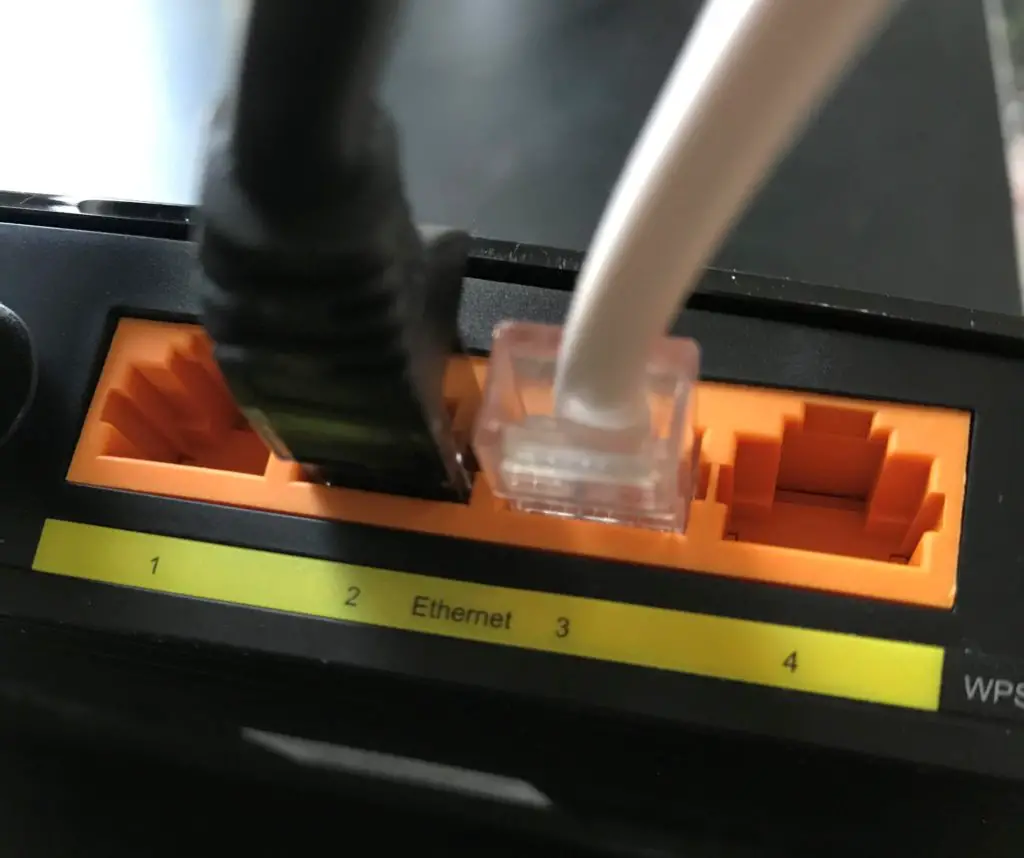
    Here’s what the ethernet ports on the back of the router look like:

    Router ethernet ports

    As you can see, they’re numbered 1 through 4.

    What Are the Different States the Ethernet Lights Can Be In?

    On

    As you may have guessed, if a device is directly connected to the router, the light for that ethernet port will be on.

    Off

    If an ethernet port on the back of the router is unused, the light for that port will be off.

    The light will also be off if an ethernet cable is connected to one of the ports, but it’s not connected to a device.

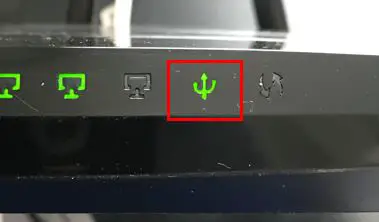
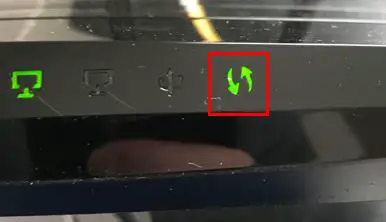
    What Does the USB Light Mean?

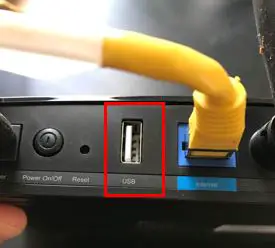
    The USB light will show if a USB device is connected to the router. A USB port on your router can be used to provide resources to anyone on your network (like a printer or storage).

    The light is the universally recognized symbol for a USB device.

    Router USB light

    Most routers will come with one USB port but there are some that come with multiple. The USB port on the back of the router should be clearly labeled.

    Router USB port

    What Are the Different States the USB Light Can Be In?

    On

    If there is a USB device plugged into the back of the router, the light will be on.

    Flashing

    When the USB light is flashing, it means a USB device was recently plugged in and it’s being identified.

    Off

    If the USB port on the back of the router doesn’t have anything plugged into it, the light will be off.

    What Does the Wi-Fi Protected Setup (WPS) Light Mean?

    Wi-Fi Protected Setup is a feature that allows devices to quickly and easily connect to a wireless network. The WPS light on a router will indicate if a WPS connection is being set up at any given time.

    The WPS light looks like this:

    Router WPS light

    What Are the Different States the WPS Light Can Be In?

    On

    Once a WPS connection is made, the light will remain lit for five minutes. After five minutes the light will turn off automatically.

    Flashing

    If a WPS connection is in progress, the light will flash on and off.

    As a note, WPS connections can take up to two minutes to complete.
    Off

    If there’s no WPS activity happening, the light will be off.

    For those concerned with their internet security, WPS can be enabled and disabled in your router’s settings. It’s recommended that this feature be turned off, as it’s known to be insecure. If you decide to disable WPS on your router, the light should always be off.

    Wrap Up

    Now you should understand what your router lights mean and how they can help you determine the status of your router. Remember that your router may not have exactly the same lights as the one in the example provided, but they should be similar to the ones detailed.

    If you have any questions about this information, please feel free to comment below or contact me via the Contact Me page.

    If you’d like to learn more about routers and view other related posts, check these out:

    Does a Router Affect Your WiFi Speed?

    What Do the Lights on My Modem Mean?

    How Many IP Addresses Should a Router Have?

    How Do I Back Up My Router?

    Can I Move My WiFi Router to Another House?

  • Does a Router Affect Your WiFi Speed?

    Does a Router Affect Your WiFi Speed?

    Router affect wifi title picture

    We have previously discussed whether your modem or ethernet cables have an impact on your internet, but what about routers? Does a router affect your internet speed as well, or is it only these other components that we have to worry about?

    A router can affect the WiFi speed of a home network. If a router is used that does not fit the needs of the network and the internet plan that is in place, it can greatly reduce the speed of the entire network.

    Routers can affect your WiFi speed if:

    • Your router is older and doesn’t support the internet plan you have
    • You place your router in the wrong location in your home or office
    • The channel your router is communicating on is congested with other traffic
    • You have not updated your router’s firmware to the most recent version

    In this post we’ll dig into each of these scenarios in more detail and provide tips to ensure you’re getting the most out of your router.

    What Is the Purpose of a Router?

    Before we detail how a router can affect your internet speed, let’s start with the basics.

    A router is a piece of equipment that’s used to help your devices connect to the internet.

    Here’s a picture of my Archer A7 router. If you have a standalone router it’ll probably look similar to this.

    Archer A7 router
    Archer A7 Router

    Your router works in tandem with your modem. You need both of them in order to use the internet. That’s why you may see modems and routers combined into one device when you shop for them online.

    Routers Coordinate Requests From the Devices on Your Network

    Your router identifies where your internet requests should be sent to, and your modem translates the requests so they can be sent over the internet to the right destination. If you need a refresher on how modems work, check out my previous post this topic: Does Your Modem Affect Your Internet Speed?

    Without a router, the requests sent by your devices wouldn’t get sent to the right destination and you wouldn’t be able to do anything on the internet.

    In this sense, a router is like a post office. It slaps an address on all of your outgoing requests so this “mail” arrives where it’s supposed to.

    Routers Provide a Wireless Network for Wireless Devices

    More often that not, the routers that you see in home and office applications are wireless. This means that internet devices can communicate with them and connect to the internet without using ethernet cables.

    How much of a pain would be it to connect all your internet devices (tablets, smart TVs, laptops, etc.) to your router with a wire?

    Yeah I wouldn’t want that either. Thankfully your router has you covered.

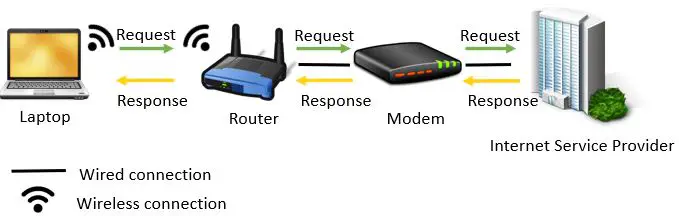
    Wireless routers take the data that your modem has received from the internet and sends it over radio signals (WiFi) to your devices. When your devices send requests to the internet, they send them via WiFi to the router. Your router then passes this information to your modem to be translated and sent over the internet.

    Router Data Flow Diagram

    How Does a Router Affect Your WiFi Speed?

    Routers are vital to your internet connection. As a result, you need to make sure it’s not a bottleneck to your network.

    Let’s take a look at the different ways your router can affect your internet speed.

    What Happens if a Router Doesn’t Support Your Internet Plan

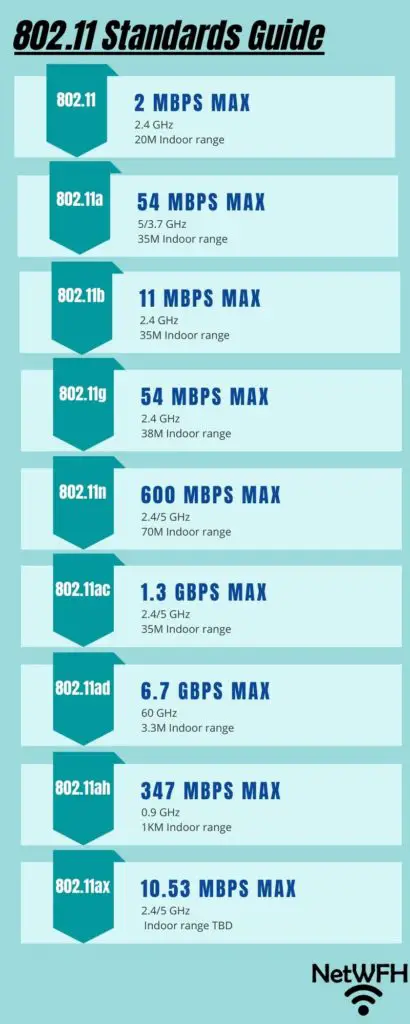
    Since WiFi was created in 1997, many advancements have been made to the technology and new standards have been created. WiFi standards are created by a group called the Institute of Electrical and Electronics Engineers (IEEE). The standards themselves are referred to as the IEEE 802.11 standards.

    I won’t get too far into the specifics of each standard in this post, but it’s important to understand the internet speeds that each standard supports.

    Ultimate 802.11 standards guide

    Why are these WiFi standards important?

    The reason it’s important to know these standards is because routers are built to support them. If you have an old router it may be built for older WiFi standards. When a router is built to old WiFi standards, it may not be able to support the bandwidth you’re paying for from your internet service provider (ISP). If this is the case, your router will be limiting the speed of your internet connection.

    In general, not having the right router can have the biggest impact on your WiFi speed. A router that’s not built to support your internet speeds will slow down the internet for all of your wireless devices, because they all share the bandwidth that your router puts out over WiFi. You need to make sure you get this right.

    To help visualize this, let’s look at a few examples.

    Example of Router Limiting WiFi Speed

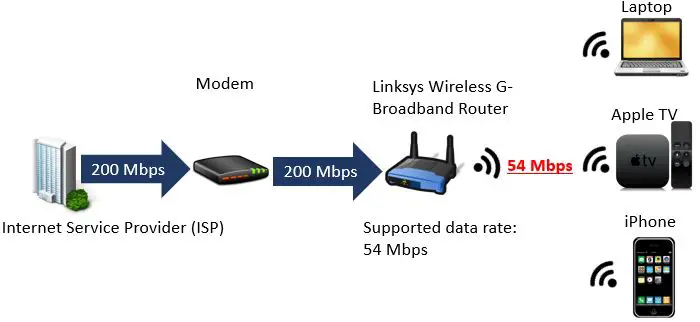
    Let’s say you have a router that’s built to older WiFi standards, for example a Linksys Wireless G-Broadband router. Referring back to the ultimate 802.11 standards guide diagram above, you can see that a router built for 802.11g has a maximum speed of 54 megabits per second (Mbps).

    What if you were paying for an internet plan that provided 200 Mbps?

    Router Slowing Internet Connection Example
    Example of a router limiting the speed of an internet connection

    In this case even though you’re paying for 200 Mbps, you’re only getting 54 Mbps to share among all your wireless devices. To put it simply, you’re wasting your money paying for a 200 Mbps internet plan because your router can only handle 54 Mbps.

    In this case, if you wanted to get the speed that you were paying for, you’d need a router built to (at least) the 802.11n standard.

    Routers Do Not Increase Internet Speed

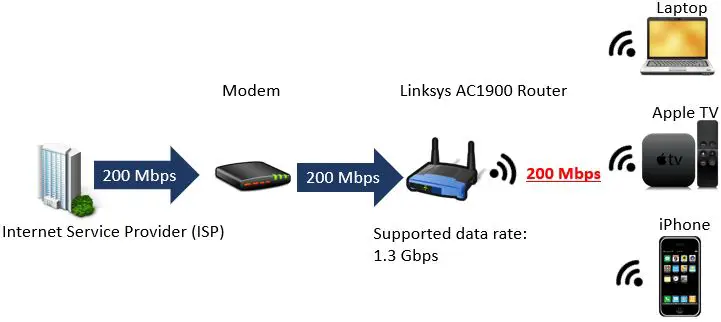
    What if we looked at another scenario where you had a Linksys AC1900 router. This router is built to the 802.11ac standard which provides a maximum speed of 1.3 Gbps (on the 5GHz frequency band).

    Let’s say you were paying for the same internet plan as the previous example that provided 200 Mbps. How much bandwidth would you have to share among all your devices?

    Routers do not increase internet speed example
    Routers do not increase the internet speed provided by an ISP

    As you can see in the above diagram, just because your router is built to support faster internet speeds than what your ISP is providing, it won’t increase the speed of your connection.

    This isn’t necessarily a bad thing though. In this example if you were to upgrade your internet plan in the future to gigabit internet (1 Gbps), you wouldn’t need to buy a new router as well. This is called “future proofing”.

    As you can probably tell by now, you want to make sure your router can support at least the speed that your ISP provides.

    It’s also safe to say that 802.11 standards will continue to improve as time goes on, and internet speeds will only get faster (and cheaper). As a result, it’s usually a smart move to buy a router that has some buffer in terms of the bandwidth it can support. This will allow you to upgrade your internet plan in the future without needing to buy a new router.

    Router Location

    The location of your router in your home or office can have an impact on the internet speed your devices get.

    WiFi Coverage Range

    In general, the farther away from your router you are the slower your internet connection will be.

    A general rule of thumb for distance from the router and internet speed is: when you double the distance between your internet device and your router, your internet speed decreases by one-third.

    The longer the distance between your devices and router, the longer the radio waves between the two devices have to travel. This greatly increases the chances of something disrupting the signal. Some examples of things that can block your WiFi signal are:

    • Concrete and brick walls
    • Thick wooden walls
    • Water (e.g. aquariums or water-based heating systems)
    • TVs

    Because WiFi signals struggle to get through these things, it’s smart to keep your router close to the devices that will be using it.

    In situations where your WiFi signals don’t reach to all the areas in your home or office that need an internet connection, you can use a signal repeater or mesh router to increase your WiFi coverage. You can learn more about those devices here.

    If most of your internet devices are in the living room, make sure your router is in an open area in your living room. The closer you are to the router when using WiFi, the less chance there is of objects disrupting the signal.

    Easy enough right?

    Router Placement

    The placement of your router is important when it comes to your internet speed.

    As previously stated, you need to make sure the signals from your router aren’t blocked by the surrounding environment.

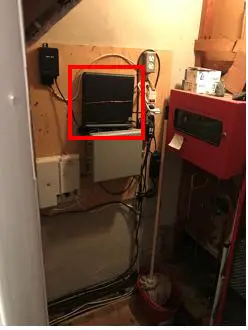
    I can’t count the number of times I’ve seen routers behind TVs, in closets with closed doors, or even underneath couches.

    Here’s a good example:

    Bad Router Placement

    The router in the picture above was secured to the wall of a closet.

    Please don’t be this person.

    The people using the internet in your house will thank you.

    I’m sure you can guess by now that you want your router placed in an open area with minimal obstruction. Even better, placing your router on an elevated surface will improve your WiFi signal as well.

    WiFi Channel Selection

    Most of today’s routers provide WiFi signals on two different frequencies: 2.4 GHz and 5 GHz. Each of these frequencies will show up as their own WiFi network you can connect to.

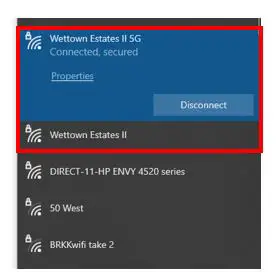
    2G and 5G Wireless Networks Example
    Example of 2.4 GHz and 5 GHz WiFi signals

    These two radio frequencies are divided into channels that allow your wireless devices to send and receive data.

    The 2.4 GHz band has 11 WiFi channels and the 5 GHz band has 45 channels that can be used.

    What does this have to do with the speed of your internet?

    Well, if many devices are using the same WiFi channel at once, it will slow your internet down.

    Your router typically chooses your WiFi channel automatically when it’s first turned on and set up. While this might be great at the beginning, this channel can become congested as time goes on. For example, you could have new neighbors move in and start using the same WiFi channel on their network.

    How Can I Find the Best WiFi Channel?

    If your router and other network equipment are suitable for your internet plan but you’re still experiencing slow internet speeds, the wireless channels you’re using might be the culprit.

    If this is the case for you, I would recommend downloading an app that can analyze WiFi signals. A free tool that I use is Acrylic Wi-Fi Home.

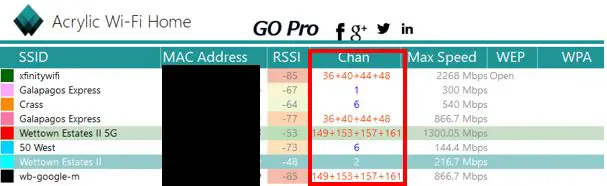
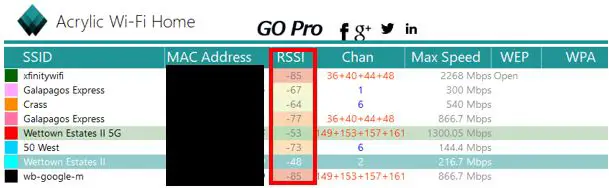
    Acrylic Wi-Fi Home will show you all the wireless networks in your immediate area and the channels they’re using.

    Acrylic Wi-Fi Home Channel Overview
    Acrylic Wi-Fi Home Channel Overview

    As you can see, it looks like my 5G network (Wettown Estates II 5G) is using the same channels as the nearby “wb-google-m” network. Is this a cause for concern? Only if my internet is experiencing slow speeds.

    Let’s dig deeper.

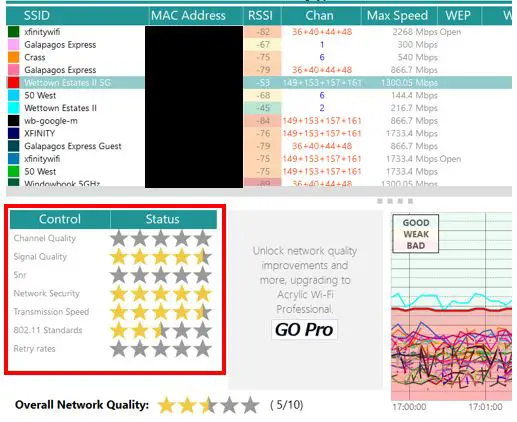
    When you click on a network in Acrylic Wi-Fi Home, it’ll show you how it ranks in certain criteria.

    Acrylic Wi-Fi Home Network Scores
    Scores for the Wettown Estates II 5G WiFi Network

    As you can see above, although my 5G network shares the same WiFi signals as another network, the signal quality and transmission speed rank very highly. I don’t need to make any changes to my WiFi channels because I’m not experiencing slow internet speeds.

    Another key tip about Acrylic Wi-Fi Home is that the RSSI column shows you the strength of your wireless signal in a particular area of your house. The lower the negative number, the stronger the signal is. This will help you determine if there are any areas of your house where you get a weak WiFi signal.

    Acrylic Wi-Fi Home Strength of Signal Scores
    Acrylic Wi-Fi Home Strength of Signal Scores

    How to Change the Channel on Your Wireless Router

    If your investigation reveals that you need to change your WiFi channels (or you want to experiment with them), you can do so by logging in to your router. You can get to your router screen by entering your router’s IP address in the search bar of your internet browser. For me (and many other routers), my router’s IP address is 192.168.0.1.

    Also, the sticker on the router itself may indicate how you can log in.

    I have a Tp-link router, so I can also log in to my router by typing https://tplinkwifi.net into my browser.

    The interface of everyone’s router might be a little different, but the settings should be similar.

    Once I log into my router, I can access my WiFi channel settings by navigating to the Advanced Wireless Settings tab.

    TP-Link Wireless Channel Settings
    TP-Link Wireless Channel Settings

    On this page you’re able to manually select the channels that your WiFi network is using. Many routers will be set to auto channel selection by default, but if you’re experiencing a slow internet connection feel free to manually try a few different channels. You can always change them back at a later time so it doesn’t hurt to try a few different channels. For 2.4 GHz networks it’s said that channels 1, 6, and 11 perform the best, so you may want to try those first.

    Router Firmware Needs to Be Updated

    The last way that your router can affect your internet connection is if it has outdated firmware.

    The firmware of your router is the software that’s coded onto it.

    As I mentioned earlier in this post, there are advances to wireless technology happening all the time. To prevent you from having to buy a new router every time a small advancement is made, router vendors push out firmware updates for you to install.

    If new router upgrades are developed by the vendor and you don’t upgrade your router, your internet performance may suffer. These upgrades may fix bugs or inefficiencies in the way your router operates, so you want to make sure it’s up-to-date.

    How to Update Router Firmware

    You can check to see if your router has firmware updates available by logging in to your router again.

    On my router I navigate to the Firmware Upgrade screen in the System Tools tab.

    Archer A7 Router Firmware Upgrade Screen

    By clicking Check for upgrade, the router will check to see if there are any firmware upgrades available for it. If there are, you’ll be able to download the new firmware and restart your router.

    When you’re going to upgrade your router firmware, it’s very important that you connect the internet device you’re using to your router with an ethernet cable. If you lose an internet connection while you’re updating the firmware of your router, your router may no longer work. An ethernet connection will ensure you don’t lose connectivity during the upgrade.

    What Router Do I Need?

    Now that we’ve discussed how a router can affect your internet speed, let’s make sure you have the right one.

    So how do you know if your router fits your needs?

    It’s always best to start by identifying the speed of your internet plan. This will help you determine if your router supports the plan you have.

    You can find the maximum internet speed of your plan by looking at your most recent bill or by calling your ISP.

    Current Internet Plan Speed

    As you can see, my internet plan provides a maximum download speed of 600 Mbps.

    Once you know the maximum internet speed of your plan, you should look up the specifications of your router. If you’re not sure of your router’s make and model, you can usually find that information on a sticker on the router itself.

    Linksys Archer A7 Router Model Information

    I have a Tp-link Archer A7 AC1750 router. With this information, I can go online and search for the specs of this router.

    Tp-link Archer A7 Router Specifications
    Tp-link Archer A7 Router Specifications

    On Tp-Link’s official website it provides the specifications for the Archer A7 router. The Archer A7 router supports the 802.11ac standard for WiFi speeds. In looking back at our WiFi standards diagram, we can see that the 802.11ac standard supports internet speeds up to 1.3 Gbps.

    With my router supporting speeds up to 1.3 Gbps and my maximum internet speed being 600 Mbps, I know that my router won’t be slowing down my internet connection. It’s now on me to make sure my router:

    • Uses WiFi channels that aren’t congested
    • Is located in an open area away from obstructions (e.g. my TV)
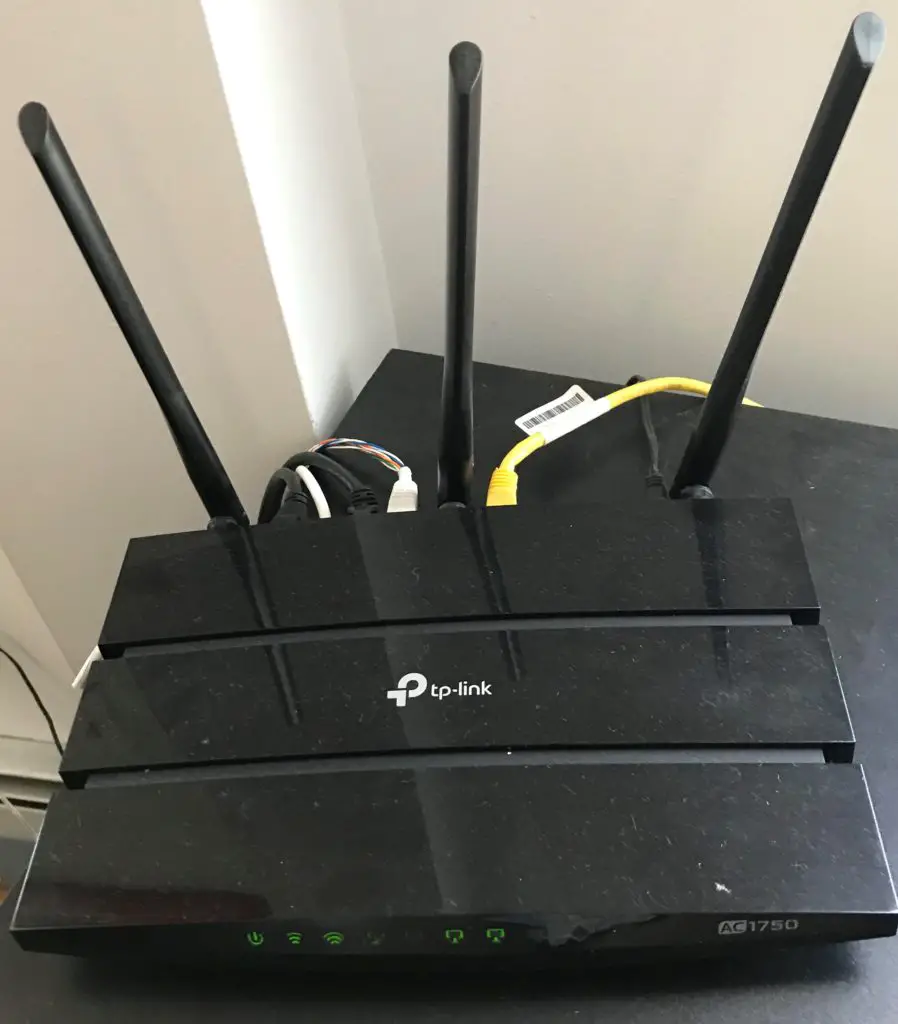
    • Isn’t far from the devices that will be using the internet most
    • Has updated firmware

    What if I Have to Get a New Router? What Router Should I Get?

    If your current router is slowing down your internet connection, you’ll either have to scale back your internet plan or get a new router.

    Assuming you’ll get a new router, it’s important to take into consideration everything that was discussed in this post.

    Some of the questions you’ll want to ask yourself are:
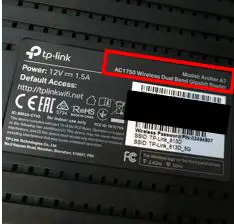
    • What internet speed does my router need to support?
    • Are my internet needs going to change in the near future?
    • Do I want to future proof my router so I don’t need to buy a new one if I upgrade my internet plan?
    • How large of a living area do I need to provide internet access to? How many floors is it?
    • If I have a large area or multiple floors, do I need a WiFi range extender or should I get a mesh router network?
    • What’s my budget for a new router?
    • Do I want a standalone modem and router or a modem/router combination?

    Answering these questions will help you decide what kind of router you need.
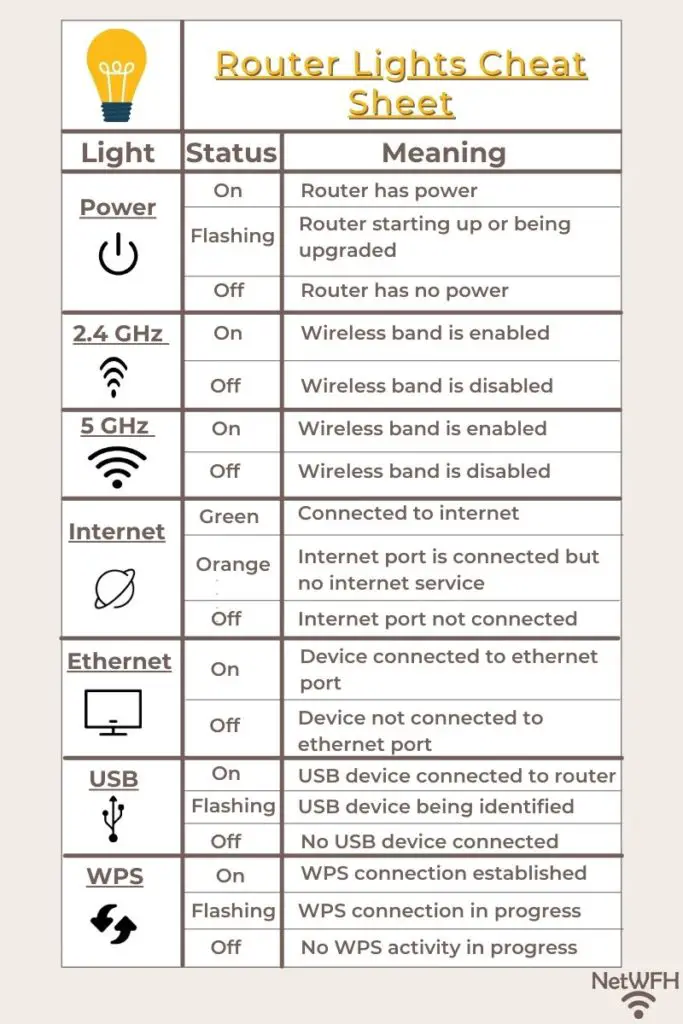
    If you haven’t guessed, I personally love my TP-Link Archer A7 router. It’s very inexpensive, and I know it has me covered in the future if I want to upgrade my internet plan.
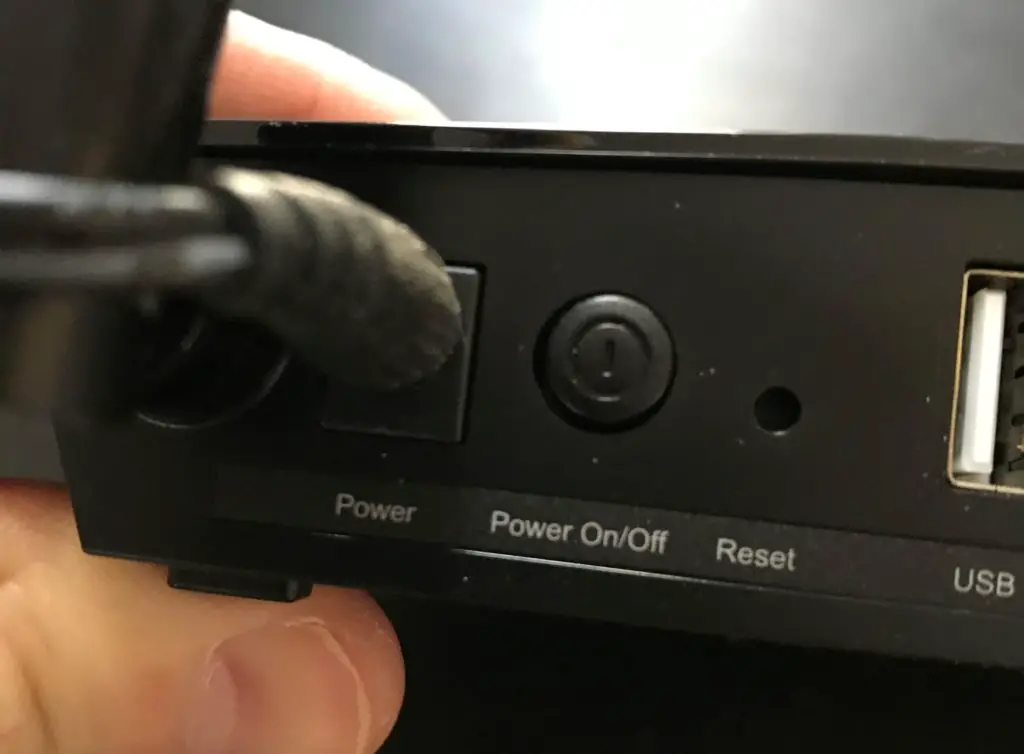
    If you’re willing to spend a little more money on your router, the Linksys EA6350 router is another popular choice.

    If you do your homework and make sure your router meets all the needs of your unique situation, there’s a high probability that you’ll love your home internet experience.

    Wrap Up

    Has anyone had any problems with their router slowing down their internet connection? I’d love to hear your stories. Feel free to post your experiences in the comment section below, or send me an email via the Contact Me page.

    If you’d like to read more about similar topics, check out the following articles that I’ve previously published:

    Can an Ethernet Cable Slow Your Internet Speed?

    Does Your Modem Affect Your Internet Speed?

    Does an Old Computer Affect Your Internet Speed?

    How to Update Your Router: The Ultimate Guide

    Does a Router Have to Be Connected to a Computer to Work?