Category: Routers

This category pertains to content related to routers

  • What Speed Can My Router Handle? What You Need to Look At

    What Speed Can My Router Handle? What You Need to Look At

    What speed can my router handle title page

    If you’re not careful, your router can limit the internet speed of your home network.

    You might be wondering how this is even possible.

    A router can limit the speed of a network if it isn’t made to support the speed of the internet plan in place.

    In order to make this determination in your home network, you need to know what speed your router supports. So how do you go about finding this out?

    Fortunately, there are a few different sources you can go to.

    The best way to find out what speed a router supports is to refer to the router’s technical specifications. This information is usually provided on the datasheet that comes with the router (or on the box it comes in). Alternatively, the datasheet can usually be found online on the vendor’s website.

    In this article, I’ll walk through the different ways you can find out what internet speed your router supports. I’ll also talk about how the speed your router can handle will affect the rest of your network.

    Let’s get started.

    How to Find Out What Speed Your Router Supports

    Before we dive into the different ways you can find out what speed your router supports, let’s make sure we’re on the same page about what we’re referring to.

    When we talk about speed in this context, what we’re really referring to is the amount of data a router can process in a given period of time. Another term for what I’m describing is bandwidth.

    Speed and bandwidth are not the same thing, even though these two terms are often used interchangeably.

    So when referring to the “speed” a router can handle, we’re actually talking about how much data it can handle at once, i.e. its bandwidth. We’re not really talking about how fast it can process the data it receives, or its speed.

    A common analogy for the difference between these two terms is a water pipe. How wide the pipe is determines how much water can flow through it at once. This is the bandwidth of the pipe.

    How fast the water is flowing through the pipe (regardless of how wide it is) is it’s speed.
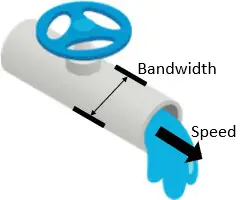
    Bandwidth and speed diagram

    The reason I’m making this distinction is because it’ll help you understand how a router’s bandwidth can affect the rest of your network. We’ll get more into that later.

    For now, let’s talk about the different ways you can determine the maximum bandwidth your router can support.

    Finding the Speed a Router Supports by Looking at the Router’s Datasheet

    To determine the bandwidth your router can support, you need to look at the technical specifications of the device.

    Ok, I know this isn’t totally helpful.

    So where can these technical specifications be found?

    The easiest method of finding this information is by looking at the resources that came with your router when you bought it.

    Specifically, I’m referring to the datasheet and box your router came in.

    The box that your router comes in will usually have a “Specifications” or “Features” header that details the bandwidth the router can support. This information is usually listed on the front of the box as well, as this is one of the most important marketing materials for routers.

    Additionally, there may be a datasheet included with the router and the other components inside the box. This datasheet will list:

    • The bandwidth the router supports
    • The WiFi standard the router supports
    • Important features that come with the device
    • Various other hardware and software specifications of the router

    If you have either the box or the datasheet for your router, it shouldn’t be hard to find the bandwidth information you need. Router manufacturers generally aren’t shy about touting the bandwidth their devices can support.

    Now I know what most of you are thinking.

    It’s definitely a longshot that you still have these materials. Most people get rid of the router’s box and documentation as soon as they open it and get it working.

    On top of that, if you’re renting a router from your internet service provider, they may not provide you with any of these things.

    So in the case where you no longer have these items (or never got them), all’s not lost. There’s an alternate method for finding this information. We’ll go over this method in the next section.

    If you do happen to still have these resources, congratulations to you. You have everything you need at your fingertips.

    Finding the Speed a Router Supports by Using Online Resources

    As I mentioned, if you don’t have any of the physical references that come with your router, there’s another path you can take.

    Essentially, you just need to look up this information electronically.

    This all starts with identifying the make and model of your router.

    If you already know the make and model of your router, you should be in good shape to move forward. If you don’t, you’ll need to go through a few additional steps.

    In case you’re unsure what the make and model of your router is, I’ve previously written an article on this topic that provides a step-by-step procedure you can follow.

    Ok, now that you have the make and model of your router, let’s move forward.

    The general process we’ll be following here includes going to the router manufacturer’s website. Most manufacturers will have support pages and electronic documentation for the devices they sell.

    We can use my router as an example for how to do this.

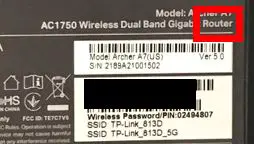
    I have a router made by TP-Link. The model of my router is: Archer A7.

    Using this information, we can open an internet browser and type “TP-Link Archer A7 datasheet” into Google.

    In general, the vendor’s support page for the device will usually be one of the top search results. As you can see, in my case it’s the first result.
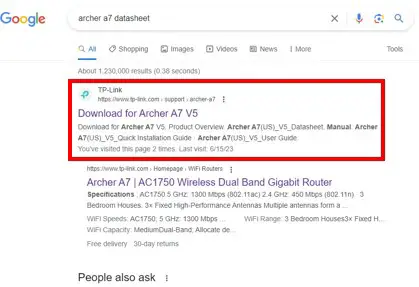
    TP-Link Archer A7 Search Results
    Google and the Google logo are trademarks of Google LLC.

    In navigating to the TP-Link website, front and center we see resources available for my device that’re available for download:
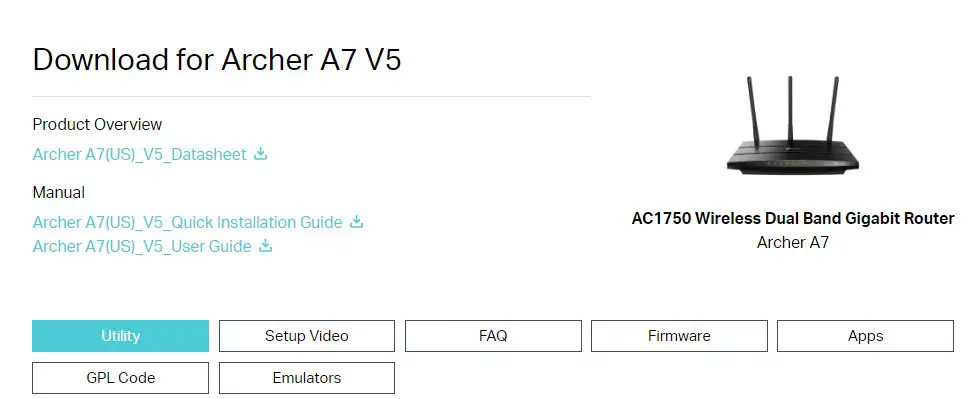
    Download resources available for TP-Link Archer A7 router

    From the available references, it should be obvious what we’re looking for here. We need to download the Archer A7 datasheet.
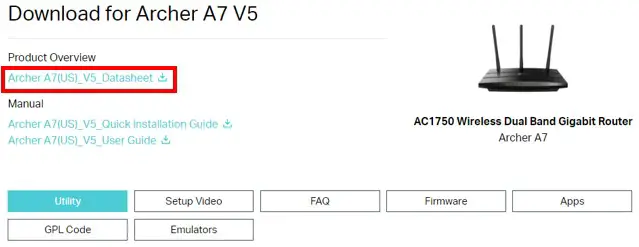
    Archer A7 Router Datasheet Download

    Once the datasheet is downloaded and I open it up, I get smacked in the face with what we’re looking for. The bandwidth the router supports is front and center on the first page of the datasheet.
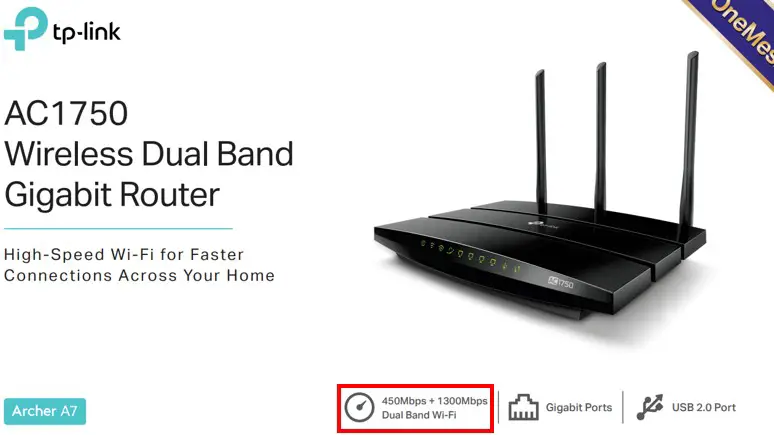
    TP-Link Archer A7 supported bandwidth on data sheet

    See? I told you router manufacturer’s aren’t shy about highlighting their router’s capabilities.

    From this information, we can tell that my router supports bandwidths of 450 and 1,300 Megabits per second (Mbps).

    Why are there two different numbers?

    That’s because the router is a dual band router. This means that the router will broadcast two different wireless networks (2.4 GHz and 5 GHz).

    Without getting too much in the weeds here, this means that the 2.4 GHz network can support up to 450 Mbps of bandwidth, while the faster (but shorter range) 5 GHz network can support a bandwidth of up to 1,300 Mbps.

    In cases where your router is dual band (which is the case for all modern routers), it’s a good rule of thumb to use the bandwidth supported by the 2.4 GHz network when planning your home network.

    So in using the datasheet for my router, I can say that my router can support bandwidth up to 450 Mbps. To put it another way, my router can handle an internet “speed” of 450 Mbps.

    How Does the Speed a Router Can Support Affect My Network?

    After determining the bandwidth your router can support, the next logical question is what this means for your network.

    The maximum allowable bandwidth for your router will allow you to perform an assessment of your home network.

    For one, you should make sure your current internet plan isn’t providing more bandwidth than your router can support.

    If you have an internet plan that provides your home network with more bandwidth than your router can handle, your router will limit the performance of your entire network.

    In other words, you should make sure your router can support more bandwidth than what your internet plan can handle. Otherwise it’ll be a bottleneck for your network.

    Let’s go back to my situation to provide an example of this.

    If my router supports bandwidth up to 450 Mbps, and my internet plan provides 800 Mbps, the fastest my home network could operate at would be 450 Mbps. In this case, my router is preventing my home network from getting the most out of my internet plan.
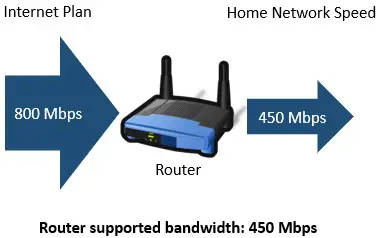
    Router supports less bandwidth than internet plan provides

    On the other hand, if my internet plan was providing speeds of 200 Mbps, my network wouldn’t be limited by my router.
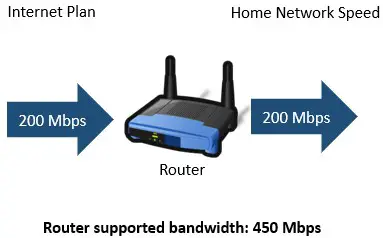
    Router supports more bandwidth than internet plan

    The takeaway here is that you should always make sure your router can support your internet plan.

    Otherwise, what’s the point of paying for an expensive internet plan if you won’t be able to use all the bandwidth it’s providing?

    This is the reason why knowing the bandwidth your router can handle is so important. You need to make sure it’s not limiting the speed of your network.

    Wrap Up

    Now you’re equipped with what you need to assess if your current router is a good fit for your current internet plan. If it’s not, you can either upgrade your router, or you can reduce the internet plan you’re paying for.

    In any case, you should now be able to make smarter decisions about your home network, so congratulations to you for taking the time to learn about this. Your home network (and wallet) thanks you.

    If you have any questions about this information, please drop a comment below. If you found this article helpful, here are some others that might be useful as well:

    What Router Do I Have? How to Find Out

    Does a Router Affect Your WiFi Speed?

    How to Connect a Computer to a Router
    Can I Use a Router Without a Modem?

    Can I Move My WiFi Router to Another House?

  • Does a Modem Need to Be Connected to a Router? What to Know

    Does a Modem Need to Be Connected to a Router? What to Know

    Does Modem Need to Be Connected to Router Title Picture

    A modem and router are essential to providing an internet connection to a home network.

    Knowing what you need in a home network is the easy part. The real challenge is actually setting up these devices and configuring your home network.

    On that topic, one question that often arises is if a modem and router need to be connected to each other.

    The good news is I can help you out here.

    So the question remains: does a modem have to be connected to a router, or do these devices operate independently of each other?

    In a home network, a standalone modem always needs to be connected to a router. A modem and router need to be connected in order to provide a usable internet connection to the network. If a modem and router are not connected, the devices on the home network will not be able to access the internet.

    In this post, I’ll explain why a modem and router need to be connected. I’ll also talk about how to connect a modem and router to each other.

    Why Does a Modem Need to Be Connected to a Router?

    When reflecting on your modem and router (as I have spent countless hours doing), it’s best to think of them as teammates.

    I say this because both devices need each other in order to provide the maximum benefit to the network they’re in.

    Sure, it’s possible to have a router in your home network without a modem, but in doing so you won’t be able to get the most out of your router. You’ll need a modem as well if you want to achieve that.

    As an aside, if you’d like to learn more about what you can do if you only have a router in your home network, I’ve previously written an article on that topic that you should check out.

    As I was saying, you need both a modem and router working in tandem if you want to provide maximum benefit to your network.

    Taking it once step further, you not only need both devices in your network, but you need them to be connected to each other as well.

    The basic concept you need to understand here is that a modem and router are responsible for different functions in a home network, and they need to leverage each other’s capabilities to provide an internet connection.

    A modem is responsible for establishing and maintaining an internet connection with an internet service provider (ISP). A router, meanwhile, is responsible for taking that internet connection from the modem and making it available to all the devices on a given network.

    Without a modem, there’s no internet connection being delivered to the network. Without a router, the internet connection provided by an ISP isn’t accessible by the devices on the network.

    See how that works?

    Now let’s talk about what happens when there’s a modem and router in a network.

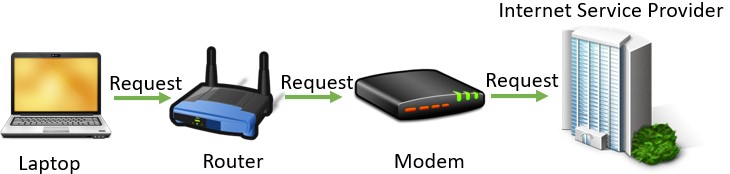
    Any internet request made from a device on a network is first sent to the router. The router then passes this request to the modem so it can be sent out to the broader internet.

    Internet request diagram
    The path of an internet request made on a home network

    This communication process happens constantly when devices on the network access the internet.

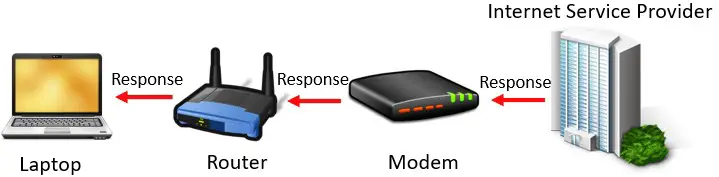
    In fact, after a request is sent to the internet, the same process occurs when a response from an internet request is returned from the internet. The only difference is the response is passed to devices in the home network in the opposite order:

    Interne response diagram
    The path of an internet response on a home network

    Due to this dynamic, a modem and router are constantly handing data to each other. They’re in constant communication when devices are accessing the internet.

    Think about how often this is happening if there are multiple devices on a network accessing the internet at the same time. That should give you an idea why I referred to a modem and router as teammates earlier.

    If a modem and router didn’t work well together, it would really slow down a home network.

    This is another reason why a modem and router need to be connected to each other.

    To summarize, a modem and router need to be connected in order to:

    • Provide an available internet connection to the devices on a home network
    • Process all requests being sent to (and received from) the internet in a timely manner

    How Is a Modem Connected to a Router?

    Ok, we’ve established why a modem and router need to be connected to each other.

    The question is, how are a modem and router connected?

    The answer to this question is pretty easy, because there’s only one way to do it.

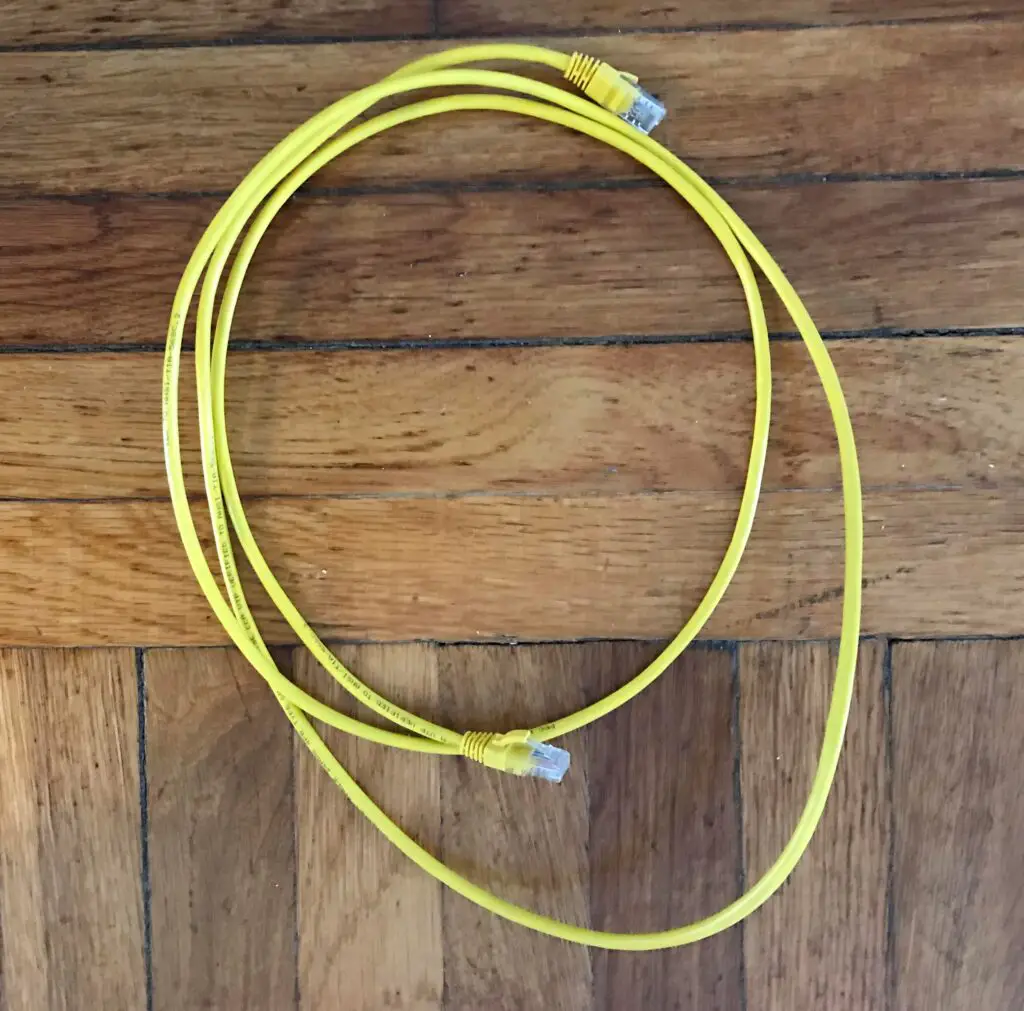
    A modem and router can only be connected with an ethernet cable. If you’re not sure what an ethernet cable looks like, here’s one for reference:

    Coiled Ethernet cable
    An example of an ethernet cable

    So that’s the first thing you need to do here. Make sure you have an ethernet cable to connect your modem and router. I’d suggest buying either a Cat 5e or Cat 6 cable if you don’t currently have one.

    Alright, now that you have an ethernet cable in hand, let’s go over where it needs to be connected on each device.

    We’ll start with a modem.

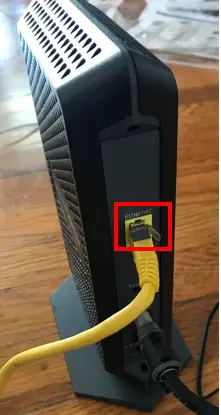
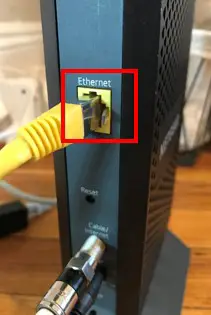
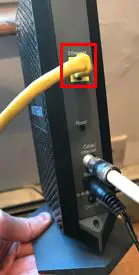
    This’ll be really easy to accomplish, because your modem will only have one ethernet port. Chances are, it’ll be labeled “Ethernet” as well, so it’s be impossible to miss.

    Here’s what the ethernet port looks like on my modem:

    Modem ethernet port
    The ethernet port on a modem

    Ok, now that the modem’s taken care of, let’s turn our focus to the router.

    You need to pay a little more attention when connecting an ethernet cable to a router. That’s because there’s more than one ethernet cable to connect to.

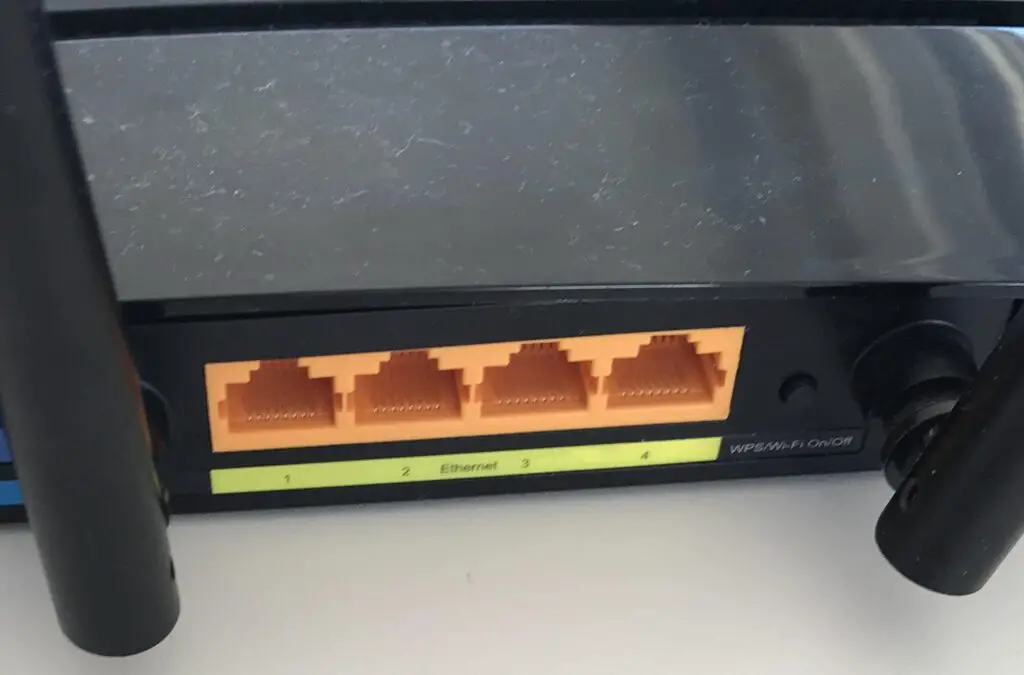
    In fact, there’s usually at least five of them on a router. To find out what each of these ethernet ports does on a router, check out the post I wrote that breaks this all down.

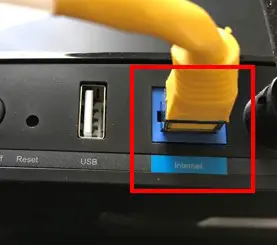
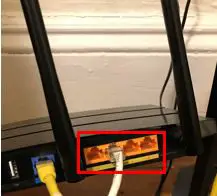
    The ethernet port you’re looking for on a router is called the WAN port (or internet port). This port is usually separate from all the others on the router.

    Does any of these ethernet ports stand out from the rest?

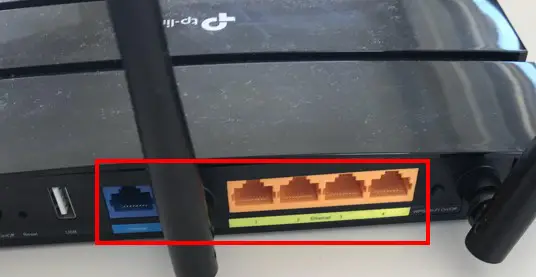
    Router ethernet ports
    Ethernet ports on a router

    The blue ethernet port is clearly different from the other ethernet ports. This is done intentionally.

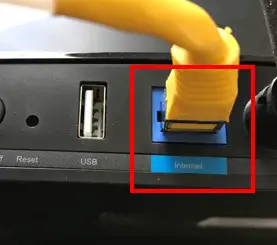
    On top of that, the WAN port on a router is usually labeled with something like “Internet” or “WAN”. This’ll help you further differentiate the port that you need to connect the ethernet cable to.

    Router WAN port
    The WAN port on a router

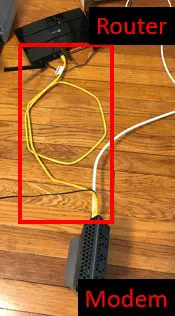
    Once your modem and router are connected to each other with an ethernet cable, that’s all you need to do.

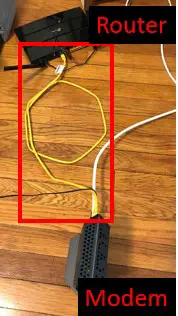
    Modem and router connected with ethernet cable
    A modem and router connected with an ethernet cable

    The devices will handle the rest of the communication from there.

    When Does a Modem Not Need to Be Connected to a Router With an Ethernet Cable?

    There are only two scenarios when you won’t need to connect your modem and router with an ethernet cable.

    I mentioned the first scenario earlier when talking about how a modem and router are both needed to get the best of both devices.

    If you don’t need a connection to the internet, you can use a router without a modem. In this case, you don’t need to connect anything to the WAN port on the router. You won’t need a modem in your home network.

    You just need to accept the fact that you won’t be able to access the internet. For many people, that’s not easy to do.

    Ok, is there a scenario where you have internet access but you don’t have to connect a modem and router?

    As a matter of fact, there is.

    This is possible if your modem and router come connected to each other when you buy them.

    How’s this possible, you may ask?

    This is accomplished by buying a modem and router combination device.

    A modem and router combination device is a singular device that handles the functionality of both a modem and router.

    With a modem and router combination device, you only need one device to stand up internet in your home.

    As a result, you won’t need to connect your modem and router. They’ll already be connected to each other within the device itself.

    If you’d like to learn about how modem and router combination devices work, I’ve written a post on this topic that might be helpful.

    Wrap Up

    That just about does it.

    If you have a standalone modem and router in your home network, you’ll need to connect the devices with an ethernet cable if you want to access the internet. There’s no way around it.

    If you have any questions about what I talked about in the article above, please leave a comment below.

    To learn more about similar topics, check out some relevant articles I’ve previously written:

    Can I Use a Router Without a Modem?

    Router Ethernet Ports: Everything You Need to Know

    What is a Modem Router Combo?

    Should Your Router and Modem Be Close Together?

    Are All Routers Compatible With All Modems?

  • Does Your Router Assign IP Addresses? What You Should Know

    Does Your Router Assign IP Addresses? What You Should Know

    Every connected device on your home network is assigned an IP address. This IP address serves as an identifier that allows the device to communicate with other devices on the network, as well as the internet.

    The question is, how do your devices get assigned these IP addresses?

    Is it your router that’s responsible for the assignment of IP addresses in your home network, or does this happen another way?

    Routers are responsible for the assignment of IP addresses on a network. A router can assign IP addresses to devices automatically using Dynamic Host Configuration Protocol (DHCP), or by manually assigning static IP addresses to devices.

    In this post, I’ll break down everything you need to know about how IP addresses get assigned on your home network. I’ll also talk about the different ways IP addresses can be assigned to your devices.

    How Do IP Addresses Get Assigned to Devices?

    Let’s get straight to the point.

    In home networks, routers assign IP addresses to devices.

    We’ll start at a high level here before we dive into more detail.

    Devices are assigned an IP address when they first connect to a network (either wirelessly or with an ethernet cable).

    What’s interesting is that when a device connects to a network, it’s actually connecting to the router of that given network. That’s because the router is the device that’s responsible for creating and managing the network.

    Routers broadcast WiFi networks that allow devices to connect to them wirelessly. For any wired connections to the network, the device is connected directly to the router with an ethernet cable.

    This is why it makes sense for your router to assign IP addresses to the devices on a network. Router’s are the first to know about new devices that join the network, because any new devices are connecting directly to it.

    If a different device was responsible for assigning IP addresses, it would be a less efficient process. The device would have to communicate with your router to find out about any new devices on the network, then it would have to coordinate the assignment of the IP address to the device through your router.

    It’s faster, easier, and more logical to just have your router do it.

    How Do Routers Assign IP Addresses?

    Every time a device connects to a network for the first time, it gets assigned an IP address. The device needs to have an IP address assigned to it before it can talk to other devices on the network (or the internet), so this step is critical.

    This is where things get interesting.

    That’s because there are two different methods that routers can use to assign IP addresses.

    IP addresses can be assigned automatically through Dynamic Host Configuration Protocol (DHCP), or manually with the use of DHCP reservations.

    Let’s take a closer look at each of these methods.

    Assigning IP Addresses With Dynamic Host Configuration Protocol (DHCP)

    Let me start by saying that in the majority of cases, DHCP is used to assign IP addresses on a network.

    Dynamic Host Configuration Protocol is the method used to automatically assign IP addresses to devices when they first join a network.

    This is the fastest and easiest method of IP address assignment, because it happens without any human interaction required.

    In cases where DHCP is used, the router will act as what is called the DHCP server for the network.

    Let’s walk through how this process works.

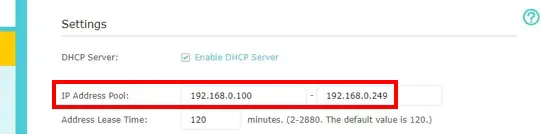
    When a device connects to the network for the first time, the router has a range of IP addresses that it can assign to the device.

    The range of IP addresses my router can use to assign to devices

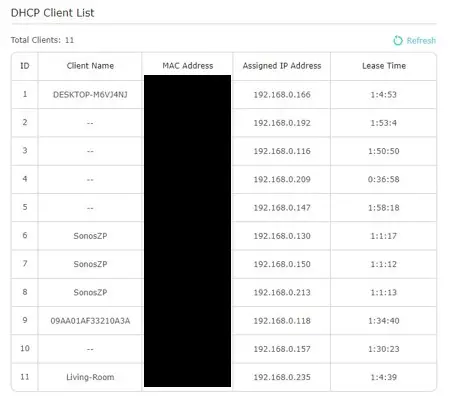
    The router keeps track of the IP addresses that’re currently in use by other devices and automatically assigns the next available IP address to the device.

    The list of devices that have already been assigned an IP address is called the DHCP client list. For your reference, here’s an example of what a DHCP client list looks like:

    Router DHCP client list
    The DHCP client list for my router

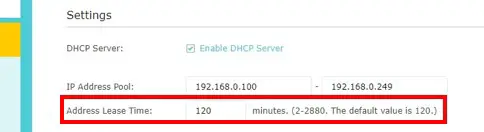
    Once assigned an IP address, the device will keep the IP address for a set amount of time that’s decided by the router. After this set period of time, if the device is still on the network it needs to “renew” its lease on the IP address.

    The lease time setting for the DHCP-assigned IP addresses on my network

    If the device disconnects from the network and the time period allotted for that IP address has expired, the router will disassociate the IP address from that device and return it to its usable pool of IP addresses.

    All of this happens without the owner of the router having to do anything.

    This is the beauty of DHCP, and it’s the reason why DCHP is utilized in most home networks.

    If you’d like to find out if DHCP is enabled on your router, check out this post I’ve written that walks you through the steps you need to follow.

    Assigning IP Addresses With DHCP Reservations

    Although it seems like DHCP is the easy button when it comes to IP address assignment, there are some situations where automatically assigned IP addresses may not be the best solution.

    This is why routers have another method of IP address assignment.

    The second method that routers use to assign IP addresses is called DHCP reservations. This is also referred to as assigning a static IP address to a device.

    In this method, devices are manually assigned IP addresses. In addition, these IP addresses don’t expire. They remain associated with the given device until the IP address is manually unassigned from it.

    I know what you might be thinking here.

    Why would anyone want to manually assign IP addresses to their devices? Wouldn’t this be a painful and extremely manual process?

    First of all, let me say this is a totally understandable perspective.

    The reality here is that some devices are better served with a static IP address that DHCP reservations provide.

    Can you think of any situations where you’d want a device to have the same IP address at all times?

    It makes the most sense to use a static IP address when you:

    • Are setting up a printer on your home network
    • Need to access a device on your home network remotely
    • Want to add a second router to your network to serve as a wireless access point
    • Want to be able to view your home security cameras when you’re away from home

    These situations make sense because you want to be able to find the device in the same spot every time you need to access it.

    Think of it this way: if the IP address of a device changes, it’s like the device is moving to a new location.

    If you have a wireless printer on your network, each time it gets a new IP address you’ll have to reconfigure the printer settings to update its IP address. Otherwise you’ll be trying to print to an IP address different from where you printer is actually located.

    Wouldn’t you rather just be able to click the print button and not have to think twice about it?

    By assigning a static IP address to your printer, that’s all you’ll have to do.

    Thankfully, this is pretty easy to do on your router.

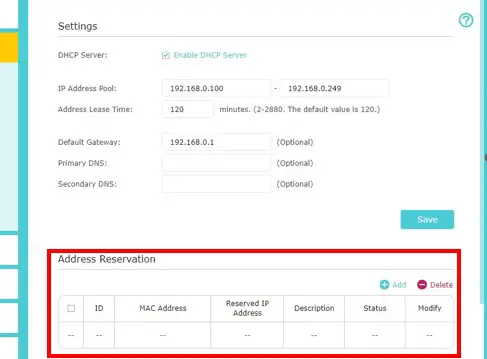
    You essentially just need to enter the MAC address of the device you want to assign a static IP address, and pick an IP address you want the device to have. This can be done in your router’s settings in the DHCP reservation section:

    The DHCP reservation list on my router

    Whatever IP address you choose will be associated with that device until you decide to make changes to it.

    Wrap Up

    There you have it, folks. Now you know your router is the device behind the assignment of IP addresses in your home network.

    If you have any questions about this information, please leave a comment below. For more information about similar topics, check out these other posts I’ve written:

    Does My Router Have DHCP? How to Find Out

    Do You Need an Internet Connection if You Have WiFi?

    What Can You Use an Internet Router For? 7 Common Uses

    Router Ethernet Ports: Everything You Need to Know

    How Many IP Addresses Should a Router Have?

  • Does My Router Have DHCP? How to Find Out

    Does My Router Have DHCP? How to Find Out

    Does My Router Have DHCP title page

    In today’s world of mobile devices and wireless internet access, Dynamic Host Configuration Protocol (DHCP) has become a requirement for home networks.

    Without DHCP, home networks would be a mess to manage.

    Could you imagine having to manually assign an IP address to every connected device that enters your home?

    I couldn’t either.

    If DHCP is so vital to home networks, where does it come from? Is your router responsible for providing DHCP to your home?

    In general, internet routers are responsible for providing Dynamic Host Configuration Protocol (DHCP) capabilities to a network. Although all routers have DHCP capabilities, a router’s DHCP configuration can be turned on or off based upon the unique needs of a network.

    In this post, I’ll discuss whether you can expect your router to have DHCP configured. In addition, I’ll provide a procedure for checking to see if your router has DHCP enabled.

    What Routers Have DHCP?

    When it comes to routers used in home networks, you can expect all of them to have DHCP configured.

    If you think about the role of routers in a home network, this makes a lot of sense.

    A router is responsible for coordinating all the traffic in its network. It ensures that a device that sends an internet request is the same one that receives the response to that request.

    When you think about the number of internet connections that are active at the same time on a network, it’s easy to see this is no easy task.

    This is especially the case when devices are frequently joining and leaving the network.

    When a device connects to a router’s network, the router needs to keep track of it to ensure the device receives the data that is sent to it.

    These devices are tracked by assigning them IP addresses.

    Who better to assign an IP address to a device than the router that’s responsible for coordinating its internet connection?

    And how do routers assign IP addresses to devices that join their network?

    You guessed it. They utilize DHCP.

    This is why all home network routers have DHCP capabilities. They’re in charge of tracking all the devices connected to the network. Assigning IP addresses to these devices helps them do that.

    How Do I Know if My Router Has DHCP Enabled?

    There’s one important thing to understand when it comes to your router and DHCP: just because your router has DHCP capabilities doesn’t mean DHCP is enabled on your router.

    If you want to know if you router has DHCP enabled, it’s a pretty straightforward process.

    You just need to know where to look.

    For this information, you need to access your router’s settings page.

    So how exactly do you do this?

    I’m glad you asked.

    How to Check Your Router’s Settings to See if DHCP Is Enabled

    If you want to see if your router has DHCP enabled, the first thing to determine is the location of your router’s settings page.

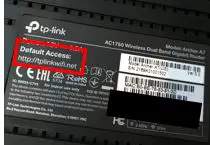
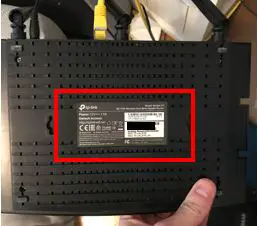
    In most cases, you can find this information from a sticker that’s on the actual device.

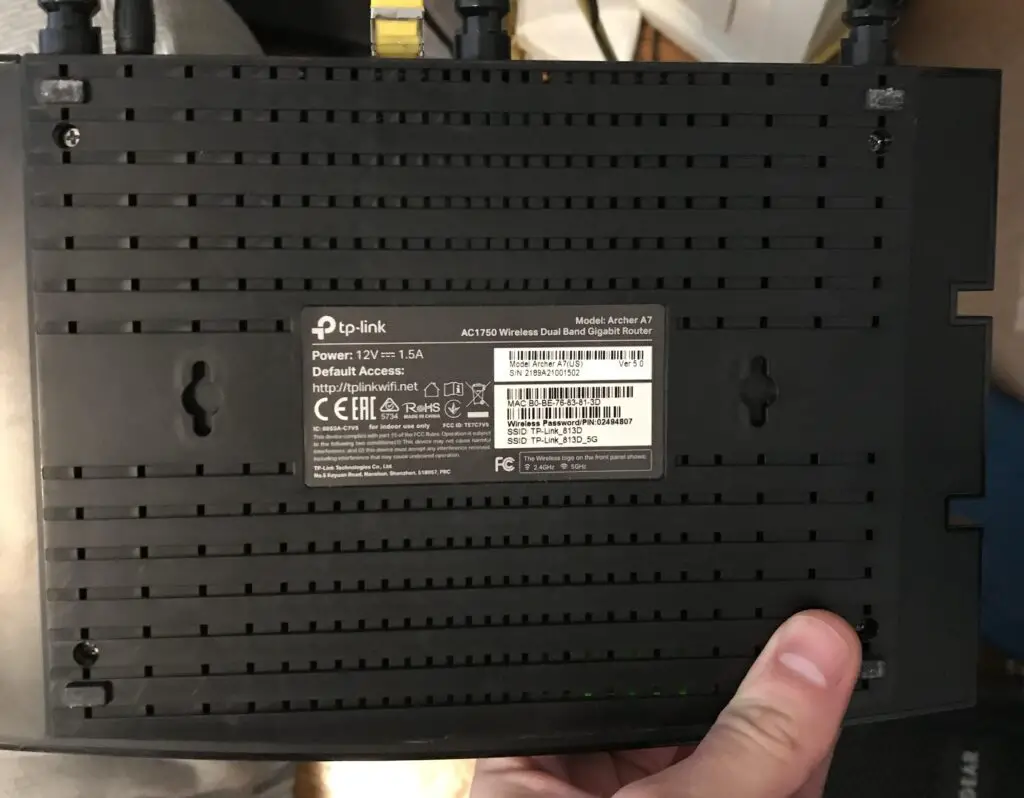
    For example, the informational sticker on my router is on the bottom of the device.

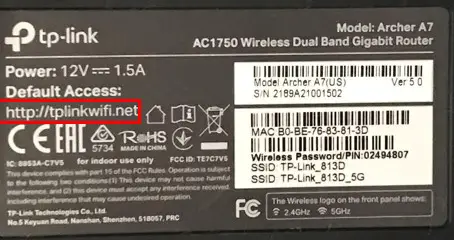
    Router default access location

    You can also access your routers settings by typing the IP address of your router into an internet browser. In my case, this means I can access my router’s settings at http://192.168.0.1.

    As a note, this is a common IP address for home network routers.

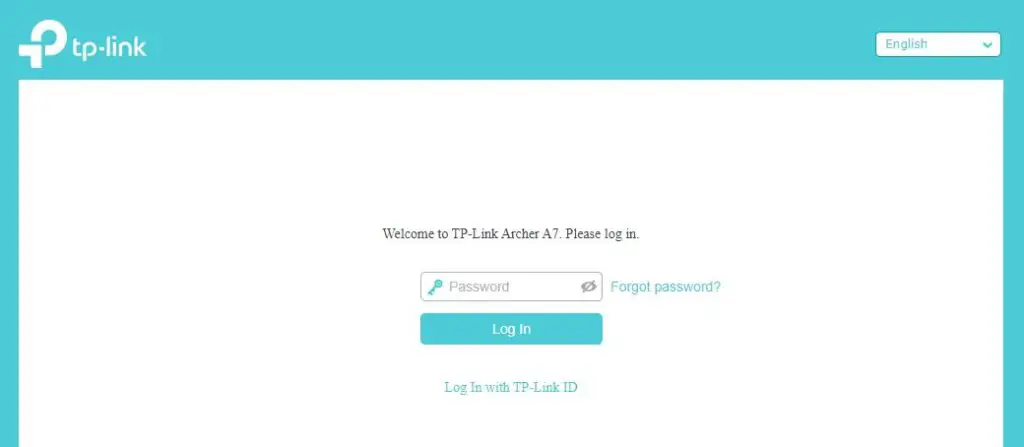
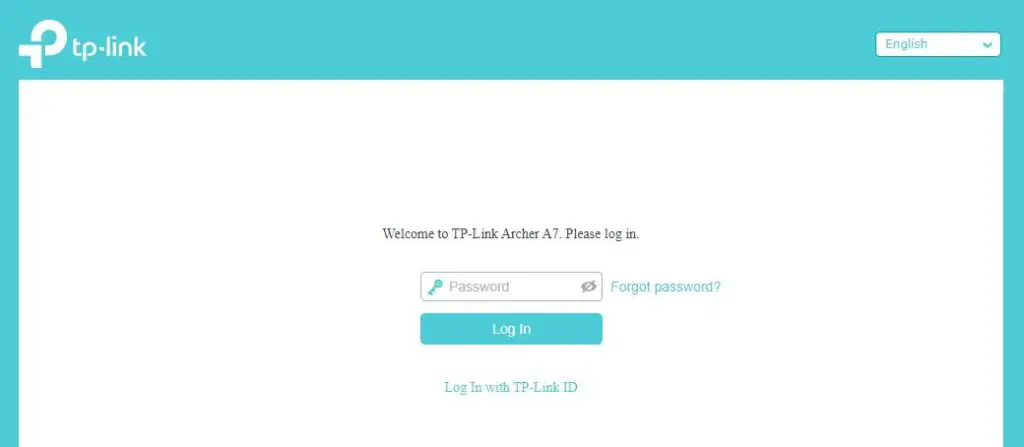
    Upon entering the location of your router’s settings page into a browser, it’ll take you to a login page.

    Router settings login page

    At the login page, enter the username and password for your router’s settings.

    If you’ve never changed the default username and password for your router, this information may be listed on the sticker on the router itself.

    In some cases, you’ll be able to find the default username and password for your router’s settings by searching for your router’s make and model in Google. If you’re unsure what your router’s make and model is, I wrote an article on this that’ll help you figure it out.

    In my case, I was forced to create a unique username and password when I first accessed my router’s settings.

    Important note: if you’ve never changed the default username and password for your router’s settings, you need to change it. Changing your router’s password to something only you know will make it much more secure.

    Ok, back to our regularly scheduled programming.

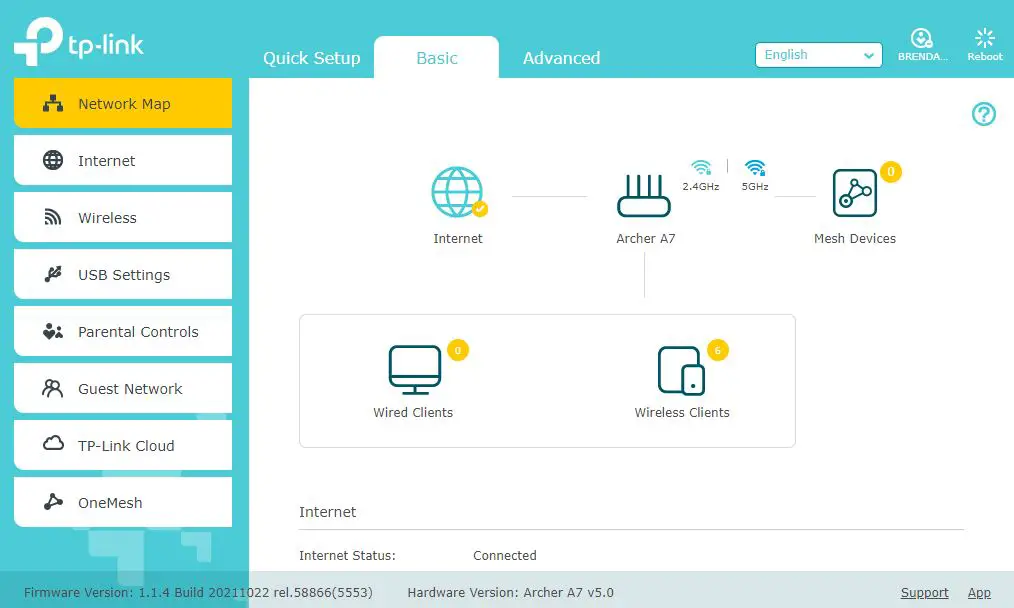
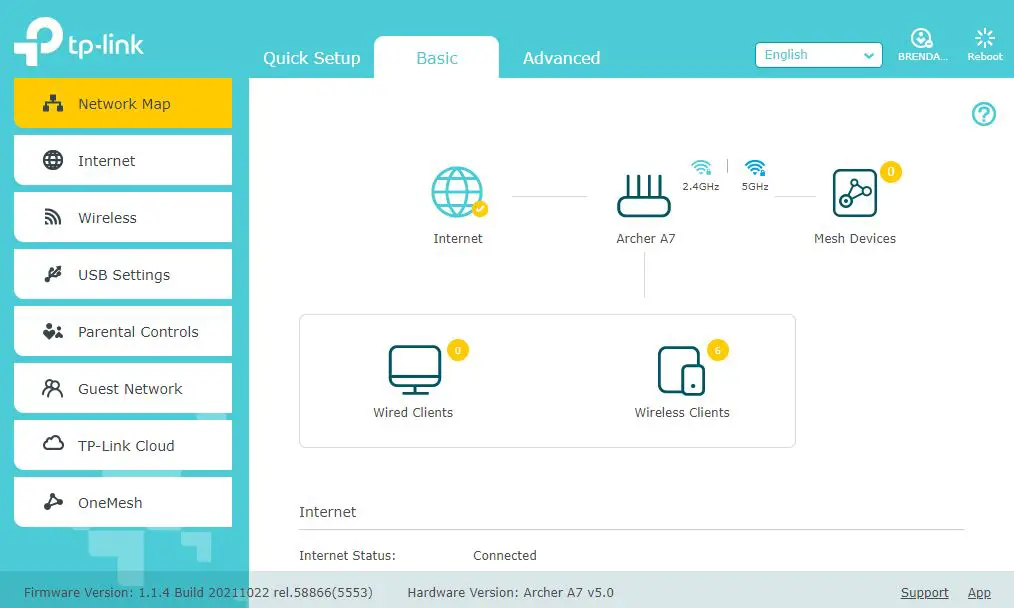
    Once you’ve successfully logged in to your router, it’ll take you to the home page of your router’s settings:

    Router settings page

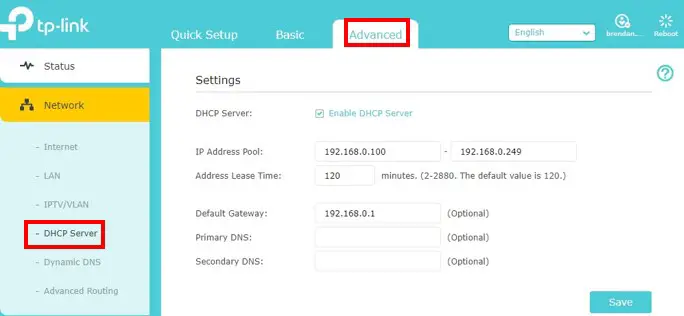
    In most cases, your router’s DHCP settings will be in the Advanced Settings section of your router’s settings.

    Advanced tab of router settings

    For my TP-Link Archer A7 router, I first need to access the Advanced Settings tab. Then I’m able to select “DHCP Server” under the Network settings header.

    DHCP server settings page

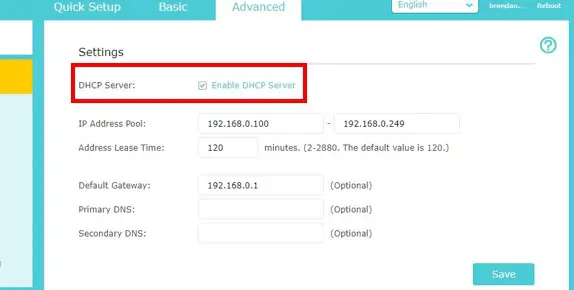
    On this settings page, I’m able to see if DHCP is enabled on my router.

    DHCP server enabled setting

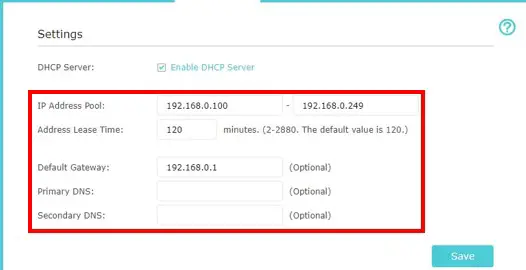
    In addition, I can see the additional DHCP settings for my router. This includes the:

    • IP address of the DHCP server (which is the IP address of my router)
    • Range of IP addresses that are assigned to devices on the network (i.e. the IP address pool)
    • How long devices can reserve IP addresses before having to reserve them again (this is called lease time)
    DHCP settings for router
    DHCP settings on my router

    Further down on this settings page, I can also see the IP addresses currently in use on my router’s network. This is called the DHCP Client List.

    Router DHCP client list

    See? That wasn’t so bad.

    Accessing your router’s DHCP settings will allow you to customize and monitor the IP addresses being used in your network.

    On top of that, you can confirm that your router has DHCP enabled if you’re having issues with your network.

    Why Do Routers Have DHCP?

    Ok, so we’ve confirmed that your router has DHCP capabilities.

    But why do routers have DHCP in the first place?

    To answer this question, let’s make sure we understand what DHCP does for your network.

    DHCP Refresher

    Dynamic Host Configuration Protocol involves the automatic assignment of temporary IP addresses to devices. This method enables IP addresses to be reused by other devices if a specific device leaves a network.

    When it comes to IP address assignment, the opposite method of DHCP is static IP address assignment. In this method, IP addresses are permanently assigned to devices when they join the network.

    These IP addresses cannot be reused unless an address is manually disassociated from one device and reassigned to another one. This is true even if a device is no longer connected to the network. The IP address for that device can’t be reused until it’s manually reassigned.

    Router IP Address Assignment Method

    When you look at things from a router’s standpoint, what method of IP address assignment makes the most sense?

    It doesn’t take too much critical thinking to realize that DHCP is the best option here.

    With the number of connected devices in homes today, router’s need to be able to quickly assign IP addresses to devices as they join the network. At the same time, they also need to free up IP addresses for reassignment when devices disconnect from the network.

    This isn’t applicable to just your devices, either. When you have friends and family visit your home, their devices will connect to your home network.

    When that happens, their devices are assigned IP addresses as well.

    This assignment needs to happen automatically, because the alternative is too slow and painful.

    You’d have to manually assign IP addresses to your friend’s devices every time a new one connects to your network.

    Nobody has time for that.

    This is what makes DHCP a necessity.

    The bottom line is that your router is the best candidate to have DHCP because it’s the brains of your home network.

    Wrap Up

    At this point you should understand the importance of DHCP on your network and why it’s implemented by your router.

    If you have any questions about this information, please drop a comment below. If you’d like to learn more about similar topics I’ve written about, these articles might be a good place to start.

    What Router Do I Have? How to Find Out

    What Can You Use an Internet Router For? 7 Common Uses

    Are All Routers Compatible With All Modems?

    Router Ethernet Ports: Everything You Need to Know

    Does a Router Have to Be Connected to a Computer to Work?

  • What Can You Use an Internet Router For? 7 Common Uses

    What Can You Use an Internet Router For? 7 Common Uses

    What Can You Use an Internet Router For Title Picture

    Let me start by saying that despite their reputation, internet routers are not one-trick ponies.

    They’re actually really helpful devices that can do many things that most people don’t realize.

    Hopefully I’ve piqued your curiosity here.

    So what are all these things a router can be used for?

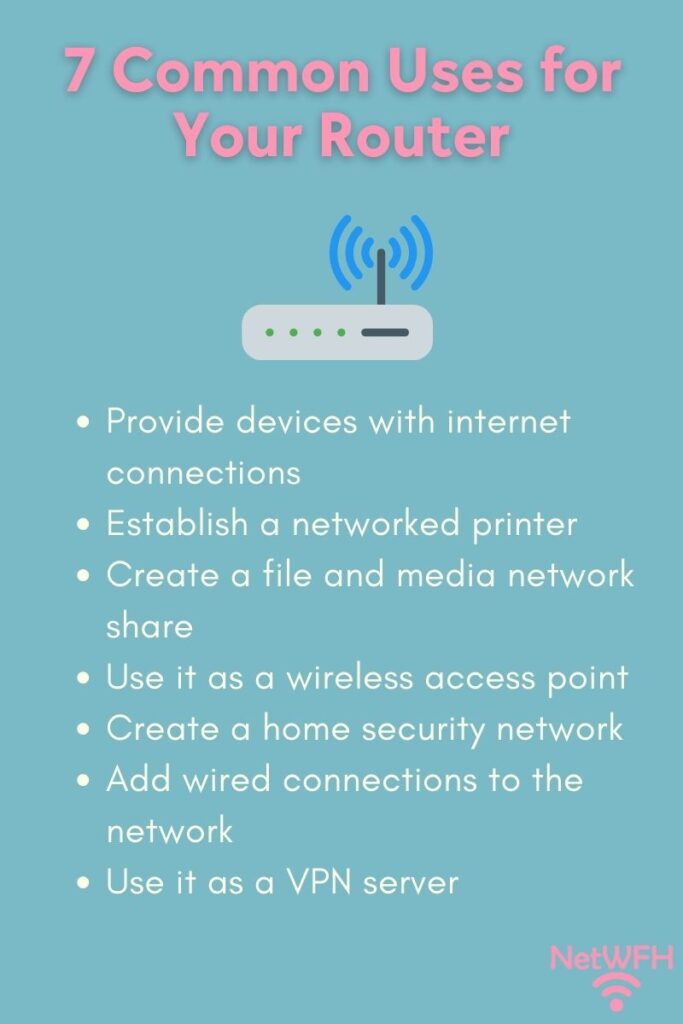
    You might be surprised to find out that you can use an internet router to do the following:

    • Provide devices with internet connections
    • Establish a network printer on a home network
    • Share files and media on a home network
    • Serve as a wireless access point
    • Create a home security network
    • Add wired connections to a network
    • Use it as a VPN server

    In this post, I’ll break down seven of the most common ways that internet routers are used in home networks. Hopefully this will give you some ideas that’ll allow you to get the most out of your router.

    With that, let’s dive into seven common uses for an internet router.

    7 Common Uses for Your Router

    Provide Devices With Internet Connections

    Ok, we’ll start with the obvious one here.

    Most people use their router to provide the devices in their home network with internet connections.

    Internet routers allow for both wired and wireless internet connections, depending upon the needs of the user and their devices.

    This is done with the help of a modem, which provides the router with access to the internet. Without a modem, a router can’t provide internet access to your devices.

    Although this is the most useful thing a router can do, for most people this is all they use their router for.

    Let’s dive into some other useful things routers can do.

    Establish a Network Printer on a Home Network

    In addition to providing an internet connection to your devices, one convenience that routers provide has to do with printing.

    If you have a printer at home, you can make it so that the printer is available to anyone (and any device) on the home network.

    This can be done by connecting a printer to one of the local area network (LAN) ethernet ports on your router (or the USB port depending upon the printer). This type of wired connection to your router will be required if you have an older printer that isn’t WiFi enabled.

    If you have a modern printer that’s WiFi enabled, you should be able to wirelessly print without having to connect your printer to the router directly. The printer and router will be able to communicate with each other wirelessly.

    There are a few different ways that setting up network printing is helpful.

    For one, it means you can print from the couch. Rather than having to get up and manually connect your device to your printer, you can print from anywhere in your home.

    In addition, this is useful when there are guests in your home that need to print a document. Any device that’s connected to the home network will have access to the wireless printing capabilities.

    In other words, anyone that brings a connected device to your home will be able to print without any hassle.

    Share Files and Media on a Home Network

    Do you have files or media that you want everyone on your home network to be able to access?

    If so, you might want to take advantage of your router’s file sharing ability.

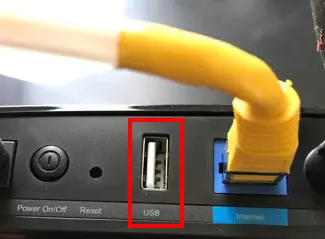
    Take a look at your router to see if you can find its USB port. Most routers have a USB port on the back of them.

    For example, here’s the USB port on the back of my TP-Link Archer A7 router:

    USB port on router

    As you can see, the USB port is hard to miss.

    By connecting a USB flash drive or an external hard drive to the USB port on a router, you can make those files or media available to anyone connected to your home network.

    This is especially convenient if you want anyone in your home to have access to these files.

    Now I know what you’re thinking.

    “I have cloud storage already, and that’s where I keep all my files. Why would I want to share it locally on my home network?”

    What if you have media or documents that you want to be able to share with guests who visit your home?

    Rather than give your guests access to your cloud storage username and password, you can share these files with as little (or as much) protection as you want.

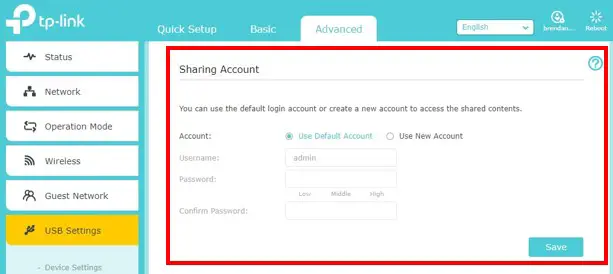
    In your router’s settings, you have the ability to create a Guest account if you want to make these shared files accessible to specific guests.

    Router file sharing settings account creation

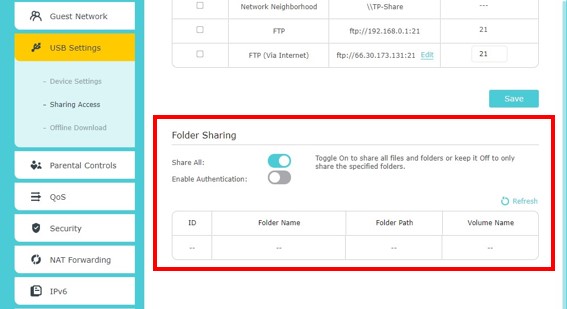
    On top of that, you can identify which specific files you want to make available to the Guest account.

    Router file sharing settings folder privileges

    That way, you have total control over which files you keep private, and which ones you make available to everyone on your network.

    This is a great feature if you have guests over and you want to make all your downloaded movies and pictures available to them when they visit.

    Serve as a Wireless Access Point

    If you have an old router lying around, or you plan on buying a new one, don’t throw out your old router. You might as well put it to good use.

    Do you want to know one of the best ways to use an old router? Use it as a wireless access point for your home network.

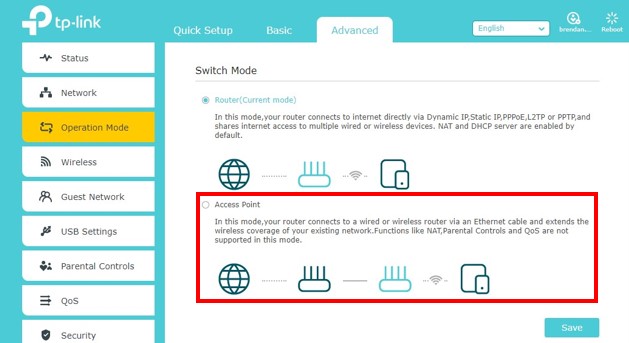
    Most routers allow you to configure them as a wireless access points instead of a fully-functioning router.

    In Access Point mode, the router will simply extend the existing WiFi network in your home that that your active router is broadcasting.

    In order to set this up, you just need to connect your active router to the WAN port of your old router with an ethernet cable.

    Then, in your old router’s settings, you can identify that you want it in Access Point mode.

    Router access point mode

    Rather than having it collect dust, you might as well use your old router to reach the low-signal areas of your home.

    The only catch is that you need an ethernet cable long enough to connect the two devices.

    Create a Home Security Network

    Your router will come in handy if you plan on setting up security cameras in your home.

    If you have multiple security cameras installed around your house, a router makes managing these devices so much easier.

    By connecting the home security system to your router, you’ll be able to manage all of its components from any connected device on your home network.

    That’s because your router will use one of its built-in capabilities (called Dynamic Host Configuration Protocol) to automatically assign IP addresses to all of the security system components.

    Security system DHCP settings
    The DHCP feature on my router assigns IP addresses to my home security cameras

    Once an IP address has been assigned, you’ll be able to use a connected device to access the settings of each of the security cameras (or the security system itself).

    This gives you much more flexibility with your home security system, because you won’t have to log in to the security system server every time you want to make a change to your devices or settings.

    It also makes it much more convenient to review security footage on any connected device on your home network.

    Add Wired Connections to a Network

    This is another creative way to use your router if you have an old one lying around; you can use it as an ethernet switch.

    In other words, you can use the ethernet ports on your old router to provide additional devices in your network with wired connections.

    Wired ethernet connections are more reliable and experience less delay than wireless connections, and many people try to provide their devices with wired internet connections as a result.

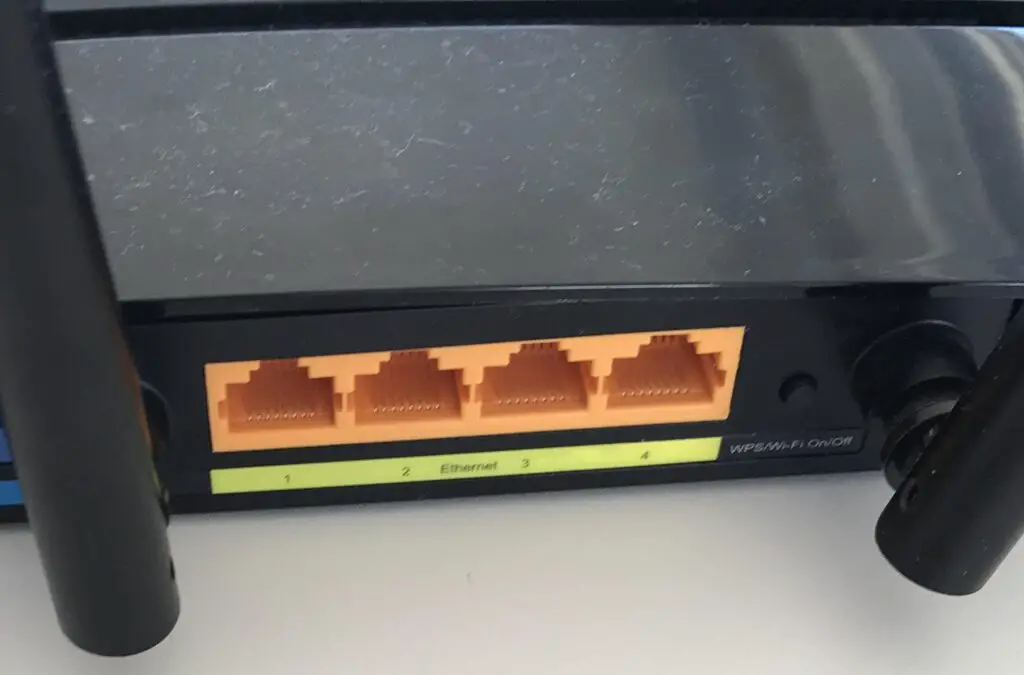
    The difficult part about this is that most routers only have four ethernet ports:

    Router LAN ethernet ports
    The four ethernet ports on my router

    So what do you do if you want to provide more than four devices with wired internet connections?

    You can either buy an ethernet switch (like this one), or use the ethernet ports on your old router.

    This is a pretty simple process.

    First, you have to turn off all the routing functionality of your old router. Then you just have to use an ethernet cable to connect one of the four ethernet ports on the back of the old router to one of the four ethernet ports on your active router.

    Just make sure you don’t use either of the router’s WAN ports when making this connection, and you’ll have a few additional ethernet ports to work with.

    Establish a VPN Server for a Network

    This last common router use will depend upon your router’s make and model.

    This is due to the fact that your router may not come with this functionality. With that said, most modern routers will either have this capability, or it can be added to the router.

    The functionality I’m referring to is using your router as a virtual private network (VPN) server.

    So what does this mean, exactly?

    It means you can route all your internet traffic through your home router, no matter where you’re accessing the internet from.

    For example, let’s say you’re in a different country on vacation. If Netflix has restricted the available content in that country so you can’t watch your favorite show, what do you do?

    You can access your Netflix account by using a VPN server to route your traffic through your home router to Netflix. To Netflix, it’ll look like you’re at home when in reality, you’re…wherever you are at the time.

    By using your home router as a VPN server, it looks like you’re accessing the internet from home all the time. It doesn’t matter where you’re located at that given moment.

    Another benefit of using your router as a VPN server is that the traffic between your device and home router will be encrypted.

    This means that you won’t have to worry about using public wireless networks at coffee shops and airports that are notorious spots for hackers to steal your information.

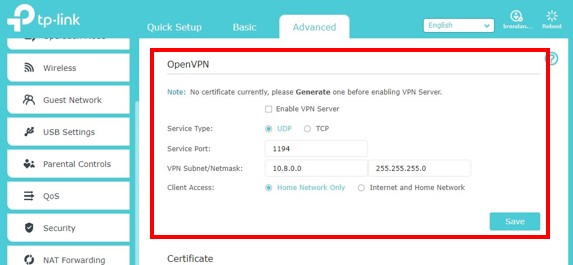
    VPN server router settings
    VPN server settings on my router

    All of your internet requests will be encrypted between your device and home router. Once your internet requests are sent to your home router, they’ll leave your home network as regular internet traffic.

    Whenever you use the internet away from your home network, it’s good to add layers of protection to your internet traffic. Using your home router as a VPN server will do just that.

    Wrap Up

    You should now have plenty of ideas about how to use the router in your home. If you have any questions about these common use cases, please leave a comment below.

    If you found this post helpful and you’d like to learn more, here are some other posts I’ve written that might interest you:

    Router Ethernet Ports: Everything You Need to Know

    Are All Routers Compatible With All Modems?

    Does a Router Have to Be Connected to a Computer to Work?

    What Router Do I Have? How to Find Out

    Does Any Router Work With Any Internet Provider?

  • Are All Routers Compatible With All Modems?

    Are All Routers Compatible With All Modems?

    Are All Routers Compatible With All Modems Title Picture

    In order for your home network to function properly, you need to make sure all your devices work with each other.

    Your modem and router are no exception.

    With that said, do you have to worry about your router and modem being incompatible, or are all routers and modems compatible with each other?

    In general, all modems and routers that are made for home networks are compatible with each other. As long as the router has an ethernet cable port to connect to a modem, and the modem has an ethernet cable port to connect to the router, the two devices will be compatible.

    In this post, I’ll explain why your modem and router are compatible with each other. I’ll also detail how to confirm that your router will work with your modem. Lastly, I’ll discuss if your modem and router need to be from the same manufacturer in order to work together.

    Is Every Router Compatible With Every Modem?

    Any router and modem you buy for your home network will work with each other. In fact, your router and modem will only be incompatible in a few specific situations, which we’ll get to later.

    The reason why your router and modem are compatible is because these two devices can’t function without each other. Just like in a romance story, they complete each other.

    In this case, I mean it quite literally.

    A modem can’t provide a home with an internet connection on its own. The same can be said for a router.

    They need to work together in complete harmony to provide a home with wireless internet connections. In this relationship, the modem establishes an internet connection with the internet service provider (ISP). The router works with the modem to take that internet connection and broadcast it over a wireless network to the devices in your home network.

    This is what enables wireless internet in your home.

    Beautiful, isn’t it?

    In order for a modem and router to work so well together, communication between the two is key.

    Thankfully, the way that modems and routers communicate has been standardized. They communicate with each other over ethernet cables.

    This is how you know your router will be compatible with any modem you have. No matter what model router or modem you have, they’ll be speaking the same language (over ethernet cable).

    Ok, I’ll stop with the analogies now.

    How Do I Know if My Modem and Router Are Compatible?

    Not convinced?

    Let’s walk through a test you can follow to verify that your modem and router are compatible with each other.

    As I mentioned in the previous section, modems and routers communicate with each over an ethernet cable.

    Ok, but how does an ethernet cable connect these two devices?

    We’ll start with the router first.

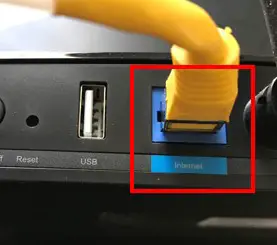
    All routers have what’s called a WAN port. This is an ethernet port that’s specifically designed for the ethernet cable that connects the router to a modem.

    Here’s an example on my TP-Link Archer A7 router:

    Router WAN port

    As you can see, this ethernet port on my router is labeled “Internet”. On other routers, this ethernet port will be labeled “WAN”, identifying that it’s for the router’s connection to the wide area network (aka the internet). This is accomplished through a modem.

    Ok, let’s take a look at a modem now.

    It’s easy to find the ethernet port that’s designed to connect the modem to the router. That’s because there should only be one ethernet port on a modem.

    Here’s what the back of my modem looks like:

    Modem ethernet port

    As you can see, the ethernet port labeled “Ethernet” is the only ethernet port on the device.

    With the designated ethernet ports identified on both devices, all that’s needed is an ethernet cable to connect them.

    Here’s a reference of how my router and modem are connected through the ethernet ports identified above:

    Modem and router ethernet connection

    So what does this all mean for you?

    This is an invitation to inspect your router and modem.

    Both of your devices should have ethernet ports similar to the ones I have on my devices. If both your router and modem have these ethernet ports, they’ll be compatible with each other.

    This’ll be the case in almost all situations.

    The only way your router and modem won’t be compatible with each other is if one of the devices doesn’t use ethernet cables to communicate. This is possible with some commercial-grade modems made for datacenters (like this one), but I’ve never seen devices like this used in home networks.

    As a result, you can rest assured that your router and modem will get along just fine.

    Does Your Modem and Router Have to Be the Same Brand?

    At this point we’ve established that any router will be compatible with any modem in a home network.

    The question is, does this only apply to modems and routers made by the same company? Or will routers and modems from different companies be compatible with each other as well?

    The good news here is that the manufacturer of the device has nothing to do with how it communicates.

    In other words, whether a router is made by Netgear or TP-Link, it’ll communicate with a modem over an ethernet cable.

    This means that you can mix and match your router and modem, regardless of the brand of the device.

    Take my home network for example.

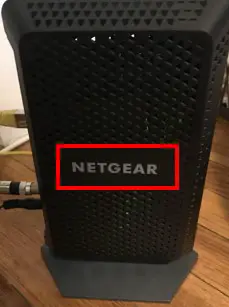
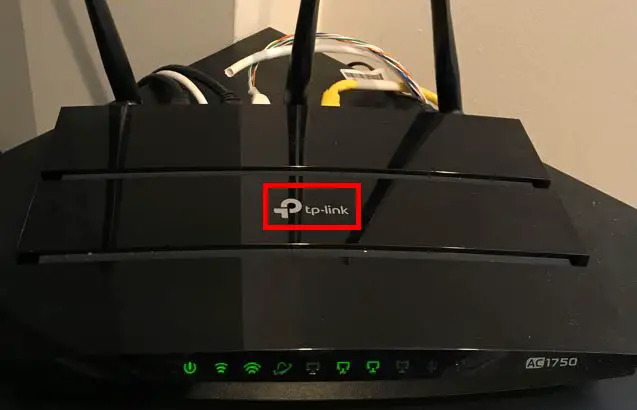
    I have a Netgear modem and a TP-Link router and they work extremely well together.

    This is just another case where you don’t have to worry.

    If you’re in the process of buying a modem and router for your home network, you shouldn’t think twice about buying both devices from the same manufacturer. They’ll be compatible with each other regardless.

    Wrap Up

    Hopefully you can breath a sigh of relief in learning about the compatibility of routers and modems. If you have any questions about this information, or you’d like to share you personal experiences about the topic, please leave a comment below.

    If you’re interested in learning more about similar topics, check out some of my previous posts:

    What Is the WAN Port for on a Router?

    What Router Do I Have? How to Find Out

    Does Any Router Work With Any Internet Provider?

    Can I Move My WiFi Router to Another House?

    Can I Use a Router Without a Modem?

  • Router Ethernet Ports: Everything You Need to Know

    Router Ethernet Ports: Everything You Need to Know

    Router ethernet ports everything you need to know title page

    Although they may seem like simple devices, routers can still cause quite a bit of confusion. One area in particular where routers can be confusing has to do with ethernet ports.

    People often have lots of questions surrounding router ethernet ports and what they’re used for. Some are even unsure if routers have them in the first place!

    Hopefully I can help sort that out for you.

    All routers have at least one ethernet port. In fact, most routers have two different types of ethernet ports. They usually have one wide area network (WAN) port for connecting the router to the internet, and four local area network (LAN) ports for providing wired internet connections to devices.

    In this post, I’ll answer the most common questions about your router’s ethernet ports.

    Do All Routers Have Ethernet Ports?

    Ok, let’s start with the basics here.

    All routers will have at least one ethernet port. This is the case whether you have a standalone router, or if your modem and router are combined into one device.

    Why exactly is this the case?

    This has to do with the fact that in most cases, routers are expected to provide your devices with wireless connections to the internet.

    The funny thing about this is that routers aren’t able to provide internet connections on their own. They need a little help from a modem.

    In order for a router to broadcast a wireless internet network for your devices to connect to, it needs to be connected to a modem with an active internet connection.

    Any guesses on how a router and modem with an active internet connection are connected?

    You guessed it. With an ethernet cable.

    This is why you can be confident a router will have at least one ethernet port; so it can be connected to a modem.

    What’s even more interesting is that routers usually have more than one ethernet port. You’ll find out why in the next section.

    What Are the Different Ethernet Ports on a Router?

    Ok, at this point we’ve covered that all routers will have an ethernet port to connect it to the internet. This ethernet port is called the wide area network, or WAN port.

    Here’s what the WAN port looks like on my router:

    Router WAN port

    As you can see, the port is clearly marked “Internet” to ensure it’s used to connect the router to a modem.

    The WAN port is only half of the story, however.

    In addition to a WAN port, routers usually have additional ethernet ports. These ports are called local area network, or LAN ports.

    Here’s an example of the LAN ports on my router:

    Router  LAN ethernet ports

    LAN ports are used to provide devices with a wired connection to the router instead of a wireless one.

    This can be an extremely useful feature, because wired internet connections have some benefits over wireless ones. For example, wired internet connections are generally more reliable connections when compared to wireless internet connections.

    On top of that, wired ethernet connections offer less latency than wireless connections. This can be especially helpful when a responsive internet connection is desired, like when you are online gaming.

    To provide a device with a wired internet connection, you just need to connect one end of an ethernet cable to the device, and the other end of the cable to one of the LAN ports on the router.

    It’s as simple as that.

    How Many Ethernet Ports Does a Router Have?

    Now that we’ve established that there are two different types of ethernet ports on a router, it’s important to discuss how many of each type of port we can expect to see.

    For your router’s WAN port, this is an easy answer.

    You’ll only see one WAN ethernet port on a router.

    That’s because your router only needs one connection to the internet. In fact, that’s one of the benefits of a router in the first place; routers use one internet connection to provide many devices with access to the internet.

    When it comes to your router’s LAN ports, you’re likely to see more than one. In fact, in most cases you’ll have four LAN ports on your router.

    This means you can provide four devices with wired internet connections. With that said, if you get a little creative you can provide wired internet access to many more than four devices…

    How to Add Ethernet Ports to Your Router

    If you have many devices in your home network that you want to provide with a wired internet connection, you have nothing to fear.

    Your wired connections aren’t limited by the number of LAN ports on your router.

    You can add more ethernet ports to your router by using an ethernet switch.

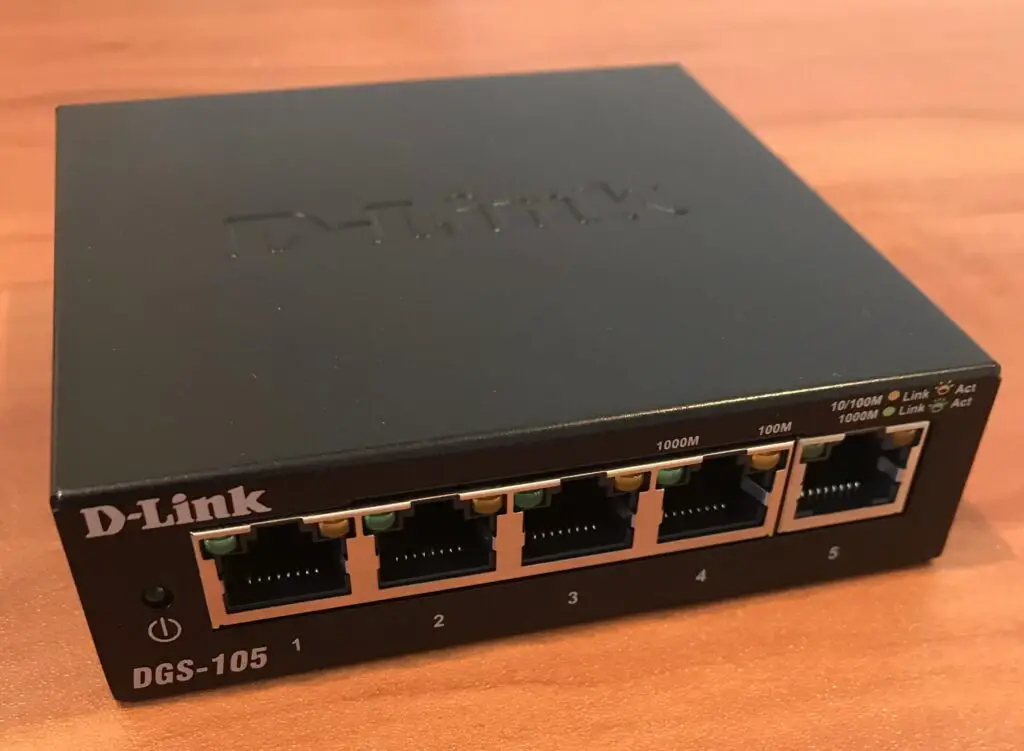
    Ethernet switch
    A five-port ethernet switch

    Ethernet switches are useful because they essentially turn one ethernet port into multiple ethernet ports.

    Depending upon the number of additional wired connections you need, you can buy an ethernet switch with that number of ports.

    For example, a five-port ethernet switch like this one would provide four additional wired connections to your router. One of the ports would be used to connect the switch to the router, but the other four would be open for additional devices.

    If you need additional wired connections to your router, it’s easy to find five, eight, and sixteen port ethernet switches.

    Does It Matter What Ethernet Port I Use on My Router?

    When it comes to the ethernet ports on your router, the only thing you have to worry about is using the right category of port.

    In other words, all the ethernet ports on your router will be the same.

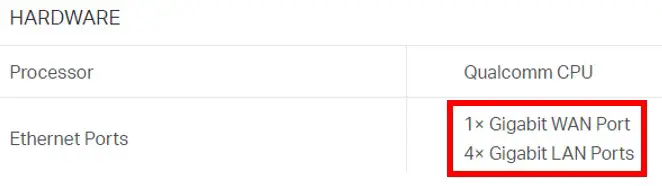
    If you need further proof, you can look at the specifications of your specific router. In looking at my router’s specifications online, it’s very clear that all the ethernet ports are the same:

    Router ethernet ports specifications

    All five of the ethernet ports on my router are Gigabit-speed ethernet ports.

    So if all of the ethernet ports on my router are the same, it doesn’t matter which one I plug my device in to right?

    Not exactly.

    As I mentioned, you have to make sure you’re using the right category of ethernet port.

    If you plug a laptop into the WAN port on a router, it won’t work. That port is reserved for the connection between the modem and router.

    If you’re connecting your laptop to one of your router’s LAN ports, however, pick your poison. It doesn’t matter if you connect your device into the first or fourth ethernet port. Your router will treat all devices connected to its LAN ports the same way.

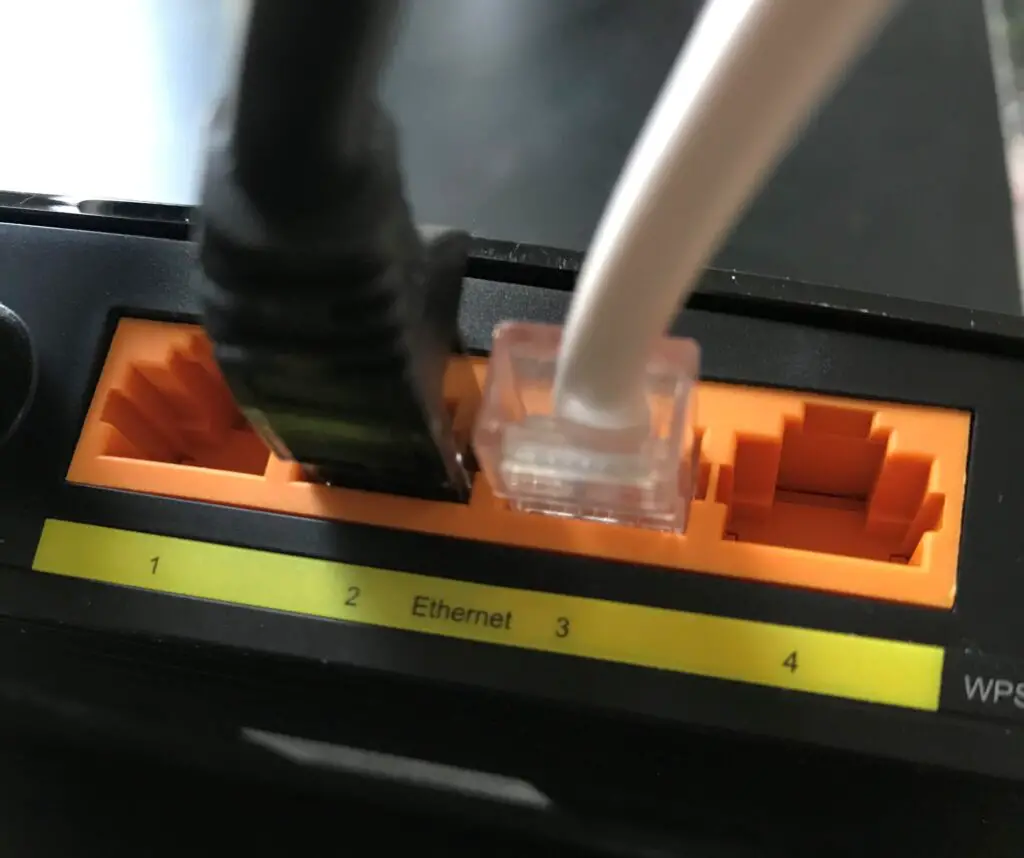
    Router LAN ethernet port connections

    To highlight this example, if the devices plugged into LAN ports 2 and 3 of the router in the picture above were switched, it wouldn’t make a difference.

    Wrap Up

    There it is folks. That’s everything you’d ever need to know about the ethernet ports of your router. If you have questions about your router’s ethernet ports that weren’t answered in the post above, please leave a comment below.

    If you found this content helpful and you would like to learn more about similar topics, check out some of the other posts I’ve written:

    What Router Do I Have? How to Find Out

    Does a Router Affect Your WiFi Speed?

    What is an Ethernet Switch Used for?

    Does a Router Have to Be Connected to a Computer to Work?

    Does Any Router Work With Any Internet Provider?

  • Do Routers Have MAC Addresses? How to Find Out

    Do Routers Have MAC Addresses? How to Find Out

    Do Routers Have MAC Addresses How to Find Out Title Page

    If you’ve spent time configuring your home network, you’ve probably seen the term MAC address when referring to your devices.

    MAC stands for Media Access Control, and a MAC address is used to help identify the devices on your network.

    What can be harder to understand is which of your devices have MAC addresses, and which ones don’t.

    This question is frequently asked about routers. Unfortunately, the answer may be a little more complicated than you would expect.

    All routers have MAC addresses associated with them. In fact, routers will have a MAC address for each of their network interfaces. As a result, most routers have three MAC addresses: one each for their internet, wired local network, and wireless local network interfaces.

    In this post, I’ll break down the three common MAC addresses associated with routers. I’ll also detail how to go about finding what your router’s MAC addresses are.

    Let’s dive in.

    Why Does a Router Have Three MAC Addresses?

    You might be surprised to find out that most routers have three MAC addresses. Why can’t one address be used for your device?

    The main reason for this is that each of the network interfaces on your router is identified individually. The three network interfaces on your router are its:

    • Internet (public) interface
    • Local wireless (WiFi) interface
    • Local wired (ethernet) interface

    The internet interface on your router is used to allow your devices to communicate with the rest of the internet. In this sense, it’s the only interface on your router that’s accessible by the rest of the internet.

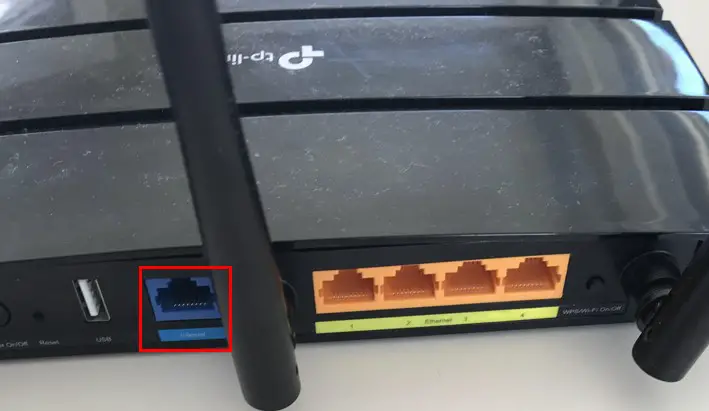
    This is also known as your router’s WAN port. It’s usually found on the back of your router.

    Router public network interface

    The local wireless (WiFi) interface on your router is what your router uses to broadcast a WiFi network signal to your devices. Your devices use this network interface to get wireless internet connections from your router.

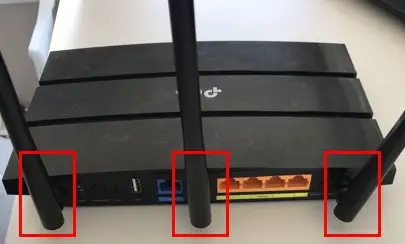
    This interface is connected to the antennas on your router.

    Router  wireless LAN interface

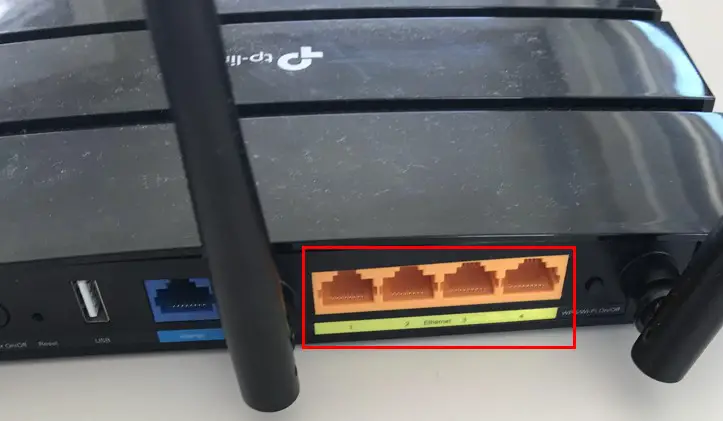
    The local wired (ethernet) interface on your router is for the ethernet ports on your router. These ethernet ports allow you to connect your devices to your router with an ethernet cable.

    You’ll usually see at least four of these ethernet ports on the back of your router.

    Router wired LAN interface

    What’s important to realize is that these interfaces are actually all separate devices within your router. That’s part of the reason why they’re identified individually with separate MAC addresses.

    The other part of the equation is that by having separate MAC addresses, it helps ensure that the traffic on your network is sent to the right place. We’ll discuss this more in depth later on.

    How to Find a Router’s MAC Addresses

    When it comes to determining what your router’s MAC addresses are, you have a few options.

    You’ll be able to figure out one of your router’s MAC addresses by looking at the sticker on the device. You’ll have to find out the other two addresses by accessing your router’s settings.

    I’ll explain both of these methods for determining what the MAC addresses of your router’s interfaces are.

    How to Find One of Your Router’s MAC Addresses by Looking at Its Sticker

    Ok, the first way to find out one of your router’s MAC addresses is by looking actually looking at your router.

    Somewhere on your router, there should be a sticker providing some basic information about the device. You’ll most likely find the sticker on the bottom of your device. Here’s the sticker on my router.

    Sticker on bottom of router

    The sticker usually includes information like the default IP address, default wireless network names and passwords, and the make and model of your router.

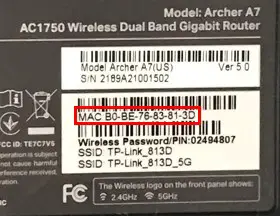
    If we take a closer look at the sticker, we’ll see that there’s a MAC address listed as well.

    Router wired interface MAC address

    It’s important to note that this MAC address pertains to the local wired interface on the router. In other words, it’s the MAC address for the interface connected to the router’s ethernet ports.

    To find out the other two MAC addresses of your router, you’ll have to go into your router’s settings.

    How to Access Your Router’s Settings to Find Out Its MAC Addresses

    In order to find out your router’s other two MAC addresses (or see all three at once), you need to log in to your router.

    To do this, use an internet browser to access the settings login page for your router. If you’re unsure of this location, this is sometimes listed on the sticker on the device as well.

    Here’s where this location is listed on my router’s sticker.

    Router default access location

    In entering this location into a browser, you’ll be able to log in to your router’s settings with the username and password you’ve set up for your device.

    If you’ve never changed the username and password for your router, you can find the default settings in your router’s user manual, or by searching online.

    As a side note, if this is the case for you, make sure you change your router’s login password to something only you know. It’s extremely insecure to use the default password for your router’s settings.

    Ok, so you’ve logged in to your router’s settings. This’ll probably take you to your router’s main settings page.

    Router settings page

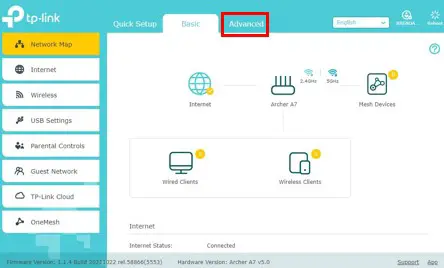
    From here, I had to go to the advanced settings tab to see the MAC addresses for my router.

    Advanced tab of router settings

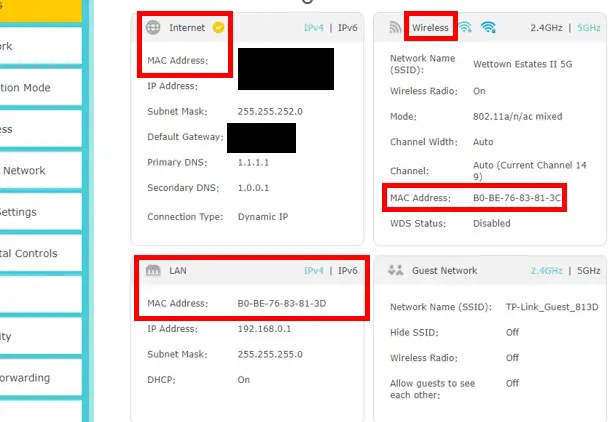
    In the Advanced Settings tab, I’m able to see all three MAC addresses for my router’s interfaces.

    Router interfaces MAC addresses

    As a note, I have hidden the MAC address and IP address of my router’s public interface for security reasons.

    If you’re interested in all of your router’s MAC addresses, it’s easiest to log in to your router’s settings. It serves as a one-stop shop for everything you need without having to get out of your chair.

    What Are Router MAC Addresses Used For?

    As I mentioned earlier, a router’s MAC addresses are important because they make it easier to find out where traffic in your network is supposed to go.

    How exactly do they do this?

    This has to do with their relation to how IP addresses are assigned.

    In order for an IP address to be assigned, it needs to be associated with a MAC address.

    Without getting too technical here, this is because the MAC address of an interface is used by local devices that are physically connected to it, while an IP address is used by devices that aren’t physically connected to the interface.

    MAC Addresses Are Used for Local Communication

    Think of a MAC address like a local mailing address, while an IP address is the full mailing address for a house.

    If your neighbor down the street asks you where you live, you can just tell them the name of your street and your house number. With that information, your neighbor will be able to send you a letter because they’re familiar with the local area.

    In this example, the local address of your home would be the MAC address of an interface.

    On the other hand, in order to tell your friend who lives in another country where you live, you need to provide more information. In this case, you’d have to send them your full mailing address (including a zip code and state) in order for them to send something to you.

    In this case, your full mailing address is equivalent to the IP address of an interface.

    What’s important here is that you can’t provide the full mailing address of a house (e.g. zip code and country) without knowing the local components of it (e.g. street name and house number). This is why MAC addresses are such an important component of your router’s interfaces. An interface must have a MAC address in order for it to be assigned an IP address.

    With this information in mind, it’s easy to see how router MAC addresses are used. They’re used as mailing addresses by the devices on your local network that’re physically connected to your router. This enables these devices to send their network traffic to the right location.

    Without MAC addresses assigned to each interface, it would be impossible for your local devices to know which interface to send network traffic to. The same goes for devices that aren’t physically connected to your router. If a given interface didn’t have a MAC address, it wouldn’t have an IP address to send information to.

    If a device didn’t know the right local location to send its traffic to, it would greatly slow down the communication between devices internal and external to your network, if not halt it entirely.

    Wrap Up

    Congratulations, you now know everything there is to know about your router’s MAC addresses. If you have any questions about this information, please drop a comment below.

    If you’re interested in learning more about similar topics, check out some other relevant posts I’ve written:

    What Router Do I Have? How to Find Out

    How Many IP Addresses Should a Router Have?

    Why Do Routers Have Multiple Antennas?

    What Is the WAN Port for on a Router?

    Does Any Router Work With Any Internet Provider?

  • Does a Router Have to Be Connected to a Computer to Work?

    Does a Router Have to Be Connected to a Computer to Work?

    Does a Router Have to Be Connected to a Computer to Work

    Routers can be confusing devices, especially if you’re not a technical person. One frequently asked question about routers relates to what they need to function properly. In particular, there is often confusion about whether a router needs to be connected to a computer in order for it to function.

    Thankfully, the answer here may be less complicated than you think:

    A router does not need to be connected to a computer in order for it to work. Routers are standalone devices that come with everything they need to operate normally. In fact, the only time a computer and router need to be connected is when changes are being made to the router’s settings.

    In this post, I’ll detail what routers need to work properly. I’ll also explain the situations when a computer needs to be connected to a router.

    Why a Router Doesn’t Need to Be Connected to a Computer to Work

    Routers may not look like the most powerful devices in the world, but they actually bring more to the table than you might think.

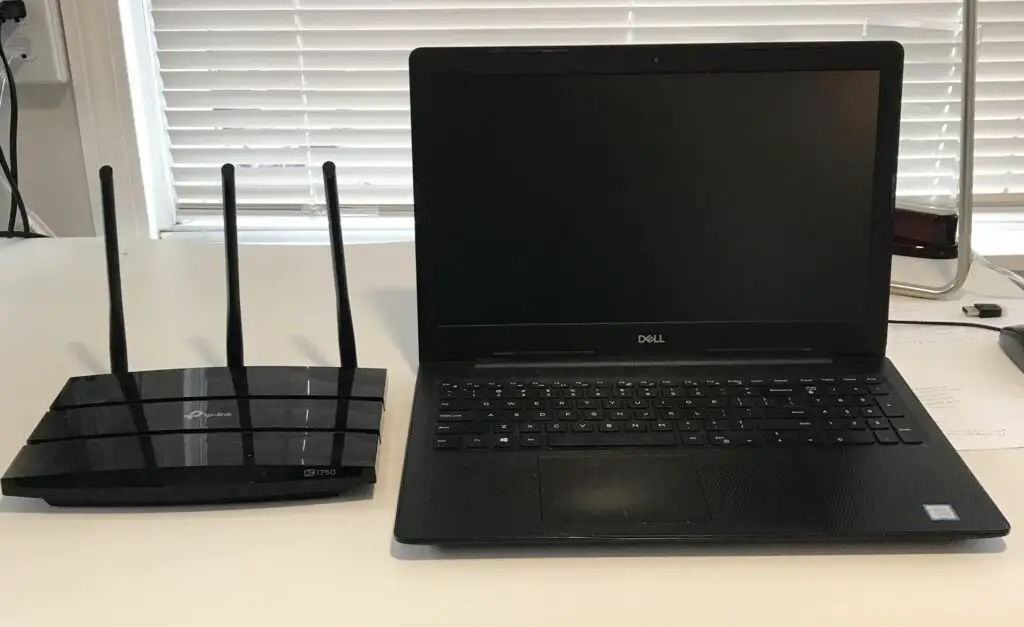
    For comparison, here is my TP-Link Archer A7 router next to my laptop.

    Laptop and router

    Although they’re smaller devices, routers come with everything they need inside them.

    So what does this include mean, exactly?

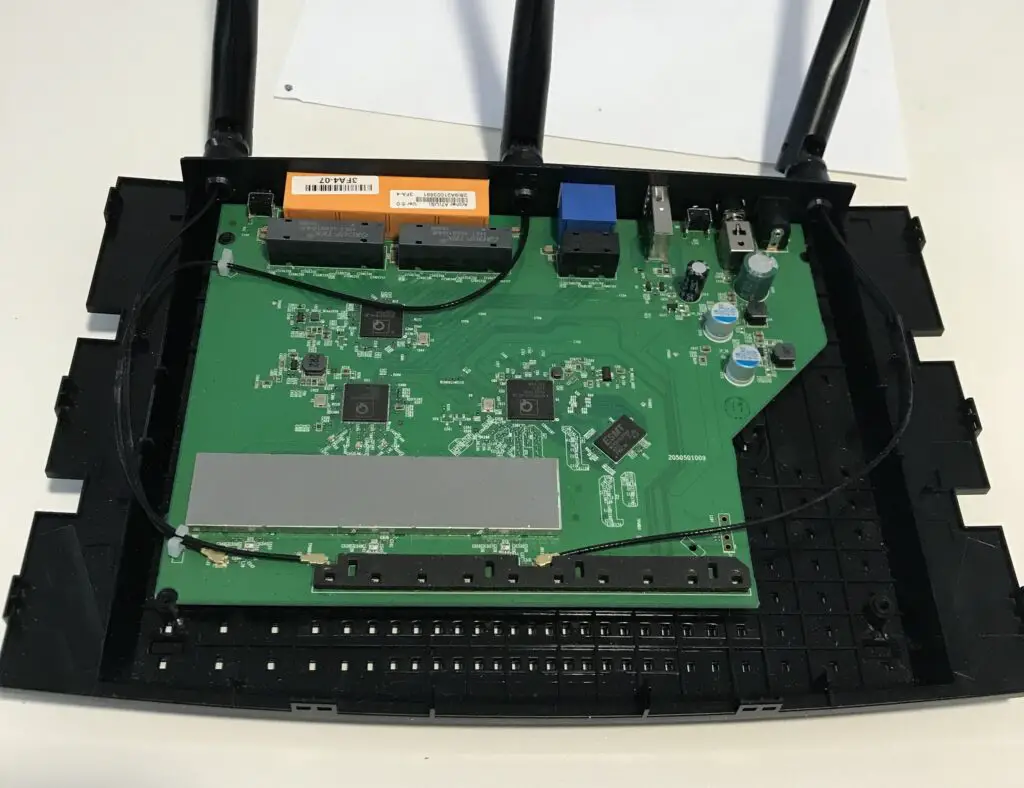
    Inside a router’s housing, you’ll find:

    • A processor (i.e. CPU)
    • Memory (i.e. RAM)
    • Storage

    Do these components sound familiar?

    They should, because these are the same components you’ll find inside a computer.

    Here’s what the inside of a router looks like:

    Router internal components

    Routers are basically just small computers that coordinate the traffic on your network. This is why they don’t need to be connected to a computer in order to work properly.

    They can do everything they need to without being connected to a computer!

    As a result, you can think of routers as standalone devices within a network. During everyday operations, they perform their desired functions without needing to be connected to a computer.

    With that said, the first time you set up your router, you may want to have a computer connected to it to help configure it. We’ll discuss this more in depth later on.

    What Does a Router Need to Work?

    Ok, so if a router doesn’t need to be connected to a computer to work properly, what exactly does it need?

    As we discussed earlier, a router’s needs are minimal.

    Regardless of the situation, a router needs to be plugged into a power source. Without electricity, it wouldn’t be able to carry out its expected functions of routing traffic throughout your network.

    If you’re using a router to allow devices on a home network to communicate without the need of an internet connection, this will be all your router needs.

    For most people, however, routers are relied upon to provide wireless internet connections to their devices.

    In these cases, a router needs a little more. To be specific, in order to provide a wireless internet connection to your devices, a router also needs:

    • To be connected to a modem
    • An active internet plan with an Internet Service Provider (ISP)

    To put it simply, your router needs to be given a working internet connection if it’s going to be passing the internet connection on to your devices.

    This is the basis of how wireless internet connections work. A modem provides a router with an active connection to the internet, and the router shares that internet connection with the devices that connect to its network.

    This is why you’ll always find a modem connected to a router in a home network with an internet connection. The router accesses the internet through the modem, which is connected to the internet.

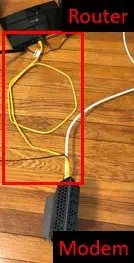
    Here’s a picture of my home network where my modem is connected to my router with an ethernet cable.

    Modem and router connected with ethernet cable

    The only time you won’t see a modem and router connected with an ethernet cable is if a modem and router are combined into one device. In this case, the modem and router are already connected, and an ethernet cable isn’t needed.

    As long as your router has a power source, is connected to a modem, and has access to an active internet connection, it has everything it needs to work properly.

    When Does a Router Need a Computer Connected to It?

    If a router doesn’t need to be connected to a computer to function properly, why would it need to be connected to a computer at all?

    A computer (or other connected device) only needs to be connected to a router when changes are being made to the router’s settings.

    These changes include:

    • Changing the name and/or password of the wireless network
    • Updating the router
    • Setting the router to automatically reboot on a recurring schedule
    • Making changes to any other settings (e.g. quality of service, parental settings, etc.)

    The bottom line is, any time a change is made to a router, a computer (or other connected device) needs to log in to it. That’s because the router needs to be told by another device what changes need to be made to its settings.

    Connecting to a router can be done with either a direct connection via ethernet cable, or by wirelessly connecting to it. Once connected to the router’s network, a user can use the connected device to access the router’s settings through its web interface.

    After the desired changes have been made to the router’s settings, the device used to log in to the router no longer needs to be connected to it. The router will save its new settings and continue operating on its own.

    Wrap Up

    Hopefully you now understand why routers don’t need computers connected to them in order to carry out their normal functions. Although a connected device is needed to make changes to a router’s settings, that will make up a small fraction of the time that the router is in operation.

    If you have any questions about this information, please feel free to post a comment below. If you found this information helpful, check out some of the other posts I’ve written on similar topics:

    What Router Do I Have? How to Find Out

    Should Your Router and Modem Be Close Together?

    Does Any Router Work With Any Internet Provider?

    How to Update Your Router: The Ultimate Guide

    Can I Use a Router Without a Modem?

  • What Router Do I Have? How to Find Out

    What Router Do I Have? How to Find Out

    What router do I have how to find out

    Setting up your internet router can be quite overwhelming.

    In some cases, your router is separate from your modem and needs to be set up individually. Other times, your router is combined with your modem into one device.

    Sometimes, it’s hard to even tell the difference between your modem and router.

    With all this confusion surrounding your internet devices, how do you determine if you have the right router or not?

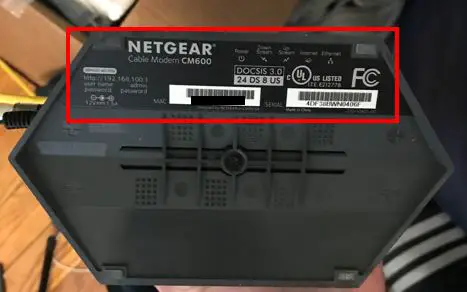
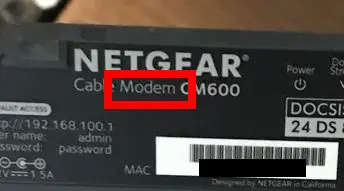
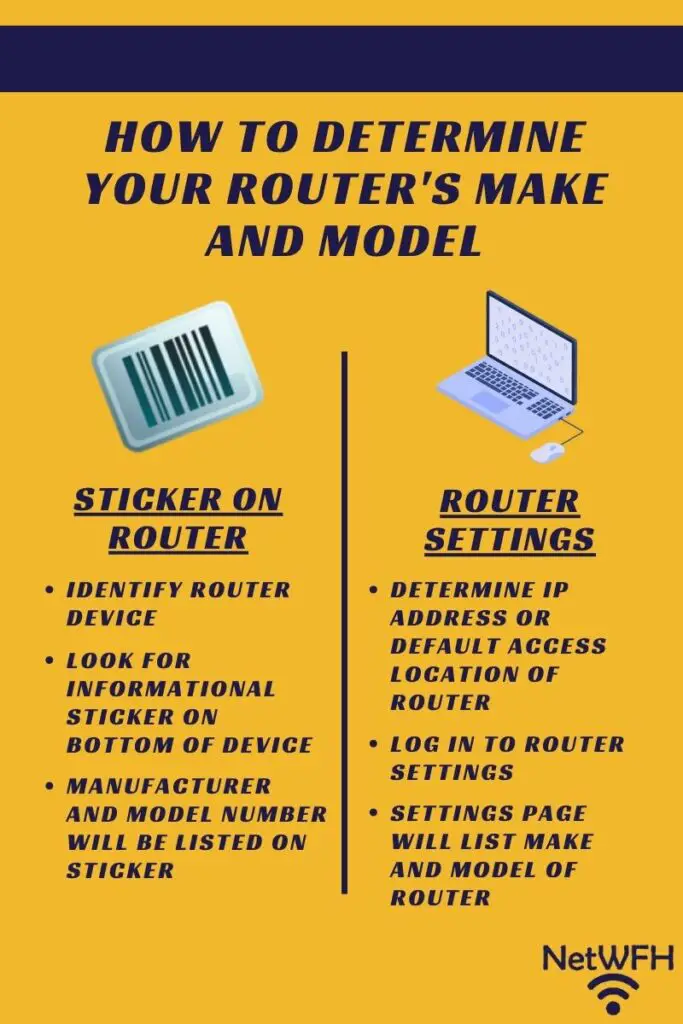
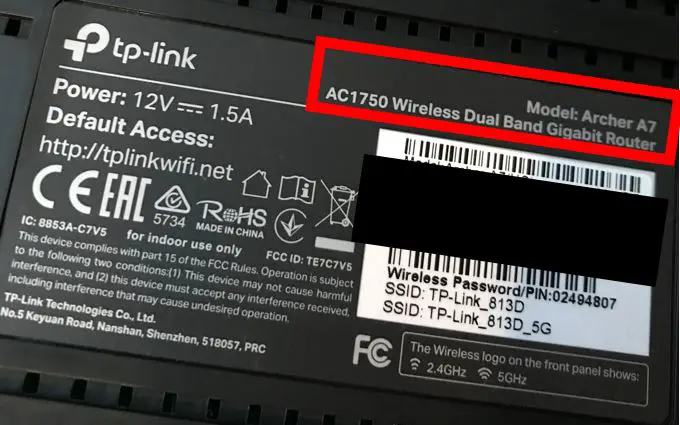
    It all starts with finding out its make and model. The good news is, there are multiple ways to determine your router’s manufacturer and model number.

    The easiest way to identify a router’s make and model is to look at the sticker on the bottom of the device. The sticker will detail both the manufacturer and the model number of the router. This information can also be determined by logging in to the router’s settings portal.

    In this post, I’ll provide detailed instructions for determining your router’s make and model. I’ll also provide important background information to ensure you’re looking at the right device.

    Why a Router’s Make and Model Is Important

    You may be wondering why you should know the manufacturer and model number of your router in the first place.

    The truth is, if you want to get the most out of your internet connection, you need to know what equipment you have.

    If you’re not sure what router you have, you won’t know if it’s a good fit for your internet plan. For example, if your router can’t support the speeds provided by your internet plan, you’ll experience slower internet. The last thing you want is to be paying for a fast internet plan that you can’t fully use.

    Once you determine your router’s model, you can look up its technical capabilities. This includes the internet speed it supports and the features it offers. To make the most of your internet plan, make sure your router can support the speed offered by your plan.

    On top of that, knowing your router’s capabilities helps you customize your home internet to your unique situation. If you don’t even know what router you have, chances are you’re not using all its features. If you’re going to pay good money for a router, you might as well get the most out of it.

    How to Tell a Router From a Modem

    In order to identify the make and model of your router, you first need to know which device is your router.

    For those who are not very technical, this may not be as easy as it sounds.

    If you only have one internet device in your home (and your internet is working), it means you have a modem router combination device. For reference, it may look something like this:

    Modem router combo device
    A modem and router combination device

    A modem and router combination device makes things easy for you because you don’t need to know the difference between a modem and router. In this case, they’re the same device.

    Let’s say you don’t have a modem and router combo device. How do you tell the difference between your modem and router?

    There are a few key features to look for that’ll help you identify your router. In addition, your router and modem should have stickers on them that detail what type of device it is.

    Things to Look For on a Router

    Your modem and router have different responsibilities when it comes to your home internet. As a result, there’ll be some differences between how the two devices look. This makes it a little easier to tell them apart.

    A Router Will Have Antennas

    One key feature of your router is that it’s responsible for providing WiFi to your home. In other words, you wouldn’t be able to get wireless internet without your router.

    Your router provides WiFi to your home by broadcasting an internet signal over radio waves. In order to send out the internet signal, it uses antennas like an old-fashioned radio. These antennas allow your router to communicate with the wireless internet devices in your home.

    Here’s what the antennas on your router will look like. They should be pretty obvious.

    Router antennas

    The antennas on your router make it stand out when compared to your modem. Your modem doesn’t broadcast a WiFi signal, so it won’t have any antennas.

    Here’s an example of what your modem will look like.

    Modem no antennas

    See? No antennas on your modem.

    That’s probably the easiest way to tell the difference between your modem and router. By comparing the two photos above, it’s easy to tell which device is your router and which device is your modem.

    A Router Will Have More Ethernet Ports

    Another way to tell the difference between your modem and router is by comparing the backs of the two devices.

    Your router will have multiple ethernet ports on it. These ports allow your internet devices to connect to the internet with a wired connection as opposed to using WiFi.

    This is what the back of your router should look like:

    Router ethernet ports

    Most routers will have four ethernet ports, meaning up to four of your devices can have a wired connection to the internet. As you can see above, my router has four ethernet ports.

    On the other hand, your modem should only have one ethernet port. Your modem only needs one ethernet port because the only device that’s connecting to it with an ethernet cable is your router. Your internet devices don’t plug directly into your modem.

    Let’s see what the ethernet port on a modem looks like:

    By putting your modem and router side-by-side and looking at the back of the devices, there should be a clear difference between the two.

    Not only will your router have more ethernet ports, it’ll have other ports on it as well (USB ports, a WAN port, etc.). The back of your modem should be very simple and straightforward.

    The Sticker on A Router Will Identify It

    Still not sure what device is your router? This last method should remove any doubts you may have.

    I’m talking about the sticker on the bottom of your router.

    If you think you know which device your router is, pick it up.

    Now look at the bottom of the device.

    It should have a sticker on it similar to this one.

    Router information sticker

    You’ll see that this sticker has a lot of different information on it. Somewhere on the sticker, it should tell you if the device is a modem or a router.

    Taking a closer look at the sticker on my device, I can see that it identifies my device as a router.

    Router sticker device description

    Looks like I found my router.

    Even if I picked up the wrong device, it wouldn’t be a big deal. Your modem should have a sticker on the bottom of it as well.

    Modem information sticker

    Just like your router, the sticker on your modem should tell you what type of equipment it is.

    Modem sticker device description

    Even if you picked up your modem, you know the other internet device is your router. If this is what happened to you, just think of it as process of elimination.

    Once you can tell the difference between your modem and router, you’re way more than halfway there.

    How to Determine A Router’s Make and Model

    How to determine router make and model

    Now that you’re looking at the right device. It should be really easy from here.

    Why’s that?

    Because you’ve already done most of the work. To find out your router’s make and model, look again at the sticker on the bottom of the device.

    The make and model of the device will usually be provided in large letters.

    Determining the Model of a Router

    Let’s start with finding the model of your device. To provide a reference, here’s where the model information is listed on my router’s sticker.

    Router model information

    As you can see, the model information is part of the information we looked at earlier to confirm that the device was my router.

    My router’s model is an Archer A7. The information below it (AC1750 Wireless Dual Band Gigabit Router) can also be used to identify the model of the device. In fact, the more descriptive label (AC1750) is actually listed on the front of the device.

    Router model label

    Now that we have the model squared away, let’s look for the manufacturer of the device.

    Determining a Router’s Manufacturer

    Your router’s manufacturer should be easier to find than the model information. That’s because it’s usually listed all over the device. You just need to be able to recognize it.

    In my case, the manufacturer’s name and logo is clearly displayed on the top of my router.

    Router manufacturer label

    Just by looking at the device, it’s pretty obvious that my router’s manufacturer is TP-Link.

    If that’s not enough for you, the manufacturer can also be found on the sticker we looked at to get the model information.

    Router manufacturer information

    Another Way to Find a Router’s Make and Model

    If you need further convincing, or you still aren’t sure what your router’s make and model is, there’s another way to get this information.

    You can find this information by logging in to your router’s settings.

    Determining a Router’s Make and Model by Logging in to the Router’s Settings

    To access your router’s settings, you’ll first need to open an internet browser of your choice.

    In the browser’s search bar, enter your router’s IP address (e.g. 192.168.0.1) or default access location (e.g. http://tplinkwifi.net). If you aren’t sure what your router’s default access location is, you can usually find it on the sticker on the router or by searching for it online.

    Router default access location

    Entering your router’s IP address or default access location into your browser will take you to your router’s login page. On this page, enter the username and password you created for your router.

    Router settings login page

    If you haven’t created a custom password for your router, you should be able to log in with your router’s default password.

    If you aren’t sure what your router’s default password is, you can usually find the it in the device’s owner’s manual or by searching for it online.

    As a side note, if you’re using your default password to log in to your router, make sure to change it to a custom password as soon as possible.

    It’s extremely insecure to keep the default password on your router. If you can look up your router’s password online, so can the bad guys. It’s worth taking the few extra minutes to secure your device.

    Finding the Make and Model Information of the Router

    Once you’ve logged into your router, the rest should be easy.

    The settings page should show the make and model of your router. For my router, the make and model is on the main settings page.

    As you can see, the manufacturer’s logo isn’t very subtle:

    Router manufacturer on settings page

    My router’s model is a little harder to find, but it’s also located on the main settings page.

    Router model on settings page

    If you know your router’s IP address and login password, this method can be even easier than looking at the sticker. In fact, you may not even have to get off the couch.

    Wrap Up

    At this point you should be able to determine which device in your home is your router. You should also be able to tell what model your router is, as well as its manufacturer.

    If you’re still having trouble identifying your router’s make and model, please leave a comment below and I’ll see if I can help.

    If you found this post helpful, here are some similar topics that might also be useful to you:

    Does a Router Affect Your WiFi Speed?

    Does Any Router Work With Any Internet Provider?

    How to Connect a Computer to a Router
    What is a Modem Router Combo?
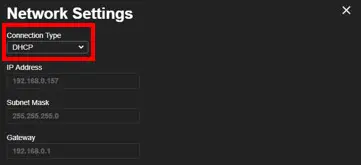
    What Do My Router Lights Mean?