Category: Modems

This category pertains to content regarding modems

  • Does Any Modem Work With Any Internet Provider?

    Does Any Modem Work With Any Internet Provider?

    Any Modem Work With Any Internet Provider title page

    I’ll start by giving you a scenario.

    Let’s say a couple is moving to a new home in a different area. As a result, they have a new provider for their internet connection.

    On moving day, they pack up everything they own and move it to their new home.

    At the new house, they quickly unpack and realize one of the first things they want to do is set up is their internet. They thought ahead and paid for a plan with their new internet service provider (ISP), so everything should be in place.

    They plug in their internet equipment and follow the steps to set up their internet connection. It’s at this point that it all comes grinding to a halt.

    How can this be?

    Their modem worked in their old place. Why wouldn’t it work now?

    Isn’t a modem compatible with all ISPs?

    Modems are not compatible with all Internet Service Providers. A modem will not be able to establish an internet connection if it is connected to an ISP it is not compatible with.

    If reading this information makes you nervous, don’t be alarmed.

    In this post I’ll break down why your modem may not be supported by your ISP. I’ll also explain how you can verify what ISPs your modem supports.

    Can I Use My Modem With Any Internet Provider?

    You may be surprised to hear that your modem isn’t like your other electronic devices. You can’t just plug it in and expect it to work.

    In fact, your modem isn’t even like your router. Although your router will work no matter who your internet service provider is, your modem may not.

    Your modem will only work with a given set of ISPs. As a result, you need to be really careful when picking out a modem.

    As you read in our example above, this often comes into play if you’re moving and have to switch your ISP. Your new ISP may not support the current make and model of modem you have.

    So what do you do?

    Thankfully, there are a few easy ways to make sure your modem is compatible with your ISP. We’ll get into those later.

    Why Wouldn’t My Modem Work With My Internet Provider?

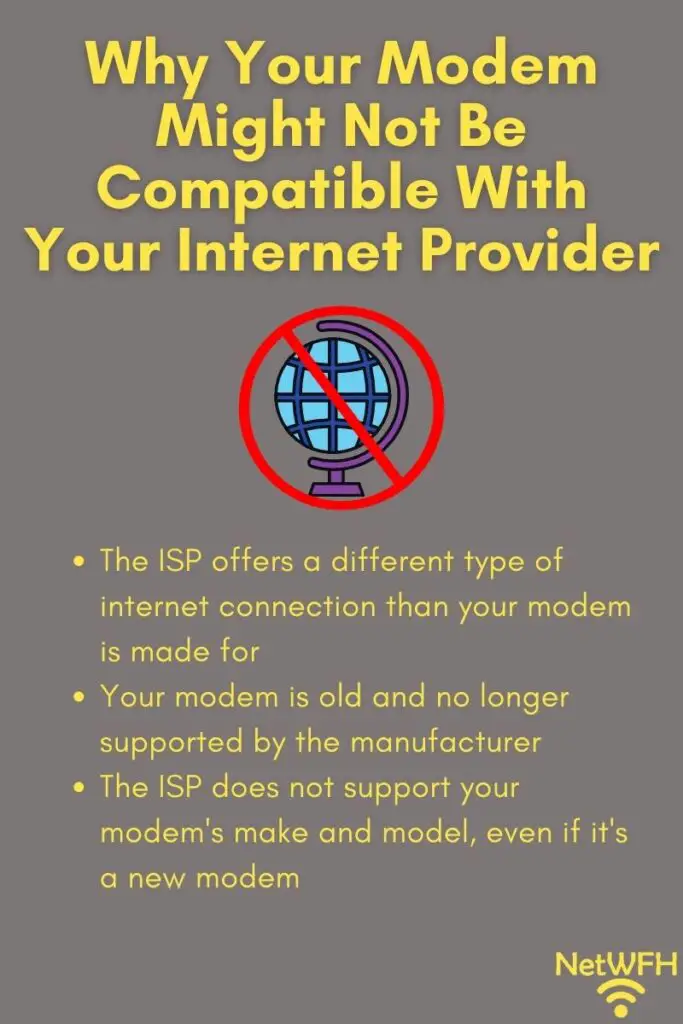
    If your modem doesn’t work with a given ISP, there are two main reasons why that could be the case. Let’s take a close look at both of them so you know what you need to be aware of.
    Why Your Modem Might Not Be Compatible With Your Internet Provider

    Your ISP Provides a Different Type of Internet Connection

    The first reason why your modem won’t work with your ISP is if your ISP provides a different type of internet connection.

    There are multiple ways to connect to the internet. Some of the most common ways include:

    • Cable
    • Fiber
    • DSL
    • Satellite

    These different ways of connecting to the internet make the internet available to most people. At the same time, it can complicate things.

    For example, you need to make sure your modem is compatible with the type of internet connection you have.

    If you have a cable internet plan, you need to make sure your modem is built for that. You won’t be able to connect your modem to the internet if you have a fiber internet connection but your modem is built for cable internet.

    Your Modem Is Not Supported by Your ISP

    The other potential reason your modem won’t work with your internet provider is if they don’t support your modem’s make and model.

    I was actually surprised when I first learned this.

    The bottom line is, internet service provider’s can’t support every modem. They need to be selective about which ones they support.

    Why’s this?

    This is because your ISP is responsible for updating your modem’s firmware for you.

    Before they’re able to push updates to your modem, your ISP needs to test them to make sure the update doesn’t mess anything up with your internet connection.

    They need to do this every time a firmware update is released for a given modem. Depending upon the modem, firmware updates may be released multiple times per year.

    For your ISP, they can’t afford to perform all these tests for every modem on the market. It would be too expensive for them.

    So what do they do?

    They support the modem models that are the most popular.

    That’s why if you have a modem that’s not a common make or model, it may not be supported by your ISP.

    The same goes for older modems. If your modem is old, the chances are less likely that your internet provider will support it.

    In fact, if a modem is old enough, the modem manufacturer will stop providing updates for it. When your modem’s manufacturer isn’t supporting your modem anymore, you should get a new one anyway.

    That’s a topic for another time.

    How to Tell What Type of Modem You Have

    Let’s revisit the type of internet connection your modem supports.

    What if you’re not sure what type of internet your modem is made for? How can you figure it out?

    The good news is, it shouldn’t be hard to determine.

    Let me start by saying most modems are made for cable internet. In 2021, over 194 million people in the United States had cable internet connections.

    In other words, chances are you have a cable modem and cable internet connection.

    Don’t take my word for it though. You should check for yourself to make sure you don’t make the wrong decision about your internet plan.

    For one, fiber internet has become increasingly more popular. It’s also possible you have a DSL modem, even thought DSL is an older internet technology.

    With all these options, it’s better to find out for sure what your modem is made for.

    There are two easy ways to figure it out.

    Look at the Ports on the Modem

    The easiest way to tell what type of internet connection your modem has is to simply look at your modem.

    If you look at the back of your modem, it’ll probably give you the answer you’re looking for.

    The first thing you have to do is find the wire that provides your modem with an internet connection. Feel free to unplug the cable to get a closer look at a time when you’re not using your internet connection.

    If that cable is a coaxial cable that looks like the one that plugs into your cable box, you have a cable modem.

    If it’s a phone cable, you have a DSL modem.

    Lastly, if it’s a fiber optic cable, you have a modem built for a fiber internet connection.

    Still aren’t sure?

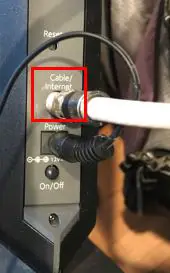
    If you can’t tell just from looking at the cable, look at the port it connects to on your modem. It may be labeled with the type of internet connection it’s made for.

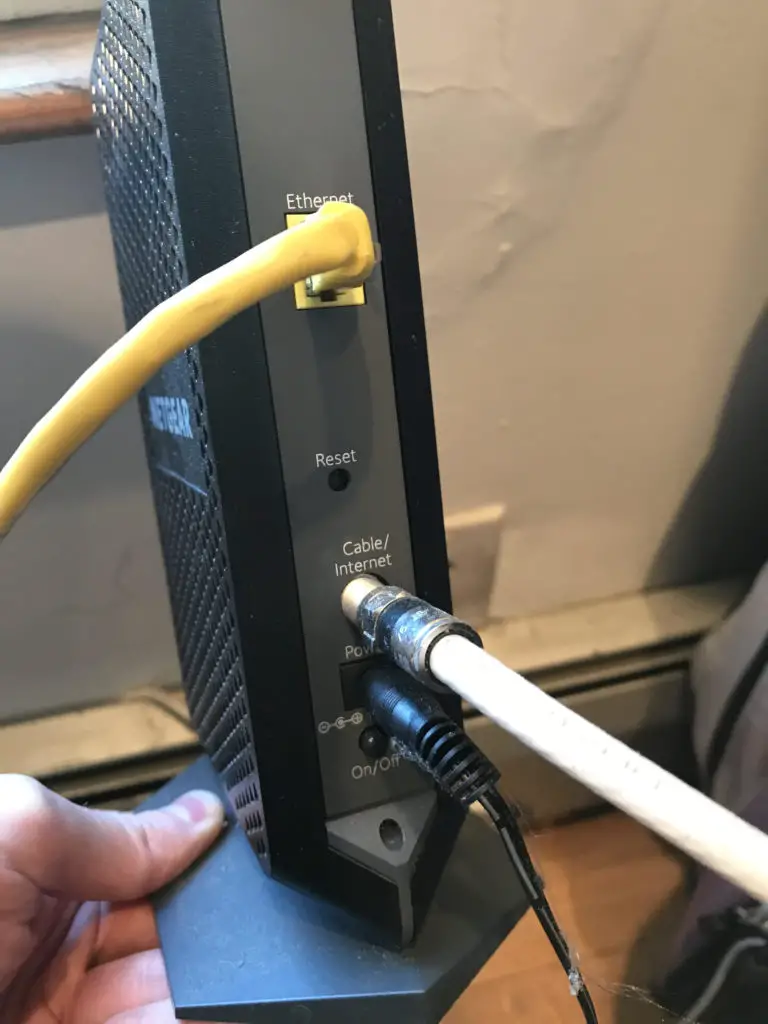
    For example, here’s the back of my CM600 modem.
    Cable internet connection to modem

    See?

    It says right on the back of my modem that it’s for a cable internet connection.

    It doesn’t get much easier than that.

    Unless of course you know the make and model of your modem. If you know what model your modem is, you can find out what type of internet connection it’s for without getting off the couch.

    Look at the Modem’s Product Page

    The other way to find the type of connection your modem is for is to look it up online.

    The product page for your modem will tell you all you need to know.

    Before we go any further, let’s make sure you know what your modem’s make and model is. To do this, just look at the sticker on your modem.

    Check the bottom of your modem. That’s where the sticker is usually located.

    The sticker will provide you with your modem’s model, as well as its manufacturer.

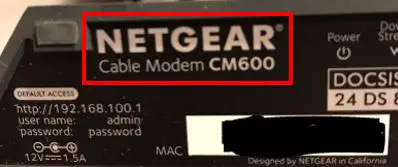
    Here’s the bottom of my modem:
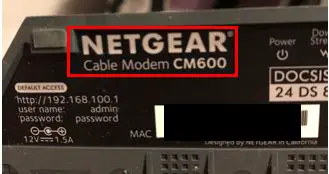
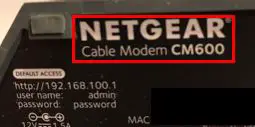
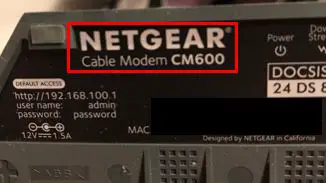
    The manufacturer of my modem is Netgear, and the model is CM600.

    Surprisingly, you can even see that it identifies my device as a cable modem right on the sticker.

    I don’t need to go any further. I know my modem is built for cable internet. For the sake of this exercise I’ll continue the process in case the sticker on your particular modem doesn’t provide what type of internet it’s for.

    Now that I know I have a Netgear CM600 modem, all I have to do is search for its product page online.

    This lead me to Amazon’s product page for my modem. The product page gave me exactly what I was looking for:
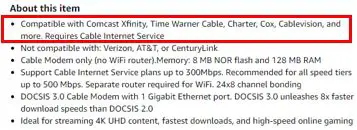
    Amazon CM600 modem about this item

    The product page clearly identifies that my CM600 modem is for cable internet plans.

    At this point my search is over. I’ve confirmed that my modem is made for an ISP that provides cable internet.

    How to Look up the Internet Providers That a Modem Supports

    What if you have a modem and you want to find out what ISPs it works with?

    There are two ways to go about answering this question as well. One option is to go back to the product page for your modem that we were looking at earlier. Another option is to go directly to the source, which is an ISP’s website.

    Look at the Internet Provider’s Support Page

    Let’s say you want to find out if a specific ISP supports your modem. There’s no better place to look than the provider’s website.

    Although you can also look at your modem’s product page, going to the ISP’s website is more reliable. Depending upon the product page you’re looking at, sometimes you might not get the most accurate information.

    Anyway, back to the task at hand.

    As I mentioned earlier, your internet provider is responsible for updating your modem for you.

    As a result, ISPs will usually publish a list of the modems they support on their website. That’s because they don’t want their customers to have to guess what modems will work with their internet plan.

    In the end, internet providers want you business. They want you to get a modem that’s supported by their internet plans so you don’t leave them for their competitor.

    So where exactly do you need to look?

    The best place to look is the support page. We’ll use my ISP as an example.

    Accessing the ISP’s Support Page

    I have a cable internet plan with Xfinity by Comcast.

    I start by firing up my internet browser and navigating to Xfinity’s website. In a few clicks I find myself on the Internet Support page.

    On the Internet Support page, there are a few headers to choose from. The one that stood out to me was “Using Your Own Equipment”.
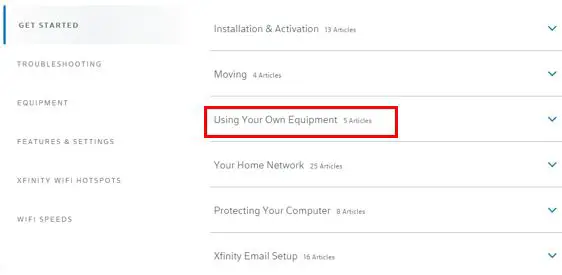
    Xfinity using your own equipment header

    I want to see if my personal modem is supported by Xfinity, so this header made sense to me.

    When this section expanded, I saw the article I was looking for. I figured “Approved Equipment for Xfinity Internet and Xfinity Voice” was a good place to start.
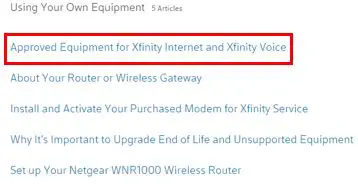
    Xfinity approved equipment for xfinity internet and xfinity voice

    After accessing this article I found a page that required me to put in my address and the speed of my internet plan. Once I entered this info, I was given a list of modems that Xfinity supports for my internet plan and geographic location.

    Low an behold, I found my Netgear CM600 on the list.
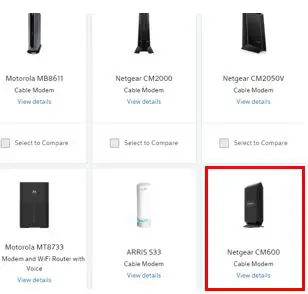
    Xfinity approved modems list

    This confirmed that Xfinity supports my modem. Of course I already knew this because I have a working internet connection, but these are the steps you’d need to follow if you want to check if an ISP supports your modem.

    I did a few searches of common ISPs and it looks like all of the largest providers have lists of the modems they support.

    Look at the Modem’s Product Page

    The other option for looking at what internet providers are compatible with your modem is to go back to your modem’s product page.

    To do this, follow the same steps that I detailed above.

    I’ll use my modem as an example again.

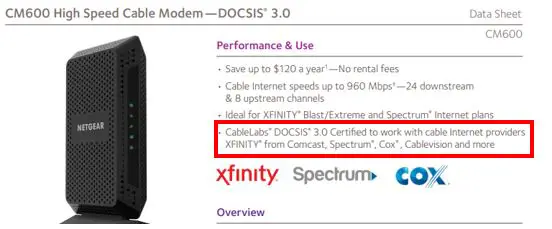
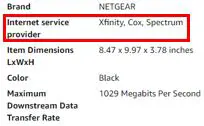
    Looking at information about my modem, it states the major ISPs it’s compatible with.
    Netgear CM600 modem compatible internet service providers

    As you can see, my Netgear CM600 is compatible with Xfinity, Cox, and Spectrum.

    Does this mean those are the only ISPs it’s compatible with?

    Not necessarily.

    Those are just the major providers that support my modem. If there’s a smaller, less well-known internet provider in your area, go to their support page or call them to see if they support your modem.

    It’s possible that your modem is compatible with a smaller ISP. It just doesn’t make sense for a seller to list all the internet providers that are compatible with the modem on the product page. The list could be endless.

    How to Ensure Your Modem Is Compatible With Your ISP

    Does the information above overwhelm you? Would you rather not have to worry about your modem being compatible with your internet provider?

    If this is the case, there’s an easy way out for you.

    That’s to rent your modem directly from your internet provider.

    If you rent a modem from your ISP, you know it’ll be compatible with their internet connection. It wouldn’t be very smart of them to rent you a modem that doesn’t work with their internet.

    Although this is the easiest method for finding a compatible modem, it comes with a few drawbacks.

    The first is that renting a modem will cost you more money in the long run than buying your own modem. When you rent a modem you’ll be charged a monthly free from your ISP.

    In some cases, it can cost as much as $15 per month (or more) to rent a modem. Compare that to buying a modem where a good one will run you $100 or less. It’s easy to see that a year of renting a modem can be more expensive than buying your own.

    On top of that, when you rent a modem you don’t get to choose what model it is. This might not give you the best internet performance because your modem won’t be specific to your individual internet plan.

    Buying your own modem allows you to find one that fits your specific needs.

    That’s not to say that renting a modem won’t give you a fast internet connection. That’s still possible if you rent. You just might not squeeze every bit of speed from your internet plan.

    With all that said, if you’re willing to sacrifice a little bit of performance and pay a little bit more, renting a modem can be a convenient option. Especially if you get stressed out about trying to find a modem that’s compatible with your ISP.

    Wrap Up

    Many people have made the mistake of getting a modem that isn’t compatible with their internet service provider. In reading this post you’ve ensured you won’t be one of them.

    If you have any questions about this information or you’d like to share you personal story, I’d love to hear from you in the comments section below.

    If you found this post helpful, check out some of the other useful posts that I’ve written:

    Can a Modem Overheat? What to Look For

    How to Update Modem Firmware: A Complete Guide

    Can You Use a Modem Without a Router?
    Can I Take My Internet Modem to Another House?

    How Do I Reset My Modem Password?

  • How to Update Modem Firmware: A Complete Guide

    How to Update Modem Firmware: A Complete Guide

    How to update modem firmware a complete guide

    Your modem needs to update its firmware whenever the manufacturer issues a new version of it. New versions of firmware will be released when your modem manufacturer fixes a bug or addresses a security concern in your modem’s software.

    By updating your modem’s firmware, you’re improving both the security and performance of your modem.

    So how do you update your modem’s firmware?

    Users are not responsible for updating the firmware of their modem. Internet service providers (ISPs) update modems with new firmware when updates are released by the modem manufacturer. In general, these updates happen automatically without any needed action from the owner of the modem.

    In this post I’ll break down everything you need to know about updating your modem. We’ll discuss:

    • How your modem firmware is updated
    • Where you can find your modem’s current firmware version
    • How to determine what firmware version your modem should have

    Let’s get going.

    What is Modem Firmware?

    Before we go over the process of updating your firmware, let’s start from square one.

    What is your modem’s firmware, exactly?

    Your modem’s firmware is the software that determines how your modem functions.

    This includes:

    • How it starts up and shuts down
    • How it connects to your ISP to provide you with an internet connection
    • What the settings page looks like when you log in to your modem’s settings

    If you haven’t noticed by now, it’s a very important part of your modem. In fact, your modem won’t work without it.

    When you receive a modem, the firmware will come preloaded on it. That’s because the manufacturer builds your modem with the firmware embedded on a computer chip in the device.

    The only way your modem’s firmware can be changed is by updating the firmware or installing brand new firmware on the device. As a user, you can’t make any changes to how your modem’s firmware functions.

    Why Should I Update My Modem Firmware?

    Making sure your modem’s software is updated is very important.

    Any time a software bug or security flaw is found in your modem’s code, the manufacturer will update the code for your modem and issue an update.

    If your modem’s firmware isn’t updated, it won’t receive any performance or security updates that the modem manufacturer develops.

    This includes new features as well. If your modem manufacturer develops a new feature for your modem, you won’t be able to use it unless you have the latest software.

    Chances are, you paid good money for your modem. Even if you’re renting it and paying monthly. You want to make sure you’re getting the best performance, features, and security to go with it.

    Especially today with everyone emailing, banking, and shopping online, you want to make sure your internet connection is as secure as possible.

    How to Update Your Modem Firmware

    When it comes to updating your modem, there’s good news and bad news.

    The good news is that the process for updating your modem doesn’t require as much effort as updating your router does. In fact, updating your modem requires no action on your part at all.

    That’s right. You read that correctly.

    You aren’t responsible for updating your modem. Your ISP is.

    Ok so if that’s the good news, what’s the bad news?

    Before we get into that, let’s break down how the modem update process happens.

    How Does Your ISP Update Your Modem Firmware?

    Any time your modem manufacturer issues an update to your modem’s firmware, they send it to your ISP.

    From there, it’s your ISP’s job to make sure your modem gets updated.

    Before the update is pushed to your modem over your internet connection, there’s more to be done.

    When an ISP gets a firmware update for a specific modem, they have to check and test it. First and foremost, your ISP needs to make sure that the internet connection between the ISP and the modem owner (you) still works properly after the update.

    Once the modem update has been tested and everything works properly, your ISP will issue the firmware update.

    This firmware update will only affect the modems connected to the ISP of that specific make and model. In other words, your modem will only be updated if your manufacturer issued an update for your specific model. All other modems connected to the ISP won’t be updated.

    When your modem receives the update, it’ll automatically install it.

    This’ll all be invisible to you. The only way to know if your modem was updated is to check the firmware version on the device, which we’ll get to later.

    Ok. So earlier I mentioned there was bad news when it comes to updating your modem.

    Now that I’ve described how your modem should be upgraded, let’s take a look at the downside.

    The Bad News About Modem Firmware Updates

    What’s bad about your ISP updating your modem for you? It seems like a pretty easy process.

    The problem with your ISP being in charge of updating your modem is that your modem doesn’t always get updated like it should.

    This can be especially true when your internet plan isn’t with a large provider. For example, I’m talking about the major players like AT&T, Comcast/Xfinity, Verizon, or Cox Communications.

    Let’s looks at it from an ISPs perspective.

    They have thousands of customers, and their customers all have different modems.

    Some modems are brand new.

    While others are older.

    Some are made by large manufacturers.

    While others are made from smaller, less well known manufacturers.

    The bottom line is that there could be thousands of different modems connected to a given ISP. As a result, it makes it really hard to manage all of these modem updates.

    Let’s say you have an older modem that’s not very popular.

    Is your ISP going to spend a lot of effort testing and checking modem updates for that modem if only a small number of their customers have that same model?

    I don’t think so.

    Another thing to keep in mind is that checking and testing modem updates costs your ISP money.

    Are they going to spend money to have updates tested for a modem that only a small number of their customers have?

    Especially if you have an internet plan with a smaller ISP. They may not have a budget for testing that other, larger ISPs have.

    Hopefully you can see the bigger picture here.

    The bottom line is that you don’t have the same amount of control over your modem updates because your ISP is responsible for updating it.

    As a result, all ISPs don’t update modems like they should.

    How to Tell if Your Modem Firmware Has Been Updated

    If your ISP isn’t going to update you modem when they should, you need to know about it.

    So how do you go about confirming that you have the most updated version of firmware on your modem?

    The first thing to do is check what firmware version your modem currently has.

    How to Check Your Modem’s Current Firmware Version

    In order to check what version of firmware is currently installed on your router, you’ll need to access your modem’s settings.

    In order to get to your modem’s settings, you’ll need to know your modem’s IP address.

    Determine Your Modem’s Ip Address

    Don’t worry if you’re not sure what your modem’s IP address is. You can usually find your modem’s IP address listed on a sticker on the actual device.

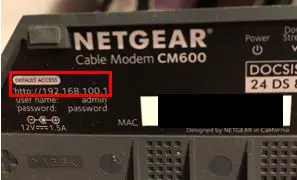
    For example, I have a Netgear CM600 modem. On the bottom of my modem there’s a sticker that lists its IP address.

    Modem default access location

    As you can see, my IP address is 192.168.100.1. Most modems should have a similar IP address.

    If you don’t know your IP address and your modem doesn’t have a sticker on it, you should try looking online. Modems are shipped with default IP addresses, and there are many resources online that list what those default addresses are.

    For example, this site details the common IP addresses for Netgear modem’s like mine. Just do a Google search for the make and model of your modem and you should be able to find its default IP address.

    Log in to Your Modem’s Settings

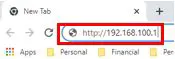
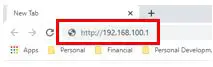
    Once you’ve determined your modem’s IP address, type it into your internet browser’s search bar.

    Modem ip address in browser search bar

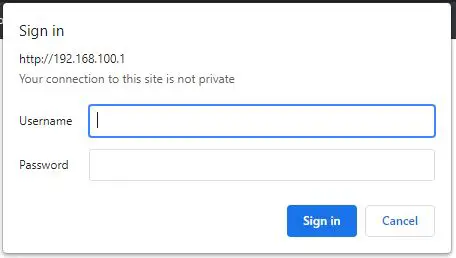
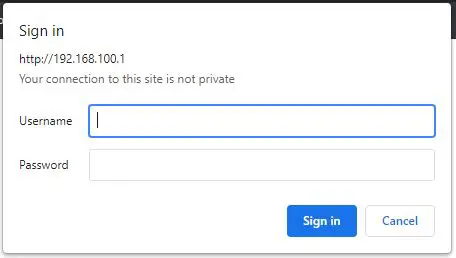
    This’ll bring you to your modem’s login page.

    Netgear modem login prompt

    Log in to your modem with the username and password you created for it.

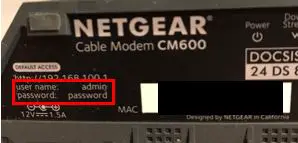
    If you haven’t created a username and password, you can log in with the default values that come with the modem.

    How do you know what the default values are?

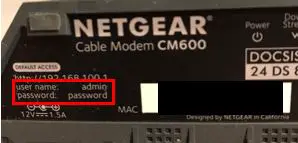
    Luckily, this information is listed on your modem as well. Just take a look at the same sticker you looked at to find your modem’s IP address.

    Modem default username and password

    If I hadn’t changed my default password, I’d be able to log in to my modem using “password” as my password.

    If you don’t have these default values listed on your modem, you can most likely find them online. Similar to your modem’s default IP address, you should be able to find the default username and password for your make and model as well.

    As a security note, if you haven’t changed the default password for your modem to a custom password, you need to.

    As I mentioned, the default password for your modem can be found online, which means anyone with access to your network would be able to get to your modem’s settings.

    Changing the default password of your modem will help keep hackers and bad actors from being able to mess with your modem’s settings. Just changing the password away from the default goes a long way towards making your modem more secure.

    This is very important. Take the few minutes to change your modem’s password if you haven’t done so already.

    Check the Firmware Version Installed on Your Modem

    Ok, now you’ve logged in to your modem.

    The next step is to see what version of firmware is installed on your device.

    Thankfully, this is easy to find.

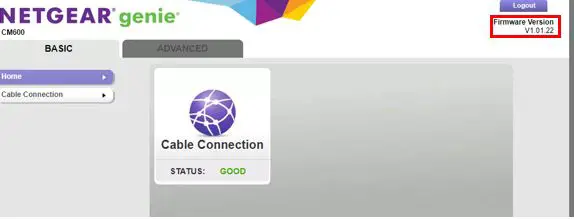
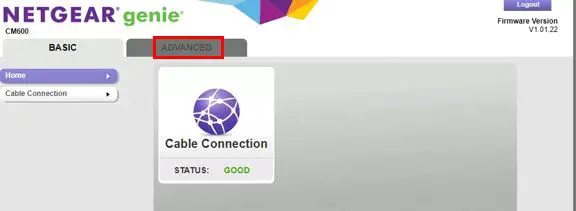
    Right when I log in to my modem, the firmware version is listed right on the home page.

    Netgear modem firmware version

    As you can see, the firmware version installed on my modem is V1.01.22.

    If you have a different make and model of modem, your firmware version may not be listed on the Home page. As a result, I’ll show you another way of accessing this information in your modem’s settings.

    Even if your modem is a different make and model, the steps to find out the firmware version of your device should be similar.

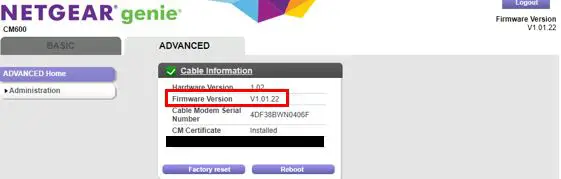
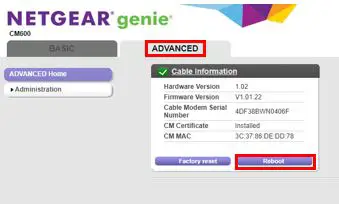
    In my case, I can find my firmware version simply by clicking the Advanced tab.

    Once on the Advanced tab, my modem’s firmware version is clearly listed.

    Netgear modem advanced settings firmware version

    Now you know what version of firmware is installed on your modem.

    Find the Latest Version of Firmware for Your Modem

    Ok so you know the firmware version of your modem.

    The question is: is this the most recent version of firmware that your modem’s manufacturer has released?

    There’s only one way to find out.

    We need to go to the source to see what the latest firmware version for your modem is.

    In this case the source is your modem manufacturer’s website. That should give us the information we’re looking for.

    I’ll use my modem as an example. As a reminder, my modem is a Netgear CM600 modem.

    My modem’s manufacturer is Netgear, so I did an internet search for Netgear’s website.

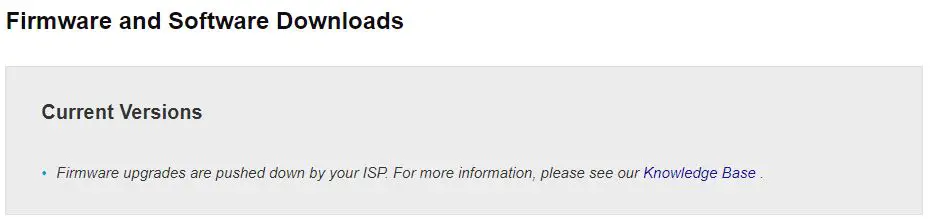
    I accessed the Support section of Netgear’s website and was able to access the support page for my CM600 modem. Within this page, there was a header for firmware and software downloads.

    Here’s what information was listed in this section.

    Netgear website firmware downloads

    This section says that firmware upgrades are provided by the ISP. We’re well aware of this at this point.

    I wanted more information, so I clicked the provided “Knowledge Base” link.

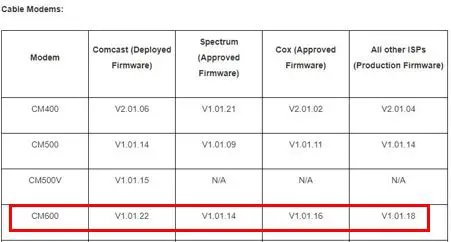
    The “Knowledge Base” provided a list of the latest firmware for all of Netgear’s modems. This was exactly what I was looking for.

    Here’s what it showed for my CM600 modem.

    Netgear cable modems latest firmware

    As you can see, depending upon your ISP you may have a different version of firmware.

    My internet plan is with Comcast, so it looks like my modem firmware should be version V1.01.22.

    What a relief.

    As we determined in the previous steps, I saw that my modem has firmware V1.01.22 installed. This means that my ISP is updating my modem like they should.

    As a result, there’s no further action at this point. I just need to check back in a few months to see if a newer version of firmware has been released.

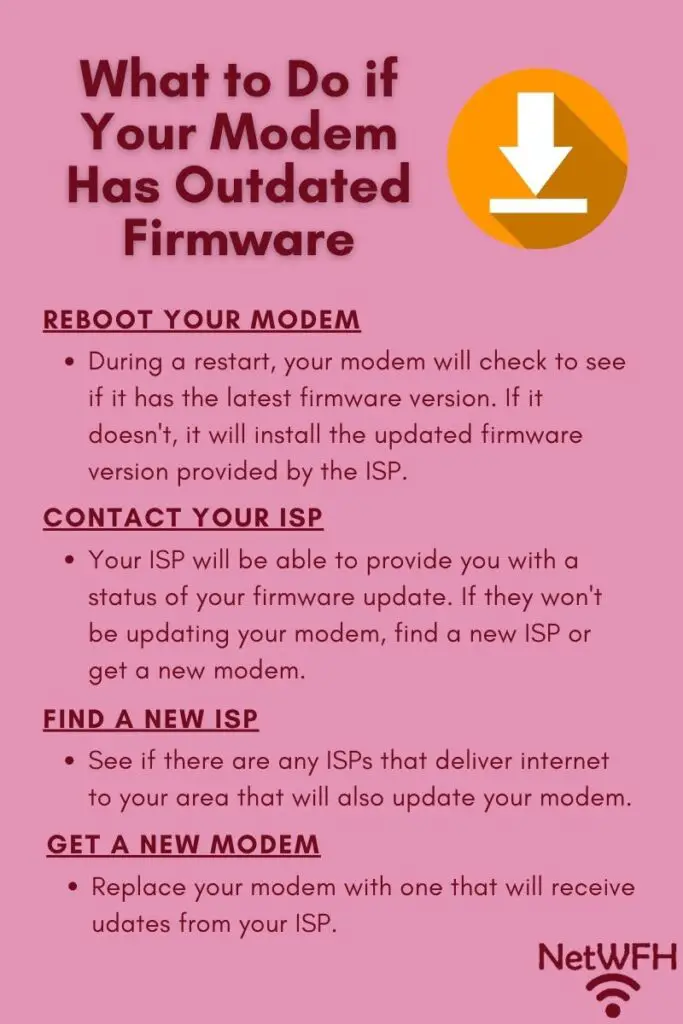
    What to Do if Your Modem’s Firmware Is Outdated

    What to do if your modem has outdated firmware

    In my case, my modem’s firmware matches the latest version released by the manufacturer.

    What if this wasn’t the case? What can you do?

    There are a few things you can do if your modem firmware doesn’t match the latest version.

    We’ll take a look at each one so you have a good idea of what your options are.

    Reboot Your Modem to See if It Initiates a Modem Firmware Update

    If your modem says it has an old firmware version, the first thing to try is to reboot your modem.

    When you restart your modem, it runs through multiple checks when it powers up.

    One of those checks is to see if the latest firmware version is running on the modem.

    If the modem isn’t running the latest version of firmware, it’ll get the updated firmware from your ISP and install it.

    Essentially what you’re doing when you reboot your modem is forcing your modem to double check its firmware. If it’s out of date, it should update automatically as long as the ISP has issued the firmware update.

    Once your modem has powered back up, check the firmware version again by following the procedure I previously outlined.

    If the firmware is still outdated, try contacting your ISP.

    Contact Your ISP to Update Your Modem’s Firmware

    When it comes to your ISP, sometimes the squeaky wheel gets the grease.

    If your modem’s firmware is outdated and rebooting your modem didn’t update it, give your ISP a call.

    On some occasions it may take them a while to issue a firmware update after it’s released. If you call your ISP you can get a status of the firmware update. They should be able to tell you if they’re working on the update or not.

    If enough customers call looking for a modem update, it might motivate them to get the the update released sooner.

    On the other hand, they may tell you that they won’t be updating your modem’s firmware. If that’s the case, you can either look into getting a new ISP or buy a new modem.

    Find a New ISP or Buy a New Modem

    Let’s say you’ve tried rebooting your modem and calling your ISP.

    Rebooting your modem didn’t work, and your ISP said they won’t by updating your modem.

    What do you do now?

    I would advise taking one of two actions. You can:

    • Try to find a new ISP
    • Buy (or rent) a new modem

    It’s not safe for you to have a modem that isn’t updated, because it can leave you open to some serious security concerns. You need to take action.

    Find a New ISP

    If your current ISP won’t update your modem, maybe there’s another one that will.

    Depending upon where you live, you might have a few different ISPs to choose from. If your ISP says they won’t update your modem, it might be worth calling their competitor to see if they’ll update your modem’s firmware.

    For some people this won’t be an option, as there’s only one major internet provider in the area. This is the case for me. There’s only one ISP that provides coverage to my area, so my hands are tied on this front.

    With that said, this isn’t the case for everyone. It might be worth taking a few minutes to see if there’s another ISP that can both provide you with internet and update your modem.

    Buy (Or Rent) A New Modem

    If your ISP won’t update your modem, it’s most likely that:

    • The ISP you’re using isn’t a major provider
    • Your modem is old or an uncommon make and model

    If you don’t want to change your ISP (or there’s no ISP in your area) and you want your modem to receive updates, you don’t have much of a choice. You’ll have to change your modem.

    One option is to rent a modem from your ISP. Renting a modem will just about guarantee that it’ll receive firmware updates. That’s because ISPs won’t rent out modems that they don’t update.

    This comes with some tradeoffs though. Rented modems from the ISP are usually modem and router combination devices, and they don’t usually offer as many features as standalone modems and routers do.

    On top of that, renting a modem can be expensive because you’re paying for it every month.

    If you buy a new modem that’s a popular make and model, it’ll most likely receive updates from the ISP because a lot of their customers will have the same model that you do. On top of that, buying your own modem will be cheaper than renting a modem in the long run.

    The bottom line here is that you want your modem to get firmware updates when they become available. Whether you find a new ISP or change out your modem, just make sure that your modem will get updated.

    Wrap Up

    I can’t say it enough. Your modem needs to be receiving firmware updates.

    Although there may be less to do on your end when it comes to updating your modem, that doesn’t mean you should turn a blind eye.

    You still need to check to make sure your modem is being updated. The risk is too great from a security standpoint not to. On top of that, you don’t want your internet performance suffering because your ISP won’t update your modem.

    If you have any questions or you would like to share your personal experiences with your modem updates, please feel free to drop a comment below.

    If you found this material interesting, check out some relevant posts I’ve previously written:

    What is a Modem Router Combo?

    Why Do Modems Need to Be Rebooted?

    How to Update Your Router: The Ultimate Guide

    Does Your Modem Affect Your Internet Speed?

    Does a Modem Have an IP Address?

  • Can You Use a Modem Without a Router?
    Can You Use a Modem Without a Router?
    Use a modem without a router title page

    Let me set the scene.

    You’re getting ready to set up your home internet. You’re researching the different types of equipment you need for a blazing internet experience.

    At this point you come to a roadblock.

    “What’s the difference between a modem and router?”, you ask.

    “Do I need both of them to access the internet? Or will a modem give me all I need?”

    Before we go any further, I want you to understand that these types of questions pop up all the time. Especially when people are setting up their home internet for the first time.

    The good news is, you’ve come to the right place for answers to all of your questions.

    So let’s talk about your modem.

    A modem should not be used on a home network without a router. Doing so would present significant cybersecurity risk to the network. Using a modem with a router allows multiple devices on a network to share an internet connection, and provides additional security to the network as well.

    In this post I’ll explain why you shouldn’t use a modem without a router, the benefits that a router provides to your home internet, and what your home network should look like.

    Let’s get started.

    Why You Shouldn’t Use a Modem Without a Router

    There are two main reasons why you shouldn’t use a modem without a router in your home network.

    Modems and Routers Do Different Things in a Home Network

    To put it simply, modems and routers are designed to do different things.

    With that said, they both have important jobs when it comes to your internet connection. That’s why you need both of them for your internet to work properly.

    By explaining what the jobs of your modem and router are, you’ll see why one shouldn’t be used without the other.

    A Modem’s Responsibilities in a Home Network

    The job of a modem is to provide your home with a connection to the internet.

    Without a modem, you wouldn’t be able to access the internet in the first place. This is why you can’t use a router without a modem if you want to access the internet.

    Once you pay for an internet plan from your internet service provider (ISP), you can use your modem to establish a connection with your ISP.

    Your modem basically serves as a connection point between your home network and the internet. Think of it as a highway that your devices use to send (and receive) data to the internet.

    One important thing to note here is that your modem doesn’t send any of the data from your devices to the internet. That’s the router’s job.

    A Router’s Responsibilities in a Home Network

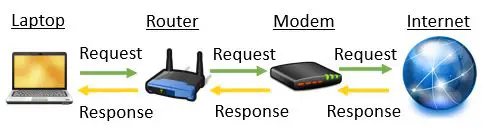
    Your router’s job is to use the internet connection that your modem establishes to communicate with the internet.

    It’s responsible for sending all the requests from your devices to the internet. When you want to access a website from your computer, the website request is sent from your computer to your router.

    Your router then passes this request over the connection established by your modem to the internet.

    The requested website is then returned from the internet to your router. Your router then forwards the requested website to the device that requested it.

    For a visual, here’s a diagram showing how an internet request travels from your home network to the internet and back.

    Internet request data flow

    Without a modem to pass internet requests over, a router would be useless when it comes to internet connections.

    Hopefully you can see why your modem and router are important, and why both devices are needed for an internet connection. Using a router has additional benefits as well.

    Modem’s Don’t Provide Any Security to Devices on the Network

    The other main reason why you shouldn’t use a modem without a router is because it isn’t safe to do so.

    If you were to plug your computer directly into your modem without a router in between them, your computer would be exposed to the internet with very little protection.

    You’d be a ripe target for all the hackers and malicious actors on the internet. This is because there’s nothing between your device and the internet that can filter out all the bad requests and hacking attempts targeted at your device.

    Thankfully, when you include a router in your home network, your devices are much safer.

    Not many people are aware of this, but your routers actually have security features built into them. They’re invisible to the user because they work in the background automatically.

    Let’s take a quick look at the main security feature provided by routers.

    Routers Provide a Network Address Translation Firewall

    Routers protect the internet devices on your network with what’s called a Network Address Translation (NAT) firewall.

    A NAT firewall is a built-in feature that comes with your router and works automatically. You don’t need to change any settings for it to work.

    Without getting too technical here, the network address translation firewall works because of the fact that routers have two IP addresses: one for your internal home network and one for the external internet.

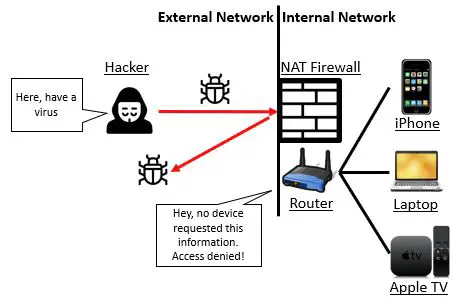
    For any hackers or bad actors that try to send bad requests to your devices, they can only see the external public IP address of your router. They can’t see the internal IP addresses of the devices on your home network.

    As a result, your router knows only to accept data that was requested by the internal IP addresses of the devices on your network. If it receives any data from the internet that wasn’t requested by one of your devices, your router knows to get rid of it.

    Network address translation firewall example
    Example of Network Address Translation firewall

    In this sense, the NAT firewall serves as a filter for your devices. It ensures that your devices only receive the information they requested.

    This is a level of protection that’s not provided if you plug a computer directly into a modem. Your device will receive all the bad requests that are sent to it because there’s no NAT firewall in place to filter them out.

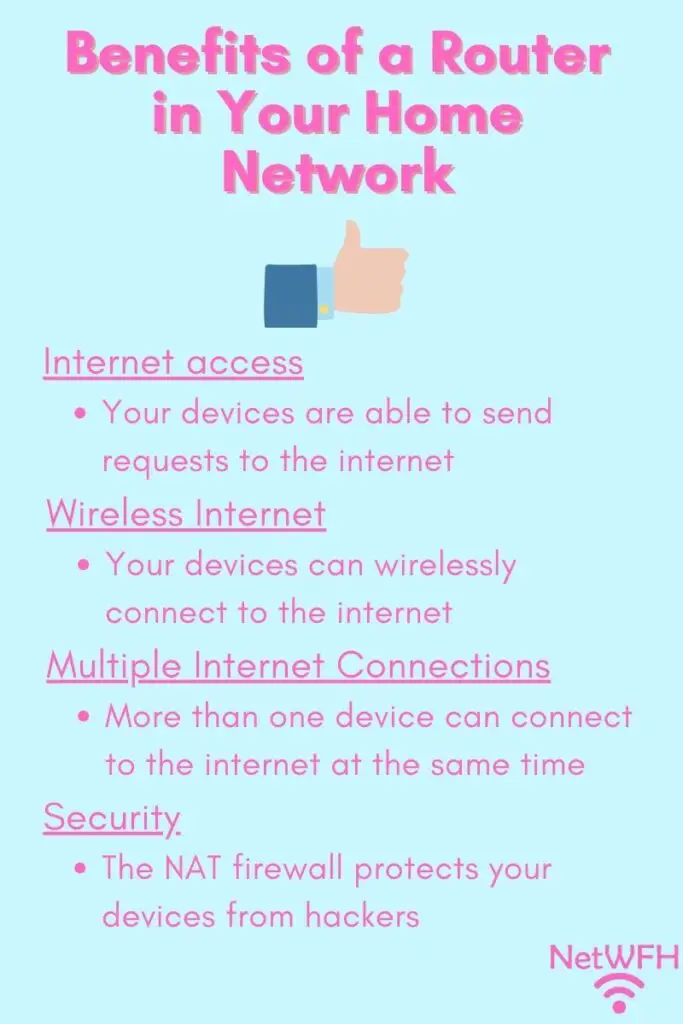
    The Benefits of Having a Router in Your Home Network

    Benefits of a Router in Your Home Network

    Ok so your router provides security to your devices and allows for them to communicate with the internet.

    That sounds like a convincing argument why you should have a router in your home network.

    In case you need more convincing, there are additional benefits that a router provides to your home network that you should be aware of as well.

    Let’s take a look at these additional benefits.

    A Router Allows for Multiple Internet Connections at the Same Time

    One important feature of routers is that they allow multiple devices to use the internet at the same time.

    If you only had a modem and you didn’t have a router in your home environment, you’d only be able to connect one device to the internet at a time.

    Why’s that the case?

    That’s because modems only have one ethernet port.

    As an example, here’s what the back of my modem looks like.

    Ethernet port on back of modem

    As we discussed, there are obviously other reasons why you shouldn’t use a modem without a router, but could you imagine only being able to connect one device to the internet at once?

    The majority of households today have more than ten devices connected to the internet at a given time.

    Just think about having to connect a device to your modem every time you wanted to use it on the internet. That would be a miserable experience.

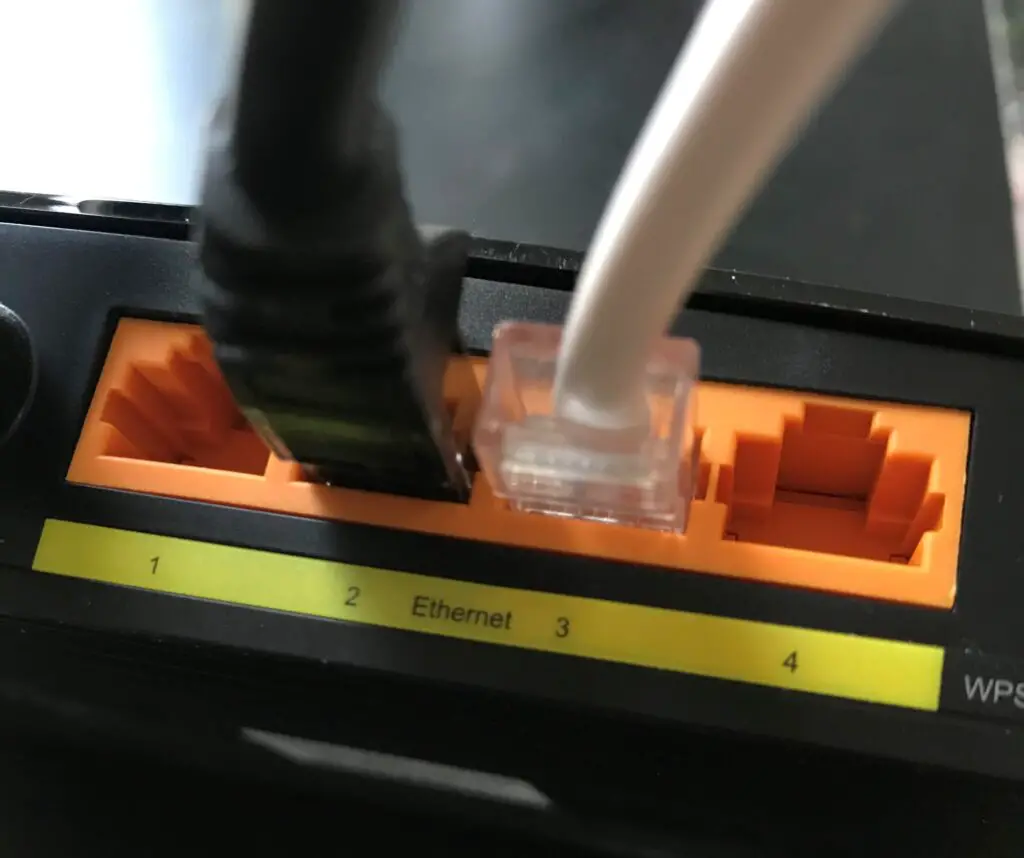
    Routers fix this problem because they have multiple ethernet ports you can plug in to.

    Router ethernet ports

    As you can see, my router has four ethernet ports. That means I can have up to four devices connected to my router with a wired connection. I can have even more devices wired to my router if I use an ethernet switch.

    Those ethernet ports are just for the wired connections I want.

    Did I mention that routers also allow for wireless connections to the internet as well?

    A Router Provides Wireless Internet Connectivity

    Routers are the reason you have WiFi in your home.

    Routers have antennas on them that broadcast your wireless network signal through the air. Your devices can connect to this wireless signal and use it to send messages to your router. Your router will then send these messages to the intended destination. This is how your devices wirelessly connect to the internet.

    Without WiFi in your home, you’d have to manually plug in all your internet devices to your modem for them to have internet access.

    As we discussed earlier, you can only connect one device at a time to your modem.

    Imagine how long some of those ethernet cables would have to be if you didn’t have a wireless internet connection. Your home would look like a rats nest.

    On top of that, having to physically plug in a device every time you wanted to use it on the internet is like having to get up and turn a knob every time you want to change the channel of your TV. Not fun.

    The good news is you don’t have to worry about that. With a modem and router in your home, you can quickly and easily connect as many devices as you want to the internet at the same time.

    Hopefully you appreciate how your router makes life on the internet so much easier.

    How to Connect Your Modem and Router

    By now you should be convinced that a modem and router are both required for a safe and easy internet experience.

    So what should your home network look like? How should your modem and router be connected?

    Thankfully, this is pretty straightforward.

    How to Connect the Modem to the ISP

    First things first. Your modem should be connected to the internet that’s provided by your internet service provider.

    There’s usually a port on the back of your modem labeled for your internet connection. This port will look different based upon the type of internet connection you have.

    There are multiple types of internet connections available to you. In my case, I have cable internet.

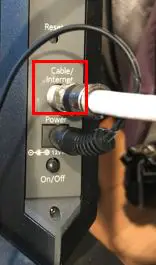
    As a result, this is what the internet connection on the back of my modem looks like:

    Modem cable internet connection

    Most modems will look like this because cable internet is the most common type of internet connection.

    The cable that’s connected to this port on your modem comes from outside your home and is connected to your ISP on the other end. Your ISP will provide this connection to your house once you have an internet plan in place.

    How to Connect the Modem and Router

    The only other connection you’ll have to make from your modem (aside from the power cord) is the connection to your router.

    Your modem and router will be connected by an ethernet cable if they’re separate devices. The ethernet cable to connect these two devices usually comes with the router when you buy one.

    It should be pretty easy to identify what port the ethernet cable connects to on your modem and router.

    Let’s start with your modem.

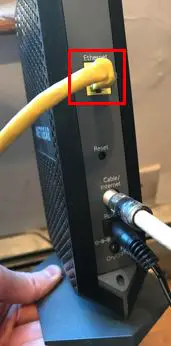
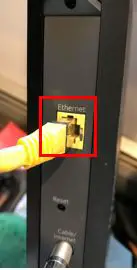
    On the back of your modem, there should be a port labeled “Ethernet”. Unsurprisingly, this is where the ethernet cable goes.

    It should look something like this:

    Modem ethernet connection

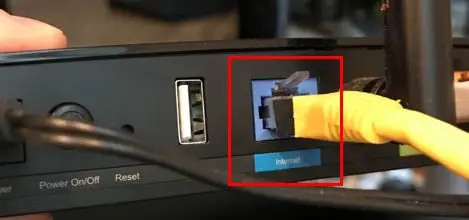
    On your router, there’s a similar port that should be labeled “Internet”.

    Router internet connection

    This is where the other end of the ethernet cable is connected.

    And that’s it. That’s all you need to do to set up your network properly with a modem and router.

    Network Diagrams of What a Home Network Should Look Like

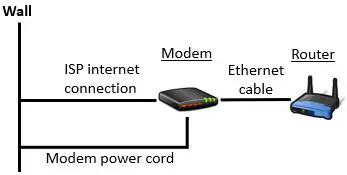
    To help visualize what your home network should look like if your modem and router are separate devices, this diagram may help:

    Modem and router network diagram

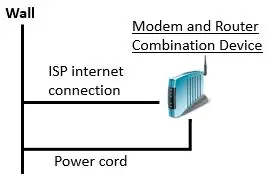
    To make things easier on yourself, you can buy a modem and router combination device. If you have a combination device you only need to connect the internet cable (and power cord) for it to work properly.

    With a modem and router combination device this is what your network should look like:

    Modem router combination device network diagram

    See, it’s a little easier than having separate modem and router devices.

    Once you have your modem and router set up properly, you can connect your devices to the internet either wirelessly or by connecting them to your router with an ethernet cable.

    Should You Ever Plug Your Computer Into Your Modem?

    After spending this entire post explaining that you should never plug your computer directly into your modem, I must say I have a confession to make.

    There’s actually one case where you need to plug your computer into your modem.

    When you’re first setting up your modem’s connection to your internet service provider, you’ll have to plug your computer directly into your modem.

    Upon doing so, you can register your modem with your ISP. This step is required to establish an internet connection with your service provider. You won’t be able to get internet access without doing this.

    The specific steps you need to follow to activate your modem will be detailed in your modem’s user manual.

    As a note, you’ll have to follow these steps every time you get a new modem for your home network.

    To hammer this point home, this is the only time your computer should be plugged directly into your modem. You should never try to browse the internet without a router between your computer and your modem.

    If the only time you plug your computer into your modem is when you’re setting up your modem, you’ll be in good shape.

    Wrap Up

    There you have it folks.

    Hopefully it’s crystal clear that you should always be using both a modem and router if you want to use the internet.

    If you have any questions about this information or you want to share some tips about your modem and router setup, drop a line in the comments section below.

    If you found this information useful, check out some similar posts I have previously written:

    Can I Use a Router Without a Modem?

    How Many IP Addresses Should a Router Have?

    What is a Modem Router Combo?

    Different Types of Internet Connections

    Can I Move My WiFi Router to Another House?

  • Does a Modem Have an IP Address?

    Does a Modem Have an IP Address?

    Modem ip address title page

    Do you know which devices in your home have IP addresses? Have you wondered why knowing the IP addresses of your devices is important?

    A common subject of these questions is your modem. Modems are probably the most overlooked device when it comes to your home network. In fact, many home internet users don’t understand what a modem does.

    So let’s take a closer look at a few questions surrounding modems.

    Does a modem have an IP address? And why do we care if it does or not?

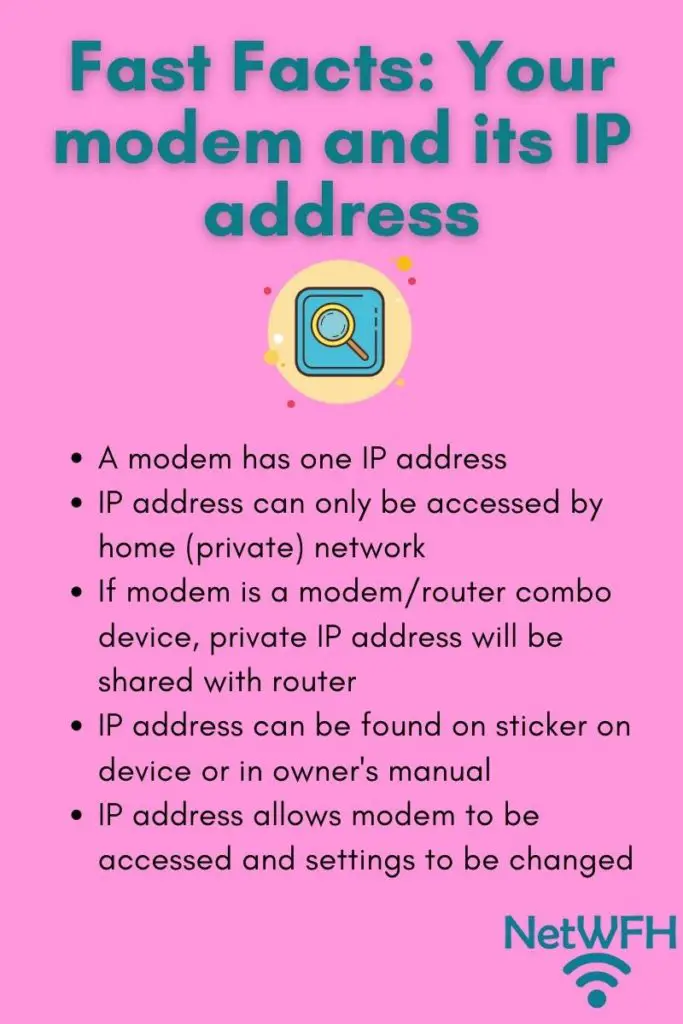
    All modems have one IP address associated with them. Modem IP addresses are used for communicating with the modem and making changes to the modem’s settings. They are private addresses that can only be accessed from the network the modem is on.

    The bottom line is, it’s definitely worth your time to find out what your modem’s IP address is.

    Read on to find out all you need to know about your modem’s IP address.

    Why Does a Modem Have an IP Address?

    Fast facts your modem and its ip address

    A little bit of background information will help here.

    An IP address basically just defines the location of a device so other devices on your network can find it. Just like all the houses on a given street have a different address. If your devices didn’t have an IP address, no one would be able to find or access them.

    To make this simple, all of the Wifi devices in your home will have an IP address. This includes your:

    • Smart devices (outlets, refrigerators, washing machines, etc.)
    • Phones
    • Computers
    • Internet-connected thermostats
    • Modem
    • Router

    Those are just a few examples. At this point, it’s not surprising if someone has 50 or more internet devices on their network at one time.

    All of these devices will have an IP address.

    So why does a modem have an IP address?

    For the same reason as all your other internet devices. Having an IP address allows you to find your modem on your network. In accessing your modem, you can review and change its settings. This is very important, because there are a few easy changes you can make to your router to make your internet more secure (we’ll talk more about this later).

    How to Find a Modem’s IP Address

    As I mentioned at the beginning of this article, there are two different situations when it comes to your modem and its IP address. Your modem will either have its own unique IP address if it’s a standalone device, or it’ll share an IP address with your router if your modem and router are combined into one device.

    Thankfully, the process for determining your modem’s IP address is very similar in both cases. In fact, there are a few ways to do it.

    Also please note that these procedures will provide you with the default IP address of your modem. If you’ve already accessed your modem’s settings and changed its IP address, these references won’t be helpful to you.

    If you have any problems with these procedures or still have trouble finding the IP address of your device, please leave a comment in the section below this post.

    Finding a Modem’s IP Address From the Sticker on the Device

    This first one is pretty simple. Most modems (or modem router combo devices) will have stickers on them that call out the IP address of the device.

    Take a moment right now to go check out your modem. If your modem is a standalone device that’s separate from your router, you’ll be looking for the device without the antennas on it.

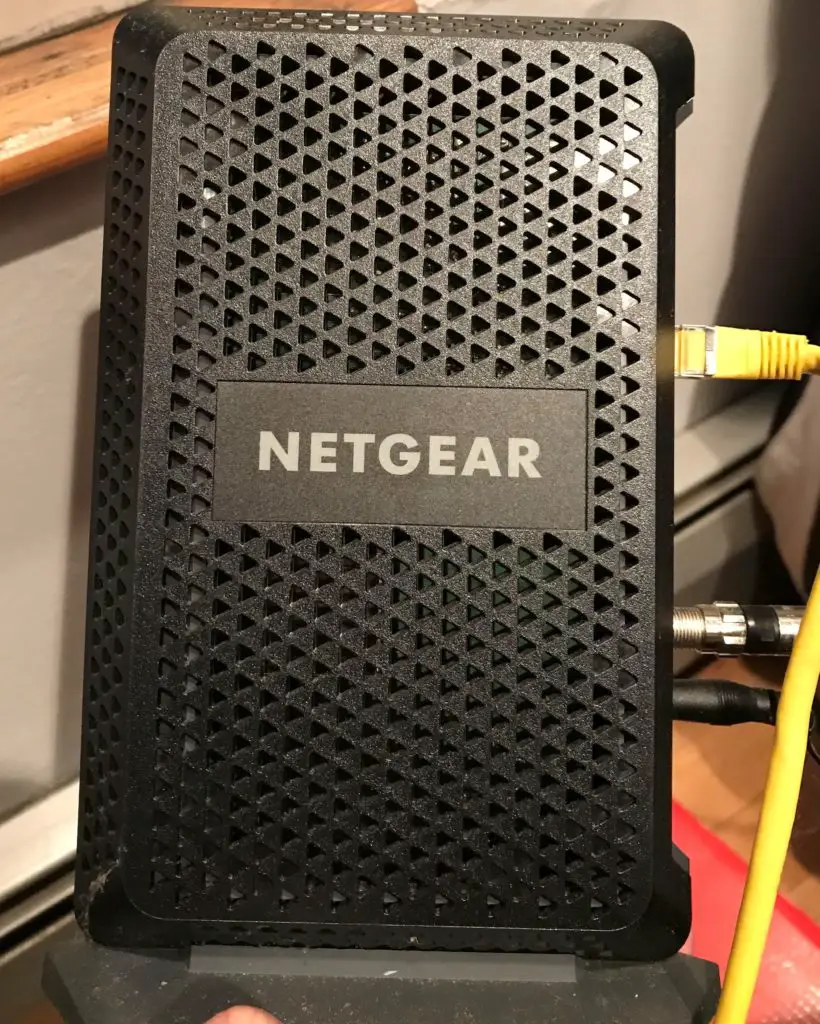
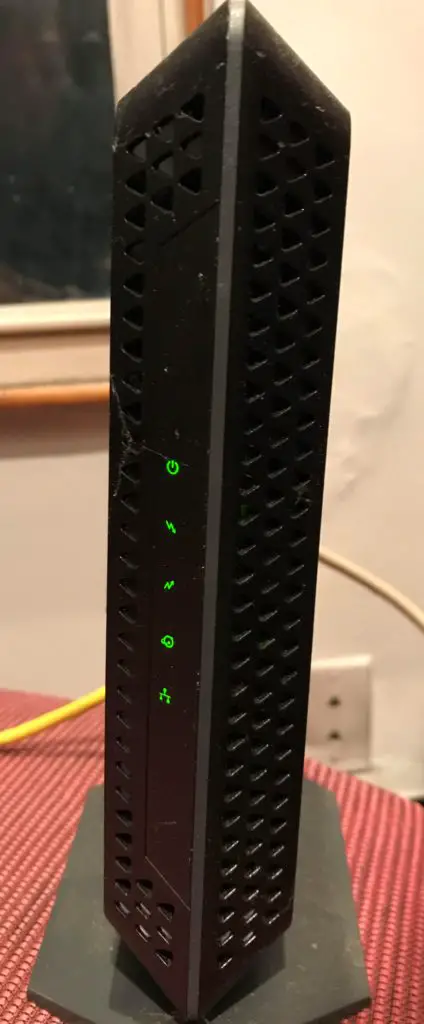
    For a reference, let’s take a look at my modem. Here’s the front of the modem:

    Front of netgear modem

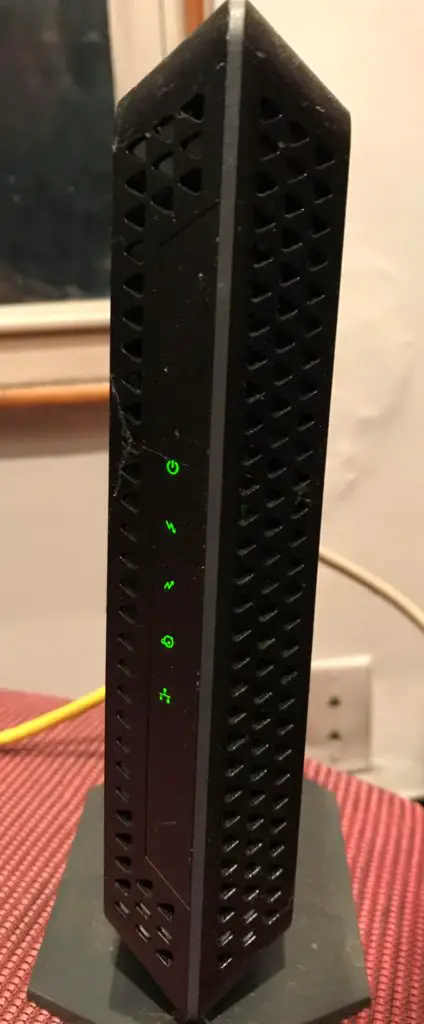
    And here’s what the side looks like:

    Side of Netgear modem

    Ok, now you’ve found your modem. Carefully take a look at the bottom of your device. This is usually where the sticker is located.

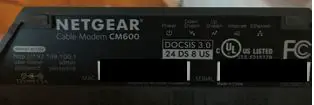
    You should have a label with a bunch of information on it. Here’s what mine looks like:

    Netgear modem sticker

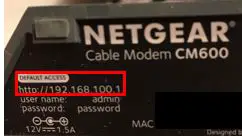
    On this label should be a section titled “IP address” or “Default Access”. This is the section that’ll give you your IP address.

    Netgear modem IP address

    As you can see, my modem’s default IP address is 192.168.100.1.

    See? That wasn’t so bad.

    If you have a modem router combination device, the above steps should be the same.

    The only difference is you won’t need to know the difference between your modem and router. There should only be one device that makes up your home internet. In any case, the sticker will give you the default IP address.

    If the default IP address isn’t listed on the sticker for some reason, here’s another method to try.

    Finding a Modem’s IP Address From the Modem’s Owner’s Manual

    Another way to find your modem’s default IP address is by looking at its owner’s manual.

    There should be a paper manual that came with your modem when you first got it. If you don’t still have it, it’s not a problem. You should be able to get an electronic version online.

    If you’re looking for the electronic version of your owner’s manual, all you need to do is Google the make and model of your modem (or modem router combo device). Your device’s make and model should be listed on the sticker that we previously looked at.

    Modem make and model sticker

    As you can see, I have a Netgear CM600 modem. If I didn’t have my owner’s manual handy, all I would have to do is search online for “Netgear CM600 modem owner’s manual”.

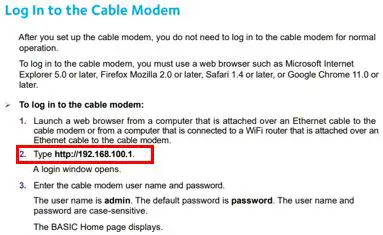
    In the owner’s manual for your modem, there should be a section detailing how to access your settings. That section will provide you with the default IP address for your device.

    This is what the section looks like in my owner’s manual:

    Modem owners manual log in to modem

    Depending upon the manufacturer of your device, the default IP address of your modem may be listed in another section. Regardless of where it’s detailed, your modem’s IP address will be listed somewhere in the owner’s manual.

    Although this method isn’t as easy as having it on the device’s sticker, it’s a trustworthy backup option.

    Why Is Knowing the IP Address of a Modem Important?

    As I mentioned earlier, everyone should know the IP address of their modem. At the very least, you should know where to find it (which we’ve just covered).

    Why?

    Because you need to be able to view and change your modem’s settings.

    One important thing to understand here is that when you first set up your modem, it’s not very secure. Your modem is shipped to you with a default username and password that’s used to access the modem’s settings.

    This default password needs to be changed as soon as you set up your modem. I can’t stress this enough.

    The default passwords for your modem are all over the internet, and it would take someone less than 5 minutes to determine the default password of your device. With that information, anyone with access to your Wifi could access your modems settings and either monitor your internet activity or make changes to your network.

    Just by changing the default password of your modem goes a long way towards making your home network more secure.

    In addition to changing your default password, accessing your modem’s settings allows you to troubleshoot your internet connection if something isn’t working properly. You can even factory reset it to restore it to its previous settings if you want to start over with it.

    None of this is possible without knowing your modem’s IP address. Hopefully you now understand how important this is.

    Does a Modem Have a Public IP Address?

    Due to the fact that modems are so important to our internet connections, it’s important that they’re protected. To add a layer of security to your modem, it’s only accessible on your private network.

    Unlike your router, your modem isn’t accessible by anyone on the internet. This means your modem has a private IP address. The only way to access it and get to its settings is by being on the same network that it’s on.

    On the other hand, because your router communicates with both your internal network and the public internet, it has both a private IP address and public IP address. Public IP addresses can be accessed by any device on the internet (hence the “public” label).

    You can tell your modem has a private IP address by the numbers that make it up. I won’t get into it here, but the fact that your modem’s IP address starts with 192.168 is a dead giveaway.

    Your modem will only have a private IP address. You don’t have to make any changes to your modem for this to be the case. It’ll always be a private address.

    Can a Modem and Router Have the Same IP Address?

    If you have a modem and router combination device in your home network, the device will be assigned one IP address. In this sense, your modem and router will share the same private IP address.

    Keep in mind that a router not only has a private IP address, but it has a public IP address as well. This doesn’t mean your modem’s settings will be accessible by the internet. It can only be accessed from your internal network regardless if it’s combined with your router or it’s a standalone device.

    If your modem and router are separate devices, they’ll always have two different IP addresses. This is because they are two different devices and each connected device in your home network will get its own unique IP address.

    If by some chance your standalone modem and router were both assigned the same IP address, your internet wouldn’t work properly anyway. The traffic on your network wouldn’t get sent to the right place because there would be two places with the same address.

    Imagine if two houses on a street had the same address. That wouldn’t go so well if you tried to send one of them a package.

    You get the picture.

    Wrap Up

    There you have it.

    That’s all you should need to know about your modem and its IP address. It’s very important you at least know how to find your modem’s IP address so you can change your modem’s default password. Hopefully you can use this as a reference if you ever get stuck.

    If you have any questions about this information or would like to connect with me, please drop a comment below.

    If you found this article interesting, here are some posts on relevant topics that you might enjoy:

    What is a Modem Router Combo?

    How Many IP Addresses Should a Router Have?

    How Do I Reset My Modem Password?

    Why Do Modems Need to Be Rebooted?

    Can I Take My Internet Modem to Another House?

  • Can I Take My Internet Modem to Another House?

    Can I Take My Internet Modem to Another House?

    Take Internet Modem to Another House title page

    I’ll just come out and say it: your modem might not be as universal as you think.

    I’ve seen this scenario play out a thousand times.

    Let’s say someone is going through the process of moving. They’ve packed up all their things and moved them to their new home or apartment.

    At this time they realize they want internet access in their new home.

    Thankfully, they remembered to pack their modem from their previous location. They’ve already set up an internet service, so it should be a simple process. All they have to do is plug the internet cable into their modem and they’re good to go, right?

    Not so fast.

    An internet modem can be moved to another house, but a few things need to be in place for it to work properly. Most importantly, the modem must be compatible with the internet service provider (ISP) of the new home. In addition, an active internet connection must be in place at the new location.

    Fortunately, I recently moved and I was able to use my modem in my new home. In this post I’ll share what I learned throughout the process.

    Hopefully my experience can prevent you from having any surprises when moving your modem to a new location.

    Moving My Modem to a New House

    Before sharing what I learned about moving my modem, I’ll give you some background about my personal situation.

    Let’s set the scene.

    Background

    I’ll start by saving my move was not a major one. My new home was about 5 miles from my previous apartment.

    This was convenient because I could use the same ISP at my new home that I had before. This made things easier because I was familiar with my provider (Xfinity). I was also able to use the same type of internet connection for my new place (cable internet).

    Unfortunately, I couldn’t just transfer my existing internet service to my new home because my roommate was in charge of the internet account at my old apartment. On top of that, the move took a few months to complete, so I temporarily rented a modem and router combination device from my ISP so I could have internet at the new place while I slowly moved in.

    One thing I had working for me was that I owned the modem and router that we used at my previous apartment. I planned on taking it with me and using that same equipment for my internet setup.

    Which brings us to the big question: could I take the modem that I owned and use it in my new home?

    My Experience Moving My Modem

    I decided I was ready to move my modem to my new house.

    I unplugged my modem and carefully packed it up along with my router. After moving them to my new place I prepared to make the switch from the modem and router combination device I was renting to the devices I own.

    I compared my modem and router combination device with the modem that I own.

    Rented modem router combo with owned modem
    The rented modem and router combination is on the left and the modem I own is on the right

    After putting them side-by-side, I saw how easy it would be to make the switch. All I had to do was remove the cable internet cable from the rented device and plug it into my modem.

    This was the internet cable I needed to remove from my rented modem and router combo device:

    Internet cable of modem and router combination device

    After I took that internet cable and plugged it into my modem, it looked like this:

    Internet cable of my own modem

    The yellow cable in the picture above is the ethernet cable I used to connect my modem and router together.

    Other than that I just needed to plug in the power cords of my modem and router and I would be good to go right?

    Not so fast.

    Troubleshooting Modem Connection Issues

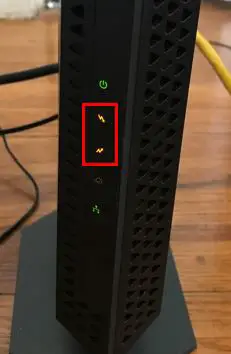
    After powering on and booting up for a few minutes, my modem didn’t look like it normally does.

    I’m used to seeing all the lights turn green on my modem, so I was surprised when a few of them turned orange.

    Modem with no internet

    Once I recovered from my state of shock, I looked into the issue at hand.

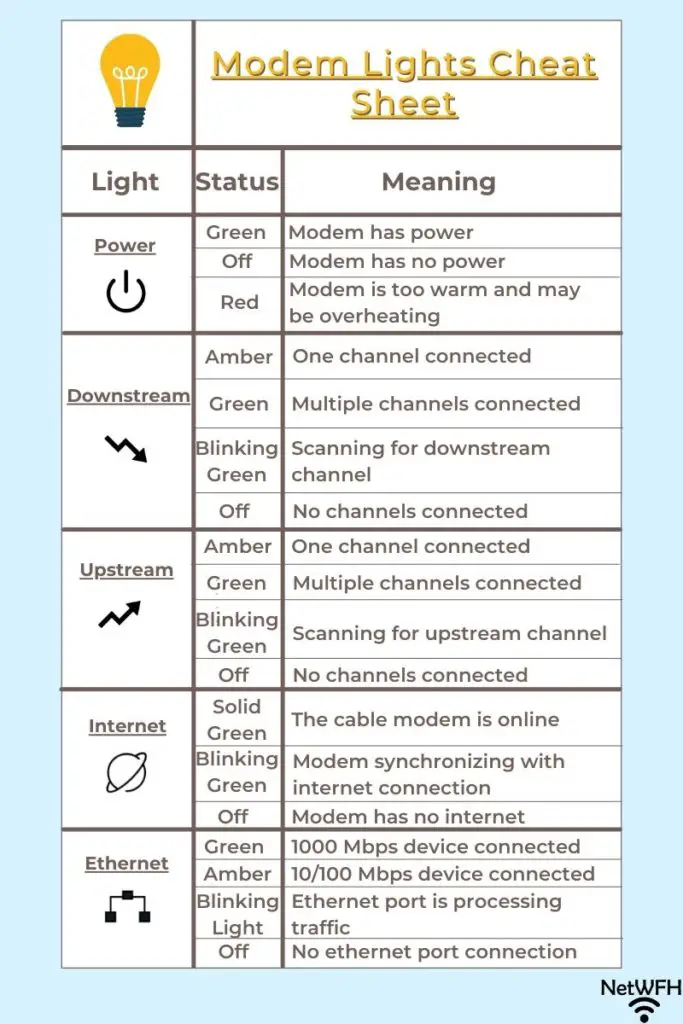
    I accessed my modem’s owner manual to find out what the lights on my modem mean.

    It turns out, these two orange lights were telling me I had a problem with my internet connection. For some reason, my modem was not communicating with the ISP like it should.

    The good news was that it was an easy fix. All I had to do was register my modem’s MAC address with my ISP, which I’ll describe how to do later in this post.

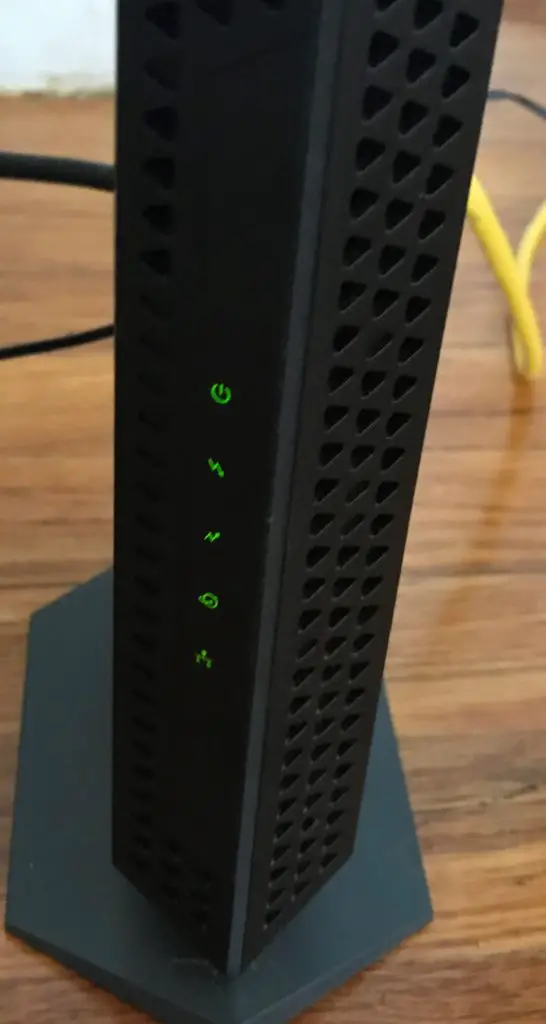
    After registering my modem’s MAC address with my ISP, here’s what my modem looked like.

    Modem with internet connection

    Success!

    The two lights that were orange turned green. When this happened I was able to use the internet in my new home.

    Not only could I take my internet modem to a new house, but I was able to use the router I own in my new house as well.

    All in all, my experiment was a success and I was thankful I didn’t have to spend any money on new equipment.

    Considerations When Moving a Modem to a New House

    There’s an important takeaway I want you to understand if you’re planning on moving and you want to take your modem with you.

    Just because I was able to use my modem at my new house doesn’t mean that you will be able to.

    With that said, there are a few things you can look into before you move to determine if you’ll be able to use your modem in your new home or not.

    Let’s take a look at each of these considerations.

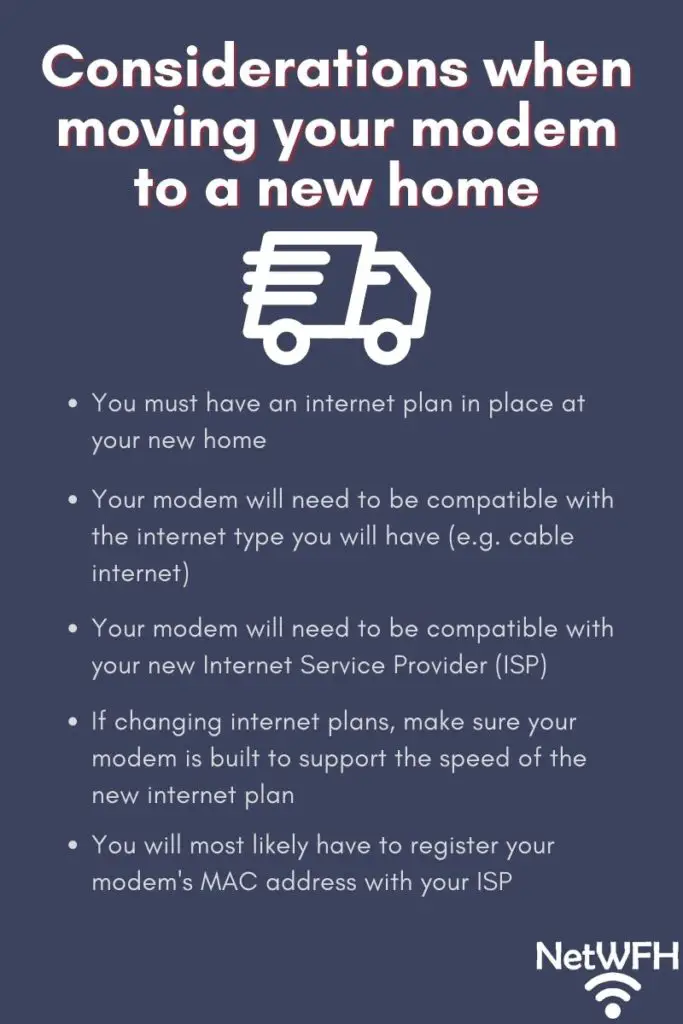
    Considerations when moving your modem to a new location

    You Must Have an Internet Plan in Place at Your New Home

    This one may seem obvious, but it’s sometimes overlooked.

    Your modem will not work in your new home if you don’t have an internet plan in place.

    If you’ll be able to use the same ISP that you currently have in your new home, I suggest trying to transfer your service to the new location. This is the easiest way to make sure you have an internet connection for your new home. The ISP will just take your existing plan and move it to your new address for you.

    As I mentioned above, I wasn’t able to do this because my roommate was in charge of our internet plan at my old home and he wasn’t moving with me. As a result, I had to call the ISP to have them turn on internet service to my new house.

    This is a fairly straightforward process, but you need to make sure you do it before you try to set up your internet. Just make sure you plan in advance so you’re not doing this after you move in to your new place.

    Your Modem Must Be Compatible With the Internet Type of Your Internet Plan

    Depending upon the type of internet you’ll have at your new home, you may need a different type of modem.

    The most common type of internet is cable internet, which is delivered through a coaxial cable. If you’re situation is like mine, you have nothing to worry about. I moved from a house with cable internet to another home that had cable internet.

    Due to the fact that the type of internet delivered to my home didn’t change, I knew there was I chance I could use my modem in the new location.

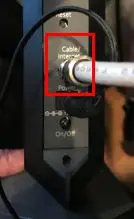
    My modem is built for cable internet, and as a result it has a coaxial cable connection.

    Modem cable internet connection

    As you can see, the internet port is labeled “Cable” to indicate it’s meant for cable internet.

    If you’re changing the type of internet you’ll have at your new home, you’ll probably have to get a new modem. On the other hand, if your internet type will be the same, you may be able to use the same modem.

    Your Modem Must Be Compatible With Your Internet Service Provider

    When I moved I was able to keep the same ISP, so I didn’t have to worry about my modem not being compatible. It worked with the ISP at my old apartment so I knew it would work in my new one.

    If you’re in a scenario where you’ll be changing ISPs, this is something you have to consider. This will most likely be the case if you’re moving to a new home that is far from your current one.

    It goes without saying, if your modem isn’t compatible with your ISP, your internet won’t work. You’ll most likely have to rent a modem from your ISP or buy a new one.

    Keep reading to find out how to tell if your modem is compatible with your ISP.

    You May Have to Register the Mac Address of Your Modem With Your ISP

    In many cases, you’ll have to register the MAC address of your modem if you want your internet to work.

    In my case, I had to register my MAC address with the ISP because the modem and router combination device I was renting was already registered with the ISP.

    Without getting into too much detail, the ISP uses your modem’s MAC address to provide you with a connection to the internet. This MAC address becomes tied to your account. When you unplug a modem and connect a new one, it confuses the ISP because it’s looking for the MAC address of the modem you unplugged. As a result, the ISP can’t establish an internet connection with your home and you don’t get internet service.

    In my scenario, the ISP was looking to establish an internet connection with the MAC address of the modem and router combination device I was renting. When I unplugged the internet cable from the combination device, the ISP didn’t recognize the MAC address of the modem that I owned when I plugged it in.

    The fact that I was switching my modem caused me a few extra steps to get my internet up and running.

    Even if you’re starting a new internet plan with your ISP, you’ll have to register the MAC address of your modem with them.

    It’s better to go into it expecting to have to do this. It’s a pretty easy process depending who your ISP is. Read on to find out how to do this.

    Make Sure Your Modem Can Handle Faster Speeds if You Are Upgrading Your Internet Plan

    If you’re going to be upgrading the speed of your internet at your new home, you need to make sure your modem can support it.

    If you’re not careful, your modem can slow down your internet speed if it’s not built to handle the speed of your internet plan.

    Look up the make and model of your modem online to find out the maximum internet speed it can handle. If you plan on getting an internet plan that’s faster than that maximum speed, you have two choices. You can either get a slower internet plan, or get a new modem that can handle the speed of your new internet plan.

    Too often people assume their modem will work with any internet plan they purchase. Unfortunately that’s not the case.

    How to Know if a Modem Is Compatible With an ISP

    It’s fairly easy to see what ISPs your modem is compatible with.

    The first thing you need to do is determine what make and model your modem is. You can usually find this information on a sticker on the device.

    My modem has a sticker on the bottom that tells me these details.

    Modem make and model

    As you can see, I have a Netgear CM600 modem.

    So what next? How can I find out what ISPs it’s compatible with?

    It’s easy.

    I googled “Netgear CM600 modem” and one of the first results that came up was the product data sheet.

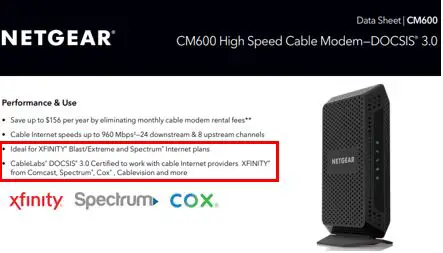
    As you can see on the data sheet, my modem is compatible with most major service providers.

    Netgear CM600 Data Sheet

    If you have a brand name modem and you’re going to be using a major ISP, you shouldn’t have too much to worry about. With that said, if you’re using a less well-known ISP or your modem is not from a major manufacturer, you’ll want to make sure you take a look at this.

    It only takes a few minutes to verify the ISPs your modem is compatible with, and it could save you a headache if you know up front if you’ll need a new modem or not.

    How Do I Activate My Modem With My ISP?

    Registering your modem with your ISP is something you’ll most likely have to do.

    But first things first. In order to register your modem with your ISP, you need to know your modem’s MAC address.

    How to Find Your Modem’s Mac Address

    For your modem’s MAC address, we need to go back to the sticker on the device.

    It’s usually clearly marked so it shouldn’t be too hard to find.

    Here’s what it looks like on my modem’s sticker:

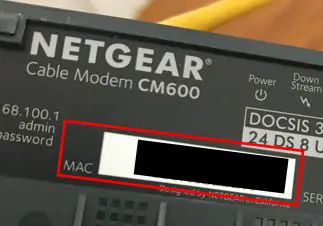
    Netgear modem mac address

    As a note, I have covered the MAC address of my modem for security purposes. It should be a twelve digit mix of numbers and letters. Sometimes you will find your MAC address in the format “XX:XX:XX:XX:XX:XX”.

    Once you have the MAC address of your modem, you should be in good shape.

    Activating Your Modem With Your ISP

    With your MAC address in hand, you can activate your modem with your ISP.

    In my case, my ISP has an app for setting up your internet service. This allows you to set up you internet on your phone without needing an internet connection.

    To register the modem I own, I first needed to download the Xfinity app. Xfinity is my ISP.

    Xfinity Phone App

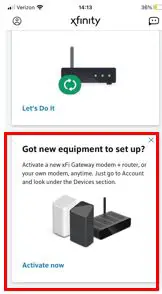
    After opening the app, I was given the option to set up new equipment.

    Set up new equipment screen

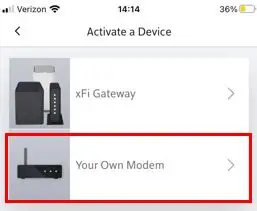
    From there, I just had to select that I wanted to register my own modem.

    Equipment selection screen

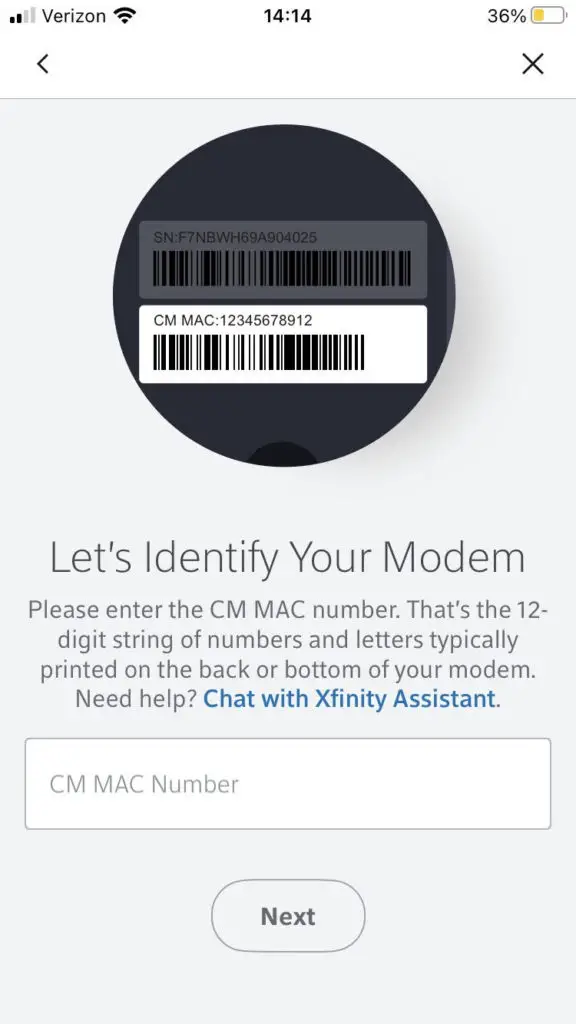
    After following a few simple prompts, I was then able to enter the MAC address of my modem.

    Modem MAC address prompt

    Upon completing the setup steps, my new modem was registered with my ISP and an internet connection was established.

    It’s important to note that the process for registering your modem may be slightly different depending upon the ISP you use. At this point, I expect that most have a mobile app for you to complete these steps.

    Wrap Up

    In many cases, you should be able to take your modem with you when you move to a new home. I recommend you perform the checks detailed in this post before you move so you know if you’ll need to get a new modem or not.

    The last thing you want to do is move all your stuff to your new house or apartment and not be able to set up your internet. We are too dependent on it in our daily lives to even go a few days without it.

    If you have any questions about moving your modem or you want to share your experiences, drop a comment below.

    If you found this article useful, here are relevant posts that you might find helpful as well:

    Can I Move My WiFi Router to Another House?

    What is a Modem Router Combo?

    What Do the Lights on My Modem Mean?

    Does Your Modem Affect Your Internet Speed?

    Can a Modem Overheat? What to Look For

  • What is a Modem Router Combo?

    What is a Modem Router Combo?

    Modem router combo title page

    Buying a modem and router for your home internet can be a daunting task. There are many different modems and routers to choose from and it can be overwhelming. On top of that, if you don’t buy the right devices your internet speed can be greatly reduced.

    Thankfully, there’s an easy way to solve this problem.

    The solution is a modem router combo device.

    A modem router combo is a home networking device that combines the functionality of a modem and router into one device. It functions the same way as a separate modem and router does, in that it establishes an internet connection to an internet service provider (ISP) and broadcasts a wireless network.

    In this post we’ll take an in-depth look at modem router combinations so you can determine if it’s the right device for your home network.

    What Does a Modem Router Combo Do?

    Let’s start with the basics here.

    A modem and router combination device provides you with all you need to access the internet from your home. This includes connecting your home to your ISP, as well as providing a wireless network for your devices.

    It’s basically a one-stop shop for your home internet.

    What Is the Difference Between a Standalone Router and a Modem Router Combo?

    You’re probably wondering what the difference is between a regular router and a modem and router combination device.

    The biggest difference is that a router on its own doesn’t provide you with all you need to access the internet.

    A router allows your devices to interact with the internet once an internet connection is already in place. It’s also used to take the already-established internet connection and create a wireless network in your home for your wireless devices to access the internet.

    The key here is that on its own, your router can’t provide your devices with access to the internet.

    That’s where the modem comes in.

    A modem provides the internet connection that the router uses to make a wireless network. You need both a modem and router to create a working home internet network.

    Using a router on its own to access the internet would be like trying to drive a train without train tracks. It simply won’t work.

    That’s why a modem and router combination device can be so useful. As long as you have an internet plan, you can be confident that your home network will work well.

    What Does a Router and Modem Combination Device Look Like?

    Now that we know what a modem router combo does, let’s dive into what they look like.

    The biggest difference you’ll notice is that modem and router combination devices are much simpler than standalone modems and routers.

    In a combination device the modem and router are already connected within the piece of equipment. In other words, you don’t have to do anything to make sure they’re working properly with each other.

    When the modem and router are separate, they need to be manually connected. On top of that, each standalone device needs its own connection to a power source, so each one will have its own power cord. Combination devices only need one power cord because it’s only one device.

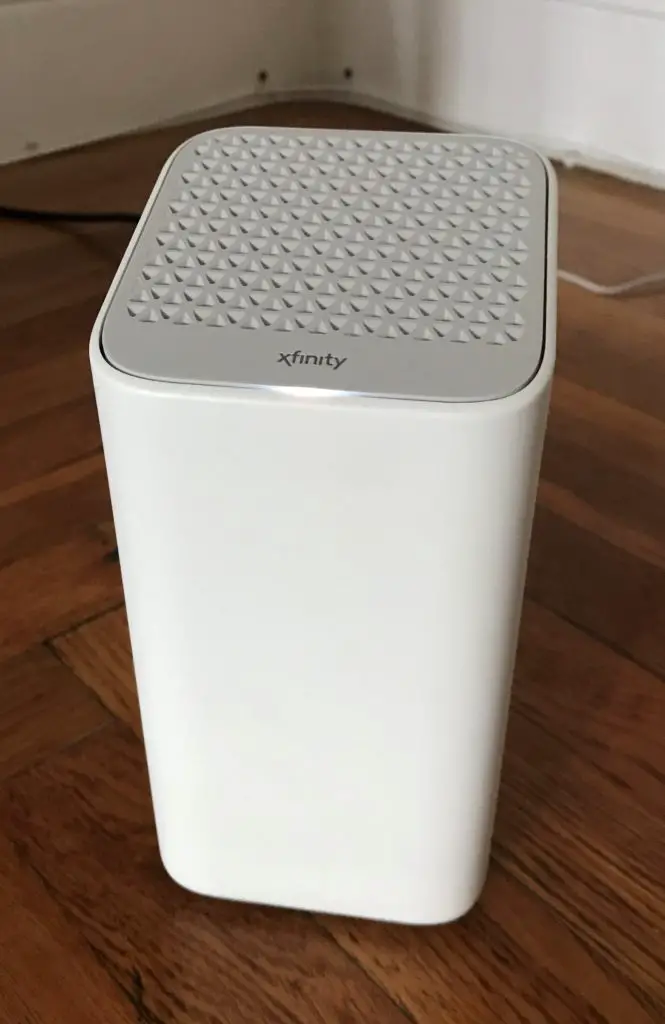
    Here’s what the front of a modem router combination device looks like:

    modem router combo front

    See? It looks pretty clean and simple.

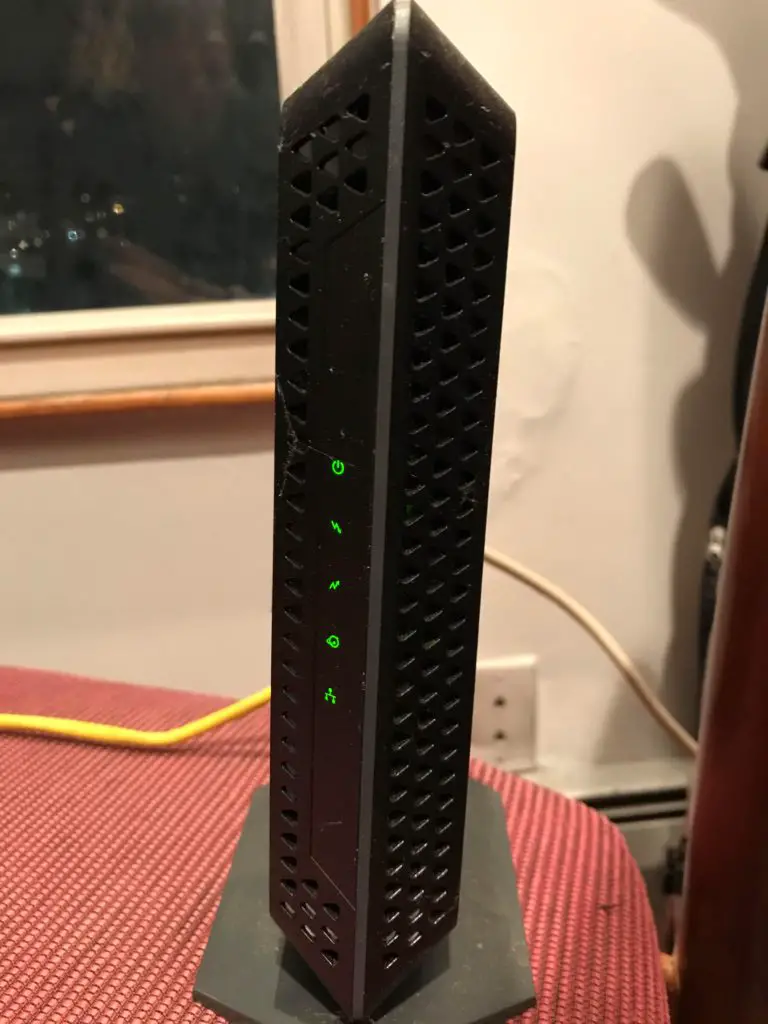
    Now, let’s take a look at the front of a modem and router that are standalone devices.

    Front of standalone modem
    The front of a standalone modem
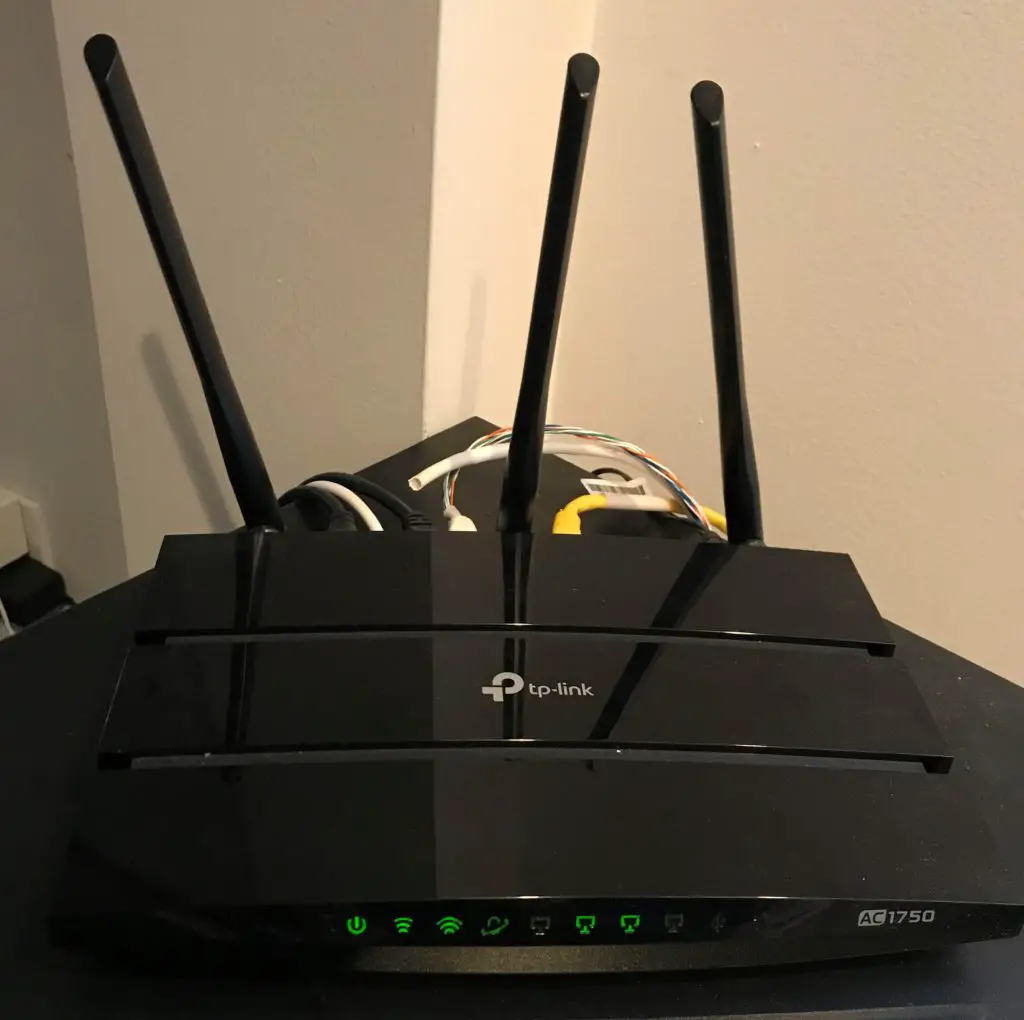
    Front of standalone router
    The front of a standalone router

    Not too overwhelming at this point right?

    You might think differently after comparing the back of a modem router combination device and a standalone modem and router.

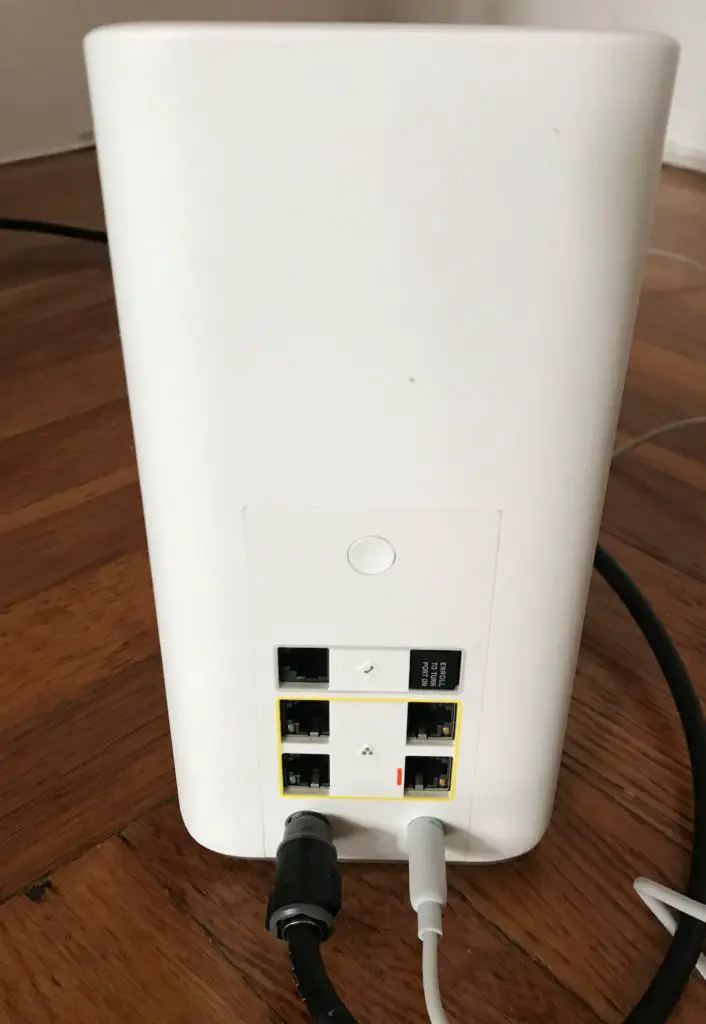
    Here’s what the back of a modem router combination device looks like:

    back of modem router combo

    Just like the front, the back of the modem router combo is very simple as well.

    How about the modem and router standalone devices? How do they look?

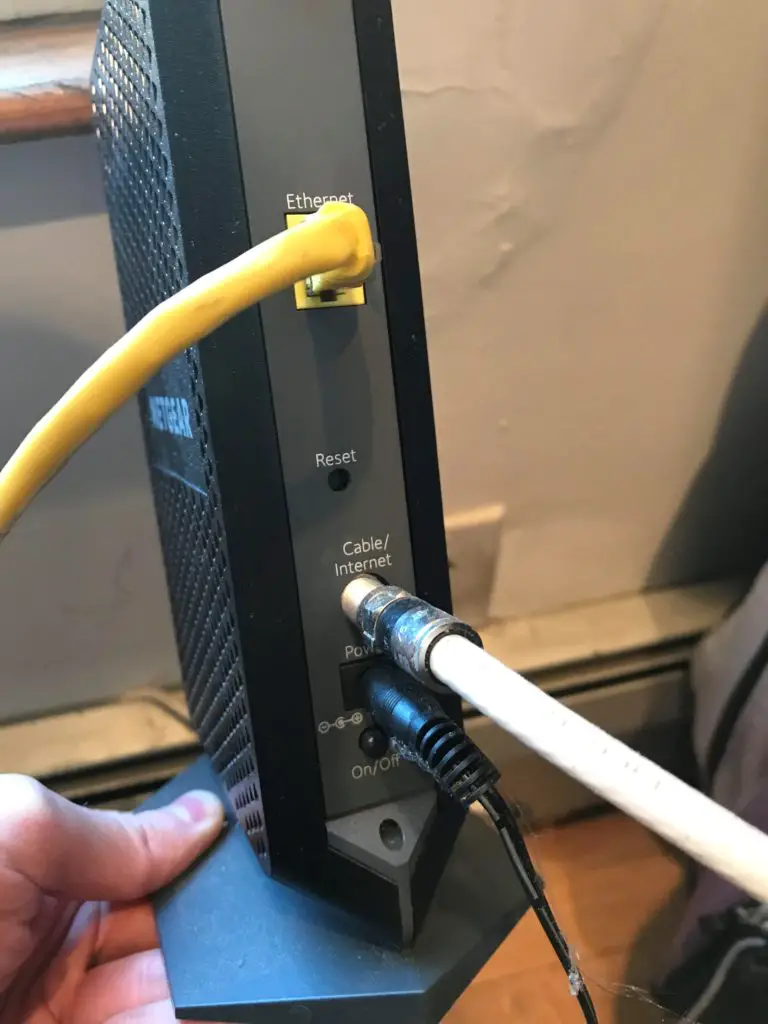
    Here’s what the back of a standalone modem looks like:

    Back of standalone modem

    Seems simple enough. In fact, it doesn’t look too different from the modem router combination device.

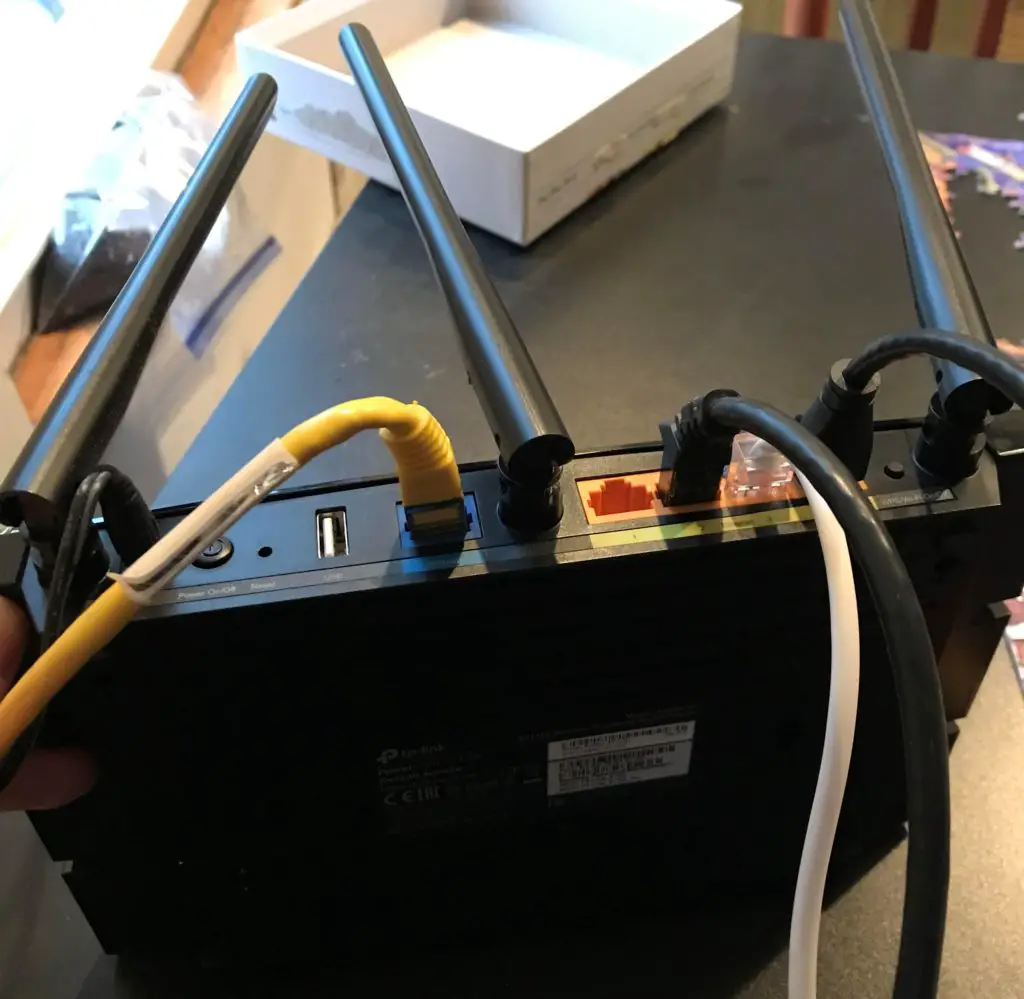
    What if we throw a router into the mix? What does the back of a standalone router look like?

    Back of standalone router

    As you can see, the back of a standalone router is much more complex than the back of a modem router combination or a standalone modem.

    This level of complexity is what can make a non-technical person feel uneasy. Especially considering the fact that you need to make sure both the modem and router are connected correctly when you buy them as separate devices.

    Reasons to Buy a Modem Router Combination Device

    A modem and router combo can be very useful depending upon your personal situation. Before running out and buying one, it’s important to understand the benefits of these devices.

    Let’s take a look at the situations where a modem router combo provides the most value.

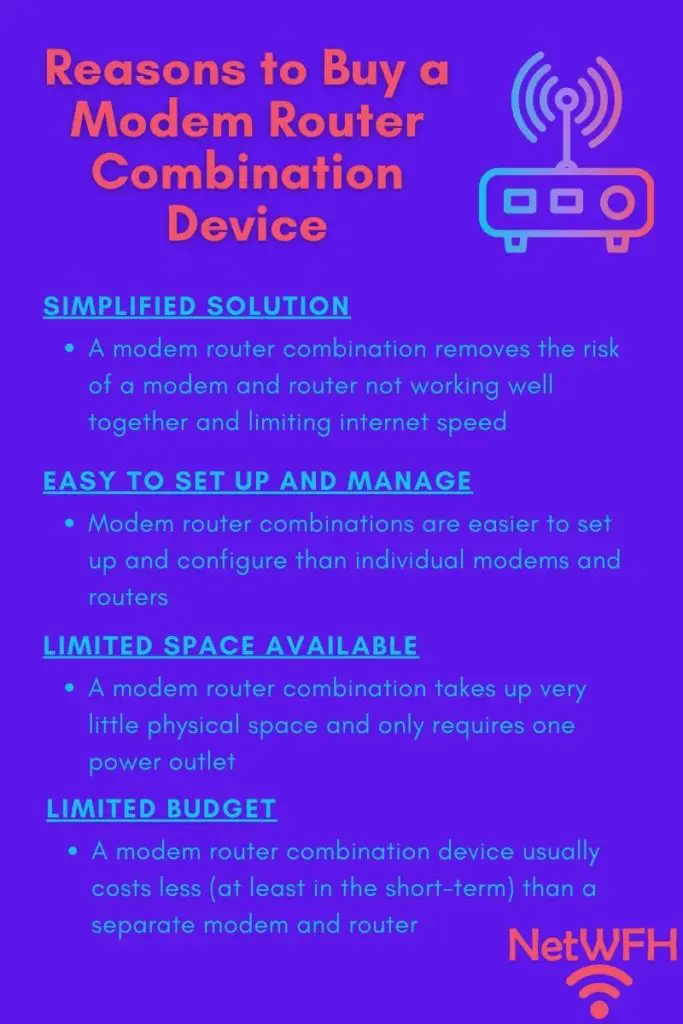
    Reasons to buy a modem router combination device

    When You Want an Easy Solution That Works Well With Your Internet Plan

    I’ll just come out and say it.

    Finding a modem and router that maximizes the speed of your internet plan can be a challenging task.

    If you buy a standalone modem or router that doesn’t meet the needs of your internet plan, it can greatly reduce your internet speed. The last thing you want to do is pay a lot of money for a high speed internet plan and not get the most out of it.

    I know, this is an intimidating concept.

    In buying a modem router combo, you can save yourself hours of researching which individual modems and routers would optimize your internet speed. On top of that, you can rest easy knowing your modem and router will work well together.

    A modem router combination removes several of the variables that go into your home internet speed. The less factors you have to worry about when setting up your home internet, the easier it is to get the performance you want out of your internet plan.

    If You Want a Simple and Easy Way to Set Up Your Home Internet

    I hinted at this earlier when detailing what a modem router combination looks like, but it’s important to hammer this point home.

    If you don’t consider yourself a technical person and you get overwhelmed by the gadgets in your home, a modem router combo may be a great option for you. They’re much easier to configure and manage than individual modems and routers.

    Sure, modem and router combos may not be as customizable as standalone devices, but if you’re not a very technical person you probably wouldn’t be utilizing those capabilities anyway.

    With a modem router combo you’re choosing simplicity and functionality over high customizability. In other words, you’re ensuring your modem and router work well together at the expense of some advanced technical features.

    If you just want a solution that will give you good internet performance and you’re not worried about squeezing every last drop of horsepower out of your internet devices, a modem router combination may be a good choice.

    If You Want Your Internet Devices to Take Up as Little Space as Possible

    This should be fairly obvious at this point.

    When you have a separate modem and router, you’re dealing with two devices. That means you need to have the physical space for both of them in your home.

    This doesn’t mean you can stack them on top of each other either.

    Modems and routers need to be in open spaces that get good air flow. If you don’t give these devices enough space, you run the risk of your modem or router overheating.

    Nobody wants that, especially the internet users in your home.

    The other consideration is that each device has its own power cord. Thankfully, it’s good practice to plug these devices into a surge protector.

    If you already have a surge protector and it’s running short on available outlets, it’s much more convenient to only need one for your home internet setup. This is a minor consideration because surge protectors are cheap, but it’s still a consideration nonetheless.

    The bottom line is, if you’re going for a minimalist look with as few devices and tumbleweeds of cables as possible, a modem router combination device is worth considering.

    If You Want to Save Money on Your Home Internet Setup

    Another consideration to think about is your budget.

    In general, modem router combinations are cheaper than buying a modem and router separately.

    If you’re on a tight budget, you can probably save a few bucks by buying the combo device.

    One thing I will add is that you should keep your future plans in mind here. If you plan on upgrading your internet devices in the future, with a separate modem and router you can upgrade each one individually.

    Separate devices can save you money in the long run, because if you want to upgrade a modem router combo you have to buy a whole new one each time you want to upgrade.

    In addition, router technology has been advancing much faster than modem technology. As a result, you can probably get away with upgrading your router a few times before you have to upgrade your modem. In this scenario it’s cheaper in the long run to have a separate modem and router.

    With that said, if you don’t see your internet needs changing and don’t plan on upgrading your devices anytime soon, you’ll probably save some money by buying a modem router combo.

    Should I Buy a Modem Router Combo?

    If you like what you’ve read so far about modem router combinations, I have some advice before you run out and buy one.

    Test drive one first.

    In many cases if you rent a router from your ISP, they’ll provide you with a modem router combination device.

    I’d suggest keeping what you have now and renting a modem router combination device from your ISP for a few months. They’re usually pretty cheap to rent (around $10 per month), so it’s worth trying one out. Worst case scenario is if you don’t like it, you can go back to what you were using before.

    Keep in mind that the devices provided by your ISP are pretty general in nature and usually aren’t designed for your particular internet plan.

    What does this mean?

    It means you can probably get slightly better performance out of a modem router combo that you buy for your specific internet plan. In other words, if you like the performance you get out of the device you get from your ISP, you’ll probably be able to get even better performance if you buy your own.

    You’ll ensure you’re happy with your decision if you try before you buy. Even if you’re curious about how modem router combinations work, it’s worth the short money to find out for yourself.

    What Modem Router Combo Should I Buy?

    If you’re convinced that a modem router combo is the best fit for your home, there are a few I can recommend.

    The Budget Friendly Option

    If you just want a modem router combination that works and you have basic internet needs, you can get really good bang for your buck with the Netgear C6220.

    This modem router combo supports internet speeds up to 200 Mbps. This means it’ll work well for you if your internet plan is for speeds up to 200 Mbps. If your internet plan provides more than 200 Mbps, you’ll want to go in a different direction.

    Most small families should get good performance out of their internet with 200 Mbps. If this is your situation, give this device a shot.

    For More Demanding Internet Needs

    If you need more than 200 Mbps to satisfy your internet needs, you can take a step up with the Arris Surfboard SBG7600AC2.

    The Surfboard can support internet speeds up to 800 Mbps, so it’s a step up from the Netgear C6220. This’ll be a better fit for larger families where there are multiple people on the internet at all times.

    If you have multiple people streaming and gaming at the same time, you won’t have any problems with this modem and router device (as long as your internet plan can support it).

    This router is more expensive than the Netgear C6220, but it serves as a good middle ground if you want a good option that isn’t super expensive.

    If you’re looking for off-the-charts performance at a higher price point, check out the next modem router combination device on the list.

    Top of the Line

    If you want to swing for the fences and budget isn’t a concern for you, you might want to try the Netgear Nighthawk AX6000.

    This modem router combination is one of the best in the business. It will undoubtedly meet any of your home internet needs.

    If you want to online game? Check.

    If you have a large family that always has multiple devices streaming? Check.

    If you have a blazing fast internet plan? This device has you covered.

    In addition to the fact that it can support gigabit internet speeds, it also has WiFi 6 capability. This is the latest and greatest WiFi technology that allows for faster internet speeds. WiFi 6 can also support more devices at the same time when compared to the previous WiFi technology.

    If you decide to buy this device you’ll future-proof your home internet and you won’t have to buy a new modem router device for a long time.

    Wrap Up

    I hope you now have a good understanding of what modem router combination devices are, and why you might want to consider buying one.

    If you have any questions or want to share your experiences with these devices, please feel free to drop a comment in the section below.

    If you found this reading interesting, check out some previous posts on similar topics:

    Can a Modem Overheat? What to Look For

    Can a Router Overheat? A Detailed Analysis

    Does a Router Affect Your WiFi Speed?

    Does Your Modem Affect Your Internet Speed?

    Can an Ethernet Cable Slow Your Internet Speed?

  • Why Do Modems Need to Be Rebooted?

    Why Do Modems Need to Be Rebooted?

    Modems need to be rebooted title page

    Once you plug in your modem and establish a connection to your internet service provider (ISP), you don’t have to do anything with your modem ever again, right?

    Absolutely not.

    In fact, it is recommended that you reboot your modem every once in a while after it’s set up.

    But why is rebooting your modem recommended? What benefits does that provide?

    Periodically rebooting a modem is considered good practice. When a modem is rebooted, it resets its connection with its internet service provider (ISP). This ensures that the modem maintains a reliable internet connection with the ISP, which maximizes the internet performance for the devices on the network.

    In this post, I’ll talk about the importance of rebooting your modem and the benefits of doing so. I’m sure you’ll find that with minimal effort, you can greatly improve your internet connection.

    Why Does Your Modem Need to Be Rebooted?

    There are several benefits why rebooting your modem is a good idea. Let’s take a look at each of them in detail.

    Rebooting a Modem Maintains Fast Internet Connections

    Modems are just like any other computer or mobile device. They have the same components that these devices do:

    • A processor
    • Memory
    • Firmware
    • A power source

    The list goes on and on.

    The difference between your modem and your mobile devices is that your modem’s components aren’t as powerful.

    That’s because they don’t need to be.

    Computers and other mobile devices are designed to perform many different, complex functions. They can be used in a variety of ways and are designed to allow the user to do just about anything with them.

    Modems aren’t designed this way. A modem has a specific set of tasks that it’s meant to perform. As a result, it don’t need the same level of processing power and memory that other devices have.

    Let’s talk about memory specifically.

    Because modems don’t have as much memory as computers and other devices, it makes it more important to efficiently use the memory they have.

    Modems store information about the devices that are on your home network. Over time, your modem’s memory will start to fill up with information that it doesn’t need. If a modem’s memory gets too full, it won’t be able to process the information going to and from the internet as quickly.

    In other words, all your internet connections will come to a crashing halt if your modem’s memory is too full.

    When you restart your modem, you clear the modem’s memory. By doing so, you’re ensuring that the modem is only storing the most recent and relevant information it needs. A modem that’s not bogged down by storing useless information will maximize the speed of your internet connections.

    Rebooting a Modem Maintains a Reliable Internet Connection

    I’m sure we’ve all been in this situation:

    Your internet connections have slowed down or you’re not getting an internet connection at all. You don’t know what’s going on so you call your internet provider to see if they can help.

    After waiting on hold for 30 minutes you finally get in touch with a representative from your ISP.

    The first thing they tell you to do is to turn off your modem, wait for 30 seconds, then turn it back on.

    After your modem boots back up, your internet connection has been restored and your devices can access the internet as usual.

    What gives? Why does this happen and what’s exactly going on here?

    The Problem With Modems and ISP Connections

    Your modem is responsible for maintaining a connection with your ISP. Although this sounds easy enough, there is a little more to it.

    To get a better perspective, let’s look at it from the ISP’s point of view. Although your modem only has to connect to one ISP, the ISP has to maintain a connection to every modem that’s connected to it.

    We’re talking thousands of devices here.

    In trying to maintain so many connections at once, it’s easy to see how a connection can easily get lost in the shuffle.

    This is usually what happens when you lose your connection to the ISP.

    Why Rebooting Your Modem Helps With ISP Connection Issues

    When you reboot your modem, you’re starting a brand new connection to the ISP. It’s essentially like your modem is raising its hand and yelling “Hey ISP, here I am. Connect with me please!”.

    The internet provider will be more responsive to newer connections as opposed to older connections it made months ago. By rebooting your modem, you’re making sure your ISP is aware of your modem.

    If you make sure to restart your modem on periodic basis, the ISP won’t lose track of your connection.

    Think of all the time you’ll save by not having to wait on hold when you call your internet provider.

    How Often Should I Reboot My Modem?

    Although I know you’re looking for a standard answer here, unfortunately I can’t give one.

    The answer is because it depends.

    The truth is some people will have to reboot their modem more often than others.

    There are many variables in play here including:

    • Which ISP you’re using
    • The make and model of the modem you’re using
    • How old your modem is
    • The number of devices you have connected to the internet

    All these things will factor into the quality of your internet service. The more your run into problems with your internet connection, the more often you’ll have to reboot your modem.

    If you want my advice, a good place to start would be to reboot your modem every few months.

    Keep in mind this doesn’t have to be an exact science. You can wait to reboot your modem until your internet connections slow down and you have issues, or you can be proactive about it and restart your modem on a regular schedule.

    Feel free to experiment with this. As I mentioned previously, results will vary. Find a reboot schedule that works for you and your internet connections.

    How to Manually Reboot Your Modem

    Ok, so we know why you should reboot your modem and how often to do it. Now let’s discuss the steps you need to take to actually reboot your modem.

    There are several ways to do this, and I’ll explain the manual method first. I’m sure you’ll find this is the simplest way to reboot your modem.

    The first thing you need to do is identify the power cord on your modem. It should be easy to find as it’ll be labeled “power” on the back of your modem. Even if your router and modem are combined into one device, the connection should be labeled the same way.

    For example, here’s the back of my Netgear CM600 modem:

    Modem power connection

    The other end of the cable plugged into the “Power” connection on the back of your modem will be plugged into an outlet.

    To reboot your modem:

    1. Unplug the power cord from the outlet. Your modem will turn off.
    2. Wait 30-60 seconds.
    3. Plug the power cord back into the outlet. Your modem will turn on.

    As a note, some devices may require you to press a power button on the device to power it back on after it’s plugged in.

    Once your modem has powered back on, it will automatically run its startup processes. After a few minutes, your modem will be reconnected to the internet and you can go on your merry way.

    If your modem and router are combined into one device, the above steps are still applicable. In fact, you’ll be killing two birds with one stone because there are benefits to rebooting your router as well.

    As you can see, It’s not very complicated to restart your modem. These 3 simple steps could save you from suffering through slow internet connections.

    Don’t let this happen to you.

    How to Restart Your Modem From Your Computer

    If you prefer, you can also reboot your modem from your computer. As long as you’re on your home network, you can reset your modem from anywhere in your house.

    The first thing you need to do is determine your modem’s default access location. You can find this on the sticker on your modem. In my case, the sticker is on the bottom of my Netgear CM600 modem.

    Modem default access location

    As you can see, the default access location of my modem is https://192.168.100.1. With this information, we can get to the login screen for our modem.

    What you need to do is enter the default access location into a web browser search bar.

    Modem default access location in browser

    When the page for your modem loads, you will be prompted to enter the username and password for your modem.

    Modem login prompt

    On this screen you’ll need to log in with your username and password. If you’ve never logged into your modem before, you can find the default username and password on the sticker on your modem or in your modem’s operating manual.

    Modem default username and password

    One important note: if you use the default username and password to log into your modem, I strongly suggest you change your password. It’s a huge security risk to keep your modem’s password set to the default. Anyone that gets access to your network will easily be able to access your modem’s settings and perform malicious activity if the default password is used.

    Once you’re logged into your modem, it should be pretty easy to find the button to reboot your modem. On my modem, I need to first select the Advanced Settings header. From there I have the option to reboot my modem.

    Modem reboot button in Advanced Settings

    Upon selecting the reboot button, your modem will go through a power cycle as if you unplugged the power cord and plugged it back in again.

    These steps accomplish the same thing as a manual reboot, but its easier because you don’t have to get out off the couch.

    Can I Reboot My Modem Remotely?

    The procedure detailed above works when you’re on your home network, but what if you’re away from your home?

    Is there a way to reboot your modem remotely when you’re away from home?

    Fortunately there is. You just need to be a little creative.

    Use a Smart Outlet to Reboot Your Modem Remotely

    If you plug the power cord of your modem into a smart outlet like this one, you can control the smart outlet from anywhere you want (as long as you have internet access). By turning off the smart outlet and turning it back on 30-60 seconds later, you’re basically rebooting the modem manually.

    This is a useful method if you want to reboot your modem on demand and you’re away from home. Just keep in mind that if you lose your internet connection you won’t be able to control your smart plug. If you can’t control your smart plug you can’t restart your modem remotely.

    Call Your ISP to Have Them Reboot Your Modem

    Another way to reboot your modem remotely is to call your ISP. As long as your modem has an active connection to the internet, they’ll be able to reboot your modem for you.

    They have the ability to send a restart signal to your modem and it will reboot on command. This may not be the fastest or easiest method to remotely reboot your modem because you may be on hold with the ISP before you get someone on the line.

    This method also won’t work if your modem has lost its internet connection. If that’s the case the ISP won’t be able to do anything for you.

    Can I Set My Modem to Automatically Reboot?

    Although you can’t set your modem to automatically reboot on a schedule like you can with your router, there’s another way to accomplish this goal.

    If you get a programmable timer outlet, you can have your modem reboot on a schedule. All you have to do is connect your modem’s power cord to the outlet and set a schedule for the outlet to turn off and back on.

    This method works well if you want to reboot your modem on a schedule even if you’re not home and using the internet.

    Wrap Up

    There are multiple benefits for rebooting your modem, and there are several easy ways to do it. I think you’ll find that it’s well worth your effort to reboot your modem on a periodic basis, especially if you’re having problems with your internet connections.

    Now you won’t have to call your ISP and waste time waiting on hold before they tell you to power cycle your modem. You can take matters into your own hands.

    If you have any questions about this information or would like to share your experiences please feel free to comment below. If you found this information interesting here are some similar related posts that you might find useful:

    How to Automatically Reboot Your Router for Better Internet Connections

    Can a Router Overheat? A Detailed Analysis

    Can a Modem Overheat? What to Look For

    Why Do Routers Have Multiple Antennas?

    What Do the Lights on My Modem Mean?

    What Do My Router Lights Mean?

  • Can a Modem Overheat? What to Look For

    Can a Modem Overheat? What to Look For

    Modem overheat title page

    Let’s be honest. As soon as you’ve finished setting up your modem, you probably stop thinking about it.

    Most of the time there’s nothing wrong with this. Modems aren’t meant to be high maintenance devices.

    Where you get into trouble, however, is when your modem is not set up correctly.

    What sort of trouble, exactly?

    One potential issue is overheating.

    If a modem does not get proper airflow through the device, it can overheat. An overheating modem can result in a slow internet connection, and may result in failure of the device.

    Luckily, there are some simple steps you can take to prevent your modem from overheating. Once you properly set up your modem so that it won’t overheat, you can go back to forgetting about it again.

    In this post I’ll break down what to look for if you think your modem is overheating, and what you can do to prevent it from getting too hot.

    Why Do Modems Overheat?

    Let’s start with the basics.

    When your electronic devices are powered on and in use, they generate heat. This heat raises the temperature of the device. The problem with this is that electronic circuits are sensitive to heat, and if they get too hot they won’t work as they’re supposed to.

    To account for this, many electronic devices are designed to release the heat they generate. To provide an example, this is why many computers have internal fans. The fans cool off the electronic circuits as they operate to keep them from getting too hot. If these mechanisms aren’t able to release the heat that’s generated by the device fast enough, it can lead to overheating.

    This is exactly what happens when your modem overheats. A modem gets too hot when there isn’t enough airflow through the device. Where the modem is placed and the environment it’s operating in can have a big impact on the temperature of the device (as you’ll read later).

    The good news is that it’s easy to prevent your modem from overheating. Modems aren’t built with fans in them because they normally don’t get too hot to need them. Instead, they have vents to allow heat to easily flow out of them. For example, my Netgear CM600 modem has lots of little vents in it to help keep it cool.

    The air circulating throughout your home will take the heat away from the modem as it comes out the vents.

    If you keep your modem in the right place, that should be more than enough to make sure it operates properly.

    What Are Symptoms of an Overheating Modem?

    There are a few different ways to tell if your modem is overheating. If you’re aware of what to look for you can hopefully fix the problem before it’s too late.

    Your Internet Connection Will Slow Down or Stop Altogether

    If your internet connection randomly slows down, your modem may be overheating.

    Your modem is the gateway for your home to the internet, so if it’s not working properly it will affect all your internet devices.

    As the components within the modem heat up, they’ll stop working as efficiently as they should. This will delay the sending and receiving of information to the internet, resulting in a slower internet connection.

    In some cases, if your modem gets too hot, it will turn off. If your modem turns off, you’ll lose your internet connection altogether.

    This will be the symptom that’s most obvious to you. Like me, I’m sure you don’t pay much attention to your modem on a daily basis.

    The Power Light on the Modem Will Turn Red

    Another way to tell if your modem is too hot is if its power light is red. The power light on all modems may not turn red when they overheat, but it’s worth checking your modem’s manual to see if this will happen. It’s an easy way to see if you need to cool your modem.

    If you need a refresher on your modem lights and what they mean, check out our previous post: What Do the Lights on My Modem Mean?

    I know what you’re thinking.

    Why is this important if I don’t look at my modem on a regular basis? I won’t even notice if the power light turns red.

    This is helpful because it can provide more information if you have a problem with your internet.

    Let’s say your internet connection slows down or stops and you’re trying to figure out why. You might think an overheating modem is the cause of your issues. If you look at your modem and the power light is green (as it should be), you know it’s not overheating.

    A red power light on your modem might not be the first thing you notice, but it can be helpful if you’re already troubleshooting a problem with your network.

    Your Modem Will Be Hot to Touch

    This one may seem obvious.

    If your modem is overheating, it will be hot if you put your hand near it.

    Just because your modem has warm air coming out of it doesn’t mean it’s overheating. It’s important to remember that when your modem is on, it will be giving off a little heat.

    Go and put your hand near your modem to test this.

    See? It’s warm but you can touch it without hurting yourself.

    This should give you a general idea about how hot your modem should normally be. Common sense would tell you that if it feels much hotter than this at any given time, it may be overheating.

    This is just another data point if you’re trying to figure out if your modem is overheating. Chances are your power light will be red and your internet will slow down well before you check how hot your modem is, but it’s good to keep in mind nonetheless.

    As an example, if your modem randomly turns off, check how hot it is. If the modem recently turned off and it’s very hot, it most likely turned off because it overheated.

    What Causes a Modem to Overheat?

    There are several different causes for your modem overheating. It’s important to know what these are so you can take steps to prevent them.

    Restricted Airflow Through the Modem

    As mentioned previously, modems are cooled by the air that flows through them.

    Naturally, if that airflow is blocked or restricted, it’ll cause the modem to run hot.

    Poor Placement in the Room

    The most common cause for restricted airflow through a modem is where the modem is placed. If it isn’t placed in an area that gets adequate airflow, you may run into issues.

    Where are some places where a modem wouldn’t get proper airflow?

    I’m glad you asked.

    Some people put their modems in closets or cabinets. There’s very little natural airflow in these areas. What’s worse is that the modem will heat the surrounding air and the hot air won’t be able to escape the closed environment. This actually causes the modem to run even hotter because the environment around it is warmer. This is a vicious cycle that should be avoided.

    Make sure you don’t pile anything on top of your modem either. It will have the same effect in restricting airflow through it.

    Improper Alignment

    Modems are designed to stand upright on their bases. That’s why they have bases in the first place.

    The base of your modem will prop it up to ensure it gets proper airflow.

    If you lay your modem on its side, you will be decreasing the surface area that can be cooled by the air.

    Let’s go back to my modem for example.

    See all the holes on the side of my modem?

    Netgear CM600 modem side vents

    All the vents on one side will be covered if the modem is laying on its side. With less holes for air to travel through, heat generated by the modem will take longer to release. This will result in increased temperatures and possible overheating.

    Dust Buildup

    Dust particles can also lead to reduced airflow through the modem.

    Naturally there’ll be dust particles in the air that build up inside your modem, but this usually takes a very long time before it becomes an issue.

    If the modem is on the floor or other areas of your house where dust collects, dust particles will build up much faster. This goes hand-in-hand with making sure your modem is in a location that gets good airflow.

    Hot Environments

    This is very simple. If the air around your modem is hot, your modem will also be hot. The warm air around your modem will also make it harder for your modem to release the heat it’s generating.

    The good news here is that I’m talking about extreme temperatures. Moderate and warm temperatures won’t have a significant impact on your modem.

    You can breathe a sigh of relief now.

    For example, the manual for my modem states that its operating temperature is 32-104 degrees Fahrenheit.

    As you can see, that is a pretty broad range. You won’t have to worry about your modem overheating because of the surrounding temperature unless you’re in a really warm climate.

    You have even less to worry about if you have air conditioning in the room that the modem operates.

    Humid Environments

    Similar to the surrounding temperature, if the air around your modem is humid, it will be more likely to overheat.

    This is another item to be aware of, but you probably won’t have to worry about it too much. The operating relative humidity limit for my modem is 90%, which is really high.

    Let’s put this into perspective.

    Health experts say that a relative humidity between 30-60% is considered comfortable. Anything higher than that could be hazardous to your health.

    Chances are, your modem won’t be in an area with 90% relative humidity. If the modem is in a room that is climate controlled, you’re as good as golden.

    How to Prevent a Modem From Overheating

    What can you do to ensure your modem won’t overheat? Here is a list of quick tips:

    How to prevent your modem from overheating

    There are some simple steps you can take:

    Keep Your Modem in a Favorable Environment

    If you put your modem in the right location, you can rest easy knowing that it won’t overheat.

    Ideally, you’ll want your modem in a climate controlled room away from any heaters. A climate controlled room that doesn’t experience extreme temperatures will allow you to maximize the life of your modem. Ideally, air conditioning will make sure the temperature and humidity of the room doesn’t stress the modem.

    If you don’t have air conditioning, you can use a fan to make sure there is good air circulation around the modem to remove the heat it’s generating.

    Place Your Modem in the Right Location in the Room

    The environmental conditions you expose your modem to are important, and so is the modem’s placement.

    You’ll want your modem:

    • In an elevated area
    • In an upright position
    • Free of clutter or objects on top of it
    • In the open air (outside of any closets or cabinets)

    By keeping your modem in open space and free of obstructions, you’re promoting airflow through it. As mentioned previously, airflow is how the modem maintains its temperature. Therefore, proper airflow promotes normal operating temperatures for your modem.

    Perform Maintenance on Your Modem

    Chances are, if you followed all the guidance I provided so far, you won’t need to perform any maintenance on your modem.

    With that said, there’s still a chance that your modem accumulates dust over time.

    If you start to notice dust buildup on or inside your modem, you’ll want to remove it.

    Use a can of compressed air to blow the dust particles out of the interior of the modem. You don’t have to remove every single speck of dust, but you’ll want to remove most of it. This will ensure that heat is freely released from the modem.

    You can buy a can of compressed air like this one for less than $10. You can use it to remove dust on all the electrical products in your home. It’s well worth it to pick up a few cans.

    Wrap Up

    If your modem is in a stable environment, you can expect it to operate for an extended period of time. As you can see, it’s not rocket science to prevent your modem from overheating. They are pretty resilient devices as long as you set them up correctly.

    If you found this information interesting and would like to learn more about your modem, check out my previous posts:

    What Do the Lights on My Modem Mean?

    Does Your Modem Affect Your Internet Speed?

    Does Modem Placement Matter?
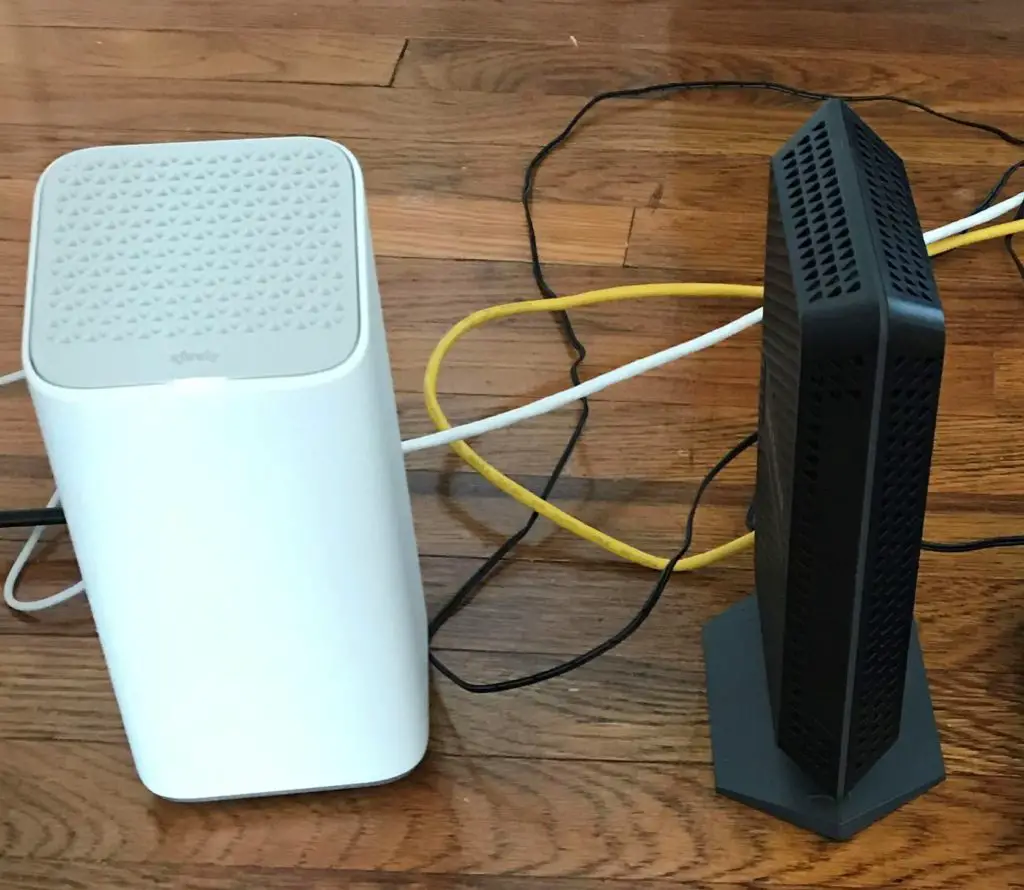
    Does Any Modem Work With Any Internet Provider?
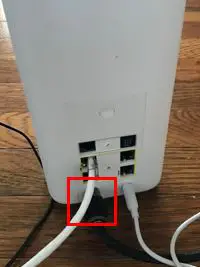
    Can I Take My Internet Modem to Another House?

    If you have any questions about your modem or would like to share what you do to keep your modem from getting too hot, feel free to drop a comment below.

  • What Do the Lights on My Modem Mean?

    What Do the Lights on My Modem Mean?

    Modem lights meaning title page

    Do you find the lights on your modem confusing? Have you ever wondered if they serve a purpose or if they’re just for show?

    Hopefully I can clear that up for you.

    Believe it or not, those lights are actually really useful if you know what they mean.

    The lights on a modem are meant to provide a status of the modem’s operation. They provide information about the modem’s power, access to the internet, and ethernet connection. These lights are used when troubleshooting and monitoring the device.

    In this post we’ll break down the lights you’re likely to see on your modem, and the different states these lights can be in. If you’re also curious about what the lights on your router mean, check out our previous post: What Do my Router Lights Mean?

    Let’s get started.

    What Does My Modem Look Like?

    The first step in learning about your modem’s lights is to make sure you’re looking at the right device.

    The first question to ask yourself is if your modem and router are separate devices or if they’re combined into one device.

    Here’s a hint: if you’re renting your modem and router from your internet service provider (ISP), you most likely have a modem and router combination.

    If your router and modem are combined, it’s no big deal. You’ll most likely have the same lights that a standalone modem would have. You’ll just have to pay closer attention because all the router and modem lights will be on the same device.

    If your modem is separate from your router it’s easy to identify because it’ll be the device without any antennas on it.

    Your modem should look something like this:

    If you’re still unsure, you can look at the sticker on the device. This will tell you if you’re looking at a modem or a router. The sticker on my modem is on the bottom of the base.

    Netgear Modem Make and Model

    As you can see, my modem is a CM600 and it’s made by Netgear. If you’re still not sure if you’re looking at your modem, feel free to drop me a comment below and I will try to help.

    In this post I will explain the lights on my modem, however most modems will be similar.

    What Are the Different Lights on My Modem?

    Modem lights cheat sheet

    Compared to my router, my modem has less lights on it.

    Modem lights front

    In fact, my router and modem have some of the same lights, which makes it easy to understand what they mean.

    Let’s take a look at what each of these lights means, as well as the different states they can be in.

    The Power Light

    The power light should be pretty self-explanatory. I’m sure you’ve seen this power symbol before on the other electronic devices in your home.

    Here’s what the power light looks like:

    Modem power light

    What Are the Different States of the Power Light?

    Green

    When the power light is green it means that the modem is powered on. The green light means the power cord is plugged into the back of the modem and it’s receiving power.

    This is what you should see 99% (or more) of the time when your modem is in use.

    Off

    When the power light is off, it means the modem is either not receiving power or it has been manually turned off.

    If the power light is off, try pressing the power button on the back of the modem (if your modem has one).

    Modem On/Off power button

    If that doesn’t work, check the power cord.

    Modem power cord connection

    Is it firmly plugged into the back of the modem? Is the other end plugged into a working outlet?

    If none of the above steps caused the power light to turn on, your modem may have overheated and it may no longer work.

    Red

    The red power light is the one you really have to be on the lookout for.

    A red power light means the modem is too hot. If a modem runs at a hot temperature for an extended period of time, it’s at risk of overheating.

    When the modem overheats, you’ll notice the performance of your modem and internet will slow down. In addition, there’s a chance your modem could fail.

    I’m sure you don’t want to have to buy a new modem if you can avoid it.

    You can avoid the red power light by placing your modem in an open area with good air flow.

    In other words, don’t put it in a closet or cover it with anything. If you keep your modem away from other items in a room that doesn’t get too hot, you should be fine.

    Another reason your modem may overheat is if the firmware is outdated. Make sure you’re occasionally checking for firmware updates for your modem.

    The Downstream Channel Light

    The downstream light is meant to give you a status of your modem’s connection with the ISP that’s providing your internet.

    Modem downstream light

    In order to understand the states of this light, you need to understand how modem connections work.

    To keep it simple, modems download data from the internet over a series of channels that transmit data over different radio frequencies. The more channels your modem has connected to your ISP, the more data it can download at a given time. The more data your modem can download, the faster your internet experience will be.

    Easy enough?

    This is important to keep in mind when considering the downstream light on your modem.

    What Are the Different States of the Downstream Channel Light?

    Solid Amber

    If the downstream light is a solid amber color, it means only one downstream channel to the ISP is in use.

    You’ll see the solid amber light when you’re first starting up your modem. The downstream light will turn amber when it starts it’s connection to the ISP, and then it will turn green once it has established a full connection.

    After the modem has been configured and a full connection to the ISP is established, you shouldn’t see the amber downstream light.

    Solid Green

    When the downstream light is solid green, it means that at least two downstream channels to the ISP are in use. This means your router is operating as it should.

    Your downstream light should be solid green for the vast majority of time.

    Blinking Green

    The blinking green light means that the modem is scanning for downstream channels it can use to connect to the ISP.

    The light will be in this state when the modem is starting up. It will turn amber once one channel to the ISP has been connected. It will turn green once two or more channels are established.

    You won’t normally see the downstream light in this state.

    Off

    An off downstream light means that your modem doesn’t have any download connections with your ISP.

    The downstream light will be off when the modem is off.

    Any time the modem is on, the downstream light should be on as well.

    The Upstream Channel Light

    Similar to the downstream light, the upstream light indicates the state of the modem’s connection to the ISP. The upstream light is the opposite of the downstream light, however, in that it details the modem’s upload connection status to the ISP as opposed to its download status.

    Modem upstream light

    This is an important light for people who frequently upload to the internet. Whether it be uploading large files to the internet or doing a livestream on your YouTube channel, these actions require an upstream connection with your ISP.

    The more upstream connections you have, the more data you can upload at once. The more data you can upload at once, the faster your uploads will be.

    What Are the Different States of the Upstream Channel Light?

    Solid Amber

    When the upstream light is a solid amber color, it means there’s currently one active upstream connection to the ISP.

    Just like the downstream light, you’ll see the solid amber light when the modem is connecting to the ISP for the first time. Once your modem establishes more upstream connections to the ISP, the light will turn green.

    You’ll see this light when the modem is connecting to the ISP, but during normal operation of the modem you shouldn’t see an amber upstream light.

    Solid Green

    You should see a solid green upstream light the majority of the time when the modem is in operation.

    When the upstream light is green, it means that your modem has multiple upstream channels connected to the ISP. A green light means that the modem is working properly.

    Blinking Green

    The upstream light blinks green when it’s trying to make an upstream connection to the ISP.

    You’ll see this light when the modem is first starting up. The upstream light will blink green until it has made one upstream connection to the ISP. It will then turn amber until it has made multiple upstream connections to the ISP.

    You won’t normally see a blinking green upstream light on your modem.

    Off

    When the upstream light is off, it means that your modem doesn’t have any upload connections with your ISP.

    The upstream light will be off when the modem is off. Any time the modem is on and in use, the upstream light should be on. It should either be amber when it’s starting up or green when connections to the ISP have been made.

    The Internet Connection Light

    The internet light on your modem will indicate if you have a connection to the internet or not.

    Modem internet light

    What Are the Different States of the Internet Connection Light?

    Solid Green

    When the internet light is solid green, it means your modem has a connection to the internet.

    You should expect to see a green internet light once your modem has completed its startup procedure.

    Blinking Green

    The internet light will blink green when the modem is in the process of connecting to the internet.

    The light will blink green when the modem is starting up until it has established a connection to the internet. Once it has connected to the internet, the light will be a steady green.

    You’ll only see this light during startup and you shouldn’t see it during the normal operation of the modem.

    Off

    Your internet light will be off when the modem doesn’t have power.

    If your internet light is off when the modem is plugged in and powered on, there are a few things you can check.

    The first thing you’ll want to do is make sure the modem is connected to the internet connection provided by your ISP.

    For example if you have cable internet (as I do), you need to check the coaxial cable connection on the back of your modem.

    Modem cable internet connection

    The coaxial cable needs to be connected to your modem and the wall where the coaxial cable enters your house from the street. Make sure these connections are secure. Depending upon the type of internet connection you have, the connections on the back of your modem and at the wall may be different.

    If your internet connections are secure and the internet light is still off, you may have an issue with your internet plan. I would advise calling your internet provider to make sure there are no issues with your current plan. If there’s nothing wrong with your plan they should be able to reset your connection.

    The Ethernet Connection Light

    The ethernet light on your modem will most likely look something like this:

    Modem ethernet light

    Your modem will be connected to your router (if they’re separate devices) with an ethernet cable. The ethernet light will help indicate the status of this connection.

    What Are the Different States of the Ethernet Connection Light?

    Green

    A green ethernet light means your modem and router are connected to each other and both devices are powered on.

    More than that, it means they’re connected with a 1,000 megabits per second (Mbps) ethernet cable. This is what you’ll want to connect your modem and router with if you want the fastest possible internet connection that your modem and router can provide.

    If your modem and router are connected with a 1,000 Mbps connection, it means you’re using a Cat 5e or above ethernet cable. If you’re unsure what kind of ethernet cable you’re using, check out our previous post that breaks down the different types of cables: Can an Ethernet Cable Slow Your Internet Speed?

    You’ll want to make sure you’re using a Cat5e or above ethernet cable to connect your modem to your router. If you do, your ethernet light will be green as long as it’s powered on and connected to your router properly.

    Amber

    An amber ethernet light will indicate that your modem and router are connected with a 10/100 Mbps connection. This means the ethernet cable that’s connecting them is less than Cat5e.

    As detailed above, if you see this light on your modem you’ll want to replace the ethernet cable connecting your modem and router. If your modem and router are connected with a Cat5e or above ethernet cable, the light will be green.

    If you use an ethernet cable that is less than Cat5e, it will slow down your internet connection. Don’t limit your internet connection because of an ethernet cable that you can buy for about $10 online.

    Blinking Green or Amber

    A blinking green or amber light will mean that your modem is processing traffic. In other words, it means that your modem is sending internet data to and from your router.

    When you have a functioning connection to the internet, your ethernet light will be blinking every time you access a new website or perform an action on the internet.

    Whenever someone is using your internet network you should expect your ethernet light to be blinking for the majority of the time.

    Off

    When the ethernet light is off, it could mean a few different things. It could mean:

    • The modem is off
    • The router is off
    • Your modem is not connected to a router

    If your modem and router are powered on but the ethernet light is still off, check the connection between the modem and router. Make sure the ethernet cable is connected to the the right port on your router. It should be clearly indicated.

    Router internet connection

    The ethernet port on the back of your modem should be pretty obvious as well.

    Modem ethernet port

    If the ethernet light is still off, try using a different ethernet cable. You may have a bad cable.

    Wrap Up

    You should now have a good idea what the lights on your modem are and how they can help you determine its current status. Remember that your modem may not have exactly the same lights as the one in the example provided (especially if your modem and router aren’t separate devices), but they should be similar.

    If you have any questions about this information, please feel free to comment below or contact me via the Contact Me page.

    If you’d like to learn about the lights on your router and what they mean, check out our previous post:

    What Do My Router Lights Mean?

    If you want to learn more about your modem and how it may affect your internet speed, we have resources for that as well:

    Does Your Modem Affect Your Internet Speed?

    Here are some other relevant posts you may find interesting:

    Can a Modem Overheat? What to Look For

    Why Do Modems Need to Be Rebooted?

    How Do I Reset My Modem Password?

  • Does Your Modem Affect Your Internet Speed?

    Does Your Modem Affect Your Internet Speed?

    Does your modem affect your internet speed?

    When analyzing the speed of their internet, most people do not even look at their modem. The truth is, your modem is one of the most important pieces of your internet connection. Without it, you wouldn’t be able to access the internet.

    Ok, so a modem is required for an internet connection.

    Will any modem fit the bill, or does your modem affect your internet speed?

    Using the wrong modem can significantly affect the speed of an internet connection. If the modem is not rated to support the speed of the current internet plan, the internet speed of the network will be reduced to the maximum speed the modem can support.

    In this post we’ll take a close look at modems and what you can do to make sure your modem is helping to optimize your internet connection.

    What Is the Purpose of a Modem?

    Modems act like translators for your devices. They take the signals that come to your house from the Internet Service Provider (ISP) and make them usable by your internet-connected devices. Without a modem, you wouldn’t be able to do anything with the internet connection coming from the ISP.

    Why Do Modems Have to Translate Signals?

    Depending upon the type of internet connection you have, you’ll have a different line coming to your house that connects you to the internet:

    Internet Connection Signals Infographic

    The different lines all provide your house or office with the same type of signal (analog), but your devices aren’t able to use the analog signal directly. That’s where the modem comes in.

    As you may be familiar, computer devices communicate through a series of 1s and 0s, or binary code. Unfortunately, analog signals that are received by the ISP aren’t in this format.

    It’s the modem’s job to take the analog signals received by the ISP (regardless of the internet connection type you have) and translate them into 1s and 0s for your devices.

    What does this look like?

    Essentially modems take this:

    Analog Signal Example
    Analog Signal

    And make it look like this:

    Digital Signal Example
    Digital Signal

    Why Don’t Computers Just Use Analog Signals?

    This is a complex topic but I’ll provide a brief explanation.

    Computer processors are made up of billions of transistors. Transistors can either be in an “on” state or an “off” state, much like a light switch. The position of these transistors indicates a specific value in binary code: 1 for an “on” state and 0 for an “off” state.

    The 0 and 1 positions of all the transistors in a processor make up the binary code that computers use to execute.

    Because transistors can only be “on” or “off”, computers struggle with analog signals. Analog signals are continuous signals with varying voltage. If you refer back to the previous diagram, you see that much of the time the voltage is something other than 0 or 1. Transistors would be confused by this because they wouldn’t know if they should be on (1) or off (0) when the voltage is between 1 and 0.

    Modems smooth out the analog signal so the transistors know what position they should be in.

    If you want to learn more about how computers use binary and digital signals to function, check out this article.

    How Often Are Modems Making These Conversions?

    Conversion of the analog signal from the ISP into a digital signal for your devices is done every time something is retrieved from the internet. To name a few examples, this occurs every time you:

    • Land on a new web page
    • Stream a TV show
    • Open an email

    Translation occurs in the opposite direction from digital to analog every time you send a request to the internet. This can be when you:

    • Add an item to your shopping cart on Amazon
    • Click “Send” on an email you wrote
    • Click on a hyperlink on a website or in an email

    As you can see, this translation is happening all the time when you’re using the internet.

    When you consider that your modem is doing all of this work, you’ll realize how important its role is in your internet connection.

    If your modem can’t keep up with all the translating it has to do, it’ll slow down your connection.

    How Does My Modem Affect My Internet Speed?

    Modems Can Limit Your Internet Speed

    To help visualize how a modem can limit your internet speed, let’s take the example of a translator:

    Modem Translator Limiting Speed Example

    Let’s start with Karin the translator. She’s a very good translator that can translate 100 words/minute.

    In this example, let’s say she’s given 500 words/minute to translate. Although she’s given 500 words/minute to translate, she’s only able to translate 100 of them.

    In other words, she’s only capable of translating 100 words/minute no matter how many words are given to her each minute.

    This is the same case with a modem:

    Modem Decreasing Internet Speed Example

    If an ISP is providing speeds of 500 Mbps to the modem but the modem can only support 100 Mbps, only 100 Mpbs will be passed to your router. This means your internet speed will be capped at 100 Mbps.

    A modem can’t provide internet speeds faster than what it’s rated for.

    Modems Cannot Increase Your Internet Speed

    If we go back to the translator example, what if Karin is only given 80 words per minute to translate?

    Modem Translator Not Increasing Internet Speed Example

    If she’s able to translate 100 words per minute but is only given 80 words per minute to translate, she’ll only translate 80 words per minute.

    She can only translate the words at the rate that she gets them. She can’t translate more words per minute than she’s given.

    Applying this to our modem example:

    Modem Not Increasing Internet Speed Example

    If your modem can support 100 Mbps but your ISP is only providing you with 80 Mbps, your maximum internet speed will be 80 Mbps.

    A modem can’t increase the speed of your internet above what the ISP is providing.

    What Does This Mean for My Modem?

    The examples above illustrate the importance of a modem in your network.

    If you’re not using the right modem for your network, it can limit the speed of your internet. On the other side of the coin, a modem can’t increase the speed of your internet.

    At the very least, you should make sure your modem supports the data rate of your internet plan. Many people buy modems that support speeds faster than their current internet plan so they can upgrade their plan in the future without having to buy a new modem.

    We’ll discuss that later.

    What Does a Modem Look Like?

    If you’re renting your router from your ISP, it’ll most likely have the modem built into it. This makes it difficult to identify what speed the modem is rated for. If you want to optimize the speed of your internet and the plan you are paying for, it is best practice to buy your own router and modem. This is a discussion that I will dive into in another article.

    If you bought your own modem and router and they’re separate devices (which I recommend), your modem will look something like this:

    This is a Netgear CM600 modem for a cable internet connection.

    You’ll find the following connections on the back of your modem:

    • A power cord that connects to an outlet
    • A cable that connects to your internet source (in this case a coaxial cable wall jack for my cable internet)
    • An ethernet cable that connects to your router

    It should look something like this:

    Back of a Netgear Modem

    Modems come in many shapes and sizes but for the most part they’ll have the same connections on the back.

    Now that you’ve identified your modem, let’s make sure it supports the speed of your internet plan.

    How Do I Know if I Have the Right Modem?

    You’ll need to look up a few things to determine if your modem is a good fit for your internet plan. You’ll need to know the following:

    • The data rate of your current internet plan
    • The data rate that your modem supports

    How Do I Check What Internet Plan I Have?

    Your most recent internet bill will tell you what your maximum data rate from your ISP is.

    Current internet speed from monthly statement

    The maximum data transfer rate I can expect from my current plan is 600 Mbps.

    What Is My Modem Speed?

    In looking at your modem, you won’t be able to determine what internet speed it supports. You’ll need to look up the make and model to see what the specifications are.

    There will be a sticker on your modem that indicates its make and model. This sticker is on the bottom of the base of my modem:

    Netgear Modem Label
    Netgear Modem Label

    As you can see, I have a Netgear CM600 cable modem.

    The next step for me is to Google the CM600 modem to determine its specs.

    On the Netgear website it details the download speed that the CM600 is rated for:

    Netgear Website Modem Specs

    My modem is rated for 1 Gbps maximum download speed. I have a 600 Mbps internet plan with my ISP so I know my modem isn’t limiting my internet connection.

    What Modem Should I Buy if I Have to Replace My Modem?

    If your modem doesn’t support the speed of your current internet plan, it’s limiting your internet speed. You should buy a new modem.

    What modem should you get?

    To determine the right modem for you, you’ll need to take your current internet plan into account. You’ll also need to account for any upgrades that you may make to your plan.

    Notes About Your Current Internet Speed

    It’s important to note that you’ll rarely get the maximum data rate that the ISP advertises for your plan. Everyone in your area with the same internet provider is sharing the same wired connection back to the ISP. If there are many users connected to the internet at the same time, the maximum data rate will be lower than the maximum rate of your plan. This is normal and should be expected.

    In my case, the internet plan I am signed up for has a maximum download speed of 600 Mbps, but I frequently see only 200 Mbps at a given time.

    Internet speed test results
    Speed Test Results

    Even though you won’t be getting the maximum internet speed of your plan, it’s good practice to buy a modem that can (at least) support your maximum data rate.

    If you buy a modem that supports speeds greater than your current plan, you’re “future proofing” your network. In other words, you won’t need to buy a new modem if you upgrade your plan in the future. This is good practice and I highly recommend doing this.

    As stated previously, my internet plan is for 600 Mbps, but my modem supports download speeds up to 1 Gbps. If I upgrade my internet plan so that I’m getting 1 Gbps, I won’t have to upgrade my modem as well.

    I feel comfortable that my modem will support my internet needs for the next few years, so it was worth the investment to spend a little extra to get a faster modem.

    Standalone Modem vs. Router/Modem Combination

    I would recommend buying a modem that is separate from your router.

    This will allow you to buy a modem that is tailored to your specific internet plan.

    You’ll also be able to upgrade your modem separately from your router if you need to. Router technology seems to be advancing faster than modem technology, so you don’t want to upgrade your modem each time your upgrade your router.

    Depending upon your unique situation, there are some benefits offered by modem and router combination devices that should be considered as well.

    It may be slightly more expensive to buy your modem separate from your router, but the flexibility it provides you is well worth it.

    Make Sure Your Modem Supports Your ISP

    When buying a modem you should also make sure it supports internet from your ISP.

    Netgear CM600 Data Sheet compatible ISPs
    Netgear CM600 Data Sheet

    I have XFINITY Comcast internet, so when I bought my modem I had to make sure it supported XFINITY. Modems may also support different maximum speeds from different ISPs, so you’ll want to look into that as well.

    For example, my Netgear CM600 supports speeds up to 960 Mbps for XFINITY Comcast, but only 400 Mbps for Spectrum internet. You need to be aware of this when making your decision.

    Alternatively, most ISPs will have a list of modems that are compatible with their plans on their website. For example, XFINITY Comcast has a site where you can search to see if your modem is compatible with their internet.

    If you buy a modem that’s not compatible with an ISP, it won’t work.

    Modem Purchase Recommendations

    Let’s bring this all together. Your modem does indeed affect your internet speed, so you need to make sure you make the right choice.

    If you need a modem for your home network, you should consider:

    • Buying your own modem as opposed to renting from the ISP
    • Buying a standalone modem as opposed to buying a modem/router combination
    • Ensuring your modem is compatible with the type of internet connection you have (e.g. a fiber-compatible modem for a fiber internet connection, a cable-compatible modem for a cable internet connection, etc.)
    • Your current maximum internet speed
    • Your current ISP and the modems that are compatible with your provider
    • The amount of money you’re willing to spend on a modem (include savings due to “future proofing” in your calculations)

    If you want recommendations on specific modem models and vendors, there are many articles online that have been written detailing your best options. I’ll give you a few ideas as well.

    Good Value

    As I mentioned previously, I really like my Netgear CM600 modem. It supports high speed internet (up to 400 Mbps), and it’s not as expensive as some of the other models.

    I have had this modem for at least two years and I haven’t had any problems with it. If you only have a few people in your house and you don’t have any crazy internet needs, this modem will do just fine.

    The Next Step Up

    If you’re willing to spend a little more and you want to really future proof your home internet, the Netgear CM700 is a great choice.

    The CM700 supports internet speeds up to 800 Mbps. Chances are, this modem can support your current internet needs no matter your home internet situation.

    If you buy this modem, you can feel good about not having to replace it anytime soon.

    Budget Friendly

    For a budget-conscious option, you can’t go wrong with the Motorola Model MB7420.

    It’s more affordable than the other two options I recommend, but will still provide enough firepower if you have basic internet needs.

    This modem supports internet speeds up to 686 Mbps (even faster speeds than my CM600). This’ll be more than enough if you have multiple people in your household and a fast enough internet plan.

    Wrap Up

    I hope this guide helps you find the right modem for your internet needs. If you’d like to learn how your other home internet devices affect your internet speed, check out the following articles:

    Does an Old Computer Affect Your Internet Speed?

    Does a Router Affect Your WiFi Speed?

    Can an Ethernet Cable Slow Your Internet Speed?

    Is an Ethernet Cable Faster than WiFi?

    Does Any Modem Work With Any Internet Provider?
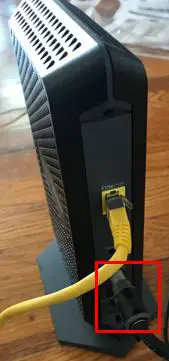
    Please contact me or comment below with any specific questions your might have about your modem.

    Good luck and happy browsing!