Category: Modems

This category pertains to content regarding modems

  • Does a Modem Need to Be Connected to a Router? What to Know

    Does a Modem Need to Be Connected to a Router? What to Know

    Does Modem Need to Be Connected to Router Title Picture

    A modem and router are essential to providing an internet connection to a home network.

    Knowing what you need in a home network is the easy part. The real challenge is actually setting up these devices and configuring your home network.

    On that topic, one question that often arises is if a modem and router need to be connected to each other.

    The good news is I can help you out here.

    So the question remains: does a modem have to be connected to a router, or do these devices operate independently of each other?

    In a home network, a standalone modem always needs to be connected to a router. A modem and router need to be connected in order to provide a usable internet connection to the network. If a modem and router are not connected, the devices on the home network will not be able to access the internet.

    In this post, I’ll explain why a modem and router need to be connected. I’ll also talk about how to connect a modem and router to each other.

    Why Does a Modem Need to Be Connected to a Router?

    When reflecting on your modem and router (as I have spent countless hours doing), it’s best to think of them as teammates.

    I say this because both devices need each other in order to provide the maximum benefit to the network they’re in.

    Sure, it’s possible to have a router in your home network without a modem, but in doing so you won’t be able to get the most out of your router. You’ll need a modem as well if you want to achieve that.

    As an aside, if you’d like to learn more about what you can do if you only have a router in your home network, I’ve previously written an article on that topic that you should check out.

    As I was saying, you need both a modem and router working in tandem if you want to provide maximum benefit to your network.

    Taking it once step further, you not only need both devices in your network, but you need them to be connected to each other as well.

    The basic concept you need to understand here is that a modem and router are responsible for different functions in a home network, and they need to leverage each other’s capabilities to provide an internet connection.

    A modem is responsible for establishing and maintaining an internet connection with an internet service provider (ISP). A router, meanwhile, is responsible for taking that internet connection from the modem and making it available to all the devices on a given network.

    Without a modem, there’s no internet connection being delivered to the network. Without a router, the internet connection provided by an ISP isn’t accessible by the devices on the network.

    See how that works?

    Now let’s talk about what happens when there’s a modem and router in a network.

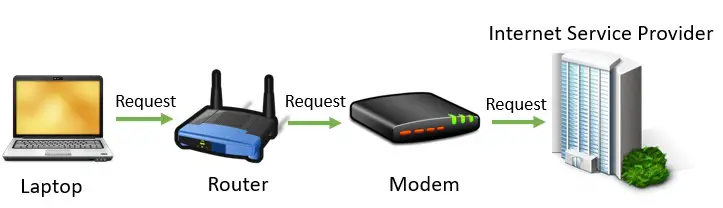
    Any internet request made from a device on a network is first sent to the router. The router then passes this request to the modem so it can be sent out to the broader internet.
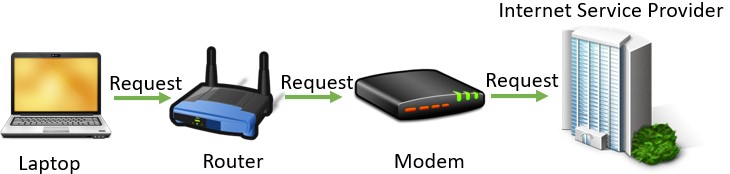
    Internet request diagram
    The path of an internet request made on a home network

    This communication process happens constantly when devices on the network access the internet.

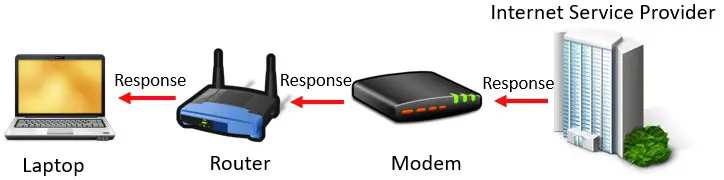
    In fact, after a request is sent to the internet, the same process occurs when a response from an internet request is returned from the internet. The only difference is the response is passed to devices in the home network in the opposite order:
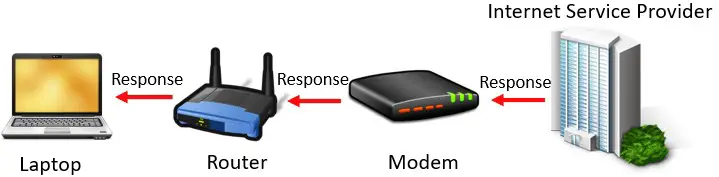
    Interne response diagram
    The path of an internet response on a home network

    Due to this dynamic, a modem and router are constantly handing data to each other. They’re in constant communication when devices are accessing the internet.

    Think about how often this is happening if there are multiple devices on a network accessing the internet at the same time. That should give you an idea why I referred to a modem and router as teammates earlier.

    If a modem and router didn’t work well together, it would really slow down a home network.

    This is another reason why a modem and router need to be connected to each other.

    To summarize, a modem and router need to be connected in order to:

    • Provide an available internet connection to the devices on a home network
    • Process all requests being sent to (and received from) the internet in a timely manner

    How Is a Modem Connected to a Router?

    Ok, we’ve established why a modem and router need to be connected to each other.

    The question is, how are a modem and router connected?

    The answer to this question is pretty easy, because there’s only one way to do it.

    A modem and router can only be connected with an ethernet cable. If you’re not sure what an ethernet cable looks like, here’s one for reference:
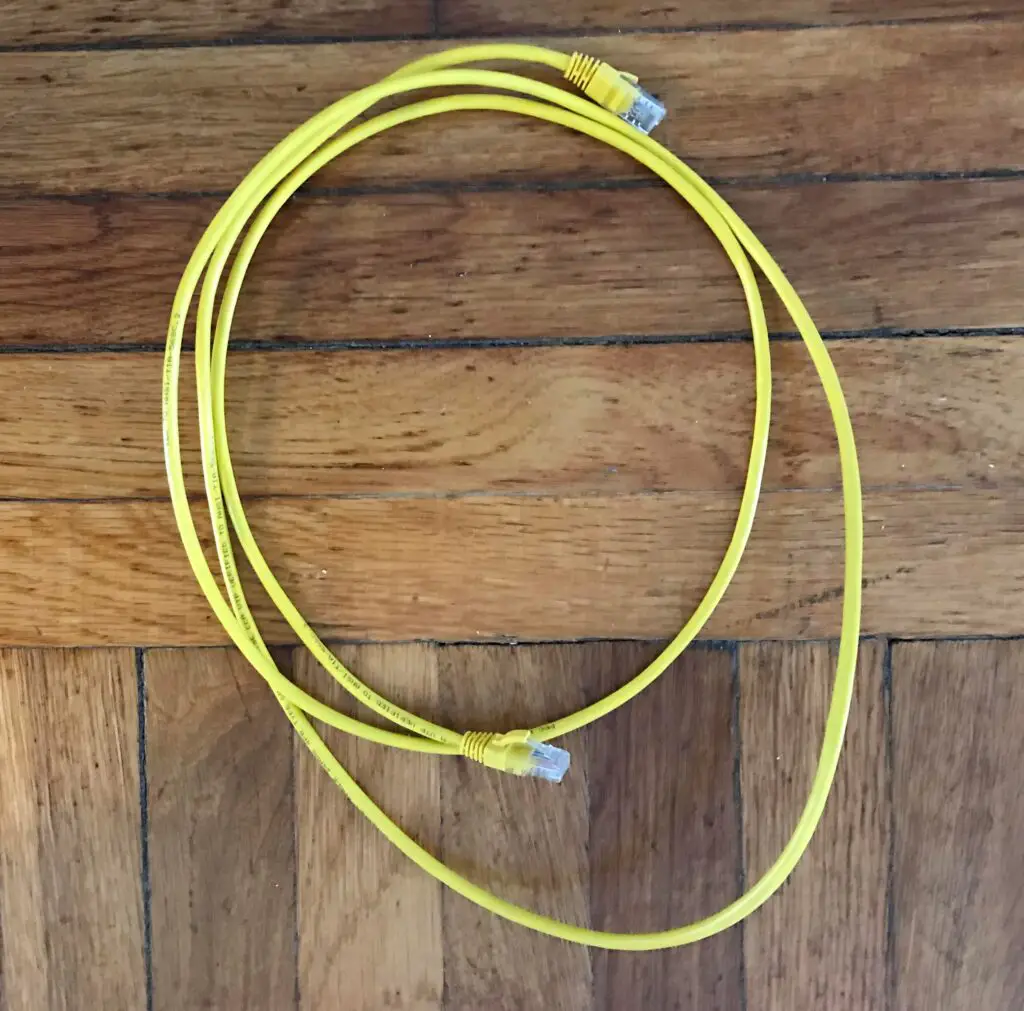
    Coiled Ethernet cable
    An example of an ethernet cable

    So that’s the first thing you need to do here. Make sure you have an ethernet cable to connect your modem and router. I’d suggest buying either a Cat 5e or Cat 6 cable if you don’t currently have one.

    Alright, now that you have an ethernet cable in hand, let’s go over where it needs to be connected on each device.

    We’ll start with a modem.

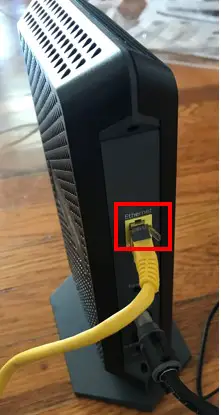
    This’ll be really easy to accomplish, because your modem will only have one ethernet port. Chances are, it’ll be labeled “Ethernet” as well, so it’s be impossible to miss.

    Here’s what the ethernet port looks like on my modem:
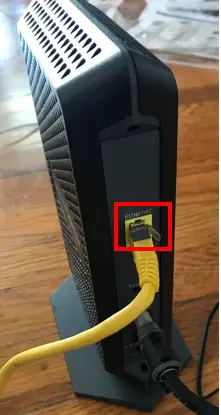
    Modem ethernet port
    The ethernet port on a modem

    Ok, now that the modem’s taken care of, let’s turn our focus to the router.

    You need to pay a little more attention when connecting an ethernet cable to a router. That’s because there’s more than one ethernet cable to connect to.

    In fact, there’s usually at least five of them on a router. To find out what each of these ethernet ports does on a router, check out the post I wrote that breaks this all down.

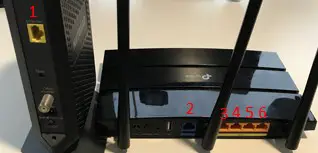
    The ethernet port you’re looking for on a router is called the WAN port (or internet port). This port is usually separate from all the others on the router.

    Does any of these ethernet ports stand out from the rest?
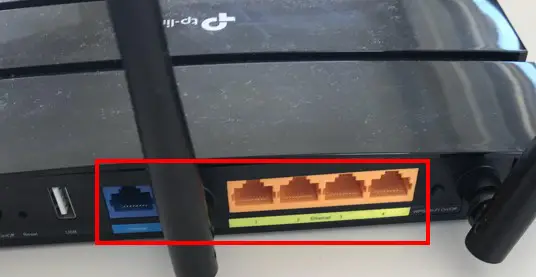
    Router ethernet ports
    Ethernet ports on a router

    The blue ethernet port is clearly different from the other ethernet ports. This is done intentionally.

    On top of that, the WAN port on a router is usually labeled with something like “Internet” or “WAN”. This’ll help you further differentiate the port that you need to connect the ethernet cable to.
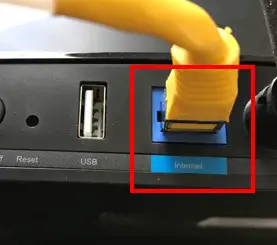
    Router WAN port
    The WAN port on a router

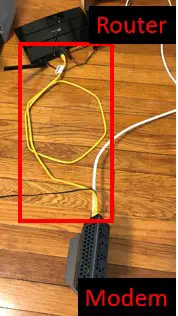
    Once your modem and router are connected to each other with an ethernet cable, that’s all you need to do.
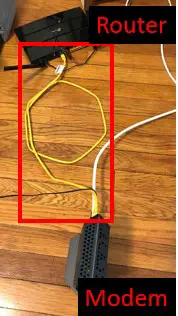
    Modem and router connected with ethernet cable
    A modem and router connected with an ethernet cable

    The devices will handle the rest of the communication from there.

    When Does a Modem Not Need to Be Connected to a Router With an Ethernet Cable?

    There are only two scenarios when you won’t need to connect your modem and router with an ethernet cable.

    I mentioned the first scenario earlier when talking about how a modem and router are both needed to get the best of both devices.

    If you don’t need a connection to the internet, you can use a router without a modem. In this case, you don’t need to connect anything to the WAN port on the router. You won’t need a modem in your home network.

    You just need to accept the fact that you won’t be able to access the internet. For many people, that’s not easy to do.

    Ok, is there a scenario where you have internet access but you don’t have to connect a modem and router?

    As a matter of fact, there is.

    This is possible if your modem and router come connected to each other when you buy them.

    How’s this possible, you may ask?

    This is accomplished by buying a modem and router combination device.

    A modem and router combination device is a singular device that handles the functionality of both a modem and router.

    With a modem and router combination device, you only need one device to stand up internet in your home.

    As a result, you won’t need to connect your modem and router. They’ll already be connected to each other within the device itself.

    If you’d like to learn about how modem and router combination devices work, I’ve written a post on this topic that might be helpful.

    Wrap Up

    That just about does it.

    If you have a standalone modem and router in your home network, you’ll need to connect the devices with an ethernet cable if you want to access the internet. There’s no way around it.

    If you have any questions about what I talked about in the article above, please leave a comment below.

    To learn more about similar topics, check out some relevant articles I’ve previously written:

    Can I Use a Router Without a Modem?

    Router Ethernet Ports: Everything You Need to Know

    What is a Modem Router Combo?

    Should Your Router and Modem Be Close Together?

    Are All Routers Compatible With All Modems?

  • How Many Ethernet Ports Are on a Modem? A Complete Analysis

    How Many Ethernet Ports Are on a Modem? A Complete Analysis

    How many ethernet ports on a modem title picture

    It goes without saying your modem is an important device in your home network. As a result, you need to know how to set it up and use it correctly.

    When it comes to connecting a modem to the rest of your home network, this is accomplished by utilizing an ethernet port.

    The question is: how many ethernet ports does a modem have, and how do you know what to connect your modem to?

    In most cases, a standalone modem has one ethernet port. This ethernet port is used to connect the modem to an internet router. Modem router combo devices will generally have four ethernet ports. These ethernet ports are meant to provide devices with wired connections to the network.

    In this post, I’ll break down the ethernet ports you can expect to find on different modem devices. I’ll also dive into why different modem devices have different numbers of ethernet ports.

    How Many Ethernet Ports Are on a Modem?

    Asking how many ethernet ports are on a modem is a bit of a loaded question.

    That’s because the answer is largely “it depends”.

    What exactly do I mean by this?

    I mean that there are two different types of modem devices that you’re likely to find in a home network.

    Depending upon the type of modem device you’re referring to, the answer will be different.

    The two different types of modem devices I’m referring to here are standalone modems and modem router combo devices.

    I’m sure you’ve seen both types of these modem devices in your travels, but let’s make sure we’re on the same page here.

    A standalone modem is a modem that’s a physically separate device from the internet router on the network. To say it another way, if the modem and router are two different devices on a network, the modem is a standalone modem.

    I have a standalone modem in my network. As you can see, my modem and router are different devices.

    Standalone modem and router
    I have a standalone router (L) and modem (R) in my home network

    Modem and router combo devices on the other hand, are quite the opposite.

    In a modem router combo device, a modem and router are combined into the same device. In these situations, there’ll be one device providing the internet connection to a home instead of two.

    Modem router combos are often the devices provided by an internet service provider (ISP) if you elect to rent your modem and router from them.

    For reference, here’s an example of what a modem router combo device looks like:

    modem router combo front

    If you’d like to learn more about modem router combo devices, check out the post I’ve written that goes into detail about what they are and how they work.

    Now that we have a clear understanding of the two different types of modem devices we’re talking about, let’s break down how many ethernet ports each type has.

    How Many Ethernet Ports a Standalone Modem Has

    When it comes to standalone modems, the ethernet port situation is pretty straightforward.

    Standalone modems only have one ethernet port.

    Router ethernet port

    This might not sound like a lot, but it’s all that the modem needs. That’s because the ethernet port on a standalone modem has one purpose.

    It’s meant to connect the modem with the standalone internet router in the network. These devices are connected with an ethernet cable.

    Modem and router connection
    A standalone modem is connected to a standalone router with an ethernet cable

    Connecting a standalone modem with an internet router provides a network with internet access. If the modem and router aren’t connected, the network won’t have internet.

    The reason for this is because the standalone modem establishes an internet connection with an internet service provider (ISP). This internet connection can’t be used by the devices on a network unless that internet connection is shared with a router in the home network.

    That’s why the modem and router need to be connected. They need to be able to communicate with each other to provide the network with internet access.

    It’s important to note that the only device connecting to a modem’s ethernet port should be an internet router.

    I can’t stress this enough.

    If a computer or other connected device is directly connected to a modem’s ethernet port, it’ll be unprotected from hackers on the internet.

    That’s why it’s essential to connect a router to the modem. Devices on the network can then connect to the router (over WiFi or through a wired ethernet connection). This configuration provides much more security to the devices on the network.

    This is also part of the reason why standalone modems only have one ethernet port. To ensure that no devices (other than a router) are directly connected to it.

    How Many Ethernet Ports a Modem Router Combo Has

    When talking about modem router combo devices, things are a little different when talking about ethernet ports.

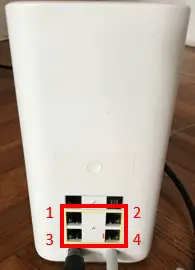
    To cut to the chase, most modem router combo devices have four ethernet ports.

    Wait, what?

    Why does a standalone modem only have one ethernet port, but a modem router combo device has four?

    This is the cause for a lot of confusion when people ask about how many ethernet ports a modem has.

    To answer that question, we need to remember what modem router combo devices are.

    They’re a combination of a modem and router. In other words, they provide the functionality of a modem and a router in one device.

    Ok, so let’s review what the purpose of the ethernet port on a standalone modem is for.

    It’s meant to connect the modem to an internet router.

    The catch here is that in a modem router combo device, the two devices are already combined.

    So there’s no need for an ethernet port to connect the two devices, right?

    That’s exactly right.

    So why does the device have four ethernet ports?

    That’s because of the other half of the modem router combo device. I’m referring to the router side here.

    Router’s generally have four ethernet ports on them. In this sense, it’s logical that a modem router combo only has four ethernet ports.

    It has the four ethernet ports that’re generally provided by a router. The ethernet port that a standalone modem has isn’t needed because the modem is already connected to the router.

    In other words, a modem router combo device essentially has zero ethernet ports provided by the modem portion of the device, and four ethernet ports provided by the router portion of the device.

    If we’re directly comparing the total ethernet ports on a standalone modem and router to a modem router combo device, the breakdown is as follows:

    • Standalone modem and standalone router: six total ethernet ports
      • One ethernet port on the standalone modem to connect to the router
      • One ethernet port on the standalone router to connect to the modem
      • Four ethernet ports on the standalone router so devices can connect to the router with a wired connection
    Standalone modem and router ethernet ports
    Standalone modem and routers will have six ethernet ports
    • Modem and router combo device: four total ethernet ports
      • Four ethernet ports so devices can connect to the modem router combo with a wired connection
    Four ethernet ports on a modem router combo
    A modem router combo will have four ethernet ports

    Wrap Up

    At this point you should have an idea why there can be some confusion when talking about the ethernet ports on a modem.

    The answer will be different depending upon the type of device you’re talking about.

    If you have any questions about the information above, please drop a comment below.

    If you’d like to expand your knowledge and learn more about additional topics, here are some relevant posts I’ve previously written:

    What Are Modem Channels? How They Affect Network Speed

    Are All Routers Compatible With All Modems?

    What Modem Do I Have? How to Find Out

    Router Ethernet Ports: Everything You Need to Know

    Modem MAC Address: All Your Questions Answered

  • Can I Just Buy a Modem and Have Internet? What Else You Need

    Can I Just Buy a Modem and Have Internet? What Else You Need

    Can I Just Buy A Modem and Have Internet Title Picture

    Modems are the gateway for your home’s connection to the internet.

    But the question is, is that all you need?

    In other words, once you buy a modem will you automatically have an internet connection?

    Unfortunately, it’s not that simple to get an internet connection in your home.

    Simply buying a modem will not provide an internet connection. In addition to a modem, an active internet plan and a router are required for a fully functioning internet connection. If any one of these components is not in place, an internet connection will not be established.

    In this post, I’ll break down why you can’t just use a modem to access the internet. I’ll also talk about why you need an active internet plan and router as well.

    Can You Get Internet With Just a Modem?

    Let me start by saying that a modem is a crucial component when connecting to the internet.

    In fact, an internet connection can’t be achieved without a functioning modem.

    With this information in mind, let me describe a scenario here.

    Let’s say you just moved into a new house and you don’t have internet yet.

    You’ve decided that you want to get brand new home networking equipment for your new house, so you go out and buy a new modem.

    You bring the modem home, set it up, and power it up. As the device powers on, you expect to see an available WiFi network pop up on your phone.

    After waiting an unreasonable amount of time, the expected WiFi network never pops up. In a state of exasperation, you proceed to cry yourself to sleep wondering what you did wrong.

    Does anyone know what went wrong in the scenario above?

    Unfortunately, there were several things that were missing here.

    First and foremost, an internet connection isn’t established just by buying a modem and powering it on. In other words, it takes more than a modem to get an internet connection.

    In fact, it takes multiple components to achieve a fully functioning internet connection. These components are all needed because they each play a very specific role in the connection. A modem only provides one aspect of a complete internet connection.

    Let’s dive into each of the components needed for an internet connection, and the role they play in providing internet to a home.

    What Do You Need for an Internet Connection?

    In order to access the internet in your home, you need:

    • An active internet plan
    • A modem (or a modem router combo device)
    • A router (if a modem router combo device isn’t used)
    • Devices that can access the internet

    Without any of the above components, you won’t be able to get a usable internet connection.

    Let’s take a closer look at each of these items to see why they’re important.

    An Active Internet Plan

    The most important aspect of an internet connection is an active internet plan.

    Without an active internet plan, it doesn’t matter what other internet components you have.

    To put it simply, an internet plan is step one of your internet connection. No internet plan, no internet connection. It’s as simple as that.

    That would be like having a cell phone with no sim card.

    So what exactly is an internet plan?

    An internet plan is a contract with an Internet Service Provider (ISP) where you’re charged for the tier of internet speed that’s delivered to your home. This is usually a monthly bill for the internet service.

    The delivered internet speed of the internet plan, also known as bandwidth, is measured in Megabits per second (Mbps). It’s usually presented in terms of the maximum possible internet speed you’ll experience as a member of the plan.

    For reference, here’s the speed of my internet plan on one of my previous internet bills:

    Internet plan speed

    Notice how it says “as fast as”. That’s a fancy way of saying that 600 Mbps is the maximum possible speed of my internet plan.

    Regardless of the internet plan you have in place, the bottom line is you have to have one. If you don’t have an internet plan in place, reach out to the local ISPs in your area to see what your options are.

    A Modem

    As I mentioned previously, a modem is another vital component of an internet connection.

    That’s because the main purpose of a modem is to establish a connection with your ISP.

    Once an internet plan with the ISP is activated, your modem will allow you to use that internet plan. It does this by communicating with your ISP every time you access the internet.

    Any time one of the devices on your home network sends a request to the internet, the request goes through your modem to the ISP.

    Internet request travels through modem to ISP

    All return traffic follows the same path but in the opposite direction. Any information being sent from the internet to your devices will travel through your modem.

    Internet response travels through ISP to modem

    In this sense, your modem really is your home’s gateway to the internet. Everything travels through it to get to the internet.

    The unfortunate part about this is that your modem can’t do everything. That’s why these other vital pieces of an internet connection are needed.

    A Router

    The next component that your internet connection can’t do without is your router.

    Your router’s job is to take what’s provided to it by your modem (an internet connection), and share that with the devices on your home network.

    There are two ways that a router does this: both wirelessly and through wired connections.

    These are the two ways your devices can connect to your internet. They can either connect to the internet through one of the router’s ethernet ports, or they can connect to the internet via the WiFi network provided by the router.

    To boil it down, the value that a router adds to an internet connection is that it takes the internet connection provided by a modem and provides that connection to many devices.

    To be a little more specific, routers act like the brains of an internet connection. They’re able to route all the traffic on your home network to the right devices and destinations. This involves a lot of brainpower when multiple devices on a network are making requests to the internet at the same time.

    Routers keep track of all that.

    Unfortunately, modems do not have that kind of brainpower. They simply take the internet connection they establish with the ISP and pass it to the router to coordinate the sending and receiving of traffic.

    Without a router, you’d only be able to connect one device to the internet. On top of that, the device connected to the internet would be exposed to significant cybersecurity risks.

    That’s why it’s recommended that you never connect a device to the internet by connecting it directly to a modem.

    Devices That Can Access the Internet

    This last one’s pretty obvious.

    If you have an active internet connection, modem, and router in place, your home will have a functioning internet connection.

    In order to use this internet connection, you’ll need devices that can connect to your router’s home network.

    In today’s world this isn’t really a concern, as it feels like almost all electronic devices can be connected to the internet.

    After all, if you’re reading this article you already have a device that can connect to your functioning home network once everything is in place.

    Wrap Up

    Setting up an internet connection isn’t as easy as going out and buying a modem. With that said, establishing an internet connection in your home isn’t too difficult if you know what you need.

    Lucky for you, you’re in that group now.

    If you have any questions about what’s needed to set up an internet connection, please leave a comment below.

    If you’re interested in learning more about similar topics, check out these other posts I’ve written:

    What Can You Use an Internet Router For? 7 Common Uses

    Router Ethernet Ports: Everything You Need to Know
    What Modem Do I Have? How to Find Out

    Different Modem Types: Which Is the Most Common?

    What is a Modem Router Combo?

  • Different Modem Types: Which Is the Most Common?

    Different Modem Types: Which Is the Most Common?

    Different modem types title picture

    To many people, internet modems are little black boxes that provide homes with connections to the internet.

    As if they weren’t confusing enough, you should know that there are different types of modems that are in use today.

    So what are these different types of modems that you can use, and which type is the most common?

    The different types of modems that are in use today are DSL, cable, and fiber optic modems. Cable modems are the most common type of modem because cable internet is the most common form of internet connection.

    In this post, I’ll provide more detail about the different types of modems that you might see today. I’ll also explain which types of modems are the most commonly used.

    What Are the Different Types of Modems?

    Let’s take a closer look at the different types of modems and when they’re used.

    Dial-Up Modems

    Dial-up modems were the first type of internet modem ever developed. They used phone lines to communicate with the internet.

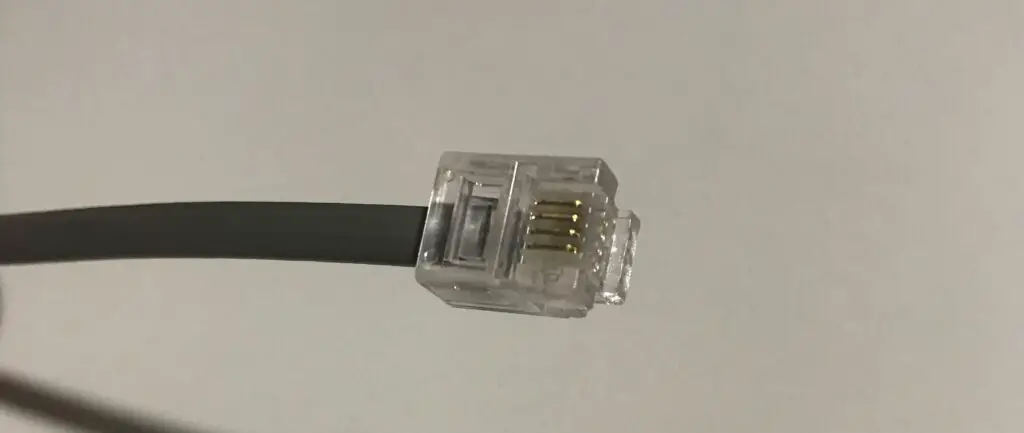
    To get an internet connection, dial-up modems just needed to be connected to a phone jack in the home using a phone cable, like this one:

    Phone cable

    Due to the fact that dial-up modems used public phone lines, they were widely used at the time because virtually everyone had a telephone line in their home.

    Unfortunately, the good times did not last for dial-up modems. This was due to advancements in internet technology (see the next modem type).

    By today’s internet standards, dial-up modems were as slow as molasses. They delivered maximum internet speeds of 56 kilobits per second (kbps).

    When advancements in internet speeds were made, dial-up modems were left in the dust.

    As a result, you won’t see dial-up modems in use today.

    Digital Subscriber Line (DSL) Modems

    Digital subscriber line modems are similar to dial-up modems in a lot of ways.

    Much like dial-up modems, DSL modems use phone lines to communicate with the internet. This makes them an option for a majority of households, as any home with an existing phone line is eligible to have a DSL internet plan.

    Just like dial-up modems, DSL modems are connected to the internet via a phone cable. For your reference, check out the picture of the back of this modem. You can see a port labeled “DSL”. This is where the phone cable connects to the modem.

    The difference between DSL and dial-up modems is the internet speeds they can support. According to some sources, DSL internet plans can provide internet speeds between 6 and 100 megabits per second (Mbps).

    Based upon this information, it’s obvious that DSL modems support much faster speeds than the 56 kbps speeds that dial-up modems support.

    I know this might seem confusing, seeing as both dial-up and DSL modems are using the same method (phone lines) to send and receive internet data.

    This has to do with the advancements in technology I referred to in the previous section.

    The technology behind DSL modems allows them to better utilize the phone lines to send and receive more data at a given time. In fact, advancements in DSL technology are still being made today.

    These advancements in DSL technology are the reason why dial-up modems are no longer used. They simply can’t compete with the speeds that DSL modems support.

    Cable Modems

    Cable modems serve as a departure from the other two modems on the list so far.

    That’s because they don’t utilize phone lines like DSL and dial-up modems do.

    Instead, cable modems use a different technology that has become prevalent in many households today.

    I’m referring to cable television.

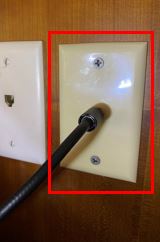
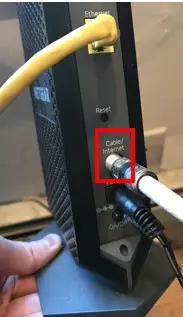
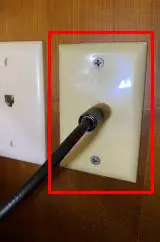
    To connect to the internet, cable modems utilize the same wires that deliver cable television to the home. This is done by using a coaxial cable (the same type of cable that connects to your cable box) to connect the back of the modem to a coaxial cable wall jack like this:

    Coaxial cable wall jack

    For reference, here’s a coaxial cable connected to the back of my cable modem:

    Coaxial cable in back of modem

    Cable modems send and receive data over these cables at speeds much faster than dial-up and DSL modems. This has to do with the fact that coaxial cables allow more data to pass through them at a given time compared to telephone lines.

    This is also known as bandwidth. Coaxial cables support more bandwidth than phone cables.

    In fact, cable modems can support speeds faster than 500 Mbps. That’s more than five times faster than the speeds that the fastest DSL modems support.

    Fiber Optic Modems

    Fiber optic modems are the latest and greatest when it comes to modem technology. They’re designed to work with fiber internet, which was first offered to residential homes in the early 2000s.

    Fiber modems send and receive data a different way than dial-up, DSL, and cable modems do. Instead of sending and receiving data in the form of pulses of electricity, fiber optic modems are able to send data in the form of light pulses.

    This is the whole premise behind fiber optic internet.

    Fiber internet is able to provide much faster internet speeds than dial-up, DSL, and cable internet plans because sending data via light pulses is much faster than sending data through electric pulses.

    As you may have guessed, this also means that fiber optic modems can support faster internet speeds than dial-up, DSL, and cable modems can.

    Currently, fiber modems (and internet plans) can support speeds close to 1 gigabit per second (Gbps). for reference, 1 Gbps is equal to 1,000 Mbps.

    Yeah, that’s pretty fast.

    Due to the fact that fiber internet is still a fairly new technology, many ISPs will install their own modem at your home when you purchase a fiber internet plan.

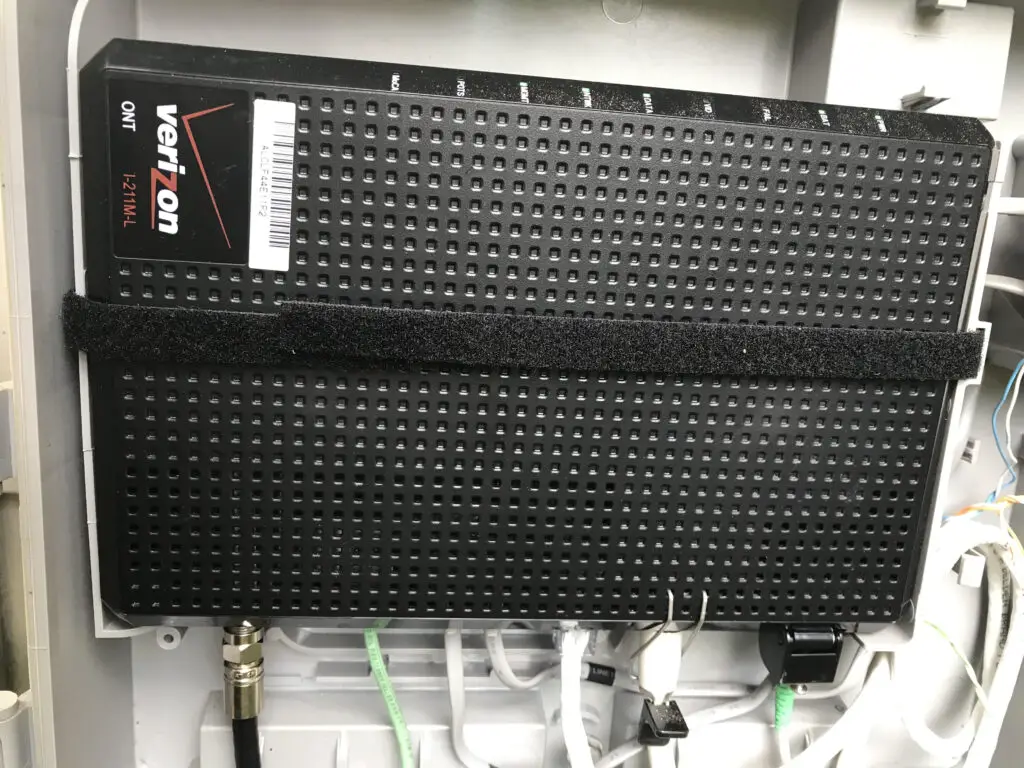
    Here’s an example of an ISP’s fiber internet modem installation:

    ISP fiber internet ONT device

    If you see one of these devices in person, you might see it labeled as an “ONT” device.

    ONT stands for Optical Network Terminal.

    Don’t be confused here. ONT is just a fancy term for a fiber optic modem.

    Despite the fact that many ISPs will install their own fiber modems when you purchase a fiber internet plan, you can still purchase a few of them online. For reference, here’s an example of a fiber modem that you can buy online.

    As fiber internet becomes more widely available (and cheaper), you can expect to see a whole lot more of these devices in home networks.

    What Is the Most Common Type of Modem?

    Now that we’ve broken down the different types of modems that’re available, it begs the question: which type of modem is most common.

    At this stage in the game, cable modems are most frequently used.

    According to a study done in 2022, it’s reported that more than 50% of US households have cable internet.

    Do you know what this means?

    This means that they have cable modems as well.

    This is a pretty significant number, considering that fiber internet is utilized in about 20% of US households at the time of the study.

    That means that 20% of US households have fiber modems. Although the study does not identify this directly, it’s safe to say the majority of the remaining percentage (30%) is comprised of mostly DSL modems.

    For DSL modems, this number is trending in the wrong direction. DSL internet plans are finding it harder to compete with the speeds offered by cable and fiber internet, which results in fewer subscribers (and less DSL modems).

    This is a trend I expect to continue in the future.

    Speaking of the future…

    I expect fiber modems to increase in popularity as fiber internet plans become more widely available to homes.

    So although cable modems are the most popular at the moment (and for the foreseeable future), I don’t expect it to stay this way forever.

    I’m a firm believer that fiber internet is the future of our connected world, and soon enough we’ll be using the fiber modems to prove it.

    Wrap Up

    Hopefully you now have a good understanding of the main types of modems in use today.

    Odds are, if you walk into someone’s home today, they’ll have a cable internet modem. With that said, be on the lookout for more fiber modems moving forward.

    If you have any questions about the different types of modems, please leave a comment below. If you found this information useful, here are some other posts that might be helpful for you:

    What Are Modem Channels? How They Affect Network Speed

    What Modem Do I Have? How to Find Out

    Does Modem Placement Matter?

    What Do the Lights on My Modem Mean?

    Can I Take My Internet Modem to Another House?

  • What Are Modem Channels? How They Affect Network Speed

    What Are Modem Channels? How They Affect Network Speed

    What are modem channels title picture

    If you’ve read about modems, you’ve likely seen modems described by the number of channels they have.

    Modem channels can be a confusing term that makes modems seem more complicated than they really are.

    So what are modem channels referring to, exactly?

    Modem channels are a modem’s connections to an internet service provider (ISP). Modems will have both upstream and downstream channels. Upstream channels are used for uploading data to the internet, while downstream channels are used for downloading data from the internet.

    In this post, I’ll remove the cloud of mystery about modem channels. I’ll also explain how the number of channels your modem has will affect the internet speed of your network.

    What Is a Modem Channel?

    As I mentioned above, a modem’s channels are used to connect a modem to an ISP. In fact, the more channels a modem has, the more connections it can make to the ISP.

    So what? Why do we care about how a modem is connected to an internet provider?

    We care because your modem and ISP are communicating on a continuous basis.

    Every time one of the devices on your home network requests a website from the internet, your modem and ISP will be communicating with each other.

    But that’s not the only time your modem and ISP will be sending data to each other.

    In fact, your modem and ISP will be communicating when you:

    • Watch a YouTube video
    • Check your email
    • Play an online game
    • Upload a file to the cloud
    • Buy something from Amazon
    • Go on Facebook

    Hopefully you get the picture.

    To put it simply, any time you do something on the internet, your modem and ISP will be sending data back and forth to each other.

    This is why a modem’s channels are so important. Any time you do anything on the internet, they’re being used.

    Your modem is your key to the internet. If it didn’t have channels to connect to an ISP, your modem wouldn’t be able to access the internet at all.

    Hopefully you can see the importance of modem channels.

    But that’s not all.

    There’s actually more to learn about them.

    Let’s start with the fact that there are two different types of channels that a modem will have.

    What Are the Different Types of Modem Channels?

    The two different types of modem channels are upstream channels and downstream channels.

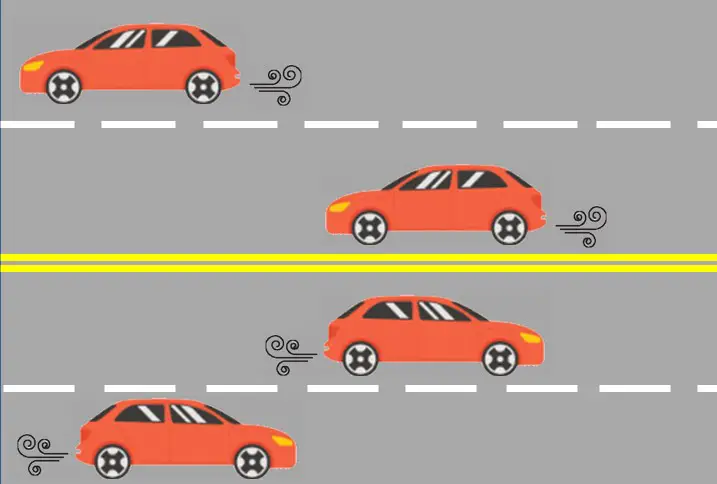
    To paint a clear picture of these different types of channels, let’s an example of cars on a highway.

    As you know, each lane on a highway is dedicated to traffic going in a certain direction. The lanes on one side of the divider will all be going in one direction. The lanes on the other side of the divider will be going in the opposite direction.

    Cars on a highway

    The same is true for a modem’s channels.

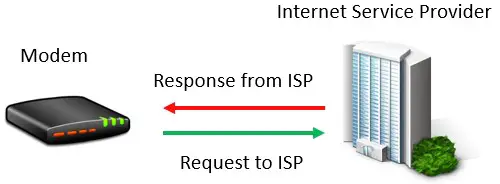
    This has to do with the fact that data is traveling between a modem and ISP in both directions. The modem is sending data to the ISP, while also receiving data that the ISP is sending it.

    Data between modem and ISP
    Movement of data between a modem and ISP

    This is why modems have upstream and downstream channels.

    Upstream modem channels are used to send data from the modem to the ISP, while downstream channels are used to deliver data to the modem from the ISP.

    In other words, upstream channels are used to send a request to the internet, upload a file to the internet, etc.

    On the other hand, downstream channels are used for any information traveling from the internet to one of the devices on the modem’s network.

    With each channel dedicated to data moving in one direction (either to or from the ISP), it ensures that the information makes it to the desired destination without any interference.

    If data was moving in both directions over one modem channel at the same time, it would lead to delayed transmission and crossed signals.

    Does the Number of Channels on a Modem Matter?

    Now that we’re clear on the different types of channels a modem has, let’s talk numbers.

    If it’s not clear by now, all modems will have multiple upstream and downstream channels.

    The question is, does it matter how many channels a modem has?

    This is a resounding yes here. The more channels a modem has, the more data it can send and receive at a given time.

    To illustrate this point, let’s revisit our highway example again.

    In our highway example, let’s say there’s one lane going in each direction.

    In this scenario, let’s say it’s rush hour.

    There are many cars on the road, and it’s leading to traffic on this two lane highway. The cars aren’t moving anywhere fast, and no one is getting to their destination on time.

    Cars on a highway traffic jam

    The city notices this traffic and realizes that the traffic has become a problem.

    So what do they do?

    They add lanes to the highway.

    By adding another lane in each direction, it greatly reduces traffic on the road.

    Adding a lane to a highway

    The cars are no longer bumper to bumper, and the traffic congestion goes away.

    This is the same concept with modem channels.

    The more channels a modem has, the easier it can handle large amounts of data at a given time. Having a lot of channels will avoid any congestion that might result when a lot of information is requested from the internet at one time.

    To put this another way, the more channels a modem has, the faster the internet speed it can support. With that said, if a modem doesn’t have enough channels, it can slow down the internet speed of the entire network.

    For your reference, here’s a table of the different speeds a modem can support based upon the number of download channels it has:

    Number of Download ChannelsMaximum Possible Speed (Mbps)
    4 (DOCSIS 3.0)172
    8 (DOCSIS 3.0)343
    16 (DOCSIS 3.0)686
    24 (DOCSIS 3.0)1,000
    32 (DOCSIS 3.0)1,400
    32 (DOCSIS 3.1)10,000

    Here are the different speeds a cable modem can support based upon the number of upload channels it has:

    Number of Upload ChannelsMaximum Possible Speed (Mbps)
    4 (DOCSIS 3.0)108
    8 (DOCSIS 3.0)216
    8 (DOCSIS 3.1)1,000-2,000

    If you can’t tell from these tables, the number of channels a modem has will have a significant affect on the speeds it can support.

    How Many Channels Does My Modem Have?

    If you’re not sure how many channels your current modem has, there are two common ways to find out.

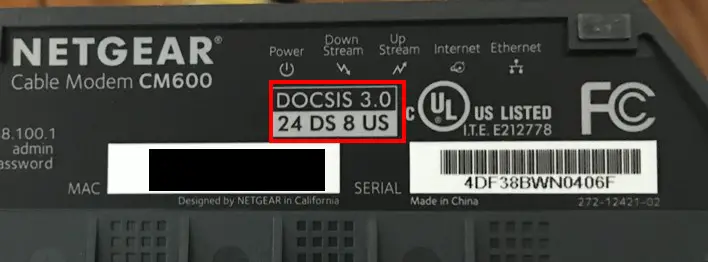
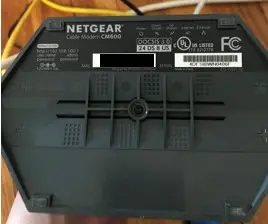
    The easiest method is to look at the sticker on the modem. On my Netgear modem, the sticker is on the bottom of the device.

    Somewhere on the sticker, it should list the number of upstream and downstream channels the modem has, as well as the DOCSIS standard it adheres to (if you have a cable modem).

    Here’s what it looks like on my sticker:

    Modem label upstream and downstream channels

    As you can see, my modem adheres to the DOCSIS 3.0 standard and has 24 downstream (DS) channels and 8 upstream (US) channels.

    Something to note is that there are three times as many download channels on my modem as upload channels. You’ll always have more download channels than upload channels on your modem because you download data from the internet much more often than you upload it.

    That’s why it makes sense to have more channels dedicated to receiving data from the ISP.

    If you aren’t able to tell how many channels your modem has by its sticker, fear not.

    You can also figure this out by looking at your modem’s settings.

    To do this, you need to access your modems settings by logging in to its settings page. In order to do this, you’ll need to know the username and password for your modem’s settings, as well as the IP address of your modem.

    This information can usually be found on the sticker on the device, or in the modem’s Owner’s Manual.

    Once you’ve accessed your modem’s settings page, look for the settings that detail the modem’s connection statistics.

    On my modem, this is detailed in the Cable Connection section:

    In this section, I can see the downstream bonded channels of my modem.

    As you can see, my modem has 24 downstream channels.

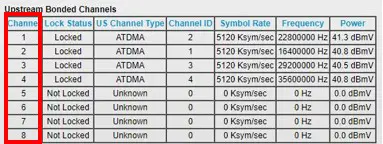
    I can also see the upstream bonded channels of my modem.

    Modem settings upstream bonded channels

    My modem has 8 upstream channels.

    Using either of these two methods should provide you with the number of channels your modem has.

    Wrap Up

    Hopefully you now have a clear understanding of what modem channels are and how they affect the internet speed a modem can support. If you have any questions about this information, please leave a comment below.

    To read more about similar topics, check out some other posts I’ve written:

    What Modem Do I Have? How to Find Out

    Does Modem Placement Matter?

    Should Your Router and Modem Be Close Together?

    Does Any Modem Work With Any Internet Provider?

    Does Your Modem Affect Your Internet Speed?

  • What Modem Do I Have? How to Find Out

    What Modem Do I Have? How to Find Out

    What Modem Do I Have title page

    Your modem is your gateway to the internet. Although it may be low maintenance once it’s set up, it’s an extremely important piece of your home network. As a result, you need to know some basic information about it.

    For example, in order to find out what speed your modem supports or the internet providers it’s compatible with, you need to know the make and model of your modem.

    So how do you find out the make and model of your modem?

    There are two main ways to determine the make and model of an internet modem. Generally, the make and model of a modem will be listed on an informational sticker on the device. Alternatively, this information can be found by logging in to the modem’s settings console.

    In this post, I’ll provide detailed procedures on the two common ways to find out what modem you have. In addition, I’ll explain why knowing this information will pay off when making decisions about your home network.

    How to Find Out What Make and Model a Modem Is

    If you want to find out what modem you have, you have two options.

    The best option involves looking at the sticker on the modem itself. If for some reason this option is not available to you, you should also be able to find this information by looking at the modem’s settings page.

    Let’s break down both of these options in detail.

    How to Determine What Modem You Have by Looking at Its Sticker

    The fastest and easiest method of finding out what modem you have involves inspecting the physical device.

    If you inspect your modem, you’ll probably find that it has an informational sticker on it. In many cases, this sticker will be on the bottom of the device.

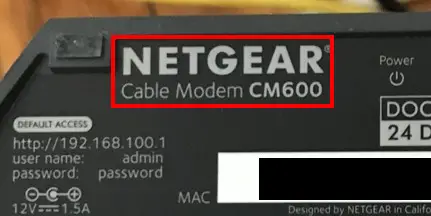
    Here’s the sticker on my Netgear CM600 modem (the newer version of this modem is the CM700 modem):

    Sticker on bottom of modem

    Somewhere on this sticker, it should list the make and model of the modem.

    Make and model of modem on sticker

    As you can see, the make and model of my modem is pretty obvious.

    It’s important to note that no two modems are exactly the same. The layout and information presented on your modem’s sticker will probably be different based upon your modem’s manufacturer. With that said, the sticker on my modem should give you an idea of what to look for.

    If there’s any confusion about which piece of information is the manufacturer and which is the model, there’s an easy way to find out.

    Determining Your Modem’s Manufacturer

    This has to do with the fact that manufacturers love to advertise their products.

    As a result, every modem will have the manufacturer’s name or logo somewhere on the device. Usually this is in an area that’s easy to see when looking at the device.

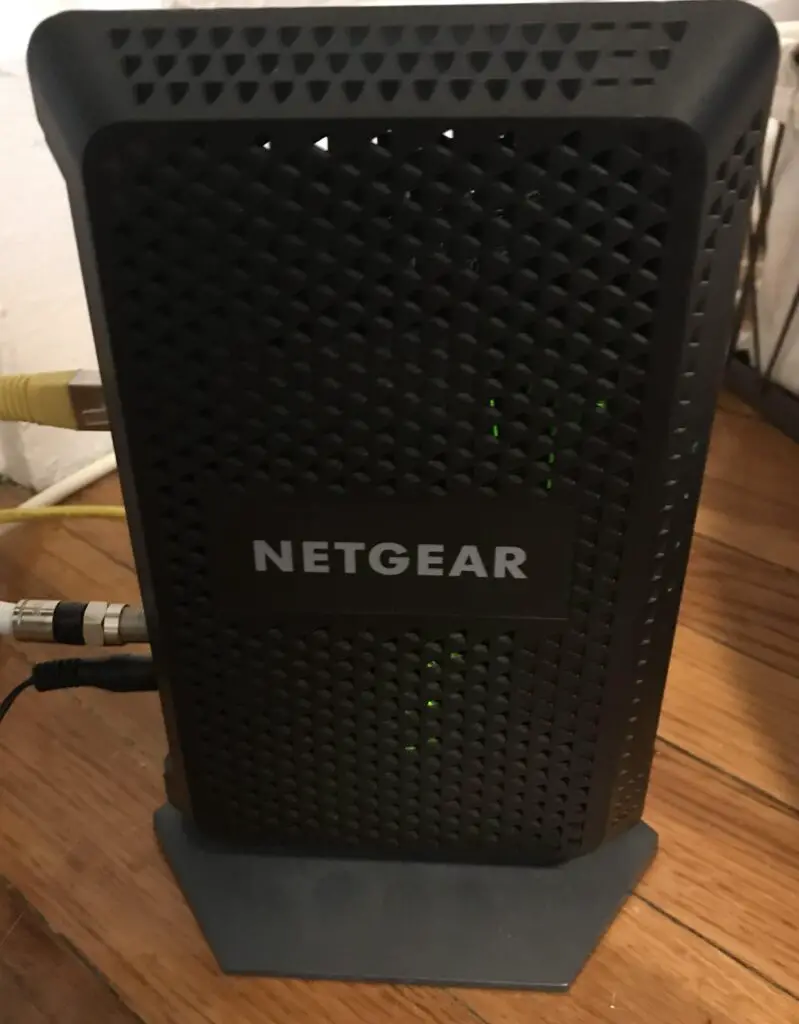
    Let’s take another look at my modem:

    Modem side manufacturer label

    See?

    It’s pretty obvious that this modem is made by Netgear. They couldn’t make it more obvious.

    The important thing to note here is that the manufacturer will always put their logo or brand name on the device. You probably won’t find the model number clearly presented on the exterior of the device.

    Referring back to the sticker on the modem, it makes it easy to see that if the manufacturer is Netgear, the model is CM600.

    Keep this information handy, as it’ll be useful in the next section.

    How to Determine What Modem You Have From Its Settings Page

    If you’re unable to tell what modem you have from its sticker, there’s another option for you.

    You can log in to your modem’s settings.

    If you already know the IP address of your modem’s settings page, and you have the username and password for your modem’s settings, this might actually be the easiest method for you.

    Let’s walk though this step-by-step.

    The first thing you need to do is get to your modem’s settings page. In other words, you need to know the IP address of your modem.

    If you’re not sure what your modem’s IP address is, you can usually find it on the sticker on your modem.

    Modem IP address on sticker

    Once you know your modem’s IP address, you need to type it into an internet browser (e.g. Chrome, Microsoft Edge, etc.) on a connected device like a phone, laptop, tablet, etc.

    Modem IP address in internet browser

    Keep in mind that in order to access your modem’s settings, you need to be on the same wireless network as your modem. You can’t access your modem’s settings from outside your home network.

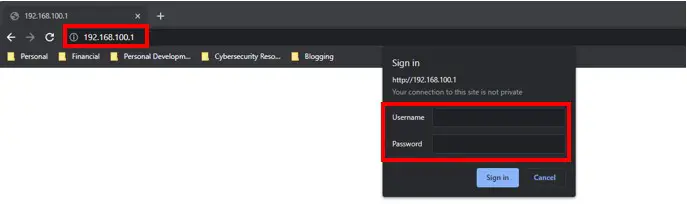
    Once you type in your modem’s IP address, you’ll be prompted to enter the username and password for your settings page.

    If you’ve created custom login information for your modem (which I strongly suggest), enter that information here.

    Modem settings login prompt

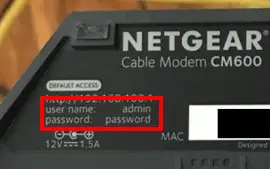
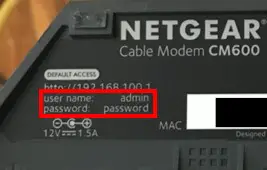
    If you haven’t changed your modem’s login information from the default settings, you should be able to find that on your modem’s sticker as well.

    Modem settings default username and password

    If this information is not on your modem’s sticker, you should be able to Google common default passwords for modems made by your modem’s manufacturer.

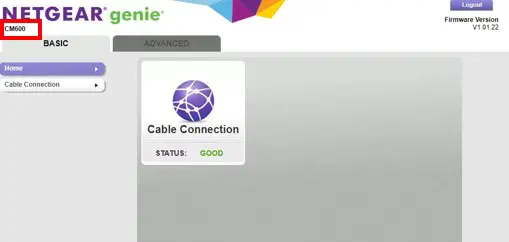
    Once you log in to your modem’s settings and you reach the settings page, it should be obvious what model of modem you have.

    Modem model on modem settings page

    Although it’s in smaller font, it’s easy to see what model of modem I have.

    This might look slightly different than your modem’s settings page, but it should include your modem’s model nonetheless.

    Last Resort: How to Determine What Modem You Have Through Brute Force

    In the vast majority of cases, you’ll be able to determine what modem you have by looking at its sticker or by logging in to its settings.

    However, it’s possible that these two common methods don’t work for you.

    What do you do now? How do you find out what modem you have?

    This method requires a little bit more effort.

    In this scenario, you have to start with the manufacturer of the device. You should be able to get this information from the device itself, as detailed in the previous section.

    Once you have the manufacturer of the device, you have to get a little creative.

    At this point, I suggest Googling the most common models of modem from the manufacturer. Look at pictures of these common models until you find the model that looks like your modem.

    For example, in my case I know that my modem is made by Netgear because that’s what’s on the side of my modem. In Googling common models from Netgear, it’ll take me to Netgear’s modem product page. In scrolling through this page, I can see that my modem looks like a CM600 modem.

    If your modem is ancient, this method might not work for you. Most manufacturers won’t list really old or discontinued models on their websites.

    Regardless, you should only need to attempt this method as a last resort. Hopefully you can determine the make and model of your modem from its sticker or its settings.

    Why Should You Know the Make and Model of Your Modem?
    After following the steps above, it’s fair to wonder why you’re doing it.

    Why do you need to know what modem you have in the first place?
    In reality, it’s essential to know what modem you have if you want to maximize your internet connection.
    Knowing what modem you have will allow you to:
    • Determine what ISPs your modem is compatible with
    • Understand the internet speeds your modem can support
    • Look up documentation about your device

    Let’s dive a bit further into each of these.

    The Make and Model of Your Modem Will Tell You the ISPs It’s Compatible With

    Unfortunately, your modem won’t be compatible with all internet service providers.

    With this in mind, you have to plan your modem around the internet plan you have (or plan to get).

    This can get complicated if you plan on moving your home (and modem) to a new location. If you’ll be using a new ISP, you need to make sure your modem is compatible with it.

    In order to know what ISPs your modem is compatible with, you need to know what modem you have. It goes without saying if you know what modem you have, it’s very easy to look up the documentation that explains what ISPs it’s compatible with.

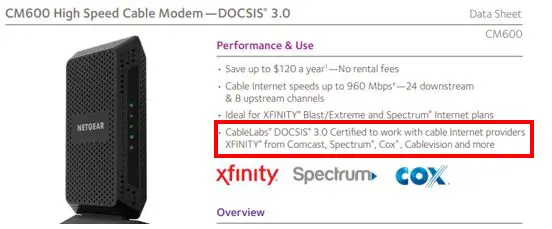
    CM600 modem Compatible ISPs

    The Make and Model of Your Modem Will Allow You to Look up the Maximum Internet Speed It Supports

    Any given modem will have a maximum internet speed it can support. If an internet plan exceeds the maximum speed supported by a modem, it’ll slow down your your entire network.

    With this in mind, knowing the maximum speed your modem can support is vital. This information will allow you to make important decisions about your home network.

    For example, if you plan on upgrading your internet plan, you’ll know if your current modem can support the faster internet plan. If not, it might be time for a new modem.

    Knowing what modem you have will allow you to make those decisions because you’ll be able to look up the fastest internet plan it can support.

    The Make and Model of Your Modem Will Enable You to Look Up Its Documentation

    The final reason you should know what modem you have has to do with getting the most out of it.

    If your modem is having issues, or you’re not sure how to set up your modem, you may need some help. Many times, the documentation about the device will tell you all you need to know. Nowadays, modem manufacturers will have online versions of their User Manuals in case you lost your hard copy.

    Here’s an example of the online User Manual for my CM600 modem.

    On top of User Manuals, knowing what modem you have will enable you to search for help online. You may be able to find online forums that discuss solutions to common problems about your modem.

    If you don’t know what modem you have, you’ll be cut off from all of these helpful resources.

    Wrap Up

    With the information above, you should be able to identify your modem without any problems. In case you have any questions, or you still can’t figure out what modem you have, leave a comment below. I’ll see if I can help you out.

    If you found this information useful, here are some other posts I’ve written that you might find interesting:

    Does Any Modem Work With Any Internet Provider?

    Can I Take My Internet Modem to Another House?

    Does Your Modem Affect Your Internet Speed?

    Does Modem Placement Matter?

    Can a Modem Overheat? What to Look For

    What Do the Lights on My Modem Mean?

  • Modem MAC Address: All Your Questions Answered

    Modem MAC Address: All Your Questions Answered

    Modem MAC address title page

    Whether you’re setting up your internet connection for the first time or you’re just replacing your modem, you’ll need to know the MAC address of your modem.

    The problem with this is that a lot of people don’t know where to start when it comes to their modem’s MAC address.

    So how do you find a modem’s MAC address, and why is it important in the first place?

    A modem’s MAC address can usually be found on a sticker on the device. Alternatively, the MAC address of a modem can be viewed in the modem’s settings page. A modem’s MAC address is important because it is used to register the modem with an internet provider and activate an internet connection.

    In this post, I’ll detail everything you need to know about a modem’s MAC address. I’ll answer some frequently asked questions about a modem’s MAC address, as well as provide steps for finding a modem’s MAC address.

    How to Find a Modem’s MAC Address

    When it comes to finding a modem’s MAC address, there are a few different ways to do it.

    You can either get the MAC address directly from the physical device, or you can view it on the modem’s settings page from an internet device on your home network.

    I’ll go over both of these methods to provide you with a few options.

    How to Find a Modem’s MAC Address From the Sticker on the Device

    The easiest way to find the MAC address of a modem is to get it directly from the physical device.

    Most modems will come with a sticker on it that details a lot of its important information. For example, on my modem the sticker is located on the bottom of the device.

    Here’s what the sticker on my modem looks like:

    Sticker on bottom of modem

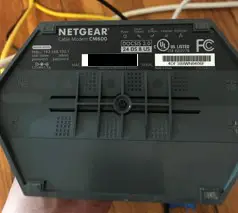
    Taking a closer look at this sticker, there’s a label for the device’s MAC address. Next to this label there’s a 12-digit number that identifies the MAC address of the device (I’ve obscured this information in the picture above for security reasons).

    It doesn’t get much easier than that.

    This is the easiest way to get the MAC address from a modem, so long as it has a sticker on it.

    If your modem doesn’t have a sticker or you don’t feel like getting off the couch, there’s another option for you. You can get this information by logging in to your modem’s settings.

    How to Find a Modem’s MAC Address by Logging in to Its Device Settings

    The other way to find a modem’s MAC address is to log in to its settings console.

    This is also another easy procedure, so long as you have everything you need.

    So what exactly do you need to find your modem’s MAC address with this method?

    You’ll need a connected device (laptop, phone, tablet, etc.) connected to the network that the modem is on. You’ll also need to know the login information for the modem’s settings console.

    As a hint, if you’ve never changed the password for your modem’s settings page, you can find the default information in the modem’s user guide. You’ll also probably be able to find the default username and password for the modem’s settings by searching for it online.

    In some cases, this information will also be included on the sticker on the modem as well.

    Modem default username and password on sticker

    I know the whole point here is to avoid getting off the couch, and if you have to look at the sticker you might as well get the MAC address from it anyway.

    Security note: make sure you change the default password to your modem’s settings if you haven’t done so already. It’s a significant security risk to leave the default password on your devices.

    Ok, back to the task at hand.

    The first thing you need to do to access your modem’s settings is go to your modem’s login page. Open up a web browser and navigate to the IP address of your modem.

    If you’re not sure what the IP address of your modem is, that should be listed in the user’s manual for the device as well.

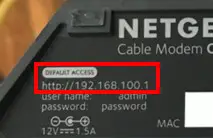
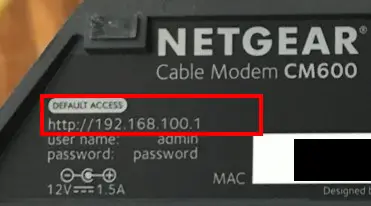
    You won’t be surprised to hear that information may be listed on your device’s sticker as well:

    Modem default access location on modem sticker

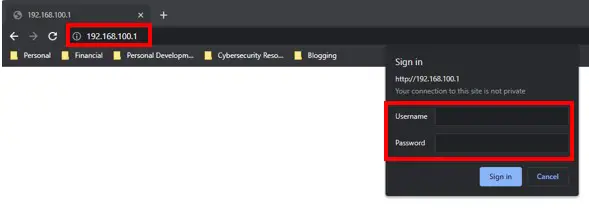
    By entering the address of your modem’s settings page into your browser, it’ll take you to your modem’s login page.

    Modem login prompt for settings page

    From there, enter the username and password for your device’s settings.

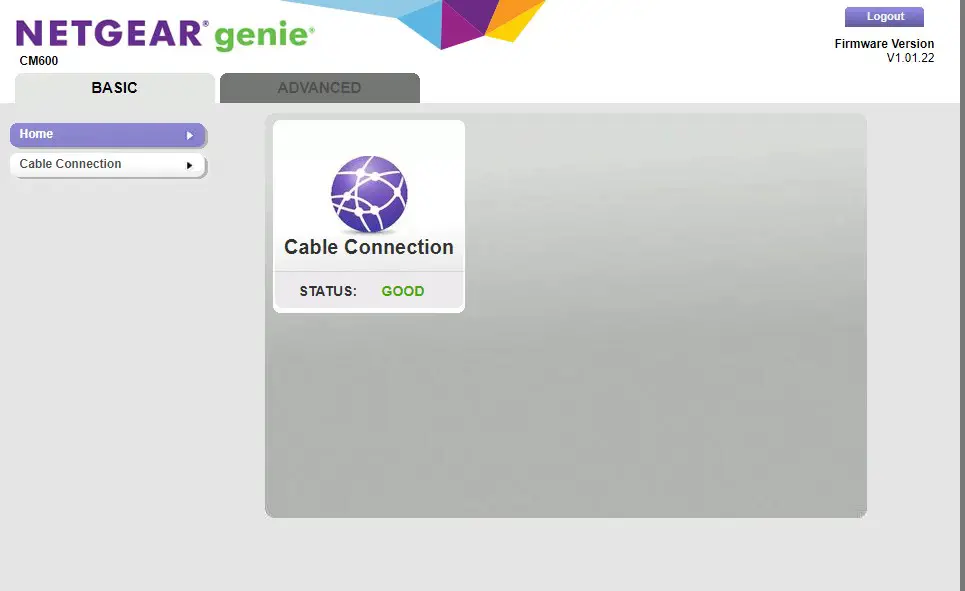
    That will bring you to your modem’s settings page. Modem settings will all look a little different depending upon the make and model of your modem, but here’s what the main page looks like for my modem. For reference, I have a Netgear CM600 modem:

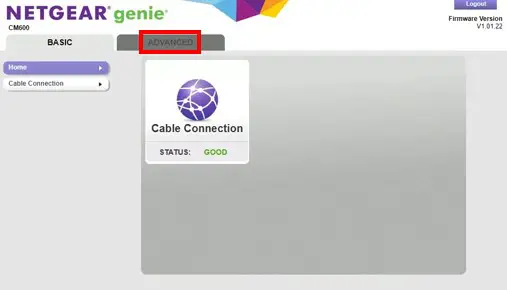
    Modem settings page

    To find my modem’s MAC address, I have to navigate to the Advanced Settings page.

    Netgear advanced settings tab

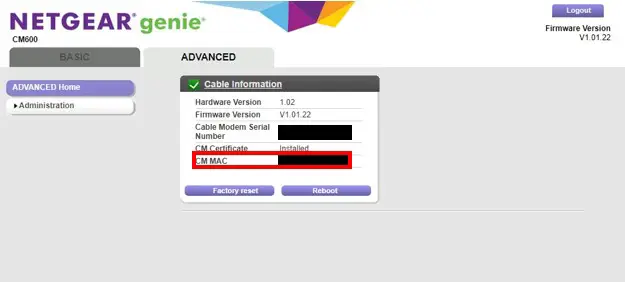
    On the Advanced Settings page, it’s pretty easy to see the MAC address of my modem.

    Modem MAC address in settings console

    See? There’s not much to it.

    Both methods of determining your modem’s MAC address aren’t very complicated. You just need to know where to look.

    Why Is a Modem’s MAC Address So Important?

    A modem’s MAC address is more important than you might think.

    In fact, if you don’t know the MAC address of your modem, you won’t be able to get an active internet connection.

    This has to do with the fact that you must register your modem with your internet service provider (ISP) in order to activate your internet plan.

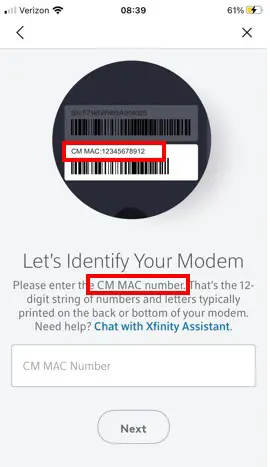
    When registering your modem with your ISP, they’ll ask you for its MAC address.

    Modem MAC address request for registration

    This is how they keep track of your account with them. They pair your modem’s MAC address with your customer information and internet plan.

    So when you request information from the internet on one of the devices on your home network, the ISP knows they’re providing data to a paying customer with an active internet plan.

    This is why you’ll have to re-register with your ISP if you get a new modem. The new modem will have a different MAC address than the old modem, and your ISP won’t associate the new MAC address with your account until you register the new modem.

    In other words, your internet connection won’t work until the new device is registered with your ISP, which you can’t do without the MAC address of the device.

    What Does a Modem’s MAC Address Actually Mean?

    With all this talk about a modem’s MAC address, it’s important to understand what its MAC address actually represents.

    The best way to think about a modem’s MAC address is like it is a mailing address for the device.

    The MAC address represents a location where your ISP will send data that devices on your network have requested. In other words, the MAC address identifies the network interface that will be communicating with the ISP. This ensures that all traffic meant for your network makes it to the right place.

    This is very similar to sending letters in the mail.

    If you want a letter to make it to the desired final destination, you need to identify the mailing address of where you want to send the letter to.

    This further highlights the importance of a modem’s MAC address.

    How Many MAC Addresses Does a Modem Have?

    Believe it or not, a modem actually has two MAC addresses.

    You wouldn’t think so, considering we’ve spent all this time talking about one of them (the one used to register the device with an ISP).

    In reality, a modem will have a MAC address for each network interface on the device.

    This means that a modem will have one MAC address for its network interface with the rest of the internet. This MAC address is associated with the connection to an ISP.

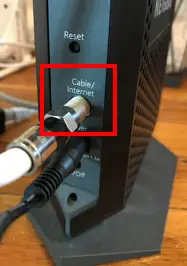
    I have a cable modem, which means the coaxial cable interface on the back of my modem will have a MAC address.

    Modem internet interface

    This is the MAC address that is registered with my ISP and is listed on my modem’s sticker.

    The other MAC address on a modem is associated with the ethernet port on the device that connects to a router.

    Modem internal network ethernet interface

    The ethernet port on a modem is its connection to the rest of a home network.

    To clarify, you don’t need to know this MAC address. You don’t need it to register with your ISP, and all the devices on your home network will automatically communicate with this interface.

    That’s why this MAC address gets overlooked so much. You don’t need to know it, so it’s not really worth any effort finding out what it is.

    You should just recognize that your modem will have more than one MAC address due to the fact that it has more than one network interface.

    Wrap Up

    That just about covers it when it comes to your modem’s MAC addresses. If you have additional questions regarding the MAC address of your modem, feel free to post a comment below.

    If you’re interested in learning more about similar topics, check out some of the previous posts I’ve written:

    Does Modem Placement Matter?

    Does Any Modem Work With Any Internet Provider?

    How to Update Modem Firmware: A Complete Guide

    Does a Modem Have an IP Address?

    Can I Take My Internet Modem to Another House?

  • Does Modem Placement Matter?

    Does Modem Placement Matter?

    Modem placement matter title page

    Where you place your modem in your home is important, but probably not for the reasons that you think.

    You’re probably wondering if the location of your modem will impact the speed of your internet connection. That’s the biggest concern of most internet users.

    Fear not, because I have some good news for you.

    Where you keep your modem in your home won’t have any affect on your internet speed. With that said, the location of your modem is important for making sure it lasts as long as it should. If you don’t keep your modem in a proper location, you may find yourself replacing it sooner than you’d like.

    In this post we’ll look at why the placement of your modem is important, as well as the best locations for your modem in your home.

    How do your modem and router provide an internet connection?

    Let’s first address the question that everyone is most worried about: Does your modem location affect your internet speed?

    In order to understand if the location of your modem affects your internet speed, we need to have an understanding of how your internet devices get access to the internet. The two devices responsible for providing internet in your home are your modem and router.

    What role does your modem play in your internet connection?

    When it comes to the internet connection in your home, your modem basically has one job.

    It’s responsible for connecting your house with the rest of the internet.

    Your modem provides your home with access to the internet by establishing a connection to your internet service provider (ISP). Your ISP is the company that provides you with your internet plan (e.g. Xfinity, AT&T, Verizon, etc.).

    By connecting with your ISP, your modem makes it possible for your devices to use the internet to receive email, browse websites, online shop, etc.

    You can think of your modem like a key to the internet. Your modem opens the door for your devices to access the internet.

    To put it simply, you need a modem if you want internet access. If you only had a router and you didn’t have a modem, your devices wouldn’t be able to reach the internet.

    It’s as simple as that.

    Due to the fact that your modem has such an important job, it doesn’t come with many extra features. It doesn’t assign your devices with IP addresses, provide a wireless internet signal for your devices, or coordinate the sending and receiving of data to the internet.

    That’s where your router comes in.

    What role does your router play in your internet connection?

    If your modem connects your home to the internet, you might be wondering what your router does.

    Pretty much everything else.

    First and foremost, your router allows your devices to wirelessly connect to the internet. Your router uses its multiple antennas to broadcast your home’s internet connection through the air. The wireless devices in your home connect to your router through this signal, which allows them to access the internet.

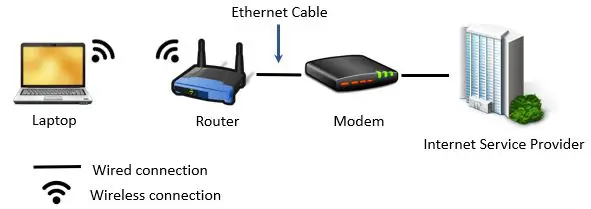
    Your router is able to broadcast this internet signal because it’s connected to your modem with an ethernet cable. Your modem passes the internet signal from your ISP to your router for broadcasting.

    Here’s a diagram to help you visualize this:

    Modem and router connection

    If you have a modem and router combination device, your router won’t be connected to a modem with an ethernet cable. That’s because your modem and router will be housed in one device.

    In addition to providing your devices with a wireless internet signal, your router also assigns IP addresses to your devices when they connect to your home network.

    Once a device has been assigned an IP address, your router ensures that device only receives the information it requests. In other words, if you use your phone to enter a website address into your browser, your router will make sure that the requested website shows up on your phone and not on another device on your home network.

    Does your modem location affect your internet speed?

    Now that I’ve outlined the roles that your modem and router play in providing your home with an internet connection, we can answer if the location of your modem affects your internet speed.

    As you’ll recall, your modem is connected to two things. It’s connected to your router with an ethernet cable, as well as to your Internet Service Provider.

    The connection from your modem to your ISP is a wired connection as well. If you have cable internet (which most people do), your modem will be connected to your ISP through a coaxial cable.

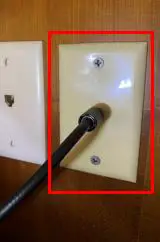
    This coaxial cable will connect to a cable jack on the wall and run outside of your home to your ISP. Here’s an example of what a cable jack looks like:

    Coaxial cable wall jack

    You may be asking, why is this important?

    It’s important because of what these two connections have in common. They’re both wired.

    The benefit of wired connections

    When it comes to sending and receiving data, communication over wired connections is very fast. To take it a step further, sending data through a wire won’t usually have any impact on your internet speed.

    In fact, the only time a wired connection will impact your internet speed in your home is if your modem and router are connected with an ethernet cable that’s longer than 328 feet (100 meters).

    This basically means that as long as your modem and router are connected with an ethernet cable that is less than 328 feet long, it doesn’t matter where you put your modem in your home.

    Remember, your modem doesn’t broadcast the WiFi signal to your devices. That’s your router’s job. All it’s responsible for is connecting your home to your ISP.

    As long as your modem is connected to your router and ISP, it shouldn’t have any effect on your internet speed. It doesn’t matter where it’s located in your home.

    Does your router’s placement affect your internet speed?

    Unfortunately, the same can’t be said for your router.

    As I mentioned earlier, your router wirelessly connects to your internet devices. As a result, if your devices are far away from your router, they’ll have a weaker internet signal.

    A weaker internet signal will lead to slower internet speeds. This is why it’s important to place your router as close to your internet devices as possible.

    Where you should place your router is another topic entirely. For now, I wanted to provide you with the basics to make it clear that your router placement can have a much bigger impact on your internet speed than the placement of your modem.

    Does modem placement matter?

    Does It Matter Where You Keep Your Modem in Your Home

    If the location of your modem doesn’t affect your internet speed, does it matter where you put it?

    You might be surprised to hear that the answer is yes.

    There are other reasons to care about where you place your modem. For example, if you’re not careful about your modem’s placement, it won’t last as long as it should.

    Why modem placement is important

    The location of your modem in your house is important for several reasons. The first (and most important) reason is that your modem can overheat if it’s not placed in the proper location.

    The other reason why modem placement is important is for organizational purposes. You’ll most likely want your modem near the internet connection that goes to your internet service provider. Placing your modem near the internet jack in your home will make it much easier to set up your internet connection.

    Lets’ take a closer look at each of these topics.

    It can help prevent your modem from overheating

    If you buy the right modem and take good care of it, it can last you up to ten years or more. With that said, if you don’t take care of your modem, you may have to replace it much sooner.

    Nobody wants to deal with that.

    So what exactly am I talking about here?

    I’m talking about dust and heat. You need to avoid dust and heat as much as possible if you want your modem to last.

    If your modem is in a location where it accumulates a lot of dust, it’ll run hotter than it should. When electronic devices get hot, they have a tendency to overheat. If your modem overheats, its electronic components inside the device can fail.

    We all know what that means. If your modem’s internal components fail, you’ll need to replace your modem.

    Your modem can also overheat if it’s placed too close to a heat source like the heaters in your home. You don’t want to place your router and modem on top of each other either. Doing so will cause both devices to run hotter than they should.

    So where should a modem be placed to help prevent it from overheating?

    The key here is to keep your modem standing upright and in a well ventilated area. Ideally, you’ll want to keep it on an elevated surface like a table or shelf. This will keep it away from dust on the ground and make sure it’s getting proper airflow to cool it.

    Any elevated surface will do. For reference, here’s my modem on a chair in my living room.

    Modem on chair

    If you live in a climate controlled house, you shouldn’t have any issues. Just make sure your modem is off the ground and you’ll be all set.

    It makes it easier to set up your home internet

    Another factor you should consider when deciding where to keep your modem is its distance from the connection to your ISP.

    As I mentioned earlier, your modem needs to connect to both your router and the internet connection that comes from outside your house.

    The farther your modem is from the internet connection, the more complicated it’ll be to set up your internet.

    Why is that?

    If your modem has to connect to the internet jack that comes from your ISP, the shorter the cable the better. The farther your modem is from this jack, the longer the cable connecting them has to be.

    You don’t want to have a long cable snaking throughout your house to connect your modem to your ISP. Not only is it a tripping hazard, but it also makes your house look messy and unorganized.

    Some houses have multiple jacks that connect your home to your ISP, which makes things a little easier. You can just connect your modem to the closest jack to minimize the length of the cable connecting the two.

    The bottom line is, it’s much easier to keep your modem in a place that’s close to the internet jack that goes outside your house.

    Especially since your modem placement won’t affect your internet speed, it’s worth finding a spot close to your internet jack.

    Modem placement recommendations

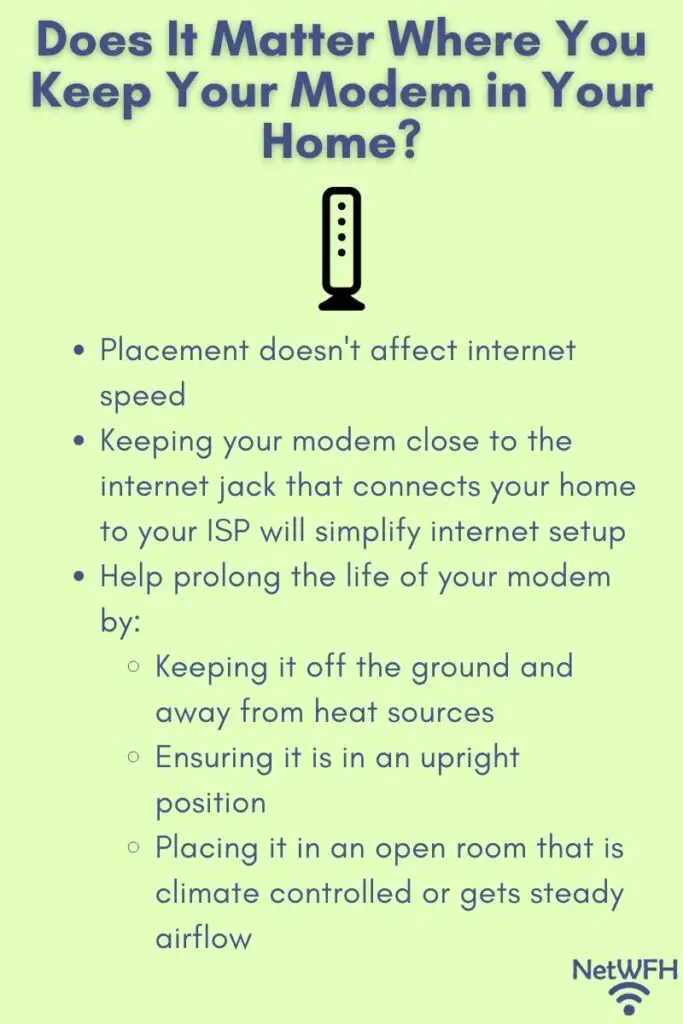
    By now you should have a pretty good idea where to locate your modem in your home.

    Ideally, there’s a place in your home that allows you to:

    • Keep your modem close to the internet jack that connects your home to your internet service provider
    • Place your modem on an elevated surface near the internet jack so you can keep it off the ground
    • Put your modem in a room that’s either climate controlled or gets steady, natural airflow

    If you’re able to keep your modem in a space that meets the above criteria, you’re in good shape.

    If you’re not able to meet the above criteria, the one factor that’s the least impactful is the distance from the internet jack. You’ll have a longer cable connecting your modem to your ISP, but it won’t affect how long your modem lasts.

    Regardless of where you keep your modem, try to keep it in an open area that’s off the ground. These are the two factors that can result in your modem failing before it should, so they’re the most important.

    If you have any questions about this information, or you’d like to share where you keep your modem in your home, please leave a comment below.

    If you found this information helpful, here are some additional posts I’ve written on similar topics:

    Should Your Router and Modem Be Close Together?

    How Long Do Modems Last? A Complete Guide

    Can a Modem Overheat? What to Look For

    Does Your Modem Affect Your Internet Speed?

    Can I Take My Internet Modem to Another House?

  • Should Your Router and Modem Be Close Together?

    Should Your Router and Modem Be Close Together?

    Should Your Router and Modem Be Close Together

    Let me start by saying, I get it.

    Setting up your home internet is a big deal. There’s a lot at stake here.

    If you don’t get it right, you’ll have a lot of angry customers to deal with (like your family members, roommates, guests, etc.).

    It seems like every decision you make can have an impact on your internet. The truth is, a lot of the decisions you make will impact your internet connection in one way or another.

    Which brings us to the topic of your modem and router.

    A common question that gets asked during home internet setup is if your router and modem should be positioned closely together in your home. Thankfully, the answer is pretty straightforward:

    Your router and modem don’t need to be close to each other. As long as they’re connected to each other with an ethernet cable, they can be up to 328 feet (or 100 meters) apart before you’ll notice an impact on your internet speed.

    In other words, you most likely won’t have any problems with your modem and router being too far apart. On the other side of the coin, you don’t want to put your modem and router too close to each other either.

    In this post, I’ll detail everything you need to know about where you should place your modem and router.

    As a disclaimer, this post was written for people who have separate modem and router devices. If you have a modem and router combo, you don’t have a choice. Your modem and router will be combined into the same device and you won’t have to worry about how close or far apart to place them.

    Why your modem and router need to be connected

    In order to determine where your modem and router should be placed, you should first understand how they work together.

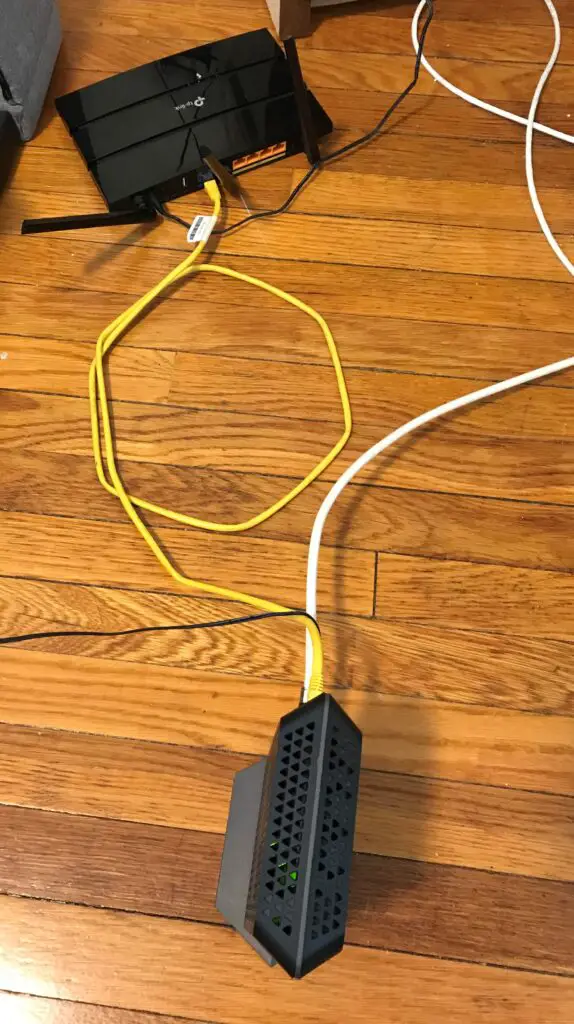
    If your modem and router are separate devices, they’ll need to be connected so they can communicate with each other. They should be connected with a Cat5e or Cat6 ethernet cable.

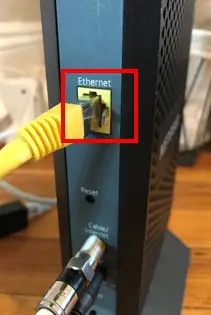
    For a visual, the yellow cable in the picture below is the ethernet cable connecting my modem and router.

    So why do your modem and router need to talk to each other in the first place?

    This is because they have two different (but important) roles when it comes to your internet connection.

    I’ll keep this at a high level.

    Your router is responsible for making sure the devices on your home network receive the data they ask for. For example, let’s say you’re on your tablet and you want to pull up a webpage. Your router will make sure that the webpage you requested gets sent to your tablet and not your iPhone or laptop.

    What about your modem? What part does it play in all of this?

    Think of your modem like a bridge to the internet. Your modem is responsible for maintaining your home’s connection to the internet. This connection is what your devices use to access the internet.

    Together, your router and modem provide your devices with all they need to use the internet. Your router sends and receives the data that your devices request over the internet connection that your modem establishes.

    This is why your modem and router need to communicate with each other.

    If your had a router without a modem or a modem without a router, you wouldn’t have a useful internet connection.

    Do your modem and router need to be close to each other?

    Modem and router placement tips

    As we previously discussed, your modem and router need to be connected with an ethernet cable. That information alone leaves some questions unanswered.

    Will any length of ethernet cable work here? Can you just get an ethernet cable that’s as long as you want so you can place your modem and router far apart?

    Unfortunately it’s not that limitless. With that said, you can spread your modem and router pretty far from each other if you want to.

    Ethernet cables transmit data by sending electrical signals over copper wiring. They do a pretty good job of transmitting data at a fast rate, but there are limits to this.

    If an ethernet cable is too long, the signal over the wire will start to weaken. When this happens, the speed of data transfer slows down.

    What does this mean for you?

    This means your internet connection will slow down.

    The rule of thumb with ethernet cables is that data transfers rates will start to slow if the cable is over 100 meters long (328 feet). This means you could theoretically place your modem and router 100 meters apart without experiencing any issues.

    This amount of distance between a modem and router may be overkill for most people, but it’s possible nonetheless.

    When it comes to your home internet speed, you won’t notice a difference in speed if your modem and router are 10 feet apart or 300 feet apart. This gives you a lot of flexibility when designing your home network.

    Can a router be too close to a modem?

    When it comes to modem and router placement, the maximum distance they can be from each other is about 328 feet.

    What about the other end of the spectrum? Can a modem and router be too close together?

    When it comes to internet speeds, the answer here is no. If you place your modem and router right next to each other, you’ll experience about the same internet speed as if they were 328 feet apart. You won’t be able to notice a difference

    With that said, there are some other factors you need to account for if your modem and router are close to each other.

    You need to keep in mind that your modem and router are electrical devices. When they are powered on, they generate heat.

    If your modem gets too hot, it will overheat. The same goes for your router. When these devices overheat, your internet connection will slow down, or you might lose your connection entirely.

    You need to consider this if your modem and router are right next to each other. The heat from your router can make your modem hotter, and vice versa. As long as both devices are off the floor and in a room with good airflow (or climate control), you shouldn’t have any issues.

    Just make sure you don’t stack your modem and router on top of each other. That would be the only scenario where you really have to worry about your modem and router being too close to each other.

    Can a modem and router be in different rooms?

    When it comes to designing your home network, you can place your modem and router wherever you want as long as they’re connected with an ethernet cable.

    In some cases, it may be better for your WiFi coverage if your modem and router are in different rooms.

    How so?

    There are a few things to keep in mind when determining the location of your modem and router in your home.

    Where to place your modem

    The first item to consider is that your modem will need to be connected to the internet connection that’s coming from the street. That internet connection from the street allows your home to connect with the rest of the internet.

    Most people have cable internet connections, so you’ll most likely have a coaxial cable jack on your wall. It should look something like this:

    Coaxial cable wall jack

    Your modem needs to connect to the coaxial cable jack (with a coaxial cable) because that’s how it connects to the internet. When determining where your modem should go, you probably want it to be somewhere close to a coaxial cable jack. That way, you won’t need to lay out a long coaxial cable to connect your modem to the cable jack.

    Where to place your router

    The next piece you need to think about is the room in your home that gets the most internet use. You’ll want to put your router as close to this location as possible. In many homes, the living room area is where people are most often using the internet.

    This also may be where you keep your:

    • Online gaming system
    • Smart TV
    • Desktop computer
    • Tablet

    Placing your router in the area where most of these devices are located will ensure they get a strong internet connection.

    Where most people keep their modem and router

    If you have cable internet, most cable jacks are located in the living room of the house. This makes it easy when deciding where to put your modem and router. You can put both of them in your living room and not have to think twice about it.

    With that said, if your situation is different you should change your design accordingly. If your internet connection from the street is in a bedroom and your game room is where you most frequently use the internet, you may want your modem in the bedroom and your router closer to the game room.

    Be practical here. You just want your router to be close to the areas of your home where the internet is used. It doesn’t necessarily have to be in that exact room if it means your modem and router have to be far apart. The last thing you want is a long ethernet cable strung throughout your house.

    If you want to have your modem and router really far apart in your home, you could always look into wiring the ethernet cable through your walls. This can get complicated quickly so I wouldn’t recommend it unless you know what you’re doing.

    In summary, you may benefit from keeping your modem and router in different rooms if your home has a unique setup. Make sure you’re considering where your connection point to the internet is, and where the internet will get used in your home.

    Taking a few minutes to think about this can have a large impact on the internet experience in your home.

    Recommendations

    In most applications, my recommendation for the distance between a modem and router is pretty easy. If you have cable internet and the internet jack is in the living room of your home, grab a 5 foot or 7 foot ethernet cable to connect your modem and router. You can keep both devices in the same room and you won’t have to think twice.

    It’s a different story if you’re going to have your modem and router in different areas of your home.

    For some people the optimal distance between your modem and router will be 10 feet.

    For others it will be 30 feet.

    Unfortunately I can’t give a standard answer here. You’ll need to use the information I provided above to figure out the best layout for your home internet.

    If you get stuck or have any questions, feel free to contact me in the comments section. I will certainly try to help where I can.

    Wrap up

    When it comes to the placement of your modem and router, they don’t need to be close to each other. What’s more important is that they’re placed in a way that maximizes the internet coverage of your home.

    The layout of every home will be slightly different. Regardless of your home layout, your modem and router can be placed just about anywhere as long as they’re connected to each other with an ethernet cable. Just don’t stack your modem and router on top of each other.

    If you found this information useful, here are some related posts that I’ve written:

    Can a Modem Overheat? What to Look For

    Can a Router Overheat? A Detailed Analysis

    Can I Take My Internet Modem to Another House?

    Can I Use a Router Without a Modem?

    Can You Use a Modem Without a Router?

  • How Long Do Modems Last? A Complete Guide

    How Long Do Modems Last? A Complete Guide

    How Long Modems Last title page

    Many sites will tell you that your modem should be replaced every three to five years.

    Honestly, I don’t agree.

    From my experience, modems should last much longer before being replaced.

    So how long should modems last?

    The truth is, it depends.

    There are a lot of variables that go into how long a modem will last. One thing I will say with certainty: if you do your homework when selecting your modem and take good care of it, it can last you up to 10 years or longer before being replaced.

    You shouldn’t need to replace your modem as long as:

    • Your internet needs don’t drastically change
    • You’re taking care of your modem to prevent it from overheating
    • Your modem manufacturer is providing firmware updates for it
    • You don’t need to change your internet provider

    In this post, I’ll break down the reasons why you might need to replace your modem. I’ll also detail what you can do to ensure your modem lasts as long as possible.

    When you will need to replace your modem

    Before we get into what you can do to make sure your modem lasts a long time, let’s talk about the situations when you’ll need to replace your modem.

    By identifying the reasons why you might need to replace your modem, we can determine what steps you can take to avoid these situations.

    How to prolong the life of your modem

    Your internet needs change

    One of the most common reasons that people get a new modem is because their internet needs change. In other words, people need modems that can support faster internet plans.

    Why would your internet needs change?

    Most of the time, your internet needs will change if the number of people using the internet in your home changes. For example, imagine a new roommate moves in with you or you have a child that will be using the internet (or streaming kid’s TV shows).

    This might also come into play if you start online gaming or livestreaming from your house. Your current internet plan may not be able to support this additional internet activity.

    So what do you do?

    You get a new internet plan that offers more bandwidth. If your current modem can’t support the bandwidth of this new internet plan, you’ll need to get a new modem.

    This is a logical reason to replace your modem because if you’re not careful, your modem can limit your home’s internet speeds.

    Later on, I’ll explain what you can do to make sure you don’t need to replace your modem if your internet needs change.

    Your modem breaks or overheats

    This one should be pretty self-explanatory. If your modem breaks, you’ll have to get a new one.

    At this point, modems are pretty reliable devices. Your modem won’t usually stop working on a whim (unless it’s really old).

    That’s not to say that modems aren’t made with defects here and there. Sometimes there’ll be nothing you can do and you just have to replace your modem because it malfunctions.

    Your modem overheating is a different story.

    If your modem overheats, it’s possible it may stop working entirely. You’ll have to replace it.

    The good news is, you should be able to prevent this from happening. We’ll touch on this later as well.

    Your modem manufacturer stops supporting our modem

    It may sound strange, but you want this to be the reason you replace your modem. To put it simply, you want your modem to last so long that the modem’s manufacturer stops supporting it.

    When I refer to your modem’s manufacturer supporting your modem, I’m talking about firmware updates.

    Your modem’s firmware

    The software that’s responsible for running your modem is called firmware. This firmware is encoded onto your modem and it can’t be changed unless a new version of firmware is installed. Firmware controls:

    • How your modem handles its connection with your internet provider
    • The startup process it follows when you reboot it
    • What the modem settings page looks like when you access it
    • All other aspects of how your modem functions

    Any time bugs are found in the firmware of your modem, your modem’s manufacturer will issue firmware updates to correct them. These updates help to keep your modem firing on all cylinders.

    In addition, updates will be released when security flaws are found in your modem’s firmware. This is of utmost importance, as you don’t want to be using a modem that’s vulnerable to hackers.

    Manufacturer support

    Generally, manufacturers will only stop releasing updates for a modem if it’s really old.

    When a modem’s manufacturer stops supporting a modem, it means they won’t fix any more issues that are found in that modem’s code.

    This is like an auto shop refusing to fix your car if it’s a certain age.

    If any security flaws are found in your modem, you’ll be left to fend for yourself. As a result, you need to avoid this situation entirely. If your modem’s manufacturer stops updating the firmware for your modem, you should get a new one.

    If you don’t, your modem’s performance can suffer. More importantly, it may be subject to cyber attacks because its security holes will remain unpatched.

    It’s important to mention here that manufacturers usually support their modems for a long time. If you have a newer modem, you have nothing to worry about.

    For example, I have a Netgear CM600 modem. On the cover of my modem’s user manual, it displays the year that Netgear started selling this model.

    Netgear CM600 User Manual Cover

    As you can see, Netgear first released this modem in 2015. As of this writing, they’ve been providing updates for it for the last 7 years with no signs of stopping.

    If you take care of your modem as described in the next section, you should expect your modem to last as long as the manufacturer will keep supporting it.

    Your internet provider does not support your modem

    This one goes hand-in-hand with ensuring your modem gets updated.

    If your modem isn’t compatible with your internet service provider (ISP), you should get a modem that is.

    Your modem will only receive updates if your modem’s model is supported by your internet provider. Not to mention, if your modem isn’t supported by your ISP, you won’t even get an internet connection. If you’re unsure if your modem is supported by your internet provider, it’s pretty easy to check.

    A modem that doesn’t receive updates is a huge cybersecurity risk. Any security flaws in your modem will go unfixed, leaving doors to your home network wide open.

    On top of that, a modem that doesn’t receive updates won’t function as well as it should. There’s no way your modem will last a long time if it isn’t running properly.

    The same applies if you move or change internet providers.

    If your ISP is going to change, you need to make sure your modem is compatible with the new ISP. If not, your modem won’t receive the critical updates it needs.

    Take a few minutes to find out if your current modem will be supported by your new ISP. If it won’t, make sure you get a supported modem by the time you start your new internet plan.

    How to ensure your modem will last a long time

    So you want you modem to last a long time.

    Don’t we all.

    You increase your chances of your modem lasting a long time if you do your homework when deciding which one to get. If you take care of your modem once you have it, that’ll go a long way as well.

    Let’s break down each step you can take to prolong the life of your modem.

    Future-proof your modem

    The modem you pick for your home internet can have a large impact on your internet experience.

    Sure, picking the right modem can ensure you get fast internet, but there’s more to it than that.

    If you pick a modem that meets your current and future internet needs, you increase the chances of your modem lasting a long time.

    This is also known as future-proofing.

    If you buy a modem that just fits your current needs, you may have to get a new one if your internet needs change. A good strategy here is to think about how your internet needs might change.

    Here are some important questions to ask yourself:

    • Will the number of internet users in my household change?
    • Do I anticipate having greater bandwidth needs in the future (e.g. streaming, gaming, etc.)?
    • What will my upload requirements be in the coming years?
    • Will I be working from home more often in the future?
    • Do I plan on moving far away at some point?

    Thinking about these questions in advance will help in your decision-making process when picking out a modem. If you get a modem that will support your internet needs for a long time, you increase the probability that you will have it for a long time.

    Also keep in mind that your modem needs to be compatible with your internet provider in order for it to work. This should be the first thing to check when looking at a modem. It doesn’t matter how fast it is if it won’t work with your internet provider.

    When it comes to your modem, the upfront planning you do can have a large impact on how long it’ll last.

    Ensure good modem placement

    Let’s say you’ve done your homework and picked out a modem that’ll fit your internet needs for years to come.

    Now what? What else can you do to make sure your modem lasts a long time?

    Another factor in extending the life of your modem is all about placement. You might not think it’s a big deal, but where you put your modem is very important.

    So what does this mean, exactly?

    You’ll want to make sure your modem is in an open area of your house. It should also be free from obstructions. In other words, don’t stack anything on top of your modem or put it near any other heat-generating items (like heaters).

    Not only that, you’ll want to make sure it’s off the floor if possible.

    Here’s how my modem is set up.

    As you can see, it’s off the ground and there’s nothing too close to it.

    The importance of airflow

    Taking these steps will ensure that your modem gets proper airflow.

    Why is this important?

    Your modem is an electronic device that is powered on almost 100% of the time. As a result, it will generate a lot of heat. In order to remove the hot air and cool your modem down, it needs air circulating through it.

    If it doesn’t get proper airflow, your modem will get hot. If it gets too hot, there’s a chance it could overheat.

    In addition, make sure your modem is out of direct sunlight if you can. Sunlight will only make your modem hotter.

    If your modem is in a temperature controlled room this is less of an issue. Regardless, this is something you should be aware of.

    If you modem overheats, you’ll get slow internet. Even worse, your modem might stop working altogether.

    So do your modem a favor. Put it on a table or shelf in an open room where it’ll get plenty of airflow. I promise it’ll pay off in the long run.

    Modem maintenance

    If you want your modem to last a long time, you need to be maintaining it on a regular basis.

    Before you get overwhelmed, let me say that I’m not talking about anything crazy here.

    In fact, modem maintenance can be done in a few minutes. Even better news is that if your modem is placed in a good location of your house (as we’ve discussed), you may not need to do any maintenance on it at all.

    Ok let’s get on with it. What exactly do I mean by modem maintenance?

    The problem with dust

    To put it simply, I’m talking about keeping your modem free from dust.

    Why is dust such a big deal?

    This is directly related to making sure your modem is placed in an open location with proper airflow. If your modem is in a location with bad airflow or it’s on the floor, dust may collect on the inside of the device.

    Dust can get inside your modem through the vents that are designed to keep it cool. For reference, here’s a picture of the vents on my modem:

    Netgear CM600 modem side vents

    All those little holes on the modem serve to promote airflow through the device. If you look closely, you can see through the other side of my modem in some spots.

    If those vents get clogged with dust, your modem won’t cool down like it should. As you might have guessed, this can lead to your modem overheating.

    What’s promising about this is that there’s an easy fix. This is the maintenance I’m talking about.

    How to remove dust from your modem

    All you need to do is monitor the buildup of dust on your modem. Every few months or so, free your modem of any dust that has built up inside it.

    I know what you’re thinking. How do I do that?

    It’s actually really easy. All you need is a can of compressed air like this one.

    Just use some short bursts of compressed air to spray air through the vents of your modem. This will help free up and remove any of the larger dust particles.

    You may not physically see any dust particles fly out of your modem, but it’s a good practice just to make sure your modem vents aren’t restricted.

    Do this every few months or if you can see dust buildup on your modem. It’s a two minute task that will help ensure your modem lasts as long as it should.

    It’s well worth the effort.

    Ensure your modem’s firmware is updated

    There’s one last thing you’ll need to do to ensure your modem will last a long time. You need to make sure your modem gets updated when new versions of software come out for it.

    Updating your modem’s firmware will ensure it operates at maximum efficiency. In addition, firmware updates will address any security weaknesses that have been discovered about your modem.

    It’s obvious why you would want to keep your modem’s firmware updated. Not only will an updated modem keep your internet connection as fast as possible, but it’ll also ensure it can’t be easily attacked by hackers.

    So how do you update your modem? It’s kind of a trick question.

    Updating your modem

    Keeping your modem updated should be really easy for you. In fact, you shouldn’t have to do anything at all.

    That’s because your modem’s manufacturer is responsible for updating it for you.

    When your modem’s manufacturer has an update for your modem, they’ll submit the update to your internet service provider. Your ISP will then push the modem update over your internet connection to your modem.

    All of this should happen automatically. You won’t even know when your modem is updated.

    In this sense, making sure your modem is updated is probably the easiest thing you have to do to ensure it lasts a long time.

    How long will a rented modem last?

    What if you rent your modem from your internet provider? Will that change anything when it comes to how long it lasts?

    If you rent your modem from your ISP, the game changes a little bit. That’s because you don’t have to worry as much about making your modem last a long time.

    Confused about this? Hear me out.

    When you rent your modem, your ISP will give you a new modem if your rented modem fails. They’ll also provide you with an upgraded modem if the one you’re renting becomes obsolete. This is all included in the monthly fee that you pay for renting your modem.

    With that said, you should still take care of your rented modem by following the steps I outlined in this article. If your rented modem is frequently breaking, your internet provider may charge you for a replacement.

    If you take good care of your rented modem, it should last just as long as a personal modem. With that said, you probably won’t need it to. You can count on your ISP replacing your rented modem more often than every 10 years.

    Wrap up

    Here’s the bottom line: if you take good care of your modem, it can last way longer than three to five years. Now you have everything you need to make that happen.

    I’d love to hear about your personal experiences with your modems and how long they’ve lasted. Drop a comment below if you’d like to share, or if you have any questions about the above information.

    If you found this information useful, check out some related posts I’ve previously written:

    Can a Modem Overheat? What to Look For

    Does Your Modem Affect Your Internet Speed?

    How to Update Modem Firmware: A Complete Guide

    Can I Take My Internet Modem to Another House?

    Why Do Modems Need to Be Rebooted?