Category: Ethernet Cables

This category pertains to content related to ethernet cables

  • How Do You Crimp Ethernet Cables?

    How Do You Crimp Ethernet Cables?

    Crimp Ethernet Cables title page

    Have you ever purchased an ethernet cable that was just a little too long?

    Better yet, have you ever thought about buying a coil of ethernet cable and making your own cables?

    If you ever find yourself in this situation, you need to know how to crimp your ethernet cables.

    So how do you crimp an ethernet cable?

    At a high level, the steps for crimping an ethernet cable are as follows:

    1. Identify the length of the ethernet cable you need
    2. Cut the ethernet cable so it is a few inches longer than what you need
    3. Strip at least 1 inch of the protective sheath off of the end of the cable
    4. Put an ethernet cable connector boot on the cable (if you have one)
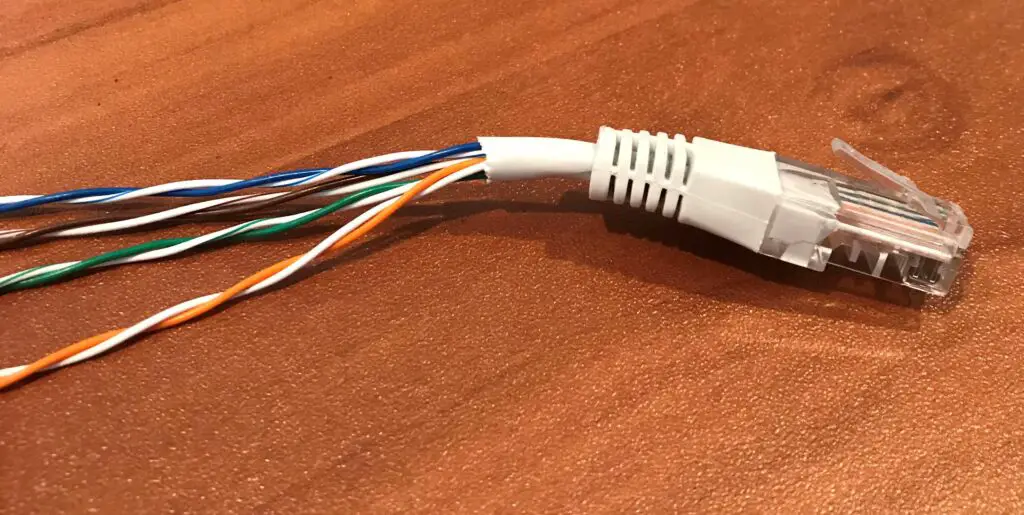
    5. Untwist the exposed pairs of twisted wires
    6. Line up the untwisted wires into one of the standard ethernet cable pinout configurations
    7. Cut the aligned wires so they are all the same length
    8. Insert the wires into the end of an ethernet cable connector
    9. Use a crimping tool to crimp the wires inside the ethernet cable connector
    10. Test the cable to make sure it works properly

    There you have it. That’s all you need to do if you want to create your own ethernet cables.

    In this post, I’ll provide more detail about the high-level steps above, as well as everything you’ll need to crimp your ethernet cables.

    What is crimping?

    Before we get into how to crimp ethernet cables, let’s make sure we have an understanding of what crimping is.

    Crimping is the process of terminating the wires inside an ethernet cable with a connector. These connectors are called RJ45 connectors.

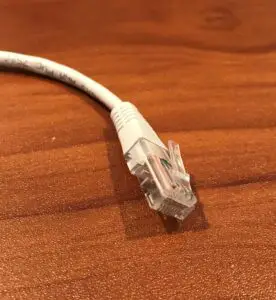
    Despite their confusing name, I’m sure you’ve seen them before:
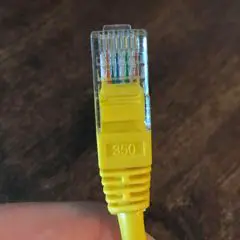
    RJ45 Connector

    RJ45 connectors allow you to connect your ethernet cable into an ethernet port on one of your devices.

    Essentially, crimping is a fancy term for putting an RJ45 connector on an ethernet cable. It may sound easy, but the process actually requires a little attention to detail.

    I’ll detail all about that later.

    Why you need to crimp ethernet cables

    Ok so now we’re on the same page about what crimping means.

    Let’s talk about why you’d want to crimp an ethernet cable in the first place.

    There are a few reasons why you’d want to crimp your cables. You either:

    • Need to shorten one of your ethernet cables
    • Want to make your own cables
    • Want to replace the connector on a cable

    Chances are, at least one of these situations will be applicable to you at some point. In breaking down each of these scenarios, you’ll see that knowing how to crimp ethernet cables can come in pretty handy.

    You need to shorten an ethernet cable

    This is probably the most common situation for everyday home networks.

    We’ve all been there.

    You buy an ethernet cable and connect it to the two devices you need to connect. At this point you notice there’s a lot of slack in the cable.

    Maybe this is a tripping hazard, or maybe it just makes your home look disorganized.

    You have a few options here.

    One option is to buy a cable tie to keep the excess cable neatly coiled. The other option is to shorten the cable so there’s less excess between your two devices.

    That’s where crimping comes in.

    If you crimp the ethernet cable and make it shorter, you won’t have any excess cable. It’ll look much neater as well.

    You want to make your own cables

    It’s not uncommon for people to make their own ethernet cables. Especially if they’re going to use a lot of them in their home.

    Some people even buy long coils of ethernet cable and wire an ethernet jack in each room in their home. This is usually what you’ll find in offices as well.

    You really can’t fault them either, because there are benefits to using ethernet cables instead of WiFi to connect devices.

    If you need really long ethernet cables, or you just need a lot of them, you can save a lot of money making your own cables. That’s because buying ethernet cable in bulk is much cheaper than buying individual cables.

    It also gives you the flexibility of making cables that’re exactly the length you need.

    You want to replace a connector of a cable

    This is another situation I’m sure you’ve seen before.

    Have you ever had a tab break off of one of the RJ45 connectors on your ethernet cable?

    It ranks as one of the most annoying things in the world.

    One minute the connector on your cable looks like this:
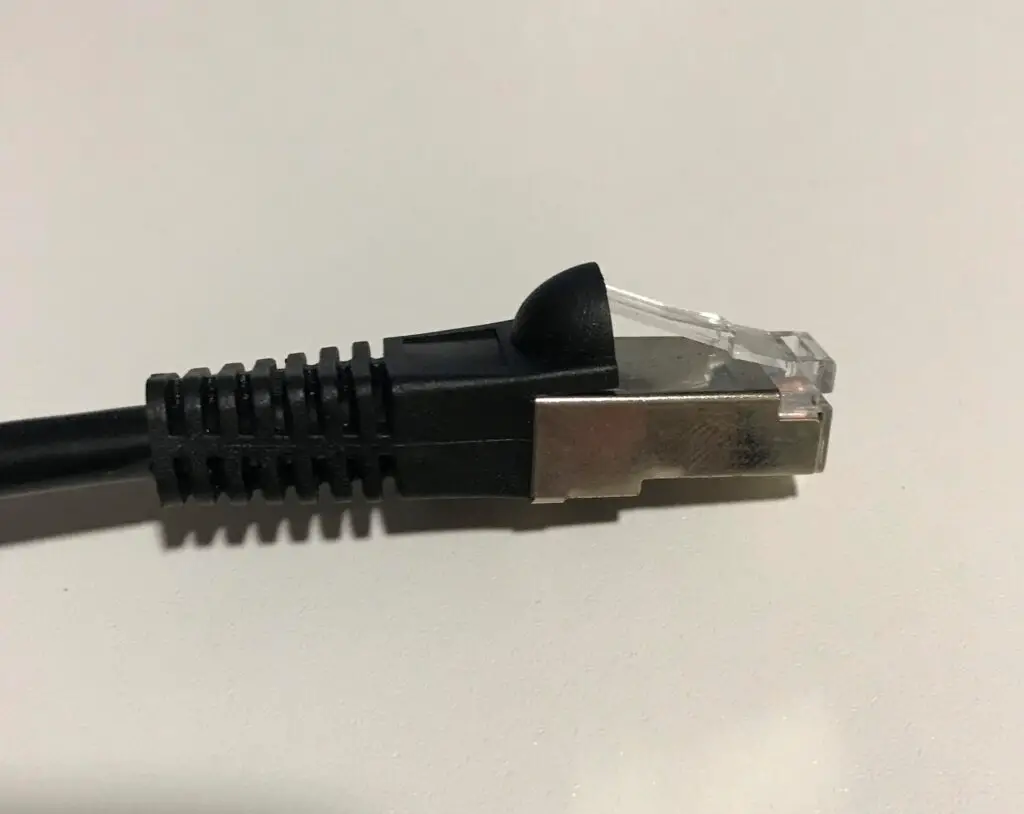
    Ethernet cable with tab

    The next thing you know, it looks like this:
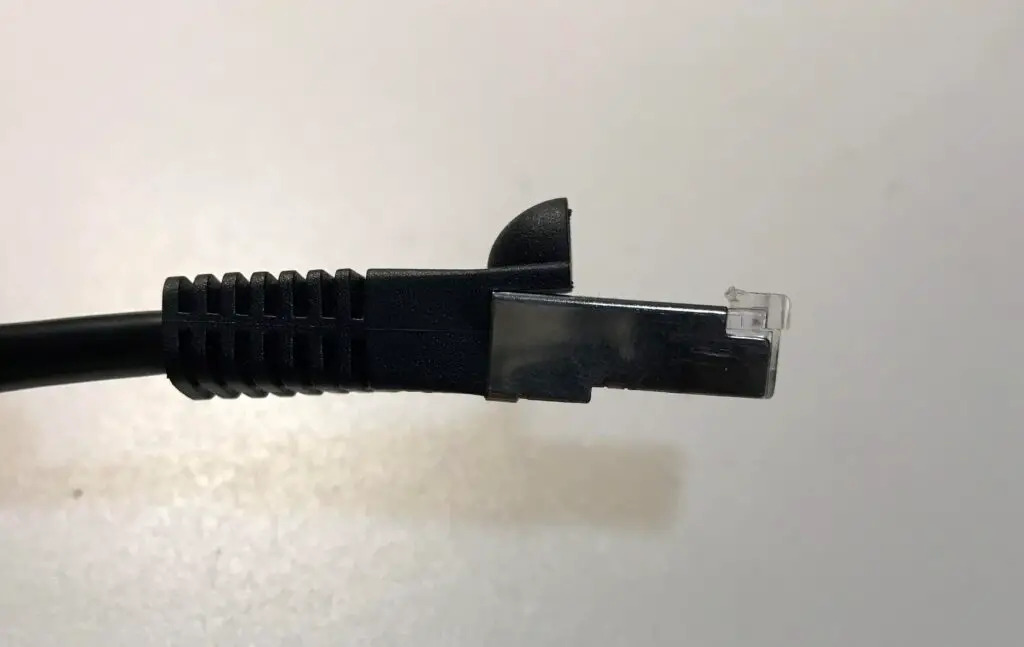
    Ethernet cable without tab

    When a tab breaks off a cable connector, it’ll constantly fall out of the device it’s plugged in to. Many people go and buy a brand new cable when this happens.

    You won’t have to do that if you know how to crimp your own cables.

    By crimping the cable, you can replace the connector with a brand new RJ45 connector. The bonus here is it only takes a few minutes.

    Much better than having to go out and buy an entirely new cable. Or worse yet, struggle to get by with an ethernet cable with a broken tab.

    What you need to crimp ethernet cables

    Ok, let’s say you want to crimp some of your ethernet cables.

    Where do you start?

    The first thing you should do is make sure you have the right equipment.

    The most important piece of equipment you’ll need is a cable crimping tool, which looks like this:
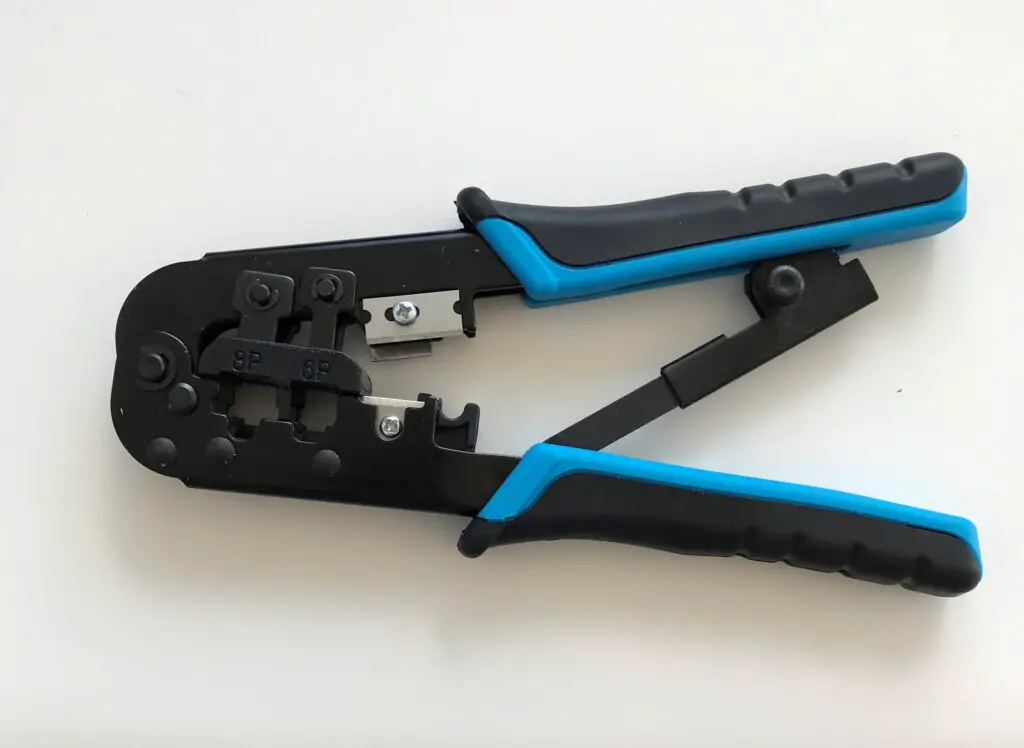
    Ethernet cable crimping tool

    You can find these online and in many electronics stores. The catch here is that you’ll probably need more than just a crimping tool if you’re going to crimp your own cables.

    The good news is that there’s an easy solution for this.

    To get everything you need, you can buy a crimping kit. A lot of crimping kits will include:

    • A crimping tool
    • An ethernet cable stripping tool
    • Ethernet cable boots
    • RJ45 connectors
    • An ethernet cable testing device

    Let’s look at each of these items in a little more detail to explain why they’ll be useful when crimping ethernet cables.

    Crimping tool

    As I mentioned, a crimping tool is essential if you want to quickly and reliably crimp your cables.

    Crimping tools are used to attach the wires inside an ethernet cable to an RJ45 connector. They’re very easy to use once you know how to order the wires correctly (which we’ll get to later).

    If you have a small number of cables to crimp, it’s possible to use a screwdriver instead of a crimping tool to attach the RJ45 connector to the wires in the cable. I would advise against this, however, because using a screwdriver is much slower and less effective than using a crimping tool.

    On top of that, you don’t know how many cables you’ll have to crimp in the future.

    Trust me, you’ll be much happier with a crimping tool. Even if you don’t want to buy a complete crimping kit, I suggest you at least pick up a crimping tool.

    Ethernet cable stripping tool

    An ethernet cable stripping tool is also very handy to have.

    Here’s what they look like:
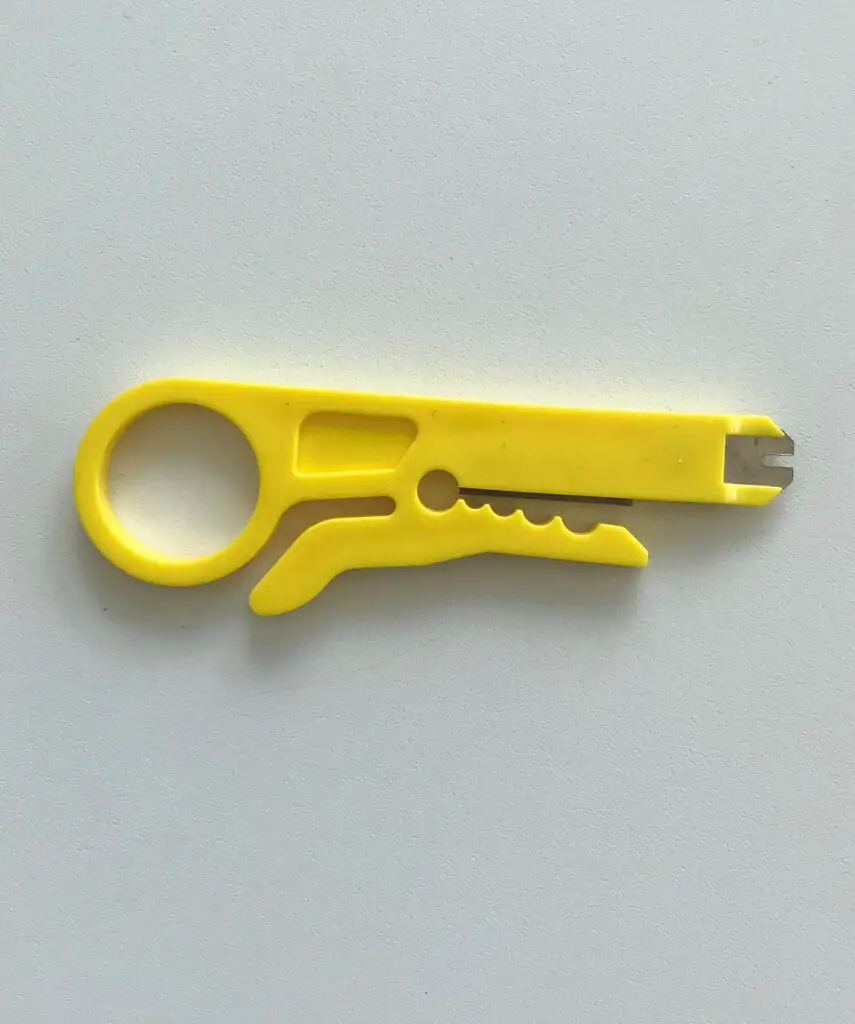
    Ethernet cable stripping tool

    As you may have guessed, ethernet cable stripping tools are used to remove the sheath of an ethernet cable. You can use other tools to cut the sheath off an ethernet cable, but if you’re not careful you can damage the wires inside it.

    The last thing you want to do is damage the wires in the cable, because then the cable won’t work properly.

    With a stripping tool, you can quickly and easily strip the sheath off of a cable without having to worry about damaging the wires inside it.

    You’ll need to do this when crimping your cables, because you need access to the wires in the cable in order to attach them to an RJ45 connector. If you’d like, you can buy these separately from an ethernet cable crimping kit.

    Ethernet cable boots

    Although they aren’t mandatory, ethernet cable boots are good insurance for your ethernet cables.

    I’m sure you’ve seen these before, as they’re pretty common on ethernet cables.
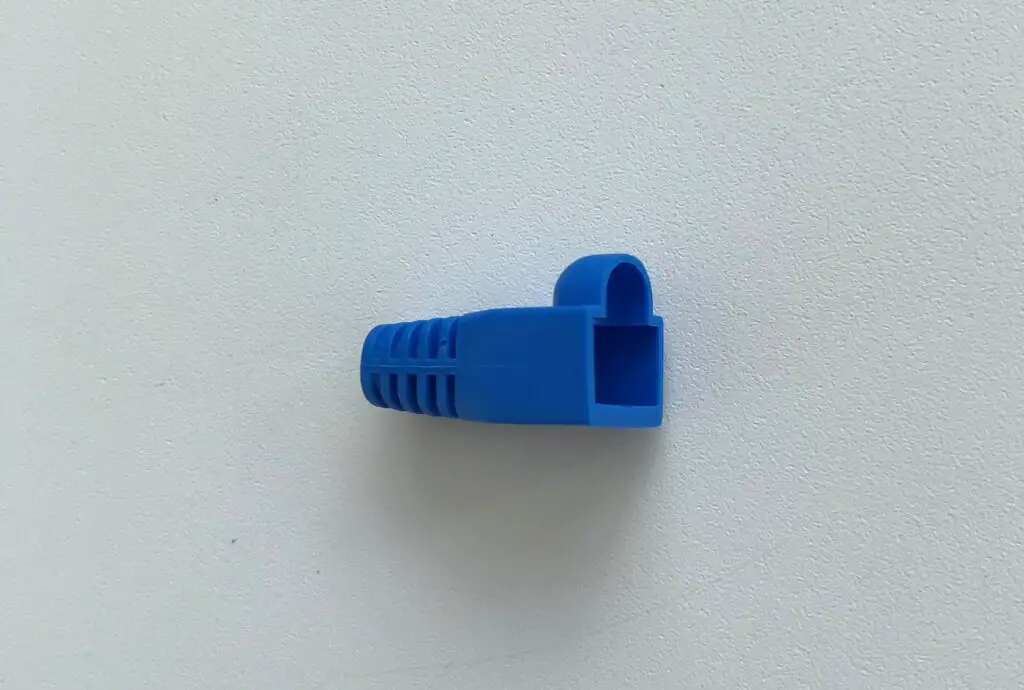
    Ethernet cable boot

    The purpose of ethernet cable boots is to protect the tab on the RJ45 connector.

    When an ethernet cable has a boot on it, it prevents the tab of the RJ45 connector from snagging on something. If the tab of an RJ45 connector gets broken off, it’ll be much harder to keep the cable connected to the device it’s plugged in to.

    As you can see, the boot provides a protective housing over the tab of the connector.
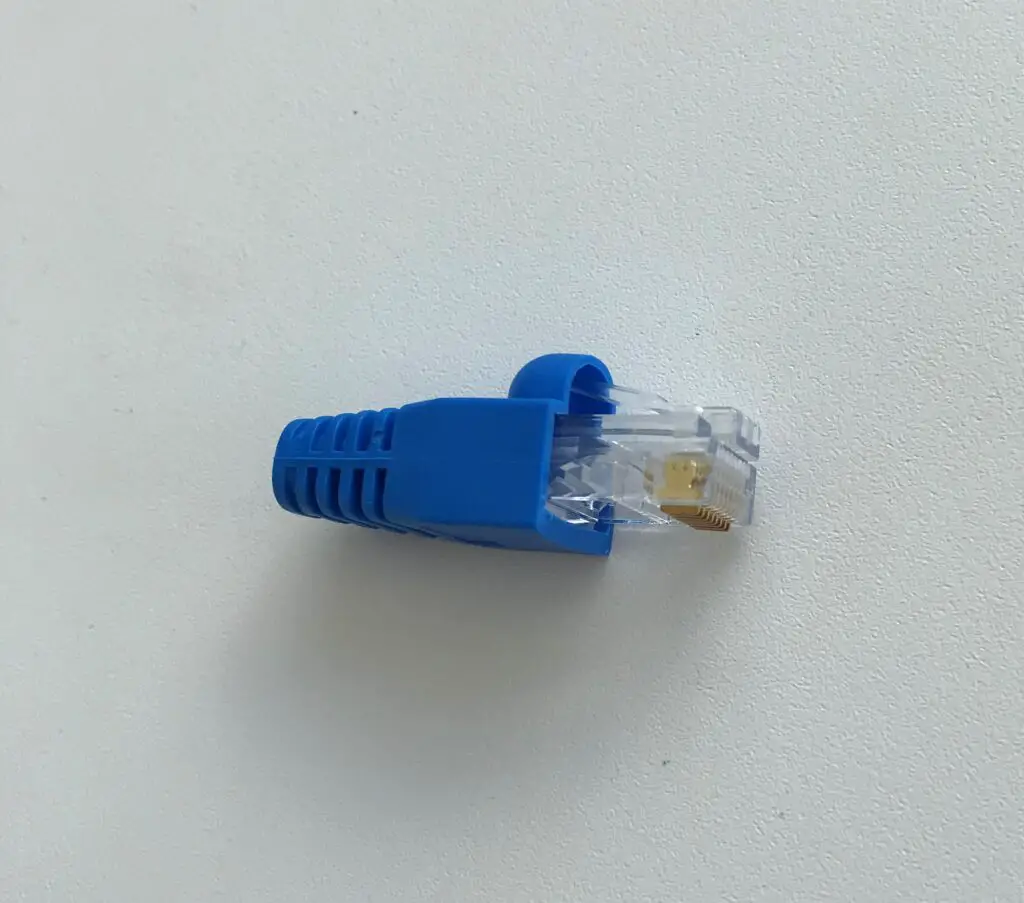
    RJ45 connector with boot

    Again, you don’t need to use these on your ethernet cables if you don’t want to.

    With that being said, if the tab on one of your RJ45 connectors breaks off, you’ll wish you had a boot on it. You can buy these separately if you don’t want everything that comes in a crimping kit.

    RJ45 connectors

    RJ45 connectors are pretty self-explanatory.
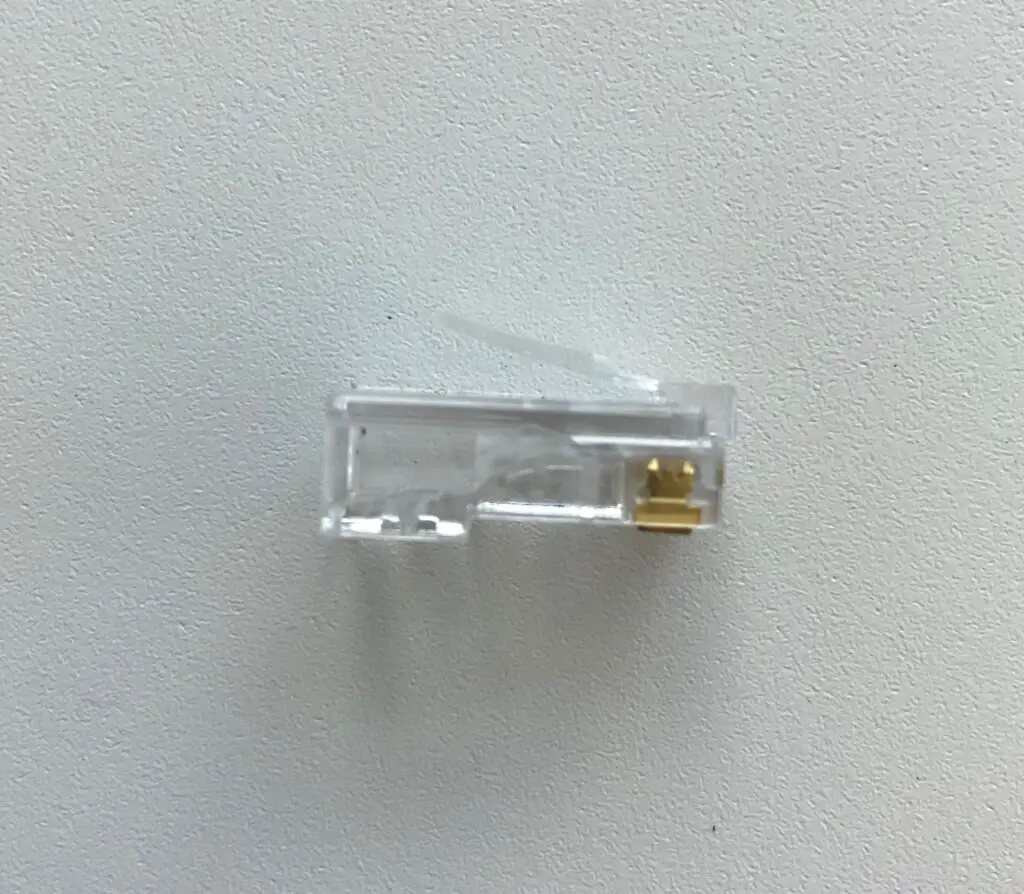
    RJ45-connector-side-view

    The bottom line is that you can’t have a working ethernet cable without RJ45 connectors on each end.

    It’s very helpful to have some spare connectors on hand at all times. You never know when you’ll need to crimp a cable or replace a connector.

    Ethernet cable testing device

    When you’ve finished crimping an ethernet cable, you want to be able to check your work.

    That’s why ethernet cable testing devices are so helpful.

    Here’s an example of what they look like:
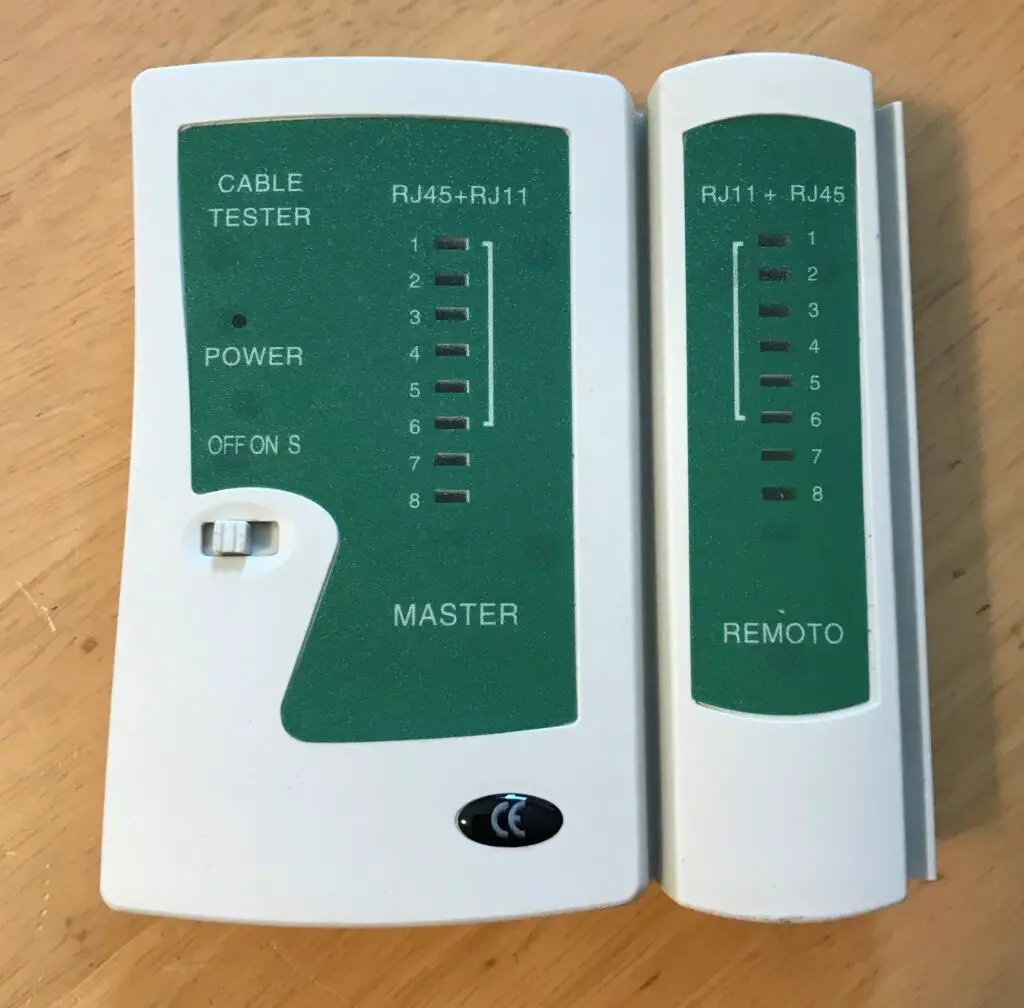
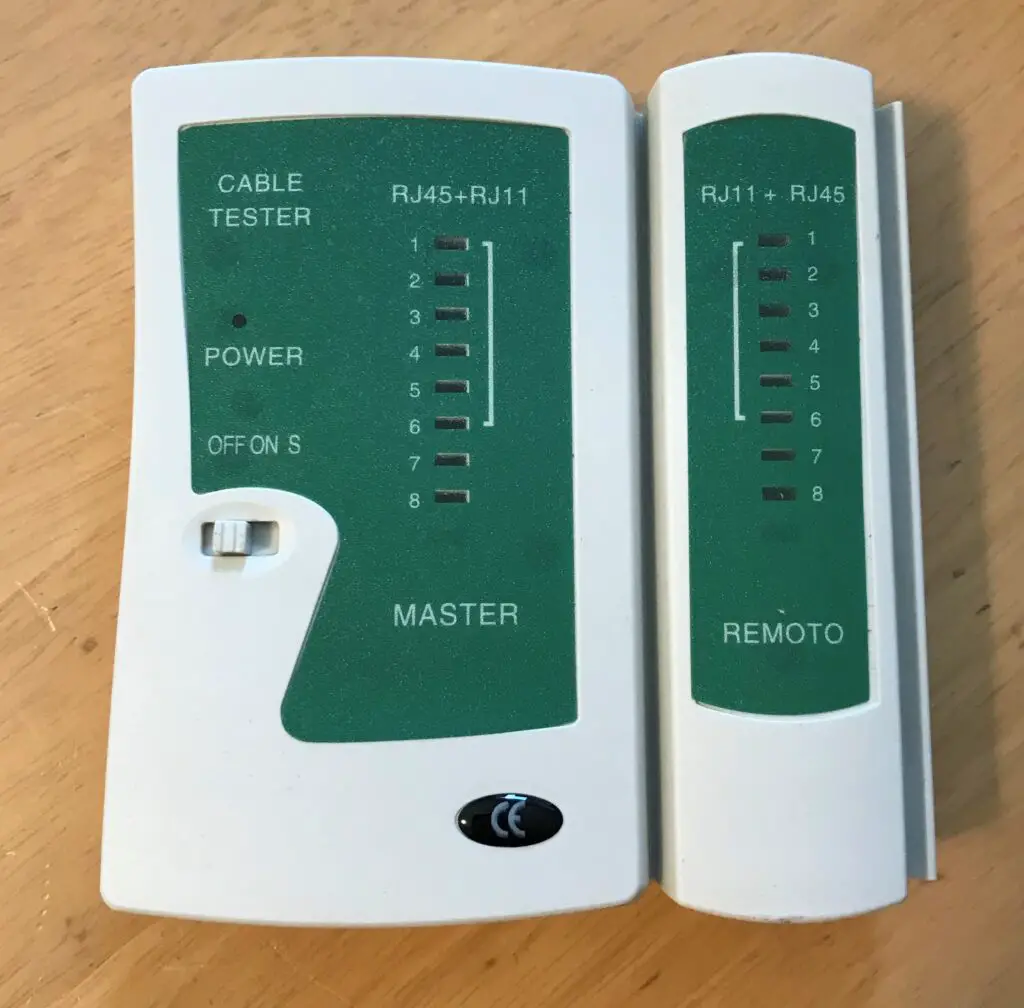
    Ethernet cable tester

    An ethernet cable testing device will tell you if a cable is working properly. In other words, it’ll tell you if you correctly crimped your cable.

    These devices are also handy because you can use them to troubleshoot if you think one of your ethernet cables has gone bad.

    I recommend one of these devices for anyone who uses multiple ethernet cables in their home network. You can also buy them separately if you don’t want the other items that come in a crimping kit.

    How to crimp ethernet cables

    Ok, now you have everything you need to get started crimping some cables.

    I’d recommend gathering all the items you need to crimp an ethernet cable so you can complete the process without getting interrupted.

    Let’s get started.

    1. Identify the length of cable you need

    Like most things in life, preparation is key. Before you start chopping up your cables with reckless abandon, there are some things you need to consider first.

    One question you need to ask yourself is: how long do I want my ethernet cable to be?

    If you’re just replacing an RJ45 connector on an ethernet cable, this is a simple question. You don’t need to worry about changing the length of the cable.

    It’s a little bit different if you’re making your own cables, however.

    You’ll want to make sure you take a measurement of the length of cable you need.

    2. Cut the ethernet cable a few inches longer than you need

    Once you’ve identified the length of cable you need, you’re ready to cut the cable.

    The key here is that you’ll want to add a few inches to the length of the cable when you’re cutting it. This gives you a little extra length to work with when you’re adding the RJ45 connector to the cable.

    As you’ll see, you’ll lose a few inches of the cable when you’re preparing to attach the RJ45 connector.

    If you have to add an RJ45 connector to both ends of the cable, you should cut the cable even longer. You’ll want to give yourself even more room to work with.

    Cutting the cable longer than you need has multiple benefits. It ensures the cable is long enough after you’ve attached the connectors to it. It also gives you room for error in case you make some mistakes and have to crimp the cable multiple times.

    When you’re ready, I recommend you cut the cable with your crimping tool if you have one. It should come with a blade on it that’s made specifically for cutting ethernet cables.
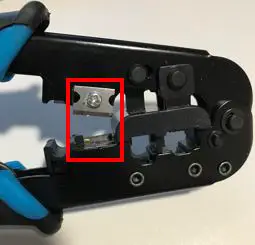
    Crimping tool cable cutter

    If you don’t have a crimping tool with a cutter on it, you can use a pair of scissors. You just want to make sure the cut is even across the cable.

    3. Expose more than 1 inch of wires at the end of the cable

    Ok, you’ve gone ahead and cut the cable.

    The end of the cable should now look like this:
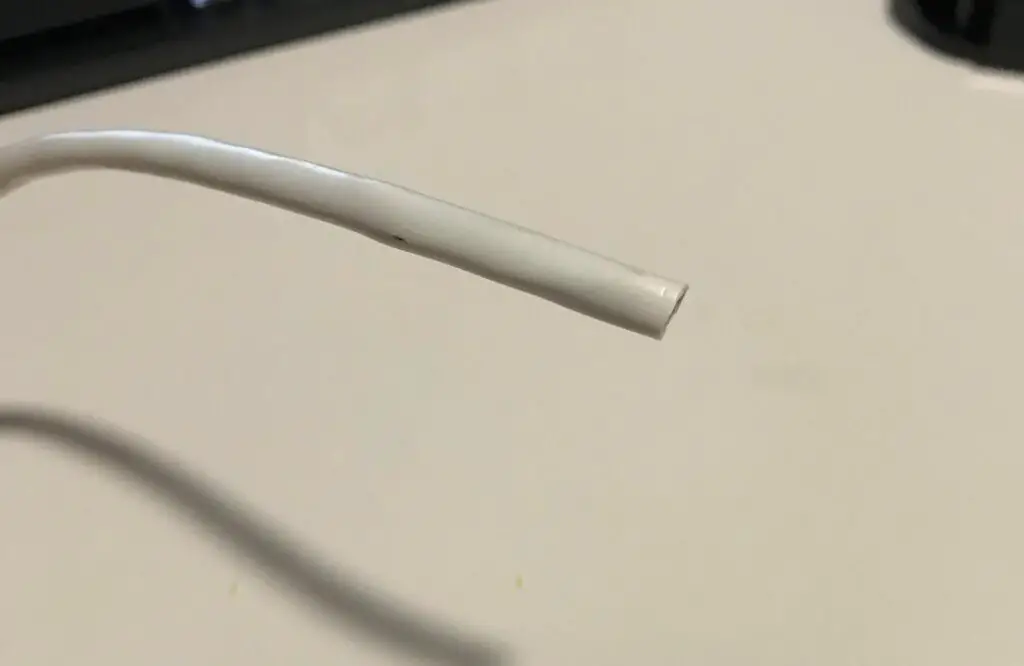
    Ethernet cable after cutting

    In order to attach an RJ45 connector to your ethernet cable, you’ll need to be able to access the wires inside it. That’s the next thing we need to take care of.

    This is where our ethernet cable stripping tool comes in handy. It’ll remove the sheath from the cable without damaging the wires inside it.

    How to use the stripping tool

    The first thing to do is identify at what point you want to strip the sheath from the cable.

    I recommend you remove more than an inch of the cable’s outer layer. This’ll give you more room to work with when preparing to insert the wires into a connector.

    To remove the outer layer of the cable, press down on the lever at the top of the stripping tool and insert the cable into the notch that it fits in. Once the cable is in place, release the lever at the top of the stripping tool to lock the cable in place.

    Make sure the blade on the stripping tool is at the location on the cable from where you want to strip the sheath off of it.

    At this point, the cable and stripping tool should look like this:
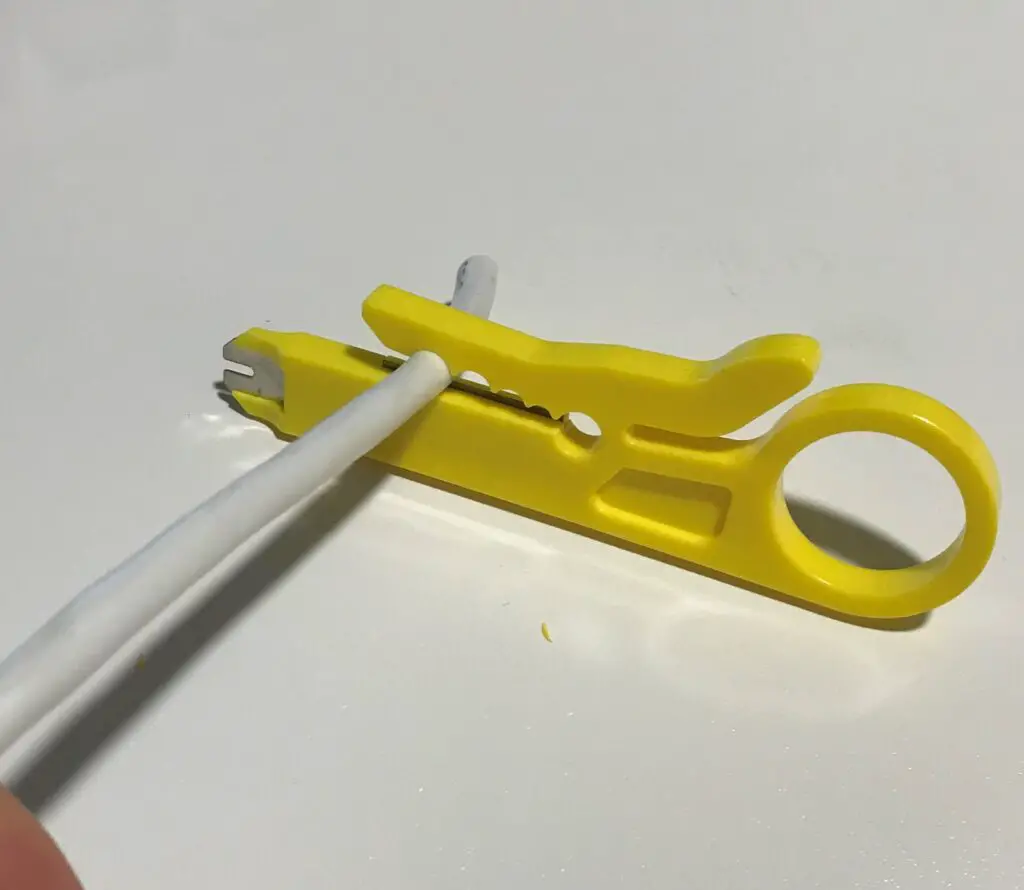
    Ethernet cable stripping tool with ethernet cable

    Now that everything is in place, you’re ready to cut the sheath.

    Stick a finger into the circular part of the stripping tool and rotate the tool in a circular motion all the way around the cable.

    Once the outer layer of the cable has been cut all the way around, you can unclip the cable from the stripping device and remove the sheath. This’ll expose the wires inside the cable.

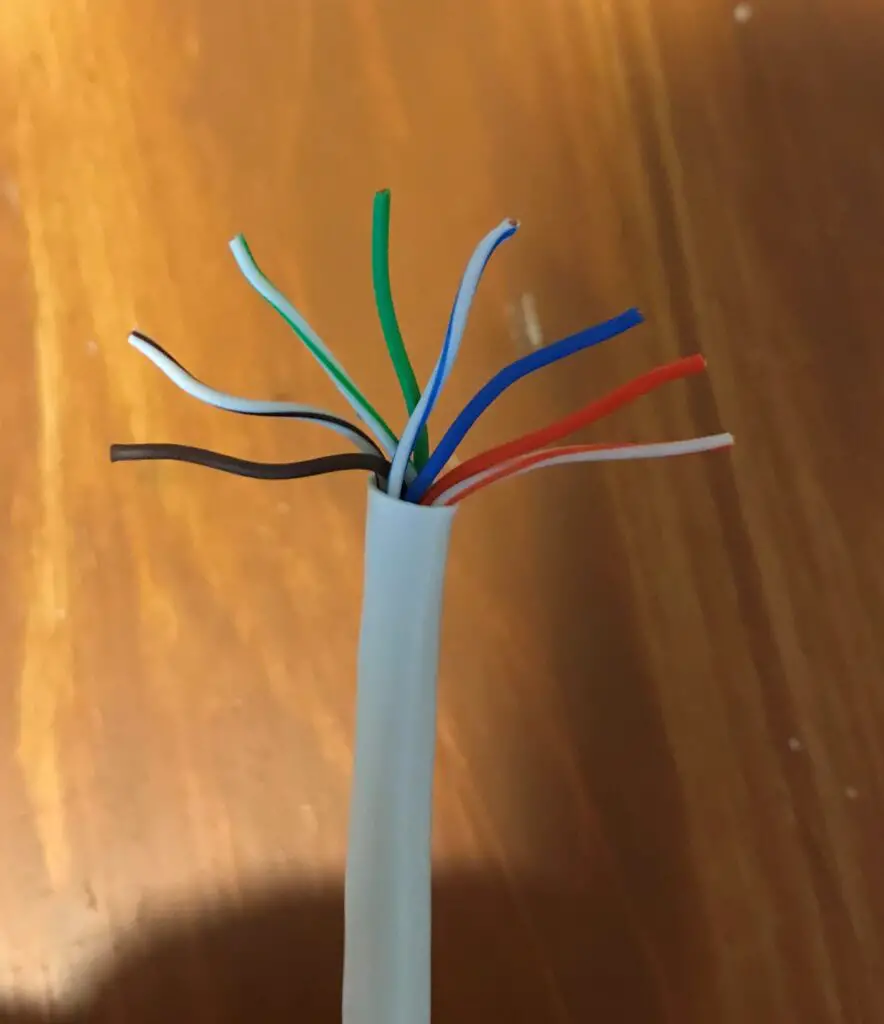
    It should look something like this:
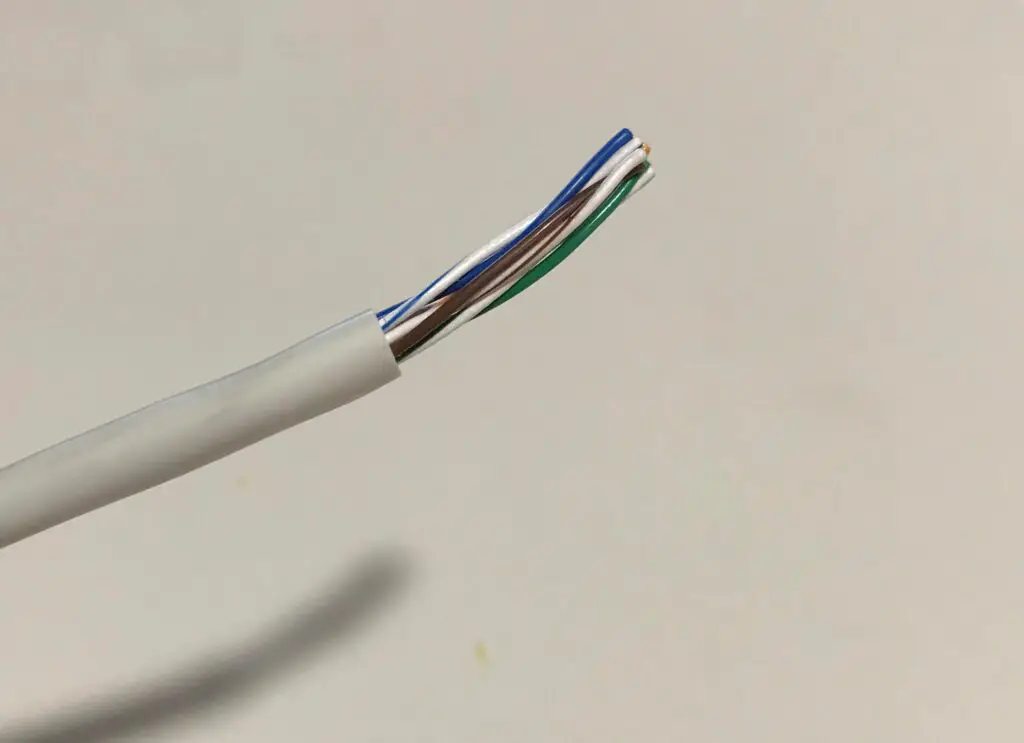
    Ethernet cable with sheath removed

    As a reminder, make sure you have more than an inch of exposed wires to work with.

    Ok, let’s move to the next step.

    4. Put a boot on the ethernet cable

    If you’re going to put a boot on your cable to protect the RJ45 connector, now’s a good time to do it.

    I’ve made this mistake too many times. Once the RJ45 connector is on the cable, you can’t put the boot on. It won’t slide over the connector.

    It’s best to put the boot on now before things get complicated.

    Feel free to slide the boot far down the cable so it’s out of your way. Here’s a good example of what I’m talking about.
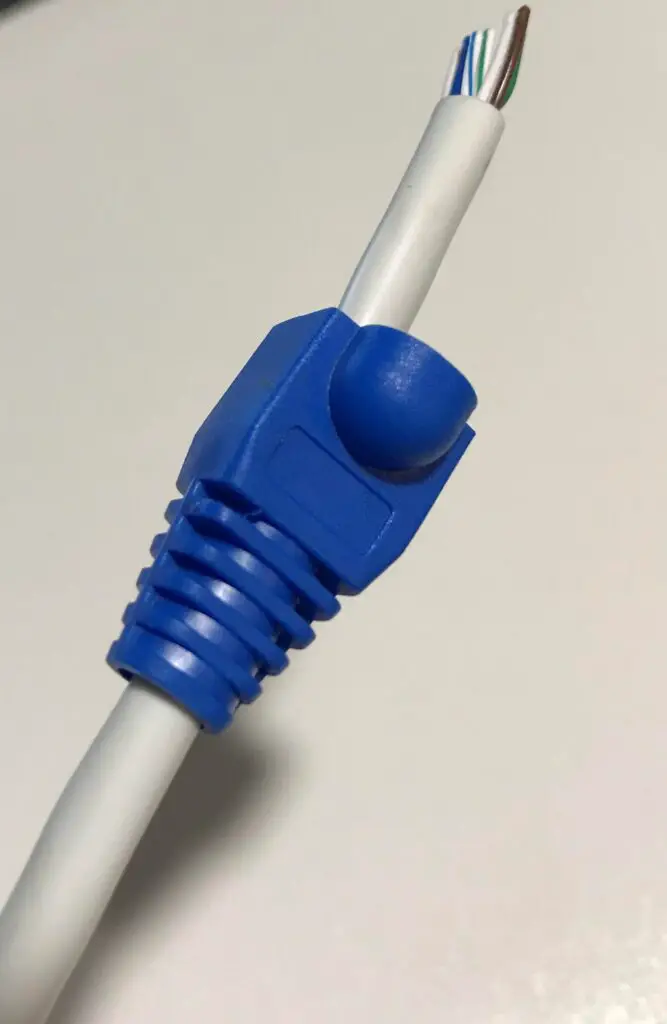
    Boot on ethernet cable

    By adding the boot now, it makes things easy once the connector has been attached to the cable. All you have to do is slide it up and over the tab of the connector.

    Keep in mind that you don’t have to use boots on your cables. They just serve as a layer of protection so the tabs on the RJ45 connectors don’t break.

    5. Untwist the exposed pairs of wires

    This next step is pretty easy.

    Take a look at the wires you exposed with the stripping tool. Hopefully you’ll notice that the wires are twisted in pairs of two inside the cable. In total, you should have 4 pairs of twisted wires.

    Go ahead and separate these pairs of twisted wires so you can clearly see the 4 pairs.
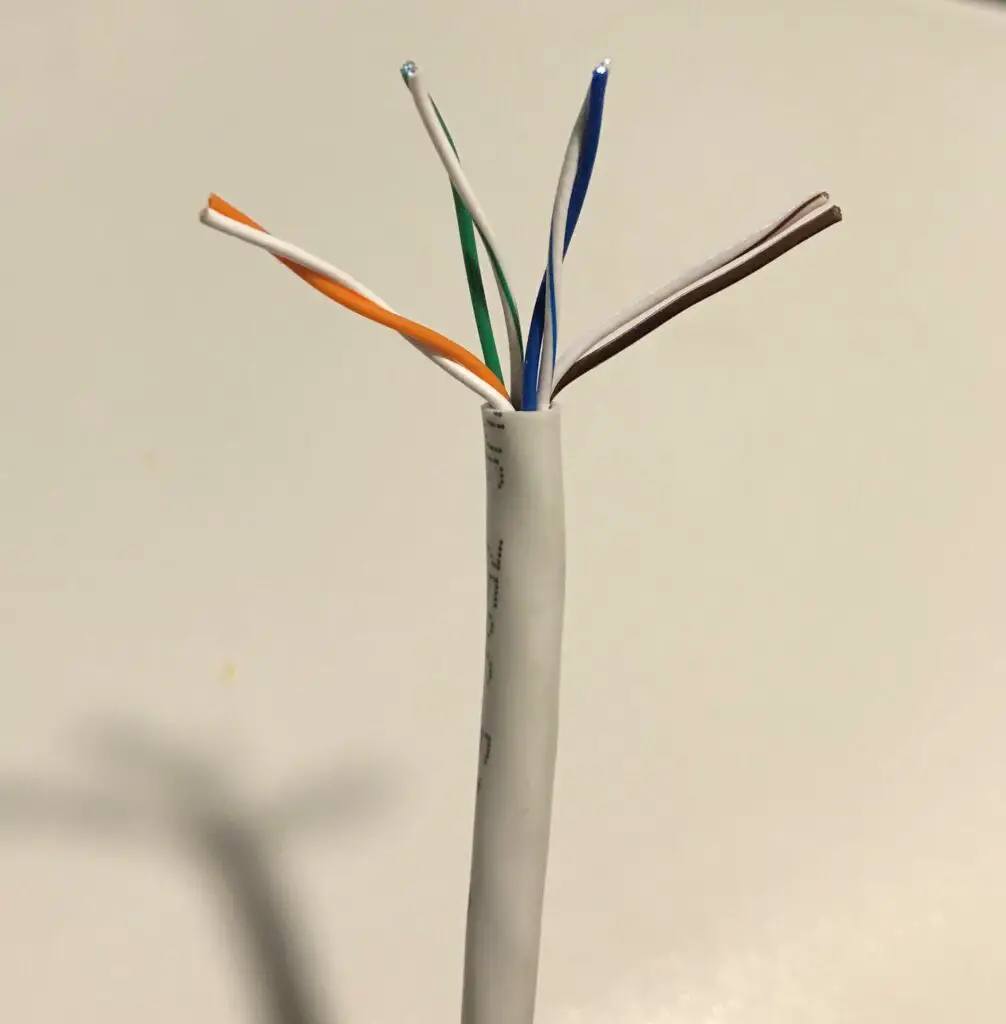
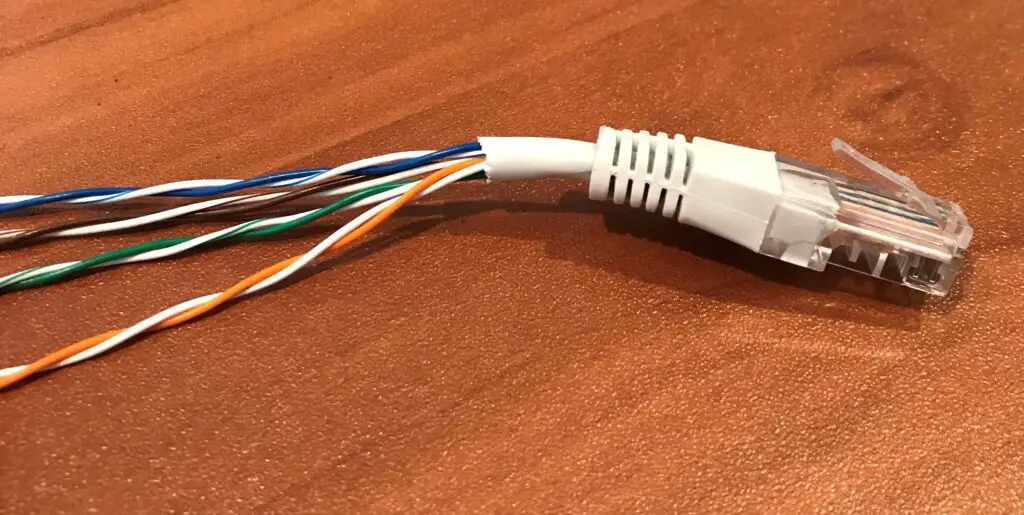
    Twisted wires inside ethernet cable

    Now that you have the 4 pairs of twisted wires separated, go ahead and untwist them.

    For the next step, you’ll want all the wires separated like the picture below.
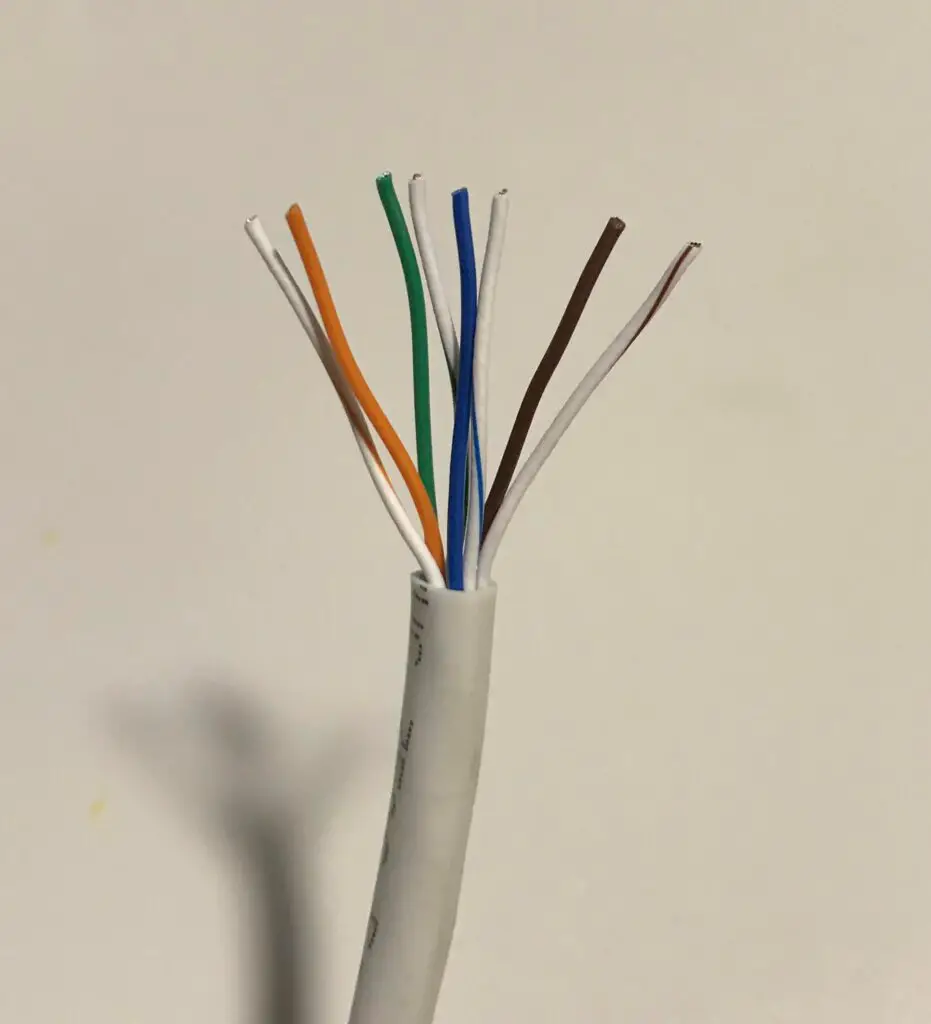
    Untwisted wires inside ethernet cable

    6. Order the wires in a standard ethernet cable pinout configuration

    This next part is where it can start to get a little tricky.

    Now that you’ve separated the wires, you need to line them up in a certain order.

    There are two possible ways to line up the wires. These are called pinout configurations.

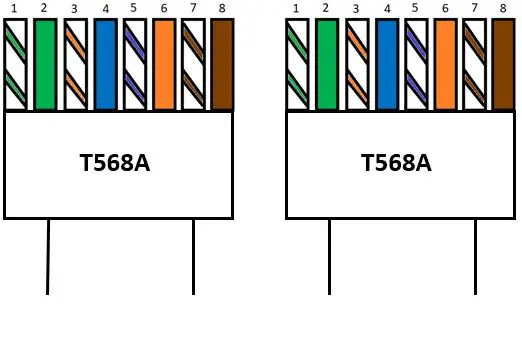
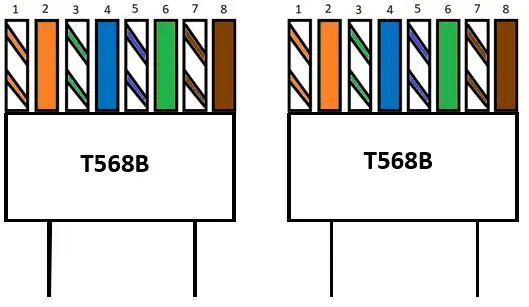
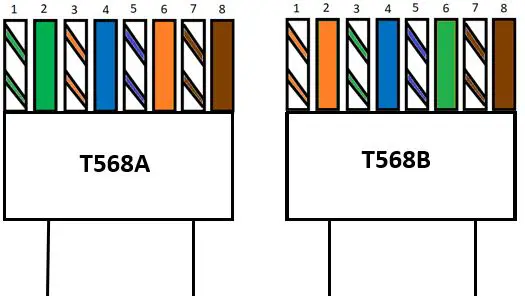
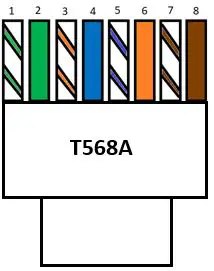
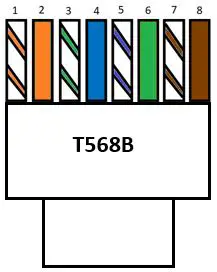
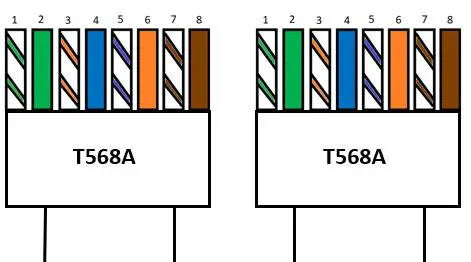
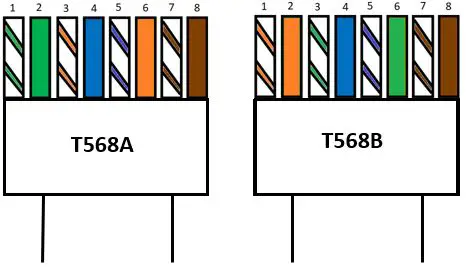
    The two different pinout configurations are called T-568A and T-568B. Here’s the order of the wires in each configuration:
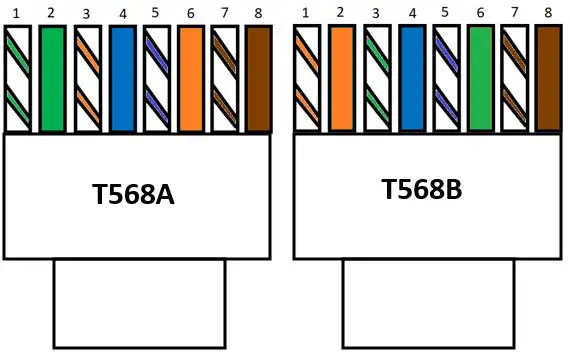
    Ethernet cable pinout configuration options

    Due to advancements in ethernet cable technology, you can pick the pinout configuration you want to use. The cable will work regardless of the pinout configuration.

    With that said, if you’ll be adding a connector to each end of the cable, I recommend using the same pinout configuration at each end.

    If you want to follow the crowd here, most ethernet cables I’ve come across have a T-568B configuration.

    Go ahead and pick a pinout configuration and get the wires lined up next to each other.

    7. Cut the untwisted wires so they are all the same length

    Once all your wires are lined up in a pinout configuration, your cable will probably look like this:
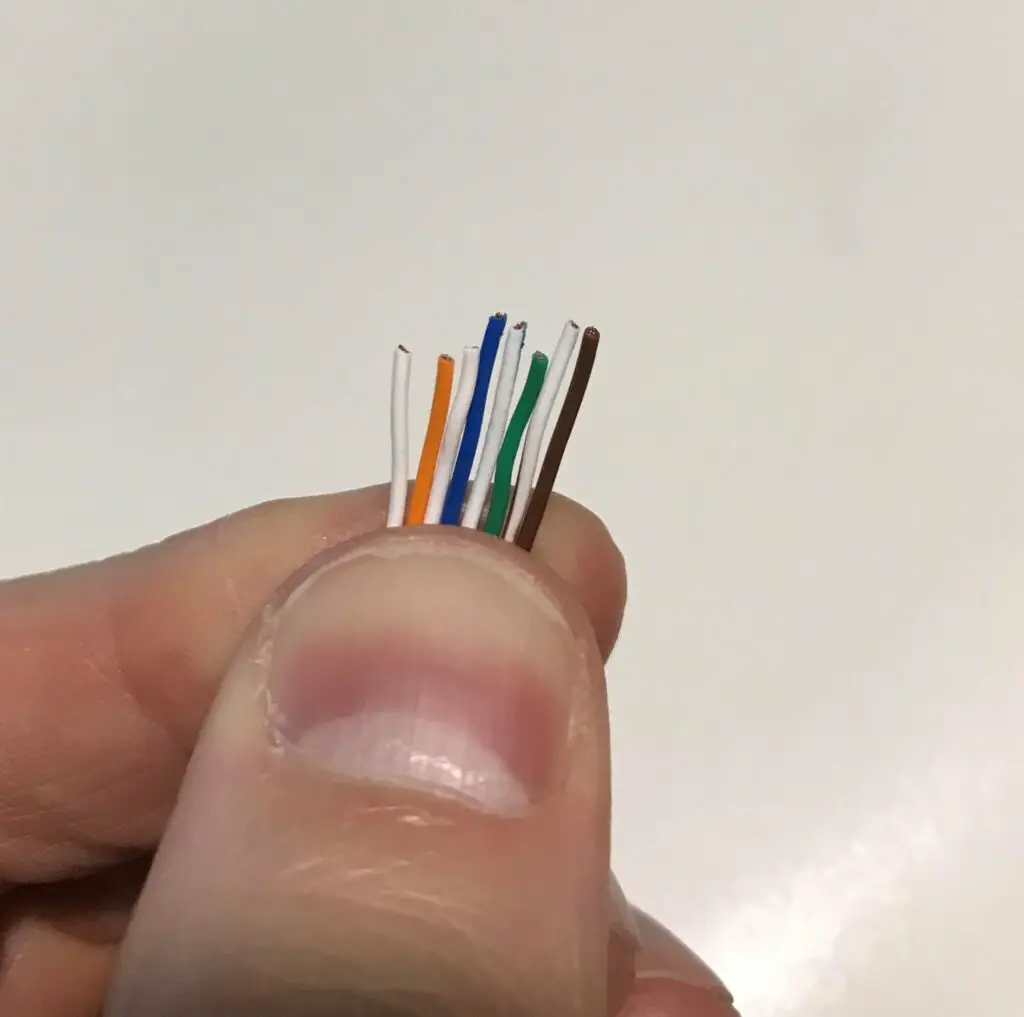
    Ethernet cable wires uneven length

    As you can see, the wires are not all the same length.

    To get a good fit with the RJ45 connector that goes on the end of the cable, you’re going to want the wires to be the same length.

    Here we can use our trusty crimping tool to even the wires out. Once again, if you’re in a pinch you can probably get away with using scissors to do this.

    After cutting the wires, they should all be the same length.
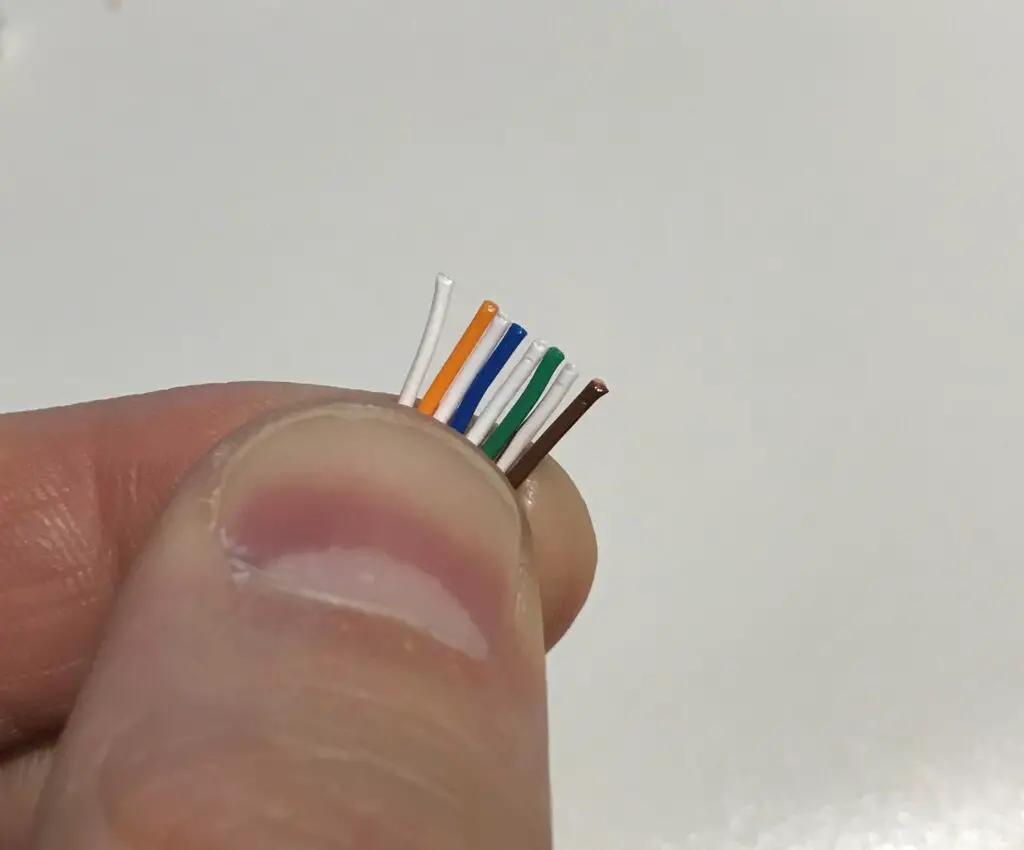
    Ethernet cable wires even length

    Just make sure you don’t cut the wires down too much. They still need to fit into the end of the connector when you attach it.

    8. Insert the wires into an ethernet cable connector

    After trimming the ends of the wires, make sure they stay in order. The ethernet cable won’t work if the cables aren’t in one of the standard pinout configurations.

    After ensuring the wires are still in order, you’re ready to insert the wires into an RJ45 connector.

    Carefully insert the wires into the connector. The tab of the connector should be on the side facing away from you when you do this. Insert the wires all the way into the connector until they reach the metallic pins at the end.

    At this point, it should look like this:
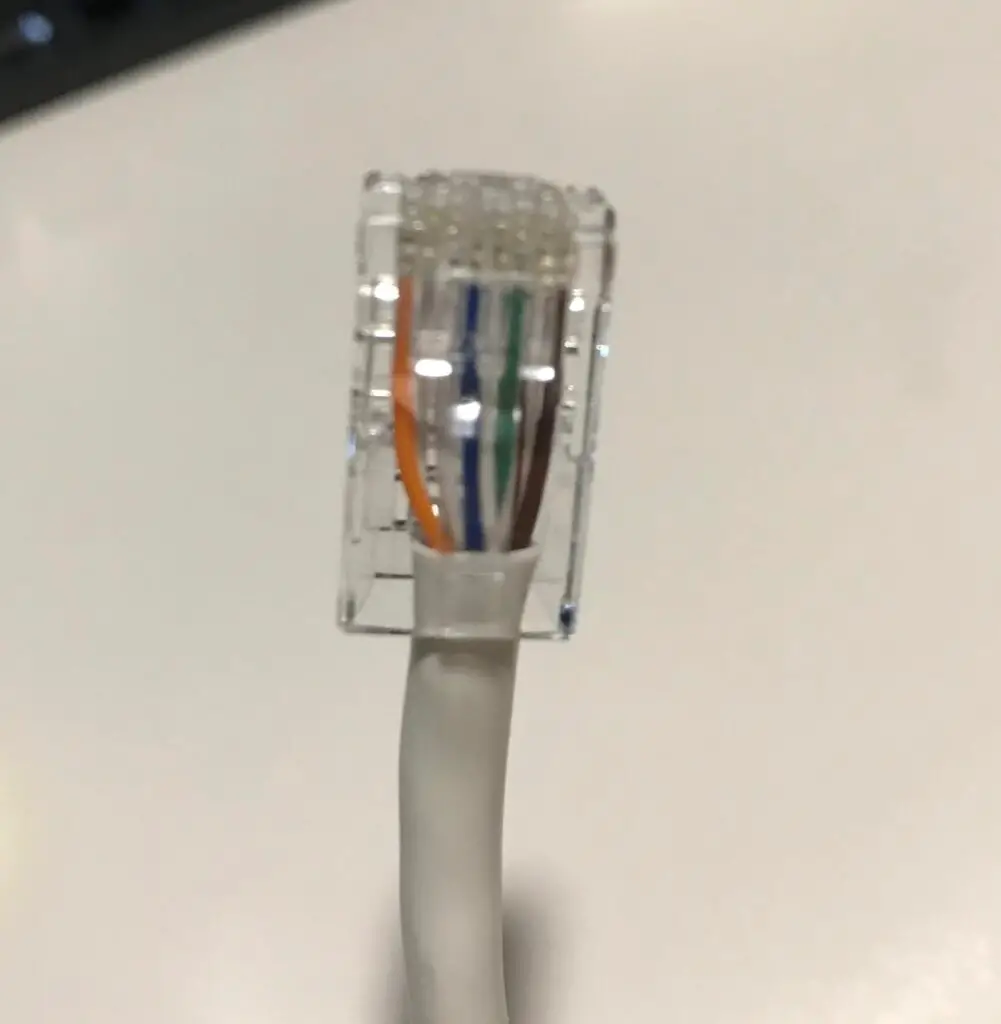
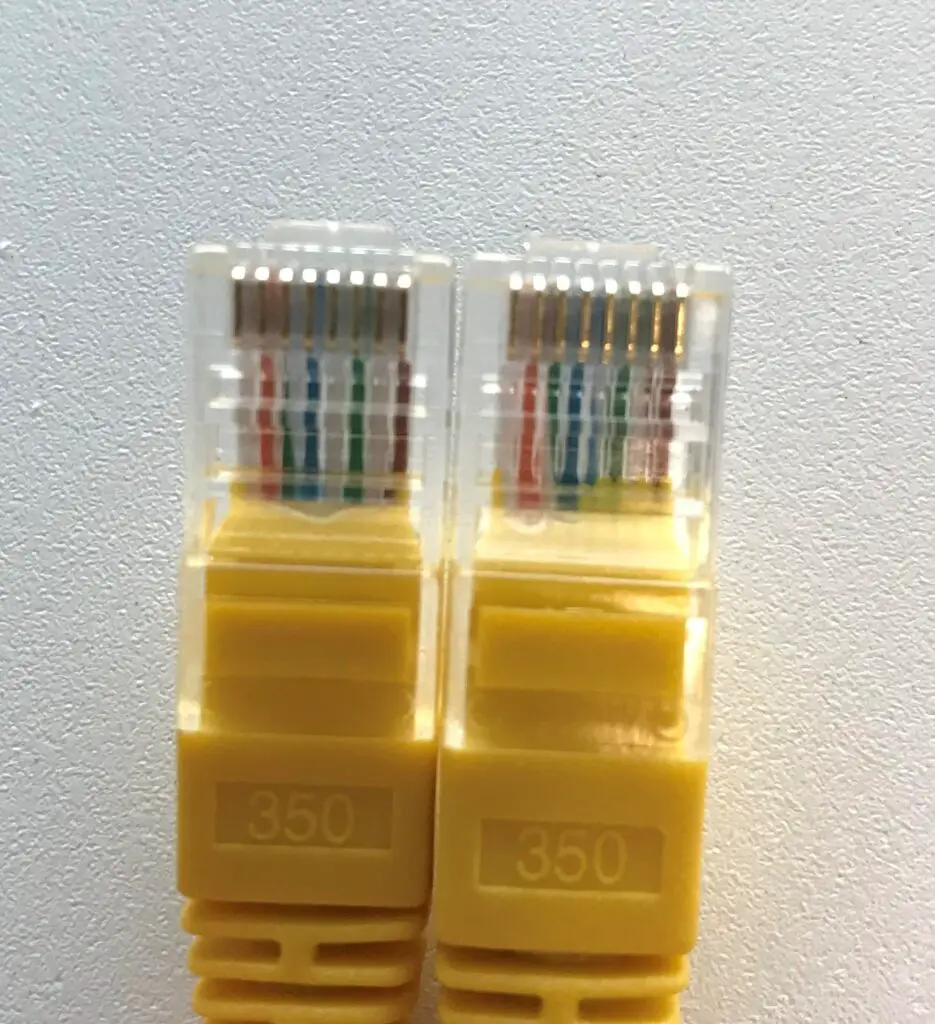
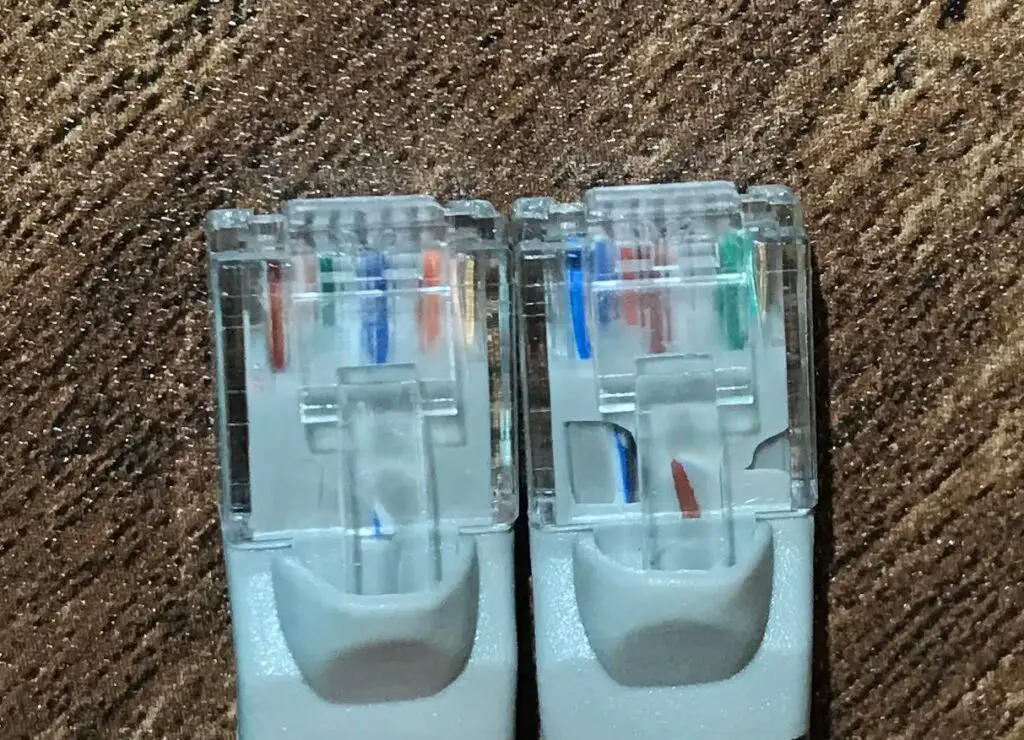
    Ethernet cable wires before crimping

    It’s very important that the wires of the cable reach the pins at the end of the connector.

    Unfortunately I’ve made the mistake of cutting the wires too short before. Here’s the evidence:
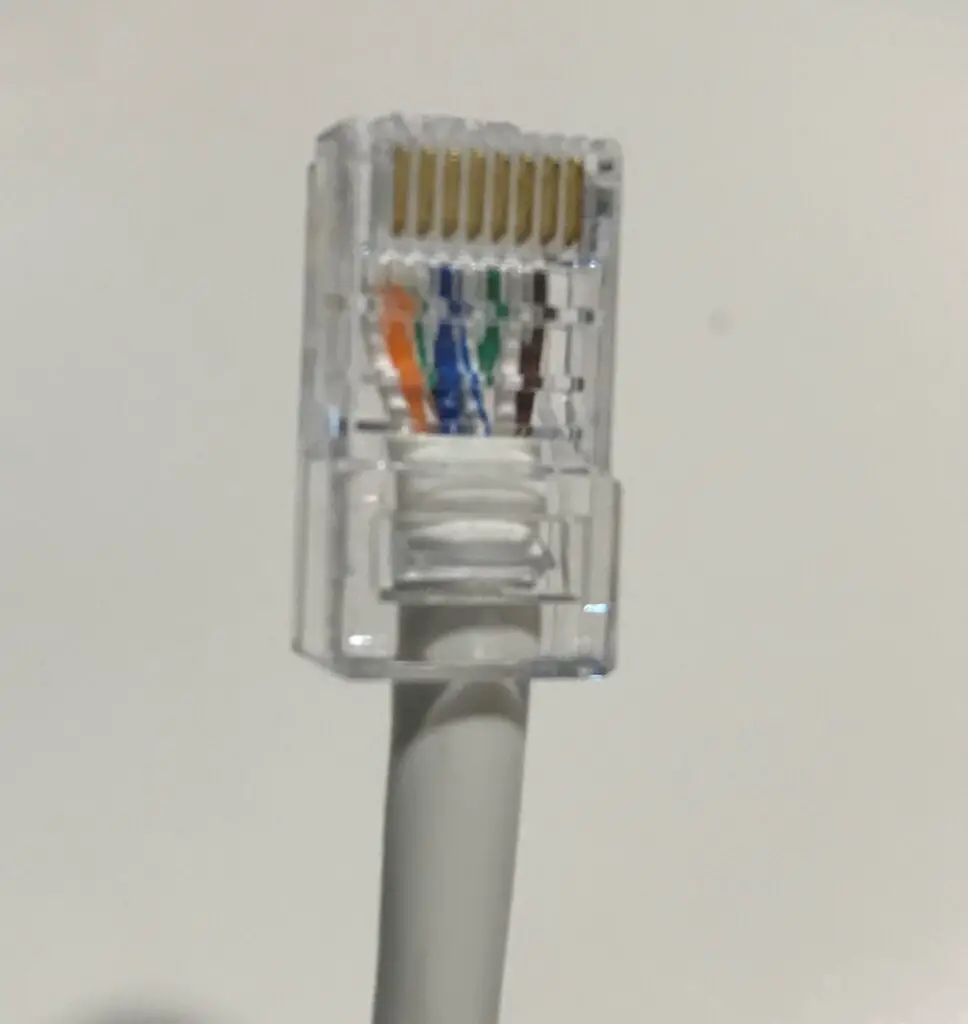
    Crimping with wires too short

    As you can see, the colored wires don’t reach the gold pins in the connector. When I tested the cable above with my ethernet cable tester, it indicated that the cable wasn’t working. It was at that time I realized my fatal mistake.

    Don’t let this happen to you.

    9. Crimp the wires inside the connector

    Now you’re ready to finish the cable. Make sure your crimping tool is on hand.

    Before your take any action, take a look at the side of your crimping tool. You should see two openings that’re labeled “8P” and “6P”.
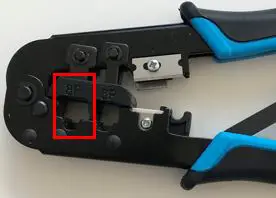
    Crimping tool 8 pin hole

    These openings are designed for crimping RJ45 connectors. The 8P refers to 8-pin connectors, while the 6P refers to 6-pin connectors.

    In this case, we’ll want to use the 8P opening because there are 8 pins (and 8 wires) in your RJ45 connectors. To prove this point, you can count the gold pins on an RJ45 connector.
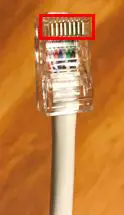
    8-pin ethernet connector

    See? There’ll be one pin for each wire inside the cable.

    For your information, the 6-pin opening on your crimping tool is for RJ11 connectors. RJ11 connectors are used in phone line connectors.

    Now that we’ve identified the 8-pin opening, we’re ready to crimp your ethernet cable.

    All you have to do is place the RJ45 connector into the 8P opening in your crimping tool. Make sure the connector is inserted all the way into the tool.

    Once it’s fully inserted, squeeze the handles of the crimping tool all the way.
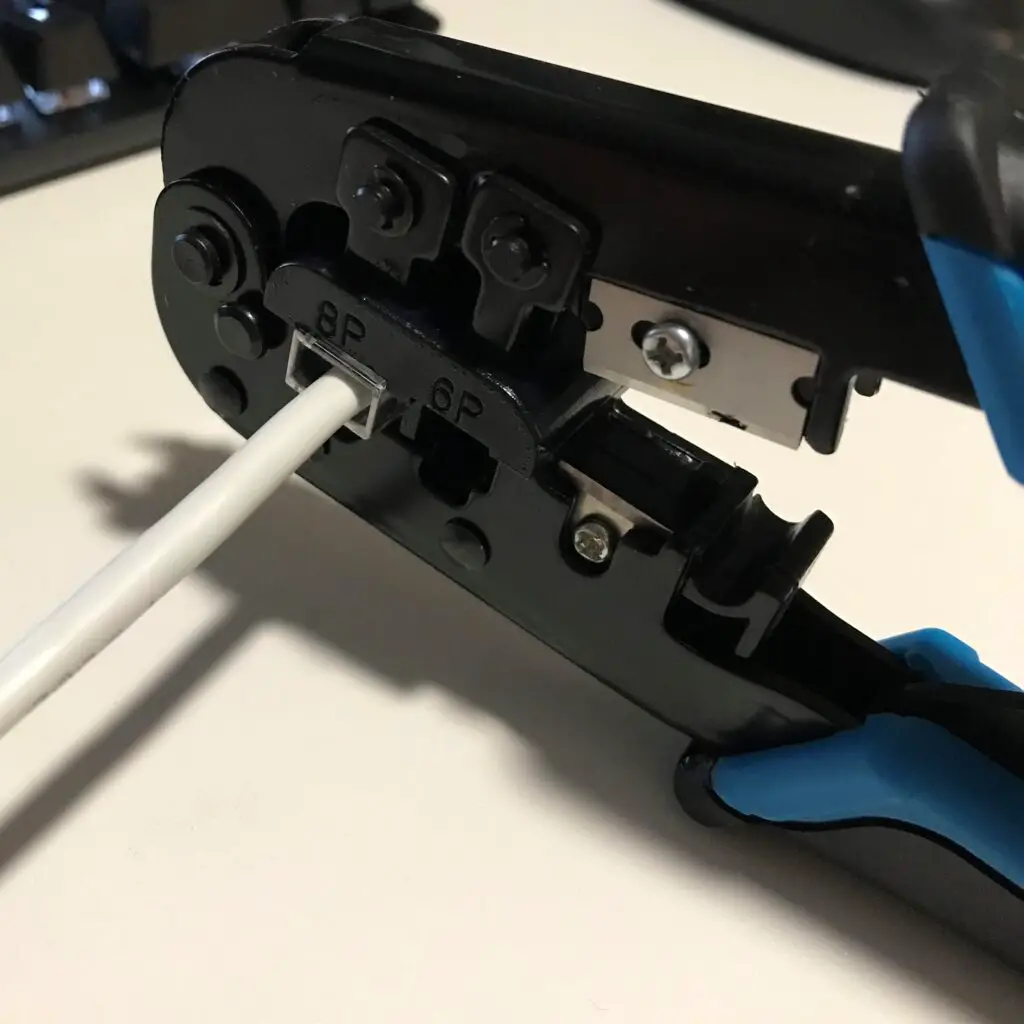
    Crimping ethernet cable

    Next, release the handles all the way and squeeze them again. By squeezing the handles twice, it’ll ensure the cable is crimped correctly.

    Once you’ve crimped the cable, remove the connector from the crimping tool and make sure it’s securely attached to the ethernet cable.

    Next, you want to make sure it works properly. Before we get into testing the cable, there are a few things to keep in mind while crimping your cable.

    Important notes when crimping

    When crimping your ethernet cable, there are a few things to take note of.

    For one, you need to make sure that the RJ45 connector goes into the side of the crimping tool that’s labeled “8P”. If you put the ethernet connector into the crimping tool from the side that isn’t labeled, it won’t crimp correctly.

    When you crimp a cable, the 8 pins on the RJ45 connector get pushed down into the 8 wires in the cable. If you look closely, you’ll see that your crimping tool has teeth on it on one side.
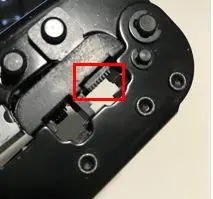
    Crimping tool 8-pin teeth

    If you don’t put the connector into the crimping tool from the correct side, the teeth won’t match up with the pins it needs to push down.

    And yes, I’ve made this mistake before.

    The other thing you need to be aware of is the fact that you can’t crimp a connector more than once. In other words, you can’t reuse your connectors.

    I didn’t realize this when I first started crimping cables.

    If you think about what’s happening when you crimp a connector, it makes sense. As I mentioned above, when you crimp a connector onto an ethernet cable, the pins of the connector are pushed down onto the wires in the cable.

    After you’ve crimped a cable, the pins will be pushed down on the connector. Once they’re pushed down, you can’t reset them again.

    Here’s what the pins on a connector look like before they’ve been crimped down:
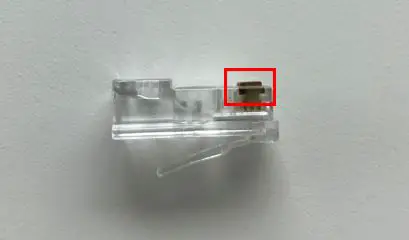
    RJ45 connector pins up

    And here’s what a connector looks like after it’s been crimped:
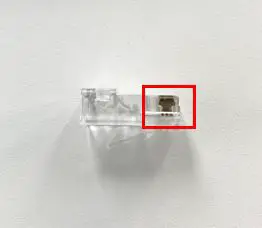
    RJ45 connector pins down

    Just make sure the connector that you’ll be crimping has its pins up. Otherwise, it won’t crimp onto the cable properly.

    And yes, I’ve made this mistake before as well.

    10. Test the cable to make sure it works properly

    So you’ve successfully crimped your ethernet cable.

    Before we do somersaults and celebrate your accomplishment, let’s make sure the cable works first.

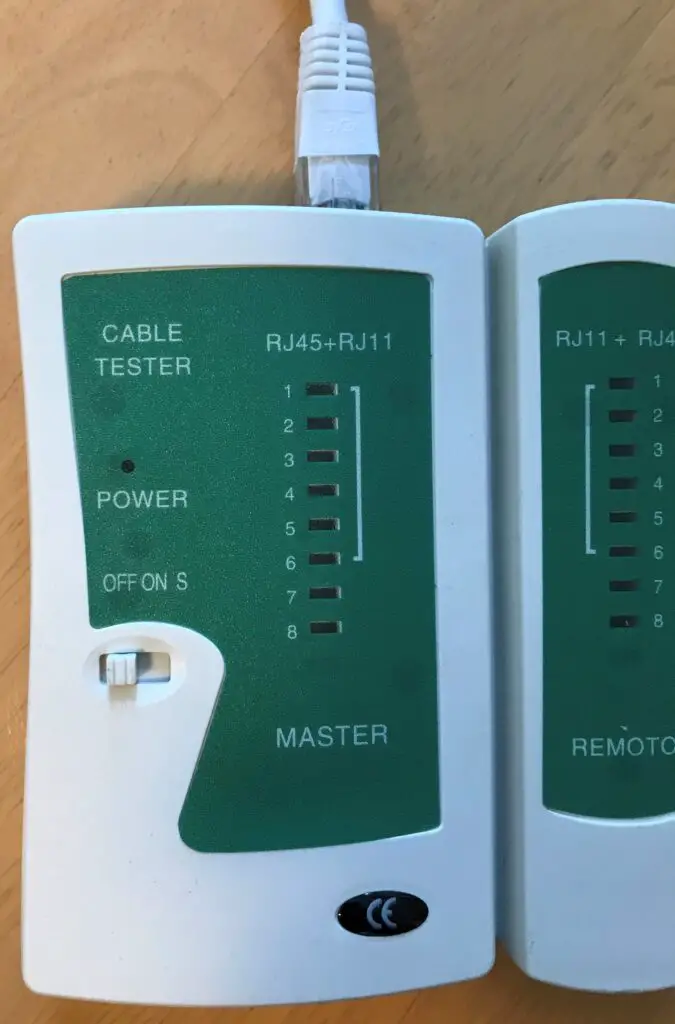
    The fastest and easiest way to test your newly crimped cable is with an ethernet cable tester. Many crimping kits will come with a tester, and they make things much easier when you get to this point.

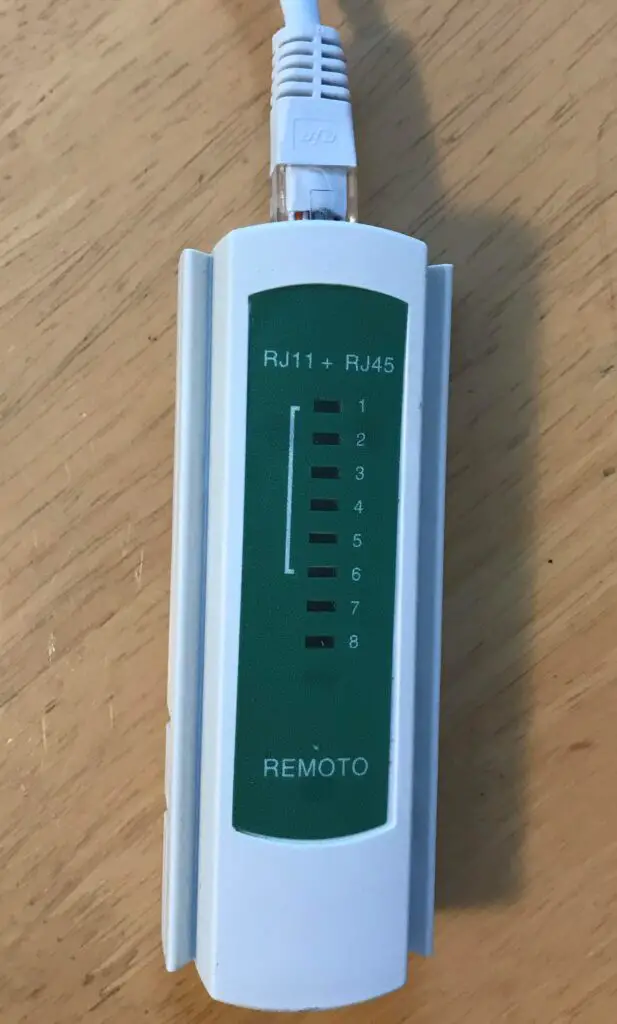
    Essentially, all you have to do is plug each end of the cable into two of the RJ45 connector ports on the device. One connector goes in the Master side of the tester, while the other plugs into the Remote side.
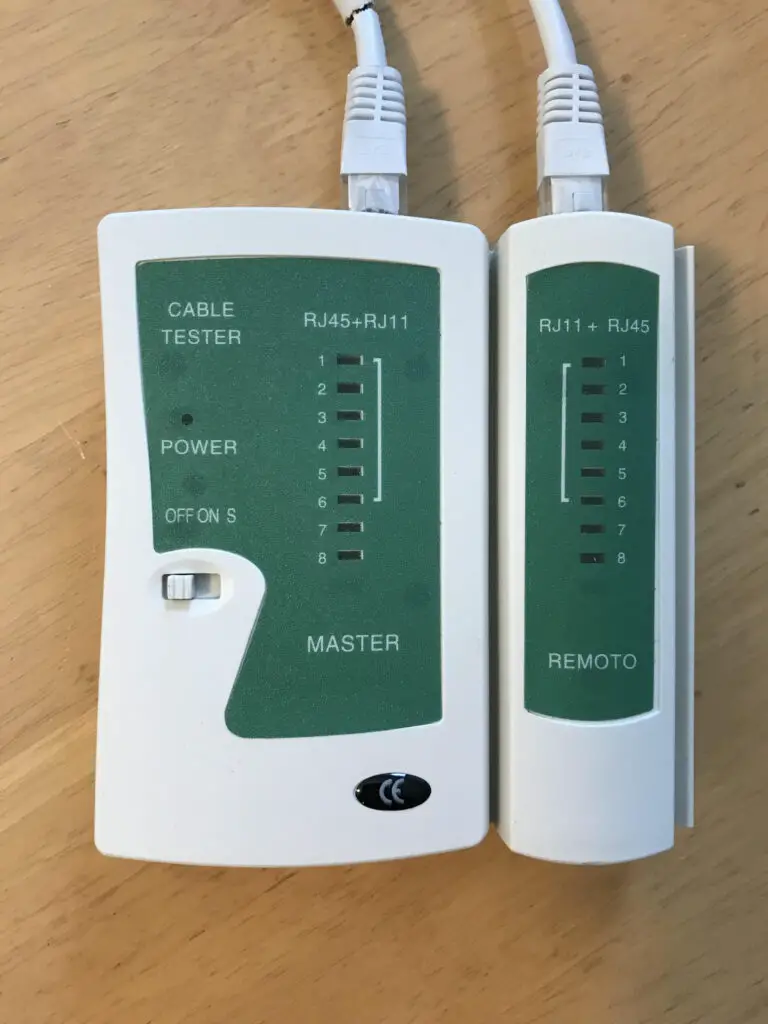
    Ethernet cable tester with cable attached

    Once the cable is connected, just turn the tester on.

    Each light numbered 1 through 8 will light up in order (one at a time). If the lights on the master and remote tester devices light up at the same time and in the same order, you’re in good shape.
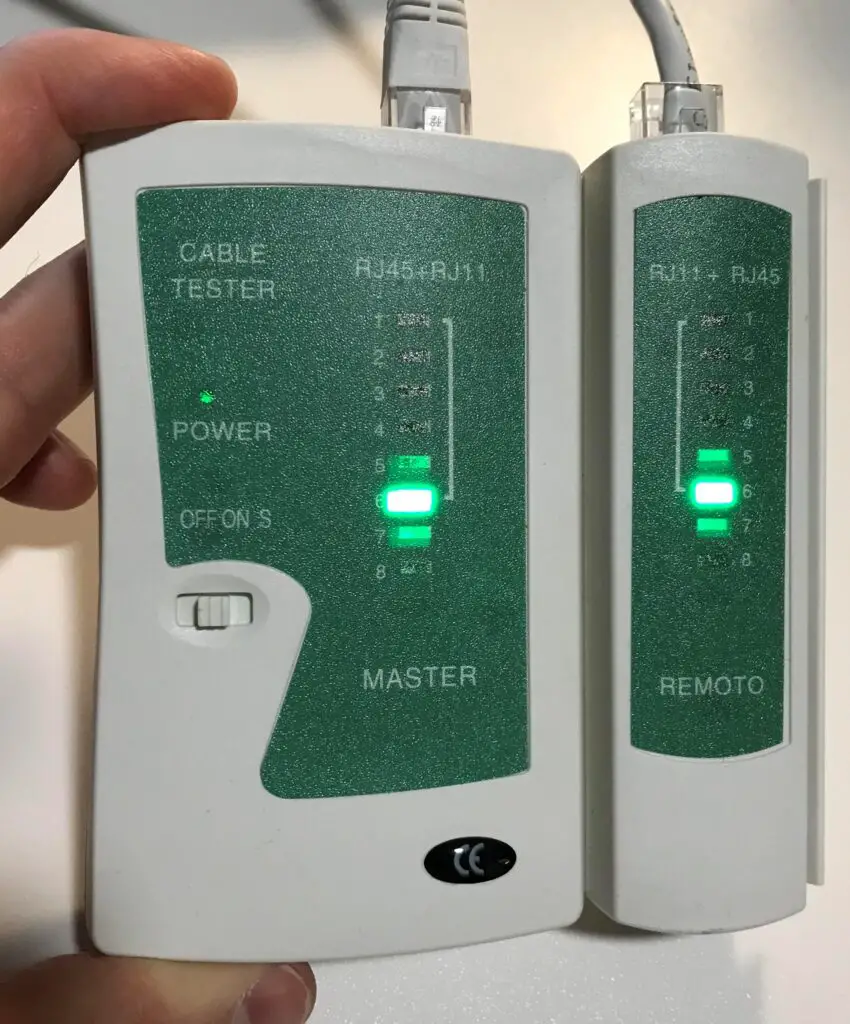
    Testing ethernet cable with tester

    How to tell if a cable fails the test

    Something is wrong with your cable if:

    • One of the lights on either device is skipped
    • Any of the lights on either device turn red
    • The numbered lights on both devices don’t light up at the same time

    If something is wrong with your cable when you test it, you may want to try crimping it again. Carefully go through the steps detailed in this post to see what might’ve gone wrong.

    It’s also possible that something is wrong with the cable you crimped. If you try to crimp it a few times and the cable isn’t passing the test, you might need to get a new cable.

    Alternative to using an ethernet cable tester

    The other alternative here is to connect the cable to two devices and see if they’re able to communicate.

    The trouble with this is, there might be other reasons why the devices can’t communicate. It might not be because the cable was crimped incorrectly.

    That being said, if you use the cable to connect two devices and they’re able to communicate, you know you’re all set.

    To know for sure if your cable is in good shape, it’s worth getting a cable tester.

    Wrap up

    Now you should be able to crimp your own ethernet cables.

    You’re officially dangerous.

    Knowing how to crimp your own cables provides a lot of flexibility for you in your home network. You’ll also find that with these skills, you’ll be able to help a lot of your friends with their networks, if you so choose.

    If you have any questions about this procedure, or you’d like to share your experiences and frustrations crimping cables, please leave a comment below.

    If you’d like to learn more about similar topics that I’ve written about, check out the following posts:

    How Long Do Ethernet Cables Last?

    How to Extend an Ethernet Cable

    Does Ethernet Cable Length Affect Network Speed?
    How to Tell if an Ethernet Cable is Bad

    How to Tell What Type of Ethernet Cable You Have

  • How Long Do Ethernet Cables Last?

    How Long Do Ethernet Cables Last?

    Ethernet Cables Last title page

    Nothing lasts forever.

    It’s a saying as old as time. It’s also true.

    Especially for the devices in your home network.

    For one reason or another, all the components in your home network will need to be replaced at some point. This includes your:

    • Modem
    • Router
    • Computers/laptops
    • Smartphones
    • Gaming systems
    • Ethernet switches
    • Ethernet cables

    Those are just a few examples. The actual list is much longer than this, and it’s growing by the day as more devices are connected to the internet.

    They’ll all need to be replaced eventually.

    The real question is: how long will each of these components last before they need to be replaced?

    In this post, the focus is on ethernet cables.

    So how long can you expect ethernet cables to last?

    Your ethernet cables can last you 20 years (or longer) if the following conditions are met:

    • The cables are used in a dry and mild environment
    • You do not abuse your cables and you handle them with care
    • You buy cables that allow for future growth of your network and can support demand for faster speeds

    In the following sections, I’ll detail everything you need to do to get the maximum life out of your cables.

    What is an ethernet cable made of?

    To understand how to preserve your ethernet cables, you should have a good idea of what they’re made of.

    Before you get overwhelmed, I have some good news: ethernet cables are pretty simple devices.

    Most standard ethernet cables consist of 8 copper wires inside of a PVC (polyvinyl chloride) sheath.

    The PVC sheath is meant to protect the copper wires in the cable from being damaged. It also serves as a barrier against moisture and other elements in the environment that can cause the wires to oxidize or corrode.

    Inside the cable, the 8 copper wires are usually separated into 4 pairs of 2 wires each. These 4 pairs of wire are twisted together inside the cable.

    Here’s what the twisted pairs look like:

    Twisted wires inside ethernet cable

    This type of cable is called an unshielded cable.

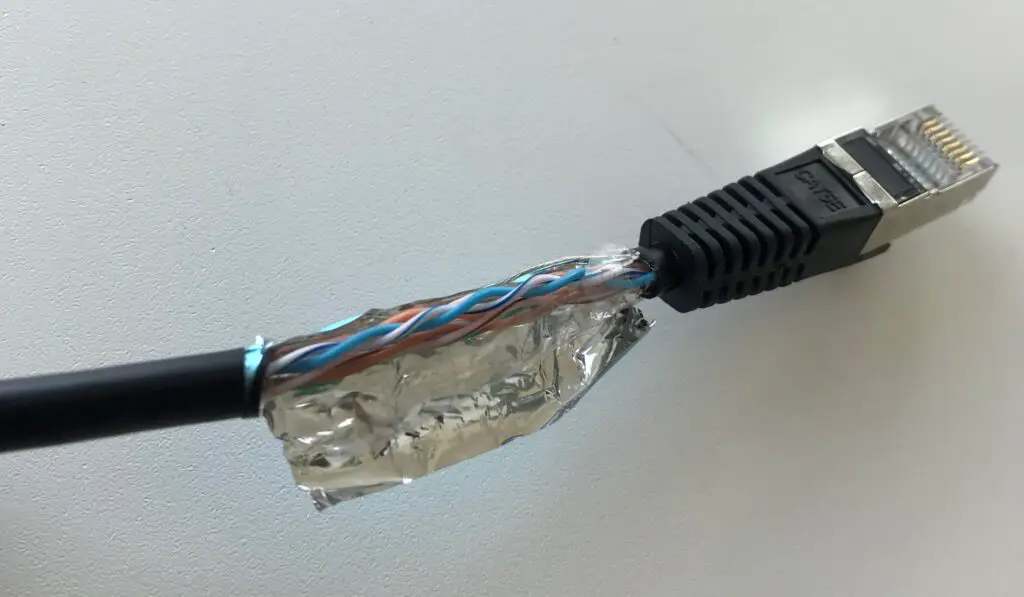
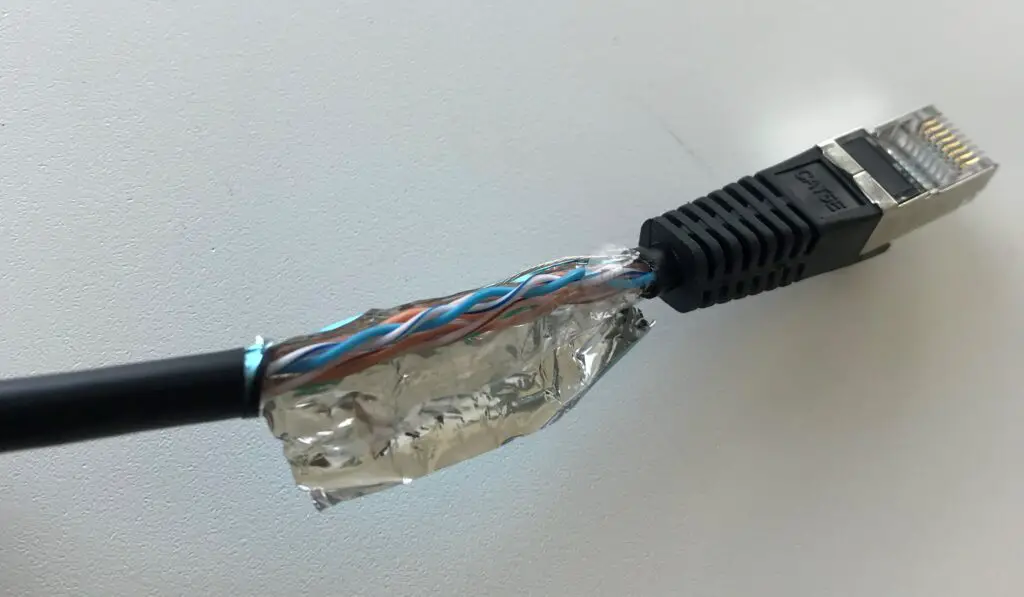
    You’ll also find that some cables will have extra foil shielding around the 8 wires in the cable. These are called shielded cables.

    Foil inside shielded ethernet cable

    The shielding protects the cable from electromagnetic interference (EMI) in environments where there’s a lot of commercial equipment nearby.

    Shielded and unshielded cables are the two types of ethernet cable configurations. Even though shielded cables have more components than unshielded cables, neither of them are complex.

    Due to the fact that ethernet cables are simple components, it’s easy to make them last a long time.

    How long can an ethernet cable last?

    Although ethernet cables are simple components, that doesn’t mean they can’t last a long time. On the contrary, they’re easy to preserve and take care of.

    Before we get into the specific steps for what you can do to make your cables last a long time, let’s establish some expectations.

    If you do all the right things, it shouldn’t be surprising for your cables to last 20 years or longer.

    In fact, I’ve read that some poeple have cables that are 30 years old and still working perfectly. Considering ethernet cables are inexpensive components to begin with, that’s some pretty good bang for your buck.

    The best part is, there’s no reason why your cables can’t last just as long.

    At this point, I’m sure you’re wondering what you have to do to make your cables last 20 years. Let’s take a closer look.

    How to make ethernet cables last a long time

    If you want your ethernet cables to last a long time, you’re in luck.

    It doesn’t take much to set your cables up for success.

    If you want your cables to last a long time, there are a few things you need to do:

    • Handle your cables with care
    • Keep your cables out of harsh environments
    • Buy cables specific to the environment they will be used in
    • Use cables that can support your future network needs
    • Buy cables from a quality manufacturer

    Let’s break down each of the actions above to make sure you can put a proper plan in place for your cables.

    Handle your cables with care

    This one should be pretty straightforward.

    I’ll accompany this item with a life lesson: if you want things in your life to last, you need to handle them with care.

    This goes for your relationships, your house, your car, and most of all, your ethernet cables.

    As I mentioned previously, most of the ethernet cables you’ll be dealing with in your home or office have a PVC sheath.

    Although PVC will provide your cables with some protection, it’s not exactly a suit of armor. After all, that’s not the only purpose of the sheath. It’s also meant to be flexible so you can snake your cables into tight spaces.

    For an example of the flexibility that PVC provides, here’s how much you can safely bend a cat5e cable without it causing any problems:

    Unshielded cat5e ethernet cable bending

    With that said, even with the added flexibility that PVC provides, it should also provide your cables with plenty of protection.

    The key here is to protect the 8 copper wires inside the ethernet cable. If these wires get damaged, your cable will stop working properly.

    To ensure your ethernet cable doesn’t get damaged, you should be careful with how your cables are handled when they’re set up.

    This includes:

    • Making sure your cables aren’t bent at extreme angles
    • Preventing the cables from being yanked or pulled when disconnecting them
    • Avoiding laying anything heavy on the cable that may crush it
    • Gently coiling any excess cable and using a cable tie to secure it

    I’m not saying you need to handle your ethernet cables like they’re made of glass here.

    They’re still fairly durable items. Just be mindful of how you’re handling them.

    It’ll pay off in the long run.

    Protect your cables from harsh environments

    Once you buy your ethernet cables and you have them connected to your devices, there are two variables that can limit how long they last.

    The first variable is how you treat them, which I detailed in the previous section.

    The second variable is the environment they’re in and where they’re used.

    Ethernet cables are electronic devices. They transfer data from one system to another using pulses of electricity. When one device wants to communicate with another, it sends electric pulses through the copper wires in the cable to the other device.

    Now that we’ve established that ethernet cables rely on electricity, let’s ask ourselves the question: what do electronic devices dislike?

    The answer here is sunlight, heat, and humidity.

    Regardless of the electronic device, almost all of them are negatively impacted by sunlight, heat, and humidity.

    This is especially the case if the device isn’t made to interact with a hot and humid environment. You can put ethernet cables in that category.

    Standard ethernet cables are designed for use in home and office environments. These areas are often dry and climate controlled.

    If cables are exposed to hot environments where there’s a lot of moisture in the air, it can corrode the wires inside them.

    The same goes for sunlight exposure. If a standard ethernet cable is exposed to a lot of sunlight, it’ll wear down the sheath protecting the wires in the cable.

    Both these situations are not good. If the wires inside an ethernet cable corrode or the sheath degrades, it’ll greatly shorten the cable’s lifespan.

    So keep this in mind when you’re deciding where you’ll use your ethernet cables. If you need an ethernet cable that’ll be exposed to a harsh environment, you’ll need a special cable.

    Speaking of which…

    Buy cables for the environment they will be used in

    This goes hand in hand with the previous section.

    Your everyday ethernet cables are made for pretty comfortable environments. That doesn’t mean you’re out of luck if you need to use a cable in a harsh environment, however.

    There are a variety of specialty ethernet cables you can buy depending upon where you’ll use them.

    The key here is identifying the environment where the cable will be used.

    Let’s take an example.

    I mentioned earlier that some ethernet cables have extra foil shielding to protect them from electromagnetic interference.

    These shielded cables are meant for environments with lots of commercial equipment in the area. With an unshielded cable, the electric signals given off by the nearby equipment can prevent the cable from working properly.

    The message here is if you need cables where there are commercial air conditioners or heavy machinery nearby, grab some shielded ethernet cables.

    The same goes for other challenging environments.

    If you need to run an ethernet cable outside, you’re in luck as well. They make cables that’re reinforced to better withstand the elements. These outdoor rated ethernet cables are better protected from moisture and ultraviolet rays that would damage a standard ethernet cable.

    The key takeaway here is that you need to get cables that’re designed for the environment you’ll use them in. If you don’t, you’ll have to replace them much sooner than you’d like.

    Get cables based upon your future network needs

    Ok, we’ve gone over the two variables that can extend the life of your cables once you own them.

    But wait, there’s more.

    There are actually a few things you can do to extend the life of your cables before you even buy them.

    The first one comes down to planning.

    Have you heard of the term future proofing?

    To put it simply, future proofing is the process of accounting for your future needs in the original design of something.

    So how does this apply to ethernet cables?

    Depending upon the category of a given ethernet cable, it’ll have a maximum speed that it can support. When buying your ethernet cables, you should make sure that you buy cables that allow for growth of your network.

    What I mean here is you should do a little forecasting.

    Do you think you’ll be upgrading your internet plan in the future? Are your internet needs going to change at all in the coming years?

    Some situations that might cause your internet needs to change in the future are:

    • Adding more internet-connected devices to your network
    • Upgrading to a faster internet plan
    • Adding more internet users to your household
    • Working from home as opposed to going to the office

    When picking out which ethernet cables to buy, you should take the above situations into consideration.

    For me personally, I like to include a significant buffer for growth when planning my network. Internet plans are only going to get faster (and more affordable) in the future.

    Here’s a pro tip: if you’re in the market for ethernet cables, you should buy cat6 cables.

    Cat6 cables support a maximum speed of 10 Gbps for cables shorter than 180 feet. That should give your network plenty of room to grow regardless of your current network demands.

    Buy cables from a quality manufacturer

    Let’s talk about the other step you can take to prolong the life of your cables before you buy them.

    This is all about setting yourself up for success.

    You need to make sure you’re buying quality cables.

    In today’s world, this may be easier said than done.

    When it comes to ethernet cables, there are tons of different options to choose from on Amazon or at your local computer store.

    What makes things even more challenging is the fact that all ethernet cables look the same from the outside. You can’t tell if a cable has been cheaply made or not.

    Why does this matter?

    Common sense will tell you that quality cables will last longer than ones that are cheaply made. Ethernet cables aren’t expensive to begin with, so if you have to spend an extra dollar for a quality cable that’ll last you 10 years longer, it’s well worth it.

    The best way to get quality cables is to go with vendors that you know and trust.

    If you have ethernet cables in your home that’ve lasted you a long time, buy more from the same vendor.

    Not sure which vendors are good?

    Buy cables from a company you’ve heard of before. You can also poll the audience and ask others about their experiences with different cables.

    For me personally, I’ve had good experiences with ethernet cables made by Monoprice.

    That’s just my experience though.

    Feel free to do your own research, or buy cables from a few different vendors to see which ones work best.

    The key takeaway here is that a few minutes of research can save you a lot of headache. The less time (and money) you have to spend replacing your cables, the better.

    Do ethernet cables degrade over time?

    The actions listed above will help ensure that your ethernet cables last as long as possible.

    A common follow up question I’ve seen about how long ethernet cables last is if they’ll wear out or degrade over time. In other words, even if you follow everything I detailed above, will your cables eventually wear out?

    The simple answer here is no.

    If you have an ethernet cable that supports the required speed of your network and it’s in a protected environment, it could theoretically last you forever.

    If we think about what’s happening inside your ethernet cables, this might make more sense.

    All that’s really happening is electricity is moving through copper wires. The wires won’t wear down if electricity is passed through them for a long time.

    Imagine a situation where a copper cable is in a science lab where it’s in ideal conditions with a controlled climate and no humidity. You’d be able to pass electricity through it forever.

    The same is true for your ethernet cables.

    They could technically last forever. The truth is, however, that they won’t.

    You’ll have to replace them because your network will outgrow them and you’ll need to support faster speeds. Another possibility is that the protective sheath around the copper wires in your cables will wear down depending upon the environment they’re in.

    At some point, you’ll eventually have to replace your ethernet cables. It just won’t be because your cables have expired or worn out.

    Wrap up

    To make your ethernet cables last as long as possible, it takes a little bit of planning and effort. With that said, if you take the necessary steps and keep them in the right environment, you won’t have to worry about replacing your cables for a long time.

    If you have any questions about the material above, or you’d like to share your experience with your ethernet cables lasting a long time, please leave a comment below.

    If for some reason you liked this article or the way I explain topics about your home network, check out the following posts on related topics:

    The Difference Between Cat5e and Cat6 Cables

    What Does Cat Mean for Ethernet Cables?

    Shielded vs Unshielded Cables: A Full Comparison

    How to Tell What Type of Ethernet Cable You Have

    Can an Ethernet Cable Slow Your Internet Speed?

  • What Does Cat Mean for Ethernet Cables? An Explanation

    What Does Cat Mean for Ethernet Cables? An Explanation

    What Does Cat Mean title page

    When it comes to ethernet cables, you’ll find that there are many different words used to describe them.

    If you jump on Amazon to buy an ethernet cable (like this one), you’ll likely see terms that describe the:

    • Length of the cable (in feet)
    • Bandwidth of the cable (in MHz)
    • Type of connectors on the cable (e.g. RJ45)
    • Configuration of the wires in the cable (unshielded twisted pair or shielded twisted pair)
    • Size of the wires in the cable (e.g. AWG standard)

    Not only is this confusing, but it can be overwhelming as well.

    The good news is many of these specifications used to describe ethernet cables aren’t very important. They’re standard values that don’t really tell you how the cable will perform.

    In addition to the list above, there’s one final term that’s used to describe ethernet cables. This is one you don’t want to ignore.

    That term is “cat”.

    What does cat mean? Are we talking about animals here?

    When it comes to ethernet cables, the term “cat” is short for category. The category of an ethernet cable tells you the standard it was made to, which includes the speed (i.e. bandwidth) that the cable supports. This is one of the most important factors when choosing an ethernet cable.

    In this post, I’ll break down why the category of an ethernet cable is important to pay attention to, as well as the most common categories of ethernet cables you’ll come across.

    What Does Cat Stand For on an Ethernet Cable?

    As I mentioned above, cat is short for category.

    When it comes to ethernet cables, you’ll see “cat” all over the place. Not only will you see it in the product description when you’re buying them, but you’ll also see it on the side of the cables themselves.

    Does this look familiar?

    Cat label on ethernet cable

    The category of an ethernet cable is probably the most common way to describe them. That’s because the category of a cable will give you the most important information about it.

    Solid cliff hanger there. Let’s cut to the chase.

    Why Is the Category of a Cable Important?

    If you know the given category of an ethernet cable, you most likely don’t need to know anything else about it. The category of a cable essentially provides a summary of the cable’s performance.

    This is why the cat of a cable is so important.

    What about a cable’s performance do people care about?

    A cable’s performance basically boils down to the one question that people are concerned with: what’s the maximum speed (i.e. bandwidth) the cable can support?

    The category of a cable represents a certain manufacturing standard that it’s made to. If you took 100 cables of the same category, they’ll all have the same performance characteristics.

    This is how you’ll know the speed a cable supports if you know what category it is. As you’ll find out later, different categories of cables will have different performance specifications.

    So why do you need to know the maximum speed a cable supports?

    The speed a cable supports can play an important role in your home network. If you’re using ethernet cables that can’t support the speed of your internet plan and devices, your cables can slow down the speed of your entire network.

    Check out this other article I’ve written if you want more context on how ethernet cables can slow your network speed.

    If you know the cat of a cable (and therefore the speed it supports), you can make sure you’re using cables that won’t slow down your network.

    How Many Ethernet Cable Categories Are There?

    Ok we’ve established that the category of a cable is important to the performance of our networks. Now let’s talk about the different categories of ethernet cables.

    One thing that’s important to understand up front is the fact that ethernet cables have evolved over time. The same can be said for your internet connections.

    Who can forget connecting to the internet with a dial-up modem in the early days of the internet?

    Enough of that. Let’s stay on topic here.

    The bottom line is that internet connections have gotten faster over time. Ethernet cables have followed suit by supporting faster data transfer speeds with each new category that’s developed.

    When it comes to ethernet cables, they’re more or less labeled in the order they were developed. The first ethernet cable category to be developed was cat 1.

    Extra credit for originality there.

    Following cat 1 was cat 2. Cat 2 was followed by cat 3, cat 4, and so on. This naming convention more-or-less followed the same pattern all the way up to the latest cable category, which is cat 8.2.

    It’s important to note that some categories have multiple versions (e.g. cat 8.1 and cat 8.2). In other words, there are more than 8 categories of ethernet cables.

    In fact, 12 ethernet cable categories exist today.

    Although this may seem overwhelming, as we dive more into each category you’ll find that ethernet cables may not be as complicated as they seem.

    What Are the Ethernet Cable Categories?

    It’s helpful to take a minute to look at the big picture here.

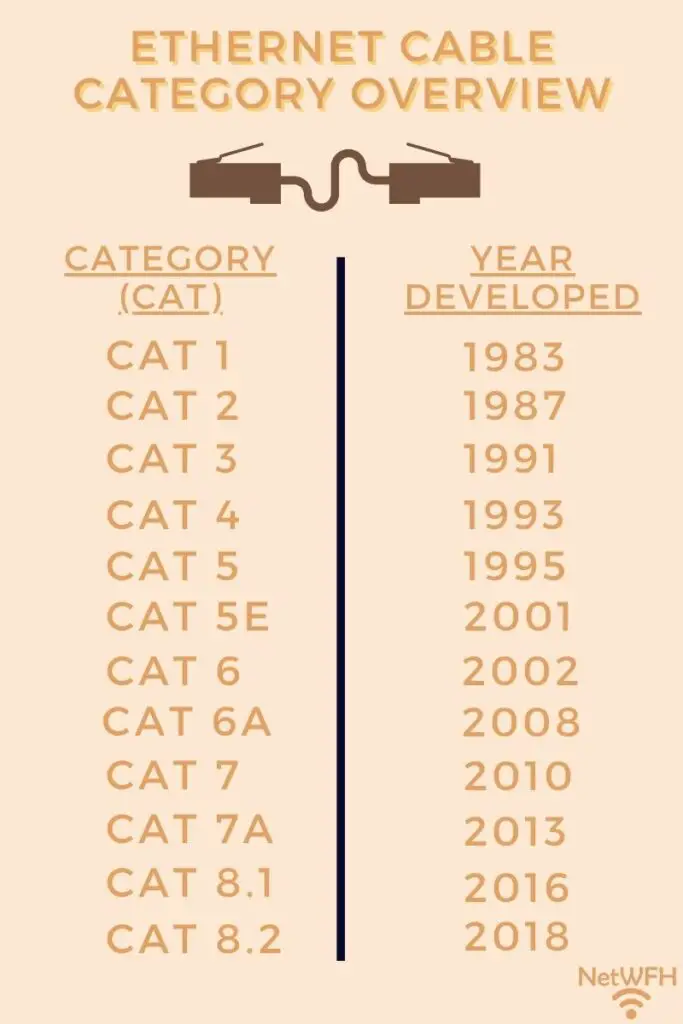
    To make things easy for you, here’s a list of all the ethernet cable categories and the year each category was developed:

    Ethernet cable category overview

    As you can see, over time it looks like new ethernet cable categories have been developed every 3-5 years.

    The key takeaway here is that although there are many different categories of cables, only a few will be applicable for your needs. For example, do you really think people are still using cat 1 ethernet cables that were developed in 1983?

    I don’t think so.

    Later in this post, I’ll talk about the cables that are most applicable to you today. Spoiler alert: there are only a couple categories you need to be familiar with.

    In the meantime, let’s dive into what we really care about: the speeds that each of these categories supports.

    What Is the Maximum Speed of the Ethernet Cable Categories?

    Each time a new category of ethernet cable is developed, the new category is an improvement of the previous version.

    Think about it like your iPhone.

    Each time a new iPhone version is released, it has feature improvements that make it “better” than the previous version.

    Ethernet cables are pretty similar. When a new category of cable is released, the new category usually supports a faster maximum speed than the previous version. In some cases, the category will support the same maximum data transfer speed, but over longer lengths of ethernet cable.

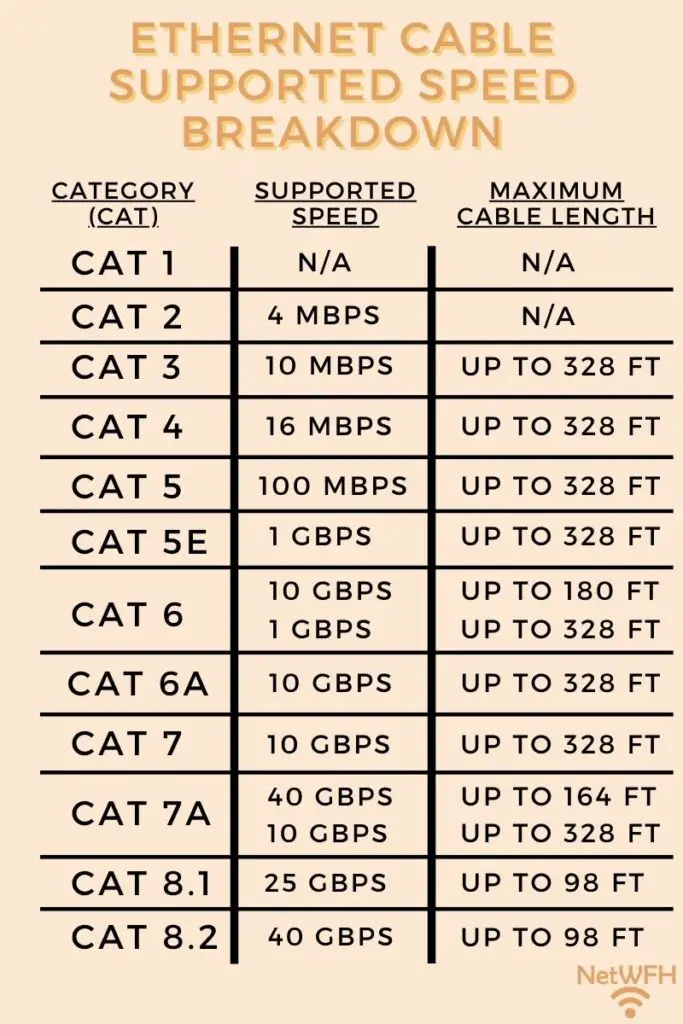
    Here’s a good breakdown of the maximum speed that each ethernet cable can support.

    Ethernet cable category comparison

    It’s crazy to see how far ethernet cables have come over the years. They used to support 10 megabits per second (Mbps), which you wouldn’t even be able to use today with current internet speeds.

    On the other hand, some of the newer categories (e.g. cat 7 and higher) of cable support speeds much faster than the everyday user would ever need. These cables are mostly used in datacenters where extremely high performance is needed.

    One thing to note is that regardless of the category, ethernet cables won’t work properly if they’re over 328 feet long. Chances are you’ll never need a cable that long, but you should be aware of this nonetheless.

    What Are the Most Common Ethernet Cable Categories?

    I’ll start by saying this again: don’t be overwhelmed by the fact that there are currently 12 categories of ethernet cables.

    As you can see from the diagram in the previous section, many of the categories support data transfer speeds that don’t apply to you. I’m talking about the categories on both sides of the spectrum here.

    Some older cable categories support speeds that’re much slower than you’ll need for your network, while some of the newer categories are overkill.

    In fact, we can ignore the majority of the cable categories because of the speeds they support. This is where it gets much easier.

    For most home and office networks, the most commonly used cable categories are cat 5e and cat 6.

    For your reference, I’ve written an article about the difference between cat 5e and cat 6 cables if you’re curious about this.

    See? Ethernet cables aren’t as complicated as they seem.

    Out of 12 categories of ethernet cables, only 2 are applicable to the “normal” home and office network.

    Cat 5e and Cat 6 Cables

    Cat 5e cables support data transfer speeds up to 1 gigabit per second (Gbps). 1 Gbps is generally sufficient for most networks.

    With that said, we’re fast approaching the days where internet plans can provide speeds of 1 Gbps or faster. As a result, some networks will need ethernet cables that can support speeds faster than 1 Gbps.

    That’s where cat 6 cables come in.

    Cat 6 cables are interesting in that they support speeds up to 10 Gbps, but only for ethernet cables shorter than 180 feet. For cable lengths between 180 and 328 feet, they support speeds up to 1 Gbps (just like cat 5e cables).

    Despite the unique characteristics of cat 6 cables, most people don’t need cables longer than 180 feet. To put it simply, cat 6 cables should be the next category of cable you get if cat 5e cables won’t suffice in your network.

    So which of these cable categories should you be using?

    If you aren’t sure what type of ethernet cable categories you have in your home network, check out this other article I’ve written. It’ll help you get this sorted out.

    If you currently have cat 5e cables in your environment, you should be fine. You’ll only want to upgrade to cat 6 if your internet plan provides speeds faster than 1 Gbps.

    If you’re looking to buy new cables, I suggest you buy cat 6 cables so you don’t have to worry about replacing your cat 5e cables in the future. If you get cat 6 cables now, they’ll be able to support your network for a long time without the risk of slowing it down.

    Wrap Up

    You’re now equipped with everything you need to know about ethernet cable categories. You can confidently make decisions about what cables you need without getting overwhelmed by a term that you don’t know.

    Remember, if you focus on getting cables that are the right category for your network, you shouldn’t really have to worry about anything else (aside from the length of the cable).

    If you have any questions about this material, please drop a line below in the comments section.

    If you found this information helpful, here are some other posts that you might find useful as well:

    How to Tell What Type of Ethernet Cable You Have

    The Difference Between Cat5e and Cat6 Cables

    How to Extend an Ethernet Cable

    Does Ethernet Cable Length Affect Network Speed?
    Can an Ethernet Cable Slow Your Internet Speed?

  • Is a LAN Cable an Ethernet Cable?

    Is a LAN Cable an Ethernet Cable?

    LAN Cable an Ethernet Cable title page

    It’s never as easy as it should be, is it?

    When setting up your home network, it doesn’t seem like it should be that hard.

    Any devices you want to connect to each other (or to the internet) directly are connected with an ethernet cable, while your wireless devices just connect to your wireless network without a cable.

    Sounds straightforward enough.

    The obstacle here is that there are multiple terms that can be used to describe your home networking equipment.

    For example, let’s take ethernet cables.

    Ethernet cables can be referred to as straight through cables. They can also be identified by the category of cable they are, like “cat5e cables” or “cat6 cables”.

    Another term that causes a lot of confusion during home network setup is “LAN cable”.

    What does the term LAN cable refer to? Is a LAN cable the same thing as an ethernet cable?

    The answer here is: sometimes.

    A LAN cable is a term used to describe any cable used in a local area network. LAN cables can refer to ethernet cables, but not all LAN cables are ethernet cables. Depending upon the configuration of the network, coaxial or fiber optic cables can also be referred to as LAN cables as well.

    You need to be careful with the term LAN cable because it’s a broad term. There are several different types of LAN cables, and you need to make sure you use the right ones in your home network.

    In this post I’ll break down all you need to know about LAN cables, including where the term comes from and how they should be used in your home network.

    What does LAN mean?

    In order to understand what a LAN cable is and how it’s used, we need to know what a LAN is.

    LAN is an abbreviation for “Local Area Network”.

    How helpful is that?

    Not especially.

    Ok, so let’s break it down further. What’s a local area network?

    A local area network refers to all the cables and devices that make up a network in a given area. For example, all the internet devices in your home that’re connected to the internet are part of the LAN in your home. Other examples of a LAN would be all the devices in an office or university building.

    Using your home as an example, the LAN in your home would consist of your:

    • Modem
    • Router (if it’s a separate device from your modem)
    • Laptop
    • Smart phone
    • Printer
    • Ethernet/LAN cables
    • Online gaming devices
    • Smart TV
    • Smart outlets

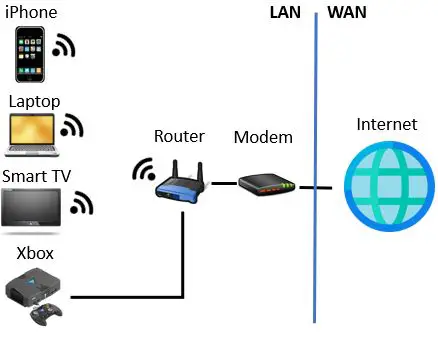
    Any of the devices in your home that’re connected to the internet (or to each other) are part of your LAN. The LAN that makes up your home network will stop at the point where your modem connects all your devices to the internet. This connection to the internet is where you LAN ends and the wide area network (WAN) begins.

    Here’s a visual for reference:

    LAN WAN Diagram

    As you can see, your LAN can be made up of many different types of devices. It doesn’t matter if these devices are connected wirelessly or with ethernet cables. They’re all part of the same local area network.

    On top of that, a LAN is not limited by a certain number of devices. Some LANs are made up of thousands of devices. Other LANs consist of just a few.

    Ok, so we’ve got LANs covered. Now let’s dig into LAN cables.

    What are LAN cables used for?

    If a LAN is made up of every device on a given network, you don’t have to think to hard to identify what LAN cables are used for.

    You guessed it. LAN cables are used to connect the devices that make up your local area network.

    There are many different ways that LAN cables are used to connect devices. They can be used to connect your:

    • Internet service provider (ISP) to your modem
    • Laptop to your router
    • Gaming console to your router
    • Printer to a switch
    • Security cameras to a server
    • Smart speaker to your router

    These are just a few examples. There are many different ways to use LAN cables in a given network.

    All LANs will have at least one LAN cable

    It’s safe to say that every LAN that’s connected to the internet will have at least one LAN cable.

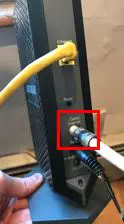
    After all, that’s how you connect your LAN to the internet in the first place. Regardless of the type of internet connection you have, your modem will need to connect to your ISP through a LAN cable.

    Here’s an example of a LAN cable connecting a modem to an internet service provider.

    LAN cable connecting modem to ISP

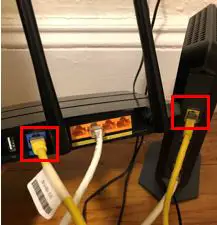
    You’d also need to use a LAN cable if your modem and router are separate devices. If your modem and router are separate devices, they have to be connected with a cable.

    This picture below might look similar to something you have in your home. The yellow cable connecting the modem and router is a LAN cable:

    Router and modem LAN cable connection

    So you see, most local area networks need LAN cables to work properly.

    Believe it or not, some people prefer using cables to connect the devices in their network. It isn’t just a requirement.

    That’s because there are advantages to connecting devices through wires. By connecting devices with a cable, they can directly communicate with each other.

    The benefit here is that LAN cables provide a more reliable connection than wireless connections. Not only that, but communication over an ethernet cable happens faster and with less delay as well.

    This is especially helpful when online gaming, where every millisecond makes a difference.

    Are all LAN cables ethernet cables?

    Not all LAN cables are ethernet cables, but most of them are.

    The term LAN cable can refer to several different types of cables. Depending upon the devices they’re connecting, LAN cables are usually:

    • Fiber optic cables
    • Coaxial cables
    • Ethernet cables

    With that said, most LAN cables are ethernet cables. You should only see a fiber optic or coaxial cable used as a LAN cable in a few cases.

    In just about every other situation, LAN cables will be ethernet cables.

    Let’s take a closer look at when each of these cables will be used.

    Fiber optic cables

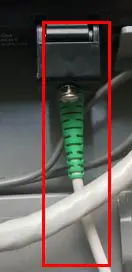
    You’ll most likely only use a fiber optic cable in you local area network if you have fiber internet. With a fiber internet service, you’ll connect to the internet with a fiber optic cable.

    Here’s an example of what a fiber optic cable looks like:

    Fiber optic cable

    To connect to a fiber optic internet service, you’ll have to use a special modem that’s built specifically for fiber internet. This is where you’ll see a fiber optic cable used as a LAN cable.

    One end of the fiber optic cable will connect to the back of your fiber modem. The other end will connect to the fiber connection that’s coming from the street.

    In this case, the fiber cable connecting your modem to the fiber cable coming from the street will be a LAN cable.

    In most homes and offices, this’ll be the only situation where a fiber optic cable will be a LAN cable. Datacenters often use fiber cables to connect different devices in the LAN, but this is overkill for most home and office applications.

    Coaxial cables

    Another common type of cable that can serve as a LAN cable is a coaxial cable. I’m sure this looks familiar to you:

    Coaxial cable

    Coaxial cables follow a similar pattern to fiber optic cables. There are only a few situations where a coaxial cable will be a LAN cable.

    The most common case where a coaxial cable will be a LAN cable is when a house or office has cable internet service.

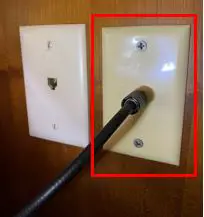
    In this scenario, the coaxial cable is used to connect a cable modem to the internet service that’s wired to the house. Chances are, you’ll see the coaxial cable connected to a cable jack in the wall.

    Here’s an example of what a coaxial cable jack looks like:

    Modem connection to coaxial cable wall jack

    This coaxial cable jack connects your home to the internet service that’s wired from the street.

    The only other time I’ve seen a coaxial cable used as a LAN cable is with a WiFi extender. In this case, the router and extender were connected with a coaxial cable to extend the range of WiFi in a home.

    Ethernet cables

    Ethernet cables are the most common type of LAN cable. This is because they can be used in a variety of applications.

    I’m sure you’ve come across some of these in your travels:

    Ethernet cable

    They can be used to connect:

    • Your modem to your internet provider
    • A modem and router (if they’re separate devices)
    • Two of the devices in your network (e.g. an ethernet switch to a computer)
    • Any of your internet-connected devices to your router

    While the other common types of LAN cables are mostly used to connect a modem to a certain type of internet service, ethernet cables can be used pretty much anywhere.

    What you’ll also find is that more and more household devices are getting connected to the internet each year. Now you can buy dishwashers, refrigerators, washing machines, and home security cameras that connect to your LAN. Many of these devices offer ethernet ports so you can provide them with a wired connection to your network.

    Why’s this important?

    It’s important because you’ll only see more LAN cables that are ethernet cables moving forward. If ethernet cables are the most common type of LAN cable now, I can only imagine what it’ll look like in 10 more years. In other words, I envision the percentage of LAN cables that are ethernet cables only to increase moving forward.

    What LAN cables should you use in your network?

    When it comes to determining what type of LAN cable you should use in your network, you usually don’t have much choice.

    What I mean by this is you should use the LAN cable that your devices require. For example, if you want to connect your laptop to your router with a wired connection, you’ll have to use an ethernet cable. Laptops don’t come with ports for fiber optic or coaxial cables.

    As I mentioned previously, most of the devices in your LAN will require ethernet cables to connect them to each other.

    So do yourself a favor, grab a few cat5e and cat6 ethernet cables so you have them on hand when you need a LAN cable for your network.

    And remember, although not every LAN cable is an ethernet cable, most of them are.

    Wrap up

    Now you should have a good handle on the different types of cables that’re used as LAN cables. If you have any questions about this information, please drop a comment below. For other interesting reading on related topics, check out some of these other posts I’ve previously written:

    The Difference Between Cat5e and Cat6 Cables

    How to Extend an Ethernet Cable

    Shielded vs Unshielded Cables: A Full Comparison

    How to Tell What Type of Ethernet Cable You Have

    Does Ethernet Cable Length Affect Network Speed?
  • The Difference Between Cat5e and Cat6 Cables

    The Difference Between Cat5e and Cat6 Cables

    Difference between cat5e and cat6 cables title page

    The two most commonly used ethernet cables are cat5e and cat6 cables.

    I’ll just about guarantee you’re currently using one of these cables in your home (if not both). I’d even wager that you don’t know which type of cable you’re using.

    The key question to ask here is: is this a problem?

    To be honest, I’d say probably not (at least in the short term). Most people don’t know what ethernet cables they’re using in their home, yet they still have high speed internet connections that are working just fine.

    That doesn’t mean you shouldn’t know the difference between cat5e and cat6 cables. Understanding the different capabilities of these cables will help you set up your network for success in the long run.

    So what are the differences between cat5e and cat6 cables? What do I need to know to make the right decisions when buying ethernet cables?

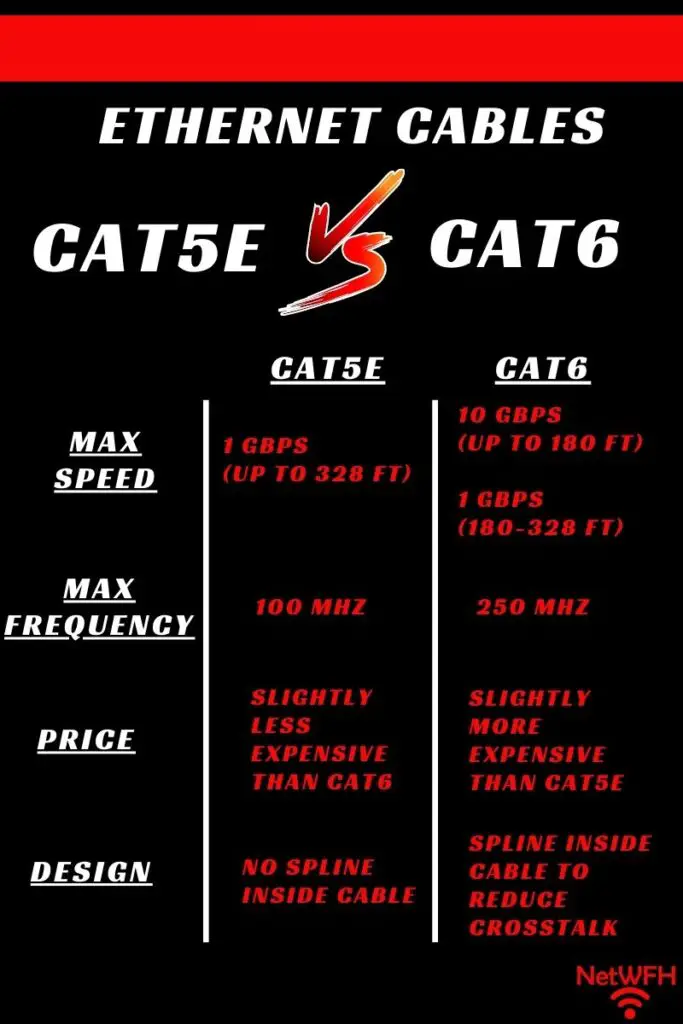
    The main difference between cat5e and cat6 cables is the speeds they support. Cat5e cables support speeds up to 1 gigabit per second (Gbps), while cat6 cables can support a maximum speed of 10 Gbps (depending upon the length of cable).

    Other differences between cat5e and cat6 cables include:

    • The different frequencies they support
    • How much they cost
    • The way they’re designed

    In this post, I’ll detail all the ways that cat5e and cat6 cables are different. I’ll also provide a recommendation about which cable you should be using in your home.

    What does cat5e and cat6 mean?

    We’ll start at a high level here to make sure we’re on the same page.

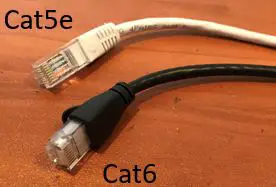
    Cat5e and cat6 cables are just different types of everyday ethernet cables you use in your home network. For reference, here’s a cat5e and cat6 ethernet cable next to each other.

    Cat5e and Cat6 ethernet cables

    Pretty obvious to tell which one is which, isn’t it?

    Not exactly.

    When it comes to different types of ethernet cables, they’ll all pretty much look the same. That’s because all ethernet cables are designed to do the same thing. They’re used to allow two devices to communicate with each other.

    So if all ethernet cables do the same thing, why do they have different categories of cables?

    Why are there categories of cables?

    A big reason for the different categories of ethernet cables is due to advancements in technology.

    Over time, the speed of computers (and the internet) has grown exponentially. On top of that, more and more devices are getting connected to the internet in this digital age. Everything from heavy machinery in manufacturing plants to refrigerators in our homes are now digitized and connected to the internet.

    To support the advancement of computers, as well as the different environments they’re used in, ethernet cables required further development as well. They needed to support faster speeds, and they needed to work in different operating environments.

    This led to the development of new categories of ethernet cables.

    These ethernet cable categories standardized how ethernet cables were manufactured. As the performance requirements for ethernet cables increased, so did the standards to which they were made. As you’ll find out in the next section, ethernet cables that are made to different standards will meet different specifications.

    What’s important for you take away from this is that there are other categories of ethernet cables other than cat5e and cat6 cables. At this day and age, however, cat5e and cat6 cables are used in the vast majority of applications.

    You also need to know that you can’t use any category of cable in any situation. If you use the wrong ethernet cable, it can greatly reduce the speed of your network.

    What are the differences between cat5e and cat6 cables?

    Ok, so cat5e and cat6 cables are made to different specifications. What are the differences between these two specifications?

    Let’s take a close look at each of these differences.

    Cat5e vs Cat6 Cables

    Supported speed

    We’ll start with the factor that everyone cares about the most.

    Cat5e and cat6 cables support different data transmission speeds.

    Cat5e ethernet cables support data transfer speeds up to 1 Gbps. On the other hand, Cat6 cables support speeds up to 10 Gbps.

    The catch here is that cat6 cables support speeds up to 10 Gbps if the ethernet cable is less than 180 feet (55 meters) long. If the cable is longer than 180 feet, it’ll support the same speeds as a cat5e cable (1 Gbps).

    With that said, most people don’t need cables longer than 180 feet. If you’re using a cat6 cable, it’s probably supporting speeds up to 10 Gbps.

    It’s also important to note that for both cat5e and cat6 categories, the cable will stop working properly if it’s more than 328 feet long. If for some reason you need ethernet cables longer than 328 feet, there are a few things you can do to extend the length of your ethernet cables.

    Maximum frequency

    Another major difference between cat5e and cat6 cables is the maximum frequencies they can support.

    This goes hand-in-hand with the different maximum data transmission speeds of the cables.

    Cat5e ethernet cables can support a maximum frequency of 100 megahertz (MHz), while cat6 cables can support a frequency of up to 250 MHz.

    Ok, a cat6 cable can support a higher frequency than a cat5e cable. What exactly does this mean in terms of cable performance?

    When it comes to ethernet cables, frequency is used to measure how quickly a cable can process data.

    In simpler terms, it’s just a measure of how fast a cable can send and receive data.

    The more data that can be processed in a given period of time, the faster you can move data between the two systems connected to the ethernet cable.

    So if a cat6 cable can send and receive data more than twice as fast as a cat5e cable, it’d make sense that it can support faster data transmission speeds as a result.

    Frequency is the underlying specification that allows cat6 cables to support faster data transmission speeds than cat5e cables.

    Most people are just concerned with the speed the cable can support, but now you know why different cables can support different speeds.

    Price

    This next difference between cat5e and cat6 cables is more general.

    I’m talking about how much these two types of cables cost.

    This won’t come as any surprise to you, but cat5e and cat6 cables don’t cost the same amount. Although you should be able to buy both types of cables for under $10, cat6 cables are generally more expensive than cat5e cables.

    This makes sense, because cat6 cables are made to higher specifications than cat5e cables are (resulting in the higher supporting frequency and transmission speed).

    It should be known that I’m not talking about a big price difference here. If you compare the prices of cat5e and cat6 cables from the same manufacturer, cat6 cables probably won’t cost more than a few dollars more.

    Design

    The last major difference between cat5e and cat6 cables is in their construction.

    Although they look the same on the outside, there’s a big difference inside the cable. Both types of cables have 8 copper wires inside them that are twisted in pairs.

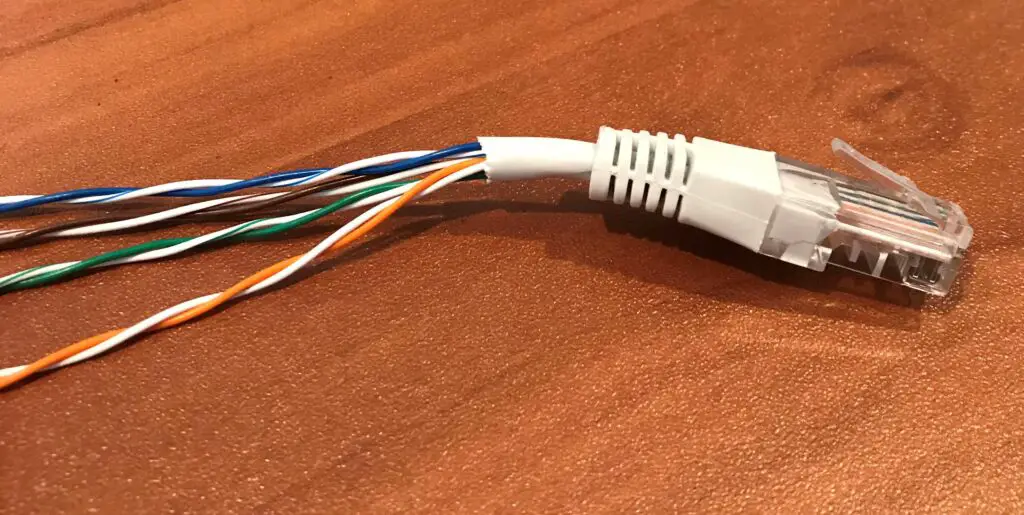
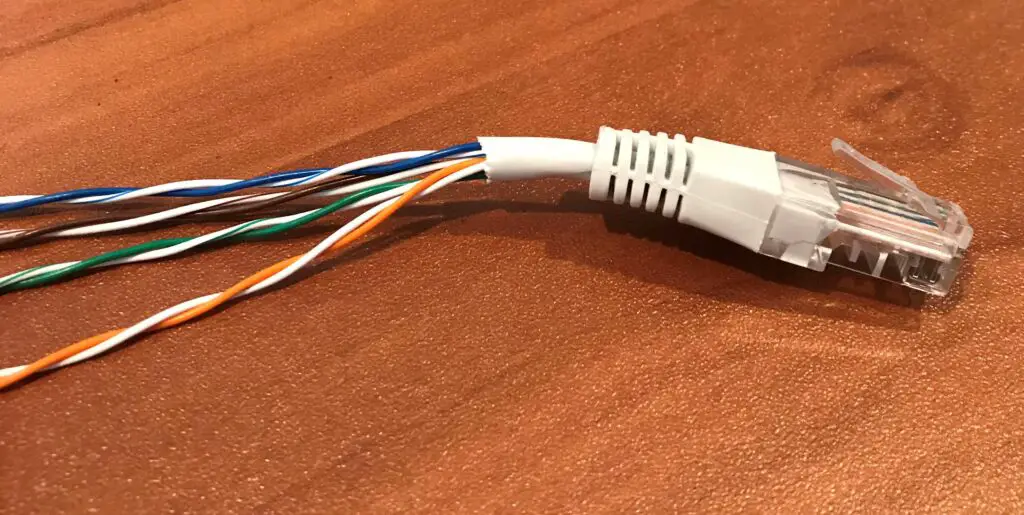
    This means that both cables have 4 pairs of twisted wires inside them. For your reference, here’s what the inside of a cat5e cable looks like:

    Twisted pairs of wires inside an ethernet cable

    Ok, so how are cat5e and cat6 cables different?

    Cat6 cables are different because they have splines in them.

    Wait. What exactly is a spline and what’re they used for?

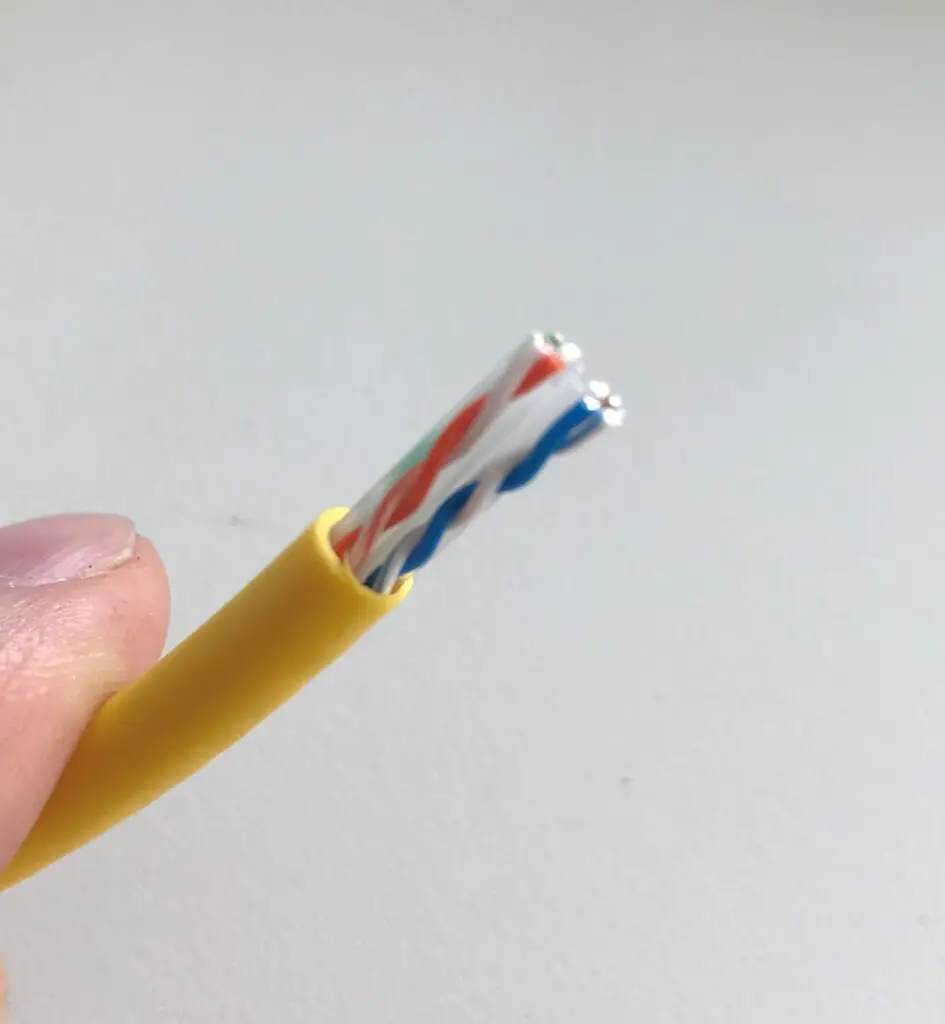
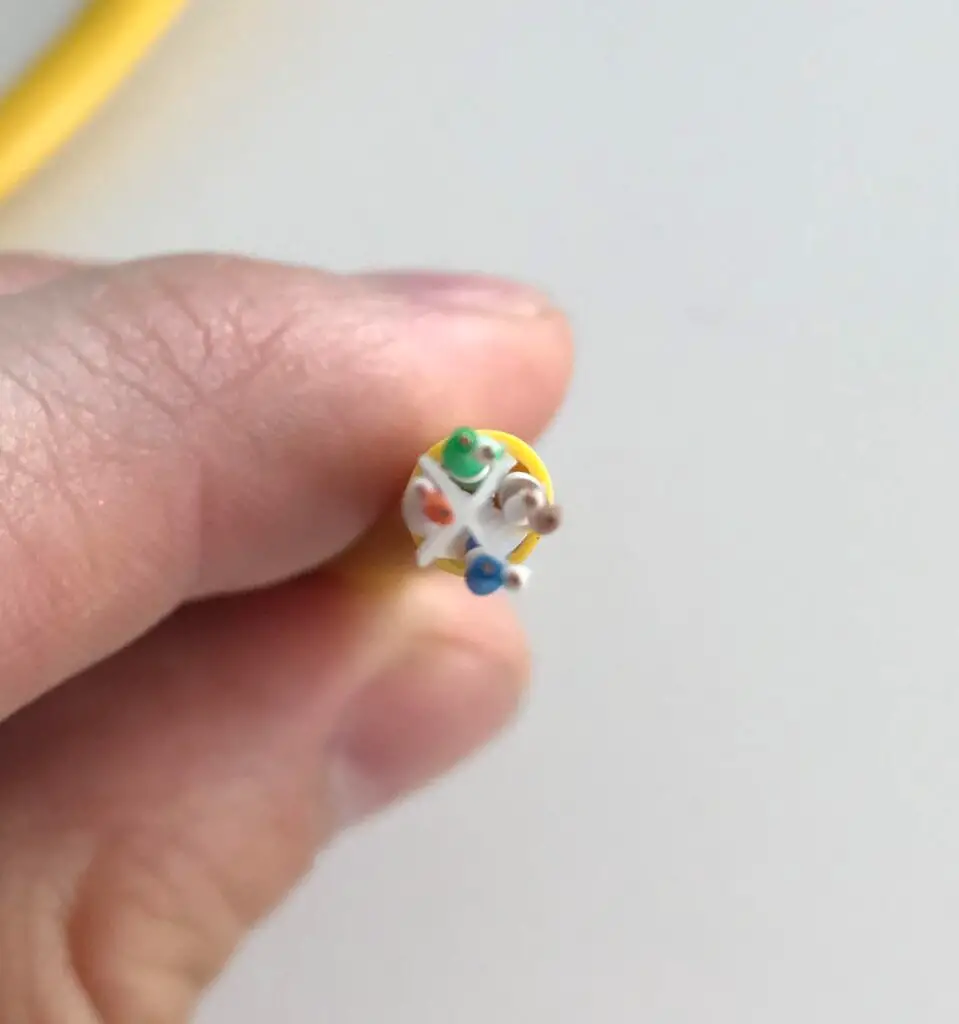
    Here’s what a spline looks like inside a cat6 cable:

    If it’s not obvious, the spline is the plastic piece in the middle of the cable.

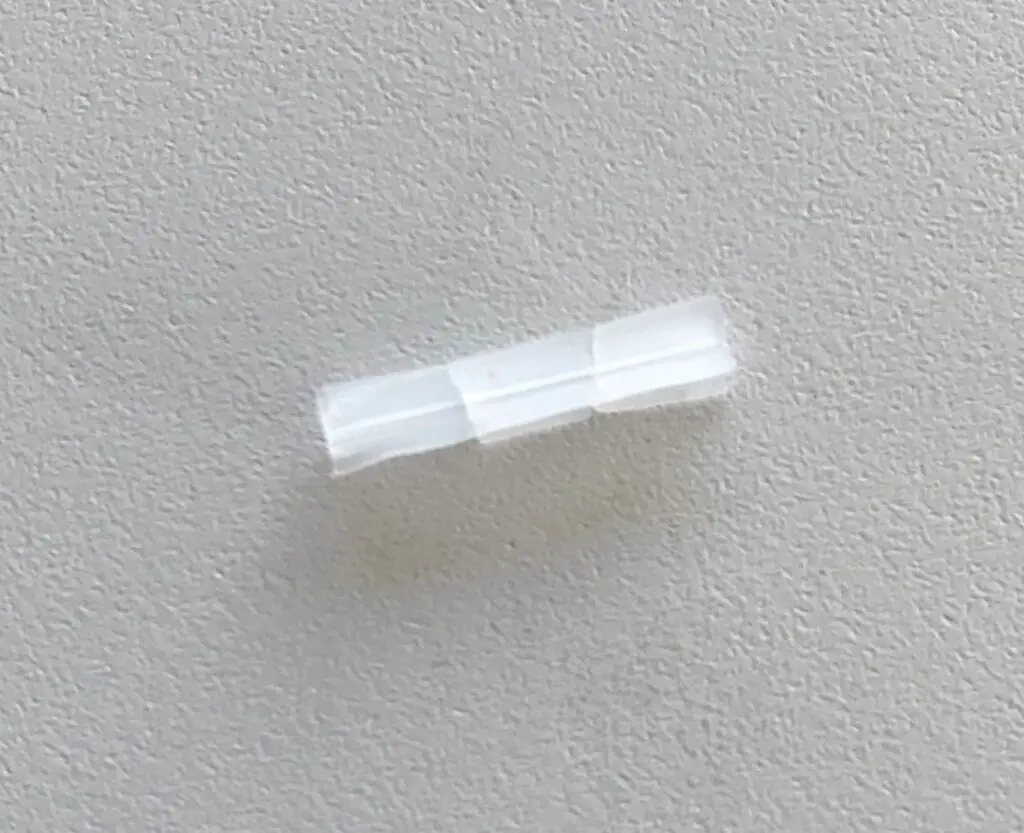
    Here’s what the spline looks like when it’s removed from the cable:

    The plastic spline in the cable separates the cable into 4 sections. Each pair of twisted wires inside the cable fits into each section that the spline creates.

    The reason cat6 cables are designed this way is because the spline helps eliminate crosstalk.

    Splines help eliminate crosstalk

    If wires are too close to each other, the signals from one wire can affect the signals in the wires that are close to it. This results in improper transmission of data and a weakened connection between the devices connected to the cable. This is what’s happening when you have crosstalk in an ethernet cable.

    In other words, crosstalk is electromagnetic interference (EMI) between wires in an ethernet cable.

    The spline is useful here because it provides a barrier against crosstalk. It makes it harder for the electric signals traveling through one pair of wires to affect the other wires near it.

    This ensures a strong connection between the devices connected to your cat6 cable.

    That’s not the only benefit that a spline provides, however.

    Other spline benefits

    Not only do splines prevent crosstalk, but they also help by reinforcing your cables.

    The piece of plastic inside the cable helps keep its shape, and it also prevents it from stretching out. A more rigid cable will be more resistant to some of the things that can cause a cable to fail.

    The one potential downside of having a spline inside the cable is that the spline will make it slightly less flexible than a cat5e cable. This isn’t a minor concern, because cat6 cables are still pretty flexible.

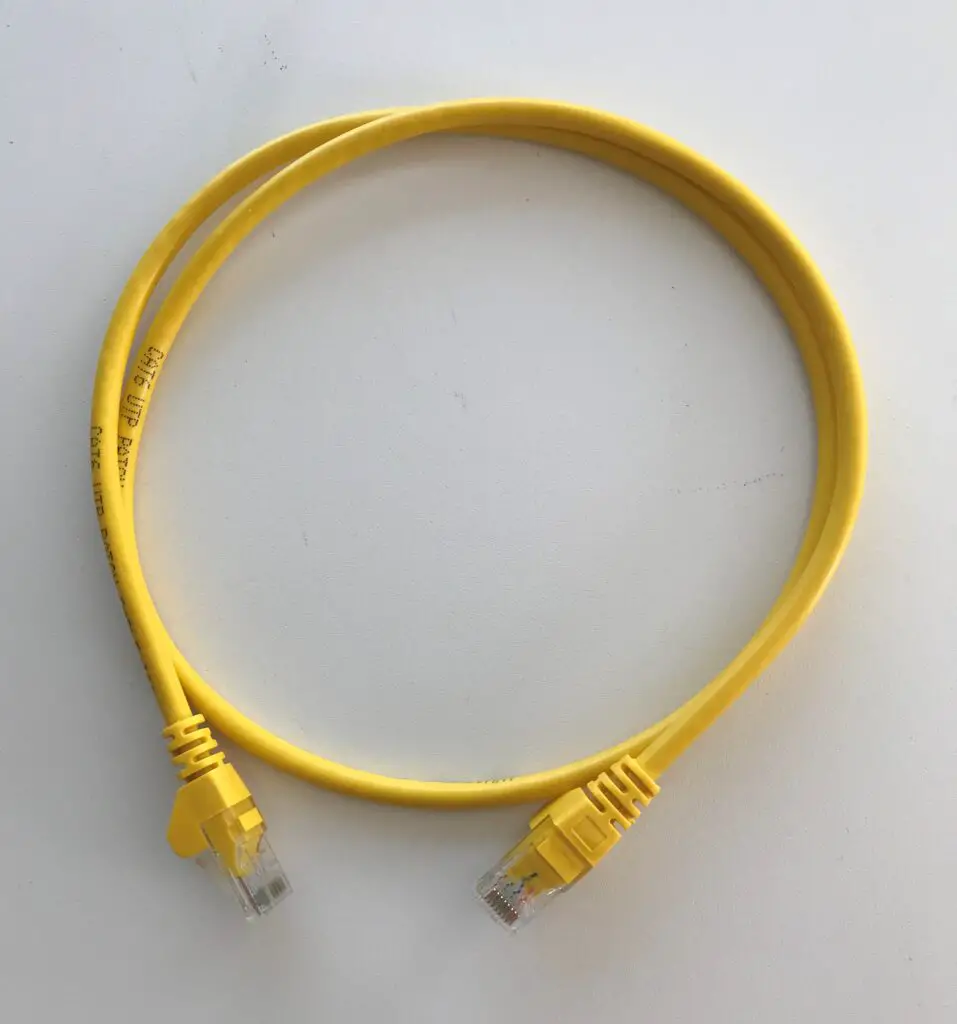
    Cat6 ethernet cable

    See? It looks pretty flexible to me.

    A spline in the cable is well worth the added protection and insurance of better data transfer if you ask me.

    Which type of ethernet cable should you buy?

    I’ll just come out and say it.

    If you’re in the market for some ethernet cables, I suggest you buy cat6 cables instead of cat5e.

    There are a few reasons for this.

    Cat6 cables can help future-proof your network

    At this point, it’s no secret that cat6 (10 Gbps) cables support faster data transmission speeds than cat5e cables (1 Gbps).

    With that said, a cat5e cable will most certainly meet the current needs of your network.

    I know what you’re thinking. If a cat5e cable will fit the needs of my network, why should I buy a cat6 cable?

    The answer is simple. We don’t want an ethernet cable that’ll support our needs today. We want an ethernet cable that’ll support our needs both now and into the future.

    This concept is called future-proofing.

    I mentioned earlier that internet and data speeds continue to get faster as technology advances. You should expect this trend to continue moving forward.

    With data moving faster both to and from your devices, you’ll need to make sure the cables they’re connected with can support it.

    By buying cat6 cables, you’re ensuring that you won’t “outgrow” your cables as your devices and internet get faster in the future.

    Plus, cat6 cables are only a little more expensive than cat5e cables.

    Speaking of cost…

    Cat6 don’t cost much more than than cat5 cables

    Yes, cat6 cables are generally more expensive than cat5e cables.

    The good news is, they don’t cost that much more.

    It’s well worth it to spend a little extra money to future-proof your network. After all, it’s better to spend a few extra dollars now and get cat6 cables instead of having to buy all new cables when your cat5e cables need to be replaced.

    You may even be able to find cat6 cables that are less expensive than cat5e. One word of caution here is that you’ll want to make sure you get your cables from a manufacturer that has a good reputation.

    Especially if you’re buying your cables online.

    There are a lot of knockoff cables online that aren’t the best quality. Once again, I’ll stress that spending a little extra for a cable from a well-known manufacturer can go a long way.

    Cat6 cables are more durable than cat5e cables

    The spline inside cat6 cables has side benefits that can’t be ignored.

    Are cat5e cables light and flexible?

    Yes they are. They’re also less resistant to abuse.

    Cat6 cables, on the other hand, are much more robust.

    The spline inside cat6 cables makes them more resistant to failure. This is a nice benefit because I’ve seen how cables can be treated.

    To say that ethernet cables aren’t always handled with care is an understatement. The truth is, most people have tripped over an ethernet cable before (or at least their pets have). You want to make sure your cable won’t stop working if this happens.

    I know this may sound like a minor detail, but for some people it’s more important than you think. I won’t name any names here.

    If spending a few extra bucks gets you a cable that’s better suited to withstand the abuse of your household, it sounds like a good deal to me.

    Wrap up

    Hopefully by now you’re sold on cat6 cables (pun intended). If you have any questions about cat6 (or cat5e) cables, or you’d like to share how many times you’ve tripped over the ethernet cables in your home, drop a comment below.

    For more groundbreaking content, check out these other posts I’ve written on similar topics:

    How to Extend an Ethernet Cable

    Shielded vs Unshielded Cables: A Full Comparison

    Can Ethernet Cables Go Bad?

    Does Ethernet Cable Length Affect Network Speed?
    How to Tell What Type of Ethernet Cable You Have

  • When to Use a Straight Through Cable

    When to Use a Straight Through Cable

    Straight Through Cable title page

    You’d think using ethernet cables would be easy.

    All you have to do is grab any cable you can find and plug it into the two devices you want to connect, right?

    Unfortunately it’s not that simple.

    I know what you’re thinking.

    How can it be more complicated than that? All ethernet cables look exactly the same.

    When it comes to ethernet cables, there’s a lot more to them than you’d think.

    There are two major types of ethernet cables, and each cable type has multiple categories. The two main types of ethernet cables are straight through and crossover cables.

    Of these two main types of cable, straight through cables are the ones you’re probably more familiar with.

    Don’t be confused by their name. Straight through cables are just the regular ethernet cables you’re used to.

    So the question is, if there’s more than one type of ethernet cable to choose from, when should you be using straight through cables?

    The good news is, you can use straight through cables to connect any of your devices. Due to advancements in technology, you no longer need to use crossover cables in your network.

    There are additional advantages to using straight through cables instead of crossover cables. Straight through cables are much easier to get than crossover cables, and they generally cost less as well.

    In this post, I’ll provide all you need to know about using straight through cables. I’ll also break down the benefits of using them instead of crossover cables.

    What is a straight through ethernet cable?

    Straight through ethernet cables are the regular, everyday cables you’re probably using in your home network now. The truth is, when you think of ethernet cables, these are the ones you think about.

    In other words, they’re the most “basic” type of ethernet cable. Especially when they’re compared with their crossover cable counterparts (which we’ll talk more about later).

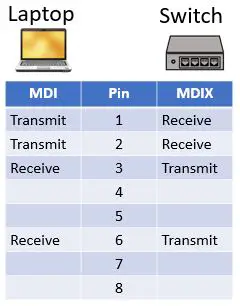
    Straight through cables were originally designed to connect two different types of devices together. This means they were designed to connect a:

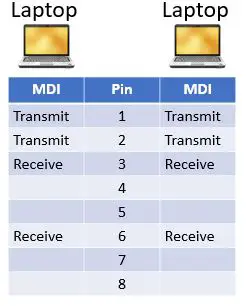
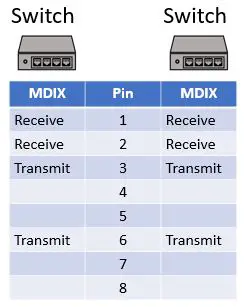
    On the other hand, they weren’t designed to connect two of the same type of device. This means they weren’t meant to connect a(n):

    • Computer to a computer
    • Ethernet switch to an ethernet switch
    • Router to a router

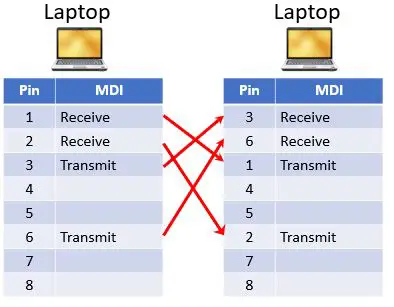
    In the situations above, crossover cables were used.

    When it comes to which type of ethernet cable was used more often, it’s straight through cables without a doubt.

    In home networks, most people needed ethernet cables to connect two different types of devices together. It’s not very common that people needed to connect two of the same type of device. Historically, that was more often the case in advanced home networks and datacenters.

    As you’ll find out later, things have changed when it comes to connecting these devices with ethernet cables, but this is still useful background information.

    How do straight through cables work?

    By the looks of them, straight through ethernet cables are very simple devices:

    Coiled Ethernet cable
    A straight through ethernet cable

    See, nothing to exciting to look at.

    Surprisingly, there’s a little more going on inside them than you’d think.

    Inside an ethernet cable there are actually 4 pairs of copper wires that are twisted together.

    Let’s get a closer look:

    Ethernet cable copper wires
    Inside an ethernet cable there are 4 pairs of copper wires twisted together

    In the picture above, I’ve untwisted the 4 pairs of wires so you can see them better. Inside the cable itself, the two black wires are twisted together, as well as the two green, blue, and orange wires.

    Here’s a visual of the wires when they’re twisted together.

    Twisted wires inside ethernet cable
    The 4 twisted pairs of wires inside an ethernet cable

    When an ethernet cable is used to connect two devices together, the devices use the 8 copper wires inside the cable to send data to each other.

    This data comes in the form of electrical pulses. Electrical pulses transmit the data from one system to the next. When the electric pulse arrives at the receiving system, the device translates the data into a message that the system can read.

    Make sense so far?

    That’s straight through cables 101. In fact, crossover cables work the same way.

    As you’ll see in the next section, this is where their similarities end.

    What does the wiring of a straight through cable look like?

    Let’s take a second and think about what’s happening inside an ethernet cable.

    We’ve already established that there are 8 copper wires inside any given ethernet cable (regardless of what type of cable it is). This basically means that there are 8 different paths that data can take as it’s transmitted through the cable.

    Think of each wire like a lane on a highway.

    A car can take any of the 8 lanes to get to their destination. With that said, if there are cars coming in the other direction in the same lane, that would lead to some serious problems.

    Ethernet cables are no different. When two devices communicate with each other, data is traveling back and forth between the two.

    If both devices send data to each other using the same wire inside the ethernet cable, it would lead to a lot of confusion.

    To allow for seamless communication between the connected devices, each device has specific wires for transmitting data, as well as specific wires for receiving data.

    Going back to our highway analogy, this is the same concept that you see when you’re driving. Some lanes are designated for traffic in one direction, while other lanes are designated for traffic in the other.

    These rules of the road for ethernet cables are determined by wire pinout standards.

    Ethernet cable pinout standards

    In order to determine which wires are used for sending data and which are used for receiving data, ethernet cable pinout standards were developed. The goal of these standards was to make sure all manufacturers were wiring their ethernet cables the same way for a given type of cable.

    A pinout basically refers to how the wires are laid out at each end of the cable. For example, let’s look at the end of an ethernet cable.

    Can you see the colored wires all lined up inside the connector at the end of the cable?

    Ethernet cable wire locations

    The position of each wire in the ethernet cable connector will determine if it’s a sending or receiving wire. For example, the first two wires in the connector might be sending wires, while the next two might be receiving, and so on.

    As you’ll see, this will also depend upon the pinout standard that the cable was manufactured to.

    Ok, back to the pinout standards.

    The two pinout standards for ethernet cables are T568A and T568B.

    This is where straight through cables and crossover cables differ. Straight through cables will have the same pinout at both ends, while crossover ethernet cables will have one of each pinout configuration at each end.

    Let’s take a closer look at what the T568A and T568B standards mean for straight through cables.

    Straight through cable pinout standards

    Ok, so we’ve established that straight through cables will have the same pinout standard at both ends.

    This’ll make a lot more sense once you see the actual pinout for the cable. As the name suggests, wires in a straight through cable are laid out straight through the cable.

    What does this mean, exactly?

    It means that although pairs of copper wires are twisted together inside the cable, these pairs of wires don’t cross each other at the end of the cable. To simplify things, it means that the position of a certain wire at one end of the ethernet cable will be in the same position at the other end of the cable.

    Let’s look at a few visuals for straight through cables.

    A straight through cable will either have two T568A pinouts at the ends of the cable:

    Straight through cable T568A wire pinout at both ends

    Or they’ll have two T568B pinout at the ends of the cable:

    Straight through cable T568B wire pinout at both ends

    As you can see, the wires at the end of the cable on the left are in the same positions at the end of the cable on the right. In other words, the wire configuration is the same straight through the cable.

    Here’s what it looks like in real life:

    Comparing the above picture to the pinout diagrams before it, you can see that the above straight through cable has a T568B pinout at both ends.

    It’s safe to say the straight through pinout standard is pretty straightforward (horrible pun intended).

    How is the pinout of a straight through cable different from a crossover cable?

    As mentioned in the previous section, the pinout of a straight through cable differs from the pinout of a crossover cable.

    The difference is pretty easy to notice, as a crossover cable will have a different pinout at each end. In other words, a crossover cable will have one end with a T568A layout, and the other end will have a T568B pinout.

    Here’s what it’ll look like:

    Crossover cable pinout diagram

    Here’s a real life visual:

    Crossover ethernet cable wiring

    In looking at the cable above, it’s easy to see that the blue wire on the left is not in the same position as the blue wire on the right.

    As it’s name suggests, some of the wires inside a crossover cable actually cross over the others. That’s why some wires are in different positions at the different ends of the cable.

    For more information about this, check out my previous post on crossover cables.

    What does each wire do in a straight through cable?

    Let’s refresh our memories before we move forward here.

    If you recall, straight through cables were originally designed to connect two different types of devices such as a:

    • Computer to a router
    • Computer to an ethernet switch
    • Modem to a router

    You may also remember that certain wire positions at the end of the cable are used for different purposes (e.g. transmitting or receiving data).

    The reason this works is that while one type of device may transmit data out of the second wire position, the other device connected to the cable is expecting to receive data from that wire. If both devices were trying to send data to each other over the same wire, it would mess up the messages between the two.

    So how are devices classified into types?

    I’ll keep this at a high level.

    Essentially, any endpoint device (like a computer or printer) is classified as one type of device, while networking equipment (like a switch or router) is classified as another.

    If you want to take a deep dive into this topic, these two device classifications are called medium-dependent interface (MDI) devices and medium-dependent interface crossover (MDIX) devices.

    Here’s an example of how each wire is used when connecting two different types of devices.

    MDI-MDIX connection

    As you can see, straight through cables are perfect for connecting these devices. For each wire that’s used by the computer to send data (pins 1 and 2), the switch uses that same wire to receive data. On the other end of the cable, the switch sends data on pins that the computer expects to receive data on (pins 3 and 6).

    An interesting fact is that wires 4, 5, 7, and 8 in the cable aren’t used to send or receive data. Surprisingly, these wires aren’t used at all.

    When should you use straight through cables?

    Despite the fact that straight through cables were originally designed to connect two different types of devices, they can actually be used to connect any of your devices.

    Yes, you read that correctly.

    You can (and should) use straight through cables for all your ethernet connections.

    You have technology to thank for that. Specifically, I’m referring to auto-MDI/MDIX here.

    Auto-MDI/MDIX is a feature of most modern devices. It allows your devices to recognize the type of the device they’re connected to with an ethernet cable.

    For example, if you use a straight through cable to connect two of the same type of device (e.g. two computers), you’d previously have to use a crossover cable.

    With auto-MDI/MDIX, each computer will automatically recognize the type of device they’re connected to, and transmit and receive data accordingly. In other words, your device will automatically transmit data using the wires that the other device expects to receive data on. This’ll happen regardless if you’re using a straight through cable or crossover cable.

    The main benefit? You get to use whatever ethernet cables you have on hand to connect your devices.

    The bottom line is, you no longer have to think twice about which ethernet cables you need to use when connecting your devices.

    With that said, I still recommend that you use straight through cables instead of crossover cables.

    Why should I use straight through cables instead of crossover cables?

    Although the type of cable you use in your network doesn’t matter, that doesn’t mean there isn’t a certain type of cable that’s better suited for the job.

    That’s right, I’m talking about straight through cables.

    Let me say up front that you won’t experience a difference in performance when it comes to straight through and crossover cables. Both types of cables will get the job done.

    With that said, there are a few reasons why straight through cables are the better choice here.

    Price

    As with most things in life, price is always a factor.

    If you’re looking to buy ethernet cables, you may notice a slight difference in price between straight through and crossover cables.

    In general, straight through cables cost slightly less than crossover cables. This shouldn’t be surprising because straight through cables are less complicated than crossover cables.

    This means straight through cables are easier (and cost less) to make. This usually results in a lower price for the customer.

    Of course, depending upon the manufacturer and inventory at any point in time, you’ll probably be able to find crossover cables that are cheaper than straight through cables. It’ll also depend upon the color, length, and quantity of cables you buy.

    Crossover and straight through ethernet cables are fairly inexpensive, so you won’t be breaking the bank either way here.

    When it comes to deciding which type of cable to buy, the real difference is in the availability of each type.

    Availability

    The biggest difference between straight through and crossover cables is their availability.

    Straight through cables have always been more available than crossover cables. That’s because when it mattered what type of cable you used, most of the time people needed straight through cables.

    Once advancements in technology made crossover cables unnecessary, there was even less reason for companies to carry them.

    As a result, straight through cables are much easier to find.

    That’s not to say that you can’t find crossover cables at your local computer store. It just means that you’ll likely have many more choices in terms of color, length, and quantity if you get straight through cables.

    It’s just best to make it easy on yourself and buy straight through cables for your network.

    If for some reason you have older computer equipment and you still need to use crossover cables in your network, you can even buy crossover cable adapters for your straight through cables.

    All the more reason to buy straight through cables.

    Wrap up

    It should be no mystery to you now. You can use straight through ethernet cables to connect any of the devices in your home.

    If you have any questions about this information, please leave a comment below.

    For more interesting reading on similar topics, check out these other posts I’ve written:

    When to Use a Crossover Cable

    How to Extend an Ethernet Cable

    Shielded vs Unshielded Cables: A Full Comparison

    Can Ethernet Cables Go Bad?

    Does Ethernet Cable Length Affect Network Speed?
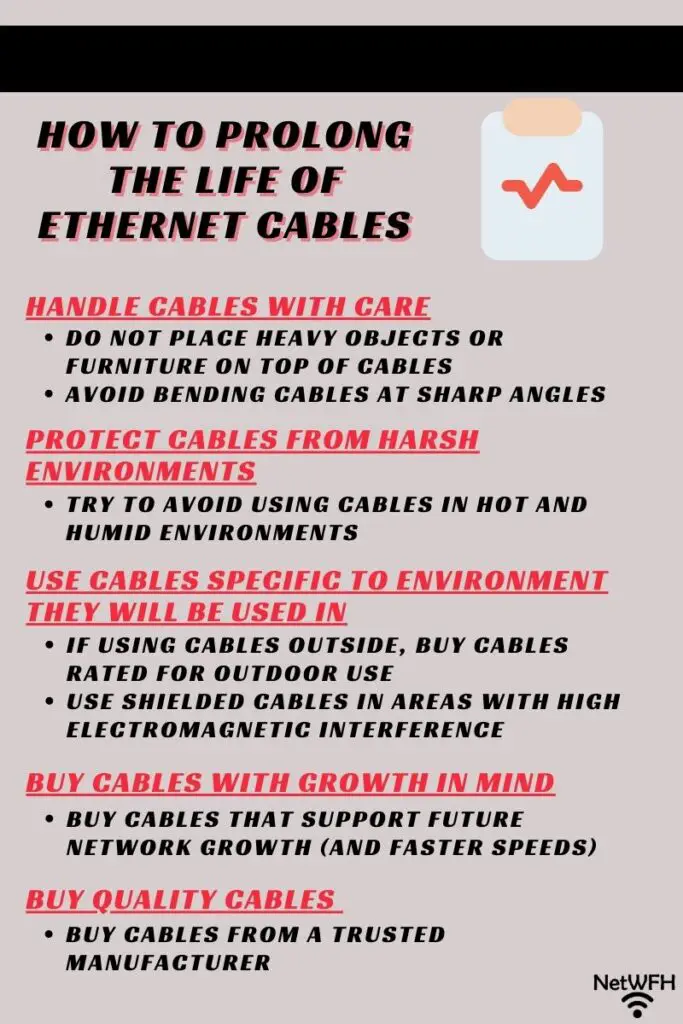
  • When to Use a Crossover Cable

    When to Use a Crossover Cable

    When Use Crossover Cable title page

    Ethernet cables used to be a lot more complicated than they are today.

    Depending upon the devices you were connecting, you’d need to use different ethernet cables in order for them to communicate correctly.

    For example, let’s say you had your computer connected to a router with an ethernet cable. Later in the day, if you wanted to connect that computer to another computer, you’d have to use a special type of ethernet cable.

    The special type of cable I’m referring to here is a crossover ethernet cable.

    In order for your network to work properly, you had to know when to use a regular cable and when to use a crossover cable. If you weren’t using the right cable, you’d be out of luck. Your devices wouldn’t be able to communicate with each other.

    Now for the good news. Things have changed when it comes to crossover ethernet cables. It’s not as complicated as it used to be.

    I know what you’re wondering.

    What does that mean when it comes to crossover ethernet cables? When should crossover cables be used today?

    If you have relatively modern equipment in your network, you won’t need to use crossover cables at all. Modern technology has enabled devices to automatically adjust the way they communicate so it doesn’t matter what type of ethernet cable is used to connect them.

    Whether you use a crossover or regular ethernet cable (also called a straight through cable), the device will be able to communicate with the other device it’s connected to.

    What a relief.

    In this post, I’ll explain the details of how crossover cables work, as well as why you probably don’t need to use them anymore.

    What is a crossover ethernet cable?

    Before we dive into how they’re used (or not used) today, let’s take it from the top.

    What are crossover ethernet cables in the first place? What makes them so special compared to a straight through cable?

    This answer might be a buzzkill, but crossover ethernet cables provide the same benefit as straight through cables. They allow devices to communicate through a wire instead of wirelessly.

    The difference is that crossover and straight through cables are designed to work with different devices.

    Let’s break this down.

    Straight through ethernet cables allow two different types of devices to communicate. For example, if you wanted to connect your computer to a router, you’d need to use a straight through cable.

    You’d also need a straight through cable to connect:

    • A computer to an ethernet switch
    • An ethernet switch to a router
    • A router to a modem

    To put it simply, most of the wired connections you’ve made in your life require straight through cables.

    Crossover cables differ in that they’re meant to connect two of the same type of device. This could be:

    • A router to a router
    • An ethernet switch to an ethernet switch
    • A computer to a computer

    Hopefully this makes sense.

    Crossover cables were needed in the first place because of how the above devices communicate. Most of the time, computers, routers, and switches were wired to different device types. As a result, that’s what they were made for.

    Whenever they had to communicate with the same type of device over a wire (e.g. two computers wired together), however, things didn’t go so smoothly.

    It was like trying trying to call yourself on the telephone.

    This is where the crossover cable came in to save the day.

    How do crossover cables work?

    Crossover cables were designed to allow for two of the same type of device to communicate with each other.

    How exactly do crossover cables do that?

    It’s all about the wiring within the cable.

    How is a crossover cable wired?

    Let’s start with the basics to make sure we’re all on the same page here.

    Inside an ethernet cable, there are generally 8 copper wires that are twisted together in pairs.

    Twisted wires inside ethernet cable
    Twisted wires inside an ethernet cable

    The 8 copper wires are used to transfer data from one device to the other. At each end of the cable, the 8 copper wires are aligned next to each other, where they’re fed into a connector.

    These connectors are called RJ45 connectors.

    If you look closely at the end of an RJ45 connector, you can see the colors of the wires going into the connector.

    Ethernet cable wire colors

    Now, if I compare the colors of the wires inside a straight through ethernet cable, both ends will have the same pattern of colors.

    Straight through ethernet cable wiring

    If I compare the wires inside the ends of a crossover cable, things start to go off the rails.

    Crossover ethernet cable wiring

    What gives? Why are the wires not in the same pattern at both ends?

    That’s because each wire location within an ethernet cable is meant for a specific purpose. Each wire in the cable will have a different role depending upon its position inside the connector.

    For example, some wire positions are meant for sending data to the other device attached to the cable, while others are designed to receive data from the other device attached to it.

    Let’s dive a bit further into this.

    Ethernet cable pinout standards

    When it comes to ethernet cables, there are two standard ways of laying out the wires inside them. These are called wire pinouts.

    The two standard wire pinout options are called T568A and T568B. The purpose of these standards is to ensure that all ethernet cables of a given pinout are made with the same wire configurations. This makes it much easier for the user (you) to determine which cables are needed in different situations.

    Could you imagine if every ethernet cable had a different layout of wires inside it?

    Nightmare city.

    Here’s how the wires are ordered in a T568A pinout:

    T568A Cable Pinout

    And here’s what a T568B pinout looks like:

    T568B Cable Pinout

    Can you notice the differences between the two?

    In comparing the two pinouts, you can see that the T568B pinout differs from the T568A pinout in that:

    • The two orange wires (striped and solid) are in positions 1 and 2 in the T568B layout instead of the two green wires (striped and solid) in the T568A pinout
    • The green striped wire is in position 3 in the T568B pinout instead of position 1 in the T568A pinout
    • The solid green wire is in position 6 in the T568B pinout as opposed to position 2 in the T568A standard
    • Wire positions 4, 5, 7, and 8 are the same in both standards. Here’s a fun fact: wires 4, 5, 7, and 8 in an ethernet cable aren’t used

    Crossover ethernet cable pinout

    So why are these pinouts important to crossover and straight through cables?

    As you may have guessed, these two different cable types have different combinations of these pinouts.

    Straight through ethernet cables have a T568A cable pinout on each end of the ethernet cable.

    Straight through ethernet cable pinouts
    What the ends of a straight through cable look like

    Crossover cables are a little different. They have a T568A pinout on one end and a T568B pinout on the other.

    Crossover ethernet cable pinouts
    What the ends of a crossover cable look like

    The reasoning behind this has to do with the types of devices that these cables connect. Each device connected to an ethernet cable is classified based upon the type of device it is.

    Medium-dependent interface classifications

    This can get a little complicated, so I won’t dive too far into the weeds here.

    Basically, a device can have one of two possible classifications. It can either be a medium-dependent interface (MDI) or medium-dependent interface crossover (MDIX) device.

    All you need to know here is that MDI devices are endpoint devices like computers, while MDIX devices are usually networking equipment like switches and modern routers.

    Let’s tie this all together.

    Based upon a device’s classification as an MDI or MDIX device, it’ll expect to receive data on certain pins of the ethernet cable. It’ll also transmit data on certain pins of the ethernet cable based upon this classification.

    For example, MDI devices expect to transmit data on pins 1 and 2 of an ethernet cable. MDIX devices expect to receive data on pins 1 and 2 of an ethernet cable.

    MDI devices expect to receive data on pins 3 and 6, while MDIX devices transmit data on pins 3 and 6.

    Do you see where this is going?

    MDI-MDIX connection

    For a connection between an MDI and MDIX device, each device expects to receive data on a pin that the other device transmits data on. This is exactly what we want. It’s also why a straight through cable can be used to connect these devices.

    What if the two devices you need to connect are the same type of device?

    As you can see, this doesn’t work as well.

    Both devices are expecting to send data on the same pins. The same goes for the receiving pins.

    With both devices looking to send and receive data on the same pins, we need to change things up if we want them to be able to communicate.

    That’s where the crossover cable comes in.

    What is a crossover cable used for?

    As its name suggests, a crossover cable will cross the wires inside the cable to allow two of the same type of device to communicate. It does this by connecting the transmit pins of one of the devices with the receiving pins on the other device.

    Here’s what it looks like when you connect the devices with a crossover cable.

    As you can see, whether you have two MDI devices or two MDIX devices, the pin changes required to pair each transmit pin with a receive pin are the same.

    This is why you can use a crossover cable regardless of the classification of the device. As long as you’re connecting two devices that are the same type (either MDI or MDIX), you can use a crossover cable.

    When should I use a crossover cable?

    Crossover cables used to be an essential part of most networks, but thankfully times have changed.

    Over the years, advancements in computing technology have been made to make it easier on us when we’re setting up our networks.

    When it comes to ethernet cables, one major feature that’s been developed is called auto-MDI/MDIX. This feature allows your devices to automatically determine if they’re connected to an MDI or MDIX device.

    From there, your device will decide if it needs to change the pins that it transmits and receives data on. In other words, it’ll automatically make adjustments depending upon the type of device it’s connected to.

    This makes things much easier on you, because you don’t have to worry about what ethernet cable you’re using to connect the devices. Your device will do all the work for you.

    So what does this mean, exactly?

    It means you don’t need to buy crossover cables for your network anymore. You can use straight through ethernet cables to connect all your devices (assuming they’re not more than 20 years old).

    I would recommend you buy straight through ethernet cables for your network instead of crossover cables. They’re generally cheaper than crossover cables, and they’re much more available. It’s not worth the time (or the money) to get crossover cables at this point.

    There’s one last important thing to note.

    If you have really old devices, they may not have the auto MDI/MDIX feature. If this is the case, you’ll still need to use crossover cables to connect two of the same type of device. With that said, chances are all your devices will have the auto MDI/MDIX feature.

    Wrap up

    Hopefully you have a good handle on why crossover ethernet cables were created, and how they were useful at the time. You should also understand why you don’t need to use them anymore in your network.

    Do yourself a favor, buy straight through ethernet cables when you need to connect devices in your network.

    If you have any questions about this material, please drop a comment below. In addition, check out some additional posts I wrote that are related to this topic:

    How to Extend an Ethernet Cable

    Shielded vs Unshielded Cables: A Full Comparison

    Can Ethernet Cables Go Bad?

    How to Tell What Type of Ethernet Cable You Have

    Does Ethernet Cable Length Affect Network Speed?
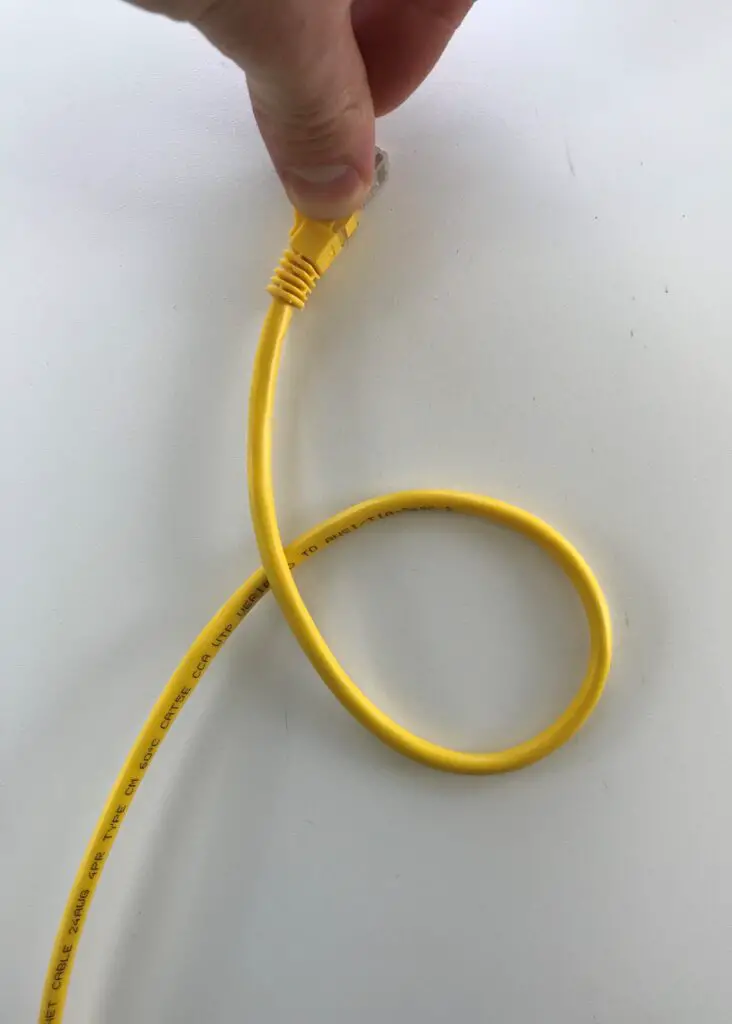
  • How to Extend an Ethernet Cable

    How to Extend an Ethernet Cable

    Extend ethernet cable title page

    In a home or office network, chances are there are some devices you’d rather connect to the internet with an ethernet cable instead of WiFi.

    For example, if you’re an online gamer or you frequently upload files to the internet, you’ll get a faster and more reliable connection to the internet with an ethernet cable.

    When it comes to providing devices with wired ethernet connections, you may run into some challenges.

    One such challenge is if a device you want to provide with an ethernet connection is far from your router. You may not have an ethernet cable that’s long enough to reach the device.

    To make matters more complicated, there’s a limit to how long an ethernet cable can be before it stops working properly.

    So what’s the solution? Is it possible to extend a shorter cable or link several ethernet cables together?

    Thankfully, the answer is yes.

    An ethernet cable can be extended by using an ethernet coupler or an ethernet switch. These devices allow you to link ethernet cables together without sacrificing network performance.

    In this post, I’ll detail how you can use each of these devices to extend your ethernet cables. I’ll also explain the best use cases for each device.

    Why you need to extend ethernet cables

    Before we get into how to extend your ethernet cables, let’s talk about why you need to extend them in the first place.

    Using the example mentioned above, let’s say your router is far away from the device you want to connect it to.

    You may think the solution here is simple. Why not buy a really long ethernet cable to connect the device to the router?

    This can be a problem for two reasons:

    1. Most ethernet cables will stop working properly if they’re over 328 feet (100 meters) long
    2. You may not want one really long ethernet cable snaking through your house

    Let’s address the first issue first.

    Most ethernet cables won’t work if they are over 328 feet long

    In general, if you’re using a long ethernet cable it won’t affect your network speed.

    There’s a limit to this, however.

    The catch is that this only applies if the cable is less than 328 feet long. If it is longer than 328 feet, the cable won’t transmit data as effectively. In some cases, the cable won’t work at all.

    The good news here is that 328 feet is a really long distance. Most people won’t need an ethernet cable longer than that.

    With that said, it’s often much easier to use many shorter segments of ethernet cable instead of one long one.

    This brings us to the second issue.

    Several shorter ethernet cables are easier to manage than one long one

    There are many advantages to having several ethernet cable segments instead of one long one.

    First of all, having one long ethernet cable is difficult to hide. It can make your house look messy and disorganized.

    Not to mention, it can be a tripping hazard.

    If you have multiple segments of ethernet cable connected by an ethernet coupler or an ethernet switch, it’ll be easier for you to lay out the cable how you want to. In other words, shorter sections of ethernet cable are easier to maneuver around corners and tight spaces.

    In addition, if you have one really long cable traveling throughout your house, it makes it harder if you need to make any changes to it.

    For example, let’s say you have one long ethernet cable in your house already. What if you want to add another device to your network with a wired connection, and the device is far from your router as well?

    Should you run another really long cable to that device?

    Not if you can avoid it.

    If you have several segments of ethernet cable strung together, it’ll make it much easier to add another wired device to your network.

    It’s also easier and faster to replace a shorter ethernet cable segment than a really long cable if one of your cables fails.

    The bottom line here is that ethernet couplers and switches make managing your ethernet cables much easier.

    Let’s find out how each of these devices works.

    Extending an ethernet cable with a coupler

    An ethernet coupler is the easiest way to extend an ethernet cable.

    Does this device look familiar?

    Ethernet coupler

    I’m willing to bet you’ve never seen one of these before. It’s an ethernet coupler (also known as an RJ45 coupler).

    Ethernet couplers are the most basic devices for extending ethernet cables. On each end of the coupler, there’s an ethernet cable jack that you can plug an ethernet cable in to.

    When you have two ethernet cables plugged into it, the coupler should look like this:

    Ethernet coupler fully connected

    When data is sent through one of the ethernet cables connected to the coupler, the coupler will just pass the data to the other ethernet cable connected to it. As I previously mentioned, this feature lets you link two smaller ethernet cables together to make one longer one.

    If you’re looking to extend one ethernet cable, an ethernet coupler is the best thing for the job.

    Benefits of using ethernet couplers to extend ethernet cables

    Despite their unimpressive appearance, ethernet couplers are actually quite useful. Let’s dive into the main benefits of using a coupler to connect ethernet cables.

    They are small and inexpensive

    One of the best parts about ethernet couplers is how cheap they are. You should be able to find them online for less than $10.

    Their affordable price makes it that much easier to add them to your home networking toolkit without too much hesitation.

    In fact, I’d recommend buying a few so you always have them on hand. I’m sure an opportunity will come up at some point when you need them.

    Even if you don’t end up using them, it’s not like they take up a lot of space. For reference, almost all ethernet couplers will be less than two inches long.

    Ethernet coupler length

    Their small size also comes in handy when you use them. You can connect ethernet cables without worrying about what it’ll look like to visitors in your home.

    Chances are, no one will even notice them.

    They are easy to use

    Another benefit to using ethernet couplers is how foolproof they are. Anyone can use an ethernet coupler to connect two cables. All you have to do is plug an ethernet cable into each end.

    It should take you less than 30 seconds to get an ethernet coupler in place and your connected ethernet cables passing data to each other.

    They don’t require a power source

    Ethernet couplers are also useful because you can use them anywhere. Unlike ethernet switches (which we’ll get to), couplers don’t require a power source for them to work.

    You don’t have to worry about finding an extra outlet or dealing with any additional wires.

    All you have to do is connect two ethernet cables to the coupler and you’re ready to party.

    You can use multiple couplers on one cable to further extend it

    Another good thing about ethernet couplers is that you’re not limited to using one per strand of ethernet cable.

    For example, if you have three short ethernet cables, you can use two couplers to connect them all together.

    The benefit here is that couplers allow you to be that much more flexible with your cables. You can easily add and remove sections of cable as needed.

    I will caution that there’s a limit to this. I’ve read that you shouldn’t use more than three ethernet couplers in the same strand, as it can disrupt the transfer of data in the cable. If you find yourself in this situation, I’d advise getting long enough cables that you only need to use two or three couplers to make the length you need.

    Downsides to using ethernet couplers to extend ethernet cables

    Although ethernet couplers are great, they have some limitations that you should be aware of.

    Ethernet couplers can’t extend a cable over 328 feet (100 meters)

    Although you can connect several long ethernet cables together with couplers, the total length of ethernet cable shouldn’t be extended longer than 328 feet.

    This is due to the fact that ethernet couplers don’t require a power source. They use the existing electric signals in the cable to transfer data from one cable to another. Without amplifying the electric signal of the connected ethernet cables, they’ll stop working properly if the total length is greater than 328 feet.

    As I previously mentioned, most people don’t need an ethernet cable that’s longer than 328 feet, but you should be aware of this if you’re going to use ethernet couplers in your network.

    Both cables connected to the coupler must be the same cable category

    When using a coupler to connect two cables, it’s important that the cables and coupler are rated for the same cable category.

    The category of an ethernet cable will determine the transmission speeds it’s rated for. If you use cables or a coupler that are rated for a different category of cable, it could disrupt the transfer of data between the cables.

    The good news is that many ethernet couplers (like this one) are rated for multiple types of ethernet cable. As a result, your main concern will be using ethernet cables that are the same type.

    Chances are you have Cat5e or Cat6 cables, so just make sure the cables you’re connecting are all one or the other.

    Cheap couplers can result in poor data transmission

    Ethernet couplers are only as good as the connection they provide between the two ethernet cables. If you buy a coupler that’s defective or poorly manufactured, it can disrupt the transfer of data between the two cables.

    The takeaway here is that you should do your best to buy couplers from a company with a good reputation. There are many options for cheap couplers on Amazon, and in some cases they’re poorly made.

    It can be hard to know which couplers are well made and which ones aren’t, so you might want to try buying couplers from a few different manufacturers.

    In summary, I wouldn’t recommend buying the cheapest one you can find. It may cost less for a reason.

    Couplers can only extend one ethernet cable

    The last limitation of ethernet couplers is that they can only extend one cable.

    This makes things difficult when you have one ethernet cable that you want to split so you can connect it to multiple devices.

    Let’s say you have multiple devices in a room that are far from your router and you want to connect them all with an ethernet cable. You might have to run multiple ethernet cables, each with their own ethernet couplers, in order to connect each device individually.

    This is a case where an ethernet switch can come in handy.

    Extending a cable with an ethernet switch

    Although they’re different than ethernet couplers, ethernet switches can be used in a lot of the same ways. In this article, I’m referring to unmanaged switches as opposed to managed switches because they’re more user friendly and easier to implement.

    This device may look more familiar to you:

    Ethernet switch front

    An ethernet switch is a device that allows you to take one ethernet cable and split it into multiple cables. Essentially you can use an ethernet switch to extend one ethernet cable into multiple longer ethernet cables.

    This is especially useful if you have multiple devices in the same room or area that you want to provide with an ethernet connection.

    All you need to do is run one ethernet cable to the area. From there, you can connect the cable to an ethernet switch. Other devices can then be plugged into the other ports of the ethernet switch. By doing this, all the devices you connect to the ethernet switch will share the one ethernet cable that’s connected to your router (or the rest of your network).

    Here’s a visual of what I just described:

    Ethernet switch example

    In the example above, the one red ethernet cable is the only cable connected to the router. The ethernet switch allows that one red cable to be “split” into three cables, one each for the Xbox, Apple TV, and Laptop.

    If you didn’t have the ethernet switch, you’d have to run an ethernet cable from each of the three devices back to the router.

    Devices connected to router

    Benefits of using network switches to extend ethernet cables

    At this point you probably get the picture (pun intended), but let’s break down the benefits of using an ethernet switch to extend an ethernet cable.

    You can turn one cable into multiple cables

    As I described in the example above, an ethernet switch allows you to connect multiple devices to one ethernet cable.

    This is an advantage that ethernet switches have over couplers. Each coupler can only extend one ethernet cable.

    You can extend an ethernet cable beyond 328 feet

    One major benefit of an ethernet switch is that you can use them to make an ethernet cable longer than 328 feet (or 100 meters).

    As I previously mentioned, ethernet cables will stop working properly if they’re over 328 feet.

    There’s a catch to this, however.

    With an ethernet switch, you can extend the cable as far as you want. You just can’t have a single cable segment longer than 328 feet.

    How’s this possible with a switch and not a coupler?

    If you’ll recall, a coupler doesn’t require a power source.

    An ethernet switch does.

    As I’ll describe shortly, switches require a power source. The benefit of this is that the power to the ethernet switch boosts the signals in the ethernet cables attached to it.

    The boosted electrical signals in the cables make it possible for the data to travel a longer distance in the cable before the signal degrades. As a result, your ethernet cable can be longer than 328 feet (in total) if needed.

    They are not expensive

    Although ethernet switches are more expensive than couplers, they won’t break the bank.

    Considering the added functionality they provide, to me it’s justified that switches cost a little bit more. You should be able to get a good five-port switch (like this one) for less than $30.

    Especially if the choice is between buying multiple couplers or one switch, the prices are even more comparable.

    Downsides to using an ethernet switch to extend ethernet cables

    Using ethernet switches to extend the lengths of your cables is not all rainbows and butterflies. Let’s go over the downsides of using switches as well.

    They require a power source

    One of the main drags about ethernet switches is that they require power.

    This means they need to be used near an electrical outlet. Although this isn’t a problem in most homes, it’s an added variable that can’t be ignored.

    This also means that ethernet switches cost money to run. Although they don’t use a lot of electricity, just be aware that switches are powered on all the time when they’re plugged in.

    If you’re curious about it, you can find the power connection on the back of most switches.

    Ethernet switch power connection

    They require more planning to implement

    I alluded to this in the previous section, but switches require more planning than couplers.

    In order to work, they need to be plugged into an outlet. This also means that they’ll have a power cord going from the switch to the wall.

    Depending upon how picky you are about the cleanliness of your home, this can be a big issue.

    On top of that, you’ll probably want your switch out of the way so no one (pets included) trips over it.

    The bottom line is, even though they’re relatively simple devices, they require more planning than couplers.

    They are not as easy to set up as couplers

    To put it simply: switches aren’t as “plug and play” as couplers.

    I don’t want to scare you here.

    Switches are by no means complicated devices. Even the most non-technical people can set them up.

    The fact is, it’ll take you longer to set up a switch than an ethernet coupler. You’ll have to plug in the power cord, find the uplink port, and connect your other devices into the other ports of the switch.

    Once these steps are done, you’re pretty much good to go. No technical configuration should be needed for your switch to work properly.

    You can connect multiple switches, but it’s more of a hassle

    With ethernet couplers, you can quickly and easily use multiple couplers in the same ethernet cable.

    It’s possible to do the same thing with switches. It’s just a little more complicated.

    Along the same lines as the other downsides above, connecting switches to each other adds another degree of difficulty.

    For one, each switch you connect will require a power source. That means you’ll need an open outlet for each switch.

    This is another situation where it’s not very difficult to connect two switches together, it’s just more difficult than using multiple ethernet couplers.

    Should you use a coupler or a switch?

    Should you extend an ethernet cable with a coupler or a switch

    There you have it.

    You now know the good and bad about using ethernet couplers and switches.

    But the question is, when should you use each one?

    You might be expecting me to say “it depends”, but there are actually some pretty clear instances when you’ll want to use each device.

    When to use an ethernet coupler

    Here is my rule of thumb: If you have one ethernet cable to extend, I’d advise using an ethernet coupler.

    Couplers cost less, are faster and easier to implement, and don’t require a power source. I think in this case you’ll find it easier to just use a coupler.

    The catch here is if you want to create a length of ethernet cable longer than 328 feet. If that’s the case, you’ll have no choice but to use a switch.

    When to use an ethernet switch

    There are a couple instances when you’d want to use an ethernet switch instead of a coupler.

    As I mentioned above, ethernet switches are needed when you want to extend an ethernet cable to make it really long. Each segment of cable connected to the switch still can’t be longer than 328 feet, but the overall length of the cable between the devices you’re connecting can be longer than 328 feet.

    You’ll also want to use a switch when you need to take one ethernet cable and connect multiple devices to it. This is much easier than using a handful of couplers to create multiple long cables between the devices.

    Wrap up

    That’s all she wrote.

    You’re now equipped with anything you’d need to know about extending ethernet cables. If you have any questions about this information, please drop a comment below.

    If this post was useful for you, check out these other posts I’ve written on similar topics:

    Shielded vs Unshielded Cables: A Full Comparison

    Does Ethernet Cable Length Affect Network Speed?
    How to Tell What Type of Ethernet Cable You Have

    Can Ethernet Cables Go Bad?

    How to Tell if an Ethernet Cable is Bad

  • Shielded vs Unshielded Cables: A Full Comparison

    Shielded vs Unshielded Cables: A Full Comparison

    Shielded Unshielded Cables title page

    If you’ve miraculously made it to this page, it means you want to know the difference between shielded and unshielded ethernet cables.

    Let’s start with the basics.

    When buying ethernet cables, there are many variables to consider, including:

    Most of the above variables are pretty straightforward, but let’s pump the brakes with the shielded or unshielded part.

    What does this mean, and what impact will it have on your network?

    When comparing shielded vs unshielded cables side-by-side, they look very similar. Despite their similar appearances, they’re actually quite different.

    It’s important to understand the differences between the two. If you don’t, you may end up buying the wrong type of cable, which can slow down your network speed.

    So what are the differences between between the two types?

    The most important differences between shielded and unshielded ethernet cables are as follows:

    1. Shielded cables are much more resistant to electromagnetic interference (EMI) than unshielded cables
    2. Inside of the cable itself, shielded cables have a foil wrapping that unshielded cables don’t have
    3. Unshielded cables are more flexible than shielded cables
    4. Shielded cables cost more than unshielded cables

    In this post I’ll take a deeper dive into the differences between these two types of ethernet cables. I’ll also explain the environments where the two types of cables are most effective.

    Shielded vs unshielded cables: the similarities

    Before we dive into how shielded and unshielded cables are different, let’s talk about how they’re similar.

    The purpose of both types of cables is the same. Their goal is to allow two devices to communicate with each other through the cable.

    But why would you want to use ethernet cables in the first place?

    Ethernet cables are used because wired connections between devices are faster and more reliable than wireless ones.

    For example, if you’re an online gamer, you may want to use an ethernet cable to connect your computer to the internet. You definitely don’t want a slower connection than the players you’re playing against. Worse yet, you don’t want your connection to drop in the middle of a game.

    Using an ethernet cable can help address some of these concerns.

    So when it comes to shielded or unshielded ethernet cables, there’s no difference in the function of the cable. Both cables will pass data from one device to another.

    If these two types of cables do the same thing, why are there different cables in the first place?

    As you’ll see, that’s because both types of cable are made for different operating environments.

    With that, let’s dive into how shielded and unshielded cables are different.

    Shielded vs unshielded cables: the differences

    There are multiple differences between shielded and unshielded ethernet cables, even though they accomplish the same thing.

    In looking at how they’re different, you’ll be able to make smart decisions about which type of cable will suit you best in your network.

    So how do shielded and unshielded cables stack up?

    Let’s find out.

    Shielded and unshielded cables comparison

    Resistance to electromagnetic interference

    The most significant difference between shielded and unshielded cables is their resistance to electromagnetic interference, or EMI.

    EMI you say? What in the world is that?

    Electromagnetic interference is just what it sounds like. It’s interference that’s caused by nearby electromagnetic forces.

    Not so helpful is it? Let’s look at it from the perspective of ethernet cables.

    Essentially, EMI is the disruption of the data going through ethernet cables as a result of electronic equipment in the area.

    Why is this bad?

    It’s bad because EMI will either slow down or distort the information that’s traveling through the cable. If EMI is impacting your ethernet cables, you’ll know because your network performance will drop considerably.

    All electronic devices create some level of EMI, including ethernet cables themselves. With that said, in many household and office devices there isn’t enough EMI in the environment to negatively impact your ethernet cables.

    The equipment that you need to worry about impacting your ethernet cables is more commercial. I’m talking about motors, large air conditioners, power lines, and even fluorescent lights. These devices give off large electromagnetic fields.

    If equipment is giving off a large electromagnetic field and one of your ethernet cables is within that field, it won’t work as it should.

    That’s where shielded ethernet cables come in.

    The purpose of shielded ethernet cables is to reduce the impact of EMI. They’re manufactured differently than unshielded cables (keep reading to find out how), and as a result, they’re better suited for environments with high EMI.

    This is the major difference between shielded and unshielded cables: shielded cables are built for environments with high EMI, while unshielded cables are not.

    How they are manufactured

    As I previously mentioned, shielded ethernet cables are made differently than unshielded cables so they can be more resistant to EMI.

    What’s interesting about this is the fact that although they’re made differently, it’s hard to tell the difference between a shielded and unshielded cable.

    Here’s a visual to prove my point. There’s one shielded cable and one unshielded cable in the picture below:

    Shielded and unshielded ethernet cable
    The yellow cable is unshielded and the black cable is shielded

    Could you tell the difference between the two?

    I didn’t think so.

    So how are they different?

    We need to look inside the cable for our answer.

    Inside a shielded ethernet cable, you’ll find a metallic foil. The metallic foil wraps around the 4 pairs of copper wires inside the cable. In most ethernet cables, each pair of wires will be twisted together.

    You’ll also have a grounding wire inside the shielded cable, which (if grounded properly), ensures that any EMI doesn’t affect the cable’s performance.

    Here’s what the foil inside a shielded cable looks like:

    Shielded ethernet cable inside

    And here’s the grounding wire:

    Shielded ethernet cable grounding wire

    The difference here is that unshielded ethernet cables don’t have foil or a grounding wire inside them.

    See what I mean?

    Unshielded twisted pair ethernet cable

    As you may have guessed, the foil inside a shielded ethernet cable greatly reduces the impact of EMI on the cable. Any electromagnetic interference that a shielded cable experiences is reflected or absorbed by the shielding.

    This is why shielded and unshielded ethernet cables are constructed differently. Shielded cables need a grounding wire and foil to protect against EMI, while unshielded cables do not.

    Flexibility

    Another difference you’ll find between shielded and unshielded cables has to do with their flexibility.

    Although shielded cables protect against EMI better than unshielded cables, they’re less flexible. That’s because of the foil inside shielded cables. The foil doesn’t bend very well.

    When you look at an unshielded cable, all they have is copper wires (and no foil shielding) inside them. Copper wires are extremely flexible.

    Here’s a side-by-side comparison of the two types of cables. In the following pictures, the black cable is shielded and the yellow cable is unshielded:

    As you can see, the unshielded cable is much more flexible than the shielded one. The black cable may still look flexible, but I’m putting quite a bit of pressure on it with my fingers in this picture to hold it in place. I didn’t need to do that to bend the yellow unshielded cable.

    So unshielded cables are more flexible. What’s the big deal?

    This is an important difference because the more flexible a cable is, the less likely it is to get damaged.

    If a cable is bent too much, it can damage the copper wires inside the cable. When this happens, your cable will stop working properly. This will greatly reduce your network performance, if not stop your connection entirely.

    This is simply something to keep in mind when using shielded cables.

    If you need to use shielded ethernet cable to protect against EMI, you’ll need to be careful when laying out your cable. You won’t be able to bend it like an unshielded cable. This limited flexibility of shielded cables can add a degree of difficulty in tight spaces where you don’t have a lot of room to maneuver.

    Price

    If you had to guess, which type of cable would be more expensive: shielded or unshielded cables?

    It might not be surprising to hear that shielded ethernet cables are more expensive.

    When you think about it, this makes a lot of sense. More materials (e.g. the metallic shielding) are used to make shielded cables when compared to unshielded cables. With more materials comes higher manufacturing costs, and therefore higher prices for the buyer.

    Although shielded ethernet cables generally cost more than unshielded ones, they still aren’t very expensive.

    For example, this 5 foot shielded ethernet cable is only a few dollars more expensive than this 5 foot unshielded ethernet cable. Both cables cost less than $10, so it’s not like you’re breaking the bank for you ethernet cables.

    The bottom line here is that price shouldn’t be a factor when choosing which type of ethernet cable to use. If you have electromagnetic interference in the environment where your ethernet cables will be used, the slightly higher cost of shielded ethernet cables is worth it.

    I’m sure you’ll agree that it’s not worth sacrificing your network performance for a few dollars.

    When you should buy shielded ethernet cables

    When deciding between shielded and unshielded ethernet cables, it all depends upon where the cables will be used.

    This decision can be broken down pretty easily. If the environment will have high EMI, go with shielded ethernet cables. In other words, you’ll probably want to use shielded ethernet cables in manufacturing environments, datacenters, and in other areas where heavy-duty equipment will be running.

    An important item to note is that shielded ethernet cables shouldn’t be used in areas without high EMI. Some people say “I’ll just buy shielded ethernet cables so I have an extra layer of protection in case there is EMI near the cable”, but this isn’t the best approach.

    That’s because shielded ethernet cables will actually be slower than unshielded cables in environments where there is no EMI.

    If you’re unsure if the environment has enough EMI to affect your ethernet cables, I suggest you run a test. Buy a shielded and an unshielded ethernet cable and try them both. If the unshielded ethernet cable works fine when you test it, you can probably get away with using unshielded cables.

    It’s worth spending a few extra bucks for the test to make sure you get the right cables.

    When you should buy unshielded ethernet cables

    Now that we’ve identified that shielded ethernet cables should be used in high EMI environments, where should unshielded cables be used?

    This is an easy one.

    Unshielded cables should be used just about everywhere else.

    In fact, you can get away with using unshielded cables in the vast majority of applications. You’ll find that unshielded cables are used in most homes, offices, and universities.

    I think it’s safe to say that most of us are looking to get ethernet cables for our homes or offices, so unshielded cables are a safe bet.

    The takeaway here is that the usage of shielded ethernet cables is an exception, and that unshielded cables will fit the bill most of the time.

    Wrap up

    Hopefully you now have a clear understanding of the differences between shielded and unshielded cables, and what you need to consider when deciding which type to buy.

    If you still have questions about which type of cable you should get, or if you want to share your experiences with shielded vs unshielded cables, drop a comment below.

    If you found this information helpful and you want to learn more, check out these related posts:

    Is an Ethernet Cable Faster Than WiFi?

    Can Ethernet Cables Go Bad?

    How to Tell if an Ethernet Cable is Bad

    Does Ethernet Cable Length Affect Network Speed?
    How to Tell What Type of Ethernet Cable You Have

    Can an Ethernet Cable Slow Your Internet Speed?

  • How to Tell if an Ethernet Cable is Bad

    How to Tell if an Ethernet Cable is Bad

    Tell if Ethernet Cable Bad title page

    Let’s say you’re in your house and you want to stream a YouTube video or Netflix episode. You grab your favorite internet device and start navigating to the video you want to watch. At this point, you get a notification saying you can’t stream your video because you don’t have an internet connection.

    You’re confused by this alert, because nothing has changed with your internet connection since the last time you used it.

    Frustrating, isn’t it?

    I get it. We’ve all been in this situation.

    What makes things difficult is that there are many different reasons why your internet connection can drop.

    Loss of internet connection can be caused by:

    • An unplugged modem or router power cord
    • A problem with your internet service provider
    • Overheating of your modem or router
    • Trying to access the internet outside your router’s WiFi range

    These are the common causes that everyone thinks about when they lose an internet connection.

    What most people don’t think about is the fact that an ethernet cable going bad could be the cause of their troubles. In fact, ethernet cable failures are more common than you think.

    But how do you know if a faulty ethernet cable is causing your loss of network connection?

    You can tell if an ethernet cable is going bad by running a few tests. If you think an ethernet cable has gone bad, you can:

    • Visually inspect the cable for damage
    • See if the ethernet port link lights on one of your devices light up when connected to the cable
    • Swap out the cable with another one to see if the network connection is restored
    • Use an ethernet cable tester on the cable

    In this post, I’ll dive into each of these methods and explain what to look for.

    How to find out if an ethernet cable is not working

    If you have a device that’s connected to your network with an ethernet cable and the cable goes bad, you’ll lose your network connection.

    If one (or all) of your devices loses its network connection, you might suspect that a cable has gone bad. The problem is, you don’t know for sure if that’s the cause of your lost connection.

    So what do you do?

    There are a few different steps you can take to see if the ethernet cable you are using has gone bad.

    I recommend that you run these tests on all the ethernet cables in your network if you’re experiencing connectivity issues. You should do this because there may be multiple cables that can affect one device.

    For example, what if your computer is connected to your router with an ethernet cable, and your router is connected to your modem with an ethernet cable? If either one of those ethernet cables goes bad, you’ll lose your internet connectivity.

    It’ll only take a few minutes to inspect all your cables, and you may be surprised by what you find.

    Visually inspect the ethernet cable

    The first thing you should do is inspect the ethernet cable that you think might be going bad. Look at the sheath of the cable for the following:

    • A secure connection to the devices at each end of the cable
    • Cuts or tears in the rubber jacket around the copper wires
    • If the copper wires inside the cable are exposed outside of the rubber jacket
    • Sharp bends or turns in the cable
    • If the cable is crushed by any furniture or other heavy items

    If you see damage to the ethernet cable, that might be the reason it isn’t working properly.

    If the cable passes the visual test and everything looks ok, take a look at the ethernet port link lights on the devices the cable is connected to (if they have them).

    Inspect the ethernet port link lights

    Depending upon the device your ethernet cable is connected to, it might have ethernet port link lights to aid your inspection.

    Ethernet port link lights

    On devices with link lights, they’ll have two lights on each ethernet port. The lights are located on the sides of the port.

    For example, here are the link lights on the ethernet port of my laptop.

    Link lights on laptop ethernet port

    The link light on the left is orange, while the other link light is green.

    The purpose of ethernet port link lights is to let you know if your ethernet port is working properly. For the devices that have them, they make it really easy when troubleshooting ethernet cable connections.

    When an ethernet cable is plugged into the ethernet port, the green light will be a solid green. This is to indicate that the ethernet cable is successfully connected to the port.

    Whenever data is being sent from one device to another through the ethernet cable, the orange link light will blink. This is to indicate that data is being processed.

    Here’s what it’ll look like if the cable is plugged in correctly and processing data.

    Laptop ethernet port link lights on

    As you can see, both lights are on. You can’t tell by the picture, but the orange light is blinking on and off.

    Using ethernet port link lights to inspect ethernet cables

    If you think an ethernet cable is going bad, the link lights on the ethernet port won’t light up properly. In other words, you may have an ethernet cable connected to two devices, but the link lights might be off.

    Let’s use my laptop as an example.

    In this case, let’s say I’m using an ethernet cable to connect my laptop to my router. I need to make sure both my router and laptop are powered on and the ethernet cable is securely connected to both devices. If everything is working properly, both link lights on my laptop ethernet port should be lighting up.

    I can conclude that something’s wrong with the ethernet cable if the green light isn’t a solid green or the orange link light isn’t blinking.

    If you have any devices in your home with ethernet port link lights, you can use them to troubleshoot your ethernet cables. Take the ethernet cable that you think has gone bad and connect it to the device with the ethernet port link lights.

    If the link lights on the device don’t light up when you connect your ethernet cable to it and power it on, it’s probably time to swap out that ethernet cable.

    Try replacing the cable with another one that works

    The next thing you can do if you have a cable that you think is going bad is simply swap it out.

    If you have another ethernet cable that you know is working, use it to replace the one that you think might be faulty. If you don’t have a spare cable lying around, grab a cat5e or cat6 cable for your test. Ethernet cables are cheap, and it never hurts to have a spare lying around. You never know when you might need it.

    When you replace the potentially faulty cable with the new one, does it restore the connection between the two devices?

    Run a few tests after connecting the two devices with the different cable. If the connection between the two devices is now fast and reliable, it’s safe to say there was something wrong with the other cable.

    Use an ethernet cable tester to check the cable

    When you’re troubleshooting ethernet cables to see if they work, you can save yourself some time by using an ethernet cable tester.

    Ethernet cable testers allow you to quickly tell if an ethernet cable has gone bad or not.

    I got mine as part of an ethernet cable crimping kit because I also wanted to be able to shorten some of my ethernet cables. If you don’t want to mess around with cutting your ethernet cables, I suggest you just get an ethernet cable tester like this one.

    Ethernet cable testers are inexpensive, and I think you’ll find that the time you save by using one is worth it. On top of that, you can say for sure whether your cables are working properly or not.

    Not to mention, I think the tester is fun to use. All my non-technical friends are impressed when I can help them with their internet problems, so that’s a bonus as well.

    How to use an ethernet cable tester

    Ethernet cable testers are very easy to use. All you need is the tester and a 9 volt battery.

    For your reference, here’s what an ethernet cable tester looks like:

    Ethernet cable tester

    As you can see, there are two parts to the tester (the Master and Remote). They can be joined together when you want to test shorter ethernet cables. If you want to test longer ethernet cables, you can separate the two devices.

    To test an ethernet cable, all you have to do is plug each end of the cable into the two different tester devices. Then you just need to power on the tester.

    Let’s take it one step at a time.

    To start, make sure the Master tester has a 9 volt battery plugged into it and it’s powered off. In other words, make sure the switch on the Master device is in the “OFF” position.

    Ethernet cable tester with switch off

    Now all you have to do is plug each end of the ethernet cable into the tester. Start with the Master device first. Plug one end of the cable into the RJ45 port of the Master device.

    Ethernet cable tester master connection

    Next, plug the other end of the ethernet cable into the Remote tester device. As I mentioned, if you have a long ethernet cable feel free to detach the Remote device and bring it to the other end of the cable to plug it in.

    Here’s an example of what it would look like if I detached the Remote tester.

    Ethernet cable tester remote connection

    Now that the cable is attached to both ends of the tester, move the switch on the Master device to the “ON” position. When you do, you’ll see the lights numbered 1 through 8 start to light up.

    Ethernet cable tester power on

    What to expect when testing a cable

    The lights numbered 1 through 8 will light up one at a time on both your Master and Remote tester. The lights will light up in order starting with light 1:

    Ethernet cable tester light 1
    The Master and Remote ethernet cable tester devices with the 1 light lit up

    The last light to light up will be light 8. After light 8, the cycle will start over again.

    Ethernet cable tester light 8
    The Master and Remote ethernet cable tester devices with the 8 light lit up

    The 8 lights on the device refer to the 8 copper wires that are inside your ethernet cable. Each copper wire in the cable is individually tested to make sure it’s working properly.

    If the cable you’re testing is really long or you can’t bring the two ends of the cable to the same place, you might need two people to verify that the same lights are lighting up on the two test devices at the same time.

    When you watch the lights on your tester, it’ll continue testing each copper wire until you turn it off. If you’ve watched the tester test all 8 copper wires and they all light up green at the same time on both tester devices, you know your ethernet cable is in good shape.

    However, your ethernet cable has problems if any of the following situations occur:

    • Any of the lights turn red
    • If the same numbered Master and Remote lights don’t light up at the same time (e.g. light 1 on the Master and light 4 of the Remote tester light up at the same time)
    • If any of the lights are “skipped” or do not light up at all during testing (e.g. during the cycle, light 4 on the Master and Remote tester doesn’t light up on the test devices)

    If any find any of the situations above while testing your cable, it’s time to find a replacement.

    Wrap up

    Now that you can tell if an ethernet cable is bad, it makes troubleshooting your network a lot easier. If all your ethernet cables are working properly, you can narrow down the cause of any network connection problems you experience.

    The best part is if you find a bad ethernet cable, it’s a quick and easy fix to replace it.

    If you have any questions about the above information or you’d like to share your ethernet cable troubles, post a comment below.

    If you found this information helpful, here are some other resources that might be useful as well:

    Can Ethernet Cables Go Bad?

    Does Ethernet Cable Length Affect Network Speed?
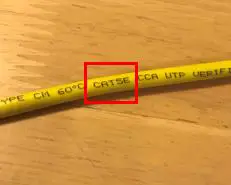
    How to Tell What Type of Ethernet Cable You Have

    Can an Ethernet Cable Slow Your Internet Speed?
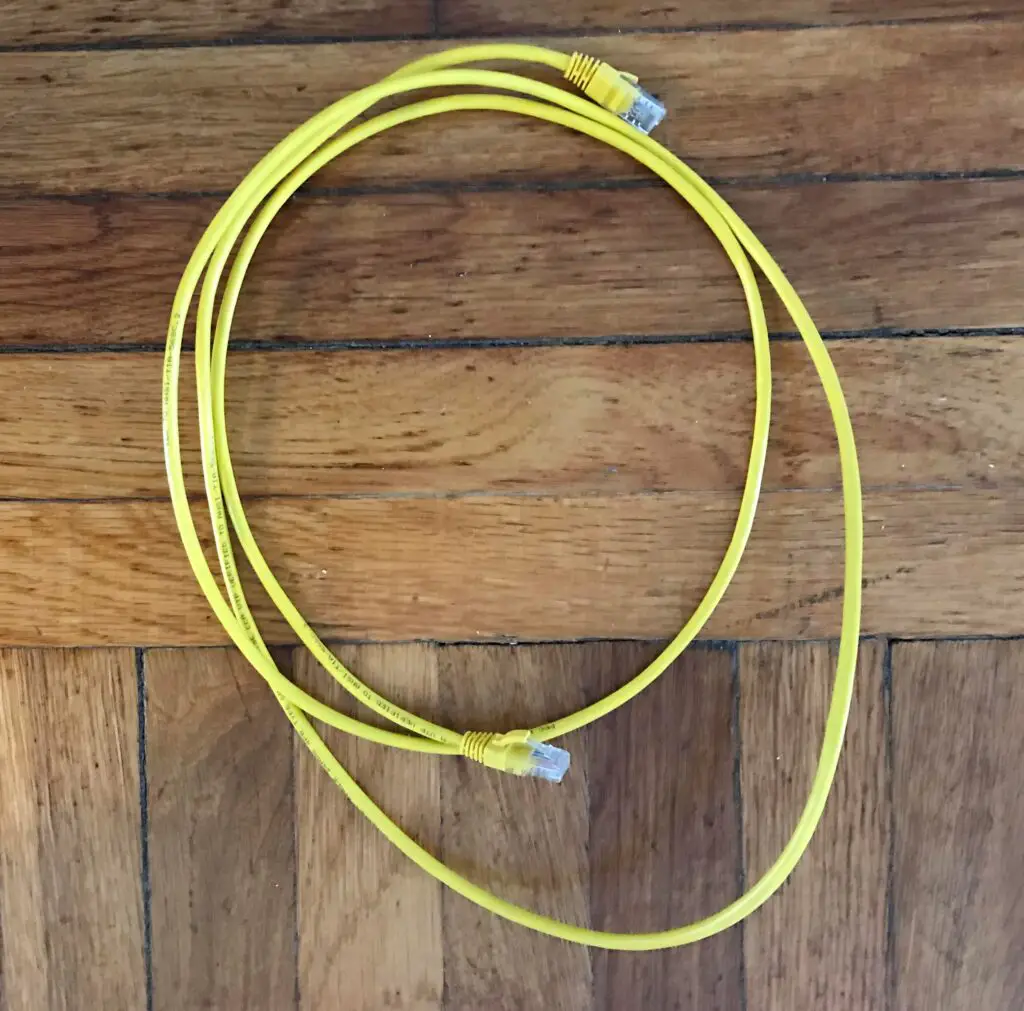
    Is an Ethernet Cable Faster Than WiFi?