Author: Ross Ricky

  • Why Do Modems Need to Be Rebooted?

    Why Do Modems Need to Be Rebooted?

    Modems need to be rebooted title page

    Once you plug in your modem and establish a connection to your internet service provider (ISP), you don’t have to do anything with your modem ever again, right?

    Absolutely not.

    In fact, it is recommended that you reboot your modem every once in a while after it’s set up.

    But why is rebooting your modem recommended? What benefits does that provide?

    Periodically rebooting a modem is considered good practice. When a modem is rebooted, it resets its connection with its internet service provider (ISP). This ensures that the modem maintains a reliable internet connection with the ISP, which maximizes the internet performance for the devices on the network.

    In this post, I’ll talk about the importance of rebooting your modem and the benefits of doing so. I’m sure you’ll find that with minimal effort, you can greatly improve your internet connection.

    Why Does Your Modem Need to Be Rebooted?

    There are several benefits why rebooting your modem is a good idea. Let’s take a look at each of them in detail.

    Rebooting a Modem Maintains Fast Internet Connections

    Modems are just like any other computer or mobile device. They have the same components that these devices do:

    • A processor
    • Memory
    • Firmware
    • A power source

    The list goes on and on.

    The difference between your modem and your mobile devices is that your modem’s components aren’t as powerful.

    That’s because they don’t need to be.

    Computers and other mobile devices are designed to perform many different, complex functions. They can be used in a variety of ways and are designed to allow the user to do just about anything with them.

    Modems aren’t designed this way. A modem has a specific set of tasks that it’s meant to perform. As a result, it don’t need the same level of processing power and memory that other devices have.

    Let’s talk about memory specifically.

    Because modems don’t have as much memory as computers and other devices, it makes it more important to efficiently use the memory they have.

    Modems store information about the devices that are on your home network. Over time, your modem’s memory will start to fill up with information that it doesn’t need. If a modem’s memory gets too full, it won’t be able to process the information going to and from the internet as quickly.

    In other words, all your internet connections will come to a crashing halt if your modem’s memory is too full.

    When you restart your modem, you clear the modem’s memory. By doing so, you’re ensuring that the modem is only storing the most recent and relevant information it needs. A modem that’s not bogged down by storing useless information will maximize the speed of your internet connections.

    Rebooting a Modem Maintains a Reliable Internet Connection

    I’m sure we’ve all been in this situation:

    Your internet connections have slowed down or you’re not getting an internet connection at all. You don’t know what’s going on so you call your internet provider to see if they can help.

    After waiting on hold for 30 minutes you finally get in touch with a representative from your ISP.

    The first thing they tell you to do is to turn off your modem, wait for 30 seconds, then turn it back on.

    After your modem boots back up, your internet connection has been restored and your devices can access the internet as usual.

    What gives? Why does this happen and what’s exactly going on here?

    The Problem With Modems and ISP Connections

    Your modem is responsible for maintaining a connection with your ISP. Although this sounds easy enough, there is a little more to it.

    To get a better perspective, let’s look at it from the ISP’s point of view. Although your modem only has to connect to one ISP, the ISP has to maintain a connection to every modem that’s connected to it.

    We’re talking thousands of devices here.

    In trying to maintain so many connections at once, it’s easy to see how a connection can easily get lost in the shuffle.

    This is usually what happens when you lose your connection to the ISP.

    Why Rebooting Your Modem Helps With ISP Connection Issues

    When you reboot your modem, you’re starting a brand new connection to the ISP. It’s essentially like your modem is raising its hand and yelling “Hey ISP, here I am. Connect with me please!”.

    The internet provider will be more responsive to newer connections as opposed to older connections it made months ago. By rebooting your modem, you’re making sure your ISP is aware of your modem.

    If you make sure to restart your modem on periodic basis, the ISP won’t lose track of your connection.

    Think of all the time you’ll save by not having to wait on hold when you call your internet provider.

    How Often Should I Reboot My Modem?

    Although I know you’re looking for a standard answer here, unfortunately I can’t give one.

    The answer is because it depends.

    The truth is some people will have to reboot their modem more often than others.

    There are many variables in play here including:

    • Which ISP you’re using
    • The make and model of the modem you’re using
    • How old your modem is
    • The number of devices you have connected to the internet

    All these things will factor into the quality of your internet service. The more your run into problems with your internet connection, the more often you’ll have to reboot your modem.

    If you want my advice, a good place to start would be to reboot your modem every few months.

    Keep in mind this doesn’t have to be an exact science. You can wait to reboot your modem until your internet connections slow down and you have issues, or you can be proactive about it and restart your modem on a regular schedule.

    Feel free to experiment with this. As I mentioned previously, results will vary. Find a reboot schedule that works for you and your internet connections.

    How to Manually Reboot Your Modem

    Ok, so we know why you should reboot your modem and how often to do it. Now let’s discuss the steps you need to take to actually reboot your modem.

    There are several ways to do this, and I’ll explain the manual method first. I’m sure you’ll find this is the simplest way to reboot your modem.

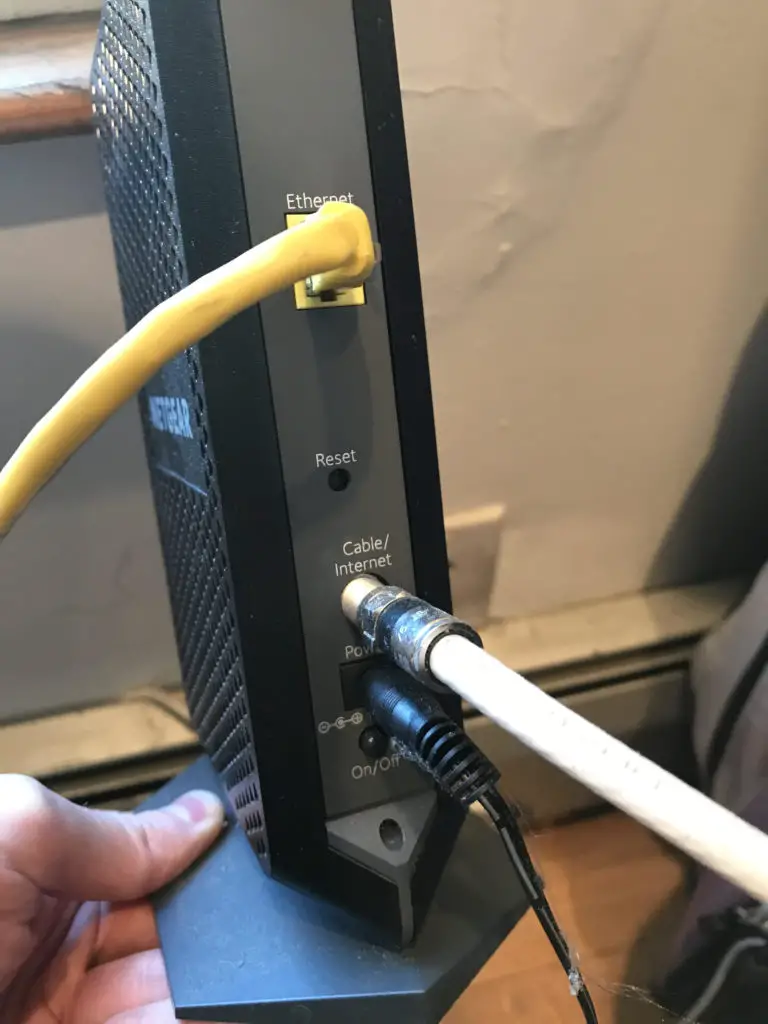
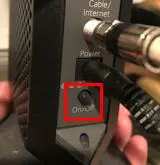
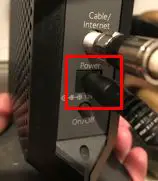
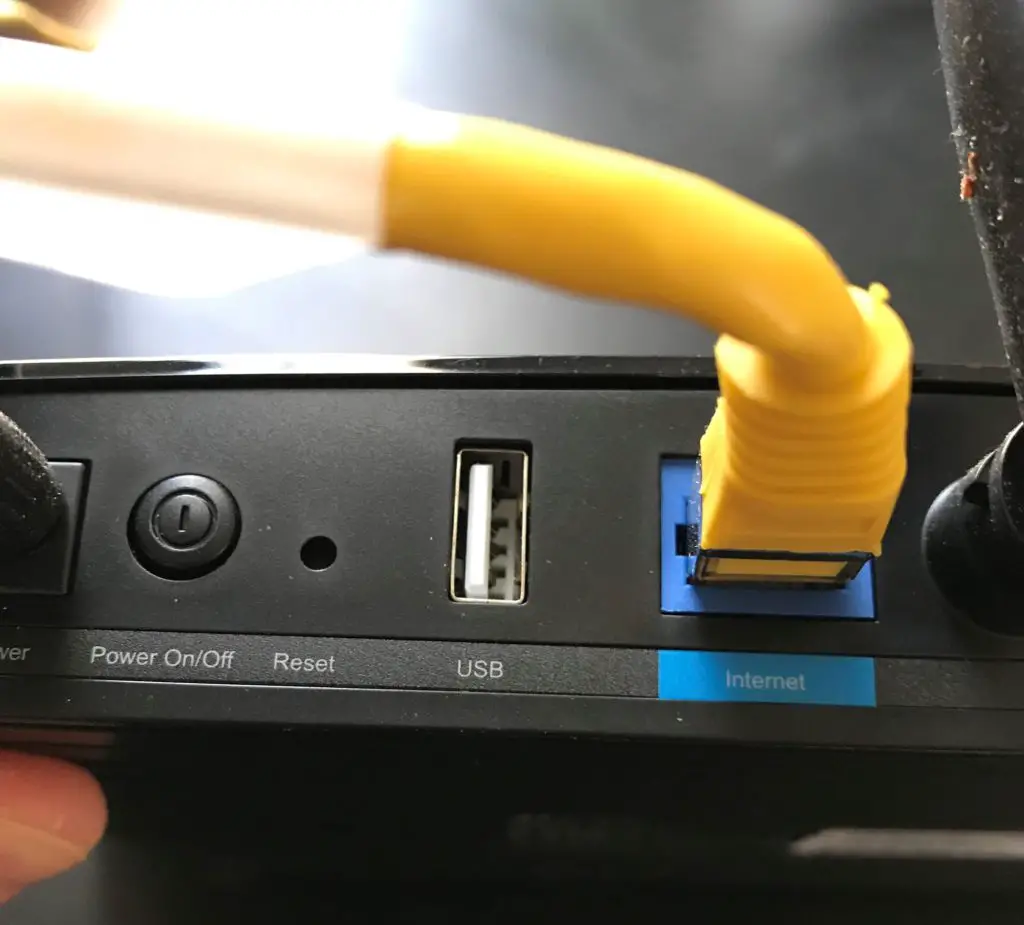
    The first thing you need to do is identify the power cord on your modem. It should be easy to find as it’ll be labeled “power” on the back of your modem. Even if your router and modem are combined into one device, the connection should be labeled the same way.

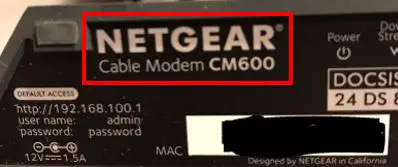
    For example, here’s the back of my Netgear CM600 modem:
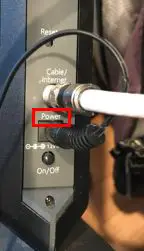
    Modem power connection

    The other end of the cable plugged into the “Power” connection on the back of your modem will be plugged into an outlet.

    To reboot your modem:

    1. Unplug the power cord from the outlet. Your modem will turn off.
    2. Wait 30-60 seconds.
    3. Plug the power cord back into the outlet. Your modem will turn on.

    As a note, some devices may require you to press a power button on the device to power it back on after it’s plugged in.

    Once your modem has powered back on, it will automatically run its startup processes. After a few minutes, your modem will be reconnected to the internet and you can go on your merry way.

    If your modem and router are combined into one device, the above steps are still applicable. In fact, you’ll be killing two birds with one stone because there are benefits to rebooting your router as well.

    As you can see, It’s not very complicated to restart your modem. These 3 simple steps could save you from suffering through slow internet connections.

    Don’t let this happen to you.

    How to Restart Your Modem From Your Computer

    If you prefer, you can also reboot your modem from your computer. As long as you’re on your home network, you can reset your modem from anywhere in your house.

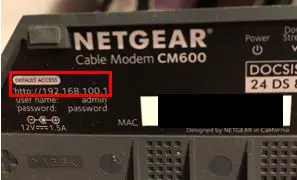
    The first thing you need to do is determine your modem’s default access location. You can find this on the sticker on your modem. In my case, the sticker is on the bottom of my Netgear CM600 modem.
    Modem default access location

    As you can see, the default access location of my modem is https://192.168.100.1. With this information, we can get to the login screen for our modem.

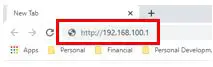
    What you need to do is enter the default access location into a web browser search bar.
    Modem default access location in browser

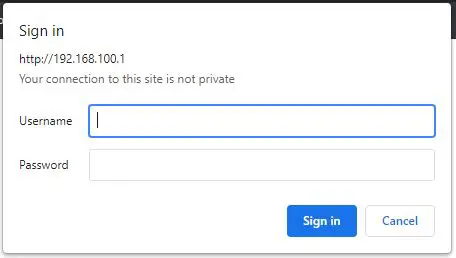
    When the page for your modem loads, you will be prompted to enter the username and password for your modem.
    Modem login prompt

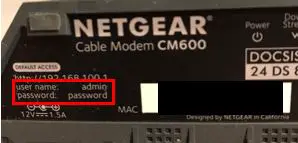
    On this screen you’ll need to log in with your username and password. If you’ve never logged into your modem before, you can find the default username and password on the sticker on your modem or in your modem’s operating manual.
    Modem default username and password

    One important note: if you use the default username and password to log into your modem, I strongly suggest you change your password. It’s a huge security risk to keep your modem’s password set to the default. Anyone that gets access to your network will easily be able to access your modem’s settings and perform malicious activity if the default password is used.

    Once you’re logged into your modem, it should be pretty easy to find the button to reboot your modem. On my modem, I need to first select the Advanced Settings header. From there I have the option to reboot my modem.
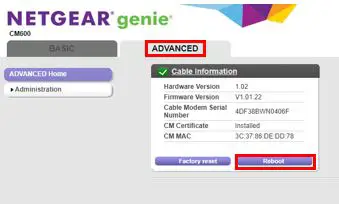
    Modem reboot button in Advanced Settings

    Upon selecting the reboot button, your modem will go through a power cycle as if you unplugged the power cord and plugged it back in again.

    These steps accomplish the same thing as a manual reboot, but its easier because you don’t have to get out off the couch.

    Can I Reboot My Modem Remotely?

    The procedure detailed above works when you’re on your home network, but what if you’re away from your home?

    Is there a way to reboot your modem remotely when you’re away from home?

    Fortunately there is. You just need to be a little creative.

    Use a Smart Outlet to Reboot Your Modem Remotely

    If you plug the power cord of your modem into a smart outlet like this one, you can control the smart outlet from anywhere you want (as long as you have internet access). By turning off the smart outlet and turning it back on 30-60 seconds later, you’re basically rebooting the modem manually.

    This is a useful method if you want to reboot your modem on demand and you’re away from home. Just keep in mind that if you lose your internet connection you won’t be able to control your smart plug. If you can’t control your smart plug you can’t restart your modem remotely.

    Call Your ISP to Have Them Reboot Your Modem

    Another way to reboot your modem remotely is to call your ISP. As long as your modem has an active connection to the internet, they’ll be able to reboot your modem for you.

    They have the ability to send a restart signal to your modem and it will reboot on command. This may not be the fastest or easiest method to remotely reboot your modem because you may be on hold with the ISP before you get someone on the line.

    This method also won’t work if your modem has lost its internet connection. If that’s the case the ISP won’t be able to do anything for you.

    Can I Set My Modem to Automatically Reboot?

    Although you can’t set your modem to automatically reboot on a schedule like you can with your router, there’s another way to accomplish this goal.

    If you get a programmable timer outlet, you can have your modem reboot on a schedule. All you have to do is connect your modem’s power cord to the outlet and set a schedule for the outlet to turn off and back on.

    This method works well if you want to reboot your modem on a schedule even if you’re not home and using the internet.

    Wrap Up

    There are multiple benefits for rebooting your modem, and there are several easy ways to do it. I think you’ll find that it’s well worth your effort to reboot your modem on a periodic basis, especially if you’re having problems with your internet connections.

    Now you won’t have to call your ISP and waste time waiting on hold before they tell you to power cycle your modem. You can take matters into your own hands.

    If you have any questions about this information or would like to share your experiences please feel free to comment below. If you found this information interesting here are some similar related posts that you might find useful:

    How to Automatically Reboot Your Router for Better Internet Connections

    Can a Router Overheat? A Detailed Analysis

    Can a Modem Overheat? What to Look For

    Why Do Routers Have Multiple Antennas?
    What Do the Lights on My Modem Mean?

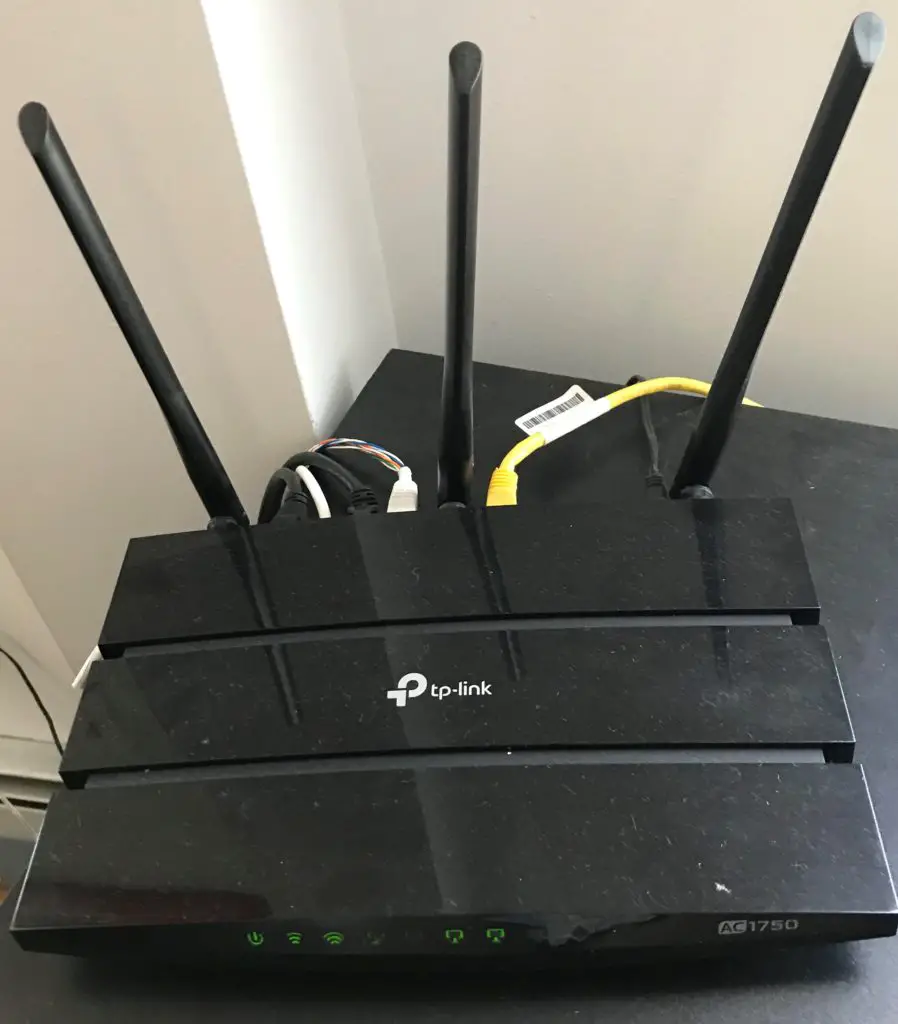
    What Do My Router Lights Mean?

  • Will a VPN Hide My Location or Can I Be Tracked?

    Will a VPN Hide My Location or Can I Be Tracked?

    VPN-Hide-My-Location-title-page

    I get it.

    Many people feel insecure when they’re using the internet. They’re unsure who’s tracking their activity and what they’re doing with it.

    The scary news is, you should feel insecure about using the internet. After all, everything you do is being tracked.

    Your browsing history, your Google searches, the videos you watch online? These things are all tracked.

    Your geographic location, the type of device you’re using to access the internet and the time you’re using it? This information is also collected.

    All of this information is sold to third parties in exchange for money. You have no idea who’s collecting your data, and who they’re selling it to.

    On the bright side, there are things you can do to make your internet usage more private from prying eyes.

    One of these options (that I’m sure you’ve heard of) is a VPN. So the question stands: will a VPN hide your location or will you still be tracked by third parties?

    Let’s take a closer look.

    What is a VPN?

    VPN stands for Virtual Private Network. What a VPN essentially does is it makes a private network that you can use when accessing the internet.

    Once you’re connected to a VPN, you become an anonymous user of the internet.

    Your IP address becomes hidden from websites and other search engines that are trying to collect your information. With your IP address hidden, not only do third parties not know who you are, but they also don’t know where you’re located. You can’t be identified or tracked like you can if you don’t use a VPN.

    On top of hiding your IP address, VPNs also encrypt your traffic. This added layer of security further protects your internet traffic from those trying to see what you’re searching.

    With the combination of a hidden IP address and encrypted internet traffic, you can be confident that your internet searches are private and your location is hidden while using the internet.

    VPN growth

    Virtual Private Network usage has been growing at a significant rate, which highlights the value they provide. According to a study performed in 2019, the usage of VPNs is expected to grow 11% annually until 2024.

    With more people working remotely and more devices connecting to the internet than ever before, it poses significant security risks to companies and individuals. It’s obvious from the expected growth rate of VPNs that this is viewed as a technology that’ll help you use the internet in a safer manner.

    How does a VPN work?

    Ok so when you’re using a VPN your IP address will be hidden, but how does the VPN service do that?

    Let’s dig a little further into the details.

    VPN request steps

    When you connect to a VPN, you’re connecting to one of the VPN provider’s servers. Some VPN providers have servers located all around the world, so you may not know which one you’re connecting to.

    Upon logging into a VPN service, you first need to enter your username and password. Once verified, you will be connected to the VPN and the VPN server will carry out your internet requests for you.

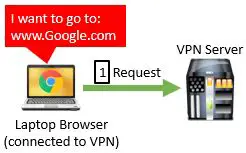
    For an example, let’s say you’re connected to a VPN and you want to go to Google.com. Your device will send an encrypted request to the VPN telling it that you want to go to Google.com.

    Internet Request to VPN Server

    The VPN server will then send a request to Google.com asking for its webpage.

    VPN Server Request to Internet

    Google.com responds to the VPN server’s request with the requested webpage.

    Internet Response to VPN Server

    Upon receiving the webpage from Google.com, the VPN server sends the webpage back to your device over the encrypted connection.

    VPN Server Response to VPN User

    Your browser will then load the web page that the VPN server provided.

    Simple as that.

    How does a VPN hide your location?

    To recap, when using a VPN service the VPN server carries out your internet request for you. Using the example above, Google.com only sees that the request is coming from the VPN server. They don’t even know you exist on the other end of the connection to the VPN server.

    Google.com will track the IP address of the system making the request, which in this case is the VPN server. They more than likely know that this IP address is for a VPN server, but this doesn’t affect you as the VPN user.

    Other subscribers to the same VPN service will also be using that VPN server to make requests for them. As a result, your internet requests will get mixed in with other people’s. This further muddies the waters for websites that are trying to track you.

    So how does this hide your location?

    When making an internet request, your IP address can be tracked to a specific geographic area.

    Don’t believe me? Put your IP address into the search bar on this IP location site. You can use an IP address to get the latitudinal and longitudinal coordinates of your location, which is pretty specific. Although your exact location may not be tracked, it’s a little too close for comfort.

    Anyway, let’s go back to the example above. In this case, Google doesn’t know you are the one using the VPN service. They only know the IP address of the VPN server that made the request. If they were to track this IP address, they would get the geographic location of the VPN server. This doesn’t do them much good.

    As a result, we can safely say that by using a VPN correctly, your location will be hidden.

    Can you still be tracked when using a VPN?

    Even if you’re correctly using a VPN connection and have a trustworthy VPN provider, you still need to be careful.

    If you’re not connected to your VPN

    One very important item to be aware of is that you need to connect to the VPN service before you start using the internet in order to be protected.

    You’ll need to make sure you’re connected to the VPN each and every time you’re going to use the internet. Buying a VPN subscription does not mean your internet traffic will automatically be private and anonymous.

    If you pay for a VPN subscription but aren’t connected to it when you use the internet, you’ll be exposed to prying eyes as if you didn’t have a VPN in the first place.

    If you’re signed into a website’s account

    When you’re using a VPN and you sign into your account for a particular website, the website will be able to collect information about you.

    This is especially true for Google. If you’re signed into your Google account and performing searches, they’ll know it’s you because you’ve identified yourself.

    If you’re using a VPN for privacy reasons, it defeats the purpose if Google is still tracking your activity.

    When you use a VPN I recommend signing into accounts only when you need to. When you’re done with your account, make sure that you sign out of it. For example, sign out of Google once you’ve checked your email and you want to search for something on the web. This will limit the amount of information that’s tracked about you.

    Another thing you’ll have to worry about is the VPN provider you choose (we will discuss this later).

    Are there alternatives for hiding your location on the internet?

    Many people are under the misconception that using private mode on your browser will hide your location on the internet. This is not the case.

    Private mode will not make you anonymous on the internet.

    If you want to be anonymous on the internet, another alternative is to use Tor.

    Tor stands for “the onion router”. It’s an internet browser that makes you anonymous on the internet. It’s a free alternative to using a VPN which is nice, but the internet experience it provides is not as seamless as using a VPN.

    If you would like to learn more about why private mode doesn’t make you anonymous on the internet or the pros and cons of using Tor, check out our previous post: What is Incognito Mode Used for?

    What are the best uses for a VPN?

    Now we know what a VPN can do and how the service works.

    Let’s discuss the reasons why you’d want to use a VPN.

    Common VPN Use Cases

    To prevent tracking by ISP and third-parties

    As previously mentioned, when use the internet without a VPN your internet service provider and many other third parties are collecting and selling information about you.

    With a VPN you don’t have to worry about this. All your ISP will be able to see is that you connect to a VPN. They’ll track the IP address of the VPN server and the time you connect to it, but other than that they’ll have no insight into your internet activity or browsing habits.

    In addition, Google won’t be able to collect any specific information about you if you’re using a VPN and you aren’t signed into your account. They are notorious for being the worst in terms of tracking your internet activity, so this is a big reason for using a VPN.

    Hiding your location

    As previously mentioned, websites won’t be able to see your IP address when using a VPN. They’ll only be able to see the IP address of the VPN server you’re using, which hides your location from the site. In fact, the website will think you’re located at the geographic location of the VPN server.

    This is especially useful if a website only works in a particular geographic area.

    Let me provide an example.

    If you live in the United States and have a Netflix account (as I’m sure many of us do), you can’t access the US library of content if you’re outside the United States.

    Let’s say you’re traveling abroad on vacation and want to watch your favorite Netflix show at the end of a long day. If the show is part of Netflix’s US-only catalog of content, you’ll be out of luck.

    That is unless you have a US-based VPN. If you’re connected to a US based VPN, Netflix will think you’re located in the US…

    Do you see where I’m going with this?

    This is also useful in countries like China where services like Facebook aren’t available. If you subscribe to a VPN service located in a country that has Facebook, you’ll be able to access it as if you’re sitting in that other country.

    Browsing safely on public networks

    Raise your hand if you use public WiFi networks when you’re traveling or away from home. I’m sure that is just about all of us.

    I’m talking about airports, hotels, coffee shops, and other public areas. These places provide everyone with free access to their internet, but their networks come with a lot of risks.

    In many cases these public networks are not as secure as they should be. Combined with the fact that there are hundreds of people that connect to these networks every day, public WiFi is a perfect target for hackers.

    The good news is with a VPN on your mobile device, you won’t have to worry about this. Once you’re connected to your VPN service, hackers won’t be able to “listen in” on your internet connection to steal your personal information, passwords, or bank account numbers.

    Disclaimer about VPNs and internet security

    There’s a common misconception about VPNs that I need to address.

    This misconception is the belief that if you use a VPN you are safe from viruses and other malicious downloads. This is not true.

    VPNs don’t protect you from downloading harmful software on your devices.

    Although they improve your internet security by making it harder for bad guys to steal information about you and your accounts, VPNs don’t stop you from clicking on sketchy links or pop-ups that you shouldn’t.

    All this is to say that even with a VPN, make sure you practice good cyber hygiene. Don’t click the link that promises you a trip or the newest iPhone for free.

    Here is a good rule of thumb to follow: if something seems too good to be true, it isn’t. Especially on the internet.

    Accessing corporate networks

    You can also use a VPN to access another network that’s not available to the public internet. I’m sure you’ve seen this if you work remotely from home.

    By remotely connecting to your company’s network with a VPN, you can access the company’s shared documents and internal sites. In other words, a VPN gives you the same remote access to your company’s network as if you were sitting onsite. General users of the internet won’t be able to access these sites and documents from the internet without a VPN.

    You can also use a VPN to connect to your home network if there are resources you’d like to access while you’re away.

    How do you get a VPN?

    VPNs come in the form of software applications. With more people than ever using mobile devices to access the internet, most VPN services are available for both computers and mobile devices.

    When you purchase a VPN service, the VPN application will either be installed on your computer, or there’ll be a website you need to go to in order to connect to it.

    Once you create a username and password for your account you’ll be off and running. There are no changes you need to make to your device or network.

    In some cases employers will provide you with one-time password tokens that are used to generate passwords for your VPN account, but these not required for a VPN to work properly.

    What should you consider when getting a VPN?

    There are many VPN services on the market, so it’s important to do your homework when finding the service that works best for you.

    Let’s dive into some factors that you may want to consider when picking a VPN.

    Cost

    You may find some free VPN services on the internet, but very rarely do these offer the protection or performance you would want.

    The good news is some VPN services will allow you to try their product for free for a short period of time. I would recommend doing this if you are unsure what service you want.

    The majority of VPN services will charge you on a monthly basis and they will cost anywhere between $5-$15 per month.

    Although this is an important factor, you shouldn’t be picking your VPN solely on how much it costs. You need to consider all the factors that make up the service.

    Does the VPN work on mobile?

    Most VPN services today come with a mobile option, but you’ll want to verify this before you sign up for a subscription.

    More people than ever are accessing the internet on mobile devices, so you need to make sure you can protect yourself while you’re using them.

    This is especially important if you’re looking to protect yourself when using public WiFi networks. You’ll most likely be using your phone or tablet when you’re on these networks. Make sure the service you get will work on these devices.

    Privacy the VPN service provides

    By sending all your internet requests to a VPN server, the VPN service could theoretically have a record of all your internet activity. If your VPN provider chose to sell your information, they could do that. Worse still, if the authorities were investigating you and requesting your internet search history, they may hand it over.

    With that said, there are many VPN providers who vow not to sell your information, if they even track it in the first place. You just need to do your homework to make sure you choose a provider you can trust with your information.

    Number of devices supported per subscription

    Some services will have subscription prices per device, while other subscriptions will support multiple devices.

    With that said, you need to know how many devices will be using the VPN. Pay attention to the number of devices the subscription supports to make sure you get the right service.

    Does the VPN have a kill switch?

    If you are serious about your privacy on the internet, you’ll want a VPN service with a kill switch.

    Have you ever thought about what would happen if you’re using the internet and your connection to the VPN gets dropped or interrupted?

    If your VPN doesn’t have a kill switch, you and all your browsing activity will be exposed until the connection to the VPN service is restored.

    A VPN kill switch will disconnect you from the internet until the VPN connection is back up and running. In other words, a kill switch ensures you only use the internet while connected to your VPN service.

    Most good VPN providers include a kill switch as part of their service, but you’ll want to double check to make sure.

    Does the VPN block ads?

    When surfing the internet, ads can be both annoying and dangerous. In fact, infected websites often display pop-up ads that contain viruses and other malicious software.

    If you can, you’ll want to avoid pop-ups entirely. This will not only speed up your internet because your browser won’t have to load the pop-ups, but you’ll be safer when using the internet as well.

    As with most of the other VPN features mentioned, the good VPN services will include ad blocking. To get the most out of your internet experience you’ll want to ensure your VPN has an ad blocker.

    Wrap up

    Now that you know what VPNs are and how they are commonly used, you can decide if a VPN service would be a good fit for you. You also know what to look for when deciding which VPN service best fits your needs.

    If you want to look at alternatives you can learn more about why Incognito Mode (AKA Private Mode) is not a good choice by checking out our blog post detailing Incognito Mode.

    As always, feel free to comment below to ask me any questions you may have or if there’s anything in particular you’d like me to write about. After all, my goal is to help you safely get the most out of your internet experience.

  • How to Automatically Reboot Your Router for Better Internet Connections

    How to Automatically Reboot Your Router for Better Internet Connections

    Automatically reboot router title page

    When you’re having problems with your home internet, the most common advice you’ll receive is to reboot your router.

    More often than not, this seems to give your internet a boost and clear up any issues you’re experiencing. What most people fail to mention, however, is that you can set your router to reboot automatically.

    That’s right. Once it’s set up, you don’t to do anything. Your router will reboot on its own.

    So how do you go about setting your router to reboot automatically?

    Routers can be set to automatically reboot by accessing the router’s settings page. The router’s reboot schedule can normally be set in the Advanced Settings page. Parameters such as the frequency of reboot and the time the reboot occurs can usually be determined in these settings.

    In this post, we’ll look at the benefits of resetting your router, and the steps you need to take to set your router to automatically reboot.

    What Does It Mean to Reboot Your Router?

    Before we dive into the benefits of rebooting your router, let’s cover what a reboot is.

    A reboot is the cycling of power on a device. In other words, it’s turning the device off and then turning it back on after a set period of time.

    What Are the Benefits of Rebooting Your Router?

    We’re instructed to occasionally reboot many of our electronic devices like our phones, computers, and tablets. Routers are no different.

    Why are we instructed to do this?

    Rebooting your devices provides numerous benefits.

    Benefits of setting your router to automatically reboot

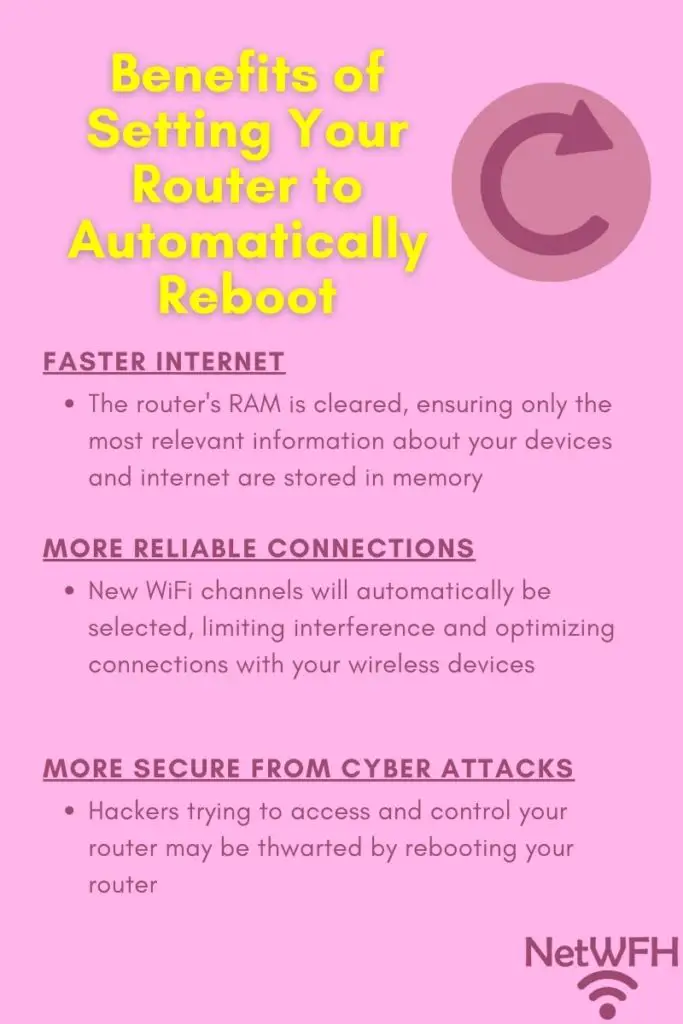
    When it reboots, your router:

    • Clears its memory to make sure it’s not bogged down by storing useless information
    • Automatically selects the best wireless channels to use when communicating with your devices
    • May be better protected from cyber attacks

    Let’s discuss these benefits further to explain what each of these mean.

    Memory Is Cleared When a Router Is Rebooted

    Routers are basically scaled-down computers. This means they have storage, memory, and processors that allow it to function, just like your laptop does.

    The difference between your laptop and router is that we ask our routers to run 24 hours a day and 7 days a week. Your demands for your laptop are much more relaxed, as it gets powered on and off as you need it.

    What are the consequences of this?

    The biggest impact this has is on your device’s memory.

    Computers (and routers) have memory that gets reset each time the device is powered off. This is called random access memory, or RAM.

    While it’s operating your router stores information in RAM such as:

    • Information about the devices connected to it
    • The fastest ways to send data to different locations
    • Any changes to the router’s configuration settings while it’s running

    The longer your router is running without being powered off, the more information it will have stored in RAM. Over time, more devices will connect to your router, changes will be made to the router’s configuration, and more information about the best ways to route data will be recorded.

    Why is this a bad thing?

    Your router has a limited amount of memory. If it runs for a long period of time without rebooting, it can run out of memory. When this happens it won’t be able to work as quickly, which slows down your internet connections.

    By rebooting your router, you give its memory a clean slate to work with. It will ensure that any unnecessary information is cleared from memory to make sure it isn’t taking up precious space.

    The Best Wireless Channels Are Automatically Selected After a Reboot

    We all know that your router provides wireless internet connections to your devices. What’s less known is that there are multiple channels that your router and devices can communicate over.

    For example, a router that operates on a 2.4 gigahertz network and 5 gigahertz network (which is the standard for new routers) has 56 different channels it can communicate on. The 2.4 gigahertz network has 11 channels and the 5 gigahertz network has 45 channels.

    WiFi channels are like the channels of a hand-held two-way radio, or walkie talkie device. There are some channels that will be congested with other people using them, while others will allow for clear communication because no one is using them. For the best communication, you need to find a channel that doesn’t have any interference.

    Routers work the same way.

    When your router powers on, it will scan through the available WiFi channels to find the ones that allow for the best connection. It will automatically select the best channels to use and it will use those channels to communicate with your devices.

    The problem with this is that your router selects the best wireless channels to use only when it starts up. It doesn’t adjust the WiFi channels it uses while it’s operating because it could confuse your devices.

    This presents a problem when other people and devices start using the same channels that your router chose when it powered on. If more people start using the same WiFi channels as your router, it will interfere with your connections. Interference will lead to a slower internet connection for your devices because the communication with your router won’t be as seamless.

    By rebooting your router, you can be confident that the wireless channels being used won’t be too crowded by other devices.

    Rebooting Your Router Helps Protect Against Cyber Attacks

    Back in 2018, the Federal Bureau of Investigation (FBI) asked all United States citizens to reboot their routers. The FBI had information that a cyber attack from a foreign country was trying to gain access to people’s home routers. Rebooting the router prevented the attackers from maintaining access to the devices. This also bought time to update and patch the routers so they wouldn’t be vulnerable to the attack moving forward.

    Although this is just one example, it shows how important rebooting your router can be. Cybersecurity has become more of an emphasis in recent years as more and more devices are connected to the internet.

    We see news about cyber attacks every day, and this isn’t a trend that’s going to stop any time soon. As a result, you should be doing everything you can to protect yourself and your devices. Even if rebooting your router provides only a minimal amount of added protection, it’s definitely worth the effort.

    This is why setting up your router to reboot automatically is so valuable. You can added protection against cyber attacks without having to think about it.

    The tricky part about this benefit is that you probably won’t even know if you’re avoiding a cyber attack by rebooting your router. In any case, it should give you peace of mind to know that you may be more secure.

    How Often Should You Reboot Your Router?

    Rebooting your router is not a perfect science.

    Everyone will have a different experience based upon:

    • The age of their router
    • How many devices they have connected to their network
    • The amount of interference from other devices
    • How their router is set up
    • The reliability of the internet connection with the Internet Service Provider (ISP)

    Because of these factors, some people will need to reboot their router more often than others.

    I would suggest rebooting your router every few months to start. That is a good place to start.

    From there, just monitor your internet’s performance and go from there. If you find that your internet connection is still sluggish at times, reboot it monthly (or more often).

    Do some experimenting to find the right schedule for you and your network. With that said, if you find that you have to reboot your router on a daily basis, you may want to think about getting a new one.

    You shouldn’t have to reboot your router every day to get it to work properly.

    When Should You Reboot My Router?

    Finding a good time to reboot your router is pretty easy to do. Just pick a time where you’re not using the internet.

    For most people, this is in the middle of the night when they’re sleeping. How often are you awake and using the internet at 3 a.m. on a Monday?

    I didn’t think so.

    If you work in an office building and are away from home all day, that’s another good window where you can reboot your router.

    The thing to keep in mind here is that rebooting your router should take less than 10 minutes. I’m sure there are 10 minute spans throughout the day (or on a certain day of the week) where you’re not using the internet.

    Just find the day and time that works best for your internet usage pattern and daily schedule.

    How to Automatically Reboot Your Router

    In order to set your router to reboot automatically, you’ll need to access your router’s settings.

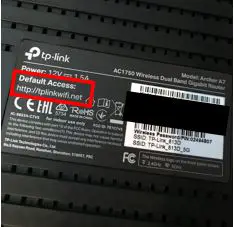
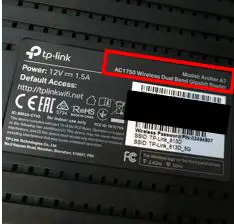
    To do this, start by entering the default address of your router in your browser search bar. You can most likely find the default access location of your router on a sticker on the router itself. For example, the default access location for my TP-Link Archer A7 router is http://tplinkwifi.net.

    Archer A7 Default Access Location

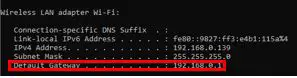
    You can also access your router’s settings by typing its IP address into the browser search bar. If you have a Windows system, you can find the IP address of your router by opening a command prompt window and typing “ipconfig” and pressing enter.

    Your router’s IP address will be listed as the default gateway in the resulting information. As you can see, my default gateway IP address is 192.168.0.1. This is the IP address of most people’s routers.

    Default gateway ip address

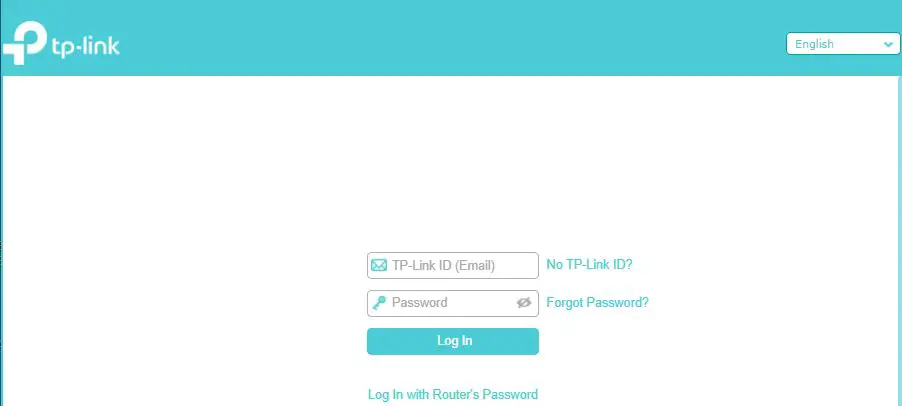
    After typing in the default address location or IP address of your router into the search bar, enter your login credentials for your router.

    Router login screen

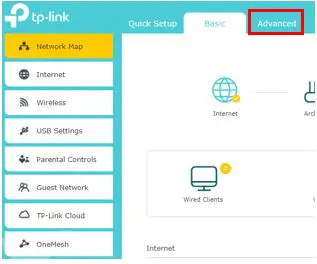
    Once you have logged into your router, go to Advanced Settings.

    Router advanced settings

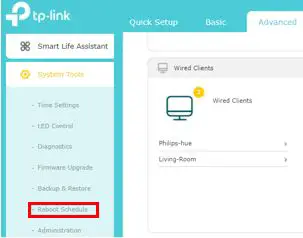
    In Advanced Settings, there should be an option to change the system settings for the router.

    On my router, this section is called “System Tools”. In Seystem Tools there’s a section called “Reboot Schedule”.

    Router reboot schedule

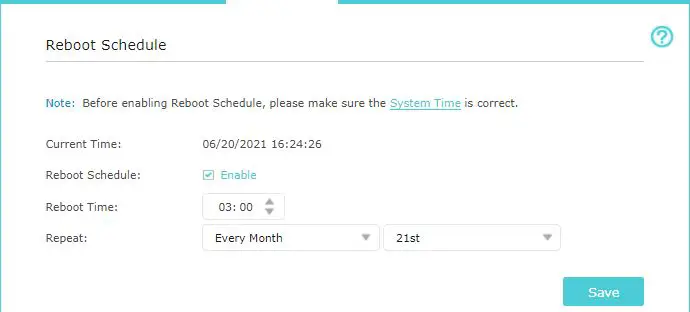
    In the reboot schedule settings, you can select the time and frequency that you want your router to reboot.

    Router reboot schedule settings

    After setting your router to reboot at a time that fits your internet usage schedule, select “Save” to lock in your changes.

    Your router will now reboot automatically at the scheduled time without any further action on your part.

    How to Reboot Your Router Manually

    If for some reason it’s not convenient to reboot your router on an automatic schedule, you can also reboot it manually.

    Thankfully, it’s very easy to do. There are different steps you can take to reboot your router depending upon if it has a power button or not.

    How to Reboot Your Modem if Your Router Has a Power Button

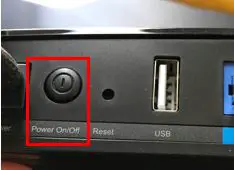
    Look at the back of your router. Check to see if your router has a power button on it. It should look something like this:

    Router power button

    If your router has a power button, press it to turn the router off.

    Now wait 30-60 seconds and press the power button again. This will turn the router back on.

    Once the router has powered up and finished its initial setup, the reboot will be complete.

    As an important note, on the back of your router you may notice a “Reset” button. For an example, refer to the picture above. Next to the “Power On/Off” button on my router is a “Reset” button.

    This button is not used to reboot your router so do not press it. It will restore your router to its original factory settings and remove any changes you have made to its configuration.

    Use the power button or the following method to reboot your router.

    How to Reboot Your Router if Your Router Doesn’t Have a Power Button

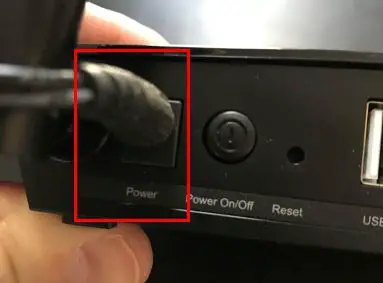
    If your router doesn’t have a power button on the back, locate the power cord. It should be plugged into the back of your router and will look something like this:

    Router power cable location

    Remove the plug from the back of the router to turn it off.

    Now wait for 30-60 seconds.

    After 30-60 seconds has gone by, plug the power cord back into the back of the router. This will power it back on.

    Once the router has powered up and finished its initial setup, the reboot will be complete.

    Wrap Up

    Setting up your router to automatically reboot on a schedule has multiple benefits. You should now have all the information you need to get your router to do this, if you so choose.

    If you have any questions about this information or are having trouble getting your router to reboot automatically, feel free to drop a comment below.

    To learn more about your router and how it affects your internet, check out the previous posts:

    Does a Router Affect Your WiFi Speed?

    What Is the WAN Port for on a Router?

    Can a Router Overheat? A Detailed Analysis

    Why Do Routers Have Multiple Antennas?
    What Do My Router Lights Mean?

  • What Is the WAN Port for on a Router?

    What Is the WAN Port for on a Router?

    WAN Port on router title page

    I’m sure you’ve noticed that there are several ports on the back of your router. Are you unsure what the one labeled “WAN” is for?

    If so, you’re not alone.

    Depending how it’s labeled, the WAN (or internet) port can be confusing.

    The WAN port on a router is an ethernet port that is used to provide the router with access to the internet. To get a connection to the internet, an ethernet cable is plugged into the WAN port of the router, and the other end is connected to a modem with an active internet connection.

    To put it simply, if your router isn’t connected to a modem through its WAN port, it won’t have internet.

    In this post I’ll perform a deep dive into the WAN port on your router and explain how it’s used. I will also be answering a few commonly asked questions about the WAN port.

    What Does WAN Stand For?

    Most of the confusion with the WAN port comes from the fact that people don’t know what WAN means.

    WAN stands for Wide Area Network.

    When it comes to your home network, when we talk about a WAN we are referring to the internet.

    What Is a WAN Connection?

    A Wide Area Network is a communications network that spans a large geographic area. The biggest (and most widely used) WAN in the world is the internet.

    It’s easiest to think of it this way: all devices that are connected to the public internet are accessing the same WAN. This includes:

    • Mobile phones
    • Laptops
    • Internet of Things devices (e.g. security cameras and baby monitors)
    • Web servers
    • Smart televisions

    The list goes on and on.

    Any time you connect a device to the internet, it has access to the other devices that are publicly available on the internet WAN.

    Let’s look at an example.

    I’m sure you access your favorite websites with your laptop or mobile device on a daily basis. You can only do this because your internet device and the web servers that host your favorite sites are connected to the same WAN. In other words, they are both connected to the internet.

    What would happen if your mobile device wasn’t connected to the same WAN as the web servers that host your favorite sites?

    Quite simply, you wouldn’t be able to connect to them.

    This is why we need a modem and router in our home network. They allow us to connect our devices to everything else that’s connected to the largest WAN in the world.

    What Is a Router’s WAN Port Used For?

    Hopefully now you understand the importance of the WAN port on your router. The WAN port is used to provide your devices with access to the the internet.

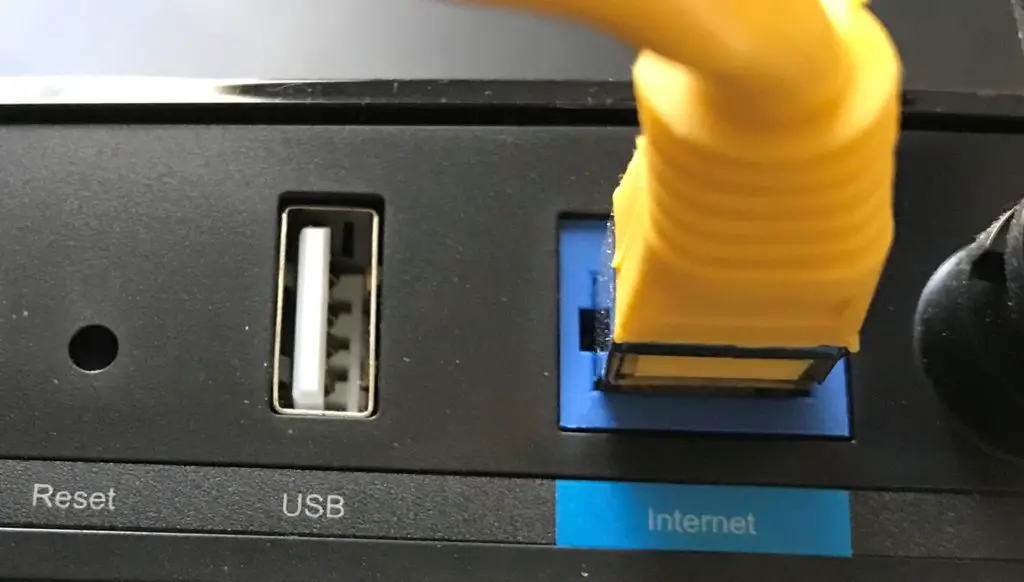
    Take a look at the back of your router. If you don’t see a WAN port, it’s probably because it’s labeled “Internet”. Regardless of how the port is labeled, they are one in the same.

    That’s the case with my TP-Link Archer A7 router:

    Router internet port

    I’m not sure if TP-Link did this because people were getting confused about what the WAN port is for, but labeling the port “Internet” is much easier to understand.

    Your router uses the WAN port to relay signals from your devices to your modem. Your modem will then forward those messages out to the desired internet location.

    When sites or information are being sent to your devices from the internet, the data flows in the opposite direction. Your modem will receive the requested information from the internet and pass it along to your router via the WAN port. Your router will then send that information to the device that requested it.

    Of course I’m simplifying things a bit here, but that’s essentially how the WAN port works.

    What Do You Connect to a Router’s WAN port?

    If your modem and router are separate devices, you’ll need to connect them. This is done through the WAN port on your router.

    All you’ll need to connect your router to your modem is an RJ45 ethernet cable. RJ45 is a standard type of ethernet cable, so almost any ethernet cable you find will fit the bill here. It will be safest to go with the most common type, which is a T-568B cable.

    When buying an ethernet cable to connect your modem and router, the most important consideration is the speed the cable supports. You need to make sure the speed supported by the ethernet cable is greater than or equal to the speed of your internet plan (and your WAN port). The last thing you want is for your ethernet cable to slow down your connection.

    For more information on selecting the proper ethernet cable for your home network, check out our previous post: Can an Ethernet Cable Slow Your Internet Speed?

    One thing to note here is if your modem and router are combined into one device, your job is really easy. They’re already connected so there is no action required on your part. In fact, you won’t even have a WAN port on your device.

    What Device Does a Router’s WAN Port Connect to?

    Ok, so you need an ethernet cable to connect to your router’s WAN port. Let’s do that first.

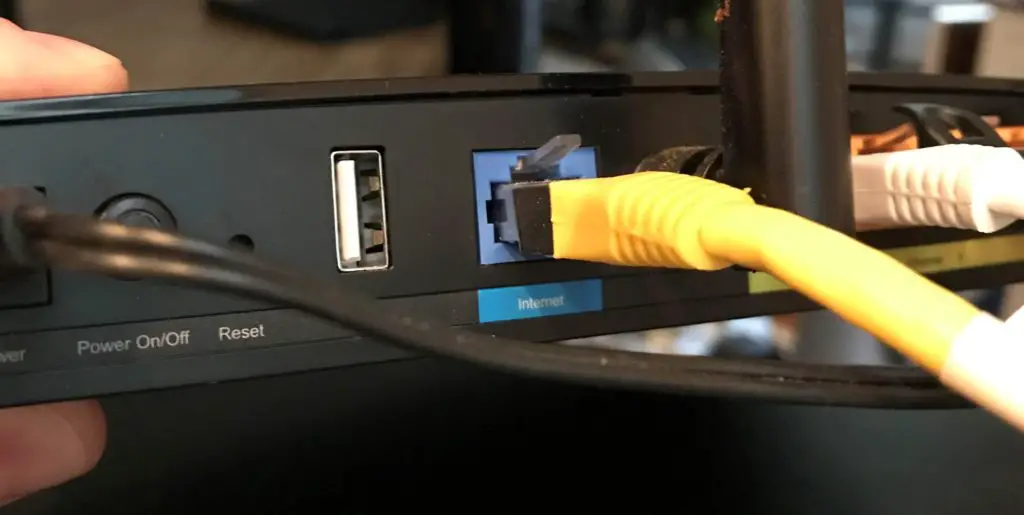
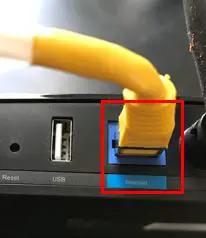
    Once you’ve connected an ethernet cable to the WAN (or Internet) port, it will look like this:

    Router internet connection

    What about the other end of the cable? What does that connect to?

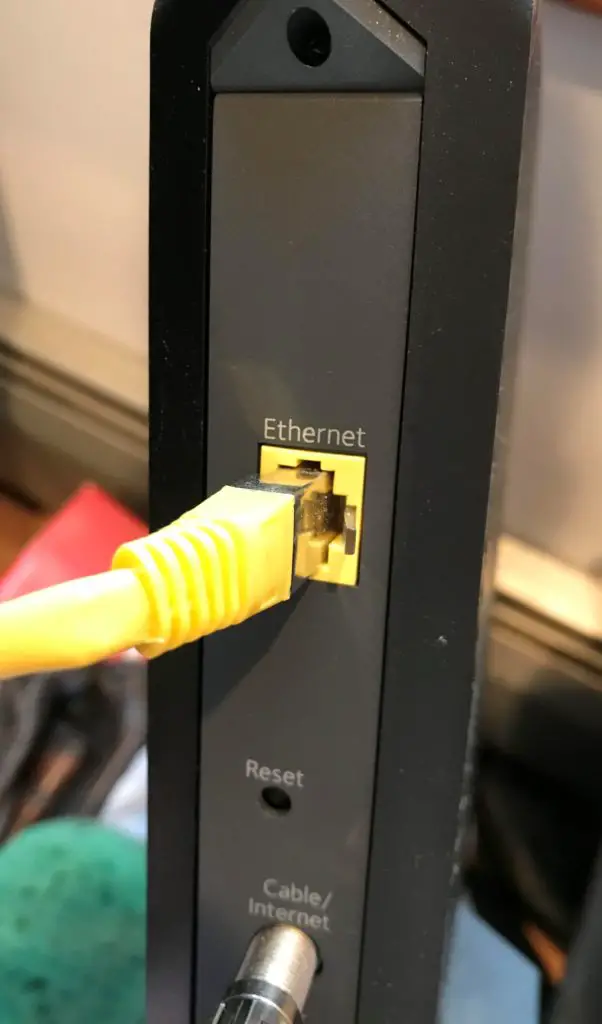
    The other end of the ethernet cable will connect to your modem. It shouldn’t be difficult to determine the port to connect the ethernet cable to.

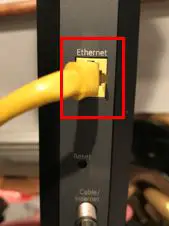
    On my router, the port is labeled “Ethernet”. To make things easy, it’s the only ethernet port on the back of my modem. Once we connect my yellow ethernet cord to the Ethernet port on my modem it will look like this:

    Modem ethernet connection

    See? It’s very hard to mess up.

    Now your modem can pass your router the internet signals it receives from the internet. In other words, if your modem and router are powered on and your modem is connected to the internet, your router should be connected to the internet as well.

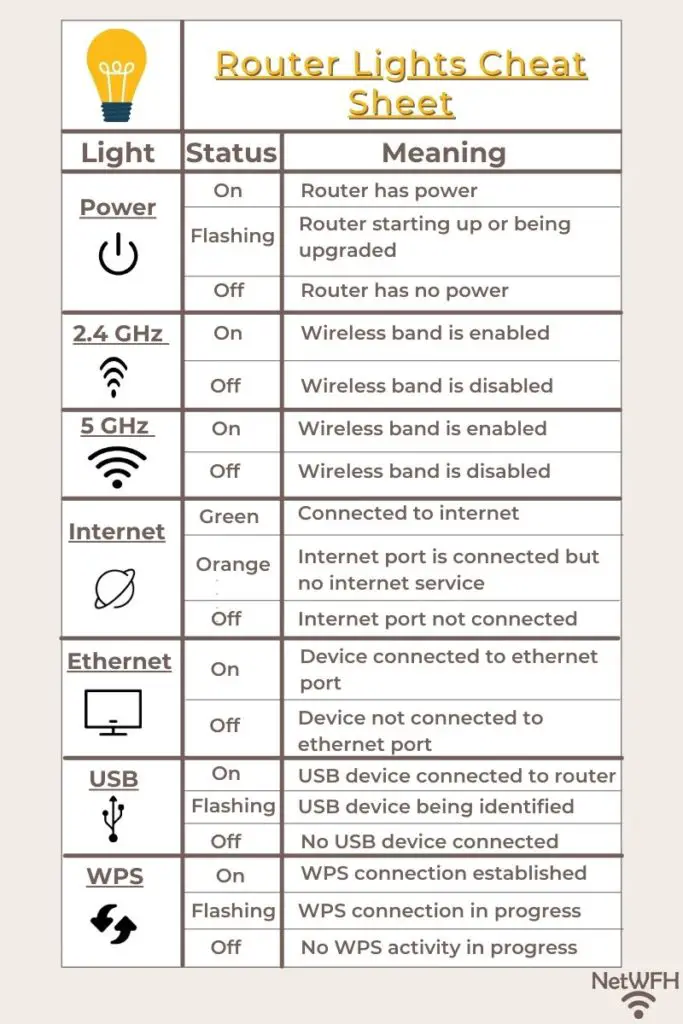
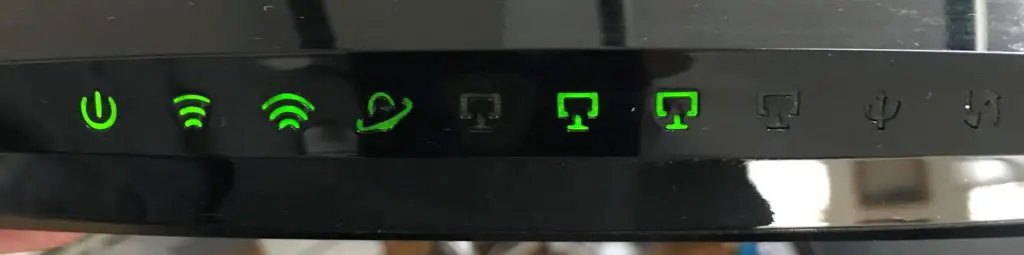
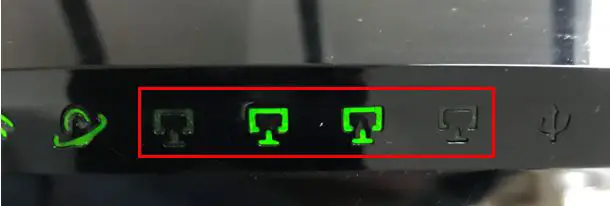
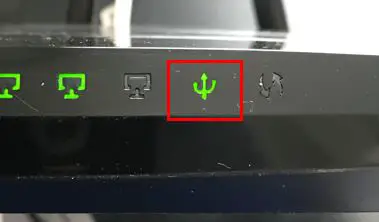
    You can check to make sure your router has internet access by looking at the lights on it. The internet light on your router will tell you if it’s connected to the internet or not.

    What Is the Speed of My Router’s WAN Port?

    The speed that your WAN port supports is important to know. It will determine the internet speeds that your router can provide to your internet devices.

    So how do you find out the speed that your WAN port supports?

    As mentioned previously, the WAN port is an ethernet port. You can look up the specifications of this port by searching for the technical details of your router.

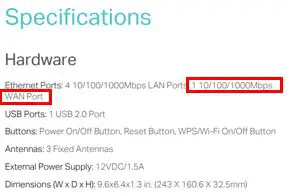
    I have a TP-Link Archer A7 router, so with a simple Google search I was able to find what I was looking for.

    TP-Link Archer A7 Router WAN Port Speed

    As you can see, my WAN port is a 10/100/1000 megabits per second (Mbps) ethernet port.

    What does this mean?

    It means that the port can support speeds up to 1,000 megabits per second (or 1 gigabit per second) between my modem and router. This tells me that the fastest that my modem and router can exchange data is at a 1 gigabit per second (Gbps) rate.

    In other words, I can’t expect my internet to be faster than 1 Gbps at any given time.

    1 Gbps is the fastest ethernet port currently available, so you’ll want to make sure your router has a 10/100/1000 Mbps port as well. If you have a 10/100 Mbps WAN port on your router, you may experience slow internet speeds when multiple devices are using the internet.

    The good news is that any newer router will have a 10/100/1000 Mbps port, so you only have to worry about this with an older router.

    Is a Router’s WAN Port the Same as an Ethernet Port?

    If you take another look at the back of your router, I’m sure you’ll notice it has ethernet ports in addition to the WAN port.

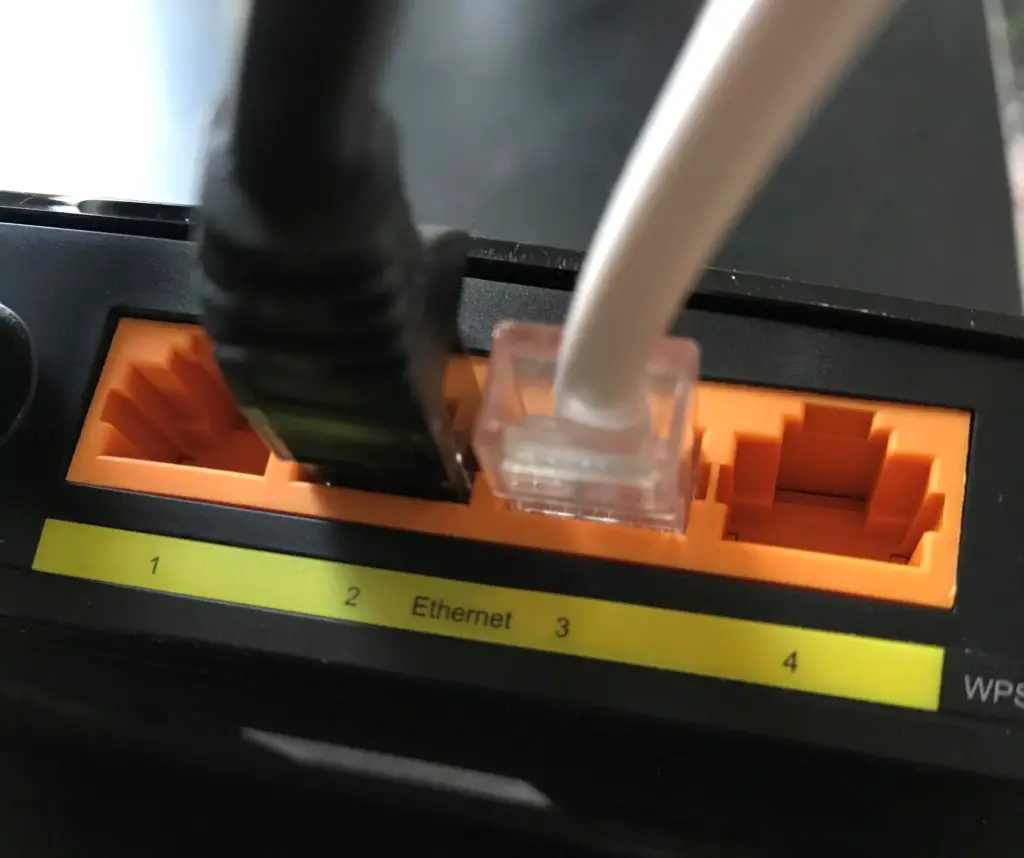
    Ethernet ports on the back of a router

    These ports allow your devices to connect to the internet with a wired connection.

    You’ve also probably noticed that there’s no difference between these ports and the WAN port on your router. RJ45 ethernet cables will fit into both port types.

    This begs the question: is the WAN port the same as a regular ethernet port?

    The answer is no.

    The WAN port is designed to connect to a modem to receive an internet signal. You can’t use it to connect an additional device to the router if all the ethernet ports are being used.

    If you plugged a device into the WAN port on your router, the router wouldn’t have an internet signal. This is the reason why people use routers in the first place. If you just need to connect multiple devices and don’t need access to the internet, you can use an ethernet switch instead.

    Wrap Up

    The WAN port provides a means for your router to connect to the internet. Without it, your router wouldn’t be able to perform its main function of providing your devices with internet connections.

    Do you have any additional questions about the WAN port on your router? If so, feel free to drop a comment below.

    If you would like to learn more about your router and how it functions, check out our previous articles:

    Can a Router Overheat? A Detailed Analysis

    Why Do Routers Have Multiple Antennas?
    What Do My Router Lights Mean?

    Does a Router Affect Your WiFi Speed?

  • What is Incognito Mode Used for?

    What is Incognito Mode Used for?

    Incognito Mode title page

    Do you have an embarrassing question you want to ask the internet?

    Are you sick of seeing targeted ads of recent products you searched for online?

    Are you afraid that all your internet activity is being tracked?

    If you’re looking to use the internet more privately, you’re not alone. The good news is there are several solutions available that aim to provide users with more privacy on the internet. One solution that you’ve probably heard of is called Incognito Mode.

    But what exactly is incognito mode and what is incognito mode used for? Is it a good option for using the internet privately?

    Read on and you’ll have the answers to those questions.

    What is incognito mode?

    Incognito mode is basically a more private version of your web browser. For the most part, incognito mode looks and acts like a regular internet browser. You can use it to go to your favorite websites, check your email, and watch YouTube videos just like you normally would.

    The difference between incognito mode and your regular web browser is what’s happening behind the scenes.

    Privacy on the internet

    Hopefully this doesn’t come as a shock to you, but when you’re using the internet there’s a lot of information collected about you.

    Every time you perform a Google search, visit a website, or scroll through your social media, it’s recorded by multiple parties (but especially Google). With this information, companies build a profile about you and make assumptions about your interests. If you think about it, your internet search history gives a pretty good indication about the type of person you are.

    What happens with your profile?

    It gets sold to third-party marketing companies who use your data to create ads personalized for you.

    Ever wonder why you search online for something online and then you see ads about it when you visit a different website?

    That is exactly what’s going on when that happens. There’s no way to know exactly what information is being collected about you and to whom it’s being sold. In other words, companies are getting paid to spy on you and your browsing habits.

    If this doesn’t make you nervous or upset, it should.

    The internet should be used as a useful resource to connect people and make their lives better. People shouldn’t have to worry about who is looking over their shoulder every time they type a personal question about themselves into their browser.

    Enter incognito mode.

    What does incognito mode do?

    Incognito mode allows you to search the internet more privately on your device. When using incognito mode, none of your browsing history, cookies and site data, or information entered in forms is saved to your device. In simpler terms, you can use the internet without your device keeping track of what you’re doing.

    Incognito mode is the private browser version for Google Chrome, but there are private browser versions for all the most popular browsers. They just have different names.

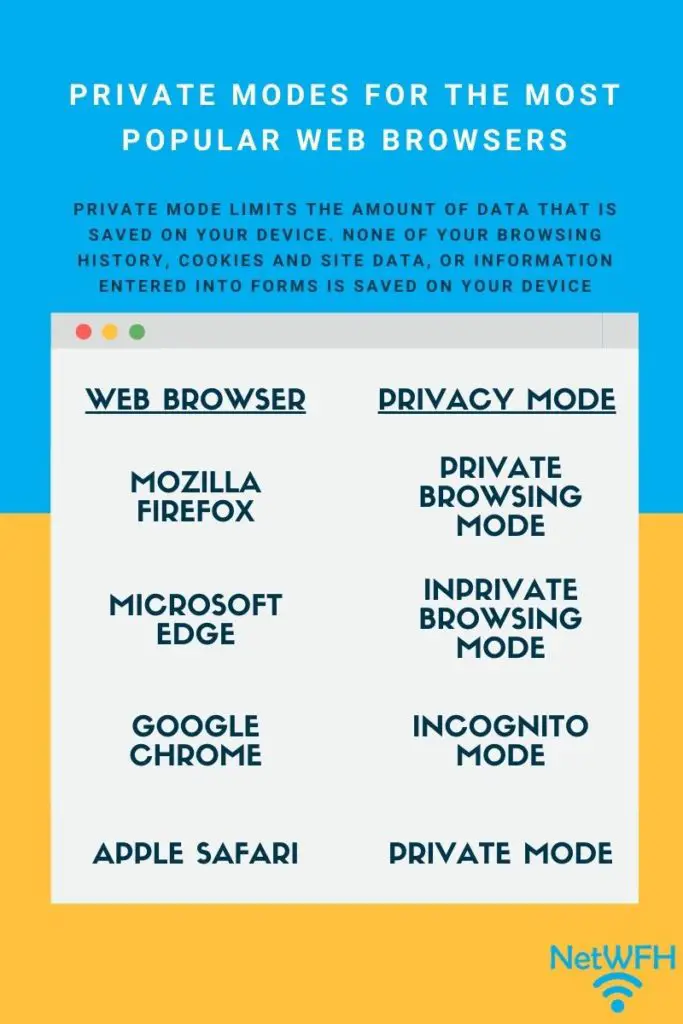
    Here is a table of the incognito mode equivalents on the most popular browsers:

    Private-modes-for-the-most-popular-web-browsers

    It’s very easy to use the private modes of these popular browsers. In fact, they’re so easy to use that people don’t think twice about browsing with them when they want to browse privately.

    But there is a problem with this.

    Many internet users turn to private mode without knowing the full scope of its benefits…or its limitations. As a result, they think they are using the internet anonymously.

    In reality that is far from the case.

    Is incognito mode private?

    Go back and reread the previous section that details what private mode does. Is there anything interesting that sticks out to you?

    Private mode seems to do a lot for keeping your browsing habits from being saved on a particular device. Does this mean your browsing information is private from everyone else on the internet?

    Unfortunately not.

    Even though your device will not keep a record of your search history, third parties can still keep track of what you are doing.

    This means the websites you visit, your internet service provider (ISP), and your university or employer will still be able to see what you are doing. You will not be browsing as anonymously as you might think.

    To spare you the technical details, there is nothing hiding your IP address or identifying information from the network when you are in private mode.

    If you are at home, your ISP will still be able to see every website you visit.

    If you are at work or school, your employer or university will be able to track your browsing habits.

    Every website you visit? Although they won’t know for sure that it’s you (unless you sign into an account), they will recognize your device by its IP address when you visit the site.

    These examples are all common misconceptions about private mode. It’s easy to use and the web browsers do a good job of advertising private mode as a way to make your internet usage anonymous.

    Does this mean you should never use incognito mode?

    No. It still has some benefits. You just need to understand the best times to use it.

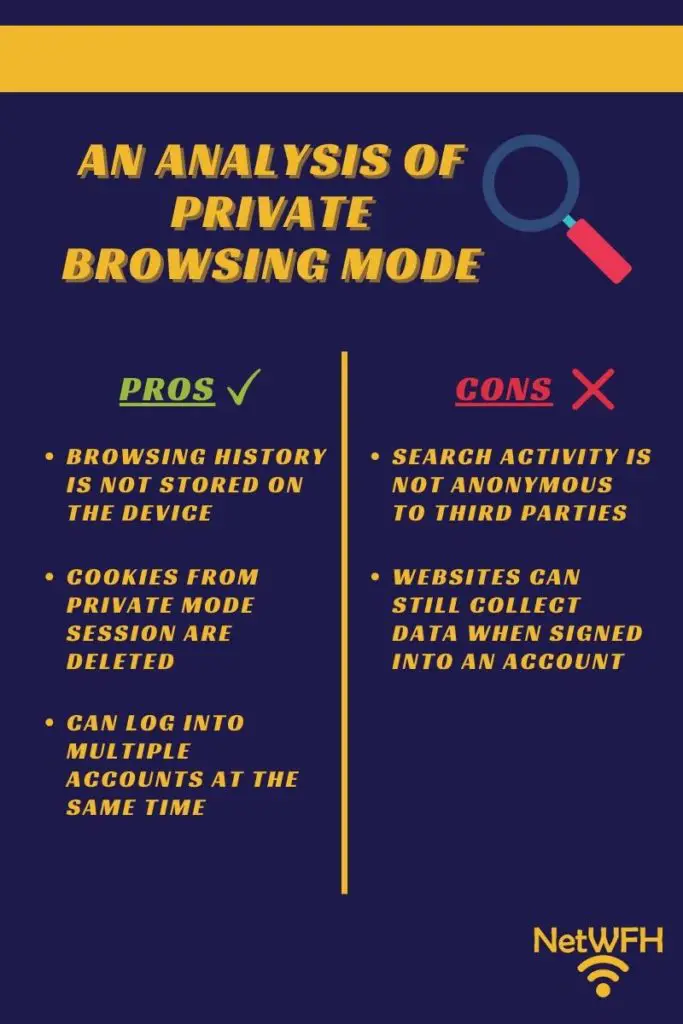
    Private mode pros and cons

    Private mode may not be all it’s cracked up to be, but that doesn’t mean it’s useless. It’s important you have a full understanding of what’s happening when you use it.

    What better way to do this than with a pros and cons list.

    An analysis of private browsing mode

    Benefits of private browsing

    Your browsing history is not stored on your device

    This can be useful when multiple people use the same device (like a laptop). Private mode is a great tool to use if you don’t want other people that use the device to see the sites you’ve visited. It’ll be as if your browser session didn’t even happen.

    Cookies from the browsing session are deleted

    Cookies are small files that are saved in your browser when you visit a new website. They remain in your browser and store information about you and your activity on each particular site you visit. That way, without even signing into an account, a website will remember what you have previously done on the site.

    Cookies allow sites to personalize your experience, but they also limit your privacy. There are even some cookies in your browser that are there to spy on you without your knowledge.

    It’s important to note that these browser cookies will only be deleted when you close the private mode session. If you keep you private mode session open and never close it, the cookies will continue to build information about your browsing habits.

    If you make it a habit to close your session when you have finished browsing, the cookies will have to be recreated every time you start browsing again. This makes it much harder for websites to track information about you because they are starting from scratch each time you go to their site.

    You can sign into multiple accounts at the same time

    Private mode allows you to sign into the same website on multiple accounts at once. You can do this by starting a regular session and private mode session at the same time. The private session is totally separate from your regular session when you do this. The private session is treated separately from the regular session, so you can sign in with any account you want. If you tried to do this in a regular session on two separate tabs, you wouldn’t be able to sign into two different accounts at the same time.

    This can be useful for business purposes if you have personal and business accounts and you want to use them at the same time.

    Negatives of private browsing

    Your browsing activity is not anonymous

    As mentioned earlier, private mode only prevents your browsing history from being tracked on the device you’re using. Your IP address won’t be hidden from the third parties that are monitoring you. In this sense, other parties that are tracking your activity in a normal session will still be able to do so when you’re in private mode.

    If you’re looking for total privacy on the internet, private mode is not an option.

    Websites can still collect data about you

    If you open a private mode session and sign into your account on a website, the site will be able to build on the existing profile they have about you. By signing into your account, you have identified yourself to the site. All bets are off when it comes to your activity being tracked.

    When to use incognito mode

    Ok we get it. Privacy mode won’t make you anonymous on the internet.

    Should you abandon private mode and look for alternatives that allow you to browse the internet without worrying about third parties tracking you?

    That depends what your intent is.

    When multiple people share the same device

    For example, let’s say you have a laptop (or other device) that is used by multiple people. If you don’t want others to see what you’ve been doing on the internet, incognito mode is a great solution.

    This is especially important when planning surprises or buying gifts for a loved one. If that person uses the same device as you, private mode is a good option. By using privacy mode to do your buying or research, the other person won’t be able to see what you’ve done.

    This is also useful when you have a personal or embarrassing question you want to Google. In these cases you will want your privacy from other people that use the device. Incognito mode will do the trick.

    To put it simply, use incognito mode when you’re looking for privacy on a shared device. When you want privacy from everyone else (including third parties), you’ll want to use a different solution.

    To get better prices on flights?

    One myth about incognito mode that I must address is regarding travel purchases. There are many resources online telling people to use privacy mode to buy plane tickets and travel purchases.

    Don’t listen to these people.

    Multiple travel bloggers have run experiments on this, and they found that using privacy mode doesn’t affect the cost of purchases like plane tickets. Using private mode for these purchases won’t hurt you, but you should be aware that it won’t help you either.

    How to browse in private mode

    Ok. Now you know when you to use private mode.

    Let’s walk you through the process of opening a private mode window for each popular browser.

    Google Chrome

    On a computer

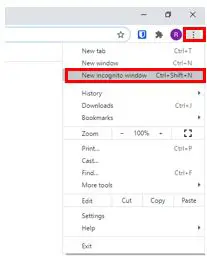
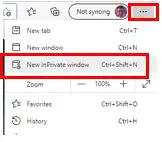
    To open an incognito session in Google Chrome, first open a regular session window. In the top-right corner of the regular session window, click the three dots. In the dropdown that opens, select “New incognito window”.

    Google Chrome New Incognito Window

    You can also open a new incognito window by pressing the control, shift, and “n” keys at the same time. You can do this from a normal session window or an existing incognito mode window.

    On a mobile device

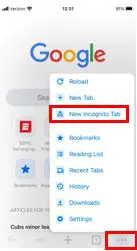
    If you are on a mobile device, open a regular browsing window. Select the three dots at the bottom right of the screen and select “New Incognito Window”. This will open a private browsing window on your mobile device.

    Google Chrome Options From Mobile Device

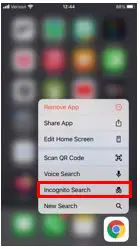
    Another option is to access incognito mode from the home screen. On the home screen, select and hold the Google Chrome app until a menu opens. Then select “Incognito Search”.

    Google Chrome Incognito Mode From Mobile Device

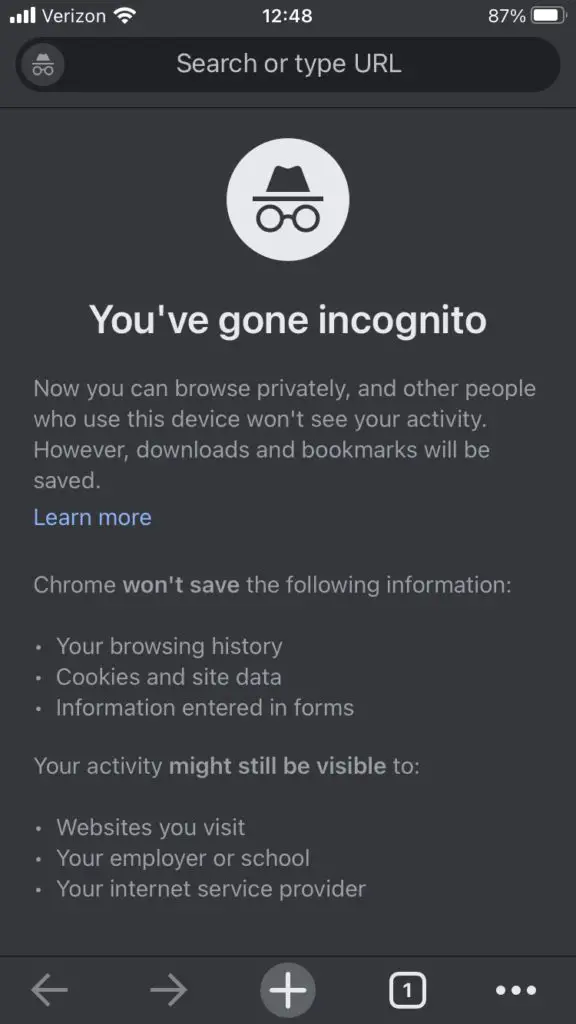
    A new incognito window will open.

    Google Chrome Incognito Mode Window Mobile Device

    Microsoft Edge

    On a computer

    Opening an InPrivate window is similar to opening an incognito mode window. Open a normal Microsoft Edge session and click the three dots in the top-right corner. Then select “New InPrivate window”. This will open a new InPrivate window.

    Microsoft Edge InPrivate Window

    You can also open an InPrivate window by pressing the control, shift, and “n” keys at the same time while the browser is open.

    On a mobile device

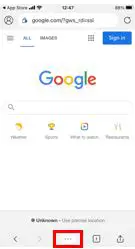
    With a regular Microsoft Edge window open, select the three dots at the bottom of the screen.

    Microsoft Edge Normal Session Window Mobile Device

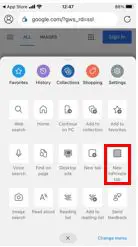
    In the popup that opens, select “New InPrivate tab”.

    Microsoft Edge Normal Session Window Options Mobile Device

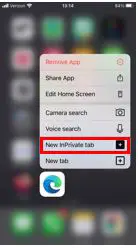
    Similar to Google Chrome, you can open an InPrivate browsing window from the home screen. Hold the Microsoft Edge icon and select “New InPrivate tab”.

    Microsoft Edge InPrivate Window From Home Page Mobile Device

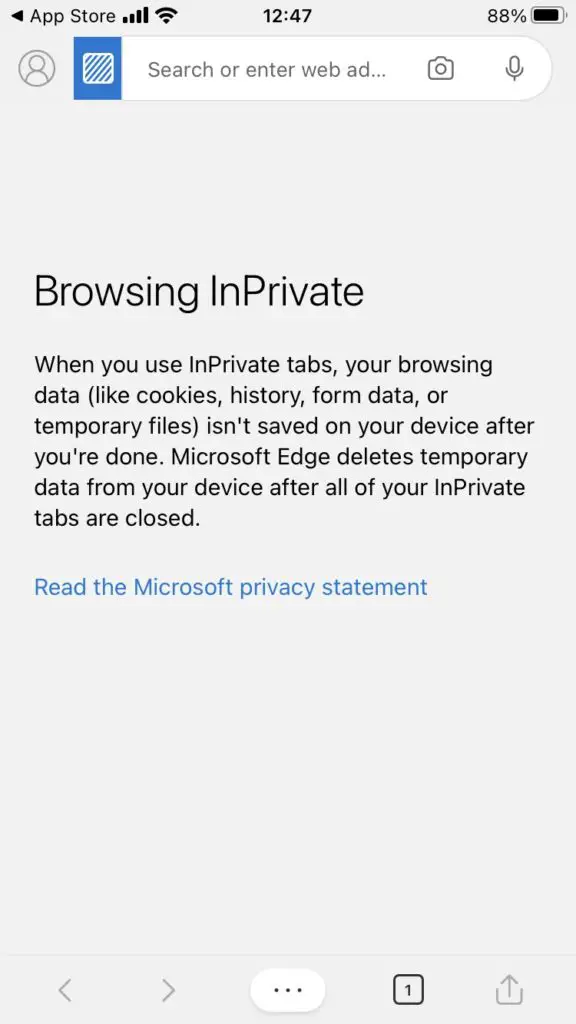
    Both of these options will open a new InPrivate window.

    Microsoft Edge InPrivate Window Mobile Device

    Mozilla Firefox

    On a computer

    Open a private window in Mozilla Firefox by pressing the three lines in the top-right corner of a normal session window. Then select “New Private Window”.

    Mozilla Firefox New Private Window

    You can also press the control, shift, and “p” keys at the same time to open a private window. You can do this from a normal session window or an open private session window.

    On a mobile device

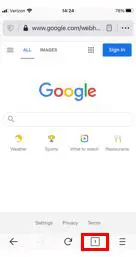
    In a normal session window of Mozilla Firefox on your mobile device, select the square at the bottom of the screen.

    Mozilla Firefox Normal Session Window Mobile Device

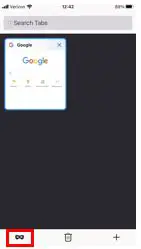
    This will take you to the tab overview screen. On this screen, select the mask.

    Mozilla-Firefox-Tab-Overview-Mobile-Device

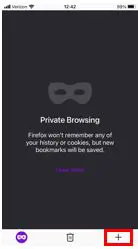
    This will take you to the private browsing tab overview. Select the “+” sign.

    Mozilla Firefox Private Browsing Window From Mobile Device

    A new private browsing window will open. You can tell it’s a private window because there will be a mask above the tab indicator.

    Mozilla Firefox New Private Window Mobile Device

    Apple Safari

    On a computer

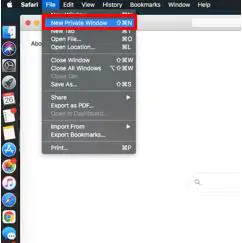
    In Apple Safari, opening a new private browsing window is a little different from the other major browsers. To open a private browsing window, in a normal session window select the File dropdown in the top-left hand corner. In the dropdown select “New Private Window”.

    Apple Safari New Private Window Menu

    A new private browsing window will open.

    Apple Safari Private Browsing Mode Session

    You can also press the command, shift, and “n” button from an existing window to open a new private browsing window.

    On a mobile device

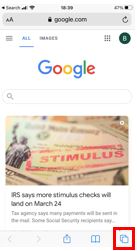
    Open a normal session of Apple Safari. In the bottom-right hand corner of the screen, select the symbol that looks like two squares.

    Apple Safari Normal Session Window Mobile Device

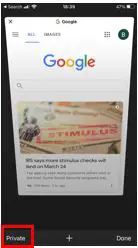
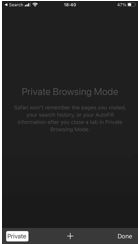
    This will open the tab overview. From here, select “Private” in the lower-left hand corner of the window.

    Apple Safari Normal Session Tab Overview Window Mobile Device

    A new private browsing mode window will open.

    Apple Safari Private Browsing Mode Session Mobile Device

    Private mode alternatives

    When deciding to use private mode, you need to ask yourself what your goal is.

    Are you just trying to hide the history of your internet searches on the device you are using? Are you ok with third parties tracking your internet activity and selling your information?

    What if you want more privacy on the internet? If you aren’t comfortable with third parties spying on you, thankfully you have other options.

    DuckDuckGo

    If you are looking to increase your internet search privacy, DuckDuckGo is an easy option.

    DuckDuckGo is a search engine that promises to keep all your internet searches from prying eyes. You can use it on any web browser to perform your searches. It’s an alternative to searching for things using Google.

    DuckDuckGo Search Page

    The focus of DuckDuckGo is to provide internet users with a way to privately search the web. They don’t keep any of your search history and they prevent third parties from spying on you.

    It’s important to note that DuckDuckGo may not be able to completely hide your search information from your internet service provider (ISP), but it’s definitely a step up from using incognito mode. In addition, websites will be able to identify you by your IP address (and account if you log into a site) but they won’t know what search terms you used to find their site.

    Basically what DuckDuckGo gives you that incognito mode doesn’t is protection from third party and Google tracking. This is a good thing because Google tracks your internet activity more than anyone else.

    One knock on DuckDuckGo is that you may find less results for your searches than if you were searching on Google. With that said, you’ll certainly be able to find what you’re looking for. For some, the added privacy of using DuckDuckGo is well worth it.

    Virtual Private Network

    If you want to take your internet privacy a step further, you can use a virtual private network (VPN).

    Virtual private networks provide total anonymity on the internet by hiding your IP address. Without your IP address, websites won’t be able to identify you as they normally would. On top of that, your ISP will only be able to see when you connect to your VPN. They will have no insight into the websites you go to and the things you search for.

    In this sense, a VPN provides more protection than using a private search browser. You won’t have to worry about who’s looking over your shoulder and tracking your activity. Internet traffic is also encrypted so you’ll be totally anonymous once you’re connected to the VPN.

    The catch with VPNs is that you’ll have to pay to use a good one. You’ll need to do your research when deciding which one to pick. There are different restrictions and features that they offer, so you need to make sure you find one that fits what you’re looking for.

    In addition, you’ll want to make sure you know what the VPN vendor does with your data. Some VPNs sell your information to third parties to make money. I am assuming you don’t want something like that if you’re getting a VPN to make your internet use more private.

    To learn more about VPNs and how they make you anonymous on the internet, check out our previous post: Will a VPN Hide My Location or Can I Be Tracked?

    Tor browser

    The Tor browser is another alternative for making your internet searches more private. It offers many of the same features as a VPN, but there are a few differences you should be aware of.

    Tor stands for “The Onion Router”. It is a non-profit organization who’s sole goal is to make your internet experience totally private. By using the Tor browser, you’ll be totally anonymous on the internet (as long as you don’t sign into any accounts).

    Essentially what the Tor browser does is it bounces your internet traffic off of several different locations before going to the site you want it to. That way, the website doesn’t know it’s you on their site. They see the traffic coming from a random IP address that isn’t yours. In addition, your traffic is encrypted, so anyone trying to listen in won’t be able to see what sites you’re going to and what you’re searching for.

    One advantage the Tor browser has over a VPN is that it’s free to use. The catch is that the Tor browser is generally slower than a VPN.

    In addition, due to the privacy it provides, some people use Tor for illegal activity. There are many websites that can only be found through Tor, which is why it’s often referred to as the “dark web”. As a result, Tor has a negative reputation, which has caused many web services to block access from Tor. This is another downside of using Tor. You won’t be able to use all the websites you’re used to going to.

    Overall, Tor can be a good alternative if you want a private internet experience and aren’t willing to pay for a VPN.

    Wrap up

    You should now have all the information you need to decide if and when to use incognito mode.

    If you want to make it harder for your internet service provider to track your internet searches (in a normal or private mode session), you can change the domain name server (DNS) that your devices are using. You can find all the information you need to make this easy change in our previous post about changing your DNS. You’ll also give your internet searches a speed boost by making the switch.

    Did I mention it’s free to change your DNS?

    As always, if you have any questions or if there is a topic you’d like me to write about, feel free to reach out in the comment section or my Contact Me page.

  • Can a Router Overheat? A Detailed Analysis

    Can a Router Overheat? A Detailed Analysis

    Can a router overheat a detailed analysis

    Your router is one of the most important internet devices in your home. Without one, you’d be stuck using the data plan on your mobile phone every time you wanted to use the internet.

    With this in mind, you’d think people would take better care of their router.

    In reality, quite the opposite happens.

    Once a router is set up and delivering blazing WiFi speeds to your devices, it often becomes an afterthought. This is risky behavior, as it can lead to issues with your router.

    One of the biggest issues you could run in to is your router overheating.

    Routers can overheat if they are exposed to harsh environmental conditions or not maintained properly. If a router overheats, it can result in a slow or dropped internet connection. It is also possible that a router will need to be replaced if it gets too hot or overheats for too long.

    In this post I’ll detail what to look for if you think your router is overheating. I’ll also explain what you can do to prevent it from happening in the first place.

    What Does It Mean for a Router to Overheat?

    Routers overheat when they operate at higher temperatures than they’re designed for.

    Routers are similar to modems and other electronic products. When they are powered on, the electricity running through them generates heat. The heat will raise the temperature of the circuits in the device unless it’s released into the surrounding air.

    Electronic devices don’t work well in hot conditions, and they can even malfunction if they operate at a high temperatures for too long.

    This is why it’s so important to make sure your router doesn’t get too hot. I know you don’t want to pay for a new one.

    Thankfully you’re not on your own to solve this problem.

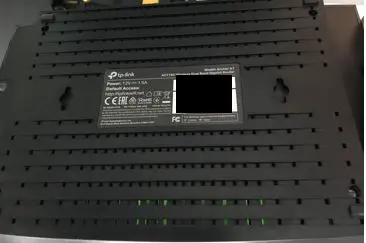
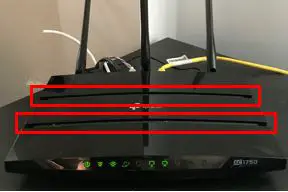
    The wonderful designers of your router have thought of this. If you look closely you’ll find vents on your router. These vents allow air to flow through your device to help cool it down.

    For example, here is the bottom of my Tp-Link Archer A7 router:

    Router vents bottom

    All the holes help air flow through the router to cool it off.

    There are even some vents on the top panel, but they’re harder to see.

    Router vents top

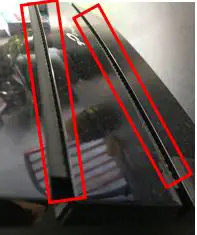
    Here’s a closer view of the top vents from the side.

    Router vents side

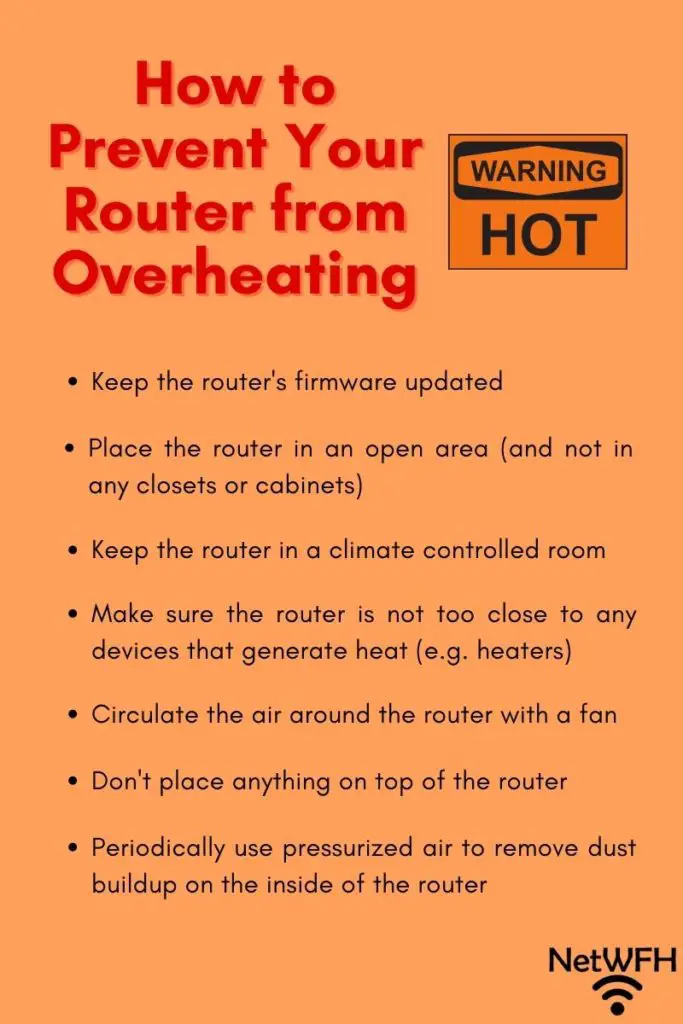
    With vents on the router, it makes it easier to keep it from overheating. Just follow the tips that I provide later in this article and you’ll be all set.

    Now let’s dive into how to know if you’re router is overheating.

    How to Tell if a Router Is Overheating

    It isn’t very hard to tell if something is wrong with your router. It’s a little more difficult to tell if your router is overheating.

    I view it as a two-step process.

    The Internet Connection Will Slow Down or Drop Altogether

    Your router serves as the director for all your internet traffic. It tells all the traffic where to go, and it coordinates the traffic being sent to and from the internet. Without a router, you wouldn’t be able to wirelessly connect to the internet.

    I’m sure it comes as no surprise, then, that when something’s wrong with your router, it affects your internet connections.

    If your router is having problems (e.g. overheating), you’ll notice that your internet slows down. Your connections may slow to a crawl, or you may lose your connection to the internet entirely.

    Unfortunately, if you lose your internet connection, you can’t conclude that your router is overheating. There are many different reasons why you could lose your internet connection.

    There could be:

    • Problems with your internet service provider (ISP)
    • Connection issues between your device and your router
    • Issues with your modem
    • Interference with your wireless signal

    The list goes on and on.

    In order to verify that your router is overheating, you have to go one step further.

    The Router Will Be Hotter Than Normal

    If your router is overheating, it will feel hotter than it usually does.

    With that said, your router will always be warm when it’s powered on and working. To help troubleshoot issues with your router, it’ll be helpful for you to get a general idea of how warm it normally is.

    If your router is on and in use (i.e. devices are using the internet), put your hand near it. You should be able to feel the heat it’s giving off. You should even be able to touch it because it shouldn’t be too hot.

    Do this a few times over a period of a few hours. This will give you a general sense of how hot your router normally is.

    Now that you know what your router “normally feels like”, you can tell when it’s overheating.

    This is why this is an important check when determining if your router is overheating. You can’t be expected to periodically feel the temperature of your router every day. If your internet stops working, however, this is a useful second step.

    For example, if your internet connection drops and your router feels hotter than usual, it’s likely that it’s overheating.

    On the other side of the coin, if you lose your internet connection and your router isn’t hot to the touch, you probably didn’t lose your internet because of the router overheating. You will have to do more troubleshooting to find out what happened.

    What Causes a Router to Overheat

    There are generally two main ways a router can overheat. The router is either generating more heat than it normally does, or it isn’t cooling as quickly as it should.

    In both of these cases, the router will operate at a high temperature and be at risk of overheating.

    Let’s look into both cases.

    The Router Is Generating More Heat Than It Normally Does

    When a router is generating more heat than usual, it’s working too hard.

    Routers have processors in them that serve as the brain of the device. The processor does all the coordinating of incoming and outgoing internet traffic. The more traffic the processor has to direct, the harder it has to work.

    The harder it has to work, the hotter it will become. A router can become overwhelmed if there’s too much traffic on the network at once.

    To account for this, manufacturers occasionally issue firmware updates for their routers. For those unfamiliar, firmware is essentially the software of the processor. Updating the firmware of your router allows the processor to direct internet traffic more efficiently.

    As you may have guessed, if a processor can direct traffic more efficiently, it doesn’t have to work as hard. When it doesn’t have to work as hard, it generates less heat.

    On the other hand if your router firmware is outdated, the opposite happens. Your router has to work harder than it should, and it generates more heat. This can lead to overheating if the router is working too hard for an extended period of time.

    The Router Isn’t Cooling as Quickly as It Should

    It’s possible for a router to overheat during normal operation even if the processor isn’t working harder than usual.

    How so?

    If the router isn’t removing heat from it’s electrical parts fast enough, it can still overheat.

    There are multiple reasons why this may be the case.

    Restricted Airflow

    Proper airflow is essential for the cooling of routers. If the flow of air is blocked or restricted, your router won’t be able to maintain a normal operating temperature.

    Let’s look at a few things that can result in restricted airflow through the router.

    Router Placement

    If your router is placed in a location that doesn’t get proper airflow, you’re setting yourself up for failure.

    That means you don’t want your router in a closet or closed cabinet. If you put your router in a closed space, the hot air from your router will have nowhere to go. As a result, the hot air will linger near the router. This will cause your router to run at hotter temperatures, and increase the chances of it overheating.

    If your router is in a closed space, not only will you run the risk of your router overheating, but you’ll probably have a poor internet connection too.

    Dust Buildup

    It’s inevitable that your router will collect dust. Too much dust, however, can have disastrous results.

    Dust buildup in your router will restrict the flow of air through it. As you know by now, poor airflow will cause your router to run hot.

    If your router is placed in an area that collects a lot of dust (like the floor or the corner of a room), you’re asking for trouble.

    Hot Environmental Temperatures

    A hot environment around your router will make it much harder for it to lower its temperature. Hot air won’t do much to cool your router when it flows through the device.

    If you live in a warm climate without temperature-controlled rooms, this is something to note. My Archer A7 router is designed to operate in temperatures up to 104 degrees Fahrenheit. Even though routers are pretty resilient devices that can withstand some stress, you’ll want to take action if your rooms are normally over 100 degrees Fahrenheit. Keep reading for some tips to help you keep your router cool if his is the case for you.

    This also goes for other devices that generate heat (e.g. TVs and heaters). These devices will raise the temperature of the air around the router, making it harder for it to cool down.

    Humidity of the Environment

    You won’t have to worry about high humidity causing your router to overheat. I still have to mention it because it’s possible a humid environment can lead to overheating in extreme cases.

    If the environment around your router is very humid, it will make it harder for the router to cool down. This is similar to the case of a high temperature environment in the section above. If the air running through the router is humid, it won’t have much cooling effect on the device.

    With that said, routers are pretty resistant to humid environments. As an example, my Archer A7 router can operate in indoor humidity levels up to 90%. An environment with a 90% humidity level isn’t healthy for humans to be in for an extended period. The bottom line is it isn’t realistic for you to have a 90% humidity level inside your house or office.

    How to Prevent a Router From Overheating

    Here is a good reference guide with tips for keeping your router cool.

    How to prevent your router from overheating

    You don’t have to do too much to prevent your router from overheating. If you keep your router in a good location and update it’s firmware on a regular basis, you won’t have anything to worry about.

    Here are some things you can do to promote a long life from your router.

    Router Maintenance

    Let me start by saying that routers don’t require much maintenance. The two things you can do to keep your router humming along are to:

    • Update the firmware when new firmware becomes available
    • Use pressurized air to clean dust from the router

    Every few months or so, it’s a good idea to see if new firmware updates are available for your router. Maintaining current firmware will prevent your router’s processor from working harder than it should. As I detailed earlier, if your router’s processor is running efficiently, it won’t generate excess heat.

    By removing dust from inside your router, it will improve the flow of air through it. Sufficient airflow is essential for your router to cool, so this is a worthwhile task every six months or so. On top of that, it will only take you a few minutes to complete the task.

    To remove dust from your router you’ll need to buy a can of pressurized air like this one. Aim the pressurized air at the vents on your router and blow short bursts of air through it. This will remove larger particles of dust that can restrict airflow through your router.

    Router Placement

    When it comes to router placement, you want to keep it in an area that promotes natural airflow through it.

    For best results, place your router in an open area. You’ll want it elevated and off the floor. This will not only promote good airflow, but it will also give you a stronger wireless signal in your house. A desk or shelf in an open room will do the trick here.

    You’ll also want to keep the vents of your router free from obstruction. In other words, don’t stack anything on top of your router. Don’t crowd your router with other objects or devices either. They can block the vents of your router and restrict the airflow through it.

    You especially don’t want to place your router near devices that generate heat. This includes TVs, heaters, or gaming systems. These devices will increase the temperature around your router, which can cause it to run hotter.

    We’ll discuss this more in the next section.

    Environment

    The best thing you can do for your router is to place it in a climate controlled-environment. If you’re able to do this, you’re pretty much all set. You won’t have to worry about your router overheating due to the surrounding environment. Both the temperature and humidity levels will be within the operating limits of the router.

    If your router will be located in a room that isn’t climate controlled, you can still take action to prevent it from getting too hot.

    If the room can get really hot, you can always use a fan to circulate air around the router. Although the air around the router will be warmer, if it’s moving faster through the router it will still cool it down. I will spare you the heat transfer lesson here.

    Wrap Up

    There you have it. That should be all you need to know in order to prevent your router from overheating. If you have any specific questions about your router, or you would like to share your story about a router overheating, leave a comment in the comments section below.

    If you liked this article, here are some related articles that may interest you as well:

    Can a Modem Overheat? What to Look For

    Why Do Routers Have Multiple Antennas?
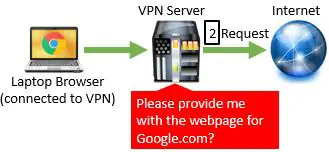
    What Do My Router Lights Mean?

    Does a Router Affect Your WiFi Speed?

  • Can a Modem Overheat? What to Look For

    Can a Modem Overheat? What to Look For

    Modem overheat title page

    Let’s be honest. As soon as you’ve finished setting up your modem, you probably stop thinking about it.

    Most of the time there’s nothing wrong with this. Modems aren’t meant to be high maintenance devices.

    Where you get into trouble, however, is when your modem is not set up correctly.

    What sort of trouble, exactly?

    One potential issue is overheating.

    If a modem does not get proper airflow through the device, it can overheat. An overheating modem can result in a slow internet connection, and may result in failure of the device.

    Luckily, there are some simple steps you can take to prevent your modem from overheating. Once you properly set up your modem so that it won’t overheat, you can go back to forgetting about it again.

    In this post I’ll break down what to look for if you think your modem is overheating, and what you can do to prevent it from getting too hot.

    Why Do Modems Overheat?

    Let’s start with the basics.

    When your electronic devices are powered on and in use, they generate heat. This heat raises the temperature of the device. The problem with this is that electronic circuits are sensitive to heat, and if they get too hot they won’t work as they’re supposed to.

    To account for this, many electronic devices are designed to release the heat they generate. To provide an example, this is why many computers have internal fans. The fans cool off the electronic circuits as they operate to keep them from getting too hot. If these mechanisms aren’t able to release the heat that’s generated by the device fast enough, it can lead to overheating.

    This is exactly what happens when your modem overheats. A modem gets too hot when there isn’t enough airflow through the device. Where the modem is placed and the environment it’s operating in can have a big impact on the temperature of the device (as you’ll read later).

    The good news is that it’s easy to prevent your modem from overheating. Modems aren’t built with fans in them because they normally don’t get too hot to need them. Instead, they have vents to allow heat to easily flow out of them. For example, my Netgear CM600 modem has lots of little vents in it to help keep it cool.

    The air circulating throughout your home will take the heat away from the modem as it comes out the vents.

    If you keep your modem in the right place, that should be more than enough to make sure it operates properly.

    What Are Symptoms of an Overheating Modem?

    There are a few different ways to tell if your modem is overheating. If you’re aware of what to look for you can hopefully fix the problem before it’s too late.

    Your Internet Connection Will Slow Down or Stop Altogether

    If your internet connection randomly slows down, your modem may be overheating.

    Your modem is the gateway for your home to the internet, so if it’s not working properly it will affect all your internet devices.

    As the components within the modem heat up, they’ll stop working as efficiently as they should. This will delay the sending and receiving of information to the internet, resulting in a slower internet connection.

    In some cases, if your modem gets too hot, it will turn off. If your modem turns off, you’ll lose your internet connection altogether.

    This will be the symptom that’s most obvious to you. Like me, I’m sure you don’t pay much attention to your modem on a daily basis.

    The Power Light on the Modem Will Turn Red

    Another way to tell if your modem is too hot is if its power light is red. The power light on all modems may not turn red when they overheat, but it’s worth checking your modem’s manual to see if this will happen. It’s an easy way to see if you need to cool your modem.

    If you need a refresher on your modem lights and what they mean, check out our previous post: What Do the Lights on My Modem Mean?

    I know what you’re thinking.

    Why is this important if I don’t look at my modem on a regular basis? I won’t even notice if the power light turns red.

    This is helpful because it can provide more information if you have a problem with your internet.

    Let’s say your internet connection slows down or stops and you’re trying to figure out why. You might think an overheating modem is the cause of your issues. If you look at your modem and the power light is green (as it should be), you know it’s not overheating.

    A red power light on your modem might not be the first thing you notice, but it can be helpful if you’re already troubleshooting a problem with your network.

    Your Modem Will Be Hot to Touch

    This one may seem obvious.

    If your modem is overheating, it will be hot if you put your hand near it.

    Just because your modem has warm air coming out of it doesn’t mean it’s overheating. It’s important to remember that when your modem is on, it will be giving off a little heat.

    Go and put your hand near your modem to test this.

    See? It’s warm but you can touch it without hurting yourself.

    This should give you a general idea about how hot your modem should normally be. Common sense would tell you that if it feels much hotter than this at any given time, it may be overheating.

    This is just another data point if you’re trying to figure out if your modem is overheating. Chances are your power light will be red and your internet will slow down well before you check how hot your modem is, but it’s good to keep in mind nonetheless.

    As an example, if your modem randomly turns off, check how hot it is. If the modem recently turned off and it’s very hot, it most likely turned off because it overheated.

    What Causes a Modem to Overheat?

    There are several different causes for your modem overheating. It’s important to know what these are so you can take steps to prevent them.

    Restricted Airflow Through the Modem

    As mentioned previously, modems are cooled by the air that flows through them.

    Naturally, if that airflow is blocked or restricted, it’ll cause the modem to run hot.

    Poor Placement in the Room

    The most common cause for restricted airflow through a modem is where the modem is placed. If it isn’t placed in an area that gets adequate airflow, you may run into issues.

    Where are some places where a modem wouldn’t get proper airflow?

    I’m glad you asked.

    Some people put their modems in closets or cabinets. There’s very little natural airflow in these areas. What’s worse is that the modem will heat the surrounding air and the hot air won’t be able to escape the closed environment. This actually causes the modem to run even hotter because the environment around it is warmer. This is a vicious cycle that should be avoided.

    Make sure you don’t pile anything on top of your modem either. It will have the same effect in restricting airflow through it.

    Improper Alignment

    Modems are designed to stand upright on their bases. That’s why they have bases in the first place.

    The base of your modem will prop it up to ensure it gets proper airflow.

    If you lay your modem on its side, you will be decreasing the surface area that can be cooled by the air.

    Let’s go back to my modem for example.

    See all the holes on the side of my modem?

    Netgear CM600 modem side vents

    All the vents on one side will be covered if the modem is laying on its side. With less holes for air to travel through, heat generated by the modem will take longer to release. This will result in increased temperatures and possible overheating.

    Dust Buildup

    Dust particles can also lead to reduced airflow through the modem.

    Naturally there’ll be dust particles in the air that build up inside your modem, but this usually takes a very long time before it becomes an issue.

    If the modem is on the floor or other areas of your house where dust collects, dust particles will build up much faster. This goes hand-in-hand with making sure your modem is in a location that gets good airflow.

    Hot Environments

    This is very simple. If the air around your modem is hot, your modem will also be hot. The warm air around your modem will also make it harder for your modem to release the heat it’s generating.

    The good news here is that I’m talking about extreme temperatures. Moderate and warm temperatures won’t have a significant impact on your modem.

    You can breathe a sigh of relief now.

    For example, the manual for my modem states that its operating temperature is 32-104 degrees Fahrenheit.

    As you can see, that is a pretty broad range. You won’t have to worry about your modem overheating because of the surrounding temperature unless you’re in a really warm climate.

    You have even less to worry about if you have air conditioning in the room that the modem operates.

    Humid Environments

    Similar to the surrounding temperature, if the air around your modem is humid, it will be more likely to overheat.

    This is another item to be aware of, but you probably won’t have to worry about it too much. The operating relative humidity limit for my modem is 90%, which is really high.

    Let’s put this into perspective.

    Health experts say that a relative humidity between 30-60% is considered comfortable. Anything higher than that could be hazardous to your health.

    Chances are, your modem won’t be in an area with 90% relative humidity. If the modem is in a room that is climate controlled, you’re as good as golden.

    How to Prevent a Modem From Overheating

    What can you do to ensure your modem won’t overheat? Here is a list of quick tips:

    How to prevent your modem from overheating

    There are some simple steps you can take:

    Keep Your Modem in a Favorable Environment

    If you put your modem in the right location, you can rest easy knowing that it won’t overheat.

    Ideally, you’ll want your modem in a climate controlled room away from any heaters. A climate controlled room that doesn’t experience extreme temperatures will allow you to maximize the life of your modem. Ideally, air conditioning will make sure the temperature and humidity of the room doesn’t stress the modem.

    If you don’t have air conditioning, you can use a fan to make sure there is good air circulation around the modem to remove the heat it’s generating.

    Place Your Modem in the Right Location in the Room

    The environmental conditions you expose your modem to are important, and so is the modem’s placement.

    You’ll want your modem:

    • In an elevated area
    • In an upright position
    • Free of clutter or objects on top of it
    • In the open air (outside of any closets or cabinets)

    By keeping your modem in open space and free of obstructions, you’re promoting airflow through it. As mentioned previously, airflow is how the modem maintains its temperature. Therefore, proper airflow promotes normal operating temperatures for your modem.

    Perform Maintenance on Your Modem

    Chances are, if you followed all the guidance I provided so far, you won’t need to perform any maintenance on your modem.

    With that said, there’s still a chance that your modem accumulates dust over time.

    If you start to notice dust buildup on or inside your modem, you’ll want to remove it.

    Use a can of compressed air to blow the dust particles out of the interior of the modem. You don’t have to remove every single speck of dust, but you’ll want to remove most of it. This will ensure that heat is freely released from the modem.

    You can buy a can of compressed air like this one for less than $10. You can use it to remove dust on all the electrical products in your home. It’s well worth it to pick up a few cans.

    Wrap Up

    If your modem is in a stable environment, you can expect it to operate for an extended period of time. As you can see, it’s not rocket science to prevent your modem from overheating. They are pretty resilient devices as long as you set them up correctly.

    If you found this information interesting and would like to learn more about your modem, check out my previous posts:

    What Do the Lights on My Modem Mean?

    Does Your Modem Affect Your Internet Speed?

    Does Modem Placement Matter?

    Does Any Modem Work With Any Internet Provider?

    Can I Take My Internet Modem to Another House?

    If you have any questions about your modem or would like to share what you do to keep your modem from getting too hot, feel free to drop a comment below.

  • Why Do Routers Have Multiple Antennas?
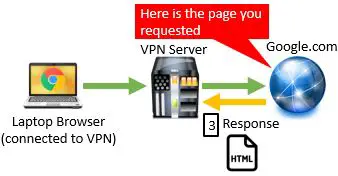
    Why Do Routers Have Multiple Antennas?
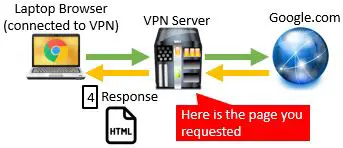
    Routers multiple antennas title page

    Why does a router have multiple antennas?

    Would a router work the same way if it just had one antenna?

    Believe it or not, your router doesn’t have multiple antennas just for looks.

    A router has multiple antennas so it can:

    • Send and receive multiple streams of data at a time
    • Provide a wireless network that is resilient to obstruction
    • Direct its WiFi signal to multiple areas where internet usage is expected

    To put it simply, having more than one antenna on a router leads to a better internet experience.

    Who can argue with that?

    In this post we’ll dig into how router antennas function, and the benefits that multiple antennas provide.

    Why Are Router Antennas Important?

    Without antennas on your internet devices, WiFi wouldn’t be possible.

    Antennas send out radio frequency (RF) wireless signals to your devices so they can communicate with your router. WiFi standards have established that these radio signals should be sent out on two different frequencies, either 2.4 gigahertz (GHz) or 5 gigahertz (GHz).

    This is why there will be 2.4G and 5G WiFi networks in most homes. The router is able to communicate on both frequencies.

    Both your router and your wireless devices have antennas that allow them to communicate over these radio frequencies. The antennas on your router may be external and easily visible, while the antennas on most of your wireless devices will be internal to the device.

    Each of these antennas is able to send and receive data, so you technically only need one to establish communication between devices.

    As you’ll see, however, there are benefits to having more than one on your router.

    How Do Router Antennas Work?

    You might notice that the antennas on your router are circular rods. Almost all routers you’ll come across with external antennas have antennas that look like this.

    Three router antennas

    This isn’t an accident.

    These antennas are called omnidirectional antennas. This means they send out radio signals equally in all directions.

    This is an important factor when you’re deciding where to put the router in your house and how to align your antennas.

    Omnidirectional antennas send out RF signals in a perpendicular direction from the antenna itself. In other words, the signal is sent straight out from the long side of the antenna.

    Let’s look at some visual examples.

    Looking straight down on an antenna, the signal will be sent out like this:

    Router antenna signal

    Looking at the antenna from the side, the router will send the signals in these directions:

    Router antenna signal side view

    You should note that the wireless signal isn’t sent out from the top of the antenna. When setting up a router, many people point the tip of the antenna in the direction they want the WiFi signal to go. This is a common mistake and won’t provide you with a better signal.

    Why Do Routers Have Multiple Antennas?
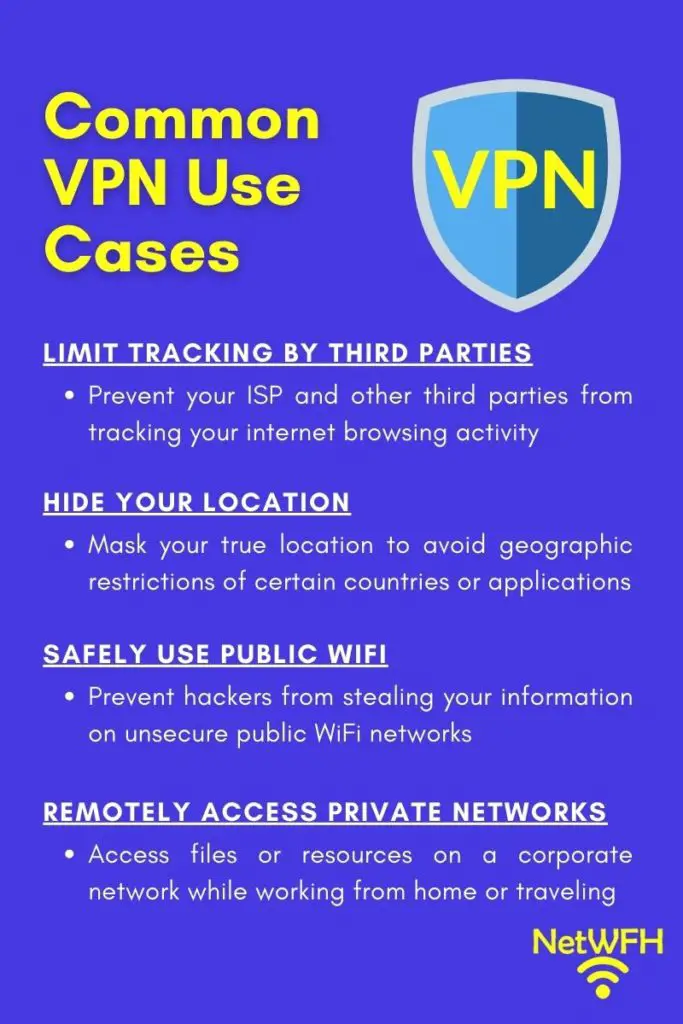
    Now that you know how the antennas work, let’s look at the benefits of having multiple antennas.

    Benefits of having multiple antennas on a router

    More Bandwidth for Your Devices

    One major benefit of having multiple antennas is that a router can provide wireless devices with faster overall internet speeds.

    Thanks to newer WiFi standards, each individual antenna on a router can send and receive wireless data from a device. When the bandwidth from multiple antennas is combined, faster data rates can be supported. Faster data rates means faster internet speeds.

    Let’s use a 5G wireless signal for example.

    One antenna giving off a 5G wireless signal can support 433 megabits per seconds (mbps) of data. If your router has two antennas, the 5G signals from each of them can be bonded together to support 866 mbps of data. Better still, if you have three antennas on your router, all three signals can be combined to support 1,300 mbps of data (or 1.3 gigabits per second).

    Can you see where this is going?

    One thing to keep in mind is that as of now, most of your wireless devices only have one antenna. This means that at most, your devices can transmit and receive 433 mbps of data. This isn’t necessarily a bad thing, because 433 mbps is more than enough to perform essentially any action on the internet.

    So what is the benefit of having all these antennas and maximum bandwidth if a device can’t use it all?

    The key here is that having multiple antennas on your router increases the total bandwidth of your network. If you had 10 devices on your network and only one antenna, they would all have to share the 433 mbps of available data that could be sent or received at any given time. With three antennas, those 10 devices are sharing 1,300 mbps of available bandwidth at any given time. As you can see, this allows each device to have a much faster connection because there are multiple antennas that can transmit and receive data.

    More Reliable Connections With Your Devices

    Not only will your router be able to provide more bandwidth to your devices, but you’ll also experience better internet connections with more than one antenna on your router.

    A good example of this is a stereo system in your house.

    Let’s say you have one speaker for your stereo system. If you’re sitting around the corner from your speaker, you may not be able to hear the music very well.

    What if you have multiple speakers placed in different locations in your house?

    With multiple speakers you’ll be able to hear the music no matter where you’re sitting. There’s a much better chance of the sound waves reaching you if there are multiple speakers. Even if you’re around the corner from one of the speakers, the sound waves from the other speakers may still be able to reach you.

    This same concept can be applied to the antennas on your router.

    As I mentioned before, antennas can both send and receive data. This means that the more antennas your router has, the more likely it’ll be able to receive a message from your devices. Only one of the antennas needs to receive a signal from a device in order for it to get the message. If the other antennas are partially blocked or don’t receive a clear signal, it doesn’t matter.

    This can be important if your router is located in a room with a lot of items that obstruct the wireless signal. Although some of the wireless signals may get blocked, it’s unlikely that all the router antennas will be unable to pick up the signal.

    With multiple antennas, you can be confident that your devices will have a strong internet connection when they are within the WiFi range of the router.

    You Can Optimize the Direction of Your Wireless Signal

    When you have more than one antenna on your router, you can direct the wireless signal in a way that best fits your house.

    Previously I described how antennas send out RF signals. You can use this to your advantage based upon the layout of your house. If your house or office is all on one level, you will want your antennas to be aligned vertically. This will provide the strongest wireless signal in a horizontal direction.

    If you live in a building with multiple floors, you may want to consider pointing an antenna in the horizontal direction. That way the radio signal will be strongest in the vertical direction.

    With several antennas at your disposal, you can align them in different directions to make sure all areas of your house have the best possible signal.

    To provide an example, here’s how I’ve set up the antennas on my router to maximize my wireless signal.

    Router antenna alignment

    I live in a two story apartment, so this setup ensures that the wireless signal reaches both floors.

    One important aspect about this is that putting all your antennas in the same alignment does not give you a stronger signal in that direction. The signal won’t reach any further in the horizontal direction if multiple antennas are standing vertically. You’ll have more reliable connections in that direction by doing this (as mentioned above), but the signal won’t be extended.

    Wrap Up

    See?

    Router antennas aren’t just for looks. They help provide you with additional bandwidth to make reliable wireless connections with your devices.

    If you’d like to learn more about your router and how it works, check out our previous posts:

    What Do My Router Lights Mean?

    Does a Router Affect Your WiFi Speed?

    Why Do Routers Have Multiple Antennas?
    Can I Move My WiFi Router to Another House?
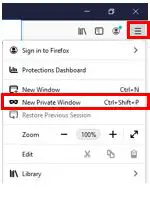
    How Many IP Addresses Should a Router Have?
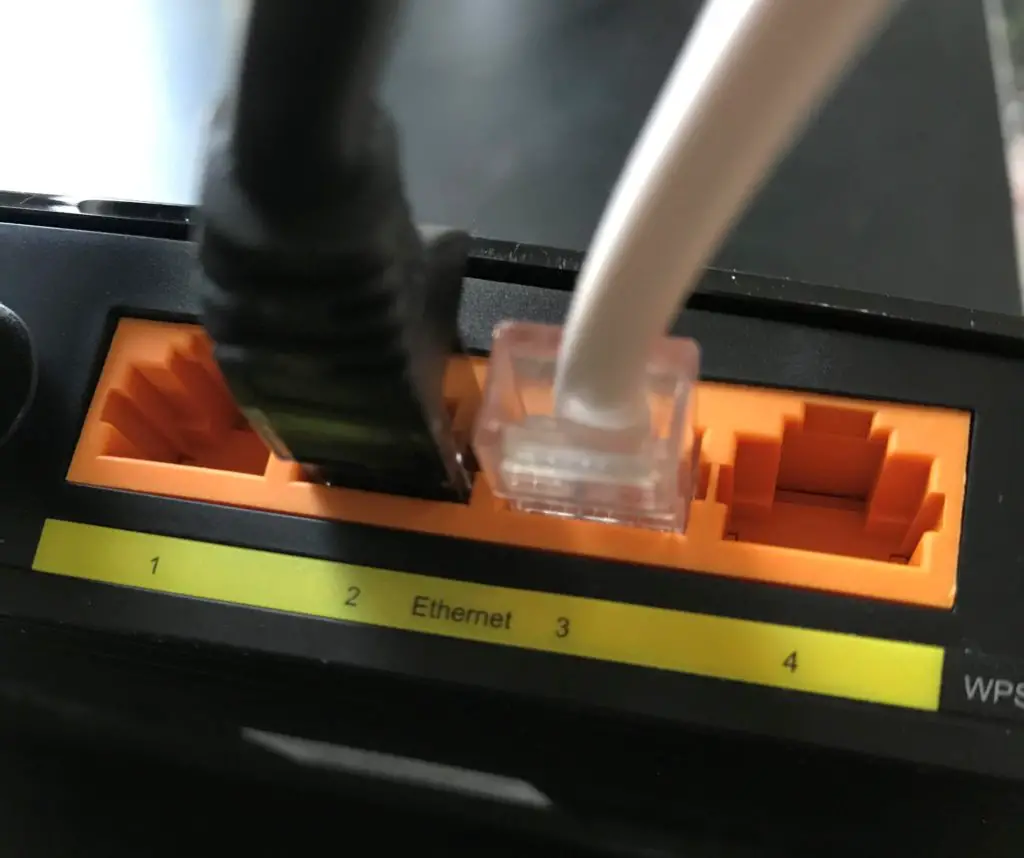
    Feel free to reach out to me in the comments section of this post or the Contact Me page if you have any questions or you’d like to share your experiences.

  • What Do the Lights on My Modem Mean?

    What Do the Lights on My Modem Mean?

    Modem lights meaning title page

    Do you find the lights on your modem confusing? Have you ever wondered if they serve a purpose or if they’re just for show?

    Hopefully I can clear that up for you.

    Believe it or not, those lights are actually really useful if you know what they mean.

    The lights on a modem are meant to provide a status of the modem’s operation. They provide information about the modem’s power, access to the internet, and ethernet connection. These lights are used when troubleshooting and monitoring the device.

    In this post we’ll break down the lights you’re likely to see on your modem, and the different states these lights can be in. If you’re also curious about what the lights on your router mean, check out our previous post: What Do my Router Lights Mean?

    Let’s get started.

    What Does My Modem Look Like?

    The first step in learning about your modem’s lights is to make sure you’re looking at the right device.

    The first question to ask yourself is if your modem and router are separate devices or if they’re combined into one device.

    Here’s a hint: if you’re renting your modem and router from your internet service provider (ISP), you most likely have a modem and router combination.

    If your router and modem are combined, it’s no big deal. You’ll most likely have the same lights that a standalone modem would have. You’ll just have to pay closer attention because all the router and modem lights will be on the same device.

    If your modem is separate from your router it’s easy to identify because it’ll be the device without any antennas on it.

    Your modem should look something like this:

    If you’re still unsure, you can look at the sticker on the device. This will tell you if you’re looking at a modem or a router. The sticker on my modem is on the bottom of the base.

    Netgear Modem Make and Model

    As you can see, my modem is a CM600 and it’s made by Netgear. If you’re still not sure if you’re looking at your modem, feel free to drop me a comment below and I will try to help.

    In this post I will explain the lights on my modem, however most modems will be similar.

    What Are the Different Lights on My Modem?

    Modem lights cheat sheet

    Compared to my router, my modem has less lights on it.

    Modem lights front

    In fact, my router and modem have some of the same lights, which makes it easy to understand what they mean.

    Let’s take a look at what each of these lights means, as well as the different states they can be in.

    The Power Light

    The power light should be pretty self-explanatory. I’m sure you’ve seen this power symbol before on the other electronic devices in your home.

    Here’s what the power light looks like:

    Modem power light

    What Are the Different States of the Power Light?

    Green

    When the power light is green it means that the modem is powered on. The green light means the power cord is plugged into the back of the modem and it’s receiving power.

    This is what you should see 99% (or more) of the time when your modem is in use.

    Off

    When the power light is off, it means the modem is either not receiving power or it has been manually turned off.

    If the power light is off, try pressing the power button on the back of the modem (if your modem has one).

    Modem On/Off power button

    If that doesn’t work, check the power cord.

    Modem power cord connection

    Is it firmly plugged into the back of the modem? Is the other end plugged into a working outlet?

    If none of the above steps caused the power light to turn on, your modem may have overheated and it may no longer work.

    Red

    The red power light is the one you really have to be on the lookout for.

    A red power light means the modem is too hot. If a modem runs at a hot temperature for an extended period of time, it’s at risk of overheating.

    When the modem overheats, you’ll notice the performance of your modem and internet will slow down. In addition, there’s a chance your modem could fail.

    I’m sure you don’t want to have to buy a new modem if you can avoid it.

    You can avoid the red power light by placing your modem in an open area with good air flow.

    In other words, don’t put it in a closet or cover it with anything. If you keep your modem away from other items in a room that doesn’t get too hot, you should be fine.

    Another reason your modem may overheat is if the firmware is outdated. Make sure you’re occasionally checking for firmware updates for your modem.

    The Downstream Channel Light

    The downstream light is meant to give you a status of your modem’s connection with the ISP that’s providing your internet.

    Modem downstream light

    In order to understand the states of this light, you need to understand how modem connections work.

    To keep it simple, modems download data from the internet over a series of channels that transmit data over different radio frequencies. The more channels your modem has connected to your ISP, the more data it can download at a given time. The more data your modem can download, the faster your internet experience will be.

    Easy enough?

    This is important to keep in mind when considering the downstream light on your modem.

    What Are the Different States of the Downstream Channel Light?

    Solid Amber

    If the downstream light is a solid amber color, it means only one downstream channel to the ISP is in use.

    You’ll see the solid amber light when you’re first starting up your modem. The downstream light will turn amber when it starts it’s connection to the ISP, and then it will turn green once it has established a full connection.

    After the modem has been configured and a full connection to the ISP is established, you shouldn’t see the amber downstream light.

    Solid Green

    When the downstream light is solid green, it means that at least two downstream channels to the ISP are in use. This means your router is operating as it should.

    Your downstream light should be solid green for the vast majority of time.

    Blinking Green

    The blinking green light means that the modem is scanning for downstream channels it can use to connect to the ISP.

    The light will be in this state when the modem is starting up. It will turn amber once one channel to the ISP has been connected. It will turn green once two or more channels are established.

    You won’t normally see the downstream light in this state.

    Off

    An off downstream light means that your modem doesn’t have any download connections with your ISP.

    The downstream light will be off when the modem is off.

    Any time the modem is on, the downstream light should be on as well.

    The Upstream Channel Light

    Similar to the downstream light, the upstream light indicates the state of the modem’s connection to the ISP. The upstream light is the opposite of the downstream light, however, in that it details the modem’s upload connection status to the ISP as opposed to its download status.

    Modem upstream light

    This is an important light for people who frequently upload to the internet. Whether it be uploading large files to the internet or doing a livestream on your YouTube channel, these actions require an upstream connection with your ISP.

    The more upstream connections you have, the more data you can upload at once. The more data you can upload at once, the faster your uploads will be.

    What Are the Different States of the Upstream Channel Light?

    Solid Amber

    When the upstream light is a solid amber color, it means there’s currently one active upstream connection to the ISP.

    Just like the downstream light, you’ll see the solid amber light when the modem is connecting to the ISP for the first time. Once your modem establishes more upstream connections to the ISP, the light will turn green.

    You’ll see this light when the modem is connecting to the ISP, but during normal operation of the modem you shouldn’t see an amber upstream light.

    Solid Green

    You should see a solid green upstream light the majority of the time when the modem is in operation.

    When the upstream light is green, it means that your modem has multiple upstream channels connected to the ISP. A green light means that the modem is working properly.

    Blinking Green

    The upstream light blinks green when it’s trying to make an upstream connection to the ISP.

    You’ll see this light when the modem is first starting up. The upstream light will blink green until it has made one upstream connection to the ISP. It will then turn amber until it has made multiple upstream connections to the ISP.

    You won’t normally see a blinking green upstream light on your modem.

    Off

    When the upstream light is off, it means that your modem doesn’t have any upload connections with your ISP.

    The upstream light will be off when the modem is off. Any time the modem is on and in use, the upstream light should be on. It should either be amber when it’s starting up or green when connections to the ISP have been made.

    The Internet Connection Light

    The internet light on your modem will indicate if you have a connection to the internet or not.

    Modem internet light

    What Are the Different States of the Internet Connection Light?

    Solid Green

    When the internet light is solid green, it means your modem has a connection to the internet.

    You should expect to see a green internet light once your modem has completed its startup procedure.

    Blinking Green

    The internet light will blink green when the modem is in the process of connecting to the internet.

    The light will blink green when the modem is starting up until it has established a connection to the internet. Once it has connected to the internet, the light will be a steady green.

    You’ll only see this light during startup and you shouldn’t see it during the normal operation of the modem.

    Off

    Your internet light will be off when the modem doesn’t have power.

    If your internet light is off when the modem is plugged in and powered on, there are a few things you can check.

    The first thing you’ll want to do is make sure the modem is connected to the internet connection provided by your ISP.

    For example if you have cable internet (as I do), you need to check the coaxial cable connection on the back of your modem.

    Modem cable internet connection

    The coaxial cable needs to be connected to your modem and the wall where the coaxial cable enters your house from the street. Make sure these connections are secure. Depending upon the type of internet connection you have, the connections on the back of your modem and at the wall may be different.

    If your internet connections are secure and the internet light is still off, you may have an issue with your internet plan. I would advise calling your internet provider to make sure there are no issues with your current plan. If there’s nothing wrong with your plan they should be able to reset your connection.

    The Ethernet Connection Light

    The ethernet light on your modem will most likely look something like this:

    Modem ethernet light

    Your modem will be connected to your router (if they’re separate devices) with an ethernet cable. The ethernet light will help indicate the status of this connection.

    What Are the Different States of the Ethernet Connection Light?

    Green

    A green ethernet light means your modem and router are connected to each other and both devices are powered on.

    More than that, it means they’re connected with a 1,000 megabits per second (Mbps) ethernet cable. This is what you’ll want to connect your modem and router with if you want the fastest possible internet connection that your modem and router can provide.

    If your modem and router are connected with a 1,000 Mbps connection, it means you’re using a Cat 5e or above ethernet cable. If you’re unsure what kind of ethernet cable you’re using, check out our previous post that breaks down the different types of cables: Can an Ethernet Cable Slow Your Internet Speed?

    You’ll want to make sure you’re using a Cat5e or above ethernet cable to connect your modem to your router. If you do, your ethernet light will be green as long as it’s powered on and connected to your router properly.

    Amber

    An amber ethernet light will indicate that your modem and router are connected with a 10/100 Mbps connection. This means the ethernet cable that’s connecting them is less than Cat5e.

    As detailed above, if you see this light on your modem you’ll want to replace the ethernet cable connecting your modem and router. If your modem and router are connected with a Cat5e or above ethernet cable, the light will be green.

    If you use an ethernet cable that is less than Cat5e, it will slow down your internet connection. Don’t limit your internet connection because of an ethernet cable that you can buy for about $10 online.

    Blinking Green or Amber

    A blinking green or amber light will mean that your modem is processing traffic. In other words, it means that your modem is sending internet data to and from your router.

    When you have a functioning connection to the internet, your ethernet light will be blinking every time you access a new website or perform an action on the internet.

    Whenever someone is using your internet network you should expect your ethernet light to be blinking for the majority of the time.

    Off

    When the ethernet light is off, it could mean a few different things. It could mean:

    • The modem is off
    • The router is off
    • Your modem is not connected to a router

    If your modem and router are powered on but the ethernet light is still off, check the connection between the modem and router. Make sure the ethernet cable is connected to the the right port on your router. It should be clearly indicated.

    Router internet connection

    The ethernet port on the back of your modem should be pretty obvious as well.

    Modem ethernet port

    If the ethernet light is still off, try using a different ethernet cable. You may have a bad cable.

    Wrap Up

    You should now have a good idea what the lights on your modem are and how they can help you determine its current status. Remember that your modem may not have exactly the same lights as the one in the example provided (especially if your modem and router aren’t separate devices), but they should be similar.

    If you have any questions about this information, please feel free to comment below or contact me via the Contact Me page.

    If you’d like to learn about the lights on your router and what they mean, check out our previous post:

    What Do My Router Lights Mean?

    If you want to learn more about your modem and how it may affect your internet speed, we have resources for that as well:

    Does Your Modem Affect Your Internet Speed?

    Here are some other relevant posts you may find interesting:

    Can a Modem Overheat? What to Look For

    Why Do Modems Need to Be Rebooted?

    How Do I Reset My Modem Password?

  • What Do My Router Lights Mean?

    What Do My Router Lights Mean?

    Router lights mean title page

    Have you ever walked by your router and wondered what all the lights on it mean?

    I know I definitely have.

    The lights on your router are meant to provide you with hints about its current status. There are lights to indicate:

    • If your router has power
    • What wireless frequency bands are currently active
    • If the router is connected to the internet
    • What ethernet ports on the router are in use
    • If a USB device is connected to the router
    • If Wi-Fi Protected Setup (WPS) is active or not

    The purpose of these lights is to quickly identify if something is wrong with the router. When you can easily see what the status of the router is, you can determine what actions (if any) you need to take.

    What Does My Router Look Like?

    Before we dig into the lights on your router, let’s make sure we’re looking at the right device.

    Routers come in different shapes and sizes. In some cases, your router and modem will be the same device. This is especially true if you rent your modem and router from your Internet Service Provider (ISP).

    If your router is separate from your modem, it will probably look similar to this:

    TP Link AC1750 Router

    Your router should have at least two antennas on it. In addition, it will have more connection ports on the back of it when compared to a modem.

    If you’re still unsure if you’re looking at your modem or router, find the sticker on the bottom of the device. The sticker should identify if the device is a router or modem (or both).

    For example, the sticker on the bottom of my router says that it’s a “Dual Band Gigabit Router”.

    Archer A7 Router Sticker Information

    If you’re still unsure if your device is a modem or router, feel free to leave a comment below and I will try to help as best I can.

    What Do the Different Lights on My Router Mean?

    Router lights cheat sheet

    In this post I’ll discuss the lights on my TP-Link Archer A7 router. Most routers will have similar lights on them.

    Here are the lights on the front of my router:

    Archer A7 router lights

    As you can see, not all of the lights are on. This provides me with information about the current status of my router.

    Once we break down what each light represents, we’ll discuss the different states that each light can be in and what they mean.

    Let’s get started.

    What Does the Power Light Mean?

    The power light indicates if the router has electrical power or not. The symbol for power on electronic devices is universal so it will look the same on most routers.

    The power light will look something like this on your router:

    Router power light

    What Are the Different States the Power Light Can Be In?

    On

    If the power light is on and it’s not flashing, it means the router is plugged in and has power.

    Flashing

    When the power light is flashing, it means the router is starting up. This will happen shortly after it’s plugged in and powered on.

    The power light will also flash when the router’s firmware is being updated. Don’t unplug the router while the firmware is being updated. It may stop working if the update didn’t complete.

    Off

    If the light is off, it means the router doesn’t have power. If this is the case you should check to make sure the power cable is plugged into an outlet, and that it’s plugged into the correct port on the back of the router.

    My router also has a button on the back of it to turn the router on and off. It looks like this:

    Router power cable and on/off switch

    Once the router is plugged into an outlet, press the power button to turn the router on.

    What Does the 2.4 Gigahertz Wireless Signal Light Mean?

    The 2.4 gigahertz (GHz) wireless signal light indicates if the router is operating on that frequency or not.

    It looks like this:

    Router 2.4GHz light

    Most routers operate on two wireless frequency signals, 2.4 GHz and 5 GHz. The 2.4 GHz light will tell you if the router is currently providing a wireless network on this frequency that you can connect to.

    What Are the Different States the 2.4 GHz Light Can Be In?

    On

    If the 2.4 GHz light is on, it means the router is active on the 2.4 GHz frequency band. It indicates that your router is working properly and providing a wireless network for your devices.

    Off

    If the light is off, it means that you can’t connect to the router on the 2.4 GHz frequency band. This could be because this frequency was turned off in the router’s settings, or the router isn’t working properly.

    What Does the 5 Gigahertz Wireless Signal Light Mean?

    The 5 GHz wireless signal light indicates if the router is operating on that frequency or not.

    It looks like this:

    Router 5GHz light

    Similar to the 2.4 GHz light, the 5 GHz light will tell you if the router is currently providing a wireless network on the 5 GHz frequency.

    What Are the Different States the 5 GHz Light Can Be In?

    On

    If the 5 GHz light is on, it means the router is active on the 5 GHz frequency band. It indicates that your router is working properly and providing a wireless network for your devices.

    Off

    If the light is off, it means that you can’t connect to the router on the 5 GHz frequency band. This could be because this frequency was turned off in the router’s settings, or the router is not working properly.

    What Does the Internet Light Mean?

    The internet light will tell you the status of the router’s internet connection.

    It will look something like this:

    Router internet light

    You will want to pay attention to this light if your wireless devices aren’t able to connect to the internet.

    What Are the Different States the Internet Light Can Be In?

    On (green)

    If the internet light is green, it means the router has an active connection to the internet. This is what you should expect the internet light to look like most of the time.

    On (orange)

    When the internet light is orange it means that an ethernet cable is plugged into the internet port of the router, but it still doesn’t have an internet connection.

    There are a few instances when you’ll see this light.

    When you’re setting up your router and you first connect the ethernet cable from the modem to the router, you’ll see this light. This is because it takes a few moments for your router to set up a connection to the internet. After a few seconds, the light will turn from orange to green once the connection is made.

    You may also see this light if your router is connected to a modem, but the modem isn’t connected to the internet.

    Lastly, an orange light can indicate that you’re not receiving internet from your internet service provider (ISP). This may be due to an issue with your internet plan, or your ISP may be having issues with the internet.

    The first thing to do if you’re seeing this orange light is to check all your connections.

    You’ll want to check the:

    • Router’s internet port on the back
    • Ethernet connection between the router and modem
    • Connection from the modem to your ISP

    For your reference, the internet port on the back of the router should be clearly marked.

    Router internet ethernet cable
    Off

    If the internet light is off, it most likely means that no ethernet cable is connected to the internet port on the router. You’ll want to double check your connections if this is the case.

    What Do the Ethernet Connections Lights Mean?

    The ethernet lights on your router will indicate if there are devices connected directly to your router. This will provide some of your devices with wired connections to the internet (as opposed to wireless connections).

    My router has four ethernet lights on it, because it has four ethernet ports on the back.

    Router four ethernet lights

    Here’s what the ethernet ports on the back of the router look like:

    Router ethernet ports

    As you can see, they’re numbered 1 through 4.

    What Are the Different States the Ethernet Lights Can Be In?

    On

    As you may have guessed, if a device is directly connected to the router, the light for that ethernet port will be on.

    Off

    If an ethernet port on the back of the router is unused, the light for that port will be off.

    The light will also be off if an ethernet cable is connected to one of the ports, but it’s not connected to a device.

    What Does the USB Light Mean?

    The USB light will show if a USB device is connected to the router. A USB port on your router can be used to provide resources to anyone on your network (like a printer or storage).

    The light is the universally recognized symbol for a USB device.

    Router USB light

    Most routers will come with one USB port but there are some that come with multiple. The USB port on the back of the router should be clearly labeled.

    Router USB port

    What Are the Different States the USB Light Can Be In?

    On

    If there is a USB device plugged into the back of the router, the light will be on.

    Flashing

    When the USB light is flashing, it means a USB device was recently plugged in and it’s being identified.

    Off

    If the USB port on the back of the router doesn’t have anything plugged into it, the light will be off.

    What Does the Wi-Fi Protected Setup (WPS) Light Mean?

    Wi-Fi Protected Setup is a feature that allows devices to quickly and easily connect to a wireless network. The WPS light on a router will indicate if a WPS connection is being set up at any given time.

    The WPS light looks like this:

    Router WPS light

    What Are the Different States the WPS Light Can Be In?

    On

    Once a WPS connection is made, the light will remain lit for five minutes. After five minutes the light will turn off automatically.

    Flashing

    If a WPS connection is in progress, the light will flash on and off.

    As a note, WPS connections can take up to two minutes to complete.

    Off

    If there’s no WPS activity happening, the light will be off.

    For those concerned with their internet security, WPS can be enabled and disabled in your router’s settings. It’s recommended that this feature be turned off, as it’s known to be insecure. If you decide to disable WPS on your router, the light should always be off.

    Wrap Up

    Now you should understand what your router lights mean and how they can help you determine the status of your router. Remember that your router may not have exactly the same lights as the one in the example provided, but they should be similar to the ones detailed.

    If you have any questions about this information, please feel free to comment below or contact me via the Contact Me page.

    If you’d like to learn more about routers and view other related posts, check these out:

    Does a Router Affect Your WiFi Speed?

    What Do the Lights on My Modem Mean?

    How Many IP Addresses Should a Router Have?

    How Do I Back Up My Router?

    Can I Move My WiFi Router to Another House?