
Author: Ross Ricky

  • Does Modem Placement Matter?

    Does Modem Placement Matter?

    Modem placement matter title page

    Where you place your modem in your home is important, but probably not for the reasons that you think.

    You’re probably wondering if the location of your modem will impact the speed of your internet connection. That’s the biggest concern of most internet users.

    Fear not, because I have some good news for you.

    Where you keep your modem in your home won’t have any affect on your internet speed. With that said, the location of your modem is important for making sure it lasts as long as it should. If you don’t keep your modem in a proper location, you may find yourself replacing it sooner than you’d like.

    In this post we’ll look at why the placement of your modem is important, as well as the best locations for your modem in your home.

    How do your modem and router provide an internet connection?

    Let’s first address the question that everyone is most worried about: Does your modem location affect your internet speed?

    In order to understand if the location of your modem affects your internet speed, we need to have an understanding of how your internet devices get access to the internet. The two devices responsible for providing internet in your home are your modem and router.

    What role does your modem play in your internet connection?

    When it comes to the internet connection in your home, your modem basically has one job.

    It’s responsible for connecting your house with the rest of the internet.

    Your modem provides your home with access to the internet by establishing a connection to your internet service provider (ISP). Your ISP is the company that provides you with your internet plan (e.g. Xfinity, AT&T, Verizon, etc.).

    By connecting with your ISP, your modem makes it possible for your devices to use the internet to receive email, browse websites, online shop, etc.

    You can think of your modem like a key to the internet. Your modem opens the door for your devices to access the internet.

    To put it simply, you need a modem if you want internet access. If you only had a router and you didn’t have a modem, your devices wouldn’t be able to reach the internet.

    It’s as simple as that.

    Due to the fact that your modem has such an important job, it doesn’t come with many extra features. It doesn’t assign your devices with IP addresses, provide a wireless internet signal for your devices, or coordinate the sending and receiving of data to the internet.

    That’s where your router comes in.

    What role does your router play in your internet connection?

    If your modem connects your home to the internet, you might be wondering what your router does.

    Pretty much everything else.

    First and foremost, your router allows your devices to wirelessly connect to the internet. Your router uses its multiple antennas to broadcast your home’s internet connection through the air. The wireless devices in your home connect to your router through this signal, which allows them to access the internet.

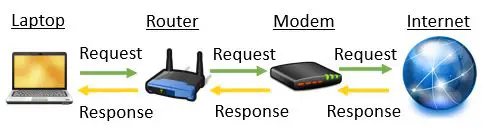
    Your router is able to broadcast this internet signal because it’s connected to your modem with an ethernet cable. Your modem passes the internet signal from your ISP to your router for broadcasting.

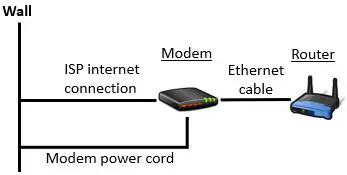
    Here’s a diagram to help you visualize this:
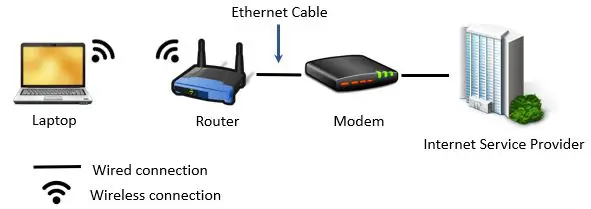
    Modem and router connection

    If you have a modem and router combination device, your router won’t be connected to a modem with an ethernet cable. That’s because your modem and router will be housed in one device.

    In addition to providing your devices with a wireless internet signal, your router also assigns IP addresses to your devices when they connect to your home network.

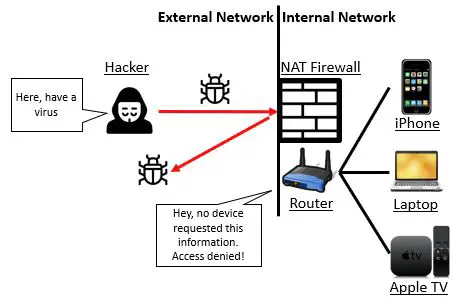
    Once a device has been assigned an IP address, your router ensures that device only receives the information it requests. In other words, if you use your phone to enter a website address into your browser, your router will make sure that the requested website shows up on your phone and not on another device on your home network.

    Does your modem location affect your internet speed?

    Now that I’ve outlined the roles that your modem and router play in providing your home with an internet connection, we can answer if the location of your modem affects your internet speed.

    As you’ll recall, your modem is connected to two things. It’s connected to your router with an ethernet cable, as well as to your Internet Service Provider.

    The connection from your modem to your ISP is a wired connection as well. If you have cable internet (which most people do), your modem will be connected to your ISP through a coaxial cable.

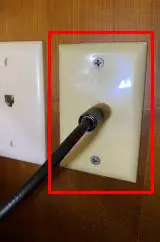
    This coaxial cable will connect to a cable jack on the wall and run outside of your home to your ISP. Here’s an example of what a cable jack looks like:
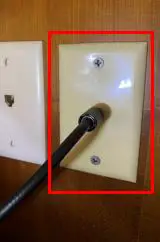
    Coaxial cable wall jack

    You may be asking, why is this important?

    It’s important because of what these two connections have in common. They’re both wired.

    The benefit of wired connections

    When it comes to sending and receiving data, communication over wired connections is very fast. To take it a step further, sending data through a wire won’t usually have any impact on your internet speed.

    In fact, the only time a wired connection will impact your internet speed in your home is if your modem and router are connected with an ethernet cable that’s longer than 328 feet (100 meters).

    This basically means that as long as your modem and router are connected with an ethernet cable that is less than 328 feet long, it doesn’t matter where you put your modem in your home.

    Remember, your modem doesn’t broadcast the WiFi signal to your devices. That’s your router’s job. All it’s responsible for is connecting your home to your ISP.

    As long as your modem is connected to your router and ISP, it shouldn’t have any effect on your internet speed. It doesn’t matter where it’s located in your home.

    Does your router’s placement affect your internet speed?

    Unfortunately, the same can’t be said for your router.

    As I mentioned earlier, your router wirelessly connects to your internet devices. As a result, if your devices are far away from your router, they’ll have a weaker internet signal.

    A weaker internet signal will lead to slower internet speeds. This is why it’s important to place your router as close to your internet devices as possible.

    Where you should place your router is another topic entirely. For now, I wanted to provide you with the basics to make it clear that your router placement can have a much bigger impact on your internet speed than the placement of your modem.

    Does modem placement matter?
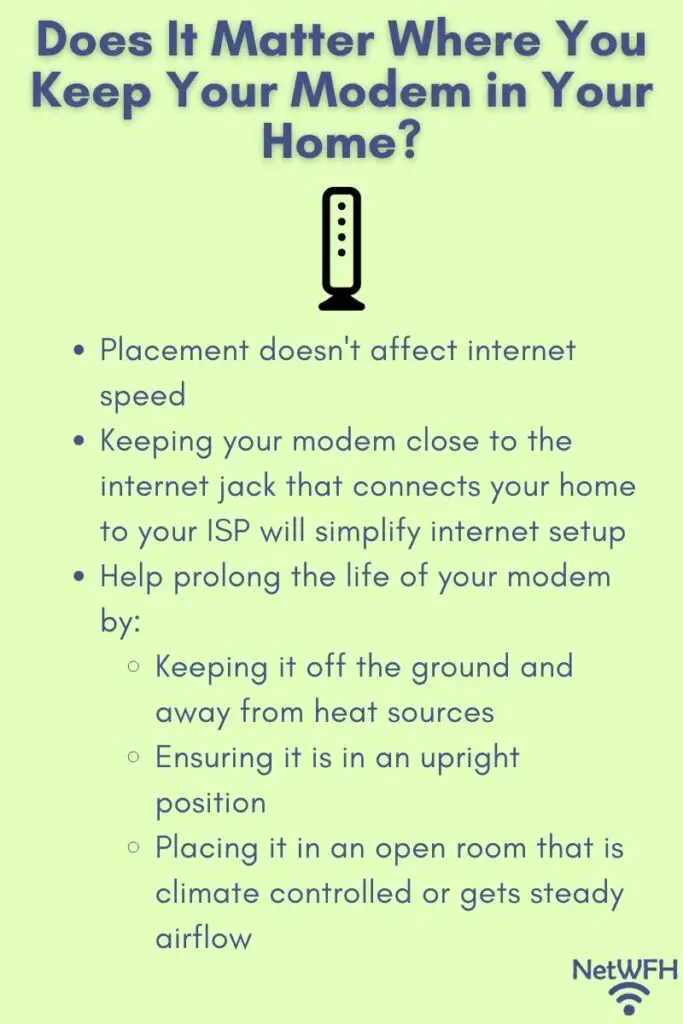
    Does It Matter Where You Keep Your Modem in Your Home

    If the location of your modem doesn’t affect your internet speed, does it matter where you put it?

    You might be surprised to hear that the answer is yes.

    There are other reasons to care about where you place your modem. For example, if you’re not careful about your modem’s placement, it won’t last as long as it should.

    Why modem placement is important

    The location of your modem in your house is important for several reasons. The first (and most important) reason is that your modem can overheat if it’s not placed in the proper location.

    The other reason why modem placement is important is for organizational purposes. You’ll most likely want your modem near the internet connection that goes to your internet service provider. Placing your modem near the internet jack in your home will make it much easier to set up your internet connection.

    Lets’ take a closer look at each of these topics.

    It can help prevent your modem from overheating

    If you buy the right modem and take good care of it, it can last you up to ten years or more. With that said, if you don’t take care of your modem, you may have to replace it much sooner.

    Nobody wants to deal with that.

    So what exactly am I talking about here?

    I’m talking about dust and heat. You need to avoid dust and heat as much as possible if you want your modem to last.

    If your modem is in a location where it accumulates a lot of dust, it’ll run hotter than it should. When electronic devices get hot, they have a tendency to overheat. If your modem overheats, its electronic components inside the device can fail.

    We all know what that means. If your modem’s internal components fail, you’ll need to replace your modem.

    Your modem can also overheat if it’s placed too close to a heat source like the heaters in your home. You don’t want to place your router and modem on top of each other either. Doing so will cause both devices to run hotter than they should.

    So where should a modem be placed to help prevent it from overheating?

    The key here is to keep your modem standing upright and in a well ventilated area. Ideally, you’ll want to keep it on an elevated surface like a table or shelf. This will keep it away from dust on the ground and make sure it’s getting proper airflow to cool it.

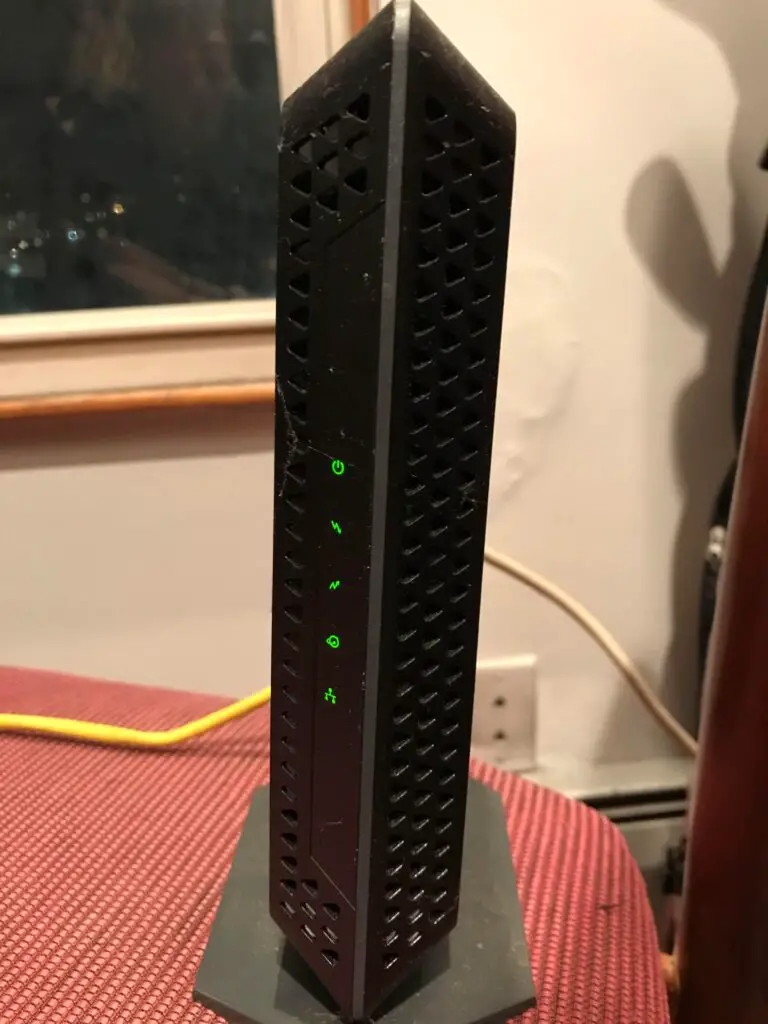
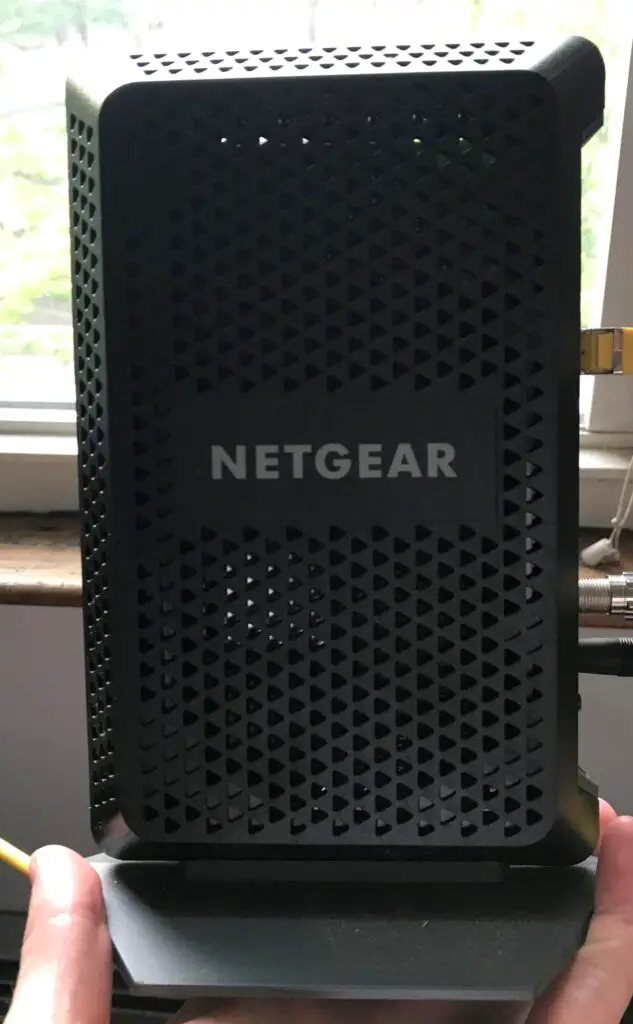
    Any elevated surface will do. For reference, here’s my modem on a chair in my living room.
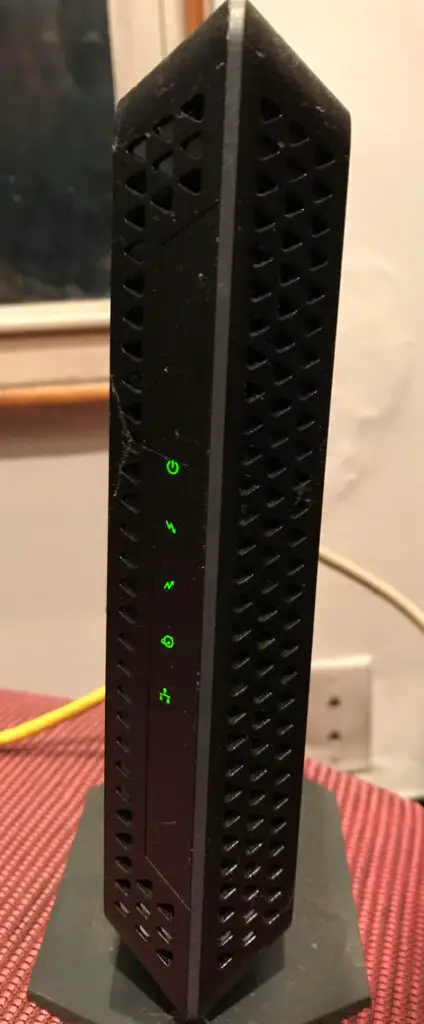
    Modem on chair

    If you live in a climate controlled house, you shouldn’t have any issues. Just make sure your modem is off the ground and you’ll be all set.

    It makes it easier to set up your home internet

    Another factor you should consider when deciding where to keep your modem is its distance from the connection to your ISP.

    As I mentioned earlier, your modem needs to connect to both your router and the internet connection that comes from outside your house.

    The farther your modem is from the internet connection, the more complicated it’ll be to set up your internet.

    Why is that?

    If your modem has to connect to the internet jack that comes from your ISP, the shorter the cable the better. The farther your modem is from this jack, the longer the cable connecting them has to be.

    You don’t want to have a long cable snaking throughout your house to connect your modem to your ISP. Not only is it a tripping hazard, but it also makes your house look messy and unorganized.

    Some houses have multiple jacks that connect your home to your ISP, which makes things a little easier. You can just connect your modem to the closest jack to minimize the length of the cable connecting the two.

    The bottom line is, it’s much easier to keep your modem in a place that’s close to the internet jack that goes outside your house.

    Especially since your modem placement won’t affect your internet speed, it’s worth finding a spot close to your internet jack.

    Modem placement recommendations

    By now you should have a pretty good idea where to locate your modem in your home.

    Ideally, there’s a place in your home that allows you to:

    • Keep your modem close to the internet jack that connects your home to your internet service provider
    • Place your modem on an elevated surface near the internet jack so you can keep it off the ground
    • Put your modem in a room that’s either climate controlled or gets steady, natural airflow

    If you’re able to keep your modem in a space that meets the above criteria, you’re in good shape.

    If you’re not able to meet the above criteria, the one factor that’s the least impactful is the distance from the internet jack. You’ll have a longer cable connecting your modem to your ISP, but it won’t affect how long your modem lasts.

    Regardless of where you keep your modem, try to keep it in an open area that’s off the ground. These are the two factors that can result in your modem failing before it should, so they’re the most important.

    If you have any questions about this information, or you’d like to share where you keep your modem in your home, please leave a comment below.

    If you found this information helpful, here are some additional posts I’ve written on similar topics:

    Should Your Router and Modem Be Close Together?

    How Long Do Modems Last? A Complete Guide

    Can a Modem Overheat? What to Look For
    Does Your Modem Affect Your Internet Speed?

    Can I Take My Internet Modem to Another House?

  • Should Your Router and Modem Be Close Together?

    Should Your Router and Modem Be Close Together?

    Should Your Router and Modem Be Close Together

    Let me start by saying, I get it.

    Setting up your home internet is a big deal. There’s a lot at stake here.

    If you don’t get it right, you’ll have a lot of angry customers to deal with (like your family members, roommates, guests, etc.).

    It seems like every decision you make can have an impact on your internet. The truth is, a lot of the decisions you make will impact your internet connection in one way or another.

    Which brings us to the topic of your modem and router.

    A common question that gets asked during home internet setup is if your router and modem should be positioned closely together in your home. Thankfully, the answer is pretty straightforward:

    Your router and modem don’t need to be close to each other. As long as they’re connected to each other with an ethernet cable, they can be up to 328 feet (or 100 meters) apart before you’ll notice an impact on your internet speed.

    In other words, you most likely won’t have any problems with your modem and router being too far apart. On the other side of the coin, you don’t want to put your modem and router too close to each other either.

    In this post, I’ll detail everything you need to know about where you should place your modem and router.

    As a disclaimer, this post was written for people who have separate modem and router devices. If you have a modem and router combo, you don’t have a choice. Your modem and router will be combined into the same device and you won’t have to worry about how close or far apart to place them.

    Why your modem and router need to be connected

    In order to determine where your modem and router should be placed, you should first understand how they work together.

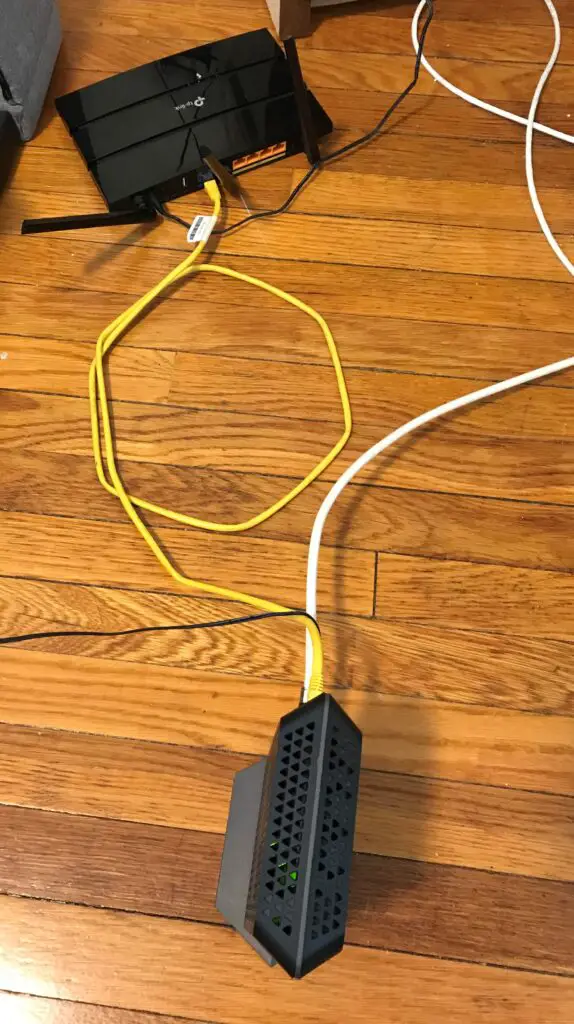
    If your modem and router are separate devices, they’ll need to be connected so they can communicate with each other. They should be connected with a Cat5e or Cat6 ethernet cable.

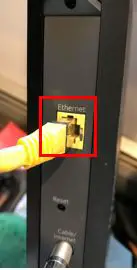
    For a visual, the yellow cable in the picture below is the ethernet cable connecting my modem and router.

    So why do your modem and router need to talk to each other in the first place?

    This is because they have two different (but important) roles when it comes to your internet connection.

    I’ll keep this at a high level.

    Your router is responsible for making sure the devices on your home network receive the data they ask for. For example, let’s say you’re on your tablet and you want to pull up a webpage. Your router will make sure that the webpage you requested gets sent to your tablet and not your iPhone or laptop.

    What about your modem? What part does it play in all of this?

    Think of your modem like a bridge to the internet. Your modem is responsible for maintaining your home’s connection to the internet. This connection is what your devices use to access the internet.

    Together, your router and modem provide your devices with all they need to use the internet. Your router sends and receives the data that your devices request over the internet connection that your modem establishes.

    This is why your modem and router need to communicate with each other.

    If your had a router without a modem or a modem without a router, you wouldn’t have a useful internet connection.

    Do your modem and router need to be close to each other?

    Modem and router placement tips

    As we previously discussed, your modem and router need to be connected with an ethernet cable. That information alone leaves some questions unanswered.

    Will any length of ethernet cable work here? Can you just get an ethernet cable that’s as long as you want so you can place your modem and router far apart?

    Unfortunately it’s not that limitless. With that said, you can spread your modem and router pretty far from each other if you want to.

    Ethernet cables transmit data by sending electrical signals over copper wiring. They do a pretty good job of transmitting data at a fast rate, but there are limits to this.

    If an ethernet cable is too long, the signal over the wire will start to weaken. When this happens, the speed of data transfer slows down.

    What does this mean for you?

    This means your internet connection will slow down.

    The rule of thumb with ethernet cables is that data transfers rates will start to slow if the cable is over 100 meters long (328 feet). This means you could theoretically place your modem and router 100 meters apart without experiencing any issues.

    This amount of distance between a modem and router may be overkill for most people, but it’s possible nonetheless.

    When it comes to your home internet speed, you won’t notice a difference in speed if your modem and router are 10 feet apart or 300 feet apart. This gives you a lot of flexibility when designing your home network.

    Can a router be too close to a modem?

    When it comes to modem and router placement, the maximum distance they can be from each other is about 328 feet.

    What about the other end of the spectrum? Can a modem and router be too close together?

    When it comes to internet speeds, the answer here is no. If you place your modem and router right next to each other, you’ll experience about the same internet speed as if they were 328 feet apart. You won’t be able to notice a difference

    With that said, there are some other factors you need to account for if your modem and router are close to each other.

    You need to keep in mind that your modem and router are electrical devices. When they are powered on, they generate heat.

    If your modem gets too hot, it will overheat. The same goes for your router. When these devices overheat, your internet connection will slow down, or you might lose your connection entirely.

    You need to consider this if your modem and router are right next to each other. The heat from your router can make your modem hotter, and vice versa. As long as both devices are off the floor and in a room with good airflow (or climate control), you shouldn’t have any issues.

    Just make sure you don’t stack your modem and router on top of each other. That would be the only scenario where you really have to worry about your modem and router being too close to each other.

    Can a modem and router be in different rooms?

    When it comes to designing your home network, you can place your modem and router wherever you want as long as they’re connected with an ethernet cable.

    In some cases, it may be better for your WiFi coverage if your modem and router are in different rooms.

    How so?

    There are a few things to keep in mind when determining the location of your modem and router in your home.

    Where to place your modem

    The first item to consider is that your modem will need to be connected to the internet connection that’s coming from the street. That internet connection from the street allows your home to connect with the rest of the internet.

    Most people have cable internet connections, so you’ll most likely have a coaxial cable jack on your wall. It should look something like this:

    Coaxial cable wall jack

    Your modem needs to connect to the coaxial cable jack (with a coaxial cable) because that’s how it connects to the internet. When determining where your modem should go, you probably want it to be somewhere close to a coaxial cable jack. That way, you won’t need to lay out a long coaxial cable to connect your modem to the cable jack.

    Where to place your router

    The next piece you need to think about is the room in your home that gets the most internet use. You’ll want to put your router as close to this location as possible. In many homes, the living room area is where people are most often using the internet.

    This also may be where you keep your:

    • Online gaming system
    • Smart TV
    • Desktop computer
    • Tablet

    Placing your router in the area where most of these devices are located will ensure they get a strong internet connection.

    Where most people keep their modem and router

    If you have cable internet, most cable jacks are located in the living room of the house. This makes it easy when deciding where to put your modem and router. You can put both of them in your living room and not have to think twice about it.

    With that said, if your situation is different you should change your design accordingly. If your internet connection from the street is in a bedroom and your game room is where you most frequently use the internet, you may want your modem in the bedroom and your router closer to the game room.

    Be practical here. You just want your router to be close to the areas of your home where the internet is used. It doesn’t necessarily have to be in that exact room if it means your modem and router have to be far apart. The last thing you want is a long ethernet cable strung throughout your house.

    If you want to have your modem and router really far apart in your home, you could always look into wiring the ethernet cable through your walls. This can get complicated quickly so I wouldn’t recommend it unless you know what you’re doing.

    In summary, you may benefit from keeping your modem and router in different rooms if your home has a unique setup. Make sure you’re considering where your connection point to the internet is, and where the internet will get used in your home.

    Taking a few minutes to think about this can have a large impact on the internet experience in your home.

    Recommendations

    In most applications, my recommendation for the distance between a modem and router is pretty easy. If you have cable internet and the internet jack is in the living room of your home, grab a 5 foot or 7 foot ethernet cable to connect your modem and router. You can keep both devices in the same room and you won’t have to think twice.

    It’s a different story if you’re going to have your modem and router in different areas of your home.

    For some people the optimal distance between your modem and router will be 10 feet.

    For others it will be 30 feet.

    Unfortunately I can’t give a standard answer here. You’ll need to use the information I provided above to figure out the best layout for your home internet.

    If you get stuck or have any questions, feel free to contact me in the comments section. I will certainly try to help where I can.

    Wrap up

    When it comes to the placement of your modem and router, they don’t need to be close to each other. What’s more important is that they’re placed in a way that maximizes the internet coverage of your home.

    The layout of every home will be slightly different. Regardless of your home layout, your modem and router can be placed just about anywhere as long as they’re connected to each other with an ethernet cable. Just don’t stack your modem and router on top of each other.

    If you found this information useful, here are some related posts that I’ve written:

    Can a Modem Overheat? What to Look For
    Can a Router Overheat? A Detailed Analysis

    Can I Take My Internet Modem to Another House?

    Can I Use a Router Without a Modem?

    Can You Use a Modem Without a Router?

  • How Long Do Modems Last? A Complete Guide

    How Long Do Modems Last? A Complete Guide

    How Long Modems Last title page

    Many sites will tell you that your modem should be replaced every three to five years.

    Honestly, I don’t agree.

    From my experience, modems should last much longer before being replaced.

    So how long should modems last?

    The truth is, it depends.

    There are a lot of variables that go into how long a modem will last. One thing I will say with certainty: if you do your homework when selecting your modem and take good care of it, it can last you up to 10 years or longer before being replaced.

    You shouldn’t need to replace your modem as long as:

    • Your internet needs don’t drastically change
    • You’re taking care of your modem to prevent it from overheating
    • Your modem manufacturer is providing firmware updates for it
    • You don’t need to change your internet provider

    In this post, I’ll break down the reasons why you might need to replace your modem. I’ll also detail what you can do to ensure your modem lasts as long as possible.

    When you will need to replace your modem

    Before we get into what you can do to make sure your modem lasts a long time, let’s talk about the situations when you’ll need to replace your modem.

    By identifying the reasons why you might need to replace your modem, we can determine what steps you can take to avoid these situations.

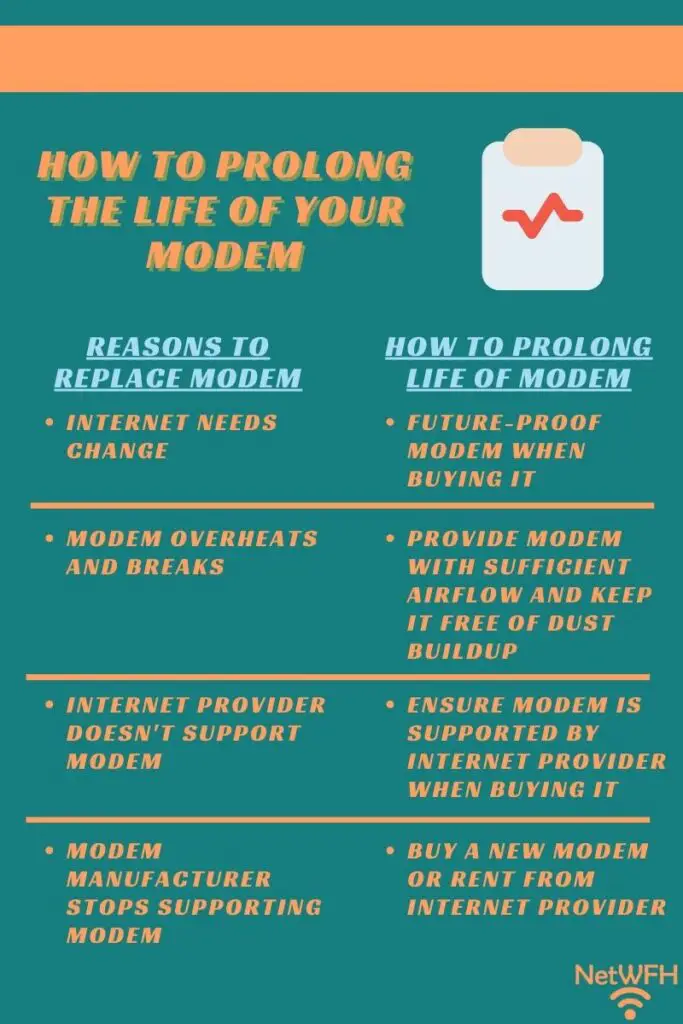
    How to prolong the life of your modem

    Your internet needs change

    One of the most common reasons that people get a new modem is because their internet needs change. In other words, people need modems that can support faster internet plans.

    Why would your internet needs change?

    Most of the time, your internet needs will change if the number of people using the internet in your home changes. For example, imagine a new roommate moves in with you or you have a child that will be using the internet (or streaming kid’s TV shows).

    This might also come into play if you start online gaming or livestreaming from your house. Your current internet plan may not be able to support this additional internet activity.

    So what do you do?

    You get a new internet plan that offers more bandwidth. If your current modem can’t support the bandwidth of this new internet plan, you’ll need to get a new modem.

    This is a logical reason to replace your modem because if you’re not careful, your modem can limit your home’s internet speeds.

    Later on, I’ll explain what you can do to make sure you don’t need to replace your modem if your internet needs change.

    Your modem breaks or overheats

    This one should be pretty self-explanatory. If your modem breaks, you’ll have to get a new one.

    At this point, modems are pretty reliable devices. Your modem won’t usually stop working on a whim (unless it’s really old).

    That’s not to say that modems aren’t made with defects here and there. Sometimes there’ll be nothing you can do and you just have to replace your modem because it malfunctions.

    Your modem overheating is a different story.

    If your modem overheats, it’s possible it may stop working entirely. You’ll have to replace it.

    The good news is, you should be able to prevent this from happening. We’ll touch on this later as well.

    Your modem manufacturer stops supporting our modem

    It may sound strange, but you want this to be the reason you replace your modem. To put it simply, you want your modem to last so long that the modem’s manufacturer stops supporting it.

    When I refer to your modem’s manufacturer supporting your modem, I’m talking about firmware updates.

    Your modem’s firmware

    The software that’s responsible for running your modem is called firmware. This firmware is encoded onto your modem and it can’t be changed unless a new version of firmware is installed. Firmware controls:

    • How your modem handles its connection with your internet provider
    • The startup process it follows when you reboot it
    • What the modem settings page looks like when you access it
    • All other aspects of how your modem functions

    Any time bugs are found in the firmware of your modem, your modem’s manufacturer will issue firmware updates to correct them. These updates help to keep your modem firing on all cylinders.

    In addition, updates will be released when security flaws are found in your modem’s firmware. This is of utmost importance, as you don’t want to be using a modem that’s vulnerable to hackers.

    Manufacturer support

    Generally, manufacturers will only stop releasing updates for a modem if it’s really old.

    When a modem’s manufacturer stops supporting a modem, it means they won’t fix any more issues that are found in that modem’s code.

    This is like an auto shop refusing to fix your car if it’s a certain age.

    If any security flaws are found in your modem, you’ll be left to fend for yourself. As a result, you need to avoid this situation entirely. If your modem’s manufacturer stops updating the firmware for your modem, you should get a new one.

    If you don’t, your modem’s performance can suffer. More importantly, it may be subject to cyber attacks because its security holes will remain unpatched.

    It’s important to mention here that manufacturers usually support their modems for a long time. If you have a newer modem, you have nothing to worry about.

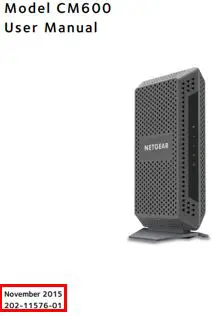
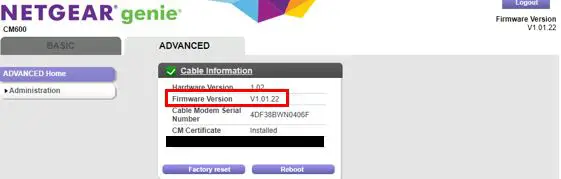
    For example, I have a Netgear CM600 modem. On the cover of my modem’s user manual, it displays the year that Netgear started selling this model.

    Netgear CM600 User Manual Cover

    As you can see, Netgear first released this modem in 2015. As of this writing, they’ve been providing updates for it for the last 7 years with no signs of stopping.

    If you take care of your modem as described in the next section, you should expect your modem to last as long as the manufacturer will keep supporting it.

    Your internet provider does not support your modem

    This one goes hand-in-hand with ensuring your modem gets updated.

    If your modem isn’t compatible with your internet service provider (ISP), you should get a modem that is.

    Your modem will only receive updates if your modem’s model is supported by your internet provider. Not to mention, if your modem isn’t supported by your ISP, you won’t even get an internet connection. If you’re unsure if your modem is supported by your internet provider, it’s pretty easy to check.

    A modem that doesn’t receive updates is a huge cybersecurity risk. Any security flaws in your modem will go unfixed, leaving doors to your home network wide open.

    On top of that, a modem that doesn’t receive updates won’t function as well as it should. There’s no way your modem will last a long time if it isn’t running properly.

    The same applies if you move or change internet providers.

    If your ISP is going to change, you need to make sure your modem is compatible with the new ISP. If not, your modem won’t receive the critical updates it needs.

    Take a few minutes to find out if your current modem will be supported by your new ISP. If it won’t, make sure you get a supported modem by the time you start your new internet plan.

    How to ensure your modem will last a long time

    So you want you modem to last a long time.

    Don’t we all.

    You increase your chances of your modem lasting a long time if you do your homework when deciding which one to get. If you take care of your modem once you have it, that’ll go a long way as well.

    Let’s break down each step you can take to prolong the life of your modem.

    Future-proof your modem

    The modem you pick for your home internet can have a large impact on your internet experience.

    Sure, picking the right modem can ensure you get fast internet, but there’s more to it than that.

    If you pick a modem that meets your current and future internet needs, you increase the chances of your modem lasting a long time.

    This is also known as future-proofing.

    If you buy a modem that just fits your current needs, you may have to get a new one if your internet needs change. A good strategy here is to think about how your internet needs might change.

    Here are some important questions to ask yourself:

    • Will the number of internet users in my household change?
    • Do I anticipate having greater bandwidth needs in the future (e.g. streaming, gaming, etc.)?
    • What will my upload requirements be in the coming years?
    • Will I be working from home more often in the future?
    • Do I plan on moving far away at some point?

    Thinking about these questions in advance will help in your decision-making process when picking out a modem. If you get a modem that will support your internet needs for a long time, you increase the probability that you will have it for a long time.

    Also keep in mind that your modem needs to be compatible with your internet provider in order for it to work. This should be the first thing to check when looking at a modem. It doesn’t matter how fast it is if it won’t work with your internet provider.

    When it comes to your modem, the upfront planning you do can have a large impact on how long it’ll last.

    Ensure good modem placement

    Let’s say you’ve done your homework and picked out a modem that’ll fit your internet needs for years to come.

    Now what? What else can you do to make sure your modem lasts a long time?

    Another factor in extending the life of your modem is all about placement. You might not think it’s a big deal, but where you put your modem is very important.

    So what does this mean, exactly?

    You’ll want to make sure your modem is in an open area of your house. It should also be free from obstructions. In other words, don’t stack anything on top of your modem or put it near any other heat-generating items (like heaters).

    Not only that, you’ll want to make sure it’s off the floor if possible.

    Here’s how my modem is set up.

    As you can see, it’s off the ground and there’s nothing too close to it.

    The importance of airflow

    Taking these steps will ensure that your modem gets proper airflow.

    Why is this important?

    Your modem is an electronic device that is powered on almost 100% of the time. As a result, it will generate a lot of heat. In order to remove the hot air and cool your modem down, it needs air circulating through it.

    If it doesn’t get proper airflow, your modem will get hot. If it gets too hot, there’s a chance it could overheat.

    In addition, make sure your modem is out of direct sunlight if you can. Sunlight will only make your modem hotter.

    If your modem is in a temperature controlled room this is less of an issue. Regardless, this is something you should be aware of.

    If you modem overheats, you’ll get slow internet. Even worse, your modem might stop working altogether.

    So do your modem a favor. Put it on a table or shelf in an open room where it’ll get plenty of airflow. I promise it’ll pay off in the long run.

    Modem maintenance

    If you want your modem to last a long time, you need to be maintaining it on a regular basis.

    Before you get overwhelmed, let me say that I’m not talking about anything crazy here.

    In fact, modem maintenance can be done in a few minutes. Even better news is that if your modem is placed in a good location of your house (as we’ve discussed), you may not need to do any maintenance on it at all.

    Ok let’s get on with it. What exactly do I mean by modem maintenance?

    The problem with dust

    To put it simply, I’m talking about keeping your modem free from dust.

    Why is dust such a big deal?

    This is directly related to making sure your modem is placed in an open location with proper airflow. If your modem is in a location with bad airflow or it’s on the floor, dust may collect on the inside of the device.

    Dust can get inside your modem through the vents that are designed to keep it cool. For reference, here’s a picture of the vents on my modem:

    Netgear CM600 modem side vents

    All those little holes on the modem serve to promote airflow through the device. If you look closely, you can see through the other side of my modem in some spots.

    If those vents get clogged with dust, your modem won’t cool down like it should. As you might have guessed, this can lead to your modem overheating.

    What’s promising about this is that there’s an easy fix. This is the maintenance I’m talking about.

    How to remove dust from your modem

    All you need to do is monitor the buildup of dust on your modem. Every few months or so, free your modem of any dust that has built up inside it.

    I know what you’re thinking. How do I do that?

    It’s actually really easy. All you need is a can of compressed air like this one.

    Just use some short bursts of compressed air to spray air through the vents of your modem. This will help free up and remove any of the larger dust particles.

    You may not physically see any dust particles fly out of your modem, but it’s a good practice just to make sure your modem vents aren’t restricted.

    Do this every few months or if you can see dust buildup on your modem. It’s a two minute task that will help ensure your modem lasts as long as it should.

    It’s well worth the effort.

    Ensure your modem’s firmware is updated

    There’s one last thing you’ll need to do to ensure your modem will last a long time. You need to make sure your modem gets updated when new versions of software come out for it.

    Updating your modem’s firmware will ensure it operates at maximum efficiency. In addition, firmware updates will address any security weaknesses that have been discovered about your modem.

    It’s obvious why you would want to keep your modem’s firmware updated. Not only will an updated modem keep your internet connection as fast as possible, but it’ll also ensure it can’t be easily attacked by hackers.

    So how do you update your modem? It’s kind of a trick question.

    Updating your modem

    Keeping your modem updated should be really easy for you. In fact, you shouldn’t have to do anything at all.

    That’s because your modem’s manufacturer is responsible for updating it for you.

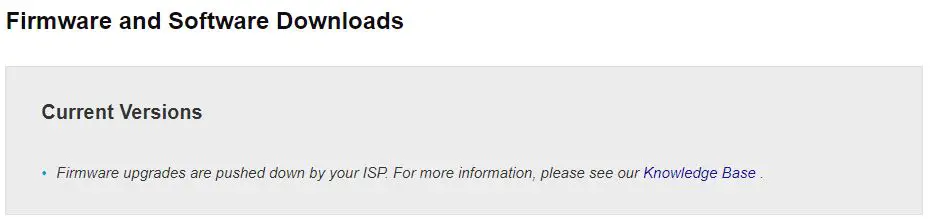
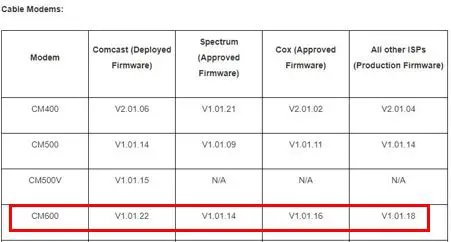
    When your modem’s manufacturer has an update for your modem, they’ll submit the update to your internet service provider. Your ISP will then push the modem update over your internet connection to your modem.

    All of this should happen automatically. You won’t even know when your modem is updated.

    In this sense, making sure your modem is updated is probably the easiest thing you have to do to ensure it lasts a long time.

    How long will a rented modem last?

    What if you rent your modem from your internet provider? Will that change anything when it comes to how long it lasts?

    If you rent your modem from your ISP, the game changes a little bit. That’s because you don’t have to worry as much about making your modem last a long time.

    Confused about this? Hear me out.

    When you rent your modem, your ISP will give you a new modem if your rented modem fails. They’ll also provide you with an upgraded modem if the one you’re renting becomes obsolete. This is all included in the monthly fee that you pay for renting your modem.

    With that said, you should still take care of your rented modem by following the steps I outlined in this article. If your rented modem is frequently breaking, your internet provider may charge you for a replacement.

    If you take good care of your rented modem, it should last just as long as a personal modem. With that said, you probably won’t need it to. You can count on your ISP replacing your rented modem more often than every 10 years.

    Wrap up

    Here’s the bottom line: if you take good care of your modem, it can last way longer than three to five years. Now you have everything you need to make that happen.

    I’d love to hear about your personal experiences with your modems and how long they’ve lasted. Drop a comment below if you’d like to share, or if you have any questions about the above information.

    If you found this information useful, check out some related posts I’ve previously written:

    Can a Modem Overheat? What to Look For
    Does Your Modem Affect Your Internet Speed?

    How to Update Modem Firmware: A Complete Guide

    Can I Take My Internet Modem to Another House?

    Why Do Modems Need to Be Rebooted?

  • Does Any Router Work With Any Internet Provider?

    Does Any Router Work With Any Internet Provider?

    Any Router Work With Any Internet Provider title page

    I’ve previously written about how you need to be careful when changing your internet service provider (ISP) or buying a new modem. If you don’t do your homework, your modem won’t be compatible with your ISP and you won’t be able to connect to the internet.

    How careful do you need to be with your router? Will a router work with any internet provider, or are routers similar to modems when it comes to compatibility?

    I’d love to say that all routers are compatible with all ISPs. Unfortunately it’s not that simple.

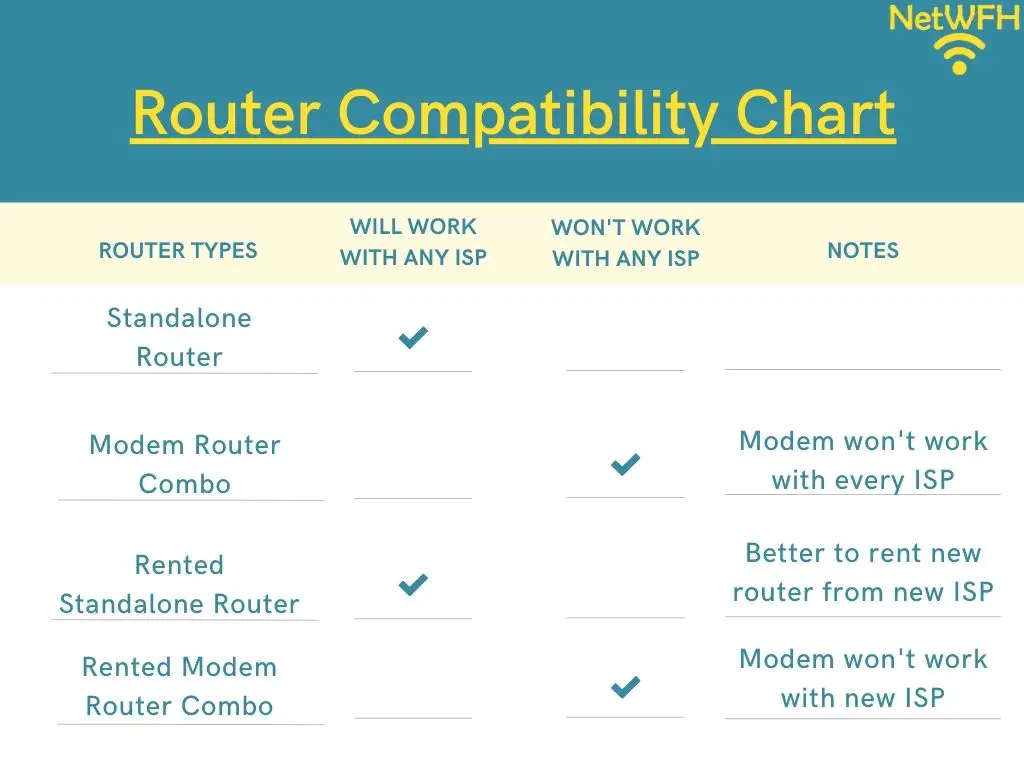
    If your modem and router are standalone devices, your router will always be compatible with your internet provider. If you modem and router are combined into one device, you need to be more careful.

    In either case, as long as your modem is compatible with your internet connection your router should work just fine.

    In this post, I’ll detail everything you need to know about router compatibility.

    When will a router work with any internet provider?

    Router compatibility chart

    First, let’s talk about the the cases where a router will work with any ISP.

    Fortunately for you, this is the situation that applies to most people.

    If your router is a separate device from your modem, you’re in good shape. Your router will be compatible with any internet service provider.

    But why is this? How can I make such a general statement?

    I can say this with confidence because your router doesn’t communicate directly with your internet provider. Although your router and ISP communicate with each outer, there’s a lot that happens between the two.

    All that heavy lifting I’m referring to is done by your modem.

    How your router communicates with your ISP

    Let’s start with the basics here.

    At a high level, your router allows your internet devices to access the internet. It does this by managing all the internet traffic that comes from your home and making sure that the traffic goes to the right place on the internet.

    Essentially, your router interacts with the internet on behalf of your devices.

    When your router sends these internet requests to your internet provider, they don’t go straight to your ISP.

    The request will first go to your modem. Your modem then translates your request and sends it to your internet provider.

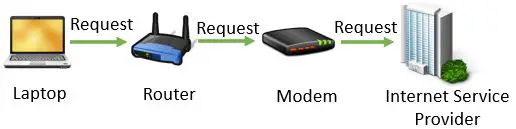
    To look at it visually, the path of your internet requests looks like this:

    Path of internet request

    As you can see, your modem is the middleman between your router and ISP.

    So what is your modem’s role?

    Your modem is responsible for establishing a connection with your internet provider, which your router then uses to send internet requests.

    Because your modem is responsible for your home’s connection to your ISP, you don’t have to worry about your router being compatible with your ISP. With that said, you do need to make sure your modem is compatible with your internet provider.

    If your modem can’t establish an internet connection with your ISP, your router won’t be able to communicate with the internet either.

    As long as your modem and ISP can communicate with each other, your router won’t have any issues sending requests to your internet provider. This is why a standalone router will work with any internet provider.

    So if you’re looking to buy a standalone router, feel free to grab the one that best fits your internet needs. Just make sure your modem is compatible with your internet provider.

    When won’t a router work with any ISP?

    Ok, so if you have a standalone router it’ll work with your ISP. You just need to make sure your modem is compatible with your internet provider.

    What are the cases where your router won’t work with your ISP? When do you have to worry about that?

    This’ll be an important consideration if you have a modem and router combo device.

    In a modem and router combination device, your modem and router are combined together into one piece of equipment.

    I’m stating the obvious there.

    With a modem and router combo, the device provides the functionality of both a modem and a router. In other words, it provides your connection to your internet provider, and it’s also responsible for sending your devices’ requests to the internet.

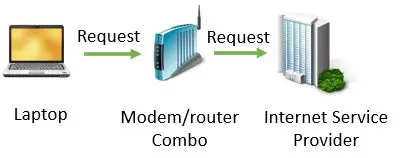
    Here’s a visual of your internet requests using a modem and router combination device:

    Internet request with modem router combo

    Why would a modem and router combo not be compatible with your internet provider?

    For the same reason that I detailed in the section above.

    Due to the fact that a modem and router combo device is responsible for your connection to your ISP, if the modem portion of the device isn’t compatible with your ISP it won’t work.

    If the modem portion doesn’t work with your internet connection, neither will the router functionality.

    In a way, this has nothing to do with the router portion of the device at all. The compatibility really has everything to do with the modem.

    Regardless of whether you have a standalone router or a modem and router combination device, you need to make sure the modem works with your internet provider. If it does, your router will work no matter who the ISP is.

    Will any router work with any modem?

    We’ve already identified that your router isn’t ISP specific. As long as you have a modem that’s compatible with the ISP (as either a standalone device or part of a modem and router combo), you can use any router with any internet provider.

    The next logical question is regarding your router and modem.

    If my router will work with any ISP, is it safe to assume it will work with any modem?

    In this case, that assumption is correct. Your router will be compatible with any modem.

    The one caveat here is if your router is a standalone device, your modem needs to be a standalone device as well.

    You don’t want to try to connect your router to a modem router combination device. That would be redundant because your modem router combo already has router functionality.

    If you have a modem and router combination device in your home, this isn’t a concern either. It wouldn’t make much sense for a manufacturer to make a modem and router combo with components that didn’t work together.

    How a modem and router communicate

    Your router will be compatible with any modem because of the standard way that they communicate with each other.

    If you have a standalone modem and router, take a look at them to see what I mean.

    How are they connected?

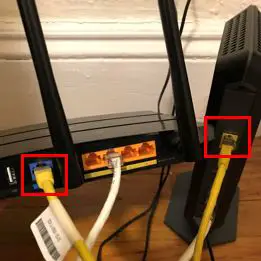
    As an example, here’s how my modem and router are connected.

    Modem and router connection

    That yellow cable in the picture above is an ethernet cable. Ethernet cables are used to allow modems and routers to talk to each other.

    I’m willing to bet your modem and router are connected the same way.

    How can I be so confident?

    Because all modems and routers are connected the same way.

    Without going into too much detail, modems and routers communicate over digital signals. Every time an internet request is sent from one of your devices, your router will send the request to your modem as a digital signal using the ethernet cable connecting them.

    When your modem receives a response from the internet, it sends it to your router via digital signal. From there, the response is passed to the device that sent the request.

    No matter where you are or what type of router you have, this is how it’ll communicate with your modem. In the end, you can rest easy knowing that your router will be compatible with any modem or ISP that you are using.

    Can I use my ISP provided router with a different ISP?

    One situation I haven’t covered has to do with renting your router from your internet provider.

    It’s pretty common to rent your router (and your modem) from your ISP.

    One reason for this is because it makes the process of setting up your home internet much easier. You don’t have to spend time researching what kind of internet equipment to get.

    In addition, if you rent a modem and router combination device from your ISP you don’t have to worry about your modem not working with your internet provider. They’ll provide you with a modem that’s compatible with their service. It’s a much more stress-free internet setup.

    When it comes to people that rent their internet equipment from their internet provider, one question that often gets asked is if the router they rent from one ISP can be used with another ISP.

    From a technical standpoint, it depends.

    Renting a modem and router combo

    If you’re renting a modem and router combo from your current ISP, it won’t work with a different ISP. The modem you’re renting will most likely only be compatible with the internet provider that you rent it from.

    As we previously discussed, if the modem isn’t compatible with the internet provider, it won’t work.

    Renting a standalone router

    What about if you’re just renting a router from your ISP? Can you use the rented router from one ISP for an internet connection with a different ISP?

    Theoretically, it’ll work with any ISP as long as your modem is compatible with the new ISP. Unfortunately there are other issues that complicate matters here.

    The larger issue has to do with the logistics of using a rented router from one ISP to get internet from another.

    If you’re changing your internet provider, you usually have to return any equipment you rented from them. If you don’t, the ISP will charge you for it. The charge is usually high enough that it would benefit you just to return it.

    To avoid this extra fee, you’re better off renting a new router from your new ISP. It’s usually an easy process to rent equipment from an ISP, and your wallet will thank you.

    Wrap up

    Your router is designed to work with any internet provider you choose. The key to your internet connection, however, is your modem.

    As long as you have a modem that works with your ISP, your router will work just fine.

    If you have any questions about this information, please drop a comment below. If you’d like to read more about similar topics, check out the following posts:

    Can I Move My WiFi Router to Another House?

    How to Automatically Reboot Your Router for Better Internet Connections

    Does Any Modem Work With Any Internet Provider?

    How to Update Your Router: The Ultimate Guide

    Can I Use a Router Without a Modem?

  • Does Any Modem Work With Any Internet Provider?

    Does Any Modem Work With Any Internet Provider?

    Any Modem Work With Any Internet Provider title page

    I’ll start by giving you a scenario.

    Let’s say a couple is moving to a new home in a different area. As a result, they have a new provider for their internet connection.

    On moving day, they pack up everything they own and move it to their new home.

    At the new house, they quickly unpack and realize one of the first things they want to do is set up is their internet. They thought ahead and paid for a plan with their new internet service provider (ISP), so everything should be in place.

    They plug in their internet equipment and follow the steps to set up their internet connection. It’s at this point that it all comes grinding to a halt.

    How can this be?

    Their modem worked in their old place. Why wouldn’t it work now?

    Isn’t a modem compatible with all ISPs?

    Modems are not compatible with all Internet Service Providers. A modem will not be able to establish an internet connection if it is connected to an ISP it is not compatible with.

    If reading this information makes you nervous, don’t be alarmed.

    In this post I’ll break down why your modem may not be supported by your ISP. I’ll also explain how you can verify what ISPs your modem supports.

    Can I Use My Modem With Any Internet Provider?

    You may be surprised to hear that your modem isn’t like your other electronic devices. You can’t just plug it in and expect it to work.

    In fact, your modem isn’t even like your router. Although your router will work no matter who your internet service provider is, your modem may not.

    Your modem will only work with a given set of ISPs. As a result, you need to be really careful when picking out a modem.

    As you read in our example above, this often comes into play if you’re moving and have to switch your ISP. Your new ISP may not support the current make and model of modem you have.

    So what do you do?

    Thankfully, there are a few easy ways to make sure your modem is compatible with your ISP. We’ll get into those later.

    Why Wouldn’t My Modem Work With My Internet Provider?

    If your modem doesn’t work with a given ISP, there are two main reasons why that could be the case. Let’s take a close look at both of them so you know what you need to be aware of.

    Why Your Modem Might Not Be Compatible With Your Internet Provider

    Your ISP Provides a Different Type of Internet Connection

    The first reason why your modem won’t work with your ISP is if your ISP provides a different type of internet connection.

    There are multiple ways to connect to the internet. Some of the most common ways include:

    • Cable
    • Fiber
    • DSL
    • Satellite

    These different ways of connecting to the internet make the internet available to most people. At the same time, it can complicate things.

    For example, you need to make sure your modem is compatible with the type of internet connection you have.

    If you have a cable internet plan, you need to make sure your modem is built for that. You won’t be able to connect your modem to the internet if you have a fiber internet connection but your modem is built for cable internet.

    Your Modem Is Not Supported by Your ISP

    The other potential reason your modem won’t work with your internet provider is if they don’t support your modem’s make and model.

    I was actually surprised when I first learned this.

    The bottom line is, internet service provider’s can’t support every modem. They need to be selective about which ones they support.

    Why’s this?

    This is because your ISP is responsible for updating your modem’s firmware for you.

    Before they’re able to push updates to your modem, your ISP needs to test them to make sure the update doesn’t mess anything up with your internet connection.

    They need to do this every time a firmware update is released for a given modem. Depending upon the modem, firmware updates may be released multiple times per year.

    For your ISP, they can’t afford to perform all these tests for every modem on the market. It would be too expensive for them.

    So what do they do?

    They support the modem models that are the most popular.

    That’s why if you have a modem that’s not a common make or model, it may not be supported by your ISP.

    The same goes for older modems. If your modem is old, the chances are less likely that your internet provider will support it.

    In fact, if a modem is old enough, the modem manufacturer will stop providing updates for it. When your modem’s manufacturer isn’t supporting your modem anymore, you should get a new one anyway.

    That’s a topic for another time.

    How to Tell What Type of Modem You Have

    Let’s revisit the type of internet connection your modem supports.

    What if you’re not sure what type of internet your modem is made for? How can you figure it out?

    The good news is, it shouldn’t be hard to determine.

    Let me start by saying most modems are made for cable internet. In 2021, over 194 million people in the United States had cable internet connections.

    In other words, chances are you have a cable modem and cable internet connection.

    Don’t take my word for it though. You should check for yourself to make sure you don’t make the wrong decision about your internet plan.

    For one, fiber internet has become increasingly more popular. It’s also possible you have a DSL modem, even thought DSL is an older internet technology.

    With all these options, it’s better to find out for sure what your modem is made for.

    There are two easy ways to figure it out.

    Look at the Ports on the Modem

    The easiest way to tell what type of internet connection your modem has is to simply look at your modem.

    If you look at the back of your modem, it’ll probably give you the answer you’re looking for.

    The first thing you have to do is find the wire that provides your modem with an internet connection. Feel free to unplug the cable to get a closer look at a time when you’re not using your internet connection.

    If that cable is a coaxial cable that looks like the one that plugs into your cable box, you have a cable modem.

    If it’s a phone cable, you have a DSL modem.

    Lastly, if it’s a fiber optic cable, you have a modem built for a fiber internet connection.

    Still aren’t sure?

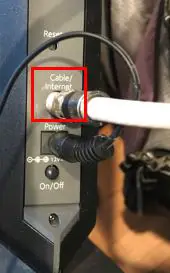
    If you can’t tell just from looking at the cable, look at the port it connects to on your modem. It may be labeled with the type of internet connection it’s made for.

    For example, here’s the back of my CM600 modem.

    Cable internet connection to modem

    See?

    It says right on the back of my modem that it’s for a cable internet connection.

    It doesn’t get much easier than that.

    Unless of course you know the make and model of your modem. If you know what model your modem is, you can find out what type of internet connection it’s for without getting off the couch.

    Look at the Modem’s Product Page

    The other way to find the type of connection your modem is for is to look it up online.

    The product page for your modem will tell you all you need to know.

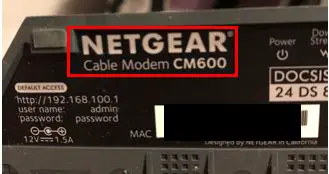
    Before we go any further, let’s make sure you know what your modem’s make and model is. To do this, just look at the sticker on your modem.

    Check the bottom of your modem. That’s where the sticker is usually located.

    The sticker will provide you with your modem’s model, as well as its manufacturer.

    Here’s the bottom of my modem:

    The manufacturer of my modem is Netgear, and the model is CM600.

    Surprisingly, you can even see that it identifies my device as a cable modem right on the sticker.

    I don’t need to go any further. I know my modem is built for cable internet. For the sake of this exercise I’ll continue the process in case the sticker on your particular modem doesn’t provide what type of internet it’s for.

    Now that I know I have a Netgear CM600 modem, all I have to do is search for its product page online.

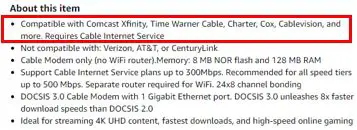
    This lead me to Amazon’s product page for my modem. The product page gave me exactly what I was looking for:

    Amazon CM600 modem about this item

    The product page clearly identifies that my CM600 modem is for cable internet plans.

    At this point my search is over. I’ve confirmed that my modem is made for an ISP that provides cable internet.

    How to Look up the Internet Providers That a Modem Supports

    What if you have a modem and you want to find out what ISPs it works with?

    There are two ways to go about answering this question as well. One option is to go back to the product page for your modem that we were looking at earlier. Another option is to go directly to the source, which is an ISP’s website.

    Look at the Internet Provider’s Support Page

    Let’s say you want to find out if a specific ISP supports your modem. There’s no better place to look than the provider’s website.

    Although you can also look at your modem’s product page, going to the ISP’s website is more reliable. Depending upon the product page you’re looking at, sometimes you might not get the most accurate information.

    Anyway, back to the task at hand.

    As I mentioned earlier, your internet provider is responsible for updating your modem for you.

    As a result, ISPs will usually publish a list of the modems they support on their website. That’s because they don’t want their customers to have to guess what modems will work with their internet plan.

    In the end, internet providers want you business. They want you to get a modem that’s supported by their internet plans so you don’t leave them for their competitor.

    So where exactly do you need to look?

    The best place to look is the support page. We’ll use my ISP as an example.

    Accessing the ISP’s Support Page

    I have a cable internet plan with Xfinity by Comcast.

    I start by firing up my internet browser and navigating to Xfinity’s website. In a few clicks I find myself on the Internet Support page.

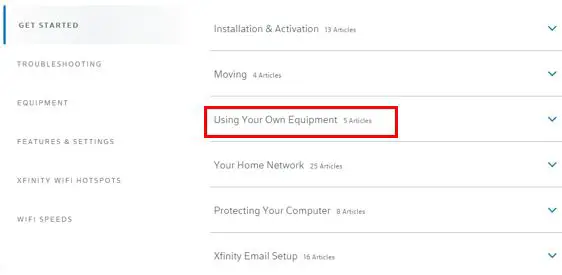
    On the Internet Support page, there are a few headers to choose from. The one that stood out to me was “Using Your Own Equipment”.

    Xfinity using your own equipment header

    I want to see if my personal modem is supported by Xfinity, so this header made sense to me.

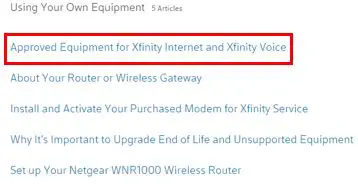
    When this section expanded, I saw the article I was looking for. I figured “Approved Equipment for Xfinity Internet and Xfinity Voice” was a good place to start.

    Xfinity approved equipment for xfinity internet and xfinity voice

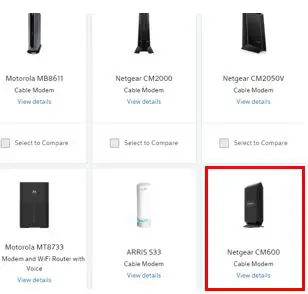
    After accessing this article I found a page that required me to put in my address and the speed of my internet plan. Once I entered this info, I was given a list of modems that Xfinity supports for my internet plan and geographic location.

    Low an behold, I found my Netgear CM600 on the list.

    Xfinity approved modems list

    This confirmed that Xfinity supports my modem. Of course I already knew this because I have a working internet connection, but these are the steps you’d need to follow if you want to check if an ISP supports your modem.

    I did a few searches of common ISPs and it looks like all of the largest providers have lists of the modems they support.

    Look at the Modem’s Product Page

    The other option for looking at what internet providers are compatible with your modem is to go back to your modem’s product page.

    To do this, follow the same steps that I detailed above.

    I’ll use my modem as an example again.

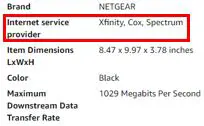
    Looking at information about my modem, it states the major ISPs it’s compatible with.

    Netgear CM600 modem compatible internet service providers

    As you can see, my Netgear CM600 is compatible with Xfinity, Cox, and Spectrum.

    Does this mean those are the only ISPs it’s compatible with?

    Not necessarily.

    Those are just the major providers that support my modem. If there’s a smaller, less well-known internet provider in your area, go to their support page or call them to see if they support your modem.

    It’s possible that your modem is compatible with a smaller ISP. It just doesn’t make sense for a seller to list all the internet providers that are compatible with the modem on the product page. The list could be endless.

    How to Ensure Your Modem Is Compatible With Your ISP

    Does the information above overwhelm you? Would you rather not have to worry about your modem being compatible with your internet provider?

    If this is the case, there’s an easy way out for you.

    That’s to rent your modem directly from your internet provider.

    If you rent a modem from your ISP, you know it’ll be compatible with their internet connection. It wouldn’t be very smart of them to rent you a modem that doesn’t work with their internet.

    Although this is the easiest method for finding a compatible modem, it comes with a few drawbacks.

    The first is that renting a modem will cost you more money in the long run than buying your own modem. When you rent a modem you’ll be charged a monthly free from your ISP.

    In some cases, it can cost as much as $15 per month (or more) to rent a modem. Compare that to buying a modem where a good one will run you $100 or less. It’s easy to see that a year of renting a modem can be more expensive than buying your own.

    On top of that, when you rent a modem you don’t get to choose what model it is. This might not give you the best internet performance because your modem won’t be specific to your individual internet plan.

    Buying your own modem allows you to find one that fits your specific needs.

    That’s not to say that renting a modem won’t give you a fast internet connection. That’s still possible if you rent. You just might not squeeze every bit of speed from your internet plan.

    With all that said, if you’re willing to sacrifice a little bit of performance and pay a little bit more, renting a modem can be a convenient option. Especially if you get stressed out about trying to find a modem that’s compatible with your ISP.

    Wrap Up

    Many people have made the mistake of getting a modem that isn’t compatible with their internet service provider. In reading this post you’ve ensured you won’t be one of them.

    If you have any questions about this information or you’d like to share you personal story, I’d love to hear from you in the comments section below.

    If you found this post helpful, check out some of the other useful posts that I’ve written:

    Can a Modem Overheat? What to Look For
    How to Update Modem Firmware: A Complete Guide

    Can You Use a Modem Without a Router?

    Can I Take My Internet Modem to Another House?

    How Do I Reset My Modem Password?

  • How to Connect a Computer to a Router

    How to Connect a Computer to a Router

    Connect Computer to Router title page

    If you want your computer to be able to access the internet in your home, you need to connect it to a router.

    The same applies for your home network. You need to connect your computer to your router if you want it to be able to communicate with other devices on your home network.

    There are two ways to accomplish this. You can either connect your computer to your router directly through a wired connection, or you can connect the two devices wirelessly.

    The good news is, both of these procedures are pretty easy. Each one should take you less than a few minutes to complete.

    You should know both ways of connecting your computer to a router. There are situations where one way of connecting to your router will give you better performance than the other connection method.

    When connecting to your router with a wired connection, you just need an ethernet cable. The ethernet cable connects your computer and router so they can directly communicate with each other.

    All you have to do is connect the ethernet cable to the right ports on your computer and router.

    In a wireless connection, your computer will connect to your router over WiFi. This allows them to communicate without an ethernet cable.

    For this type of connection you’ll need to connect to the wireless signal that’s coming from your router. You won’t be able to do this without the password for your router’s wireless network.
    In this post I’ll go into detail about the procedures for connecting your computer to your router. I’ll also explain the benefits of each type of connection.

    Why you need to connect to a router

    You may be wondering: why does my computer need to connect to a router in the first place?

    To answer that question, we need to look at what a router does.

    The purpose of a router

    I will keep this at a high level.

    Your router is responsible for directing the traffic between the devices on your home network. If you have an internet plan (as I assume you do if you’re reading this), your router also manages traffic between your internet devices and the internet. When your devices request information from the internet, your router makes sure that the requests make it to the right place.

    When a response comes back from the internet with the requested information (like a webpage), your router ensures the device that asked for the information is the one that receives it.

    A common analogy for your router is the post office. Much like a post office makes sure your letters get to the right destination, your router does the same with your internet requests.

    Without a router, your devices wouldn’t be able to connect to the internet in the first place.

    Benefits of a router

    Ok, now we can get back to the question at hand.

    Why can’t your computer access the internet without a router?

    Although it’s possible to get internet access without a router by connecting your computer directly to your modem, it’s not secure or smart to do so.

    Your router makes your devices more secure on the internet because it has security features built into it.

    On top of that, your router allows you to connect multiple devices to the internet at the same time.

    How does it do this?

    Your router is connected to your modem (or they are combined into one device). These two devices provide you with a connection to your internet service provider (ISP).

    In turn, your ISP provides you with your internet connection.

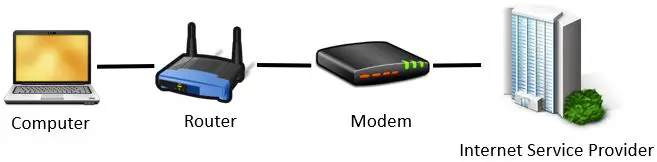
    Here’s a diagram to help you visualize your home network connections:

    Router Modem ISP Connection Diagram

    The important thing here is that your ISP provides you with only one connection to the internet as part of your internet plan.

    If you didn’t have a router, you’d only be able to connect one device to the internet at a time because you only have one connection to the internet available.

    Could you imagine how painful that would be?

    This is the main reason why you need to connect your computer to a router. To put it simply, it’s because your router allows all of your internet devices to share one internet connection.

    In today’s society, everyone has multiple devices connected to the internet at the same time. This is normal thanks to your router.

    Without a router, you couldn’t do that.

    Hopefully you now have a good understanding of why your computer needs to connect to a router.

    With this background information, let’s look at the procedures for connecting your computer to your router.

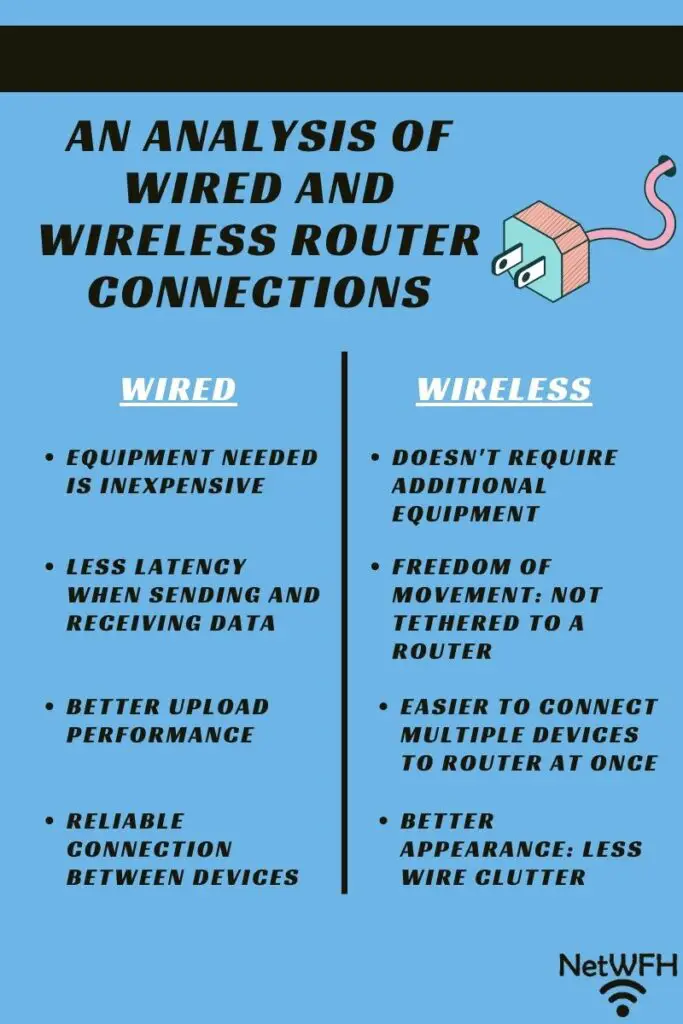
    An analysis of wireless and wired connections

    Connecting a computer directly to a router

    The first way you can connect your computer to your router is through a direct connection.

    A direct connection involves using a cable to connect your computer and router. This allows the two devices to communicate through the cable.

    Benefits of directly connecting a computer and router

    Connecting your computer and router with a cable provides multiple benefits.

    Faster performance

    For one, it’s the most straightforward way for the two devices to communicate.
    Using a cable to communicate reduces the latency in their connection. This means that data moves faster between the two devices when they’re communicating.
    In other words, when you request a website you’ll receive it a little bit faster from your router with a cable connection.

    This is also very important in online gaming. Every millisecond counts.

    When you press a key on your keyboard, the game will respond faster when you have your computer directly connected to your router. Faster reactions give you an advantage over other players who have more latency in their internet connection.

    Lastly, a wired connection will provide better performance during uploads when compared to a wireless connection. This is important when uploading large files to the internet or during video conferences.

    More reliable connection

    Connecting your computer directly to your router provides another major benefit.

    A more reliable connection.

    When you use a cable to connect these two devices, it’s unlikely that the connection between the two will drop.

    On the other hand, if you try to connect to your router wirelessly, you’re much more likely to lose your connection.

    I’m sure this has happened to every person reading this.

    Like that time you walked out of range of your WiFi signal and lost your internet connection?

    Yeah, that’s happened to me too.

    You don’t have to worry about that when connecting your computer and router with a cable.

    The only way you’ll lose the connection between the two is if something is wrong with the cable. That’s not a likely scenario as the cables are manufactured to be very reliable.

    Very rarely will you experience issues with them.

    What you’ll need to connect your computer to your router

    The only thing you’ll need to connect your computer to your router is a cable.

    These cables are called ethernet cables.

    The only thing you have to worry about is making sure you get the right cable based upon the internet connection you have.

    Thankfully, this is an easy exercise because there’s one type of cable that’ll fit all your needs. If you don’t have an ethernet cable on hand, grab a snagless Cat5e ethernet cable of the length you need. I would suggest a seven to ten foot cable, but you may need longer based upon your home layout.

    A Cat5e ethernet cable will fit your needs here regardless of the internet plan you have. On top of that, ethernet cables are inexpensive so it won’t cost you much to implement a wired connection.

    How to connect your computer to your router with an ethernet cable

    Once you have an ethernet cable to connect your computer to your router, it’s a pretty easy process.

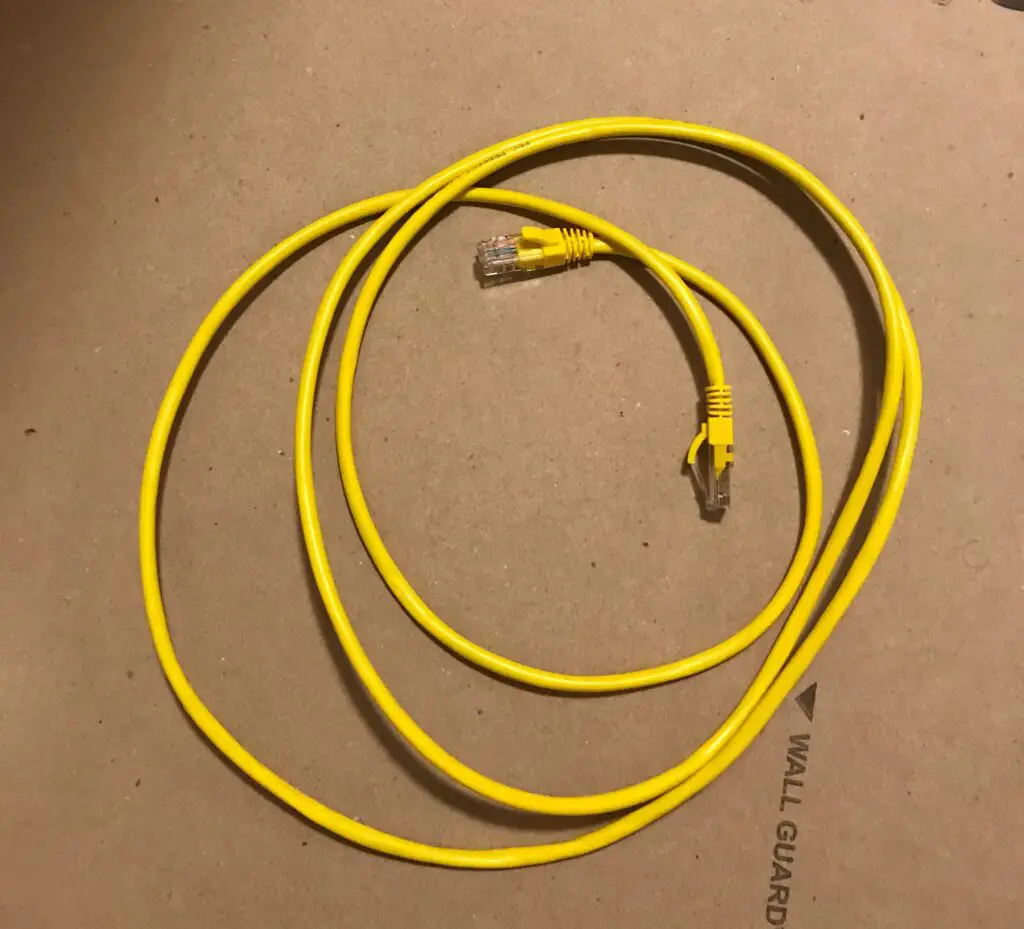
    In this example I’ll use my yellow ethernet cable.

    Ethernet cable

    Connect the ethernet cable to your router

    First, let’s find where the ethernet cable plugs into your router.

    Depending upon the type of router you have, it’ll have a certain number of ports that you can directly connect your devices to.

    These are called LAN ports. LAN stands for Local Area Network and in this case LAN is used to describe your home network.

    In most cases, there will be four LAN ports on your router.

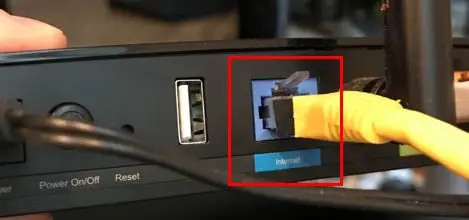
    As you can see, my router has four LAN ports that are labeled “Ethernet”.

    Router LAN Ports

    All you have to do is plug one end of your ethernet cable into an open port. The beauty is, it doesn’t matter which port you use or which end of the cable you plug in. Any open port will do.

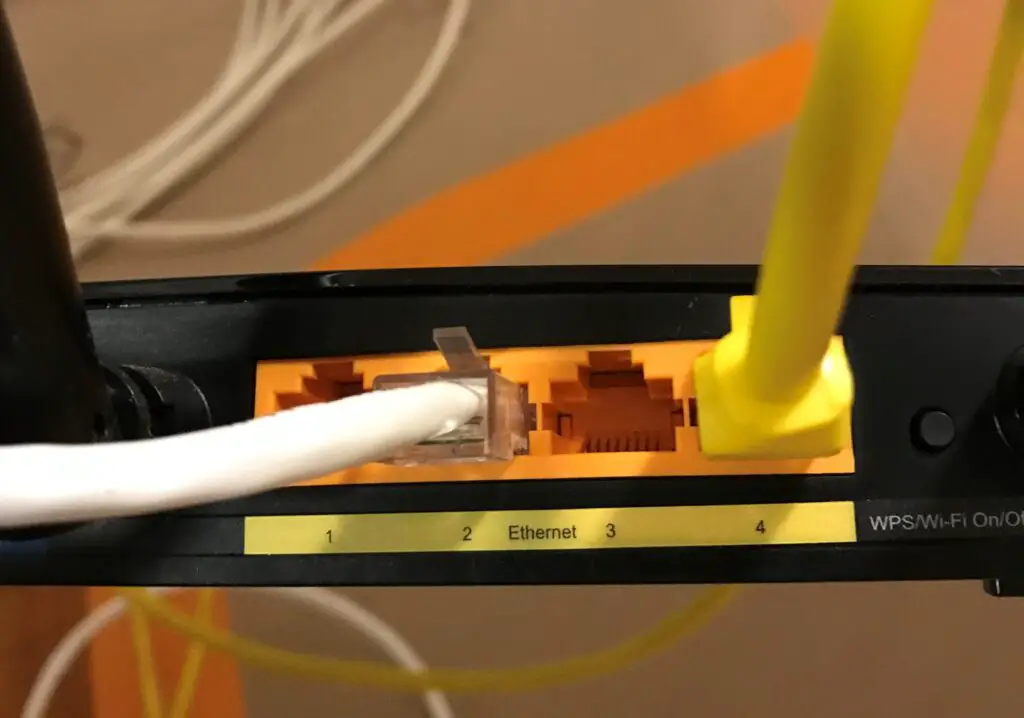
    To prove my point, I’ll plug my ethernet cable into port 4.

    Computer to router ethernet port connection

    Connect your ethernet cable to your computer

    Ok, we’re halfway there.

    Now we just need to plug the other end into our computer.

    What does that look like?

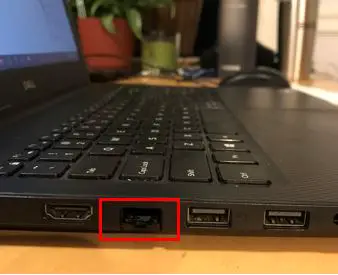
    If you look at your computer, you should have a port that looks like one of your router’s LAN ports.

    On my laptop, the LAN port is on the side.

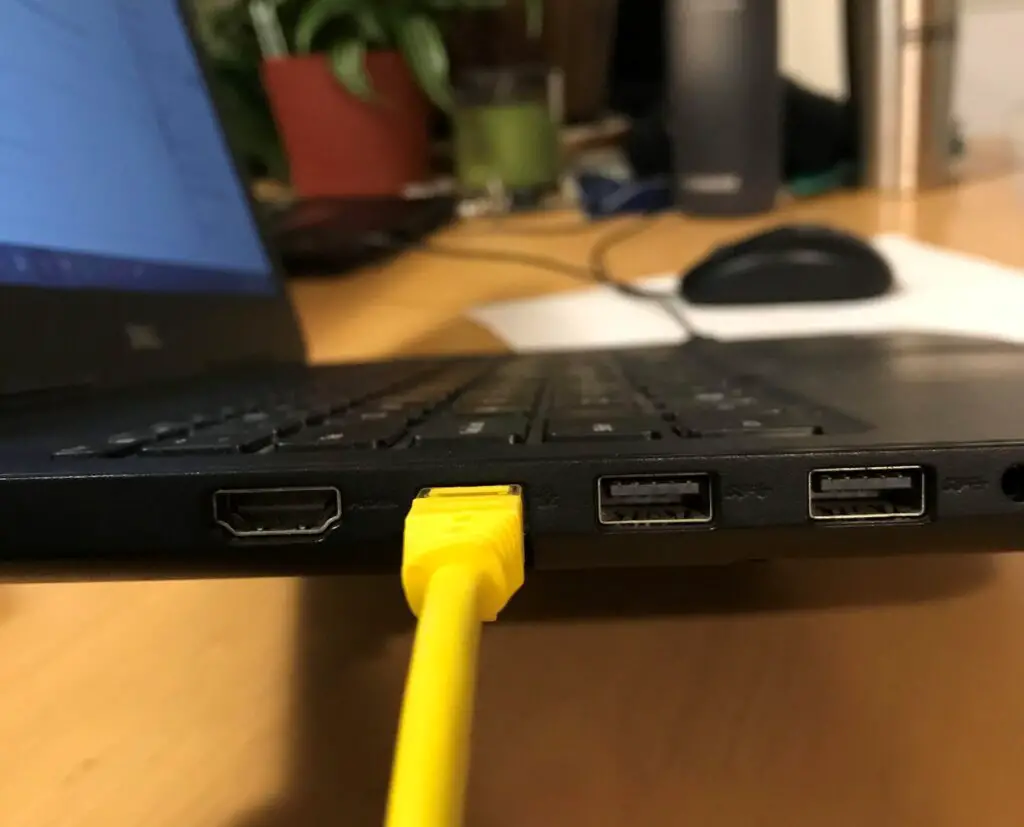
    Computer ethernet port

    As you may have guessed, we just need to plug the other end of our ethernet cable into this port.

    Congratulations. You’ve connected your computer and router together.

    The wired connection is complete and your computer and router can now communicate over the ethernet cable.

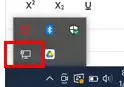
    If the wired connection is working, there should be an indicator in the corner of your computer indicating you have a wired network connection.

    Wired network connection

    So long as your router has an internet connection, you can now use the internet with a faster, more reliable wired connection.

    What if my computer doesn’t have an ethernet port?

    Recently, I’ve seen a trend of computers not having an ethernet port.

    If your computer doesn’t have an ethernet port, fear not. All is not lost.

    You can still connect an ethernet cable to your computer. You just need an adapter.

    What you’re looking for is a USB plug with an ethernet cable adapter. This’ll basically take one of the USB ports on your computer and turn it into an ethernet port.

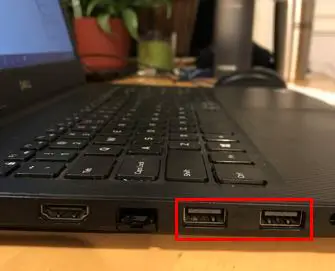
    As a reminder, the USB ports on your computer will look like this:

    Computer USB ports

    Your computer will most likely have multiple USB ports, so hopefully you have an open USB port to use.

    When looking for a USB to ethernet adapter, there are many choices online. I recommend this one from Uni. It has all the latest technology in terms of USB and ethernet connections, so you don’t have to worry about it limiting your connection.

    Grab one of those and you’re good to go. Just plug the adapter into one of the USB ports on your computer and then plug your ethernet cable into the adapter.

    It doesn’t get any easier than that.

    Connecting a computer to a router over WiFi

    Ok, now we’ve covered connecting your computer to a router with an ethernet cable.

    Let’s look at the other option: connecting your computer to a router wirelessly.

    A wireless connection allows you to connect to your router and access the internet without an ethernet cable. This happens over WiFi.

    Don’t let the term confuse you. WiFi is simply the technology used to connect devices wirelessly.

    Your router broadcasts a wireless network signal to all your wireless internet devices. Your devices receive the signal and can establish a connection with your router over this wireless network.

    Once a connection has been created, your router and devices can communicate as if they were connected to each other with an ethernet cable. The only difference is they’re sending data to each other through the air.

    Benefits of connecting a computer to a router over WiFi

    How is a wireless connection different from a wired connection? Are there any benefits to communicating wirelessly?

    You bet there are.

    Freedom from your router

    The main benefit of connecting to your router wirelessly is the obvious one.

    You don’t need a cable between the two devices in order for them to communicate. In other words, connecting to your router wirelessly can be so much more convenient.

    In fact, you don’t even have to be in the same room as your router to connect to it. You also have the ability to move around with your computer without losing a connection.

    On the other hand, if you tried to move around with a wired connection to your router you’d look like the fish on the end of a line. It’s not the easiest thing to do.

    Easier to connect multiple devices to your router at the same time

    Wireless connections also allow you to connect more devices to your router at one time. As we saw above, most routers only have 4 ethernet ports on them. If you have a lot of internet devices you want to connect to your router with a wired connection, things can get messy.

    Even with an ethernet switch, there’s only so many devices you can connect to your router before the wiring gets really confusing.

    Less clutter

    For those concerned with appearances, this is another benefit of connecting to your router wirelessly. The less ethernet cables you have coming from your router, the cleaner your home will look.
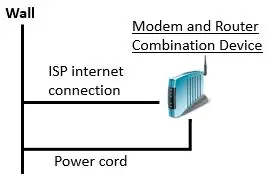
    You don’t have to worry about trying to hide the rats nest of ethernet cables coming from the back of your router. For some, this is more important than others.
    The last thing I’ll say is that although a wireless connection may have higher latency than a wired connection, this doesn’t mean you can’t or won’t have a fast internet experience.
    We are talking about a difference of milliseconds here. Unless you’re measuring it you probably won’t be able to notice.

    What you’ll need to wirelessly connect your computer and router
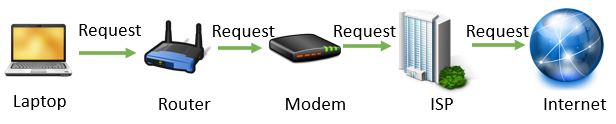
    Compared to a wired connection, you need even less to connect your computer and router wirelessly.

    All you need is a computer and a router.

    The only situation where you may need another item is if your computer doesn’t have WiFi capability.

    This is unlikely as your computer would have to be really old for it to not have wireless technology.

    If for some reason this is the case, you just need a wireless adapter. It plugs into one of your computer’s USB ports and it enables your computer to communicate with other devices over WiFi.

    If you need a wireless adapter, check this one out. It should provide you all you need to wirelessly connect to your router. It’ll also support any internet plan so you don’t have to worry about it slowing down your internet speed.

    How to connect your computer and router over WiFi

    Let’s say your computer and router are both powered on and ready to go.

    Now what? How do we get them to connect to each other?

    Determine the SSID you want to connect to

    To make things easy on you, the remaining steps can be done from your computer.

    All you have to do is connect to your router’s wireless network. Another name for your router’s wireless network is its Service Set Identifier, or SSID.

    Your SSID will be the custom name you chose for your network when setting up your router.

    If you haven’t created a custom SSID, your router’s SSID will be the default one that it came with. You should be able to find the default SSID information on a sticker on your router.

    For example, here’s the default SSID information on my router’s sticker.

    Router default SSID information

    Once you’ve determined the SSID you’re looking for, you need to find it in your computer’s Network and Internet settings.

    Find the desired SSID in your computer’s internet settings

    As a disclaimer, the following instructions are for Windows computers. The steps will be slightly different for Mac users.

    Ok, let’s find the Network and Internet settings on your computer.

    First, click the little Windows icon in the corner of your computer. This’ll pull up a list of options. Select “Settings”.

    In the window that opens, you need to select Network & Internet. This’ll show you all your network options and settings.

    Windows network and internet settings

    A new window will open. Select “Wi-Fi” in the side toolbar. Clicking it will show you all your WiFi options.

    Windows network and internet settings Wi-Fi Settings

    In the WiFi settings page, the last thing you need to do is select “Show available networks”.

    Windows network and internet settings show available networks

    When you select “Show available networks”, a list of available wireless networks will be listed for your computer.

    Available wireless networks

    Make sure your computer is close to your router at this time so its SSID shows up in the list of available options.

    If you see your router’s SSID in the list of available networks, select it and you’ll be prompted to enter the network’s password.

    Enter the password for your SSID

    If you’ve set up a custom SSID for your network, you’ll probably have created a custom password for it as well. Enter this custom password here to connect to your wireless network.

    If you haven’t created a custom SSID and password for your router’s network, you can find the password for the default SSID on the sticker on your router. It may be listed as either “Wireless Password”, “Wireless Pin”, or “Wireless Passcode”.

    Here’s what it looks like on my router.

    Router default SSID PIN information

    Upon correctly typing in the SSID’s password, you’ll be connected to your router’s WiFi network.

    Well done! You’ve successfully connected your computer to your router over WiFi.

    You’ll know you have a wireless connection if you can see the little WiFi icon in the corner of your computer near the date and time information.

    Wireless network connection

    Wrap up

    You’re now armed with the ability to connect your computer to your router. You can either connect the two devices directly with an ethernet cable, or you can connect them wirelessly.

    If you have any trouble connecting to your router or you have any questions about the information I provided, please leave a comment below. I’d love to help.

    If you found this information interesting, check out some other posts I’ve written about similar topics:

    What Do My Router Lights Mean?

    Can I Use a Router Without a Modem?

    Can I Move My WiFi Router to Another House?

    What Is the WAN Port for on a Router?

    Does a Router Affect Your WiFi Speed?

  • How to Update Modem Firmware: A Complete Guide

    How to Update Modem Firmware: A Complete Guide

    How to update modem firmware a complete guide

    Your modem needs to update its firmware whenever the manufacturer issues a new version of it. New versions of firmware will be released when your modem manufacturer fixes a bug or addresses a security concern in your modem’s software.

    By updating your modem’s firmware, you’re improving both the security and performance of your modem.

    So how do you update your modem’s firmware?

    Users are not responsible for updating the firmware of their modem. Internet service providers (ISPs) update modems with new firmware when updates are released by the modem manufacturer. In general, these updates happen automatically without any needed action from the owner of the modem.

    In this post I’ll break down everything you need to know about updating your modem. We’ll discuss:

    • How your modem firmware is updated
    • Where you can find your modem’s current firmware version
    • How to determine what firmware version your modem should have

    Let’s get going.

    What is Modem Firmware?

    Before we go over the process of updating your firmware, let’s start from square one.

    What is your modem’s firmware, exactly?

    Your modem’s firmware is the software that determines how your modem functions.

    This includes:

    • How it starts up and shuts down
    • How it connects to your ISP to provide you with an internet connection
    • What the settings page looks like when you log in to your modem’s settings

    If you haven’t noticed by now, it’s a very important part of your modem. In fact, your modem won’t work without it.

    When you receive a modem, the firmware will come preloaded on it. That’s because the manufacturer builds your modem with the firmware embedded on a computer chip in the device.

    The only way your modem’s firmware can be changed is by updating the firmware or installing brand new firmware on the device. As a user, you can’t make any changes to how your modem’s firmware functions.

    Why Should I Update My Modem Firmware?

    Making sure your modem’s software is updated is very important.

    Any time a software bug or security flaw is found in your modem’s code, the manufacturer will update the code for your modem and issue an update.

    If your modem’s firmware isn’t updated, it won’t receive any performance or security updates that the modem manufacturer develops.

    This includes new features as well. If your modem manufacturer develops a new feature for your modem, you won’t be able to use it unless you have the latest software.

    Chances are, you paid good money for your modem. Even if you’re renting it and paying monthly. You want to make sure you’re getting the best performance, features, and security to go with it.

    Especially today with everyone emailing, banking, and shopping online, you want to make sure your internet connection is as secure as possible.

    How to Update Your Modem Firmware

    When it comes to updating your modem, there’s good news and bad news.

    The good news is that the process for updating your modem doesn’t require as much effort as updating your router does. In fact, updating your modem requires no action on your part at all.

    That’s right. You read that correctly.

    You aren’t responsible for updating your modem. Your ISP is.

    Ok so if that’s the good news, what’s the bad news?

    Before we get into that, let’s break down how the modem update process happens.

    How Does Your ISP Update Your Modem Firmware?

    Any time your modem manufacturer issues an update to your modem’s firmware, they send it to your ISP.

    From there, it’s your ISP’s job to make sure your modem gets updated.

    Before the update is pushed to your modem over your internet connection, there’s more to be done.

    When an ISP gets a firmware update for a specific modem, they have to check and test it. First and foremost, your ISP needs to make sure that the internet connection between the ISP and the modem owner (you) still works properly after the update.

    Once the modem update has been tested and everything works properly, your ISP will issue the firmware update.

    This firmware update will only affect the modems connected to the ISP of that specific make and model. In other words, your modem will only be updated if your manufacturer issued an update for your specific model. All other modems connected to the ISP won’t be updated.

    When your modem receives the update, it’ll automatically install it.

    This’ll all be invisible to you. The only way to know if your modem was updated is to check the firmware version on the device, which we’ll get to later.

    Ok. So earlier I mentioned there was bad news when it comes to updating your modem.

    Now that I’ve described how your modem should be upgraded, let’s take a look at the downside.

    The Bad News About Modem Firmware Updates

    What’s bad about your ISP updating your modem for you? It seems like a pretty easy process.

    The problem with your ISP being in charge of updating your modem is that your modem doesn’t always get updated like it should.

    This can be especially true when your internet plan isn’t with a large provider. For example, I’m talking about the major players like AT&T, Comcast/Xfinity, Verizon, or Cox Communications.

    Let’s looks at it from an ISPs perspective.

    They have thousands of customers, and their customers all have different modems.

    Some modems are brand new.

    While others are older.

    Some are made by large manufacturers.

    While others are made from smaller, less well known manufacturers.

    The bottom line is that there could be thousands of different modems connected to a given ISP. As a result, it makes it really hard to manage all of these modem updates.

    Let’s say you have an older modem that’s not very popular.

    Is your ISP going to spend a lot of effort testing and checking modem updates for that modem if only a small number of their customers have that same model?

    I don’t think so.

    Another thing to keep in mind is that checking and testing modem updates costs your ISP money.

    Are they going to spend money to have updates tested for a modem that only a small number of their customers have?

    Especially if you have an internet plan with a smaller ISP. They may not have a budget for testing that other, larger ISPs have.

    Hopefully you can see the bigger picture here.

    The bottom line is that you don’t have the same amount of control over your modem updates because your ISP is responsible for updating it.

    As a result, all ISPs don’t update modems like they should.

    How to Tell if Your Modem Firmware Has Been Updated

    If your ISP isn’t going to update you modem when they should, you need to know about it.

    So how do you go about confirming that you have the most updated version of firmware on your modem?

    The first thing to do is check what firmware version your modem currently has.

    How to Check Your Modem’s Current Firmware Version

    In order to check what version of firmware is currently installed on your router, you’ll need to access your modem’s settings.

    In order to get to your modem’s settings, you’ll need to know your modem’s IP address.

    Determine Your Modem’s Ip Address

    Don’t worry if you’re not sure what your modem’s IP address is. You can usually find your modem’s IP address listed on a sticker on the actual device.

    For example, I have a Netgear CM600 modem. On the bottom of my modem there’s a sticker that lists its IP address.

    Modem default access location

    As you can see, my IP address is 192.168.100.1. Most modems should have a similar IP address.

    If you don’t know your IP address and your modem doesn’t have a sticker on it, you should try looking online. Modems are shipped with default IP addresses, and there are many resources online that list what those default addresses are.

    For example, this site details the common IP addresses for Netgear modem’s like mine. Just do a Google search for the make and model of your modem and you should be able to find its default IP address.

    Log in to Your Modem’s Settings

    Once you’ve determined your modem’s IP address, type it into your internet browser’s search bar.

    Modem ip address in browser search bar

    This’ll bring you to your modem’s login page.

    Netgear modem login prompt

    Log in to your modem with the username and password you created for it.

    If you haven’t created a username and password, you can log in with the default values that come with the modem.

    How do you know what the default values are?

    Luckily, this information is listed on your modem as well. Just take a look at the same sticker you looked at to find your modem’s IP address.

    Modem default username and password

    If I hadn’t changed my default password, I’d be able to log in to my modem using “password” as my password.

    If you don’t have these default values listed on your modem, you can most likely find them online. Similar to your modem’s default IP address, you should be able to find the default username and password for your make and model as well.

    As a security note, if you haven’t changed the default password for your modem to a custom password, you need to.

    As I mentioned, the default password for your modem can be found online, which means anyone with access to your network would be able to get to your modem’s settings.

    Changing the default password of your modem will help keep hackers and bad actors from being able to mess with your modem’s settings. Just changing the password away from the default goes a long way towards making your modem more secure.

    This is very important. Take the few minutes to change your modem’s password if you haven’t done so already.

    Check the Firmware Version Installed on Your Modem

    Ok, now you’ve logged in to your modem.

    The next step is to see what version of firmware is installed on your device.

    Thankfully, this is easy to find.

    Right when I log in to my modem, the firmware version is listed right on the home page.

    Netgear modem firmware version

    As you can see, the firmware version installed on my modem is V1.01.22.

    If you have a different make and model of modem, your firmware version may not be listed on the Home page. As a result, I’ll show you another way of accessing this information in your modem’s settings.

    Even if your modem is a different make and model, the steps to find out the firmware version of your device should be similar.

    In my case, I can find my firmware version simply by clicking the Advanced tab.

    Once on the Advanced tab, my modem’s firmware version is clearly listed.

    Netgear modem advanced settings firmware version

    Now you know what version of firmware is installed on your modem.

    Find the Latest Version of Firmware for Your Modem

    Ok so you know the firmware version of your modem.

    The question is: is this the most recent version of firmware that your modem’s manufacturer has released?

    There’s only one way to find out.

    We need to go to the source to see what the latest firmware version for your modem is.

    In this case the source is your modem manufacturer’s website. That should give us the information we’re looking for.

    I’ll use my modem as an example. As a reminder, my modem is a Netgear CM600 modem.

    My modem’s manufacturer is Netgear, so I did an internet search for Netgear’s website.

    I accessed the Support section of Netgear’s website and was able to access the support page for my CM600 modem. Within this page, there was a header for firmware and software downloads.

    Here’s what information was listed in this section.

    Netgear website firmware downloads

    This section says that firmware upgrades are provided by the ISP. We’re well aware of this at this point.

    I wanted more information, so I clicked the provided “Knowledge Base” link.

    The “Knowledge Base” provided a list of the latest firmware for all of Netgear’s modems. This was exactly what I was looking for.

    Here’s what it showed for my CM600 modem.

    Netgear cable modems latest firmware

    As you can see, depending upon your ISP you may have a different version of firmware.

    My internet plan is with Comcast, so it looks like my modem firmware should be version V1.01.22.

    What a relief.

    As we determined in the previous steps, I saw that my modem has firmware V1.01.22 installed. This means that my ISP is updating my modem like they should.

    As a result, there’s no further action at this point. I just need to check back in a few months to see if a newer version of firmware has been released.

    What to Do if Your Modem’s Firmware Is Outdated

    What to do if your modem has outdated firmware

    In my case, my modem’s firmware matches the latest version released by the manufacturer.

    What if this wasn’t the case? What can you do?

    There are a few things you can do if your modem firmware doesn’t match the latest version.

    We’ll take a look at each one so you have a good idea of what your options are.

    Reboot Your Modem to See if It Initiates a Modem Firmware Update

    If your modem says it has an old firmware version, the first thing to try is to reboot your modem.

    When you restart your modem, it runs through multiple checks when it powers up.

    One of those checks is to see if the latest firmware version is running on the modem.

    If the modem isn’t running the latest version of firmware, it’ll get the updated firmware from your ISP and install it.

    Essentially what you’re doing when you reboot your modem is forcing your modem to double check its firmware. If it’s out of date, it should update automatically as long as the ISP has issued the firmware update.

    Once your modem has powered back up, check the firmware version again by following the procedure I previously outlined.

    If the firmware is still outdated, try contacting your ISP.

    Contact Your ISP to Update Your Modem’s Firmware

    When it comes to your ISP, sometimes the squeaky wheel gets the grease.

    If your modem’s firmware is outdated and rebooting your modem didn’t update it, give your ISP a call.

    On some occasions it may take them a while to issue a firmware update after it’s released. If you call your ISP you can get a status of the firmware update. They should be able to tell you if they’re working on the update or not.

    If enough customers call looking for a modem update, it might motivate them to get the the update released sooner.

    On the other hand, they may tell you that they won’t be updating your modem’s firmware. If that’s the case, you can either look into getting a new ISP or buy a new modem.

    Find a New ISP or Buy a New Modem

    Let’s say you’ve tried rebooting your modem and calling your ISP.

    Rebooting your modem didn’t work, and your ISP said they won’t by updating your modem.

    What do you do now?

    I would advise taking one of two actions. You can:

    • Try to find a new ISP
    • Buy (or rent) a new modem

    It’s not safe for you to have a modem that isn’t updated, because it can leave you open to some serious security concerns. You need to take action.

    Find a New ISP

    If your current ISP won’t update your modem, maybe there’s another one that will.

    Depending upon where you live, you might have a few different ISPs to choose from. If your ISP says they won’t update your modem, it might be worth calling their competitor to see if they’ll update your modem’s firmware.

    For some people this won’t be an option, as there’s only one major internet provider in the area. This is the case for me. There’s only one ISP that provides coverage to my area, so my hands are tied on this front.

    With that said, this isn’t the case for everyone. It might be worth taking a few minutes to see if there’s another ISP that can both provide you with internet and update your modem.

    Buy (Or Rent) A New Modem

    If your ISP won’t update your modem, it’s most likely that:

    • The ISP you’re using isn’t a major provider
    • Your modem is old or an uncommon make and model

    If you don’t want to change your ISP (or there’s no ISP in your area) and you want your modem to receive updates, you don’t have much of a choice. You’ll have to change your modem.

    One option is to rent a modem from your ISP. Renting a modem will just about guarantee that it’ll receive firmware updates. That’s because ISPs won’t rent out modems that they don’t update.

    This comes with some tradeoffs though. Rented modems from the ISP are usually modem and router combination devices, and they don’t usually offer as many features as standalone modems and routers do.

    On top of that, renting a modem can be expensive because you’re paying for it every month.

    If you buy a new modem that’s a popular make and model, it’ll most likely receive updates from the ISP because a lot of their customers will have the same model that you do. On top of that, buying your own modem will be cheaper than renting a modem in the long run.

    The bottom line here is that you want your modem to get firmware updates when they become available. Whether you find a new ISP or change out your modem, just make sure that your modem will get updated.

    Wrap Up

    I can’t say it enough. Your modem needs to be receiving firmware updates.

    Although there may be less to do on your end when it comes to updating your modem, that doesn’t mean you should turn a blind eye.

    You still need to check to make sure your modem is being updated. The risk is too great from a security standpoint not to. On top of that, you don’t want your internet performance suffering because your ISP won’t update your modem.

    If you have any questions or you would like to share your personal experiences with your modem updates, please feel free to drop a comment below.

    If you found this material interesting, check out some relevant posts I’ve previously written:

    What is a Modem Router Combo?

    Why Do Modems Need to Be Rebooted?

    How to Update Your Router: The Ultimate Guide

    Does Your Modem Affect Your Internet Speed?

    Does a Modem Have an IP Address?

  • How to Update Your Router: The Ultimate Guide

    How to Update Your Router: The Ultimate Guide

    Update Router Ultimate Guide title page

    Everyone should update their router.

    The problem is, it’s not always clear how to update your router. On top of that, you may not be sure why you even should be updating it in the first place.

    The good news is that the process itself isn’t very complicated.

    You essentially have to log in to your router’s settings to see if there are updates available for your router. If there are, it only takes a few clicks and your router will have the latest and greatest software version.

    The hardest part about it is making sure you don’t update your router over a WiFi connection. Your computer should be plugged directly into your router to make sure the updates install smoothly.

    Updating your router only takes a few minutes of your time and it’s well worth it.

    In this post I’ll break down all you need to know about updating your router. Everything from what your router firmware is, the benefits of keeping it updated, and how often you should be checking for updates.

    Let’s take it from the top.

    What is router firmware?

    When you update your router, you’re actually updating the firmware on the device.

    So what is firmware?

    Firmware is just a fancy term for the software that comes with the router when you buy it. It’s installed on the router hardware itself, and you’re not allowed to change any of its settings.

    In other words it’s considered read-only memory, or ROM.

    The only way you can change your router’s firmware is by installing an update for it, or by installing new firmware on the device entirely.

    So what does it do?

    Your router’s firmware is responsible for making sure the device runs properly.

    In fact, a lot of the firmware works behind the scenes and you hardly even notice it.

    For example, it allows your router to communicate with your devices so they can talk to each other and access the internet. This includes assigning IP addresses to your devices when they’re connected to your router.

    On top of that, it makes sure your router starts properly when you turn it on and reboot it.

    Your router’s firmware also includes the interface that allows you to log in to your router and change its configuration settings.

    To put it simply, without firmware your router would just be a paperweight.

    Why should you update your router’s firmware?

    There are two main reasons why your router’s firmware needs to be updated.

    A good analogy here is if you think about an application on your smart phone.

    Why do your smart phone apps need to be updated?

    Better performance

    For one, the creators of your smartphone applications are constantly making improvements to make it run faster and more efficiently.

    This goes hand in hand with advancements in technology. As new technologies are developed, the code of these applications can be written to utilize these new technologies. As technology improves, so too can applications that have already been created.

    In addition to new ways of developing apps, there are always bugs that are found after software is released. The only way for application developers to fix these bugs is to issue new versions of their software.

    This is why you get application updates so frequently for your phone. There are always changes that can be made to write better applications.

    The same principle applies if an application has a new capability or feature the developers want to add. In order to roll out the new feature or capability, an update needs to be issued.

    The examples above for applications are all applicable to your router firmware as well.

    There’s always room for improvement of your router’s firmware. If you look at the notes for a router firmware update you’ll usually see that bug fixes are addressed in the update:

    Router firmware update bug fixes

    There’s a lot at stake here, because improving your router’s firmware can cause all of your devices to communicate better and have faster internet speeds.

    I don’t think anyone would complain about better performance from their router.

    More secure

    Updating your phone’s applications also makes them more secure from hackers.

    Just like fixing bugs in an application, it’s completely normal for developers to notice security flaws in their software code.

    In order to fix these flaws and close the security holes, updates are issued for the application.

    Unfortunately, there’s another factor at play here as well. Hackers are finding new ways to hack applications just as quickly as old security issues are being fixed.

    This results in an arms race where hackers find a new way to hack into software, then the application developers write code to fix the security issue.

    Then hackers find another way in.

    Then developers fix the code of their application to close that door.

    I’m sure you can see where this is going.

    It’s a never-ending battle between developers and hackers. This is another reason why your applications are getting updated so frequently.

    Your router is no different. As security vulnerabilities are discovered, your router manufacturer issues fixes to secure the router firmware.

    This is why you’ll usually see “Enhance Device Security” in the notes when you update your router.

    Router firmware update security fixes

    Your router’s manufacturer is constantly improving the firmware of its devices to keep you safe from hackers.

    The only way you get these benefits is if you’re updating your router.

    Is that convincing enough?

    How do you update your router’s firmware?

    https://youtu.be/HJeLqDlm8tM

    Now that you know how important updating your router is, let’s discuss how you actually go about updating it.

    There are two ways to update your router. You can either update your router by having it automatically install the latest firmware version, or you can manually download the firmware update yourself and install it on your router.

    Let’s walk through both methods so you have your bases covered.

    I will be describing the steps for updating my TP-Link Archer A7 router. Don’t worry if you have a different router because the steps for your router will most likely be similar.

    How to automatically install router updates through the router’s settings

    The first method for updating your router is the easiest. It’s also the method you’ll need to use the vast majority of the time.

    When you log in to your router’s settings, you’ll be able to automatically check if a new version of firmware is available.

    To do this, you first need to log in to your router’s settings.

    Access your router’s login page

    To log in to your router’s settings, you’ll need to know the IP address or default location for your router.

    The easiest way to determine this will be to look at the sticker on your router. The sticker will usually provide the default location for your router’s settings.

    Let’s take a look at the sticker on my router as an example:

    Archer A7 Default Access Location

    The default access location for my router’s settings is http://tplinkwifi.net. If I type this location into my internet browser, it’ll take me to my router’s login page.

    The other option here is to use your router’s IP address.

    If you don’t know your router’s IP address, you can find it through the command line of your computer.

    If you have a Windows computer, type “cmd” in the Windows search bar and press enter.

    Command Prompt Search

    This will open a command prompt window.

    In the command prompt window, type “ipconfig” to bring up the IP address information for your computer. If you have a Mac or Linux operating system, use the “ifconfig” command.

    If you look at the IP address next to “Default Gateway”, that’ll be your router’s IP address.

    From this information I can tell my router’s IP address is 192.168.0.1. If I type my router’s IP address into my browser it will bring up my router’s login page as well.

    Router IP Address In Browser

    Log in to your router

    At your router’s login page, you’ll need to enter the username and password for your router.

    Router login page

    Your password will be whatever you previously chose for your router login.

    Note, this password is not the same as your WiFi network password.

    If you haven’t set up a unique password for your router yet, you can log in to your router with the default credentials that came with it. These can be found in your router’s user manual, or you can look them up online.

    If you haven’t set your password to something other than the default password, you need to.

    It’s a huge security risk for your router to have the default password set. Anyone can look up the default username and password for your router online. You don’t want anyone to have access to your router’s settings other than you.

    If you’ve changed your router’s password away from the default value but you don’t remember it or you’re unable to log in, you might want to thinking about performing a factory reset of your router.

    Access your router’s firmware upgrade page

    Now that you’ve logged in to your routers settings, you’ll be brought to the main settings page.

    In order to get to the firmware upgrade page, you need to find the advanced settings. For my router, I need to click the Advanced tab at the top of the page.

    Router Advanced Settings Tab

    This’ll bring you to a new page with advanced settings options for your router.

    To get to the firmware upgrade option, I need to click the System Tools tab.

    Router Settings System Tools Tab

    Upon clicking the System Tools header, a list of further options is provided.

    It’s pretty easy from here, as I just need to select the Firmware Upgrade option.

    Router Settings Firmware Upgrade

    The resulting page will show everything you need to know about your router’s firmware.

    You’ll see details about the current version of firmware installed, as well as the hardware version of the router.

    Router firmware upgrade device information

    Check for a router firmware update

    The router Firmware Upgrade page also provides the option of checking to see if there’s a newer firmware version available for your router.

    Here’s what it looks like for my router:

    Router firmware update settings check for upgrade

    Upon clicking the “Check for Upgrade” option, your router will automatically check to see if a newer version of firmware is available.

    If no firmware update is available, you’ll be notified that your firmware is up to date.

    Router firmware update settings firmware is up to date

    If a firmware update is available for your router, details about the firmware update will be provided. You’ll also be given the option to upgrade your router’s firmware.

    Router firmware update available

    Important notes before upgrading your router

    Before you upgrade your router’s firmware, you need to connect your computer to your router with an ethernet cable. This is very important.

    Connecting your computer to your router will ensure the firmware upgrade completes. If you try to upgrade your firmware over a wireless connection you could lose your internet connection. If this happens during the upgrade it may not complete, and it can break your router.

    This has happened to me before and I had to get a replacement router. I can’t stress this enough. Connect your computer to your router with an ethernet cable when you upgrade its firmware.

    If you don’t have an ethernet cable to connect your computer and router, grab a 7 foot Cat5e ethernet cable here.

    It’s also recommended that you unplug any USB devices from your router while you update its firmware. USB devices can sometimes get wiped of all their data during a firmware upgrade.

    Upgrade your router

    Once your computer is connected to your router and any USB devices have been removed from your router, select “Upgrade”. This will start the firmware update process.

    Another important note is to make sure you aren’t using your internet connection while your router is updating. This can also break your router update while it’s in progress.

    You just need to be patient here because the upgrade can take a few minutes. Your router will need to install the firmware update and restart before it’s up and running again.

    During the update you may see a status bar to show the progress of the update. This will make it easy to determine where your router is in the update process.

    Once the update is complete your internet connection will be stored and you’ll be able to use the internet again as usual.

    The only difference is you’ll have better firmware working behind the scenes to give you a better experience.

    Now let’s look at the process for manually updating your router.

    How to manually install a router’s firmware update

    In most cases, automatically updating your firmware through your router’s settings will be your best bet. However, sometimes you may want to perform a manually update.

    For example, this is the best method if you want to download a specific version of firmware.

    By downloading your router’s firmware update manually, you can select the version you want. When you automatically update your firmware, it’ll just update to the most recent version.

    So how do you manually update your router’s firmware? The process is a little different from the automatic update.

    Go to the manufacturer’s support page

    In order to manually update your router’s firmware, you’ll first need to download the firmware that you want to upload to your router?

    Where do you find your router’s firmware?

    As an example, I’ll walk you through the process I followed for manually updating my router. If you have a different router manufacturer your process will probably be a little bit different, but the main steps will be the same.

    You’ll need to navigate to the downloads section of the support page for your router. This can be found somewhere on the manufacturer’s website.

    In my case, the manufacturer of my router is TP-Link. To get to the downloads page, I first need to navigate to TP-Link’s website.

    On TP-Link’s website, I was able to find the download center from a dropdown on the main page. From there, all I had to do was select the model of my router (TP-Link Archer A7).

    The resulting page provided me with everything I’d ever need for my router.

    TP-Link Website Download Page

    I can download my router’s user manual, view the router overview, and access frequently asked questions all from this page. In addition, users are able to download different versions of firmware for their router.

    I selected the firmware header to get to the firmware downloads page.

    TP-Link website firmware download page

    Download the firmware version you want

    On the resulting page, important steps to take when manually updating your firmware were provided. There were also multiple versions of firmware that were available for download.

    Router firmware download versions

    As you can see, the published date identifies when the firmware update was first released.

    In my case, I wanted to download the most recent version of firmware.

    I downloaded the firmware version with the most recent published date.

    This downloaded a zip file that I saved in my documents. A zip file is just a group of multiple files that are compressed to take up less space on your computer when you download them.

    Archer A7 firmware update zip file

    The instructions on the firmware download page said I had to unzip the file before I uploaded it to my router. This is an easy process, but if you’re unfamiliar with unzipping a file you can follow these steps. Once unzipped, the folder looked like this:

    Archer A7 firmware update unzipped folder

    Once I unzipped the folder, I was able to see the files inside it.

    I noticed there was a binary file in the folder (ending in .bin). The other files were PDF documents so I knew this was the file I needed to use to update my router’s firmware.

    Archer A7 firmware update binary file

    At this point I had all I needed to update my router.

    Update your router’s firmware

    As noted previously, before I began the firmware upgrade process, I plugged my computer into my router with an ethernet cable. Again, this is very important.

    To upload this binary file to my router, I had to log in to my router as detailed in the steps to automatically update my router.

    On the Firmware Upgrade page, there’s a section for manually upgrading your router.

    I clicked the “Browse” button and navigated to the location of the binary file I recently downloaded. After highlighting the binary file I clicked “Open”.

    I could tell the binary file was properly selected because the name of the firmware file was listed next to the “Browse” button.

    Router firmware manual upgrade file selected

    From there, all I had to do was select “Upgrade” on the Firmware Upgrade screen.

    Router firmware manual upgrade button

    A window popped up confirming that I wanted to upgrade my router’s firmware.

    Router firmware upgrade confirmation

    I selected yes and the firmware update process began.

    Once the firmware was uploaded to my router and it reset, the update process was complete.

    How do I update my router if I have a modem router combination device?

    If your modem and router are combined into one device, the process for updating your router is different.

    With a modem router combination device, no action is needed on your part to install updates.

    Why’s that?

    When your modem and router are combined, your internet service provider (ISP) is responsible for updating your device. Your ISP is responsible for pushing updates to your modem if your modem and router are separate devices, so when your modem and router are combined they’re responsible for your router’s updates as well.

    As a result, your ISP will push updates to your modem and router device when they become available. In fact, you probably won’t even notice when your router gets updated.

    Although this may sound great, it’s still important for you to make sure your modem router combo is being updated. I’ve seen many cases of ISPs not updating their users equipment as often as they should (if at all).

    If your ISP isn’t updating your modem and router device, you’ll need to contact them to make sure they’re aware of this issue.

    How do I know if my router’s firmware is up to date?

    When it comes to checking for newer versions of router firmware, there’s no easy way out.

    The best way to check for router updates is to log in to your router and select the “Check for Upgrade” button.

    I know what you’re thinking.

    It’s a pain to log in to your router and manually check for updates. There must be an easier way.

    Some manufacturers offer e-mail lists that’ll send you notifications when updates are available, but from what I’ve read these notifications are unreliable. In some cases it took months for users to get notified that a new firmware update was available.

    When it comes to firmware updates that could impact your router’s security, you want to make sure you install them soon after they’ve been released. You don’t want your router to spend months without an important security update.

    So my advice is as follows: every month or two, log in to your router and check for firmware updates.

    It takes less than a minute to log in to your router. It’s well worth your time to make sure your router is upgraded.

    After all, the firmware updates can only help you. Not only from a security perspective, but from a performance perspective as well. If you’re going to pay good money for a router, you might as well get the best performance out of it.

    Updating your router will ensure it’s both safe and fast.

    How often should you update your router’s firmware?

    The simple answer here is: as often as you can.

    Unfortunately you can’t update your router on a set schedule. Manufacturer’s don’t put out router updates on a consistent basis.

    That’s because they issue updates whenever they discover bugs or security issues that need fixing.

    This adds a layer of complexity to updating your router. It makes it much harder to update your router when you don’t know when updates will be published.

    Take my TP-Link router for example. Let’s go back to the latest three firmware updates for my router:

    Router firmware download versions

    In 2021, TP-Link issued updates for my router in February, August, and October.

    See? That doesn’t exactly follow a consistent schedule.

    Your best bet is to just make it a habit to check for router updates. Whenever an update is available, update your firmware by following the processes I detailed above.

    Wrap up

    In conclusion, you need to make installing router updates a habit. Updating to the latest firmware for your router will guarantee that your router is running smoothly and in a secure manner.

    If you have any questions about the information I provided, or if you’d like to share your router update experiences, please drop a comment below.

    If you found this information useful, check out similar topics that I’ve previously written about:

    Can I Use a Router Without a Modem?

    How to Save and Restore Your Router Configuration

    Can I Move My WiFi Router to Another House?

    Does a Router Affect Your WiFi Speed?

    How Many IP Addresses Should a Router Have?

  • Can You Use a Modem Without a Router?

    Can You Use a Modem Without a Router?

    Use a modem without a router title page

    Let me set the scene.

    You’re getting ready to set up your home internet. You’re researching the different types of equipment you need for a blazing internet experience.

    At this point you come to a roadblock.

    “What’s the difference between a modem and router?”, you ask.

    “Do I need both of them to access the internet? Or will a modem give me all I need?”

    Before we go any further, I want you to understand that these types of questions pop up all the time. Especially when people are setting up their home internet for the first time.

    The good news is, you’ve come to the right place for answers to all of your questions.

    So let’s talk about your modem.

    A modem should not be used on a home network without a router. Doing so would present significant cybersecurity risk to the network. Using a modem with a router allows multiple devices on a network to share an internet connection, and provides additional security to the network as well.

    In this post I’ll explain why you shouldn’t use a modem without a router, the benefits that a router provides to your home internet, and what your home network should look like.

    Let’s get started.

    Why You Shouldn’t Use a Modem Without a Router

    There are two main reasons why you shouldn’t use a modem without a router in your home network.

    Modems and Routers Do Different Things in a Home Network

    To put it simply, modems and routers are designed to do different things.

    With that said, they both have important jobs when it comes to your internet connection. That’s why you need both of them for your internet to work properly.

    By explaining what the jobs of your modem and router are, you’ll see why one shouldn’t be used without the other.

    A Modem’s Responsibilities in a Home Network

    The job of a modem is to provide your home with a connection to the internet.

    Without a modem, you wouldn’t be able to access the internet in the first place. This is why you can’t use a router without a modem if you want to access the internet.

    Once you pay for an internet plan from your internet service provider (ISP), you can use your modem to establish a connection with your ISP.

    Your modem basically serves as a connection point between your home network and the internet. Think of it as a highway that your devices use to send (and receive) data to the internet.

    One important thing to note here is that your modem doesn’t send any of the data from your devices to the internet. That’s the router’s job.

    A Router’s Responsibilities in a Home Network

    Your router’s job is to use the internet connection that your modem establishes to communicate with the internet.

    It’s responsible for sending all the requests from your devices to the internet. When you want to access a website from your computer, the website request is sent from your computer to your router.

    Your router then passes this request over the connection established by your modem to the internet.

    The requested website is then returned from the internet to your router. Your router then forwards the requested website to the device that requested it.

    For a visual, here’s a diagram showing how an internet request travels from your home network to the internet and back.

    Internet request data flow

    Without a modem to pass internet requests over, a router would be useless when it comes to internet connections.

    Hopefully you can see why your modem and router are important, and why both devices are needed for an internet connection. Using a router has additional benefits as well.

    Modem’s Don’t Provide Any Security to Devices on the Network

    The other main reason why you shouldn’t use a modem without a router is because it isn’t safe to do so.

    If you were to plug your computer directly into your modem without a router in between them, your computer would be exposed to the internet with very little protection.

    You’d be a ripe target for all the hackers and malicious actors on the internet. This is because there’s nothing between your device and the internet that can filter out all the bad requests and hacking attempts targeted at your device.

    Thankfully, when you include a router in your home network, your devices are much safer.

    Not many people are aware of this, but your routers actually have security features built into them. They’re invisible to the user because they work in the background automatically.

    Let’s take a quick look at the main security feature provided by routers.

    Routers Provide a Network Address Translation Firewall

    Routers protect the internet devices on your network with what’s called a Network Address Translation (NAT) firewall.

    A NAT firewall is a built-in feature that comes with your router and works automatically. You don’t need to change any settings for it to work.

    Without getting too technical here, the network address translation firewall works because of the fact that routers have two IP addresses: one for your internal home network and one for the external internet.

    For any hackers or bad actors that try to send bad requests to your devices, they can only see the external public IP address of your router. They can’t see the internal IP addresses of the devices on your home network.

    As a result, your router knows only to accept data that was requested by the internal IP addresses of the devices on your network. If it receives any data from the internet that wasn’t requested by one of your devices, your router knows to get rid of it.

    Network address translation firewall example
    Example of Network Address Translation firewall

    In this sense, the NAT firewall serves as a filter for your devices. It ensures that your devices only receive the information they requested.

    This is a level of protection that’s not provided if you plug a computer directly into a modem. Your device will receive all the bad requests that are sent to it because there’s no NAT firewall in place to filter them out.

    The Benefits of Having a Router in Your Home Network

    Benefits of a Router in Your Home Network

    Ok so your router provides security to your devices and allows for them to communicate with the internet.

    That sounds like a convincing argument why you should have a router in your home network.

    In case you need more convincing, there are additional benefits that a router provides to your home network that you should be aware of as well.

    Let’s take a look at these additional benefits.

    A Router Allows for Multiple Internet Connections at the Same Time

    One important feature of routers is that they allow multiple devices to use the internet at the same time.

    If you only had a modem and you didn’t have a router in your home environment, you’d only be able to connect one device to the internet at a time.

    Why’s that the case?

    That’s because modems only have one ethernet port.

    As an example, here’s what the back of my modem looks like.

    Ethernet port on back of modem

    As we discussed, there are obviously other reasons why you shouldn’t use a modem without a router, but could you imagine only being able to connect one device to the internet at once?

    The majority of households today have more than ten devices connected to the internet at a given time.

    Just think about having to connect a device to your modem every time you wanted to use it on the internet. That would be a miserable experience.

    Routers fix this problem because they have multiple ethernet ports you can plug in to.

    Router ethernet ports

    As you can see, my router has four ethernet ports. That means I can have up to four devices connected to my router with a wired connection. I can have even more devices wired to my router if I use an ethernet switch.

    Those ethernet ports are just for the wired connections I want.

    Did I mention that routers also allow for wireless connections to the internet as well?

    A Router Provides Wireless Internet Connectivity

    Routers are the reason you have WiFi in your home.

    Routers have antennas on them that broadcast your wireless network signal through the air. Your devices can connect to this wireless signal and use it to send messages to your router. Your router will then send these messages to the intended destination. This is how your devices wirelessly connect to the internet.

    Without WiFi in your home, you’d have to manually plug in all your internet devices to your modem for them to have internet access.

    As we discussed earlier, you can only connect one device at a time to your modem.

    Imagine how long some of those ethernet cables would have to be if you didn’t have a wireless internet connection. Your home would look like a rats nest.

    On top of that, having to physically plug in a device every time you wanted to use it on the internet is like having to get up and turn a knob every time you want to change the channel of your TV. Not fun.

    The good news is you don’t have to worry about that. With a modem and router in your home, you can quickly and easily connect as many devices as you want to the internet at the same time.

    Hopefully you appreciate how your router makes life on the internet so much easier.

    How to Connect Your Modem and Router

    By now you should be convinced that a modem and router are both required for a safe and easy internet experience.

    So what should your home network look like? How should your modem and router be connected?

    Thankfully, this is pretty straightforward.

    How to Connect the Modem to the ISP

    First things first. Your modem should be connected to the internet that’s provided by your internet service provider.

    There’s usually a port on the back of your modem labeled for your internet connection. This port will look different based upon the type of internet connection you have.

    There are multiple types of internet connections available to you. In my case, I have cable internet.

    As a result, this is what the internet connection on the back of my modem looks like:

    Modem cable internet connection

    Most modems will look like this because cable internet is the most common type of internet connection.

    The cable that’s connected to this port on your modem comes from outside your home and is connected to your ISP on the other end. Your ISP will provide this connection to your house once you have an internet plan in place.

    How to Connect the Modem and Router

    The only other connection you’ll have to make from your modem (aside from the power cord) is the connection to your router.

    Your modem and router will be connected by an ethernet cable if they’re separate devices. The ethernet cable to connect these two devices usually comes with the router when you buy one.

    It should be pretty easy to identify what port the ethernet cable connects to on your modem and router.

    Let’s start with your modem.

    On the back of your modem, there should be a port labeled “Ethernet”. Unsurprisingly, this is where the ethernet cable goes.

    It should look something like this:

    Modem ethernet connection

    On your router, there’s a similar port that should be labeled “Internet”.

    Router internet connection

    This is where the other end of the ethernet cable is connected.

    And that’s it. That’s all you need to do to set up your network properly with a modem and router.

    Network Diagrams of What a Home Network Should Look Like

    To help visualize what your home network should look like if your modem and router are separate devices, this diagram may help:

    Modem and router network diagram

    To make things easier on yourself, you can buy a modem and router combination device. If you have a combination device you only need to connect the internet cable (and power cord) for it to work properly.

    With a modem and router combination device this is what your network should look like:

    Modem router combination device network diagram

    See, it’s a little easier than having separate modem and router devices.

    Once you have your modem and router set up properly, you can connect your devices to the internet either wirelessly or by connecting them to your router with an ethernet cable.

    Should You Ever Plug Your Computer Into Your Modem?

    After spending this entire post explaining that you should never plug your computer directly into your modem, I must say I have a confession to make.

    There’s actually one case where you need to plug your computer into your modem.

    When you’re first setting up your modem’s connection to your internet service provider, you’ll have to plug your computer directly into your modem.

    Upon doing so, you can register your modem with your ISP. This step is required to establish an internet connection with your service provider. You won’t be able to get internet access without doing this.

    The specific steps you need to follow to activate your modem will be detailed in your modem’s user manual.

    As a note, you’ll have to follow these steps every time you get a new modem for your home network.

    To hammer this point home, this is the only time your computer should be plugged directly into your modem. You should never try to browse the internet without a router between your computer and your modem.

    If the only time you plug your computer into your modem is when you’re setting up your modem, you’ll be in good shape.

    Wrap Up

    There you have it folks.

    Hopefully it’s crystal clear that you should always be using both a modem and router if you want to use the internet.

    If you have any questions about this information or you want to share some tips about your modem and router setup, drop a line in the comments section below.

    If you found this information useful, check out some similar posts I have previously written:

    Can I Use a Router Without a Modem?

    How Many IP Addresses Should a Router Have?

    What is a Modem Router Combo?

    Different Types of Internet Connections

    Can I Move My WiFi Router to Another House?

  • Can I Use a Router Without a Modem?

    Can I Use a Router Without a Modem?

    Use a Router Without a Modem title page

    Your modem and router are the two most misunderstood devices in your home network. In fact, these two terms are often used interchangeably by mistake.

    A cause of this confusion is that your modem and router can come in different configurations.

    Usually, your modem and router will be separate devices in your home network. In some cases, however, your modem and router can be combined into one device.

    These different configurations make it hard to understand what roles your modem and router play in your home internet. Most notably, it leads to questions about what each of these devices does on its own.

    For example, let’s talk about your router.

    Is your router all you need in your home network, or do you need a modem as well? In other words, can you use a router without a modem and not have any problems?

    A router can be used without a modem, but the capability of the network will be greatly limited. If a router is used without a modem, the devices on the network will not have access to the internet. Despite this limitation, a router operating on its own still has some functionality.

    In this post we’ll dive into why you can’t access the internet without a modem, and the different ways you can use your router if you don’t have a modem.

    What Is the Purpose of a Router?

    Before we dive into how a router can be used without a modem, let’s make sure we have a clear understanding of what routers are used for.

    Routers Allow Your Devices to Communicate With Each Other (And the Internet)

    First and foremost, routers are responsible for directing communication between devices. This may be communication between devices on your home network, or between your devices and the internet (if you have an internet connection).

    How does this work?

    Every time one of your connected devices wants to send a request or message to another device, the request first goes to your router. It’s then your router’s job to forward the request to the right place.

    If you didn’t have a router in your home network, your devices wouldn’t be able to talk to each other.

    So your router is basically the central device of your home network. It handles all of the information coming in to and out of it.

    It’s perfect for the job because of it’s second main function. Your router keeps an address book of all the devices connected to your network and where they’re all located.

    Routers assign IP addresses to your connected devices

    In order to direct traffic on your network, your router must know where all your devices are located.

    It does this by assigning IP addresses to all of your devices. If you connect a device on your network, it’ll have an IP address. That IP address will be assigned by your router.

    An IP address is a label that is used to identify your device’s location, much like the address of your home.

    Without getting into too much detail, your router assigns your devices with IP addresses using the Dynamic Host Configuration Protocol, or DHCP. This happens as soon as a device is connected to your network.

    In addition to assigning IP addresses, your router keeps track of the IP addresses of the devices on your network as well. By keeping a record of the IP addresses of your devices, it can easily send your device’s requests to the right location.

    Let’s look at an example.

    Say you want to print something wirelessly from your laptop.

    Your laptop will send that print request to your router. Your router will then look up the location of your printer by its IP address. Once it determines the IP address of your router, it forwards the request from your computer to the printer at its IP address.

    Magically, your printer will receive this request and start printing the requested document.

    This works the same way if your devices are connected to the internet.

    The process starts when a device sends a request for a web page. Your router will look up the IP address of the web page and forward the request to the right location. When the requested web page gets returned to your router, it knows where to send it based upon the IP address of the device that requested it.

    I’m simplifying things a bit here, but you get the picture.

    Can I Use a Router if I Don’t Have a Modem?

    Let’s say you buy a router but you don’t own a modem. Is your router any good, or do you need a modem for it to work?

    The answer to this question depends upon how you want to use your router.

    You Need a Modem if You Want to Have Access to the Internet

    Unfortunately your devices can’t access the internet without a modem.

    In order for your devices to be able to communicate with the public internet, they need an internet connection.

    The trouble here is that an internet connection isn’t possible without a modem.

    Modems are responsible for establishing a connection with your internet service provider (ISP). Once a connection is established, your router can send and receive data through your modem.

    Your modem allows your router’s requests to reach the public internet through its connection with the ISP. The traditional path of an internet request is as follows:

    Internet request with modem

    Now what would this look like if you didn’t have a modem?

    Without a modem in place that connection to your ISP is lost, and so is your ability to access the internet.

    Internet request without a modem

    The good news here is that all isn’t lost if you want internet access.

    If you have a router and you don’t own a modem, all you have to do is buy one. You just need to make sure that the modem is compatible with your router. If your modem isn’t compatible with your router, it can slow your internet speed.

    As a side note, if you’re interested in learning about how choosing the wrong modem can affect your internet speed, check out the article I wrote about this very topic.

    Once you have a modem, you can sign up for an internet plan with a local ISP. When you’ve configured your modem and have a connection to your ISP in place, your devices will be able to access the internet.

    Your Home Network Devices Can Communicate With Each Other Without a Modem

    What if you have a router and you don’t need an internet connection? Will you still be able to use the router without a modem?

    The answer here is a resounding yes.

    As I previously mentioned, a router is responsible for directing traffic on your network. If that traffic doesn’t have to leave your network to get to another network such as the internet, you have no need for a modem.

    The reason for this is because of the built-in capabilities of your router.

    As devices are added to your home network, they’re assigned IP addresses by your router. Your router keeps a list of all the IP addresses for these devices in case they need to communicate with each other.

    When one device on your home network wants to communicate with another, it sends its request to your router. Once your router receives the request, it’s able to pass the request to the appropriate device because it knows the locations of all the devices on your network.

    All of this happens without the use of the internet.

    Let’s go back to our wireless printing example from earlier. A request from your laptop to wirelessly print to a printer on your network would look something like this:

    Home network request without a modem

    Your laptop’s request will go to your router, which will then pass the request to the printer to start the print job. This can all be accomplished because the printer and laptop are both connected to your router’s network.

    Although you can’t access the internet if you have a router and no modem, your router can still be useful if you just need your internal devices to be able to communicate with each other.

    What Can I Use a Router for if I Don’t Have a Modem?

    How Can You Use a Router if You Don't Have Internet

    Let’s say you have a router but you don’t have a modem.

    Before you run out and get a modem and internet plan, it’s important to understand how you can still use your router without a modem.

    In most cases, you’ll probably want to be able to access the internet, but your should know your router’s capabilities in either case.

    Let’s walk through a few examples of how your router can be used without an internet connection.

    You Can Set up a Home Security System

    Home security cameras are becoming more popular these days.

    If you buy an IP-based security system that uses Power over Ethernet (PoE) like this one, you can configure your security cameras with your router.

    Your router will assign IP addresses to all of your cameras as you connect them to your home network. This’ll allow you to view the video feed from these cameras while you’re on your home network.

    As a reminder, you won’t be able to view the camera’s feeds away from your home because they won’t be connected to the public internet. In some cases the footage only needs to be reviewed from your home network, so this may not be a big deal.

    You Can Print Wirelessly

    This example has been used a few times already throughout this post.

    If you have a WiFi-compatible printer on your router’s network, your devices will be able to print wirelessly on it.

    No further explanation is necessary.

    You Can Share Files With Other Devices on Your Home Network

    Using just a router, you can share files between the systems on your home network.

    For example, if you have an external hard drive full of pictures and downloaded movies, you can make all those files available to any computer on your network. All you need to do is change the permissions on the files so that any system on your network has access to them.

    Sharing files with other systems on your home network is a really easy process that only takes a few minutes to set up.

    This is all made possible because your router allows the devices on your network to interact with each other.

    Wrap Up

    So you can’t access the internet if you have a router and no modem.

    Is that the end of the world?

    Not necessarily. It all depends upon how you plan on using your home network.

    You should now have a good understanding of what you can do with your router if you don’t have a modem to go with it. With this information, you can determine if you need to run out and buy a modem or not.

    As always, please leave a comment below if you have any questions or you want to share how you’re using your router in your home.

    If you found this post interesting, check out some of these related posts I have previously written:

    How Many IP Addresses Should a Router Have?

    Can I Move My WiFi Router to Another House?

    What is a Modem Router Combo?

    How to Automatically Reboot Your Router for Better Internet Connections

    Does a Router Affect Your WiFi Speed?