Author: Ross Ricky

  • Are All Routers Compatible With All Modems?

    Are All Routers Compatible With All Modems?

    Are All Routers Compatible With All Modems Title Picture

    In order for your home network to function properly, you need to make sure all your devices work with each other.

    Your modem and router are no exception.

    With that said, do you have to worry about your router and modem being incompatible, or are all routers and modems compatible with each other?

    In general, all modems and routers that are made for home networks are compatible with each other. As long as the router has an ethernet cable port to connect to a modem, and the modem has an ethernet cable port to connect to the router, the two devices will be compatible.

    In this post, I’ll explain why your modem and router are compatible with each other. I’ll also detail how to confirm that your router will work with your modem. Lastly, I’ll discuss if your modem and router need to be from the same manufacturer in order to work together.

    Is Every Router Compatible With Every Modem?

    Any router and modem you buy for your home network will work with each other. In fact, your router and modem will only be incompatible in a few specific situations, which we’ll get to later.

    The reason why your router and modem are compatible is because these two devices can’t function without each other. Just like in a romance story, they complete each other.

    In this case, I mean it quite literally.

    A modem can’t provide a home with an internet connection on its own. The same can be said for a router.

    They need to work together in complete harmony to provide a home with wireless internet connections. In this relationship, the modem establishes an internet connection with the internet service provider (ISP). The router works with the modem to take that internet connection and broadcast it over a wireless network to the devices in your home network.

    This is what enables wireless internet in your home.

    Beautiful, isn’t it?

    In order for a modem and router to work so well together, communication between the two is key.

    Thankfully, the way that modems and routers communicate has been standardized. They communicate with each other over ethernet cables.

    This is how you know your router will be compatible with any modem you have. No matter what model router or modem you have, they’ll be speaking the same language (over ethernet cable).

    Ok, I’ll stop with the analogies now.

    How Do I Know if My Modem and Router Are Compatible?

    Not convinced?

    Let’s walk through a test you can follow to verify that your modem and router are compatible with each other.

    As I mentioned in the previous section, modems and routers communicate with each over an ethernet cable.

    Ok, but how does an ethernet cable connect these two devices?

    We’ll start with the router first.

    All routers have what’s called a WAN port. This is an ethernet port that’s specifically designed for the ethernet cable that connects the router to a modem.

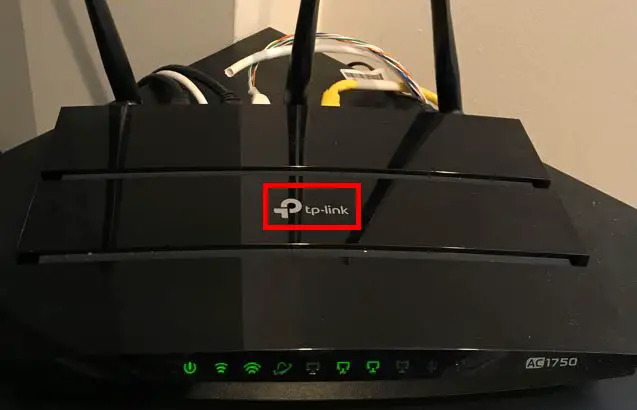
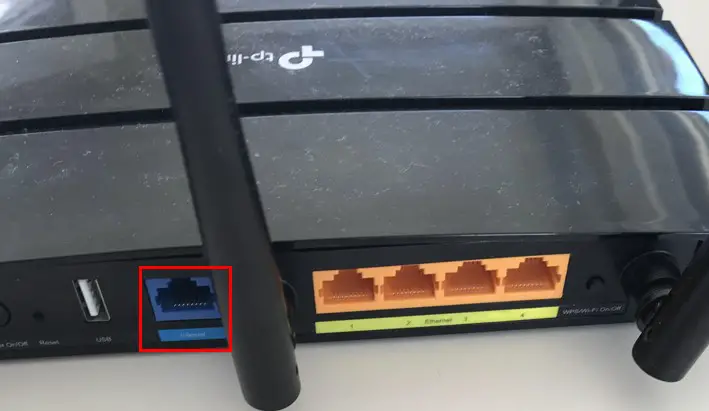
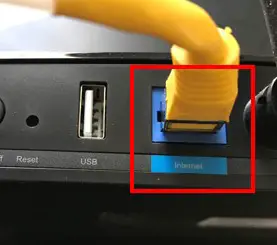
    Here’s an example on my TP-Link Archer A7 router:
    Router WAN port

    As you can see, this ethernet port on my router is labeled “Internet”. On other routers, this ethernet port will be labeled “WAN”, identifying that it’s for the router’s connection to the wide area network (aka the internet). This is accomplished through a modem.

    Ok, let’s take a look at a modem now.

    It’s easy to find the ethernet port that’s designed to connect the modem to the router. That’s because there should only be one ethernet port on a modem.

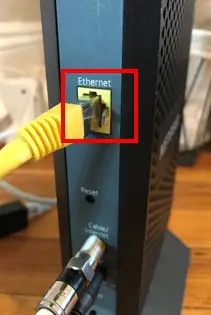
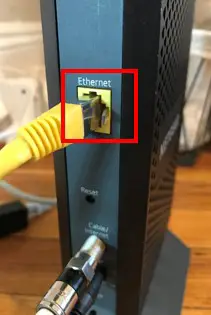
    Here’s what the back of my modem looks like:
    Modem ethernet port

    As you can see, the ethernet port labeled “Ethernet” is the only ethernet port on the device.

    With the designated ethernet ports identified on both devices, all that’s needed is an ethernet cable to connect them.

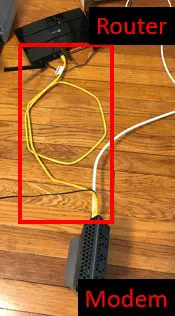
    Here’s a reference of how my router and modem are connected through the ethernet ports identified above:
    Modem and router ethernet connection

    So what does this all mean for you?

    This is an invitation to inspect your router and modem.

    Both of your devices should have ethernet ports similar to the ones I have on my devices. If both your router and modem have these ethernet ports, they’ll be compatible with each other.

    This’ll be the case in almost all situations.

    The only way your router and modem won’t be compatible with each other is if one of the devices doesn’t use ethernet cables to communicate. This is possible with some commercial-grade modems made for datacenters (like this one), but I’ve never seen devices like this used in home networks.

    As a result, you can rest assured that your router and modem will get along just fine.

    Does Your Modem and Router Have to Be the Same Brand?

    At this point we’ve established that any router will be compatible with any modem in a home network.

    The question is, does this only apply to modems and routers made by the same company? Or will routers and modems from different companies be compatible with each other as well?

    The good news here is that the manufacturer of the device has nothing to do with how it communicates.

    In other words, whether a router is made by Netgear or TP-Link, it’ll communicate with a modem over an ethernet cable.

    This means that you can mix and match your router and modem, regardless of the brand of the device.

    Take my home network for example.

    I have a Netgear modem and a TP-Link router and they work extremely well together.
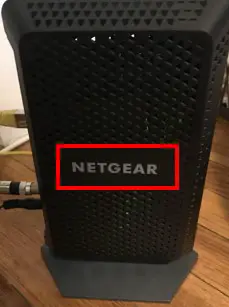
    This is just another case where you don’t have to worry.

    If you’re in the process of buying a modem and router for your home network, you shouldn’t think twice about buying both devices from the same manufacturer. They’ll be compatible with each other regardless.

    Wrap Up

    Hopefully you can breath a sigh of relief in learning about the compatibility of routers and modems. If you have any questions about this information, or you’d like to share you personal experiences about the topic, please leave a comment below.

    If you’re interested in learning more about similar topics, check out some of my previous posts:

    What Is the WAN Port for on a Router?

    What Router Do I Have? How to Find Out

    Does Any Router Work With Any Internet Provider?
    Can I Move My WiFi Router to Another House?

    Can I Use a Router Without a Modem?

  • What Modem Do I Have? How to Find Out

    What Modem Do I Have? How to Find Out

    What Modem Do I Have title page

    Your modem is your gateway to the internet. Although it may be low maintenance once it’s set up, it’s an extremely important piece of your home network. As a result, you need to know some basic information about it.

    For example, in order to find out what speed your modem supports or the internet providers it’s compatible with, you need to know the make and model of your modem.

    So how do you find out the make and model of your modem?

    There are two main ways to determine the make and model of an internet modem. Generally, the make and model of a modem will be listed on an informational sticker on the device. Alternatively, this information can be found by logging in to the modem’s settings console.

    In this post, I’ll provide detailed procedures on the two common ways to find out what modem you have. In addition, I’ll explain why knowing this information will pay off when making decisions about your home network.

    How to Find Out What Make and Model a Modem Is

    If you want to find out what modem you have, you have two options.

    The best option involves looking at the sticker on the modem itself. If for some reason this option is not available to you, you should also be able to find this information by looking at the modem’s settings page.

    Let’s break down both of these options in detail.

    How to Determine What Modem You Have by Looking at Its Sticker

    The fastest and easiest method of finding out what modem you have involves inspecting the physical device.

    If you inspect your modem, you’ll probably find that it has an informational sticker on it. In many cases, this sticker will be on the bottom of the device.

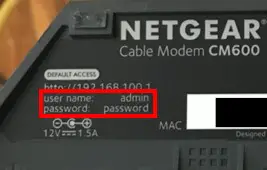
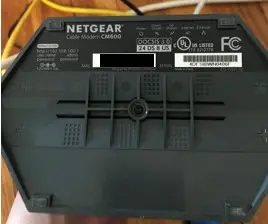
    Here’s the sticker on my Netgear CM600 modem (the newer version of this modem is the CM700 modem):

    Sticker on bottom of modem

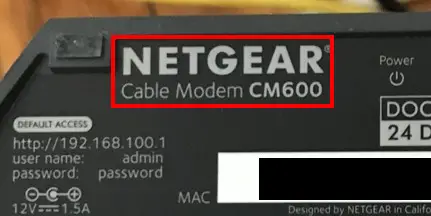
    Somewhere on this sticker, it should list the make and model of the modem.

    Make and model of modem on sticker

    As you can see, the make and model of my modem is pretty obvious.

    It’s important to note that no two modems are exactly the same. The layout and information presented on your modem’s sticker will probably be different based upon your modem’s manufacturer. With that said, the sticker on my modem should give you an idea of what to look for.

    If there’s any confusion about which piece of information is the manufacturer and which is the model, there’s an easy way to find out.

    Determining Your Modem’s Manufacturer

    This has to do with the fact that manufacturers love to advertise their products.

    As a result, every modem will have the manufacturer’s name or logo somewhere on the device. Usually this is in an area that’s easy to see when looking at the device.

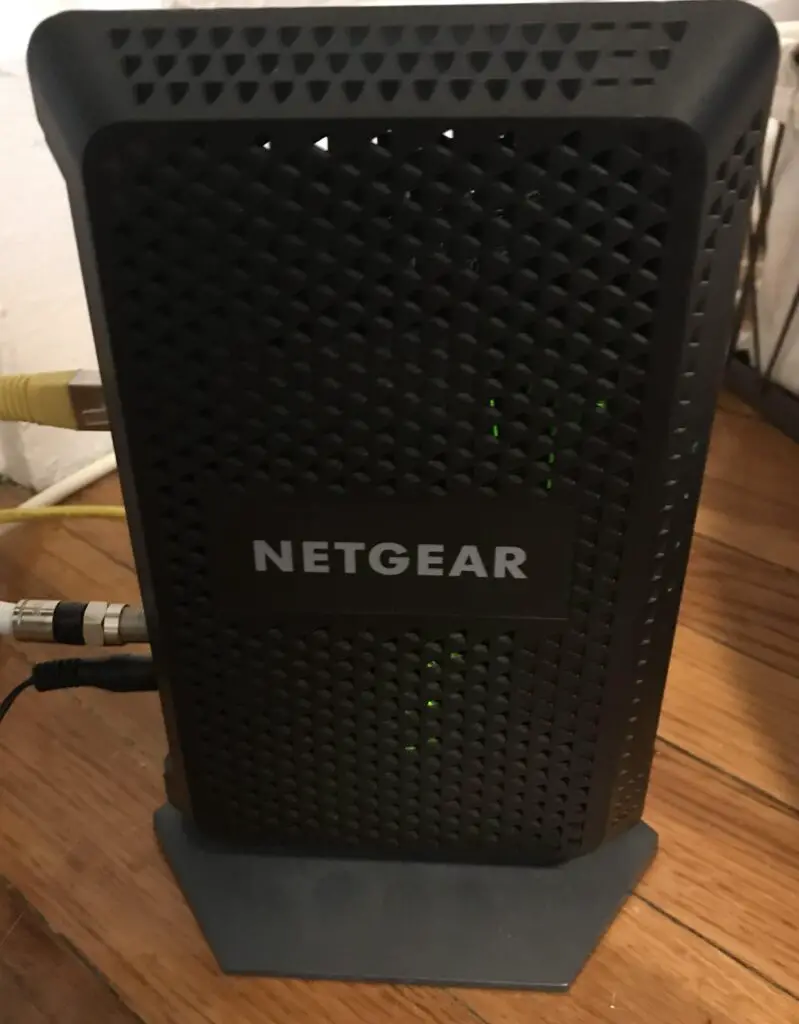
    Let’s take another look at my modem:

    Modem side manufacturer label

    See?

    It’s pretty obvious that this modem is made by Netgear. They couldn’t make it more obvious.

    The important thing to note here is that the manufacturer will always put their logo or brand name on the device. You probably won’t find the model number clearly presented on the exterior of the device.

    Referring back to the sticker on the modem, it makes it easy to see that if the manufacturer is Netgear, the model is CM600.

    Keep this information handy, as it’ll be useful in the next section.

    How to Determine What Modem You Have From Its Settings Page

    If you’re unable to tell what modem you have from its sticker, there’s another option for you.

    You can log in to your modem’s settings.

    If you already know the IP address of your modem’s settings page, and you have the username and password for your modem’s settings, this might actually be the easiest method for you.

    Let’s walk though this step-by-step.

    The first thing you need to do is get to your modem’s settings page. In other words, you need to know the IP address of your modem.

    If you’re not sure what your modem’s IP address is, you can usually find it on the sticker on your modem.

    Modem IP address on sticker

    Once you know your modem’s IP address, you need to type it into an internet browser (e.g. Chrome, Microsoft Edge, etc.) on a connected device like a phone, laptop, tablet, etc.

    Modem IP address in internet browser

    Keep in mind that in order to access your modem’s settings, you need to be on the same wireless network as your modem. You can’t access your modem’s settings from outside your home network.

    Once you type in your modem’s IP address, you’ll be prompted to enter the username and password for your settings page.

    If you’ve created custom login information for your modem (which I strongly suggest), enter that information here.

    Modem settings login prompt

    If you haven’t changed your modem’s login information from the default settings, you should be able to find that on your modem’s sticker as well.

    Modem settings default username and password

    If this information is not on your modem’s sticker, you should be able to Google common default passwords for modems made by your modem’s manufacturer.

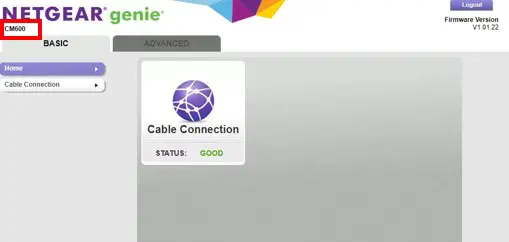
    Once you log in to your modem’s settings and you reach the settings page, it should be obvious what model of modem you have.

    Modem model on modem settings page

    Although it’s in smaller font, it’s easy to see what model of modem I have.

    This might look slightly different than your modem’s settings page, but it should include your modem’s model nonetheless.

    Last Resort: How to Determine What Modem You Have Through Brute Force

    In the vast majority of cases, you’ll be able to determine what modem you have by looking at its sticker or by logging in to its settings.

    However, it’s possible that these two common methods don’t work for you.

    What do you do now? How do you find out what modem you have?

    This method requires a little bit more effort.

    In this scenario, you have to start with the manufacturer of the device. You should be able to get this information from the device itself, as detailed in the previous section.

    Once you have the manufacturer of the device, you have to get a little creative.

    At this point, I suggest Googling the most common models of modem from the manufacturer. Look at pictures of these common models until you find the model that looks like your modem.

    For example, in my case I know that my modem is made by Netgear because that’s what’s on the side of my modem. In Googling common models from Netgear, it’ll take me to Netgear’s modem product page. In scrolling through this page, I can see that my modem looks like a CM600 modem.

    If your modem is ancient, this method might not work for you. Most manufacturers won’t list really old or discontinued models on their websites.

    Regardless, you should only need to attempt this method as a last resort. Hopefully you can determine the make and model of your modem from its sticker or its settings.

    Why Should You Know the Make and Model of Your Modem?

    After following the steps above, it’s fair to wonder why you’re doing it.

    Why do you need to know what modem you have in the first place?

    In reality, it’s essential to know what modem you have if you want to maximize your internet connection.

    Knowing what modem you have will allow you to:

    • Determine what ISPs your modem is compatible with
    • Understand the internet speeds your modem can support
    • Look up documentation about your device

    Let’s dive a bit further into each of these.

    The Make and Model of Your Modem Will Tell You the ISPs It’s Compatible With

    Unfortunately, your modem won’t be compatible with all internet service providers.

    With this in mind, you have to plan your modem around the internet plan you have (or plan to get).

    This can get complicated if you plan on moving your home (and modem) to a new location. If you’ll be using a new ISP, you need to make sure your modem is compatible with it.

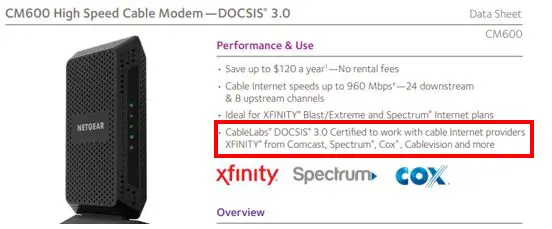
    In order to know what ISPs your modem is compatible with, you need to know what modem you have. It goes without saying if you know what modem you have, it’s very easy to look up the documentation that explains what ISPs it’s compatible with.

    CM600 modem Compatible ISPs

    The Make and Model of Your Modem Will Allow You to Look up the Maximum Internet Speed It Supports

    Any given modem will have a maximum internet speed it can support. If an internet plan exceeds the maximum speed supported by a modem, it’ll slow down your your entire network.

    With this in mind, knowing the maximum speed your modem can support is vital. This information will allow you to make important decisions about your home network.

    For example, if you plan on upgrading your internet plan, you’ll know if your current modem can support the faster internet plan. If not, it might be time for a new modem.

    Knowing what modem you have will allow you to make those decisions because you’ll be able to look up the fastest internet plan it can support.

    The Make and Model of Your Modem Will Enable You to Look Up Its Documentation

    The final reason you should know what modem you have has to do with getting the most out of it.

    If your modem is having issues, or you’re not sure how to set up your modem, you may need some help. Many times, the documentation about the device will tell you all you need to know. Nowadays, modem manufacturers will have online versions of their User Manuals in case you lost your hard copy.

    Here’s an example of the online User Manual for my CM600 modem.

    On top of User Manuals, knowing what modem you have will enable you to search for help online. You may be able to find online forums that discuss solutions to common problems about your modem.

    If you don’t know what modem you have, you’ll be cut off from all of these helpful resources.

    Wrap Up

    With the information above, you should be able to identify your modem without any problems. In case you have any questions, or you still can’t figure out what modem you have, leave a comment below. I’ll see if I can help you out.

    If you found this information useful, here are some other posts I’ve written that you might find interesting:

    Does Any Modem Work With Any Internet Provider?

    Can I Take My Internet Modem to Another House?

    Does Your Modem Affect Your Internet Speed?

    Does Modem Placement Matter?

    Can a Modem Overheat? What to Look For

    What Do the Lights on My Modem Mean?

  • Modem MAC Address: All Your Questions Answered

    Modem MAC Address: All Your Questions Answered

    Modem MAC address title page

    Whether you’re setting up your internet connection for the first time or you’re just replacing your modem, you’ll need to know the MAC address of your modem.

    The problem with this is that a lot of people don’t know where to start when it comes to their modem’s MAC address.

    So how do you find a modem’s MAC address, and why is it important in the first place?

    A modem’s MAC address can usually be found on a sticker on the device. Alternatively, the MAC address of a modem can be viewed in the modem’s settings page. A modem’s MAC address is important because it is used to register the modem with an internet provider and activate an internet connection.

    In this post, I’ll detail everything you need to know about a modem’s MAC address. I’ll answer some frequently asked questions about a modem’s MAC address, as well as provide steps for finding a modem’s MAC address.

    How to Find a Modem’s MAC Address

    When it comes to finding a modem’s MAC address, there are a few different ways to do it.

    You can either get the MAC address directly from the physical device, or you can view it on the modem’s settings page from an internet device on your home network.

    I’ll go over both of these methods to provide you with a few options.

    How to Find a Modem’s MAC Address From the Sticker on the Device

    The easiest way to find the MAC address of a modem is to get it directly from the physical device.

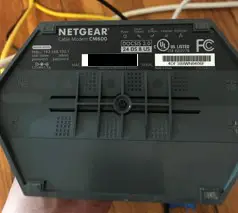
    Most modems will come with a sticker on it that details a lot of its important information. For example, on my modem the sticker is located on the bottom of the device.

    Here’s what the sticker on my modem looks like:

    Sticker on bottom of modem

    Taking a closer look at this sticker, there’s a label for the device’s MAC address. Next to this label there’s a 12-digit number that identifies the MAC address of the device (I’ve obscured this information in the picture above for security reasons).

    It doesn’t get much easier than that.

    This is the easiest way to get the MAC address from a modem, so long as it has a sticker on it.

    If your modem doesn’t have a sticker or you don’t feel like getting off the couch, there’s another option for you. You can get this information by logging in to your modem’s settings.

    How to Find a Modem’s MAC Address by Logging in to Its Device Settings

    The other way to find a modem’s MAC address is to log in to its settings console.

    This is also another easy procedure, so long as you have everything you need.

    So what exactly do you need to find your modem’s MAC address with this method?

    You’ll need a connected device (laptop, phone, tablet, etc.) connected to the network that the modem is on. You’ll also need to know the login information for the modem’s settings console.

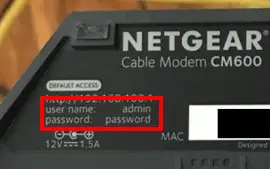
    As a hint, if you’ve never changed the password for your modem’s settings page, you can find the default information in the modem’s user guide. You’ll also probably be able to find the default username and password for the modem’s settings by searching for it online.

    In some cases, this information will also be included on the sticker on the modem as well.

    Modem default username and password on sticker

    I know the whole point here is to avoid getting off the couch, and if you have to look at the sticker you might as well get the MAC address from it anyway.

    Security note: make sure you change the default password to your modem’s settings if you haven’t done so already. It’s a significant security risk to leave the default password on your devices.

    Ok, back to the task at hand.

    The first thing you need to do to access your modem’s settings is go to your modem’s login page. Open up a web browser and navigate to the IP address of your modem.

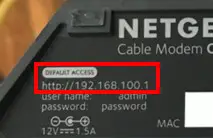
    If you’re not sure what the IP address of your modem is, that should be listed in the user’s manual for the device as well.

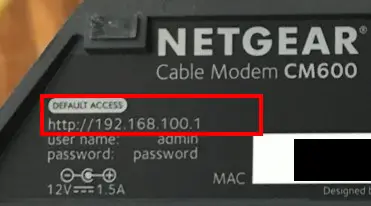
    You won’t be surprised to hear that information may be listed on your device’s sticker as well:

    Modem default access location on modem sticker

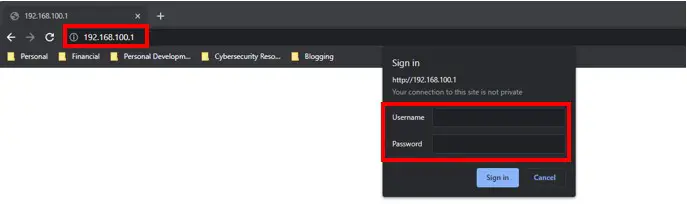
    By entering the address of your modem’s settings page into your browser, it’ll take you to your modem’s login page.

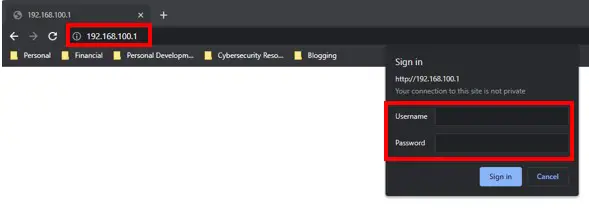
    Modem login prompt for settings page

    From there, enter the username and password for your device’s settings.

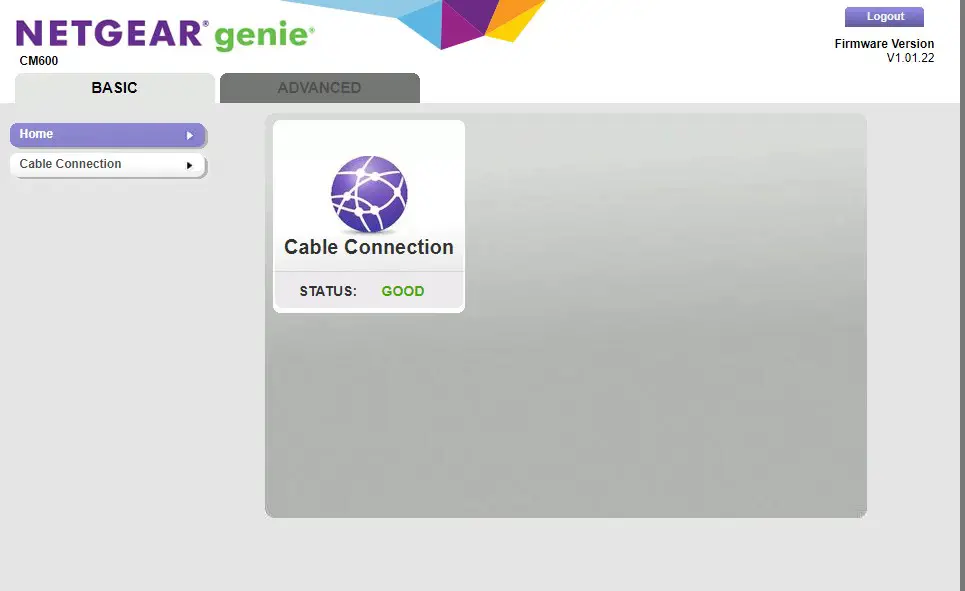
    That will bring you to your modem’s settings page. Modem settings will all look a little different depending upon the make and model of your modem, but here’s what the main page looks like for my modem. For reference, I have a Netgear CM600 modem:

    Modem settings page

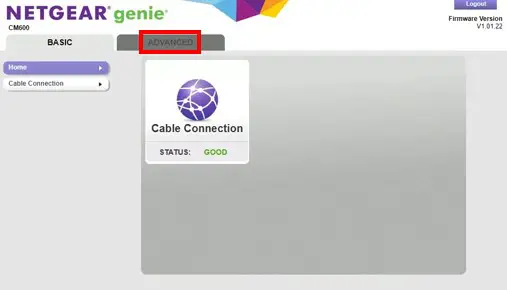
    To find my modem’s MAC address, I have to navigate to the Advanced Settings page.

    Netgear advanced settings tab

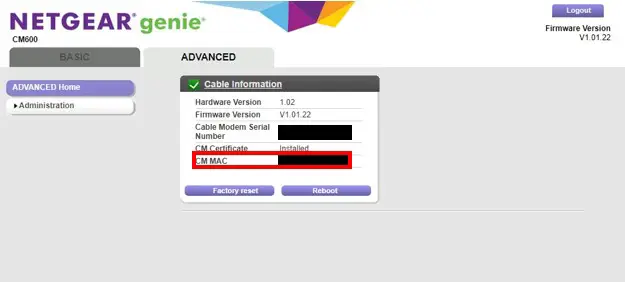
    On the Advanced Settings page, it’s pretty easy to see the MAC address of my modem.

    Modem MAC address in settings console

    See? There’s not much to it.

    Both methods of determining your modem’s MAC address aren’t very complicated. You just need to know where to look.

    Why Is a Modem’s MAC Address So Important?

    A modem’s MAC address is more important than you might think.

    In fact, if you don’t know the MAC address of your modem, you won’t be able to get an active internet connection.

    This has to do with the fact that you must register your modem with your internet service provider (ISP) in order to activate your internet plan.

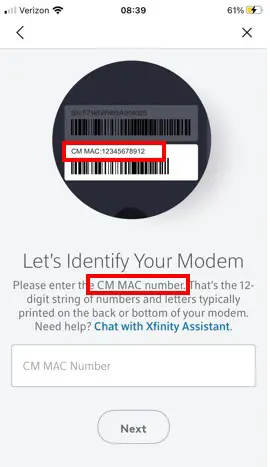
    When registering your modem with your ISP, they’ll ask you for its MAC address.

    Modem MAC address request for registration

    This is how they keep track of your account with them. They pair your modem’s MAC address with your customer information and internet plan.

    So when you request information from the internet on one of the devices on your home network, the ISP knows they’re providing data to a paying customer with an active internet plan.

    This is why you’ll have to re-register with your ISP if you get a new modem. The new modem will have a different MAC address than the old modem, and your ISP won’t associate the new MAC address with your account until you register the new modem.

    In other words, your internet connection won’t work until the new device is registered with your ISP, which you can’t do without the MAC address of the device.

    What Does a Modem’s MAC Address Actually Mean?

    With all this talk about a modem’s MAC address, it’s important to understand what its MAC address actually represents.

    The best way to think about a modem’s MAC address is like it is a mailing address for the device.

    The MAC address represents a location where your ISP will send data that devices on your network have requested. In other words, the MAC address identifies the network interface that will be communicating with the ISP. This ensures that all traffic meant for your network makes it to the right place.

    This is very similar to sending letters in the mail.

    If you want a letter to make it to the desired final destination, you need to identify the mailing address of where you want to send the letter to.

    This further highlights the importance of a modem’s MAC address.

    How Many MAC Addresses Does a Modem Have?

    Believe it or not, a modem actually has two MAC addresses.

    You wouldn’t think so, considering we’ve spent all this time talking about one of them (the one used to register the device with an ISP).

    In reality, a modem will have a MAC address for each network interface on the device.

    This means that a modem will have one MAC address for its network interface with the rest of the internet. This MAC address is associated with the connection to an ISP.

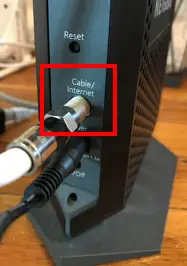
    I have a cable modem, which means the coaxial cable interface on the back of my modem will have a MAC address.

    Modem internet interface

    This is the MAC address that is registered with my ISP and is listed on my modem’s sticker.

    The other MAC address on a modem is associated with the ethernet port on the device that connects to a router.

    Modem internal network ethernet interface

    The ethernet port on a modem is its connection to the rest of a home network.

    To clarify, you don’t need to know this MAC address. You don’t need it to register with your ISP, and all the devices on your home network will automatically communicate with this interface.

    That’s why this MAC address gets overlooked so much. You don’t need to know it, so it’s not really worth any effort finding out what it is.

    You should just recognize that your modem will have more than one MAC address due to the fact that it has more than one network interface.

    Wrap Up

    That just about covers it when it comes to your modem’s MAC addresses. If you have additional questions regarding the MAC address of your modem, feel free to post a comment below.

    If you’re interested in learning more about similar topics, check out some of the previous posts I’ve written:

    Does Modem Placement Matter?

    Does Any Modem Work With Any Internet Provider?

    How to Update Modem Firmware: A Complete Guide

    Does a Modem Have an IP Address?

    Can I Take My Internet Modem to Another House?

  • Router Ethernet Ports: Everything You Need to Know

    Router Ethernet Ports: Everything You Need to Know

    Router ethernet ports everything you need to know title page

    Although they may seem like simple devices, routers can still cause quite a bit of confusion. One area in particular where routers can be confusing has to do with ethernet ports.

    People often have lots of questions surrounding router ethernet ports and what they’re used for. Some are even unsure if routers have them in the first place!

    Hopefully I can help sort that out for you.

    All routers have at least one ethernet port. In fact, most routers have two different types of ethernet ports. They usually have one wide area network (WAN) port for connecting the router to the internet, and four local area network (LAN) ports for providing wired internet connections to devices.

    In this post, I’ll answer the most common questions about your router’s ethernet ports.

    Do All Routers Have Ethernet Ports?

    Ok, let’s start with the basics here.

    All routers will have at least one ethernet port. This is the case whether you have a standalone router, or if your modem and router are combined into one device.

    Why exactly is this the case?

    This has to do with the fact that in most cases, routers are expected to provide your devices with wireless connections to the internet.

    The funny thing about this is that routers aren’t able to provide internet connections on their own. They need a little help from a modem.

    In order for a router to broadcast a wireless internet network for your devices to connect to, it needs to be connected to a modem with an active internet connection.

    Any guesses on how a router and modem with an active internet connection are connected?

    You guessed it. With an ethernet cable.

    This is why you can be confident a router will have at least one ethernet port; so it can be connected to a modem.

    What’s even more interesting is that routers usually have more than one ethernet port. You’ll find out why in the next section.

    What Are the Different Ethernet Ports on a Router?

    Ok, at this point we’ve covered that all routers will have an ethernet port to connect it to the internet. This ethernet port is called the wide area network, or WAN port.

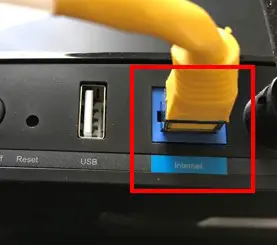
    Here’s what the WAN port looks like on my router:

    Router WAN port

    As you can see, the port is clearly marked “Internet” to ensure it’s used to connect the router to a modem.

    The WAN port is only half of the story, however.

    In addition to a WAN port, routers usually have additional ethernet ports. These ports are called local area network, or LAN ports.

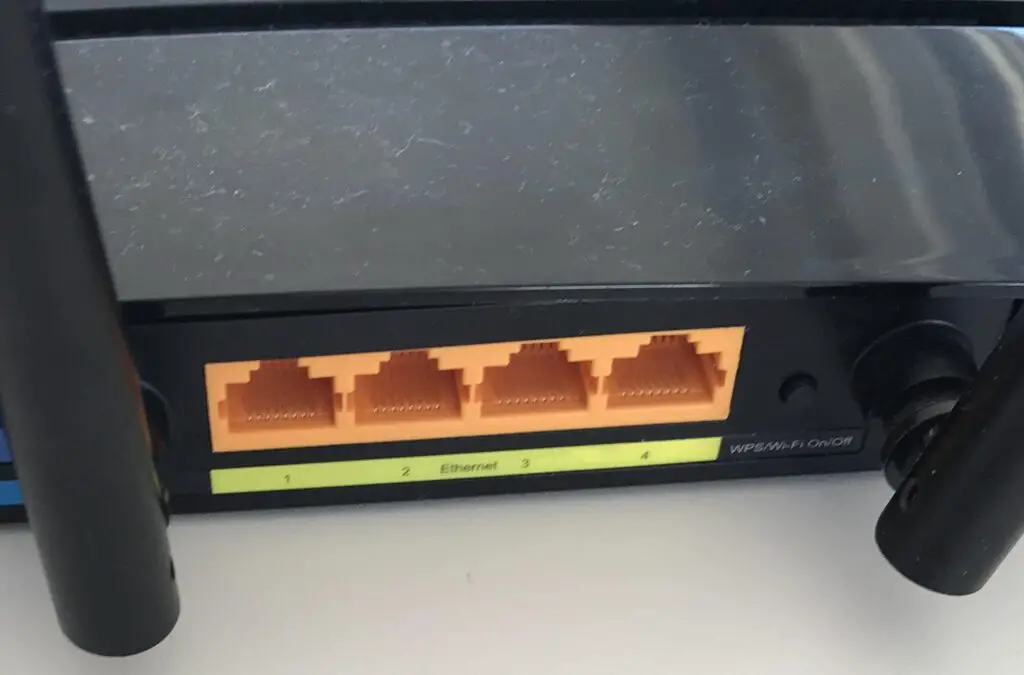
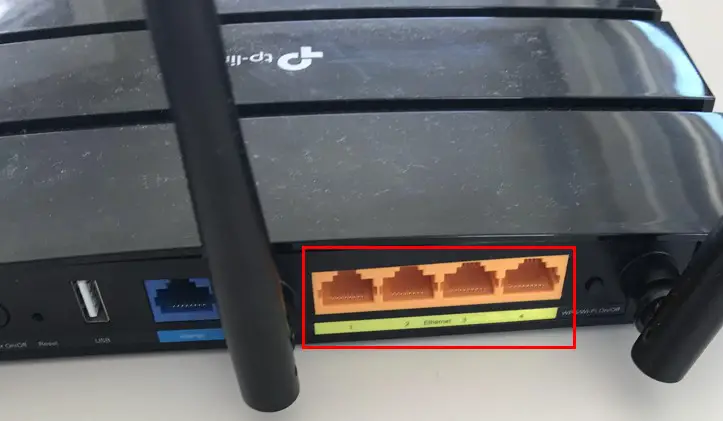
    Here’s an example of the LAN ports on my router:

    Router  LAN ethernet ports

    LAN ports are used to provide devices with a wired connection to the router instead of a wireless one.

    This can be an extremely useful feature, because wired internet connections have some benefits over wireless ones. For example, wired internet connections are generally more reliable connections when compared to wireless internet connections.

    On top of that, wired ethernet connections offer less latency than wireless connections. This can be especially helpful when a responsive internet connection is desired, like when you are online gaming.

    To provide a device with a wired internet connection, you just need to connect one end of an ethernet cable to the device, and the other end of the cable to one of the LAN ports on the router.

    It’s as simple as that.

    How Many Ethernet Ports Does a Router Have?

    Now that we’ve established that there are two different types of ethernet ports on a router, it’s important to discuss how many of each type of port we can expect to see.

    For your router’s WAN port, this is an easy answer.

    You’ll only see one WAN ethernet port on a router.

    That’s because your router only needs one connection to the internet. In fact, that’s one of the benefits of a router in the first place; routers use one internet connection to provide many devices with access to the internet.

    When it comes to your router’s LAN ports, you’re likely to see more than one. In fact, in most cases you’ll have four LAN ports on your router.

    This means you can provide four devices with wired internet connections. With that said, if you get a little creative you can provide wired internet access to many more than four devices…

    How to Add Ethernet Ports to Your Router

    If you have many devices in your home network that you want to provide with a wired internet connection, you have nothing to fear.

    Your wired connections aren’t limited by the number of LAN ports on your router.

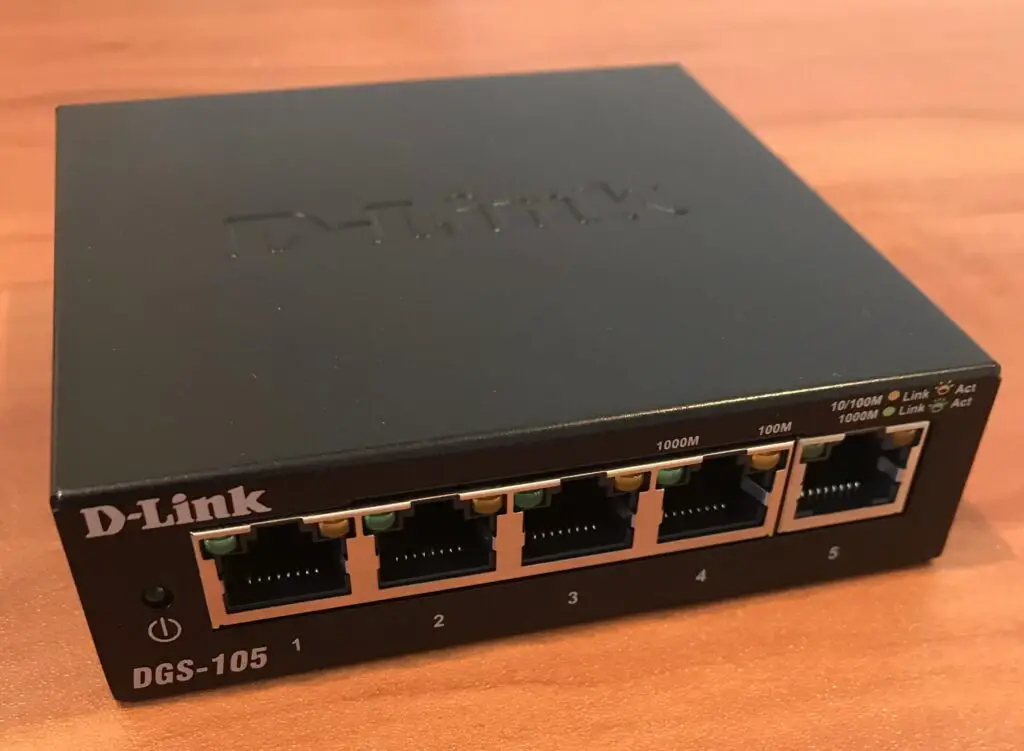
    You can add more ethernet ports to your router by using an ethernet switch.

    Ethernet switch
    A five-port ethernet switch

    Ethernet switches are useful because they essentially turn one ethernet port into multiple ethernet ports.

    Depending upon the number of additional wired connections you need, you can buy an ethernet switch with that number of ports.

    For example, a five-port ethernet switch like this one would provide four additional wired connections to your router. One of the ports would be used to connect the switch to the router, but the other four would be open for additional devices.

    If you need additional wired connections to your router, it’s easy to find five, eight, and sixteen port ethernet switches.

    Does It Matter What Ethernet Port I Use on My Router?

    When it comes to the ethernet ports on your router, the only thing you have to worry about is using the right category of port.

    In other words, all the ethernet ports on your router will be the same.

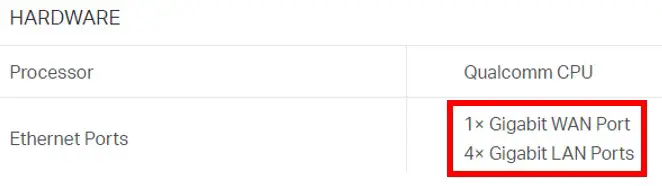
    If you need further proof, you can look at the specifications of your specific router. In looking at my router’s specifications online, it’s very clear that all the ethernet ports are the same:

    Router ethernet ports specifications

    All five of the ethernet ports on my router are Gigabit-speed ethernet ports.

    So if all of the ethernet ports on my router are the same, it doesn’t matter which one I plug my device in to right?

    Not exactly.

    As I mentioned, you have to make sure you’re using the right category of ethernet port.

    If you plug a laptop into the WAN port on a router, it won’t work. That port is reserved for the connection between the modem and router.

    If you’re connecting your laptop to one of your router’s LAN ports, however, pick your poison. It doesn’t matter if you connect your device into the first or fourth ethernet port. Your router will treat all devices connected to its LAN ports the same way.

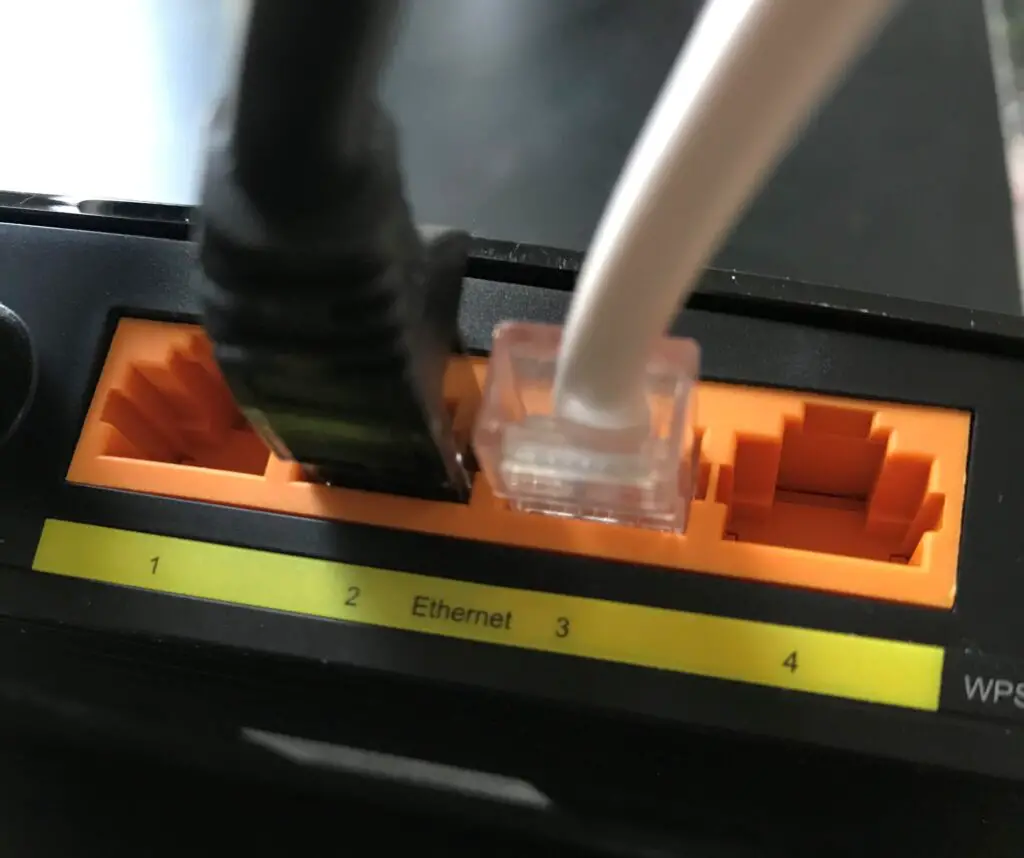
    Router LAN ethernet port connections

    To highlight this example, if the devices plugged into LAN ports 2 and 3 of the router in the picture above were switched, it wouldn’t make a difference.

    Wrap Up

    There it is folks. That’s everything you’d ever need to know about the ethernet ports of your router. If you have questions about your router’s ethernet ports that weren’t answered in the post above, please leave a comment below.

    If you found this content helpful and you would like to learn more about similar topics, check out some of the other posts I’ve written:

    What Router Do I Have? How to Find Out

    Does a Router Affect Your WiFi Speed?

    What is an Ethernet Switch Used for?

    Does a Router Have to Be Connected to a Computer to Work?

    Does Any Router Work With Any Internet Provider?
  • Do Routers Have MAC Addresses? How to Find Out

    Do Routers Have MAC Addresses? How to Find Out

    Do Routers Have MAC Addresses How to Find Out Title Page

    If you’ve spent time configuring your home network, you’ve probably seen the term MAC address when referring to your devices.

    MAC stands for Media Access Control, and a MAC address is used to help identify the devices on your network.

    What can be harder to understand is which of your devices have MAC addresses, and which ones don’t.

    This question is frequently asked about routers. Unfortunately, the answer may be a little more complicated than you would expect.

    All routers have MAC addresses associated with them. In fact, routers will have a MAC address for each of their network interfaces. As a result, most routers have three MAC addresses: one each for their internet, wired local network, and wireless local network interfaces.

    In this post, I’ll break down the three common MAC addresses associated with routers. I’ll also detail how to go about finding what your router’s MAC addresses are.

    Let’s dive in.

    Why Does a Router Have Three MAC Addresses?

    You might be surprised to find out that most routers have three MAC addresses. Why can’t one address be used for your device?

    The main reason for this is that each of the network interfaces on your router is identified individually. The three network interfaces on your router are its:

    • Internet (public) interface
    • Local wireless (WiFi) interface
    • Local wired (ethernet) interface

    The internet interface on your router is used to allow your devices to communicate with the rest of the internet. In this sense, it’s the only interface on your router that’s accessible by the rest of the internet.

    This is also known as your router’s WAN port. It’s usually found on the back of your router.

    Router public network interface

    The local wireless (WiFi) interface on your router is what your router uses to broadcast a WiFi network signal to your devices. Your devices use this network interface to get wireless internet connections from your router.

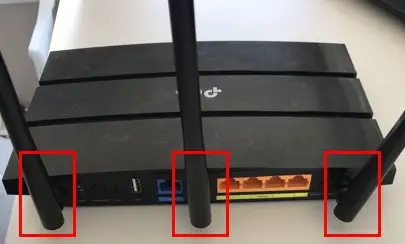
    This interface is connected to the antennas on your router.

    Router  wireless LAN interface

    The local wired (ethernet) interface on your router is for the ethernet ports on your router. These ethernet ports allow you to connect your devices to your router with an ethernet cable.

    You’ll usually see at least four of these ethernet ports on the back of your router.

    Router wired LAN interface

    What’s important to realize is that these interfaces are actually all separate devices within your router. That’s part of the reason why they’re identified individually with separate MAC addresses.

    The other part of the equation is that by having separate MAC addresses, it helps ensure that the traffic on your network is sent to the right place. We’ll discuss this more in depth later on.

    How to Find a Router’s MAC Addresses

    When it comes to determining what your router’s MAC addresses are, you have a few options.

    You’ll be able to figure out one of your router’s MAC addresses by looking at the sticker on the device. You’ll have to find out the other two addresses by accessing your router’s settings.

    I’ll explain both of these methods for determining what the MAC addresses of your router’s interfaces are.

    How to Find One of Your Router’s MAC Addresses by Looking at Its Sticker

    Ok, the first way to find out one of your router’s MAC addresses is by looking actually looking at your router.

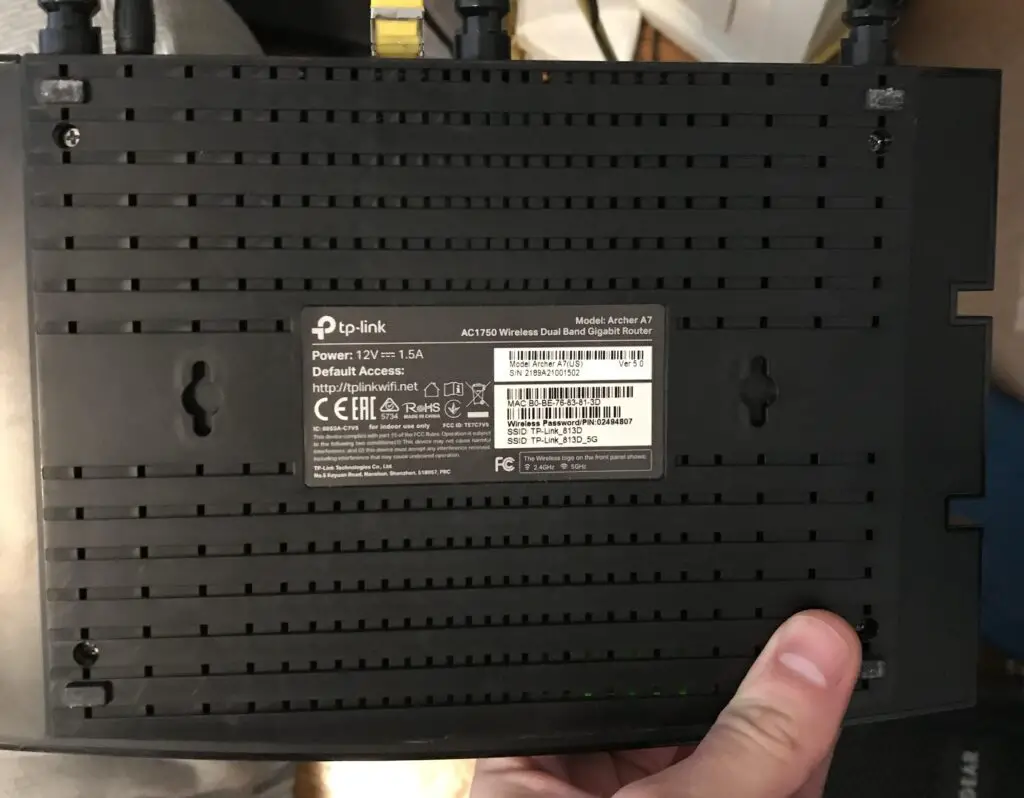
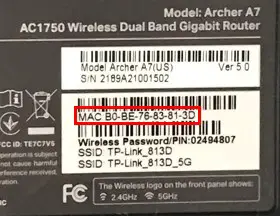
    Somewhere on your router, there should be a sticker providing some basic information about the device. You’ll most likely find the sticker on the bottom of your device. Here’s the sticker on my router.

    Sticker on bottom of router

    The sticker usually includes information like the default IP address, default wireless network names and passwords, and the make and model of your router.

    If we take a closer look at the sticker, we’ll see that there’s a MAC address listed as well.

    Router wired interface MAC address

    It’s important to note that this MAC address pertains to the local wired interface on the router. In other words, it’s the MAC address for the interface connected to the router’s ethernet ports.

    To find out the other two MAC addresses of your router, you’ll have to go into your router’s settings.

    How to Access Your Router’s Settings to Find Out Its MAC Addresses

    In order to find out your router’s other two MAC addresses (or see all three at once), you need to log in to your router.

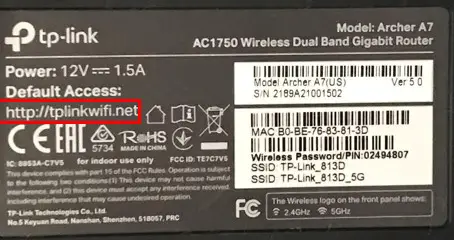
    To do this, use an internet browser to access the settings login page for your router. If you’re unsure of this location, this is sometimes listed on the sticker on the device as well.

    Here’s where this location is listed on my router’s sticker.

    Router default access location

    In entering this location into a browser, you’ll be able to log in to your router’s settings with the username and password you’ve set up for your device.

    If you’ve never changed the username and password for your router, you can find the default settings in your router’s user manual, or by searching online.

    As a side note, if this is the case for you, make sure you change your router’s login password to something only you know. It’s extremely insecure to use the default password for your router’s settings.

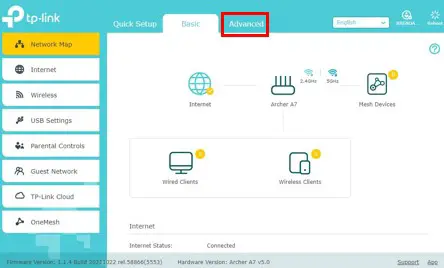
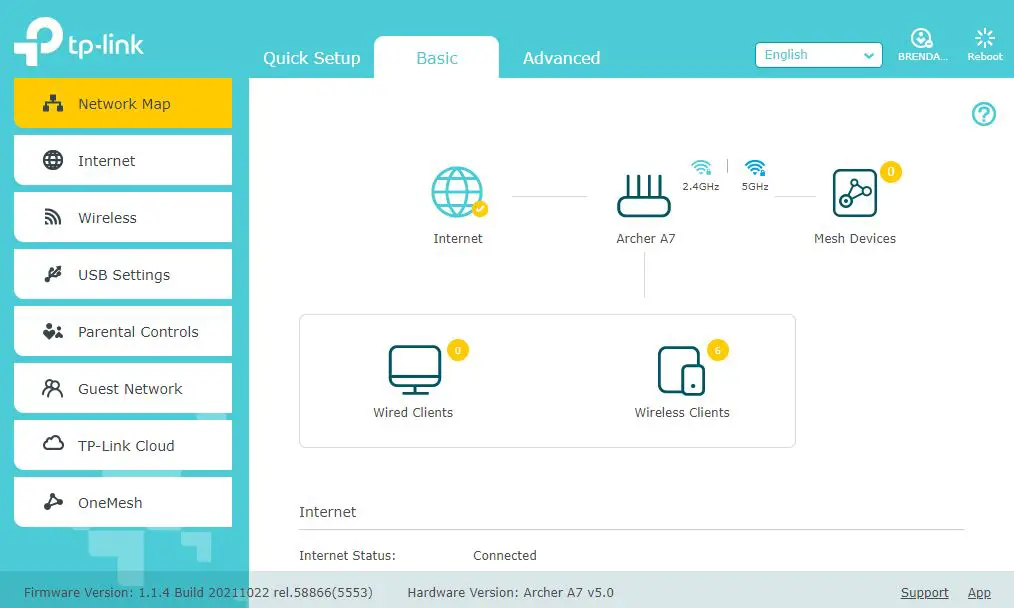
    Ok, so you’ve logged in to your router’s settings. This’ll probably take you to your router’s main settings page.

    Router settings page

    From here, I had to go to the advanced settings tab to see the MAC addresses for my router.

    Advanced tab of router settings

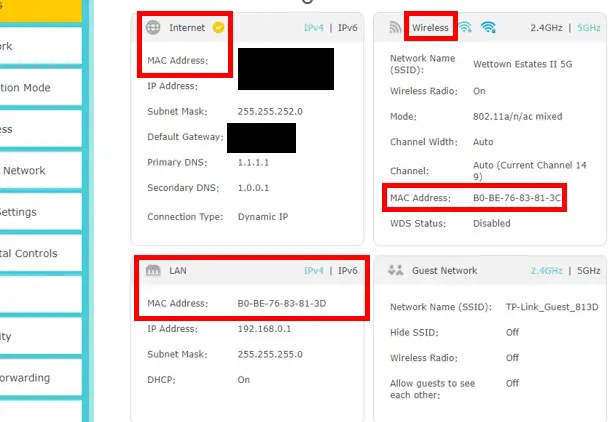
    In the Advanced Settings tab, I’m able to see all three MAC addresses for my router’s interfaces.

    Router interfaces MAC addresses

    As a note, I have hidden the MAC address and IP address of my router’s public interface for security reasons.

    If you’re interested in all of your router’s MAC addresses, it’s easiest to log in to your router’s settings. It serves as a one-stop shop for everything you need without having to get out of your chair.

    What Are Router MAC Addresses Used For?

    As I mentioned earlier, a router’s MAC addresses are important because they make it easier to find out where traffic in your network is supposed to go.

    How exactly do they do this?

    This has to do with their relation to how IP addresses are assigned.

    In order for an IP address to be assigned, it needs to be associated with a MAC address.

    Without getting too technical here, this is because the MAC address of an interface is used by local devices that are physically connected to it, while an IP address is used by devices that aren’t physically connected to the interface.

    MAC Addresses Are Used for Local Communication

    Think of a MAC address like a local mailing address, while an IP address is the full mailing address for a house.

    If your neighbor down the street asks you where you live, you can just tell them the name of your street and your house number. With that information, your neighbor will be able to send you a letter because they’re familiar with the local area.

    In this example, the local address of your home would be the MAC address of an interface.

    On the other hand, in order to tell your friend who lives in another country where you live, you need to provide more information. In this case, you’d have to send them your full mailing address (including a zip code and state) in order for them to send something to you.

    In this case, your full mailing address is equivalent to the IP address of an interface.

    What’s important here is that you can’t provide the full mailing address of a house (e.g. zip code and country) without knowing the local components of it (e.g. street name and house number). This is why MAC addresses are such an important component of your router’s interfaces. An interface must have a MAC address in order for it to be assigned an IP address.

    With this information in mind, it’s easy to see how router MAC addresses are used. They’re used as mailing addresses by the devices on your local network that’re physically connected to your router. This enables these devices to send their network traffic to the right location.

    Without MAC addresses assigned to each interface, it would be impossible for your local devices to know which interface to send network traffic to. The same goes for devices that aren’t physically connected to your router. If a given interface didn’t have a MAC address, it wouldn’t have an IP address to send information to.

    If a device didn’t know the right local location to send its traffic to, it would greatly slow down the communication between devices internal and external to your network, if not halt it entirely.

    Wrap Up

    Congratulations, you now know everything there is to know about your router’s MAC addresses. If you have any questions about this information, please drop a comment below.

    If you’re interested in learning more about similar topics, check out some other relevant posts I’ve written:

    What Router Do I Have? How to Find Out

    How Many IP Addresses Should a Router Have?

    Why Do Routers Have Multiple Antennas?

    What Is the WAN Port for on a Router?

    Does Any Router Work With Any Internet Provider?
  • Does a Router Have to Be Connected to a Computer to Work?

    Does a Router Have to Be Connected to a Computer to Work?

    Does a Router Have to Be Connected to a Computer to Work

    Routers can be confusing devices, especially if you’re not a technical person. One frequently asked question about routers relates to what they need to function properly. In particular, there is often confusion about whether a router needs to be connected to a computer in order for it to function.

    Thankfully, the answer here may be less complicated than you think:

    A router does not need to be connected to a computer in order for it to work. Routers are standalone devices that come with everything they need to operate normally. In fact, the only time a computer and router need to be connected is when changes are being made to the router’s settings.

    In this post, I’ll detail what routers need to work properly. I’ll also explain the situations when a computer needs to be connected to a router.

    Why a Router Doesn’t Need to Be Connected to a Computer to Work

    Routers may not look like the most powerful devices in the world, but they actually bring more to the table than you might think.

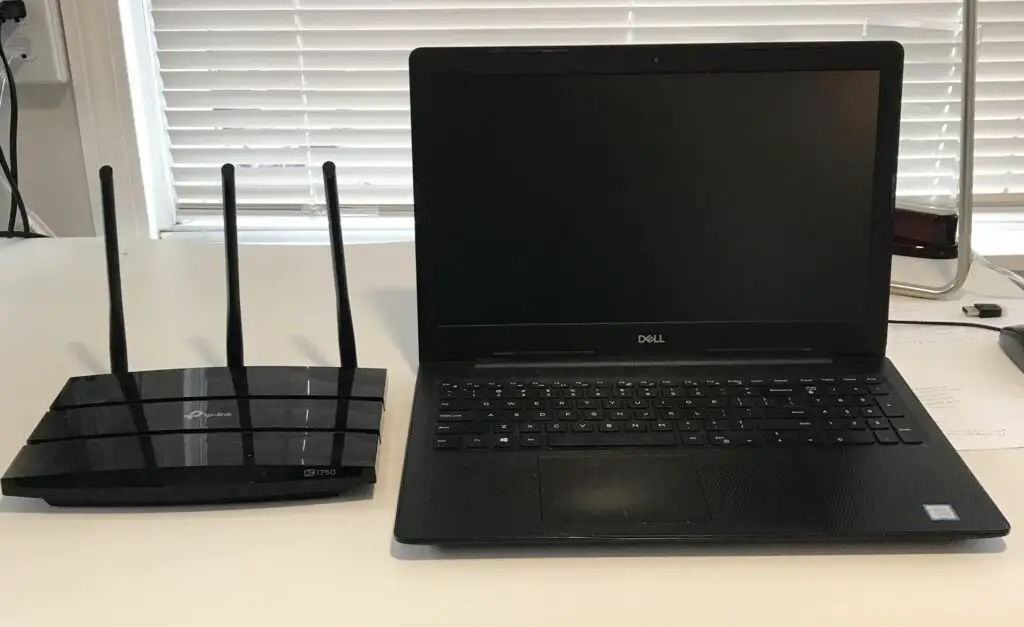
    For comparison, here is my TP-Link Archer A7 router next to my laptop.

    Laptop and router

    Although they’re smaller devices, routers come with everything they need inside them.

    So what does this include mean, exactly?

    Inside a router’s housing, you’ll find:

    • A processor (i.e. CPU)
    • Memory (i.e. RAM)
    • Storage

    Do these components sound familiar?

    They should, because these are the same components you’ll find inside a computer.

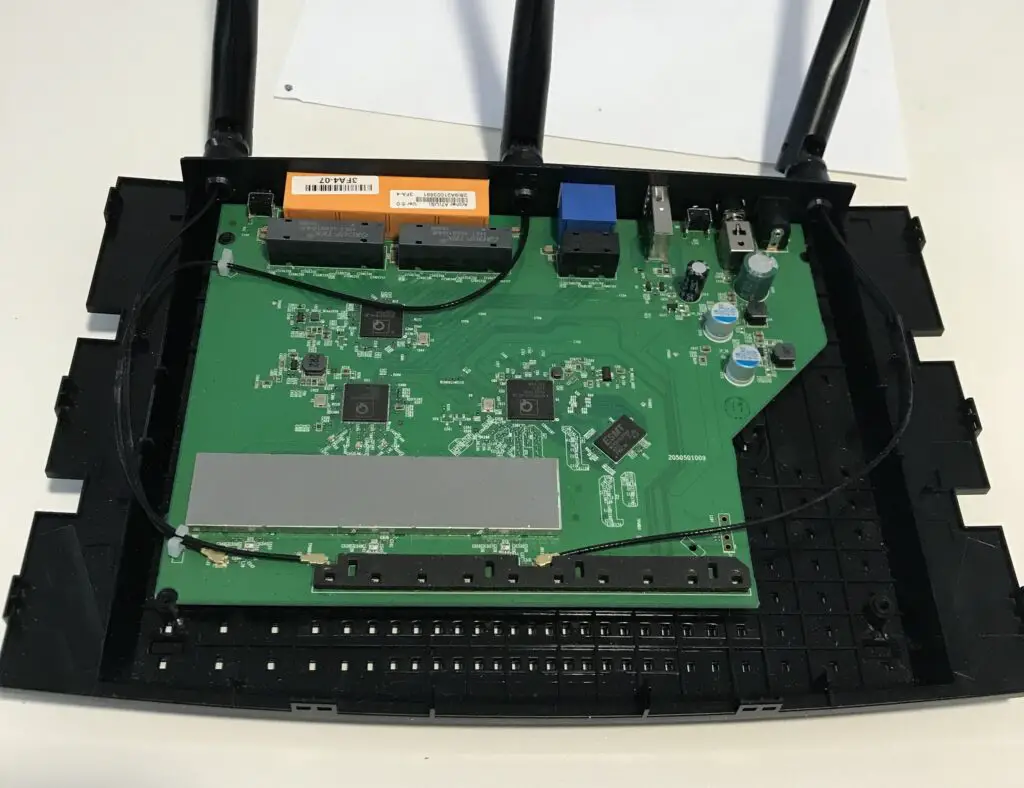
    Here’s what the inside of a router looks like:

    Router internal components

    Routers are basically just small computers that coordinate the traffic on your network. This is why they don’t need to be connected to a computer in order to work properly.

    They can do everything they need to without being connected to a computer!

    As a result, you can think of routers as standalone devices within a network. During everyday operations, they perform their desired functions without needing to be connected to a computer.

    With that said, the first time you set up your router, you may want to have a computer connected to it to help configure it. We’ll discuss this more in depth later on.

    What Does a Router Need to Work?

    Ok, so if a router doesn’t need to be connected to a computer to work properly, what exactly does it need?

    As we discussed earlier, a router’s needs are minimal.

    Regardless of the situation, a router needs to be plugged into a power source. Without electricity, it wouldn’t be able to carry out its expected functions of routing traffic throughout your network.

    If you’re using a router to allow devices on a home network to communicate without the need of an internet connection, this will be all your router needs.

    For most people, however, routers are relied upon to provide wireless internet connections to their devices.

    In these cases, a router needs a little more. To be specific, in order to provide a wireless internet connection to your devices, a router also needs:

    • To be connected to a modem
    • An active internet plan with an Internet Service Provider (ISP)

    To put it simply, your router needs to be given a working internet connection if it’s going to be passing the internet connection on to your devices.

    This is the basis of how wireless internet connections work. A modem provides a router with an active connection to the internet, and the router shares that internet connection with the devices that connect to its network.

    This is why you’ll always find a modem connected to a router in a home network with an internet connection. The router accesses the internet through the modem, which is connected to the internet.

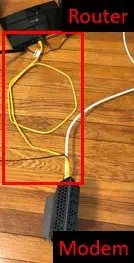
    Here’s a picture of my home network where my modem is connected to my router with an ethernet cable.

    Modem and router connected with ethernet cable

    The only time you won’t see a modem and router connected with an ethernet cable is if a modem and router are combined into one device. In this case, the modem and router are already connected, and an ethernet cable isn’t needed.

    As long as your router has a power source, is connected to a modem, and has access to an active internet connection, it has everything it needs to work properly.

    When Does a Router Need a Computer Connected to It?

    If a router doesn’t need to be connected to a computer to function properly, why would it need to be connected to a computer at all?

    A computer (or other connected device) only needs to be connected to a router when changes are being made to the router’s settings.

    These changes include:

    • Changing the name and/or password of the wireless network
    • Updating the router
    • Setting the router to automatically reboot on a recurring schedule
    • Making changes to any other settings (e.g. quality of service, parental settings, etc.)

    The bottom line is, any time a change is made to a router, a computer (or other connected device) needs to log in to it. That’s because the router needs to be told by another device what changes need to be made to its settings.

    Connecting to a router can be done with either a direct connection via ethernet cable, or by wirelessly connecting to it. Once connected to the router’s network, a user can use the connected device to access the router’s settings through its web interface.

    After the desired changes have been made to the router’s settings, the device used to log in to the router no longer needs to be connected to it. The router will save its new settings and continue operating on its own.

    Wrap Up

    Hopefully you now understand why routers don’t need computers connected to them in order to carry out their normal functions. Although a connected device is needed to make changes to a router’s settings, that will make up a small fraction of the time that the router is in operation.

    If you have any questions about this information, please feel free to post a comment below. If you found this information helpful, check out some of the other posts I’ve written on similar topics:

    What Router Do I Have? How to Find Out

    Should Your Router and Modem Be Close Together?

    Does Any Router Work With Any Internet Provider?
    How to Update Your Router: The Ultimate Guide

    Can I Use a Router Without a Modem?

  • Do Different Ethernet Cables Have Different Transfer Speeds?

    Do Different Ethernet Cables Have Different Transfer Speeds?

    Different Ethernet Cables Different Transfer Speeds title page

    It’s a fair question to ask if all ethernet cables are the same.

    After all, they all look and function the same way.

    Even if your ethernet cables are different colors, they’ll do the same thing: transfer data from one device to another.

    I wish I could say it was that easy.

    Even though they all look similar, ethernet cables can actually be quite different from each other. In hearing this, it’s natural to wonder if the speeds that ethernet cables support are different from cable to cable.

    So do all ethernet cables support the same data transfer speed, or do different ethernet cables support different speeds?

    The answer here is no.

    Not all ethernet cables support the same data transfer speeds. Ethernet cables will support different maximum data transfer speeds depending upon the category of cable they are.

    With that said, all ethernet cables of the same category will support the same data transfer speed.

    It’s important to understand the maximum data transfer speed of each category of cable. On top of that, you should also know how to identify the cables that you have in your home network. That way, you can determine if you’re using the right cables in your network.

    In this article, I’ll detail everything you need to know about ethernet cables and the data transfer speeds they support. I’ll also talk about the cables you should be using in your network.

    Why Do Different Categories of Ethernet Cables Support Different Speeds?

    As you may have guessed, the category (or cat) of an ethernet cable is used to provide an easy way to identify them. The category classification is useful because it’s the single most important factor in determining how it’ll perform.

    Why is this?

    That’s because the category of your cable identifies the performance standards it has been manufactured to.

    This all has to do with the standards established by the Telecommunications Industry Association (TIA).

    In order for an ethernet cable to be recognized as a member of a certain category, it has specific requirements it must meet. The TIA is the organization that’s responsible for setting and publishing these requirements.

    As a result of these standards, you can expect every ethernet cable in the same category to perform the same way. It doesn’t matter who the manufacturer is or how long the cable is. As long as it’s made to the specifications required of that category, it’ll perform the same as the other cables in that category.

    This is the same reason why different categories of cables support different transfer speeds.

    The TIA has established a different maximum speed requirement for each category of cable. So if you have two cables that are in different categories, they’ll support different speeds.

    This essentially boils down to the frequency that each category of cable supports.

    That discussion can get a little technical, so we’ll keep it at a high level here.

    All you have to know is that different categories of cables will support different maximum data transfer speeds because of the requirements established by the TIA.

    This is how you know the transfer speed supported by a cable once you know what category it’s in.

    Speaking of which…

    What Speed Does Each Ethernet Cable Category Support?

    It’s very important to understand the data transfer speeds supported by the different categories of cables. Without this information, you won’t know what category of cable to get for your network.

    If you buy the wrong type of ethernet cable, it can be costly for your network. In fact, the wrong cable can limit the speed of your internet connection if you’re not careful.

    We’ll discuss how to select the proper category of cable later on.

    Ok, so what transfer speeds are supported by the different categories of cables?

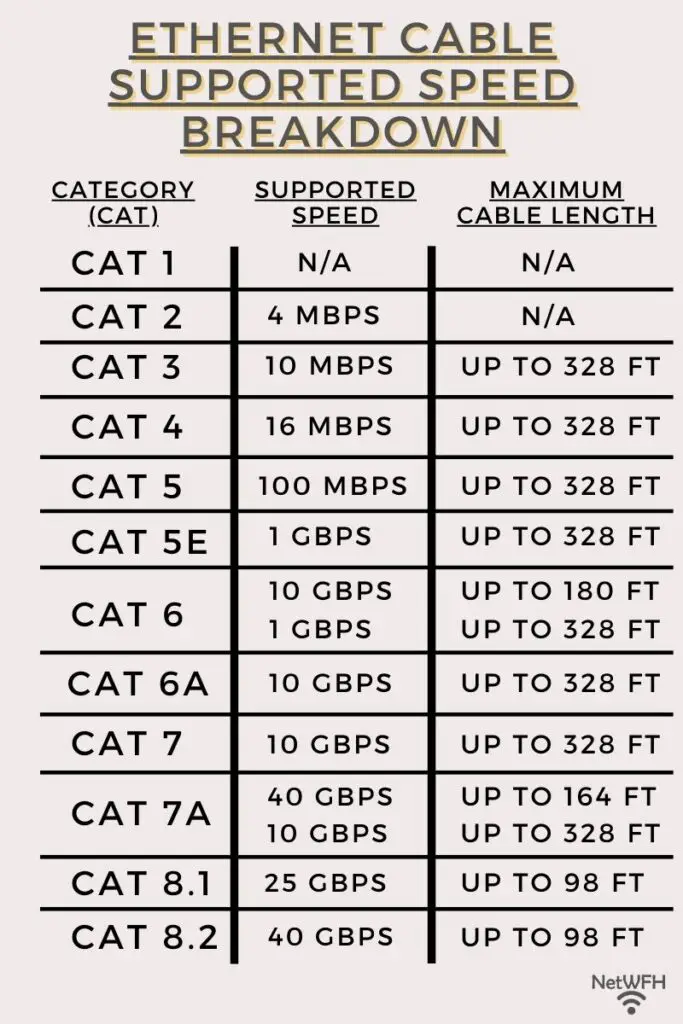
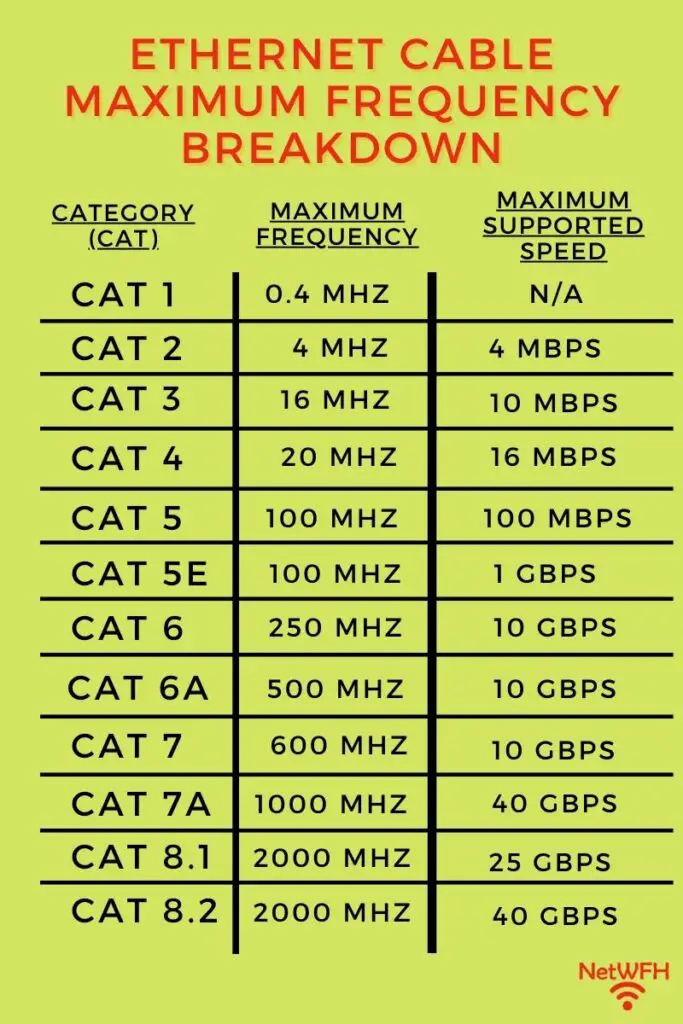
    There are 8 different categories of ethernet cables. The maximum speeds supported by these cables range anywhere from 4 megabits per second (Mbps) to 40 gigabits per second (Gbps).

    Ethernet cable category speed comparison

    As you can see, the higher the category of cable, the faster the maximum data transfer speed it can support.

    When looking at this information, it’s important to note that the higher categories have been developed more recently than the earlier versions. It can be expected that the newer categories support faster speeds than those that were previously developed.

    Ethernet cables have to support faster speeds now than they used to due to advancements in information technology. Computers and internet devices are only getting faster as newer technologies are invented.

    What Ethernet Cable Categories Are Used Today?

    Understanding the speeds supported by these 8 categories might seem like a lot, but fear not.

    It’s actually much easier than it seems.

    Due to advancements in technology since the first category of ethernet cables was established, most of the categories listed above can’t support current network speed requirements.

    As a result, they aren’t used in modern networks.

    In fact, you probably won’t see anything older than category 5e cables in modern networks. That’s because most networks and internet plans require speeds faster than 100 Mbps.

    So you only really need an understanding of the speeds supported by cat 5e cables and above.

    What Is the Fastest Category of Ethernet Cable?

    When it comes to ethernet cables, a common question that comes up is about which ethernet cable is the fastest.

    Although it’s easy to point to the diagram above and say that cat 8 cables are the fastest, that’s not the right question to ask.

    What you should really be asking is what ethernet cable category supports the speed of your network. That’s because ethernet cables don’t make your network faster. They simply support the speeds required by your internet plan and devices.

    Hear me out here.

    Basically what I mean to say is that your ethernet cables are simply infrastructure for the data moving throughout your network.

    Ethernet Cable Speed Example

    Think about the maximum speed supported by your ethernet cables like the speed limit on a road.

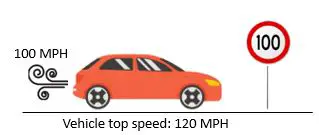
    The speed limit is the fastest possible speed you can be driving on the road. In this example, let’s say the speed limit is 100 MPH.

    If you vehicle has a top speed of 120 MPH, it can only drive 100 MPH on this road. In essence, the speed limit is limiting the speed of your car to 100 MPH.

    120 MPH vehicle on 100 MPH speed limit road

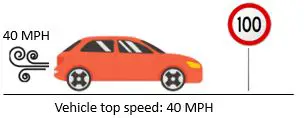
    However, if your vehicle has a top speed of 40 MPH, it’ll drive 40 MPH on the road with a speed limit of 100 MPH. Whether the speed limit is 100 MPH or 60 MPH, the top speed of your car will be 40 MPH on the road.

    40 MPH vehicle on 100 MPH speed limit road

    In other words, your vehicle will be able to travel at its top speed (40 MPH) as long as the speed limit is above your vehicle’s max speed.

    This principle is the same with your ethernet cables.

    Your ethernet cables only need to be able to support the speed of your devices and internet connection. The only thing that matters is that the maximum supported speed of your ethernet cables is more than the required speed of your network.

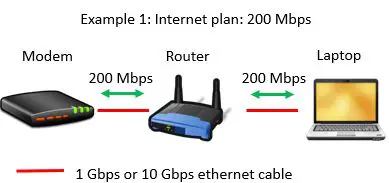
    If your internet plan is for a maximum speed of 200 Mbps, it doesn’t matter if your ethernet cables can support a maximum speed of 1 Gbps or 10 Gbps. In both cases, your internet plan will be able to operate at 200 Mbps without limitation.

    200 Mbps internet plan with 1 Gbps or 10 Gbps ethernet cables example

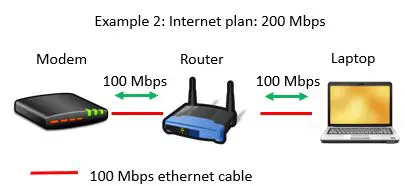
    However, if your internet plan supports a maximum speed of 200 Mbps but you ethernet cables only support 100 Mbps, you have a problem. Your ethernet cables will limit your internet speed to 100 Mbps. That’s the maximum speed your cables will support.

    200 Mbps internet plan with 100 Mbps ethernet cables example

    In this case, you would need to have ethernet cables that support speeds of at least 200 Mbps in order for your network to operate without restriction.

    Hopefully this example helps you understand the relationship between the supported speed of your ethernet cables and the speed of your network.

    What Category of Ethernet Cable Do I Need?

    When it comes to determining what category of ethernet cable you need, there’s other information you need in order to make your decision.

    The most important information you need is the maximum speed of your current internet plan.

    If you’re not sure where to find this, it should be listed on your most recent internet bill. If you’re still not sure, you can call your internet service provider (ISP) and they can look it up for you.

    It should be pretty straightforward once you have your internet plan. As I mentioned, you just need to make sure your ethernet cables support speeds faster than your current internet plan.

    For example, if your internet plan provides speeds of up to 500 Mbps, you need to make sure your ethernet cables support a maximum speed of at least 500 Mbps.

    Another thing to keep in mind is if you plan on upgrading your internet plan in the near future. If so, you want to take that into account when buying your ethernet cables.

    You’ll want to make sure your ethernet cables will be able to support any upgrades to your plan. You won’t want to replace your cables if you upgrade your plan in the near future.

    For your reference, most networks today use cat 5e and cat 6 cables. These cables support maximum speeds of 1 Gbps and 10 Gbps, respectively.

    With the internet plans that are currently available, you won’t need ethernet cables that support speeds faster than that. As long as you buy cat 5e or cat 6 cables for your network, it should be able to operate at top speed.

    As we previously discussed, although cat 8 cables can support the fastest maximum speeds, they’ll be overkill for any of your network needs in the foreseeable future.

    Wrap Up

    Ok, now you have all the basics about ethernet cables and their transfer speeds.

    If you have any questions about this information, please feel free to leave a comment below. If you’d like to learn more about ethernet cables and how they function in your home network, check out some of these other articles I’ve written:

    Does Ethernet Cable Frequency Matter?
    How to Tell What Type of Ethernet Cable You Have

    Does Ethernet Cable Length Affect Network Speed?

    Does Using an Ethernet Cable Matter for Gaming?

    Can an Ethernet Cable Slow Your Internet Speed?

  • What Is RJ45 Used For? An Analysis
    What Is RJ45 Used For? An Analysis
    RJ45 used for title page

    For anyone that has set up a home network, you’ve probably heard of the term “RJ45”.

    This is a word that frequently gets thrown around in the context of ethernet cables. Despite how often it’s used, RJ45 is a term that many people don’t really understand.

    As a result, it’s often used incorrectly. This only creates more confusion.

    So what exactly is RJ45, and what’s it used for in your home network?

    RJ45 stands for “registered jack 45”, and it refers to the connectors at the ends of your ethernet cables. RJ45 is a standard that ensures all ethernet cable connectors are made the same way. As a result, RJ45 connectors are used to connect all your ethernet cables to your home network devices.

    In this post, I’ll detail the uses of RJ45, as well as what this standard entails.

    What Is an RJ45 Connector?

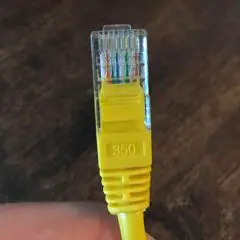
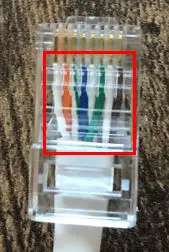
    I’m sure you’ve seen hundreds of these before, even if you didn’t know what they were called at the time. This is an RJ45 connector:

    RJ45 Connector

    In the picture above, the RJ45 connector is attached to an ethernet cable.

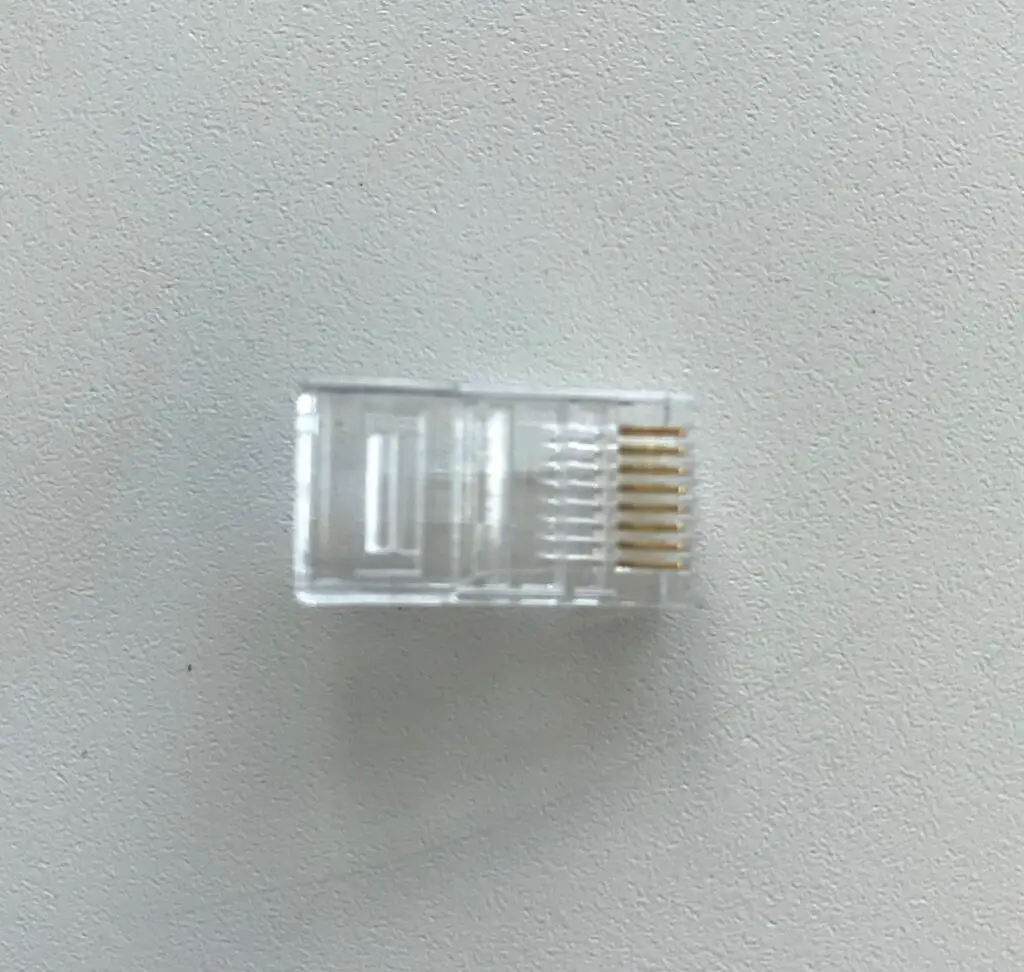
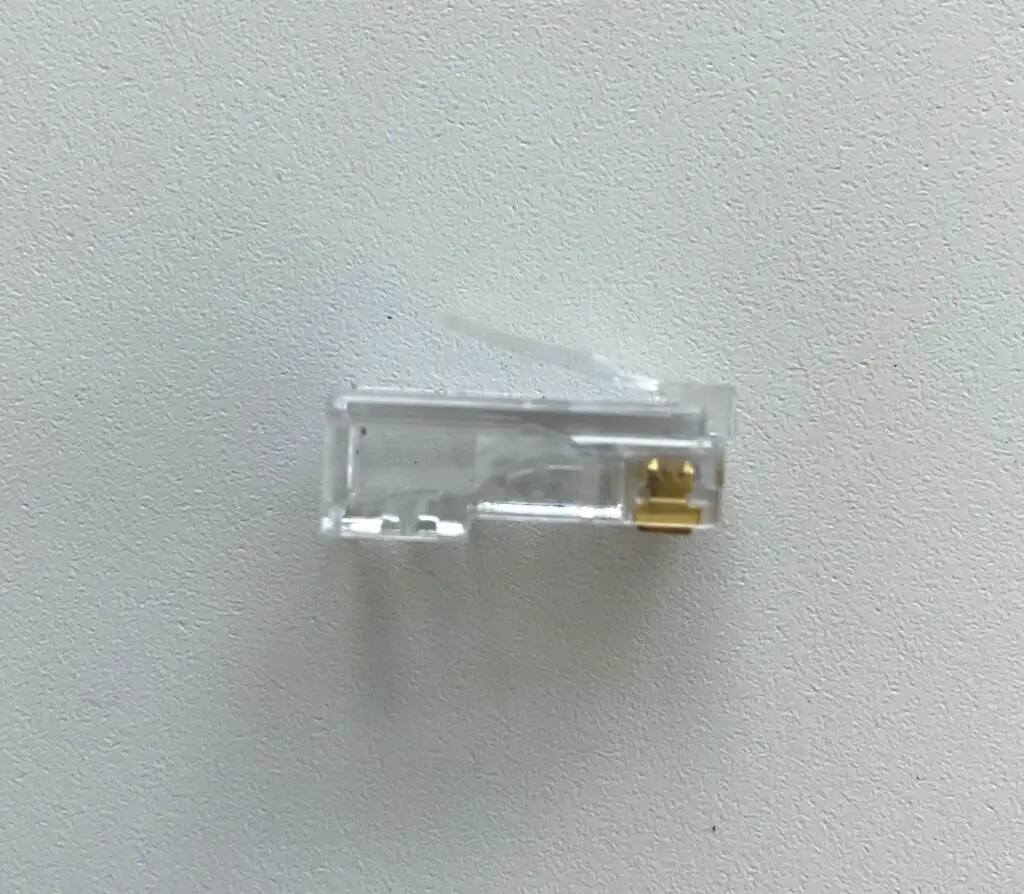
    For reference, here’s what an RJ45 connector looks like before it’s attached to an ethernet cable:

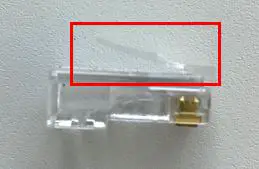
    To put it simply, RJ45 connectors allow you to plug your ethernet cables into your devices. Once connected to a device, the tab on top of the connector keeps it from falling out of the device.

    RJ45 connector tab

    It’s safe to say RJ45 connectors keep good tabs on your ethernet connections.

    Ok, enough of the jokes.

    If we take a closer look at these connectors, you’ll see that there’s more to them than you might think.

    How Does an RJ45 Connector Work?

    In order to understand how an RJ45 connector works, we need to understand each of their components.

    Let’s take a look at the major aspects of these connectors.

    RJ45 Connector Pins

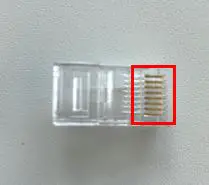
    Each connector has 8 metallic pins on it.

    Pins on RJ45 connector

    Why’s that exactly?

    That’s because inside your ethernet cable, there are 8 copper wires. These copper wires are used to transfer data from one end of the cable to the other. Data is sent through the copper wires in the form of electric signals.

    The metallic pins on the RJ45 connector allow the electric signals to transfer from your ethernet cable to the device they’re connected to. There’s one metallic pin for each wire inside the ethernet cable.

    RJ45 Connector Channels

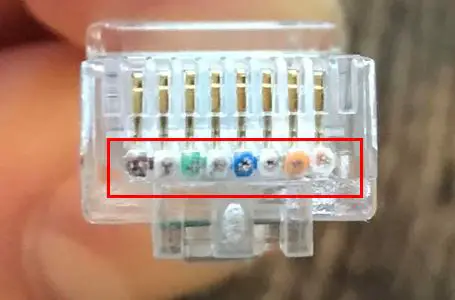
    To make it easy for the wires in the cable to match up with the pins on the RJ45 connector, there are 8 channels inside the RJ45 connector. Each wire in the cable fits into a designated channel, and each channel aligns with a designated pin.

    If you look closely at the end of an RJ45 connector, you can see the 8 channels that the copper wires fit in.

    RJ45 connector channels
    Ethernet cable copper wires inside their designated channels before an RJ45 connector is crimped

    As you can see, these 8 channels are side by side. This aligns the 8 copper wires next to each other in the RJ45 connector. When the connector is attached to an ethernet cable, you can see the 8 copper wires from the cable are aligned next to each other.

    Copper wires inside RJ45 connector

    As a result of their configuration, you’ll see RJ45 connectors described as being 8-pin/8-position connectors. There are 8 pins on the RJ45 connector, and there are 8 positions (i.e. channels) that the copper wires can fit in. The correct order of the wires inside the RJ45 connector is defined by established RJ45 pinout standards.

    To attach a connector to the end of a cable, a process called crimping is used. In this process, each pin on the connector is stamped onto the copper wire in its channel. Crimping the RJ45 connector onto the ethernet cable ensures a good connection between the connector’s pins and the cable’s wires.

    This would be a lot harder to do if it weren’t for the channels in the connector.

    RJ45 Standard

    The pins and channels on RJ45 connectors ensure that data is able to reliably travel between the two devices that’re connected with an ethernet cable.

    In addition to their functional benefits, RJ45 connectors also provide standardization to home networking. This is the most important aspect about them.

    RJ45 is a standard that was established by the Federal Communications Commission (FCC) in 1987. The “RJ” stands for “registered jack”, and the “45” is a way to identify that these jacks are meant for use with ethernet cables.

    This standard provided specifications for these connectors, including how they should be made, the proper way to wire them, and how they should handle electronic signals.

    This is why all ethernet cable connectors look and function the same way.

    Having a standard set of specifications for RJ45 connectors makes things much easier for both the customer and the manufacturers of networking devices.

    Manufacturers of network devices know the specifications that ethernet cable connectors are made to. This makes it easier for them to add ethernet ports to the devices they manufacture.

    Ethernet ports
    Thanks to the RJ45 standard, all ethernet ports on your devices will look like these

    That’s because they know that all connectors being plugged into them will be the same.

    From the perspective of the customer, it makes this much easier for us as well.

    We know that our ethernet cables will plug into any network device in our home without any issues. We don’t need to worry about having different ethernet cables with different connectors on the ends of them.

    Do All Ethernet Cables Use RJ45?

    In hearing about the RJ45 connector standard for ethernet cables, I imagine you may have some questions.

    One important question to answer is if there are any ethernet cables that are exceptions to the standard. Do exceptions exist, or will all ethernet cables have RJ45 connectors on them?

    You can rest assured. Any ethernet cable you’ll come across will have RJ45 connectors.

    With that said, it’s important to note that not every ethernet cable was originally designed this way.

    Interestingly enough, category 7 cables were designed to use different connectors. The problem with this was that every other category of cable was using RJ45 connectors.

    As a result, these connectors weren’t widely adopted by manufacturers.

    In coming to this realization, manufacturers of category 7 cables started outfitting them with RJ45 connectors. So if you see any category 7 cables today, they’ll probably have RJ45 connectors on them as well.

    Talk about fitting in with the crowd.

    If you’re interested, you can check out the connectors that category 7 cables were originally designed to have. There were actually several different options that were possible. They were called GG45, which stands for “GigaGate 45” or ARJ45, which stands for “Augmented RJ45”. Another possible option was TERA connectors.

    When it comes to connectors on ethernet cables, you don’t have to worry about anything other than RJ45. Although it’s possible you may come across the different category 7 connectors, they’re rarely used today.

    What Devices Connect to RJ45?

    Ok, so RJ45 connectors will be on all of your ethernet cables.

    But what about the devices the cables connect to? Will all devices be compatible with an RJ45 connector?

    In talking about the devices that an RJ45 connector can connect to, the list is exhaustive.

    It’ll be hard to list every type of device that an ethernet cable can fit in. Just know that almost every internet-connected device in your home or office will have an ethernet port for an RJ45 connector.

    Some common devices with RJ45 ethernet ports are as follows:

    • Laptops
    • Desktops
    • Ethernet switches
    • Printers
    • Apple TVs
    • Modems
    • Routers
    • Home security cameras
    • Home sound systems and speakers
    • Smart TVs
    • Office phones
    • Wireless access points

    This list is just scratching the surface. There are a number of other devices that’re also compatible with RJ45 connectors. A good way to think about this is: if the device connects to the internet and has an ethernet port, it’ll be compatible with RJ45 connectors.

    Is RJ45 Fiber or Copper?

    A common question surrounding RJ45 connectors is what types of cables they’re for.

    Referring back to the RJ45 standard, they’re designed for ethernet cables with copper wires. In other words, an RJ45 connector won’t fit onto a fiber cable.

    With that said, there’s an easy solution if you need a connector for a fiber cable. You can buy a media converter that serves as an adapter between a fiber connector and RJ45 connector. A media converter will allow you to connect a fiber optic cable to an ethernet cable, which you can then plug into your network devices.

    Wrap Up

    You should now have enough knowledge about RJ45 connectors to impress your friends with. If you have questions about any of the above information, or you have follow up questions, please drop a comment below.

    If you’d like to continue your learning about other similar topics, these other posts I’ve written may interest you:

    What Are Ethernet Cable Pinout Standards?

    Does Using an Ethernet Cable Matter for Gaming?

    How to Tell What Type of Ethernet Cable You Have

    Are Ethernet and Phone Cables the Same?

    What Do Ethernet Link Lights Mean?

  • What Do Ethernet Link Lights Mean?

    What Do Ethernet Link Lights Mean?

    Ethernet Link Lights Mean title page

    Have you ever noticed lights on an ethernet port and wondered what they mean?

    You know, the ones that light up when you plug an ethernet cable into them?

    If you’re not sure if you’ve seen any before, check out the ethernet ports on your laptop or ethernet switch (if you have one in your network). You might have some lights on these ports depending upon the types of devices you own.

    If you don’t, fear not. There’ll be plenty of visual examples in this post.

    Now that you have an idea of what I’m referring to, let’s get back to the question at hand.

    What is the purpose of these lights on your ethernet ports? Also, what do these lights tell you?

    The lights on ethernet ports are called link lights. Ethernet port link lights will identify the status of the connection between the ethernet port and the device connected to it. They will also identify if data is currently being transmitted over the ethernet cable connected to the ethernet port.

    In this post, I’ll tell you all you’d ever want to know about ethernet port link lights. I’ll break down what you should expect from the link lights on your ethernet ports, and how you can use them to get useful information about your network.

    What Do Ethernet Port Link Lights Look Like?

    Before we get into the details of what ethernet port link lights mean, let’s make sure we know how to identify them first.

    As I mentioned in the section above, you’ll commonly find ethernet port link lights on your laptop or household ethernet switch. In larger scale office settings, you can find link lights on devices like servers and commercial routers.

    Let’s take a look at a few examples.

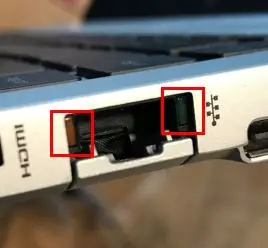
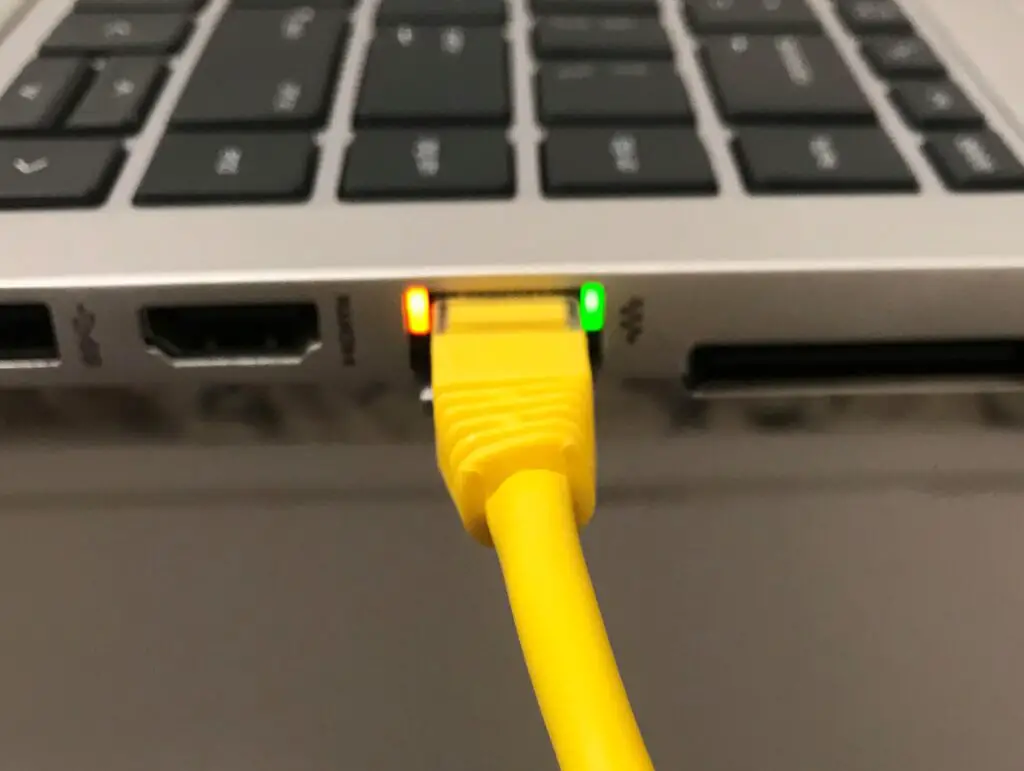
    Here’s what the ethernet port link lights look like on my laptop:

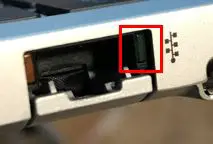
    Link lights on laptop ethernet port

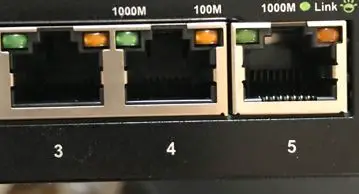
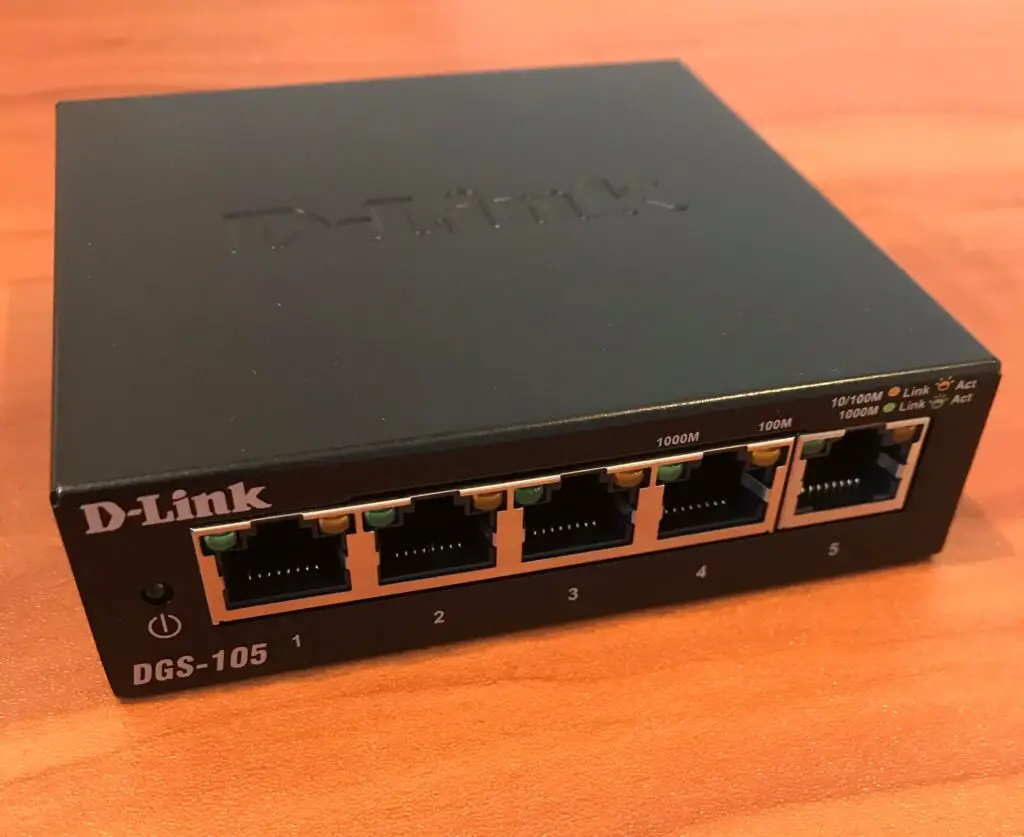
    If you have an ethernet switch in your home network, the ethernet link lights look about the same. You’ll just have more ethernet ports, and more link lights:

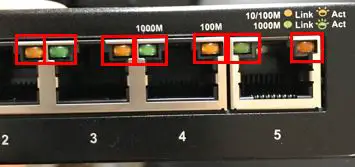
    Link lights on ethernet switch

    As you can see, each ethernet port has two link lights. These lights are usually in each of the upper corners of the port.

    Don’t worry, I’ll break down what each of these link lights means in the next section.

    One thing to take note of is the fact that the ethernet port link lights on my devices are different colors. The link light in the upper left corner is green and the light in the upper right corner is orange.

    In some cases, I’ve seen link lights that are both green instead of two different colors.

    If that’s the case in your home network, there’s no need to worry. Your link lights will still be useful to you. You just need to know what they mean.

    Speaking of which…

    What Does Each Ethernet Port Link Light Mean?

    Now that we know what we’re looking at, let’s make sure we can understand what these lights mean.

    It makes the most sense to take a separate look at the two devices in my home (laptop and switch). That’s because the configuration of their link lights is slightly different.

    We’ll start by breaking down what the link lights mean on my laptop.

    Link Lights Configuration 1: Laptop

    As I mentioned, my laptop has two differently colored ethernet port link lights. One light is green, and the other is orange.

    Connection Status Link Light

    We’ll start with the green light in the upper right corner of the ethernet port:

    Green ethernet port link light

    The purpose of this light is to indicate if your ethernet cable has a good connection to the device on the other end of the cable. In other words, it indicates if the laptop is successfully connected to another device or not.

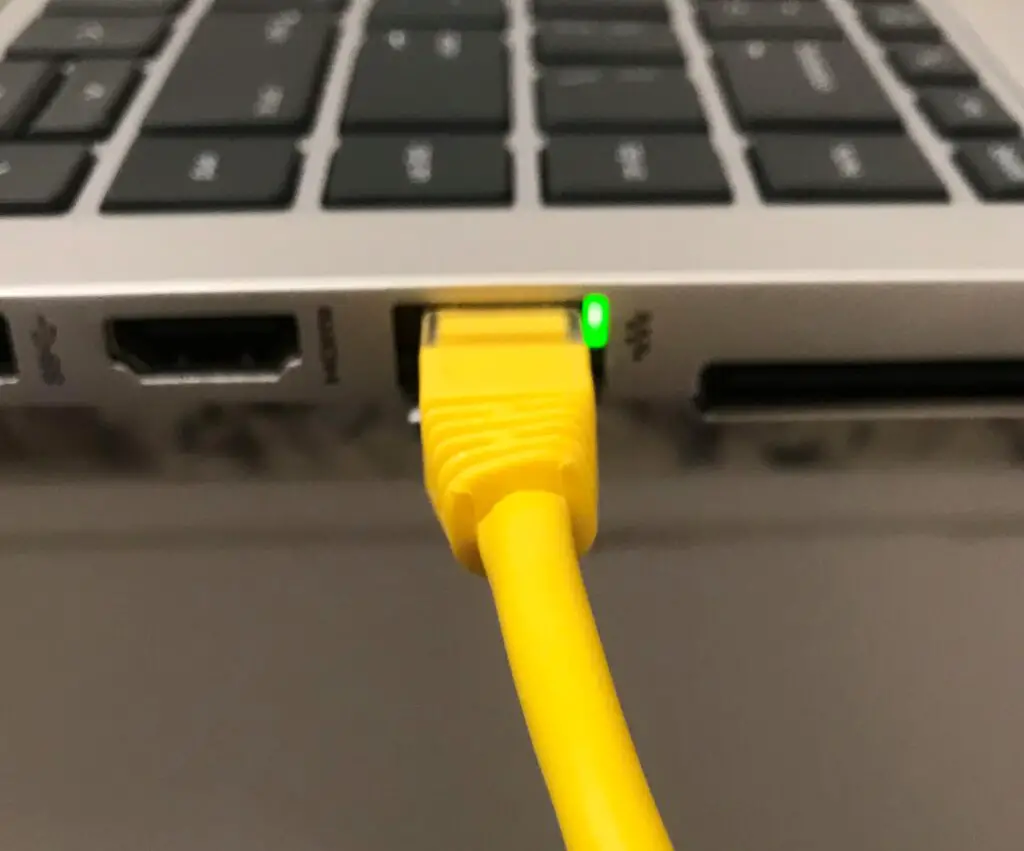
    If your laptop has a good ethernet connection to another device (like your router) that’s powered on, the light will light up.

    Cat5e cable with green ethernet port link light on
    An ethernet port link light indicating a successful ethernet connection

    This light will stay illuminated as long as it has a good connection with the other device.

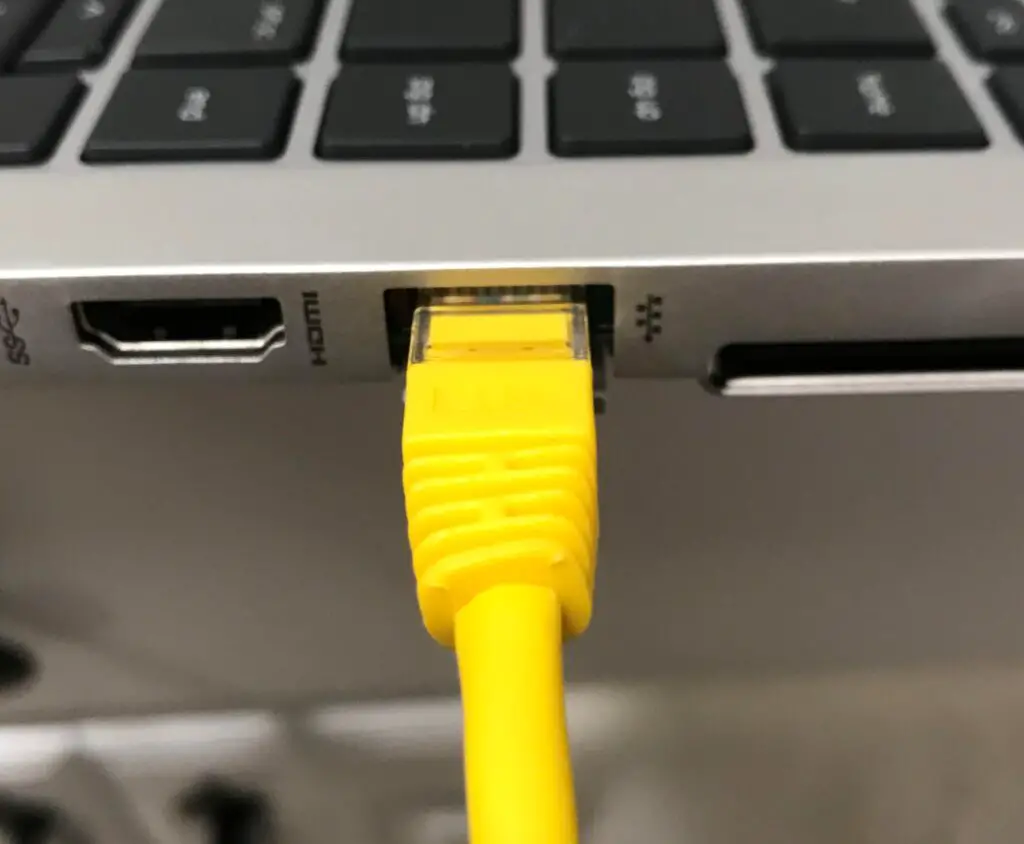
    If the ethernet connection with the other device is dropped, or the other end of the ethernet cable isn’t connected to another device, the light will be off.

    Cat5e cable with no ethernet port link lights on

    Why is this helpful?

    It’s useful because it’ll help you troubleshoot your network if the light is off. For example, if this light is off, it could indicate:

    • The other end of the ethernet cable isn’t connected to a device
    • The device on the other end of your ethernet cable is powered off
    • Your ethernet cable has gone bad

    This is information you wouldn’t have if you didn’t have a link light on your ethernet port.

    How to Identify Your Status Link Light

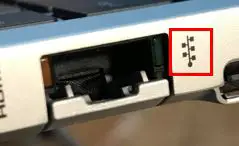
    A subtle hint to take note of is the symbol next to this link light:

    LAN symbol next to ethernet port link light

    This label is the universal symbol for a Local Area Network (LAN). It identifies that link light as one that’ll give you a status of the device’s LAN connection. In other words, it tells you if the device is connected to other devices in your local network.

    So even if the link light configuration on your devices is different, you know the light will give you the connection status of the device if it has a LAN symbol next to it,.

    Ok so we’ve got the first light covered. What about the other one?

    Activity Status Link Light

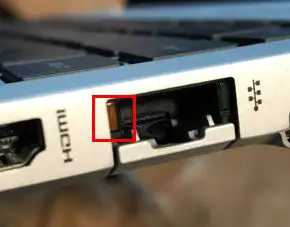
    Now let’s go over the link light in the upper left corner of the ethernet port.

    Orange ethernet port link light

    While the other link light is meant to tell you about the status of your device’s ethernet connection, this light will tell you about the activity related to your ethernet connection.

    To be more specific, it’ll tell you if your device is sending or receiving data over the cable at any given time. When your device is sending or receiving data via the ethernet cable, it’ll blink on and off.

    You can expect this light to continuously blink if you’re connected to the internet through this ethernet port. That’s because you’ll constantly be sending and receiving data through your cable.

    While this link light is repeatedly blinking, the status link light will remain lit. It’ll look something like this:

    Cat5e cable with both ethernet port link lights on

    The activity status link link is also helpful for troubleshooting.

    Let’s say your connection link light is on but the activity link light doesn’t blink while you’re surfing the web or transferring a file somewhere.

    This’ll give you an indication that maybe you’re connected to WiFi instead of using the ethernet cable. If this is what you see while you’re trying to transfer a file, maybe there’s a setting on your device that’s preventing the transfer from happening.

    You’ll know that nothing’s wrong with your ethernet cable if the connection status link light is on, so it must be something else that’s preventing the activity.

    This is the value of the activity status link light. It’ll point you in the right direction if things aren’t working properly with your ethernet connection.

    Link Lights Configuration 2: Ethernet Switch

    Now that we’ve covered one common configuration of ethernet port link lights, let’s look at another common configuration.

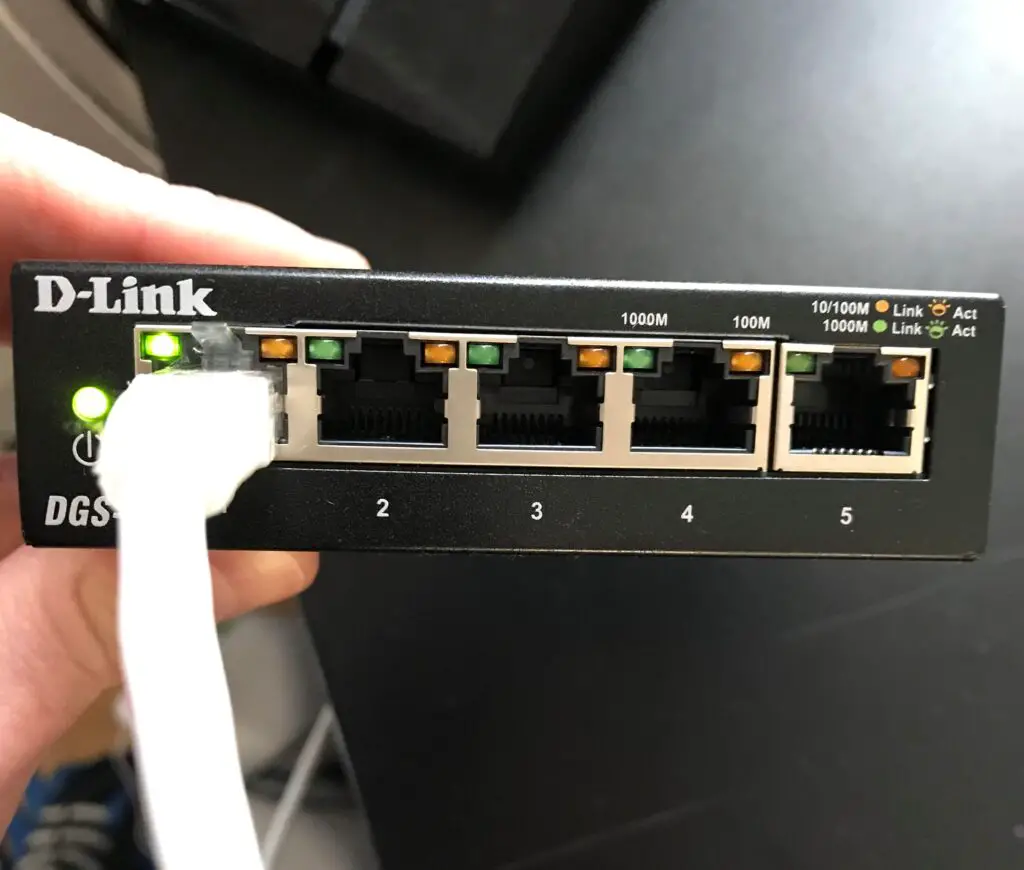
    For this configuration, we’ll take a look at my ethernet switch.

    My switch has 5 ethernet ports on it. Like the previous link light configuration, each port has 2 link lights over it.

    Ethernet switch

    Everything looks the same so far.

    The difference between the two configurations of link lights is how these lights are used. Let’s break these down one at a time as well.

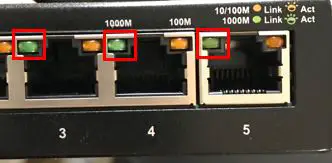
    Green Status Light

    The first light we’ll go over is the green status light in the upper left corner of the port.

    Ethernet switch green link lights

    These lights are different from the connection status link lights on my laptop.

    That’s because they serve the purposes of both the connection status link light and the activity link light.

    How does this work, exactly?

    In this configuration, the green status light will light up and blink when it has a good ethernet connection and it’s transferring data.

    Let’s look at a breakdown of the different states this light can be in. If the link light:

    • Doesn’t light up when an ethernet cable is connected to it, it doesn’t have a good connection
    • Is a solid green color when a cable is connected to it, it has a good ethernet connection
    • Is a solid green color and doesn’t blink when you’re transferring data, there’s something preventing your device from transferring data over that ethernet cable

    Here’s what it looks like when you have a good ethernet connection to the switch:

    Ethernet switch with green status light

    If you look closely, you’ll see that the switch identifies these states as well.

    Ethernet link light status label

    A solid light indicates there is a good link (connection) with the ethernet cable. A blinking light indicates activity.

    So if the green light does all that, what does the orange link light do?

    Orange Status Light

    The orange status light in the upper right corner of each ethernet port functions the same way as the green one.

    Ethernet switch orange link lights

    With a good ethernet connection, the light will be a solid orange. If there’s activity over the ethernet port, it’ll blink orange.

    So how’s this any different than the green link light?

    The link lights themselves function the same. The bonus is that these lights provide more information about the status of the connection.

    They indicate the maximum transfer speed of the ethernet connection.

    Transfer Speed of Ethernet Connection

    In this configuration, the color of the link light that illuminates will depend upon the current ethernet connection to the port.

    Let’s go back to the label on the switch for more information.

    Ethernet port link light speed label

    As you can see, the green light refers to a 1000M connection, while an orange light refers to a 10/100M connection.

    In this case, the “1000M” refers to 1,000 megabits per second (Mbps). This is the equivalent of 1 gigabit per second (Gbps). That means if the port’s current ethernet connection can support 1 Gbps, the link light will light up green.

    On the other hand, the “10/100M” label refers to a connection that can support either 10 Mbps or 100 Mbps. So if the current ethernet connection to the port can support a maximum of 10 Mbps or 100 Mbps, it’ll light up orange.

    The factors that determine which color light will light up are the devices that’re connected and the ethernet cable used to connect them.

    With that said, most modern devices have ethernet ports that can support 1 Gbps.

    On top of that, the commonly used ethernet cables today (cat5e or cat6 cables) can support 1 Gbps speeds as well.

    So if you have this link light configuration on one of your devices, chances are the green link light will always be lit instead of the orange one.

    If for some reason you have this configuration and the orange link light is on, you either have outdated ethernet cables or you’re connecting older devices.

    Should you determine that you have outdated ethernet cables, do yourself a favor and grab some new ones. If you don’t, it can slow the speed of your entire network.

    What Colors Should the Ethernet Link Lights Be?

    A common question I see about ethernet port link lights pertains to what colors you can expect.

    As I detailed above, this can depend upon the configuration of your link lights, as there are several configurations.

    With that said, it’s safe to say the color of the light is less significant. What’s important is whether the link lights are on or not. If they’re on, that’s usually a good sign.

    Link lights are usually meant to be one color (either orange or green), so if you see the link light on and/or blinking, that usually means things are working properly.

    A basic rule of thumb is that a solid link light will indicate a good connection, and a blinking light will identify activity over the ethernet cable.

    Don’t get hung up on the color of the light. Just make sure it’s acting how it should.

    Also keep in mind that your device might give you hints as to what the link lights are indicating. For example, the link light label on my switch indicates what the link light colors mean. This can be a helpful clue if you’re not sure what the lights mean.

    Wrap Up

    Hopefully this post answers any questions you have about your ethernet link lights. If you have additional questions, please leave a comment below.

    If you’re interested in learning more about similar topics, check out these other posts I’ve written:

    What is an Ethernet Switch Used for?

    Can an Ethernet Cable Slow Your Internet Speed?

    Do the Colors of Ethernet Cables Matter?

    Does Using an Ethernet Cable Matter for Gaming?

    What Does Cat Mean for Ethernet Cables?

  • Does Ethernet Cable Frequency Matter?

    Does Ethernet Cable Frequency Matter?

    Ethernet Cable Frequency Matter title page

    If you search online for an ethernet cable to buy, you get hit with a lot of terms and specifications.

    Take this ethernet cable for example. If you look at the title of the cable on Amazon, I count about 8 characteristics that are listed:

    • Cat6
    • Stranded
    • 550 Mhz
    • UTP
    • Pure bare copper wire
    • 24 AWG
    • 5ft
    • Black

    Getting hit with all these specifications at once can be overwhelming. It makes it really hard to pick out which ones are important, especially if you’re not super technical.

    What I found interesting is that of the 8 characteristics listed in the example above, two of them pertain to the frequency that the cable operates at.

    This immediately raises some questions.

    Does this mean frequency is an important characteristic of ethernet cables? Should you be paying attention to the frequency the cable supports when deciding which one to buy?

    Actually, the frequency of your ethernet cables is very important. The higher the frequency a given ethernet cable supports, the faster it can transfer data. The faster a cable can transfer data, the higher the maximum data transfer speed the cable will support.

    In this post, I’ll dive into everything you need to know about the frequencies of ethernet cables. I’ll talk about why the frequency supported by a cable is important, as well as what frequency you can expect when buying your ethernet cables.

    With that said, let’s take it from the top.

    What does frequency refer to in ethernet cables?

    Before we look at the different frequencies supported by ethernet cables, it’s important to have an understanding of what frequency means in this context.

    If you look up the definition of frequency, it’ll be defined as the number of repetitions of a periodic process in a unit of time.

    Ok, so what does that mean for ethernet cables?

    To answer this question completely, we’ll have to take a step back for a minute.

    How ethernet cables transfer data

    To understand how the frequency of an ethernet cable is measured, we need to first go over how they transfer data.

    Don’t worry, I’ll stay out of the nitty gritty technical details here.

    To start, it’s important to know that your ethernet cables are made up of copper wires. Slice any of your ethernet cables open, and you’ll see they have 8 wires inside them.

    8 wires inside ethernet cable
    The wires that make up an ethernet cable

    These 8 wires are used to send and receive data from both ends of the cable. Data can move in both directions.

    Data is moved by sending electronic signals from one end of the cable to the other. This is why the wires inside your cables are copper. Copper is a good conductor of electricity.

    It’s almost as if they designed it that way on purpose.

    Anyway, back to the topic at hand.

    The other important piece of this is that computers and other devices speak to each other in 1s and 0s. This is called binary code. In other words, data passed from one device to another through an ethernet cable will be a series of 1s and 0s.

    Data is sent over ethernet cables with pulses of two separate voltages. One voltage represents a “0”, while the other voltage represents a “1”.

    As the device on the other end of the cable receives these voltages of electricity, it translates the voltages into binary data so it can understand the message.

    This is where the frequency of the cable is important.

    Why frequency is important for ethernet cables

    Ok, so data is sent over ethernet cables by sending pulses of two different voltages to the other end.

    Frequency refers to how fast your ethernet cable is able to do that.

    In ethernet cables, frequency refers to how many times the ethernet cable can change its state in 1 second. In other words, it describes how many times an ethernet cable change between the two pulses of voltage sent over its wires.

    To put this another way, think of your ethernet cable as an author.

    In this analogy, the frequency of your ethernet cable would be reflected by how fast the author can typee.

    The more words an author can type in a minute, the faster he or she will be able to finish their book.

    If one author can write 60 words per minute, and another can write 80 words per minute (with the same quality), the writer that can write 80 words per minute will finish the book faster.

    How fast two authors can write a book example

    In this scenario, the author that can write 80 words per minute is the better choice.

    To bring this analogy back to ethernet cables, it’s easiest to think about an ethernet cable’s frequency as how fast a given cable can write.

    The more times it can change its state in 1 second, the faster it can write data.

    For the record, ethernet cables can write really fast.

    That’s why a cable’s frequency is measured by how many millions of times they can change their state in a second. The unit of measurement for ethernet cable frequency is Megahertz (MHz).

    Does your ethernet cable’s maximum frequency matter?

    Based upon the information above, it’s pretty easy to tell what you want in an ethernet cable.

    The higher the frequency it can support, the faster a cable can process data through it.

    The faster a cable can process data, the more data it can send in a given amount of time.

    The more data it can send in a given amount of time, the higher the data transfer speed it can support.

    I think you can see where this is going, right?

    The higher the frequency a cable can support (in MHz), the faster it can send data from one end of the cable to the other.

    What you’ll see when looking at ethernet cables is that frequency and the maximum data transfer speed supported by the cable go hand in hand. The higher the maximum frequency of a cable, the higher the maximum data transfer speed it’ll support.

    So how should you go about finding the ethernet cables that support the highest frequencies?

    This is actually easier than you think.

    That’s because each category of ethernet cable has a defined maximum frequency it operates at.

    Let’s take a closer look at the factor that determines the maximum frequency a cable can support.

    What affects the maximum frequency of an ethernet cable?

    Different categories of ethernet cables support different frequencies and speeds.

    The question is, what makes them able to do this? What is it about ethernet cables that determines the frequency and speed they can support.

    It all comes down to the copper wires inside the cables.

    As I previously mentioned, ethernet cables transfer data by sending pulses of electricity through the copper wires in the cable.

    The thicker these copper wires are, the more electricity they’re able to pass through them at a given point in time.

    The more electricity you can pack into a cable at a given point in time, the higher the frequency it can support.

    So does this mean cables that can support higher frequencies have thicker copper wires inside them?

    You bet it does.

    Copper wire standards

    The thickness of copper wires inside an ethernet cable is measured in American Wire Gauge (AWG).

    AWG ranges from 0000 AWG to 40 AWG. Calculating the AWG number of a wire is a little complicated, but all you need to know is that the higher an AWG number is, the thinner the copper wire is.

    In other words, 40 AWG is the thinnest standard size of a wire. 0000 AWG is the thickest.

    The AWG value refers to a single wire, so each of the 8 wires inside an ethernet cable will have the same AWG.

    AWG values

    Here are the AWG values for the ethernet cables commonly used today. I’ve excluded cat7 cables from this table because they aren’t widely used (I’ll explain this later on):

    CategoryAWG
    Cat5e24
    Cat624 or 23
    Cat6a23
    Cat822
    *Data source: Cable Express

    Unsurprisingly, the higher category ethernet cables have thicker copper wires inside them.

    One important note here is that these measurements of thickness don’t include the color-coded plastic insulation surrounding the wire. It only refers to the thickness of the copper wire itself.

    Here’s an example.

    Copper wires inside insulation

    If you look closely, you can see the copper wires inside the color-coded insulation. The thickness of those wires is measured and assigned an AWG value.

    That should give you an idea of how thin these wires really are.

    You should also note that small changes in AWG can lead to significant differences in the frequency (and speed) a cable can support.

    As you’ll see in the next section, a cat6 cable can support a maximum frequency that’s more than double what a cat5e cable can support. What’s crazy is that cat6 copper wires are only .05mm wider (.57mm versus .052mm).

    The point here is that making the copper wires in an ethernet cable only slightly thicker will greatly increase their performance.

    Speaking of performance, at this point I’m sure you’re wondering what frequency each category of cable supports.

    Let’s take a closer look.

    What is the frequency of each category of ethernet cable?

    Each category of ethernet cable has a specific set of characteristics that they’re made to.

    The specifications for each category of cable have been assigned and approved by the Electronic Industries Association and the Telecommunications Industry Association, also referred to as the TIA/EIA.

    By standardizing the manufacturing of ethernet cables, it ensures all cables are made the same way.

    This is why you can expect your ethernet cable to support a certain frequency, based upon the category of cable it is.

    With that, let’s break down what we can expect from each category of ethernet cable:

    Ethernet cable category frequency comparison

    As you can see, the results are just as I described earlier.

    The higher the frequency a cable can support, the faster the maximum speed it can support as well. You’ll see that as each category of cable increases, so does its supported frequency and speed.

    There are a few exceptions, however.

    Category 7 and 7a cables

    The exceptions to this are category 7 and 7a cables.

    Although these cables appear like they support speeds as fast or faster than category 8 cables at lower frequencies, there’s a catch.

    These categories of cables aren’t recognized by TIA/EIA as official categories of cables.

    In fact, in order to operate at the frequencies and speeds detailed in the figure above, category 7 and 7a cables wouldn’t be compatible with all the other categories of ethernet cables.

    I’ll spare you all the details here, but the bottom line is any cat 7 or cat 7a cables you see today will perform to the same specifications as category 6a cables.

    The main idea to take away from all this is that cables operating at higher frequencies will support faster speeds.

    So as long as you use ethernet cables that support the speed of your internet plan, you won’t really need to worry about the frequency it supports. You know it’ll be sufficient because of how closely linked the maximum frequency and maximum speed of ethernet cables are.

    Wrap up

    Now you know the importance of frequency when it comes to the performance of ethernet cables.

    The good news is that you don’t really have to worry about the frequency a cable can support when you’re buying your cables. In buying a certain category of ethernet cable, you’ll know the maximum frequency and speed it can support.

    If you found this information helpful, check out some other posts I’ve written about similar topics:

    Do the Colors of Ethernet Cables Matter?

    How Long Do Ethernet Cables Last?

    What Does Cat Mean for Ethernet Cables?

    How to Extend an Ethernet Cable

    Can Ethernet Cables Go Bad?