
Author: Ross Ricky

  • What Does a Modem Look Like? What You Should Look For

    What Does a Modem Look Like? What You Should Look For

    What Does a Modem Look Like Title Picture

    The modem in your home network plays a large role in the quality of your internet performance.

    To get the most out of your modem, you need to make sure it:

    • Is compatible with your internet service provider
    • Can support the internet speed provided by your internet plan
    • Is positioned so that it won’t overheat

    To ensure your modem can check all of these boxes, you need to make sure you’re looking at the right device.

    So how can you tell which device in your home is your modem? In other words, what does a modem look like?

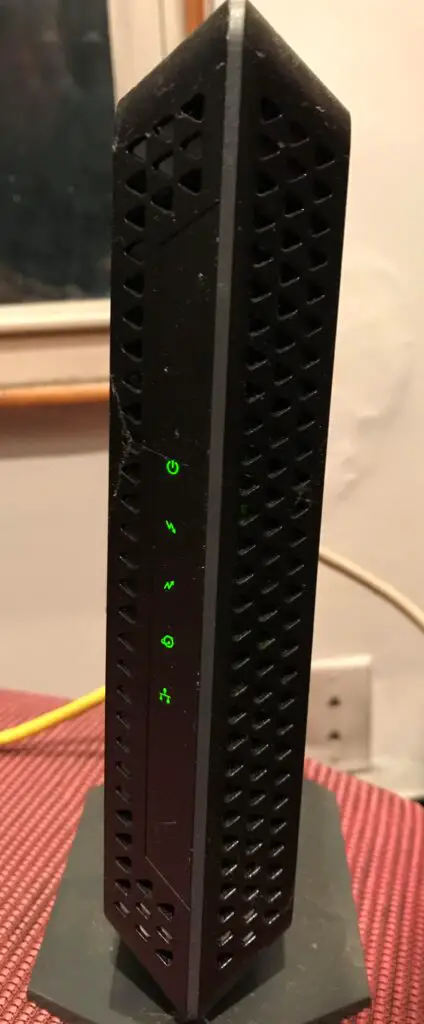
    Most standalone modems look like rectangular boxes no more than 10 inches high and 3 inches wide. They usually have a base at the bottom of the device that allows the modem to stand upright. It is also common for modems to have several small lights on the front.

    In this post, I’ll give you all the tools you need to identify the modem in your network. I’ll detail what modems look like, as well as where they’re normally located in your home.

    How to Identify a Modem

    When identifying a modem, it’s important to understand that modems come in many different shapes and sizes.

    Depending upon the modem you have in your home, it might look slightly different from the example pictures I’ll provide in the sections below.

    But before we dive into what a modem looks like, you should try to take a shortcut to identify it.

    Usually your modem will have a sticker on the device that gives general information about it.

    One important piece of information that the sticker will include is what type of device it is.

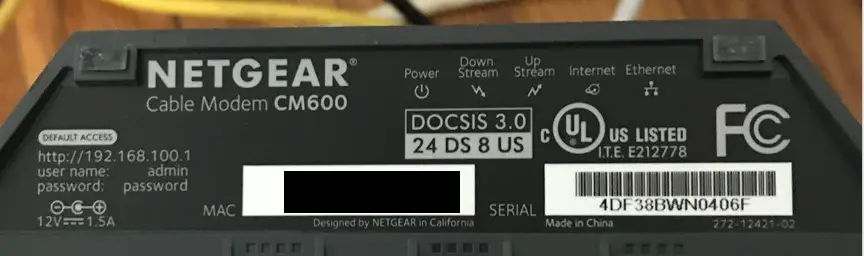
    So the first thing you should do is check your device to see if it has a sticker like this:
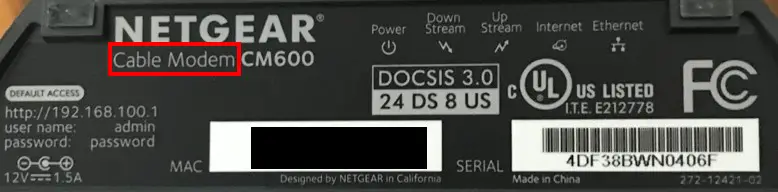
    Modem informational sticker

    As you can see, the sticker on my modem clearly identifies what type of device it is.

    This takes all the guesswork out of trying to identify your modem.

    If for some reason you can’t identify your modem by its sticker, it’ll be useful if I provide you with some general characteristics that you can look for in a modem.

    With that, let’s dive into some common modem traits.

    What Is the Size and Shape of a Modem?

    When it comes to the size and shape of modems, most will have a similar design.

    Modems are generally upright devices that’re rectangular in shape. They usually have a base that’s slightly wider than the device itself that allows it to stand up vertically.

    For an example of what I’m talking about, here’s what the front of my modem looks like:
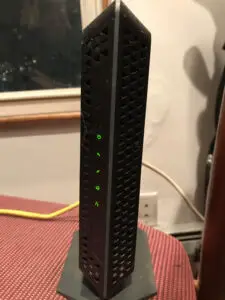
    Netgear Modem Front Image

    You’ll find that most modems have an upright design like the one pictured above.

    The reason behind this is that the upright position allows more air to flow through the device. This ensures that the device cools properly and doesn’t overheat.

    In terms of dimensions, you’ll find that most modems aren’t taller than about 10 inches high. For reference, my modem is about 9 inches tall.
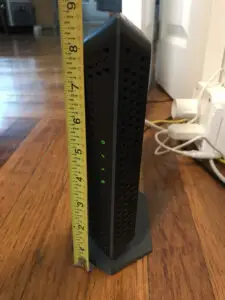
    Modem height example

    Despite its height, my modem isn’t very wide. It’s about 2 inches wide.

    A slimmer profile is fairly common in modem designs.
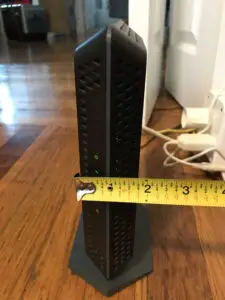
    Modem width example

    For comparison sake, most modems I’ve seen are about 3 inches wide or less.

    Now let’s turn our attention to the side of the device.

    Here’s where you’ll see its rectangular shape.
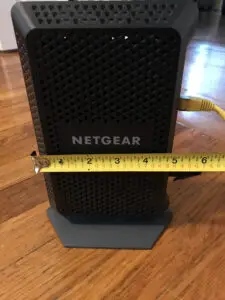
    Modem depth example
    Most modems are rectangular in nature to promote airflow through the device

    As you can see, the side of my modem is about 5 inches deep. If you look closely, you can see all the small holes on the side of the modem as well.

    These holes are the vents that allow air to flow through the device to cool it down. The wider the side of the device, the more surface area there is for air to pass through it. This helps regulate the temperature of the device.

    What Does the Back of a Modem Look Like?

    Now that we’ve covered the common dimensions of a modem, let’s talk about another set of common characteristics that can be used to identify a modem.

    I’m talking about the ports and connectors on the device.

    In most cases, the various connection points are on the back of a modem.
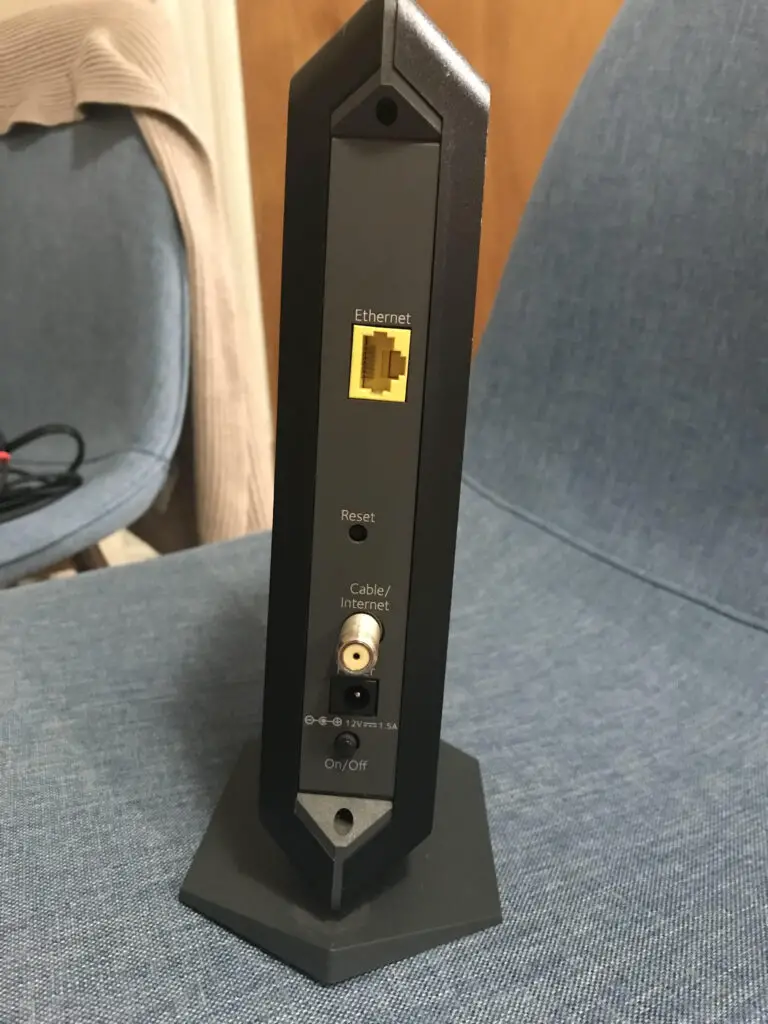
    Modem connections

    The good news is modems are pretty simple devices, and they’ll all look pretty similar when looking at their ports.

    All modems should have:

    • One ethernet port
    • One phone or coaxial cable connection port
    • One power cord connection port

    The key with the ethernet port is to make sure there’s only one on the device. If it has more than one, you’re likely looking at your router and not your modem.

    There should be only one ethernet port on a modem because an ethernet port is needed to connect the device to a router.

    That’s the only device a modem will ever connect to.
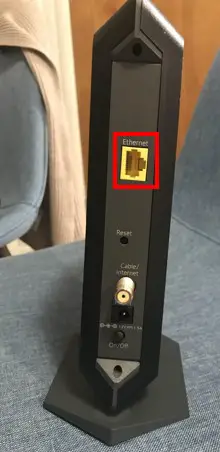
    Modem ethernet port

    If you’d like to learn more about what the ethernet port on a modem is for, I’ve previously written an article that goes into depth on this topic. This information may help in your ability to determine what your modem looks like.

    In terms of the coaxial cable or phone connection port on a modem, which one you have will depend upon the type of modem you have.

    The type of modem you have will depend upon your internet plan.

    If you have a DSL internet plan, you’ll have a phone connection on the back of your modem.

    If you have a cable internet plan, you’ll have a coaxial cable connection on your modem.

    In my case, I have cable internet, so my modem has a coaxial connector on the back.
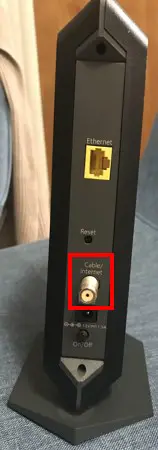
    Modem coaxial cable port

    If you’re not sure what type of modem you have, check out the article I’ve written on the common types of modems. This should help you get this sorted out.

    In terms of the power cord port, this should be pretty straightforward. A power cord connects to this port so the device can connect to a power outlet.

    Modems Have Lights on the Front

    Another important characteristic of modems is that they usually have lights on the front of the device.
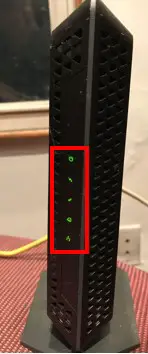
    Modem lights

    The problem with this is that this information is not super helpful. Your router will also likely have lights on the front, so your modem and router look similar in this sense.

    With that said, the lights on a modem and router will be different. To get a better understanding of what the lights on a modem and the lights on a router look like, I’ve covered these topics in previous articles as well.

    Modems Do Not Have Antennas

    Now that we’ve gone over some characteristics that modems will have, it’s time to talk about something a modem definitely won’t have.

    Modems won’t have antennas.
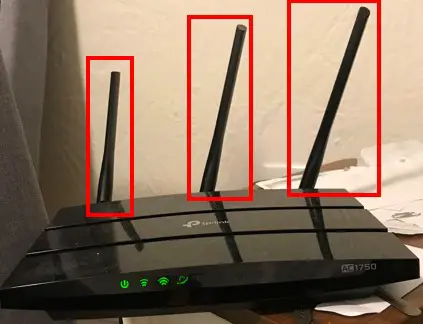
    Antennas on a router
    Modems will not have antennas like the device pictured above

    So if the device you think is your modem has external antennas, think again.

    Modems don’t have antennas because they aren’t able to wirelessly communicate with other devices. They can only communicate with other devices over wired connections.

    This is why your modem needs to be connected to your router with an ethernet cable.

    The only exception to this is if your modem and router are integrated into one device. These devices are called modem router combination devices.

    If you have a modem router combination device, you’ll only have one device that establishes the internet connection in your home. In other words, the modem router combination will serve as your network’s modem and router.

    The difference here is if your modem and router are standalone devices, you’ll have two devices that’re required to establish an internet connection in your home.
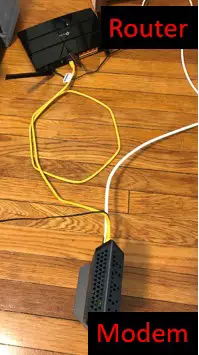
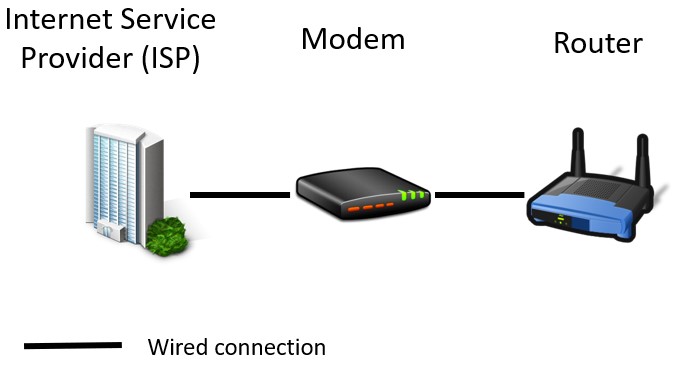
    Example of a modem and router connected with an ethernet cable
    Example of a modem and router connected with an ethernet cable

    If you think you have a modem router combination device in your home, this article I’ve written will help you know for sure.

    The bottom line here is standalone modems won’t have external antennas. With that said, it’s possible for a device with antennas to serve as your network’s modem if the device is a modem router combination device.

    Where Is a Modem in My House?

    Now that you know what a modem should look like, let’s talk about where your modem will be located in your home.

    I’m sure you’ll be disappointed to hear that a modem can be in a different location in every house.

    But wait, there’s good news here as well.

    Although a modem won’t be in the same room in every home, there are certain things you can look for to determine where it goes.

    The key here will be looking at the walls.

    Specifically, we’re looking for either a coaxial cable jack or a phone jack. For a visual, we’re looking for something that looks like this:
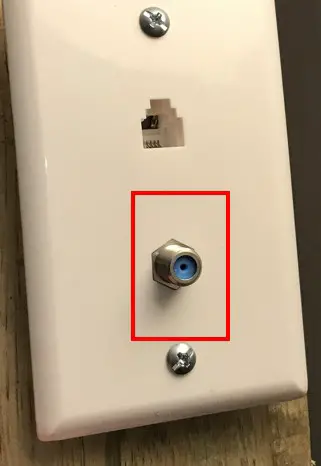
    Coaxial cable wall jack
    A coaxial cable wall jack

    Or we’re looking for something that looks like this:
    Phone jack
    Phone jack

    Why exactly do these different jacks matter?

    They matter because depending upon the type of internet plan you have, your modem will connect to one of these wall jacks.

    If you have a cable internet plan, your modem will connect to a coaxial cable wall jack. If you have a DSL internet plan, your modem will connect to a telephone cable wall jack.

    The reason your modem will connect to either of these jacks is because of what it looks like on the other side of the wall jack.

    As I mentioned in the previous section, modems do not communicate wirelessly. This means that your modem needs to connect to your internet service provider (ISP) in order to connect to the internet.

    This is where the wall jack comes in.

    The wall jack allows your modem to connect to wires that are outside your house. These wires usually come from the street, and they eventually connect to your ISP. This is what provides your modem with a wired connection to the internet.

    This leads me to another tip: the wall jack you’re looking for will most likely be on an external wall of your house. If this wall jack connects to wires that are outside your house, it’ll usually be located on a wall with the outdoors on the other side of it.

    You might still have to do some searching to determine where you modem is located, but hopefully these tips will point you in the right direction.

    Wrap Up

    At this point, you shouldn’t have any trouble identifying which device in your home network is your modem. On top of that, you should have a good idea of where your modem should be located in your home.

    If you have any questions about this information, please leave a comment below.

    For more information on similar topics, here are some other posts I’ve written that might interest you:

    How Many Ethernet Ports Are on a Modem? A Complete Analysis

    Different Modem Types: Which Is the Most Common?

    What Do the Lights on My Modem Mean?
    What Do My Router Lights Mean?
    What is a Modem Router Combo?

  • How Does a Router Connect to the Internet? The Basics

    How Does a Router Connect to the Internet? The Basics

    How does a router connect to the internet title picture

    Routers allow devices on a home network to share an internet connection.

    To put it another way, routers are the reason why all the devices in your home network can connect to the internet at the same time.

    In order to provide your devices with an internet connection, however, your router must also have a connection to the internet.

    So how exactly does this happen?
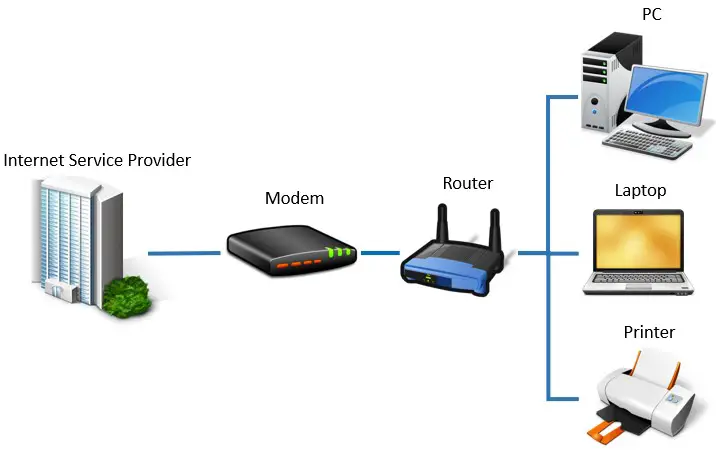
    A router connects to the internet through a connection with a modem. The modem establishes an internet connection with an internet service provider (ISP) and passes the internet connection to the router. In most cases, a modem and router are connected with an ethernet cable.

    In this post, I’ll break down everything you need to know about how your router connects to the internet.

    Let’s get started.

    Does a Router Connect Directly to the Internet?
    Let me start by saying that your router is very dependent when it comes to connecting to the internet. In other words, it can’t establish an internet connection on its own.

    To keep it at a high level, routers don’t have the components necessary to directly connect to the internet. As a result, routers rely on another device (spoiler: a modem) to establish an internet connection for them. They then use that internet connection provided by the other device to access the internet.

    Let’s dive a bit more into this.

    In order to understand how a router connects to the internet, it’s important to know the roles that your devices play in your network.

    The two devices I’m referring to here are your modem and router.

    Your modem and router play very specific, but separate roles in your home network.

    For example, a modem’s responsibility is to establish an internet connection with an internet service provider.

    Modems have the ability to translate data signals that are sent to your home from the internet. This is what allows modems to communicate with the internet and establish an internet connection.

    Routers don’t have the ability to translate data signals from the internet. This is why they can’t directly connect to the internet.

    Once a modem establishes an internet connection with an ISP, its job is to maintain that active connection.

    This active connection is then used by other devices on the network to pass data to and from the internet.

    On the other hand, a router’s responsibility is to use the internet connection established by a modem and make it available to all the devices in a network. This is a responsibility a modem can’t have, because it doesn’t have the ability to communicate wirelessly with other devices.

    In this sense, modems and routers perform actions that the other device can’t.

    Due to the specific roles that each of these devices play in an internet connection, both are needed to provide an internet connection to the network.

    So how exactly does this work?

    How a Router Connects to the Internet

    As I mentioned above, a router can’t connect to the internet on its own.

    In order to get a connection to the internet, a router must leverage the internet connection established by the modem in the network.

    This is the first requirement for a router’s connection to the internet. The modem in the home network must have an established internet connection.

    If you’d like to learn how a modem establishes a connection to the internet, check out the post that I’ve previously written about this. It’ll help you better understand the role of a modem in your network.

    In short, for a modem to have an internet connection, it must:

    • Be powered on and connected with a cable to an ISP
    • Have an active internet plan in place with an ISP
    • Be registered with an ISP to activate the internet plan

    Once the modem has met the above criteria, it’ll have an active internet connection in place.

    Now this internet connection just needs to be shared with the devices on the network.

    This brings us to our second requirement for a router’s connection to the internet. The router must be connected to the modem with an ethernet cable.

    Connecting the modem and router allows for communication between the two devices in both directions.

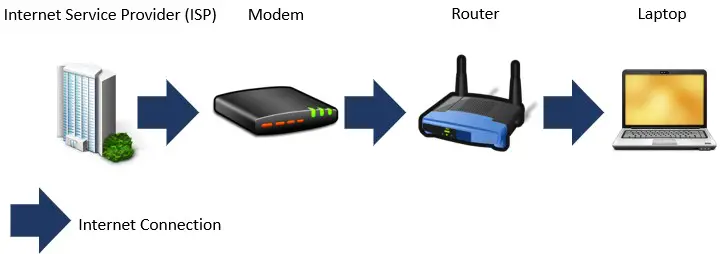
    For example, the connection allows the modem to pass its internet connection to the router. This internet connection is then passed further down the line to the devices on the network:

    Internet connection diagram

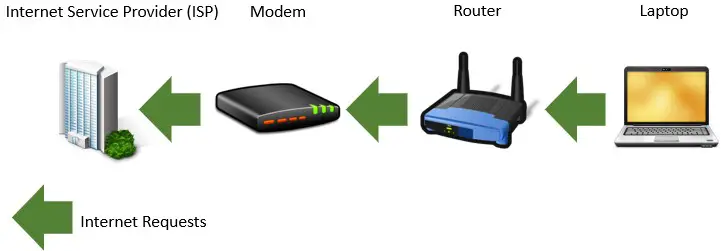
    For communication in the other direction, the router passes internet requests from the devices on the network to the modem. The modem then forwards these requests to the internet:

    Internet requests diagram

    If the modem and router weren’t connected with an ethernet cable, none of this communication would happen.

    If you want to find out exactly how a modem and router are connected with an ethernet cable, I’ve written a post on this topic to help you out.

    When it comes to connecting a router to the internet, the only other thing that’s required is the router’s power cable needs to be connected to an electrical outlet.

    To summarize, a router will have an internet connection if:

    • The modem in the network has an active internet connection
    • The modem and router are connected with an ethernet cable
    • The router is powered on and connected to an electrical outlet

    Once the router has access to the internet, devices on the network will be able to connect to it to access the internet.

    How Does a Modem Router Combo Connect to the Internet?

    For those of you that don’t have a standalone modem and router, I want to make sure you’re not left out.

    What I’m talking about here is if you have a modem router combination device.

    If you’re not familiar with modem and router combination devices, you should check out the article I’ve written that explains what they are. It might give you useful context for the rest of this section.

    With a modem and router combination device, you won’t have to worry about connecting your modem and router with an ethernet cable. They’ll already be integrated into one device.

    In fact, things will be really easy for you because your modem and router combination device will have the capabilities of both a modem and router. It’ll be able to not only establish an internet connection, but it’ll be able to share it with the devices on the network as well.

    Connecting a modem router combination device to the internet is very similar to connecting a modem to the internet (see the link above for more information). You don’t have to worry about the extra steps needed to connect a standalone router to the internet.

    You just need to ensure the modem router combination device:

    • Is powered on and connected with a cable to an ISP
    • Has an active internet plan in place with an ISP
    • Is registered with an ISP to activate the internet plan

    With these things in place, your modem and router combination device will have access to the internet. It’ll also be able to share that connection with your devices on the network.

    Wrap Up

    That just about covers everything you need to know about connecting your router to the internet.

    If you have any questions about the information I’ve shared, please leave a comment below.

    If you’re looking for more information about similar topics, here are some additional posts that might interest you:

    How Does a Modem Connect to the Internet? A Breakdown

    Does a Modem Matter for Gaming? What to Watch Out For

    Does a Modem Provide WiFi? The Facts You Should Know

    Does a Modem Need to Be Connected to a Router? What to Know

    How Many Ethernet Ports Are on a Modem? A Complete Analysis

  • How Does a Modem Connect to the Internet? A Breakdown

    How Does a Modem Connect to the Internet? A Breakdown

    How does a modem connect to the internet title picture

    If you want to connect to the internet, you’ll need a modem in your home.

    Seems simple enough, right?

    The important thing to understand is that a modem can’t provide an internet connection on its own. It needs to be connected to the internet in order to provide access to the rest of your home.

    So how exactly does this happen? How does a modem connect to the internet in the first place?

    In most cases, a modem connects to the internet through a wired connection to an Internet Service Provider (ISP). This wired connection to the ISP can be achieved with a phone, coaxial, or fiber optic cable depending upon the type of internet plan that is delivered to the home.

    In this post, I’ll detail what you need to do to connect your modem to the internet. I’ll also discuss the other elements you need in your home network in order to get a working internet connection.

    How Does a Modem Connect to the Internet?

    In order to provide your home with an internet connection, your modem needs to be connected to the larger internet.

    Almost all modems accomplish this the same way.

    They connect to the internet through a wired connection.

    It’s important to note that there are several different variations of connecting a modem to the internet with a wired connection.

    Don’t worry about those for now. We’ll get to them shortly.

    Let’s start with the basics first.

    Your modem’s connection to the larger internet happens through your Internet Service Provider (ISP).

    In other words, your modem needs to have a wired connection to your ISP in order to connect to the internet.

    This means your modem must connected to your ISP with some sort of cable.

    What type of cable connects your modem to your ISP?

    That depends upon the type of internet plan you have.

    Let’s run through an example.

    The majority of internet users have a cable internet plan. With a cable internet plan, a coaxial cable is used to connect the cable modem to the ISP.

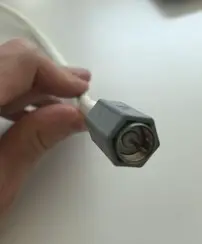
    For reference, here’s what a coaxial cable looks like:

    Coaxial cable example

    To complete this connection, one end of the coaxial cable needs to be connected to the cable modem.

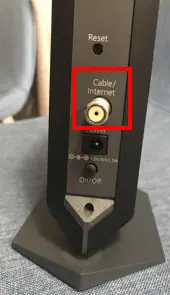
    Cable modems will usually have a coaxial cable connection on the back of the modem.

    Here’s what it looks like on the back of my cable modem:

    Cable modem coaxial cable connection port
    Coaxial cable port on back of modem

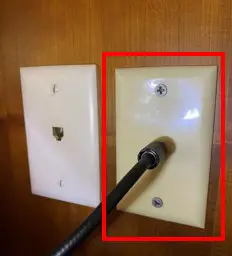
    The other end of the coaxial cable should connect to a coaxial cable wall jack.

    Coaxial cable wall jack example
    An example of a coaxial cable wall jack

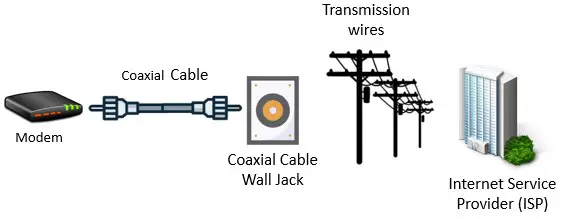
    This wall jack will connect your modem to wires that’re coming to your house from the street. These transmission wires will be connected from your home all the way back to your ISP.

    So if you think about it, your modem is essentially connected through a series of wires directly to your ISP.

    Modem connection to ISP diagram
    A modem is connected to the ISP with a series of wires and cables

    This is how your modem establishes a connection to the internet.

    How Do Other Modems Connect to the Internet?

    The example we ran through above detailed how a cable modem connects to the internet.

    But what about the other types of modems?

    Honestly, the vast majority of modems connect to the internet the same way. The only difference is the cables they use to connect to the internet.

    Internet TypeCable Connection From Modem to Wall JackConnection From Home to Internet Service Provider
    DSLPhoneTelephone Cable
    CableCoaxialCoaxial Cable
    Fiber-opticN/AFiber-optic Cable
    SatelliteCoaxialRadio Signals (wireless)
    Table 1: Different methods of connecting a modem to the internet

    For example, if you have a digital subscriber line (DSL) internet plan, you’ll have a DSL modem to connect to the internet.

    The only difference with a DSL modem and cable modem is that a DSL modem uses phone cables, while a cable modem uses coaxial cables.

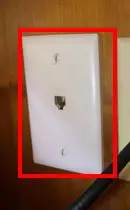
    In other words, a DSL modem connects to a telephone cable wall jack instead of a coaxial cable wall jack.

    Example of a telephone cable wall jack
    A DSL modem connects to a telephone cable wall jack

    From there, the transmission cables from your home to the ISP are phone cables instead of cable television cables.

    Fiber-optic internet modems (called ONT devices) follow a similar pattern. They just cut out the wall jack.

    ONT devices for fiber internet are usually installed by the ISP. They’re usually installed outside of your home, and they’ll connect directly to a fiber-optic cable coming from the street.

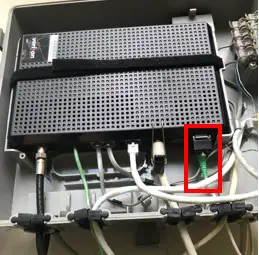
    Example of a fiber optic cable connected to ONT device
    A fiber-optic cable connected to an ONT device outside of a home

    Due to the fact this connection occurs outside your home, no wall jack is involved in the connection with the ISP.

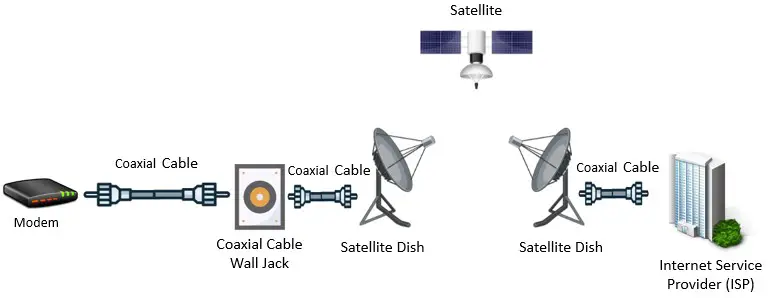
    Lastly, modems that’re used with satellite internet plans are very similar to cable modems. They connect to a wall jack with a coaxial cable.

    The only difference is what it looks like on the other side of the wall jack.

    Instead of connecting to transmission cables that connect to the ISP, the wires connect to a satellite dish. This dish establishes a wireless connection to the ISP via satellite.

    Example of how a satellite modem connects to the internet
    How a satellite modem connects to the internet

    To reiterate, even though the cables connecting a modem to the internet may be different, the layout is similar in the vast majority of cases.

    What Else Do You Need to Connect to the Internet?

    It’s important to understand that simply connecting your modem to the internet doesn’t mean you’ll have an active internet connection.

    There are other aspects of your home network that need to be in place as well.

    If you want a working internet connection, you’ll also need:

    • An active internet plan from an ISP
    • To register your modem with your ISP
    • A router connected to your modem

    Let’s take a closer look at each of these aspects.

    An Active Internet Plan Is Needed to Connect Your Modem to the Internet

    Being connected to an ISP does nothing if you don’t also have an internet plan in place.

    An internet plan is a contract with your ISP that’s usually paid for on a monthly basis.

    As part of your internet plan, your ISP will provide an active internet connection to your home.

    Depending on the internet plan you’re signed up for, your ISP will identify a maximum internet speed that they’ll provide as part of the plan.

    Without an internet plan, your ISP won’t allow you to send and receive internet data.

    You Need to Register Your Modem With Your ISP to Activate Your Internet Plan

    Once an internet plan is in place, you’ll need to register your modem with your ISP (if you aren’t renting a modem from them).

    Most major ISPs will have an application you can use to easily register your modem. To register your modem, you’ll need to log in to your account with your ISP and provide your your modem’s media access control (MAC) address.

    Your modem’s MAC address is essentially an identification number for your specific modem. This MAC address will be tied to your account with your ISP, and it allows your ISP to confirm that you have an active internet plan with them.

    If you’re not sure how to find your modem’s MAC address, check out the article I’ve written detailing the different ways you can find this information.

    Once your modem has been registered with your ISP, it’ll be able to send and receive internet data.

    A Router Is Needed to Provide Your Devices With Internet Access

    In addition to having an internet plan and registering your modem, you’ll also need a router if you want to provide an internet connection to your home.

    In terms of network configuration, your modem and router will need to be connected to each other. If you’re not sure how to connect your modem and router, I’ve detailed this procedure in another post that you’ll want to check out.

    The reason a router is required for an internet connection is because of what it provides the devices in your home.

    A router allows multiple devices to connect to the internet at the same time. If you had a modem and no router, you’d only be able to connect one device to the internet at once.

    That wouldn’t be a smart move.

    Not just because you could only connect one device to the internet at a time. It’s also extremely insecure from a cybersecurity standpoint to connect devices directly to a modem. It makes your devices much more susceptible to cyber attacks.

    Another essential benefit that routers provide is that they allow devices in your home to connect to the internet wirelessly.

    In today’s day and age, there are some devices that can only connect to the internet over WiFi.

    If you had a modem in your home network and no router, you wouldn’t be able to connect these devices to the internet.

    Wrap Up

    You should now have all the information you need to connect your modem to the internet and establish an active internet connection.

    If you have any questions about any of these details, please leave a comment below.

    For more information about similar topics, check out these articles I’ve previously written:

    Modem MAC Address: All Your Questions Answered

    Does a Modem Need to Be Connected to a Router? What to Know

    Does a Modem Provide WiFi? The Facts You Should Know

    Modem Speed Limits: What You Might Be Missing

    What Are Modem Channels? How They Affect Network Speed

  • Will a New Router Increase Internet Speed? An Explanation

    Will a New Router Increase Internet Speed title picture

    Nobody likes a slow internet connection.

    The difficult thing about a slow internet connection is the fact that there are many different factors that can cause the slow connection.

    As a result, there are many possible solutions for increasing the speed of an internet connection.

    One of these potential solutions is replacing the router used in the home network.

    With that said, can a new router increase the internet speed of a network, or would this have no affect on network speed?

    It is possible for a new router to increase the speed of a network, but this is not always the case. In a case where a router is restricting the speed of a network, replacing it with a new router can increase the internet speed of the network.

    In this post, I’ll detail when a new router can increase the internet speed of a network. I’ll also discuss how you can determine if a new router will improve your network speed.

    Can a New Router Increase the Internet Speed of a Network?

    There are many variables that affect the internet speed of a network.

    Some of these factors include the:

    • Speed provided by the internet plan
    • Internet speed the modem can support
    • Internet speed the router can support
    • Number of internet users on the network at a given time

    In talking about your router specifically, there are a few principles to discuss upfront.

    The first is that your router has no affect on the internet speed provided by your internet plan.

    A Router Cannot Increase the Speed of Your Internet Plan

    When it comes to your internet connection, it all starts with your internet plan.

    Your internet plan will determine the maximum achievable speed of your home network.

    What I mean by this is that none of the devices on your home network can increase the maximum speed of your internet plan. This includes your router.

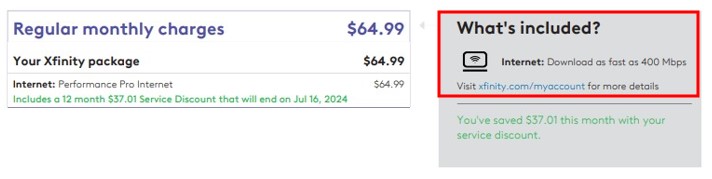
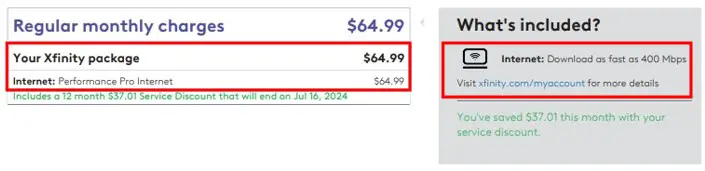
    For example, in my home network my internet plan provides a speed of up to 400 megabits per second (Mbps).

    Xfinity internet plan example

    This means that regardless of the devices I have in my network, I’ll never be able to get an internet speed faster than 400 Mbps. The only way I’ll be able to achieve this would be to upgrade my internet plan.

    This is an important concept to understand when it comes to your router.

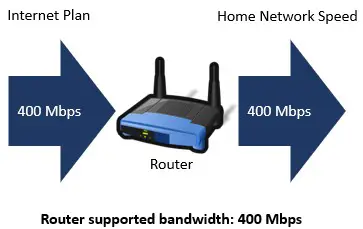
    The best-case scenario for your router is that it allows you to maximize the speed of your internet plan. In my case, that would mean my router allows me to utilize the 400 Mbps provided by my internet plan.

    A Router Can Restrict the Speed of a Network if the Wrong Router Is Used

    Ok, so we’ve established that the best-case scenario for a router is that it’ll allow you to utilize the maximum speed provided by your internet plan.

    Now let’s talk about the worst-case scenario.

    If the wrong router is used in a home network, it can have quite the opposite effect. If the wrong router is chosen for a network, it’ll restrict the speed of the network so it can’t achieve the maximum speed provided by the internet plan.

    This can slow down all the devices on the network.

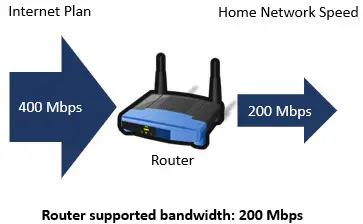
    Using my network as an example again, let’s say my router can only support 200 Mbps.

    If my internet plan provides 400 Mbps, what would this mean for my network?

    Example of router restricting network speed

    This would mean that my network would only be utilizing about 50% of my internet plan. Although I am paying for 400 Mbps, the maximum speed of my network would be 200 Mbps because of my router (assuming all the other devices on my home network could support 400 Mbps).

    So the question is, is there anything I can do about this?

    That’s where a new router comes in.

    A New Router Can Increase the Speed of a Network if It Replaces a Router That Is Restricting the Network

    If a router that can’t support the speed provided by an internet plan is replaced with a new router that’s able to support the speed of the plan, it’ll effectively increase the speed of the network.

    In other words, a new router may enable you to utilize the full speed provided by an internet plan.

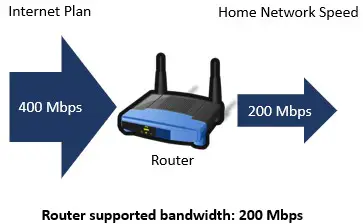
    Let’s build on the example from the previous section.

    In this example, my internet plan provides 400 Mbps, but my router can only support 200 Mbps. In this case, my router is limiting the internet speed of my network to 200 Mbps.

    Example of router restricting network speed

    What if I wanted to do something about this? What could I do?

    I could replace my existing router with a new router that supports at least 400 Mbps.

    This new router would allow my network to run at 400 Mbps, or the maximum speed provided by my internet plan.

    Example of router supporting speed of internet plan

    Making this change would increase the speed of my home network by 200 Mbps.

    In this scenario, buying a new router would increase the speed of my network, even though the maximum speed provided by my internet plan wouldn’t change.

    These are the situations where a new router can increase the speed of a network: when the current router is restricting the network, a new router can essentially remove this restriction.

    Removing the existing internet speed restriction increases the speed of the network.

    How to Find Out if a New Router Will Increase the Internet Speed of Your Network

    If a new router will only increase the speed of a network in certain situations, how do you know if a new router will improve the speed of your network?

    There are a few different steps to follow to achieve this.

    The first is to identify the speed provided by your current internet plan.

    You can do this by looking at your monthly bill from your internet service provider (ISP). Your monthly bill should identify your current internet plan, as well as the price of that plan.

    Internet plan details

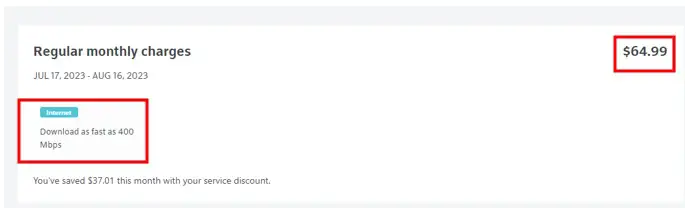
    You can also log in to your account with your ISP an access your plan information online. As you can see, it has the same information as the monthly bill I receive:

    ISP website internet plan details

    As a last resort, you can always call your ISP and ask them what the maximum speed of your internet plan is.

    Once you have the speed of your internet plan, you just need to determine the speed supported by your router.

    If you’re not sure how to determine what speed your router supports, you’re in luck. I previously wrote an article on this topic that provides the step-by-step procedure on how to do this. Make sure to check it out before moving forward with your analysis.

    I’d be remiss if I failed to mention that your modem must support the speed provided by your internet plan as well. Thankfully, I’ve written an article on determining the maximum speed your modem supports as well.

    Now that you know the speed of your internet plan and the speed your current router (and modem) supports, you can determine if a new router will increase your network’s internet speed or not.

    If the speed your router can support is equal to or greater than the speed provided by your internet plan, you’re in good shape.

    Just remember, if this is the case for you, buying a new router won’t increase the speed of your network. You’re already maximizing your internet plan. If you remember from earlier, a new router can’t make your network faster than the speed provided by your internet plan.

    If the speed your router can support is less than the speed provided by your internet plan, you have the opportunity to increase the speed of your network. If you get a new router that can support speeds at least as fast as your internet plan, it’ll increase your network speed.

    How fast will your new network speed be, exactly?

    If you get a new router that maximizes your network speed, your new network speed will be the speed provided by your internet plan.

    Wrap Up

    With the information in this post, you should be able to determine if a new router will increase your network speed.

    If you have any questions about the information above, or you have questions about your specific network, please leave a comment below.

    If this information has helped you get the most out of your internet plan, here are some other articles I’ve written that you might be interested in:

    What Speed Can My Router Handle? What You Need to Look At

    Modem Speed Limits: What You Might Be Missing

    Can a Router Connect to a Modem Wirelessly? An Analysis

    Does a Modem Need to Be Connected to a Router? What to Know

    Does a Router Affect Your WiFi Speed?

  • Can You Use More Than One Router at Once? What to Consider

    Can You Use More Than One Router at Once? What to Consider

    Can You Use More Than One Router At Once Title Picture

    It’s well known that routers are vital components of a functioning home network with an internet connection.

    What’s more uncertain is how many of these devices can be used in a given network.

    With that said, is it possible to have more than one router in a home network at a given time?

    It is possible to use more than one router in a home network. In most cases where multiple routers are used in a network, both do not perform the normal functions of a router. One router will function as the primary router for the network, while the others will function as a wireless access points.

    In this post, I’ll go into detail about how multiple routers can be used in a network. I’ll also talk about how multiple routers can be configured in a home network.

    Can Multiple Routers Be Used in a Network?

    Let me start by saying that it’s possible to have multiple routers functioning in a given network.

    Unfortunately, our answer doesn’t end there. Using two routers in a network isn’t as straightforward as you might think.

    So, what’s the catch here?

    When multiple routers are used in a network, the vast majority of the time they both aren’t performing the normal functions of a router.

    In other words, it’s very rare to have multiple routers in a network all doing the following:

    • Broadcasting wireless networks
    • Assigning IP addresses to devices
    • Communicating directly with the modem
    • Coordinating communication between devices and the internet

    In order for the above scenario to be possible, there would need to be multiple separate internet connections coming to the home. This would mean there would be multiple separate internet plans to pay for. Each of these connections would need to be connected to a different modem as well.

    On top of that, each router would be functioning totally independently of the others. This would create multiple different WiFi networks, and devices would have different IP addresses based upon the network they’re connected to.

    Although this is all possible, it’s not very common (or realistic) in most situations.

    As I mentioned above, it’s much more common to have multiple routers on the same network with one connection to the internet. In these cases, however, the routers aren’t performing the same functions.

    So if multiple routers used in a network aren’t performing the normal functions of a router, how do they work?

    Let’s take a closer look.

    How Are Multiple Routers Used on a Network?

    If multiple routers are used in one network with one internet connection, it’d cause problems if they were performing the same functions.

    You’d have problems with IP address assignment, multiple different wireless network names, etc.

    Thankfully, routers have the ability to work around this issue.

    With multiple routers on the same network, one router can perform the standard functions of a router, while the others can be used to extend the coverage of the WiFi network that the first router is broadcasting.

    To put it differently, any router that’s added to the network in addition to the one performing the normal functions of the router can serve as a wireless access point.

    These routers serving as access points allow you to provide WiFi coverage to areas that get a weak wireless signal from your primary router.

    The best part is that your secondary routers will broadcast the same WiFi network as your main router. This simplifies things because you won’t have to worry about which WiFi network you’re connected to.

    You’ll basically just have one really large wireless network.

    Another benefit of using multiple routers in your network is that you’ll have the ability to provide more devices with wired internet connections.

    Routers usually have multiple ethernet ports that can be used to provide wired connections to your network. In having multiple routers on your network, you’ll have more ethernet ports available that your devices can connect to.

    This can be advantageous because wired internet connections are more reliable and experience less delay than WiFi connections.

    Between the extended WiFi coverage and the option for providing additional wired connections, utilizing multiple routers in a network can be quite useful. It all depends upon the needs of your network.

    How Are Multiple Routers Set Up on the Same Network?

    Now that we’ve talked about how multiple routers can be used in a network, let’s discuss how this configuration is accomplished in the first place.

    This is all made possible by a router’s operating modes.

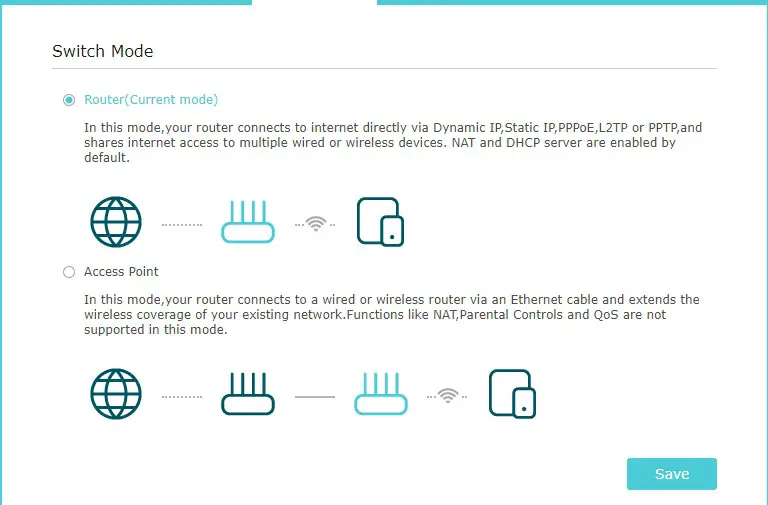
    Most routers will have the ability to operate in two modes: the standard router mode and access point mode.

    Router access modes
    A router’s different modes of operation

    As you may have guessed, the main router in the network will be in standard router mode, and all the other routers will be in access point mode.

    By setting the secondary routers to access point mode, it’ll disable all the other functions of the secondary router that would conflict with the primary router’s functions.

    A router will be in router mode by default, so any additional routers that are added to the network must be manually configured to be in access point mode.

    Changing the mode of a router can be done by accessing the router’s settings.

    Once a secondary router is in access point mode, both routers need to be connected with an ethernet cable.

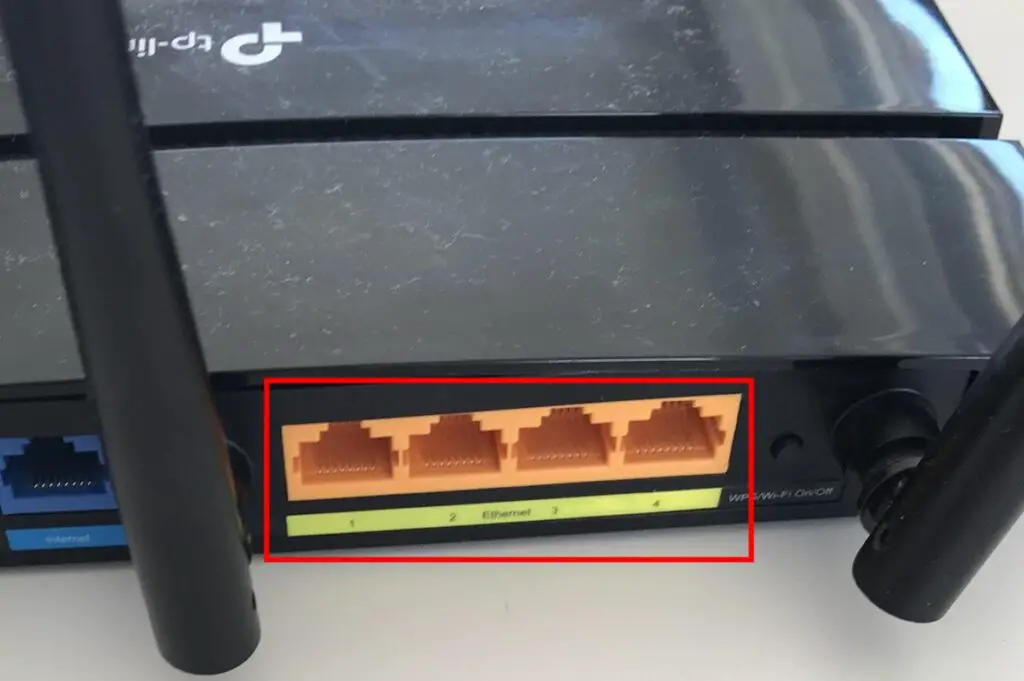
    The ethernet cable needs to be attached to one of the local area network (LAN) ethernet ports on each router in order for it to function properly. For reference, here are the four LAN ethernet ports on my router:

    Ethernet ports on a router
    The LAN ethernet ports on a router

    Connecting the primary and secondary router with an ethernet connection will allow the secondary router to duplicate the WiFi signal that the primary router is broadcasting.

    Keep in mind here that it might benefit you to connect the primary and secondary router with a long ethernet cable. The farther away the secondary router is from the primary router, the more flexibility you’ll have in terms of expanding your WiFi network coverage.

    As long as the ethernet cable connecting the routers is less than 328 feet (100 meters) long, you won’t experience any performance issues in terms of the connection between the routers.

    As an aside, if you’d like to learn more about why an ethernet cable can be 328 feet long without affecting the performance of a connection, you should check out the article I’ve previously written explaining why this is.

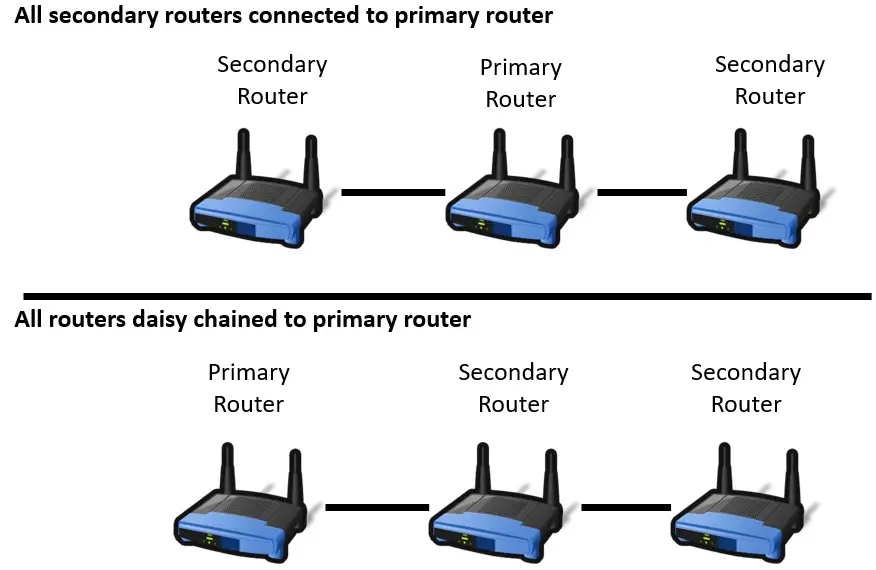
    Another important point here is if you have more than two routers in the network, there are multiple ways to connect them to the primary router. Each secondary router can either be connected directly to the primary router, or they can be daisy chained together.

    Different router connection configurations

    In other words, you have the ability to choose which configuration maximizes the WiFi signal in your home.

    Most networks will usually only have one or two secondary routers, but you have the ability to choose what configuration is best for the performance of your network.

    Wrap Up

    Now you should have a clear idea of how multiple routers can be used in the same network, and the potential benefits of doing so.

    If you have any questions about the above information, or you’d like to share how your home network is configured with multiple routers, please drop a comment below.

    If this information was helpful for you, here are some other posts I’ve written on similar topics that might be helpful as well.

    Can a Router Connect to a Modem Wirelessly? An Analysis

    What Speed Can My Router Handle? What You Need to Look At

    Are All Routers Compatible With All Modems?

    Router Ethernet Ports: Everything You Need to Know

    What Router Do I Have? How to Find Out

  • Does a Modem Matter for Gaming? What to Watch Out For

    Does a Modem Matter for Gaming? What to Watch Out For

    Does a Modem Matter for Gaming title picture

    When it comes to online gaming, your internet connection can have a significant impact on your performance.

    As a result, you need to make sure you have the right devices in your home network.

    One device that can play a big role in your internet connection is your modem.

    So, how important is your modem when it comes to online gaming? Does your modem make a difference?

    A modem that is used for gaming is no different than a modem that is not used for gaming. In both cases, the modem needs to be able to support the internet speed provided by the internet plan. If the modem is unable to do this, it can result in poor internet performance and reduced network speed.

    In this post, I’ll detail the affect your modem can have on your gaming performance. I’ll also explain how you can ensure your modem isn’t restricting your gaming performance.

    Do Modems Affect Gaming?

    If the right modem isn’t used in a network, it can have a negative impact on your gaming experience.

    Taking it one step further: if you aren’t using the right modem in your network, it can have a much greater impact than just limiting your gaming performance. It can limit the speed of your entire network.

    In other words, a modem doesn’t just matter for online gaming. The modem you have in your network matters equally for everything you do on the internet.

    With this in mind, it’s important to understand the importance of having a modem that’s a good fit for your network.

    So what exactly does a modem that’s a good fit for your network look like?

    The bottom line is, your modem needs to be able to support the speed of the internet plan provided by your internet service provider (ISP).

    How Modems Affect Network Performance

    Let’s run through the factors that determine a modem’s impact on a network.

    To start, all modems will have a maximum internet speed they can support.

    In addition, when you sign up for an internet plan, your internet plan will have a maximum internet speed it will provide.

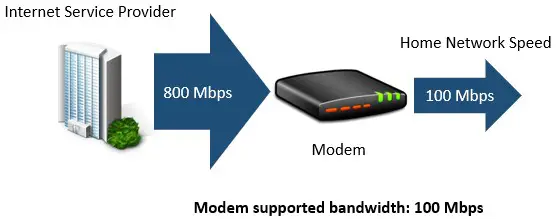
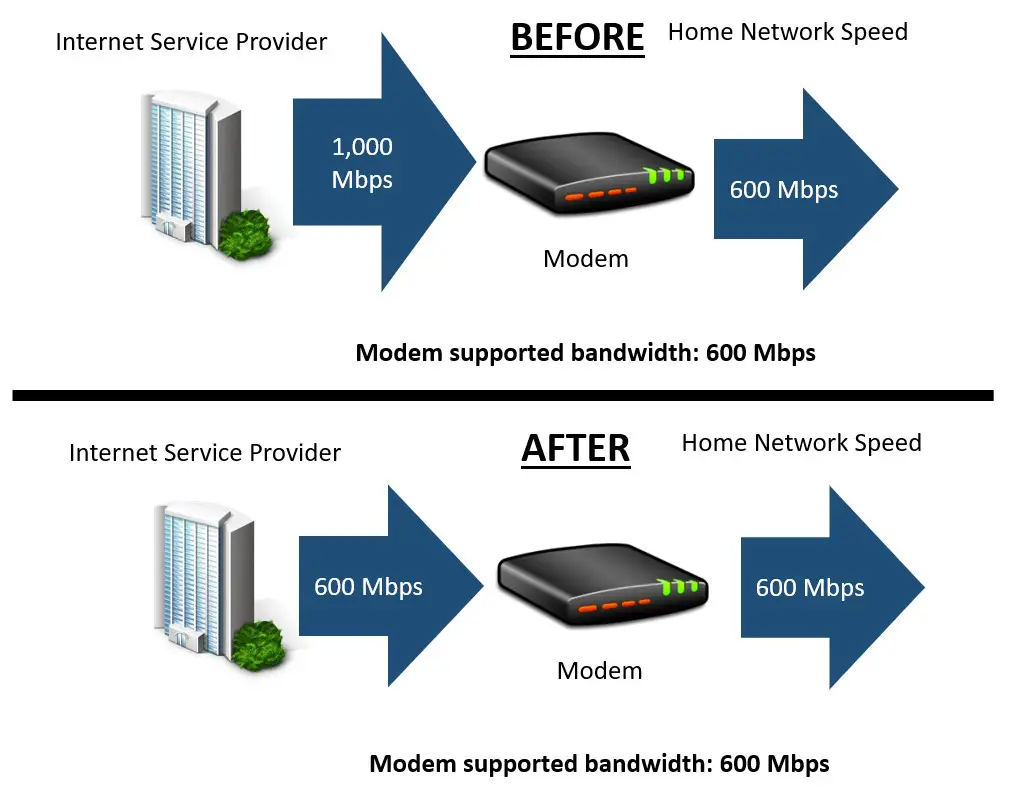
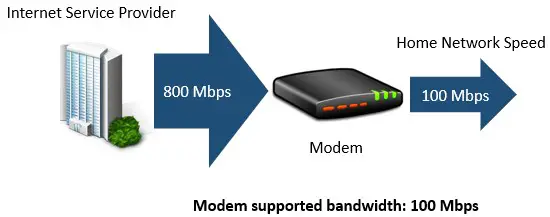
    If the maximum speed supported by your modem is less than the speed provided by your internet plan, it’ll limit the speed of the entire network. In these cases, the network will only be able to operate at the modem’s maximum speed.

    To put it another way, if a modem can’t support the speed of your internet plan, it’ll serve as a bottleneck for your entire network.

    Modem does not support internet speed diagram
    An example of a modem serving as a bottleneck for a network

    If your modem is serving as a bottleneck for your network, it greatly increases the chances of your gaming experience being affected. Especially if you have multiple people using the internet at the same time.

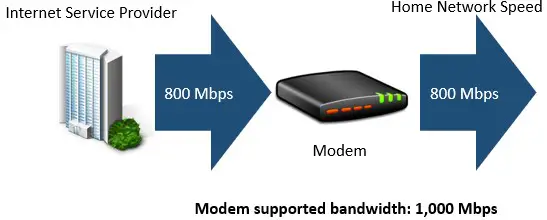
    On the other hand, if your modem’s maximum speed is greater than the speed provided by your internet plan, you won’t experience any restriction on your network. You’ll be able to utilize all the bandwidth provided by your internet plan.

    Modem supports internet speed diagram
    An example of a modem allowing the full utilization of an internet plan

    If your internet plan is sized correctly for the internet needs of your home and your modem allows you to utilize the full scope of your internet plan, you shouldn’t have to worry about your modem limiting your gaming performance.

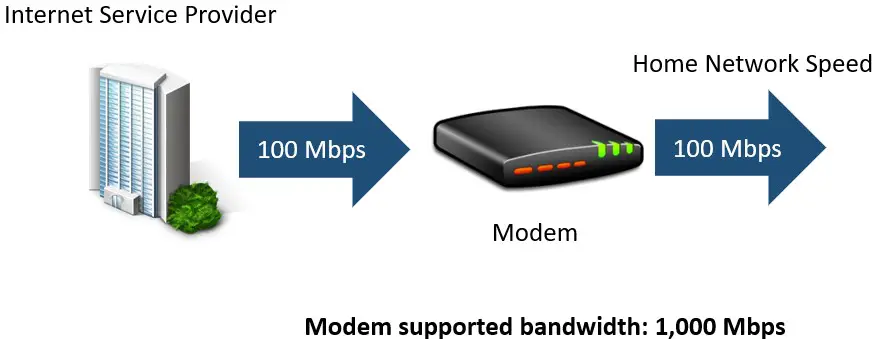
    At the same time, a modem that’s much faster than your internet plan won’t help you either. In these cases, the fastest your network will be able to operate at is the speed provided by your internet plan.

    Example of a modem supporting speeds much faster than the speed provided by the internet plan
    A modem that can support speeds much faster than the internet plan does not increase the speed of the internet plan

    The best approach is to make sure your plan meets your internet needs, and your modem can support the speed of that plan.

    There’s no need to go overboard here, it won’t upgrade your gaming experience.

    How to Ensure You Have the Right Modem for Gaming

    If you use your internet connection for online gaming, it’s worth ensuring that your modem isn’t limiting your connection.

    So how do you go about doing that?

    Let’s take it step-by-step based upon the outline in the section above.

    The two numbers we need are:

    • The maximum speed provided by your internet plan
    • The maximum speed supported by your modem

    We’ll start with the speed of your internet plan first.

    This should be fairly easy for you to determine.

    One way to go about determining your current internet plan is to look at your latest monthly bill. Your bill should detail the internet plan you’re paying for.

    As you can see, my internet plan provides me with speeds up to 600 megabits per second (Mbps).

    Internet plan maximum speed

    An alternative here is to log in to your account with your ISP. By accessing your account information, you should be able to get information about your current internet plan as well.

    Ok, now that we have your internet speed, let’s turn to your modem.

    When it comes to determining the maximum speed your modem supports, you have a few options you can choose from.

    If you’re not sure what maximum speed your modem supports, I’ve written an article detailing the different ways you can find out. I suggest you check out this article to make sure you know what your modem’s maximum supported speed is.

    Once you have the speed provided by your internet plan and the speed supported by your modem, you have everything you need.

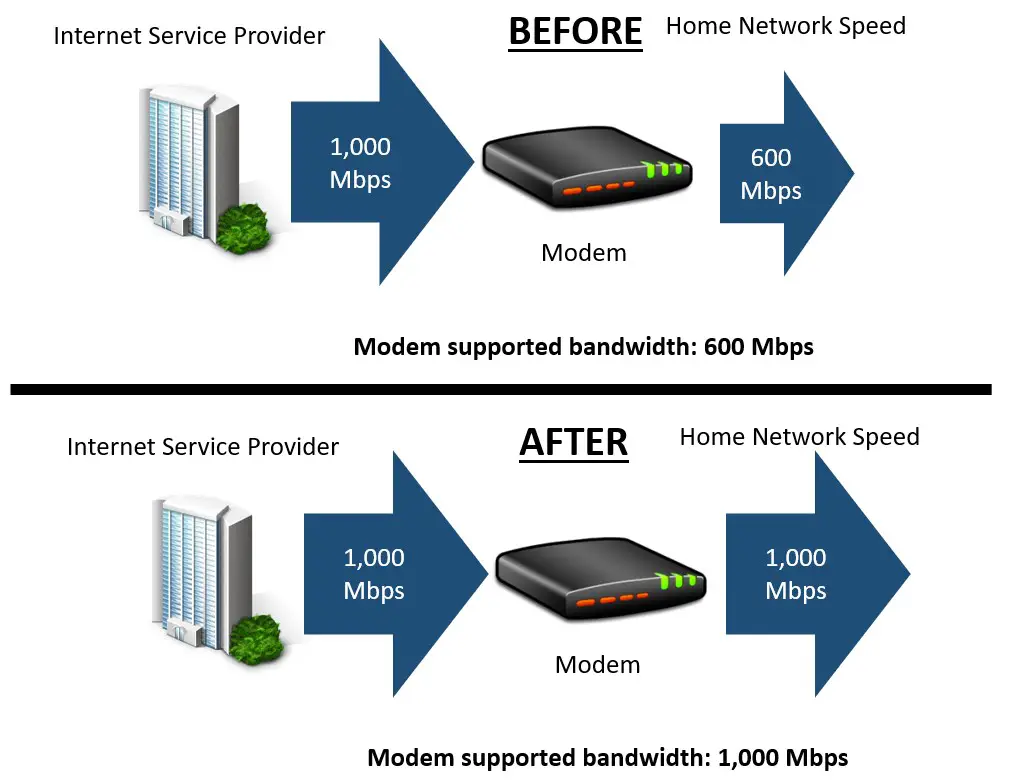
    Let’s say your modem doesn’t support the speed provided by your current internet plan. What should you do?

    If this is the case, you might want to upgrade your modem to one that supports a faster internet speed.

    Upgrading modem to support internet speed example
    Example of upgrading a modem to support the speed provided by the internet plan

    Another option to consider is if you aren’t experiencing any issues with your current network setup.

    If your internet plan provides speeds much faster than your modem can support, you may be able to scale back your internet plan.

    This might give you the opportunity to save some money on a monthly basis, while still experiencing the same internet performance.

    Scaling back internet plan example
    Example of scaling back an internet plan without impacting network performance

    You’ll just need to make sure you don’t scale back your internet plan too much. In this instance, you’ll want to make sure the reduced internet speed is still at least as fast as the maximum speed your modem can support.

    That way, you know your network will still be operating at the modem’s maximum speed.

    Do I Need a Special Modem for Gaming?

    There are a few important things you should know when it comes to modems and online gaming.

    For starters, you don’t need to buy a fancy, expensive modem for gaming. All modems function the same way and do the same thing.

    If you see marketing material that states that a modem is a “gaming modem”, don’t fall for it. There’s nothing special about those modems. They function the same way as any other modem on the market.

    How do I know this?

    I know this because a modem’s performance is really based on one main factor.

    The speed the modem can support.

    All a modem really does is provide your network with an internet connection at a specific speed.

    What you do on your network with that available bandwidth is up to you.

    It doesn’t matter if you’re streaming, gaming, surfing the web, or sending email. Your modem doesn’t know the difference between these online activities.

    So if your modem can support the bandwidth provided by your internet plan, that’s all you need to worry about.

    Wrap Up

    If this point isn’t clear by now, it should be: your modem needs to support the speed provided by your internet plan, regardless of what you’re using the internet for.

    If you have any specific questions about your network or the information presented above, please drop a comment below.

    If you’d like to learn more about similar topics, I invite you to check out some of these previous posts I’ve written:

    Does a Modem Provide WiFi? The Facts You Should Know

    Modem Speed Limits: What You Might Be Missing

    How Many Ethernet Ports Are on a Modem? A Complete Analysis

    What Are Modem Channels? How They Affect Network Speed

    Can I Just Buy a Modem and Have Internet? What Else You Need

  • Does a Modem Provide WiFi? The Facts You Should Know

    Does a Modem Provide WiFi? The Facts You Should Know

    Does a modem provide wifi title picture

    WiFi is what allows your devices to wirelessly communicate with each other (and the internet).

    This is why almost all networks offer WiFi functionality.

    The question is: where does WiFi come from?

    Does your modem provide your home network with WiFi, or does it come from somewhere else?

    Modems do not provide WiFi. Routers are responsible for providing WiFi functionality to networks. With that said, modems and routers must work together if the network is to provide internet connections over WiFi.

    In this post, I’ll detail where WiFi comes from in your home network. I’ll also talk about the affect that your modem has on the wireless connections in your home.

    Does WiFi Come From My Modem?

    The WiFi in your home network doesn’t come from your modem. It actually comes from your router.

    Believe it or not, there’s a good reason for this.

    It’s because the devices in your home network are specialized. Your modem and router are tasked with very specific jobs that help the network run effectively.

    Let’s take a closer look at the specific roles of your modem and router.

    Your Modem’s Job in Your Home Network

    When it comes to your modem, its job is to maintain an internet connection with your internet service provider (ISP).

    This is what provides an internet connection to your home.

    Once you purchase an active internet connection from your ISP, it’s your modem that makes that internet plan usable.

    This is your modem’s specialization. It’s sole job is to keep this internet connection firing on all cylinders.

    What’s important to note is how your modem is connected to your ISP. Your modem is directly connected to your ISP through a series of cables that run from your home to the ISP’s datacenters.

    The key here is that the connection between your modem and ISP is a completely wired one. There’s no wireless communication involved.

    In other words, no WiFi is needed for the modem to perform its designated task.

    Modem connections diagram
    All of a modem’s connections are wired connections

    This is why your modem isn’t the device that provides WiFi to your home. Any wireless communication hardware on a modem would be overkill, because your modem doesn’t need it to perform its core function.

    This explains why your modem doesn’t have wireless components on it like network interface cards (NICs) or antennas.

    When it comes to wireless components, your router has everything it needs to provide WiFi to a home network.

    Your Router’s Job in Your Home Network

    While modems specialize in maintaining an active internet connection with an ISP, routers have a different specialization.

    Routers make the internet available to all the devices in the network.

    Another way to say this is that routers take the internet connection established by modems and multiply that connection so all the devices on the network can connect to the internet.

    Let’s dive into how this works.

    Your modem establishes a connection with your ISP to activate your internet plan and make it usable by your devices.

    Unfortunately, your modem isn’t able to distribute this internet connection to all the devices in your network. As a result, it needs another device that specializes in this task to help out.

    This is where your router comes into play.

    Your modem and router communicate with each other over an ethernet cable. As I mentioned above, this communication has to happen with a direct connection because your modem is unable to wirelessly communicate with other devices.

    Essentially, your router takes the internet connection that your modem has established and does what it does best: makes sure all your devices can connect to it.

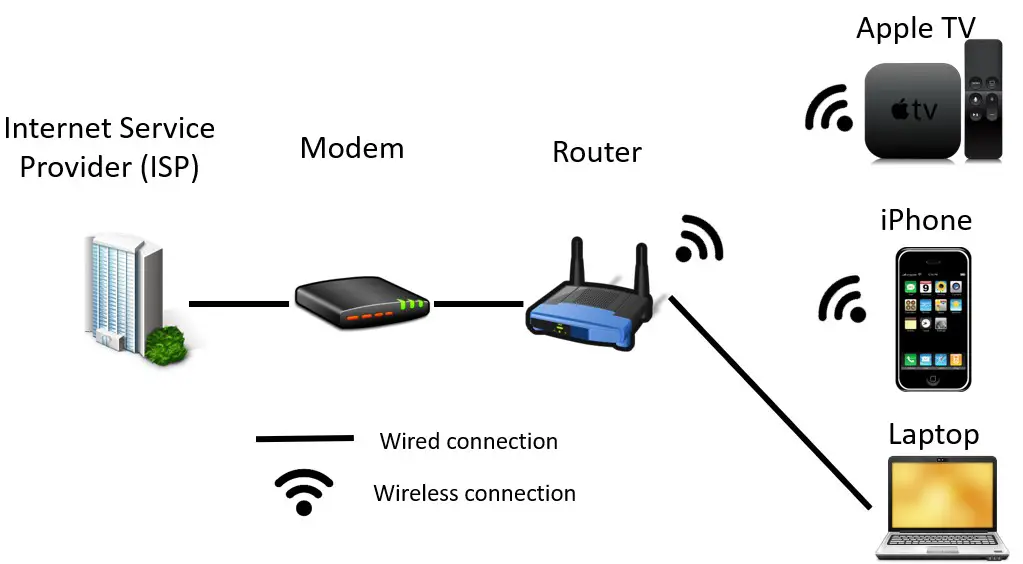
    It doesn’t matter if your devices are wired devices or wireless, your router has you covered.

    Router connections in home network
    Routers provide both wired and wireless internet connections

    This is why your router is responsible for providing WiFi in your home network. It needs to be able to wirelessly communicate with your internet devices.

    In order for this to happen, your router broadcasts a WiFi network that these wireless devices can use to communicate.

    Although a modem plays a vital role in your home network, you can thank your router for bringing WiFi to the party.

    Do You Need a Modem in Your Home Network in Order to Have WiFi?

    Ok, so your modem doesn’t provide WiFi to your home network.

    But do you need a modem in the network in order to have WiFi?

    In other words, does your router need to be connected to your modem in order to provide WiFi to a home network, or can a router provide WiFi on its own?

    The answer here is that a router can provide WiFi without the assistance of a modem.

    With that said, there’s more to the answer than you might think.

    We’ll start with the basics first.

    When it comes to providing WiFi, your router doesn’t need any help. If you only had a router in your home network (and no modem), you’d still have a WiFi network that your devices could use to communicate with each other.

    The only problem with this is that your network would be extremely limited in terms of what it could do.

    If you’re interested in understanding what you could do if you had a router in your home network and no modem, I’ve written an article on this topic that breaks this down for you.

    And now for the catch.

    Although a network with a router and no modem would have WiFi, the devices on the network wouldn’t be able to access the internet.

    If you remember, earlier I detailed how a modem is responsible for providing an internet connection to your home.

    The same principle applies here.

    If a modem isn’t present and active in the network, there’ll be no connecting to the internet. Devices will be able to communicate with each other over the WiFi network provided by your router, but that’s it.

    The distinction to be made here is that WiFi is just a method of wireless communication. WiFi does not refer to wireless internet connectivity. Internet connections can be provided over WiFi, but WiFi and wireless internet are two different things.

    What this means is that a router providing WiFi can only provide wireless internet connections if a modem is also present on the network.

    So although you don’t need a modem to have Wifi in a network, you need a modem (and router) if you want to provide wireless internet connections to your devices.

    Wrap Up

    In the end, it’s important to understand that WiFi comes from your router.

    Wireless internet connections, however, are made possible by your modem and router working together. Your router and modem both have specific jobs in a home network, and they both need to be present to get the maximum benefit from your network.

    If you have any questions about this information, please leave a comment below.

    If this material was useful for you, here are some more articles that you might find helpful as well:

    Can I Use a Router Without a Modem?

    Can I Just Buy a Modem and Have Internet? What Else You Need

    Do You Need an Internet Connection if You Have WiFi?

    Are All Routers Compatible With All Modems?

    Does a Router Have to Be Connected to a Computer to Work?

  • Can a Router Connect to a Modem Wirelessly? An Analysis

    Can a Router Connect to a Modem Wirelessly? An Analysis

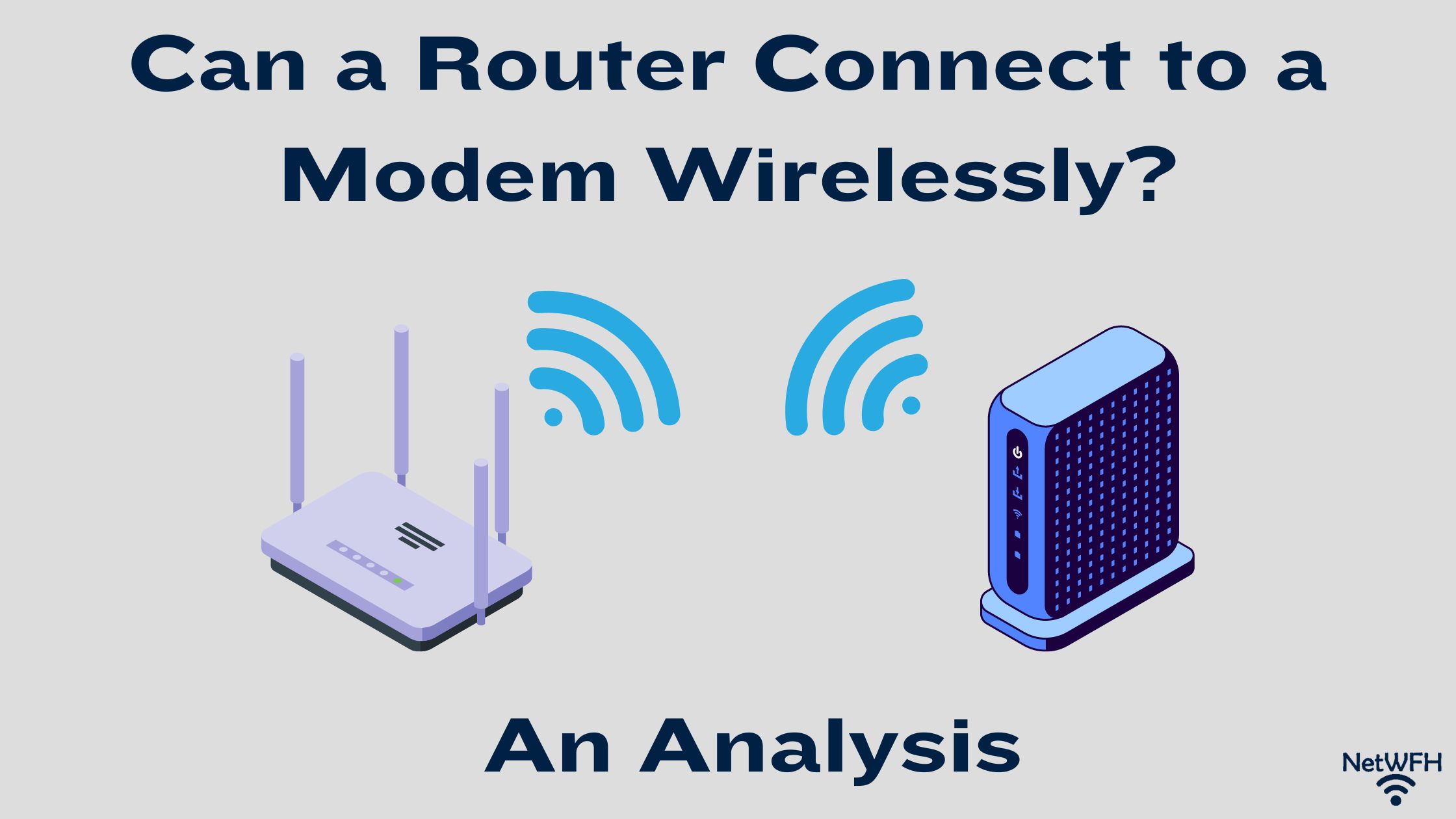
    Can a router connect to modem wirelessly title page

    If you have an internet connection in your home, chances are it means you have a modem and router.

    In many cases, your modem and router are standalone devices that need to be connected in order to establish an internet connection.

    When it comes to connecting the two devices, what are your options? Can you connect your modem and router wirelessly, or do you have to connect them with an ethernet cable?

    In a network with a standalone modem and router, the modem and router cannot be connected wirelessly. Modems are not equipped with the necessary wireless networking components to connect to a router wirelessly. As a result, standalone modems and routers need to be connected with an ethernet cable.

    In this post, I’ll detail if it’s possible to connect a modem and router wirelessly. I’ll also discuss a few options for you if you need to access the internet far away from your modem in your home.

    Your Modem and Router Need to Be Connected to Each Other

    It goes without saying: if the modem and router in your home network are separate devices, they need to be connected to each other.

    If you’d like an explanation as to why your modem and router need to be connected, check out a previous post I’ve written detailing this subject.

    When it comes to connecting any two devices in a home network, the only possibilities for connecting them are through a wired connection, or wirelessly (over WiFi).

    So let’s break down both of these options.

    A common question that arises is if it’s possible to connect a modem and router wirelessly, so we’ll dive into that one first.

    Can a Modem and Router Be Connected Wirelessly?

    Unfortunately, there’s not a lot to discuss on this topic.

    A modem and router can’t be connected to each other wirelessly.

    The reason this isn’t possible is because of the roles of these devices in a home network.

    The purpose of a modem in a home network is to establish a connection with the internet service provider (ISP) that you have an active internet plan with.

    In the vast majority of cases, the connection between a modem and ISP is a wired connection.

    The internet connection from the ISP is transferred through wires to your home, where your modem connects to it with a phone, coaxial, or fiber cable, depending upon the type of internet plan it is.

    Once this connection is established, the modem simply maintains the active internet connection. It essentially serves as a bridge that your devices can use to send and receive data from the internet.

    This is the extent of the modem’s role in a home network.

    As you can tell, your modem is a simple device that can only make wired connections. As a result, your modem doesn’t have any hardware that allows it to wirelessly connect to other devices.

    Front of modem
    Modems don’t have antennas or any other hardware that provides wireless capabilities

    Wireless connections are more complex than wired connections (and require different hardware), which is why this heavy lifting is left to your router in your home network.

    Your router is responsible for taking the internet connection established by your modem and making it available to the devices in your home network in a wired and wireless capacity.

    So if we’re assigning blame here, it’s your modem’s fault that you can’t connect your modem and router wirelessly.

    If your modem had wireless capabilities, there’d be no need for a router in your home network.

    Interestingly enough, there are devices that combine the functionality of a modem and router into one device. These devices are called modem and router combination devices.

    If you’d like to learn more about modem router combos, check out the article I wrote detailing these devices.

    The takeaway here is that your modem and router can’t be connected wirelessly because standalone modems aren’t made for wireless connections.

    How Do a Modem and Router Need to Be Connected?

    If modems and routers can’t be connected wirelessly, this leaves us with only one option.

    That’s right, they need to be connected with a wired connection.

    Specifically, standalone modems and routers need to be connected with an ethernet cable.

    As I mentioned above, this is the only possible option due to the connection limitations of modems. These simple devices are only designed for wired connections due to their simplicity.

    If you’d like to learn the specifics of how a modem and router are connected with an ethernet cable, I’ve detailed that in a previous post I’ve written as well.

    It’s a pretty straightforward process, but you need to know how to do it correctly if you want your internet connection to work properly.

    What if You Need to Access the Internet in a Location Far Away From Your Modem?

    When people ask if a modem and router can be connected wirelessly, it’s usually because they want to access the internet in a location that’s far away from their modem.

    To put this another way, they want to place their router far away from their modem.

    If this is the case for you, there’s no reason to panic. Although your modem and router can’t be connected wirelessly, you have a few alternatives.

    Your Modem and Router Can Be Connected With an Ethernet Cable and Still Be Far Apart

    The first thing you need to be aware of is that your modem and router can be connected with an ethernet cable and still be far apart from each other. To be exact, as long as your modem and router aren’t more than 328 feet (100 meters) apart, you can connect them with an ethernet cable and not experience any performance issues.

    If you’re interested in learning more about why your modem and router don’t need to be close together, here’s an article I’ve written on this topic that you should check out.

    With 328 feet of ethernet cable to work with, that’s plenty of length to work with in many houses. It may even be worth looking into putting the ethernet cable through the walls of your home and adding an ethernet jack to the room where you want your router.

    This’ll be a feasible solution in some circumstances, but it might not make sense in all situations.

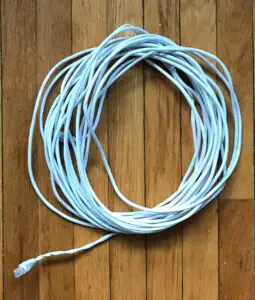
    One thing’s for sure: you definitely don’t want a long ethernet cable like this on the floor of your home snaking through the halls.

    Long ethernet cable

    If this solution doesn’t make sense for you, your best bet may be to try to expand the range of your router’s WiFi signal .

    You Can Use a WiFi Repeater to Increase the Wireless Range of Your Router

    If using a long ethernet cable to connect your modem and router doesn’t make sense for you, you can turn to a WiFi repeater instead.

    In this scenario, you’d connect your modem and router to each other wherever the modem is located. You could then use a WiFi repeater to enhance the wireless network range of your router.

    Wireless repeaters are placed in areas that receive adequate WiFi signal from your router. They detect and rebroadcast the wireless network coming from your router to increase the range of the network.

    Wireless repeaters can be used to reach areas of your home that are either far from your router, or don’t receive a strong wireless network signal.

    The best part about WiFi repeaters is that they don’t need to connect to your router with an ethernet cable. They can wirelessly detect the WiFi network in your home. All they need is a connection to a power outlet.

    There are plenty of options to choose from, but something like this Netgear WiFi repeater and booster would do the trick in most situations.

    This is definitely something to consider if you frequently access the internet in locations that are far away from where your modem and router are located. You can keep your modem and router close to each other, and use the repeater to provide WiFi coverage to the areas that you want.

    Wrap Up

    Unfortunately, I couldn’t deliver good news to you and say that modems and routers can be connected wirelessly.

    With that said, there are a few different options for you that should negate any disappointment you may have. You can be far away from your modem and router and still get good internet performance.

    If you have any questions about this information (or my recommendations), please leave a comment below.

    Also, check out the following posts I’ve written on similar topics if you’d like to learn more:

    Does a Modem Need to Be Connected to a Router? What to Know

    What is a Modem Router Combo?

    Should Your Router and Modem Be Close Together?

    Is My Router Dual Band? How to Know for Sure

    What Speed Can My Router Handle? What You Need to Look At

  • Is My Router Dual Band? How to Know for Sure

    Is My Router Dual Band? How to Know for Sure

    Is my router dual band title page

    It’s important to know how many wireless networks your router is broadcasting.

    If your router is dual band, it’ll broadcast two wireless networks: a 2.4 Gigahertz (GHz) network and 5 Gigahertz network. If it’s a single band router, it’ll only broadcast a 2.4 GHz network.

    This is important to know because some of the connected devices in your home network might require a connection to a specific wireless band in order for it to work.

    With that said, how do you determine if your router is dual band or not?

    The best way to determine if a router is dual band is to verify the number of wireless networks it is broadcasting. This can be achieved by looking at the informational sticker on the router itself, or by using a phone, tablet, or computer to view the router’s wireless networks.

    In this post, I’ll break down how you can determine if your router is dual band or not. I’ll also talk about what configuration you can expect from most routers today.

    How to Determine if a Router Is Dual Band

    When talking about routers, don’t let the term “dual band” fool you.

    All this means is that the router is emitting multiple wireless networks at the same time.

    The reason this is called dual band is because both of these networks being broadcast from your router will be at a different frequency. In other words, each network will be broadcast at a different frequency band.

    Is this starting to make sense now?

    The two different frequency bands emitted from dual band routers are 2.4 GHz and 5 GHz. What this means to you is that you’ll have a 2.4 GHz wireless network and a 5 GHz wireless network that you can connect to with your devices.

    So the question is, how can you tell if a router is dual band or not?

    There are two easy ways to tell if your router is dual band or not. You can either look at the router’s informational sticker, or you can use a connected device to look at the available wireless networks coming from the router.

    Let’s take a closer look at both of these options so you can choose the method that’s easiest for you.

    How to Tell if Your Router Is Dual Band by Looking at Its Informational Sticker

    One way you can tell if your router is dual band or not is by looking at its informational sticker.

    Every router should have a sticker on it that details some of its basic information.

    In many cases, this sticker is on the back or bottom of the device.

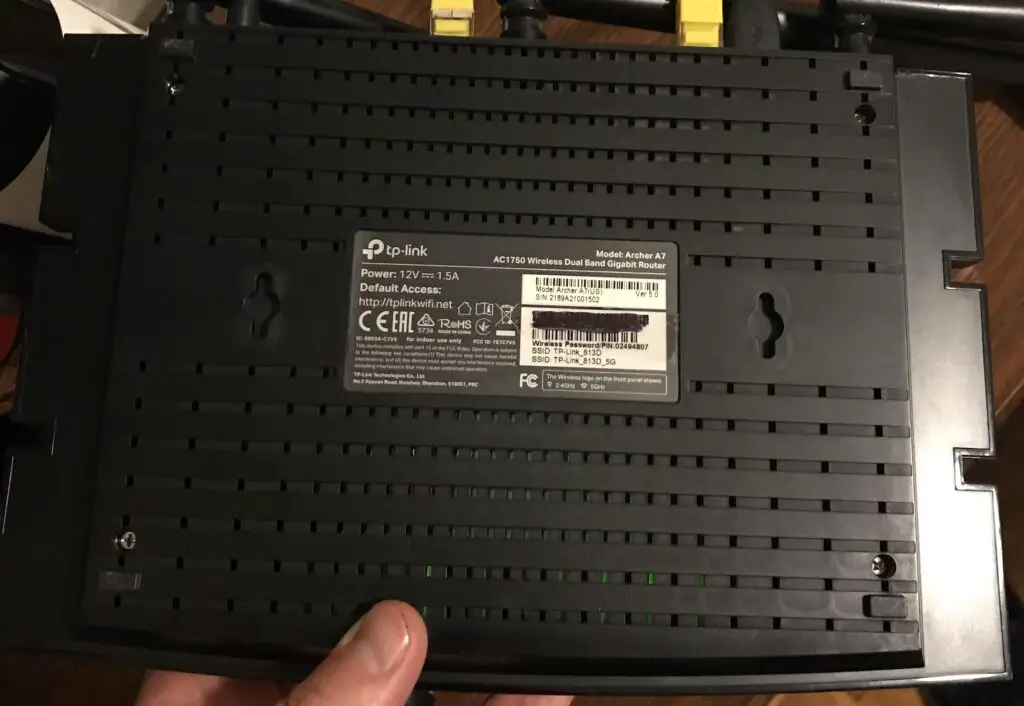
    For example, here’s what the sticker looks like on my TP-Link Archer A7 router:

    Sticker on bottom of router

    In many cases, this informational sticker will give you some hints as to whether it’s dual band or not.

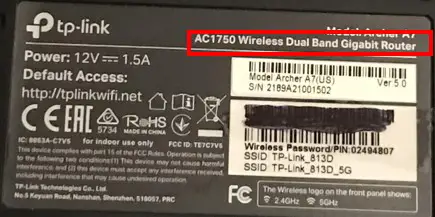
    One area on the sticker where you might get some useful information is where it details the make and model of your router.

    As you can see, the model of my router is listed as “AC1750 Wireless Dual Band Gigabit Router” in the corner:

    Router sticker model information
    The model information on my router’s sticker identifies that it’s a dual band router

    This is a dead giveaway.

    In the case that the model information doesn’t detail if your router is dual band or not, there’s another place we can look.

    I’m referring to the default wireless network information here.

    Your router’s sticker will most likely detail what the default names of the router’s wireless networks are. These are the names of the wireless networks that your devices can connect to when you first set up the router.

    What we’re looking for here is how many default wireless network names are provided.

    If two default wireless network names are provided, we know that the router is dual band. If only one default wireless network is listed, it’s a single band router.

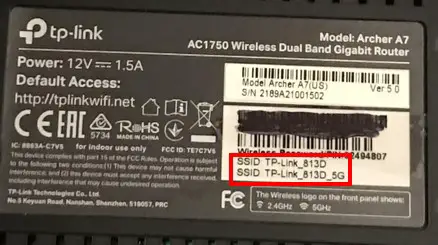
    Looking again at the sticker on my router, we get some useful information:

    Router sticker default wireless networks
    My router lists two default wireless networks on its sticker

    As you can see, there are two default wireless networks listed on my router’s sticker. On top of that, one of them is listed with a “5G” identifier at the end.

    In general, this is how 5 GHz wireless networks are labeled so it’s easy to tell which network is the 2.4 GHz network and which is the 5 GHz network.

    If that’s not convincing enough, there’s yet another way to use the sticker on your router to tell if the device is dual band or not.

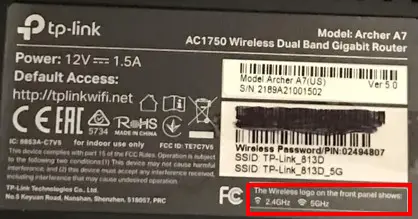
    The sticker also provides clarifying information about the lights on my router.

    If we look at the corner of my router’s sticker, we can see that there’s information explaining what the wireless network lights on the front of my router mean.

    Router sticker wireless network logo information

    This is yet another clear example that my router broadcasts two different wireless networks.

    When looking at your router’s sticker, one thing to keep in mind is that every router is different. The informational sticker on a router will provide different information for different routers and manufacturers.

    With that said, there’s a great chance at least one of these three ways to identify your router as dual band will be available on your router’s sticker as well.

    How to Tell if Your Router Is Dual Band by Looking at Available Wireless Networks in the Area

    If for some reason you can’t tell if your router is single band or dual band by looking at its sticker, there’s another option available to you. This is also a great option if you can’t find the sticker on your router or it doesn’t have one.

    This method requires a little experimentation.

    To perform this test, you need a device that can connect to WiFi. You also need your router to be powered on and broadcasting a wireless network.

    All you need to do is use your device to search for available wireless networks in the area. I recommend you stand close to your router when doing this.

    Depending upon the type of connected device you’re using, you can usually get to the list of available WiFi networks by selecting the WiFi icon on the device.

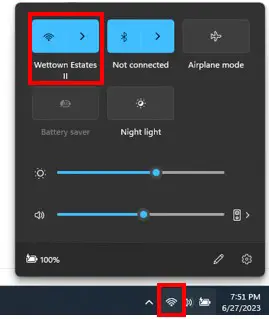
    On my computer, the WiFi icon is in the lower right corner of the toolbar. This’ll allow you to further expand the wireless network options:

    Computer wireless network options

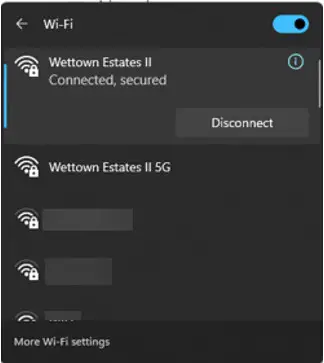
    When looking at the available WiFi networks in the area, you should be able to tell how many networks your router is broadcasting.

    Available WiFi networks
    The available WiFi networks near my router

    As we discussed earlier, if your router is dual band, it’ll broadcast two different wireless networks.

    The key here is that both wireless networks should have the same name, with the exception of “5G” being added to the 5 GHz network.

    So if you see two networks being broadcast from your router, and one of the networks has a “5G” identifier, you know your router is dual band.

    As you can see in the picture above, this is the case with my router.

    If you’re not sure what the names of the wireless networks being broadcast from your router are, it shouldn’t matter very much.

    If you’re standing near your router when performing this test, the WiFi networks that your router is broadcasting should have the strongest signals.

    Not sure how to tell which WiFi signals are the strongest?

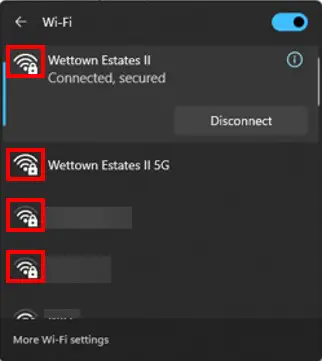
    You can tell which WiFi signals are the strongest by the number of bars next to the network name when you’re looking at the list of available wireless networks.

    WiFi network signal strength

    As you can see, the strongest signals are usually at the top of the available networks list.

    So if you see two networks at the top of the WiFi signal list, and one of them has “5G” at the end, your router is dual band.

    Keep in mind that if you’ve customized your network names, this could look different for you. With that said, most people keep the names of their 2.4 GHz and 5 GHz networks the same.

    Are Most Routers Dual Band?

    Hopefully with the different options detailed above you can tell if your router is dual band or not.

    If it eases your mind at all, it’s safe to say that there’s a good chance that your router is dual band. This is especially the case if you bought your router in the last 10 years or so.

    To put it simply, any modern day router will support two wireless networks.

    With the increased number of connected devices in home networks today, the different networks provided by dual band routers are extremely useful.

    The faster, but shorter range 5 GHz network provided by your dual band router can be used for the devices that require a lot of bandwidth. On the other hand, the long range 2.4 GHz network can be used for devices that’re farther away (or don’t require much bandwidth).

    I only expect more connected devices to be incorporated into homes moving forward, and dual band routers are equipped to handle the requirements of these devices.

    In other words, I don’t expect them to go away anytime soon.

    In fact, I expect it would be hard to find any single band routers that are still in use.

    If you happen to come across a single band router (outside of a museum), I’d love to hear about it in the comments section.

    Wrap Up

    Now you should have no problems identifying if your router is dual band or not.

    If you have any questions about this information, please leave a comment below explaining where you need help.

    If this information was helpful for you, you might want to check out some of these other articles I’ve written on similar topics:

    What Speed Can My Router Handle? What You Need to Look At

    Router Ethernet Ports: Everything You Need to Know

    Does a Router Have to Be Connected to a Computer to Work?

    What Router Do I Have? How to Find Out

    What Can You Use an Internet Router For? 7 Common Uses

  • Modem Speed Limits: What You Might Be Missing

    Modem Speed Limits: What You Might Be Missing

    Modem speed limits title picture

    Did you know that your internet modem could be costing you money and slowing down your network?

    Unfortunately, this is a very real possibility.

    How exactly does this happen?

    It’s possible because your modem might not be able to support your internet plan. To be specific, the limitation I’m referring to here is your modem’s speed limit.

    So what exactly is a modem’s speed limit, and how will a speed limit affect your network?

    A modem’s speed limit is the maximum speed it can support. If the maximum speed supported by a modem is less than the speed provided by an internet plan, the modem will become a bottleneck for the network. This will result in a performance restriction for the entire network.

    In this post, I’ll break down what a modem speed limit is. I’ll also talk about how you can find out what the speed limit of your modem is.

    Do Modems Have a Speed Limit?

    Modems, much like people, all have limits.

    When it comes to the internet speeds that modems can support, this is no exception.

    Much like how humans have limits in terms of how fast they can run, modems can only handle so much data at once.

    The technical term I’m referring to here is bandwidth.

    Bandwidth is a unit of measure that can help indicate how much data a device can process per unit of time. In today’s internet age, bandwidth is usually presented in megabits per second (Mbps) or gigabits per second (Gbps).

    When referring to the internet speed a device can support, what people are really referring to is the bandwidth the device can support.

    The same is true when talking about the speed of an internet plan. The speed of an internet plan is really the bandwidth the internet plan provides. In other words, how much data per second the internet plan can provide.

    Ok, now that we have that cleared up, let’s discuss how bandwidth limits affect your modem (and the rest of your network).

    The bottom line is that modems can only support a certain amount of bandwidth. They can’t process limitless amounts of data without restriction.

    The maximum amount of data a modem is able to support at one time is the modem’s speed limit.

    So how does a modem’s speed limit affect the rest of your network?

    It all depends on the bandwidth that your internet plan is providing.

    How a Modem’s Speed Limit Can Affect Your Network

    Let’s say, for example, that you have a really fast internet plan. Your internet plan provides 800 Mbps of bandwidth to your home network.

    Now, let’s say you have a budget-friendly modem that only can support 100 Mbps.

    The trouble here has to do with the fact that your modem is responsible for establishing the connection between your home network and your internet service provider (ISP). In other words, all data to and from your home network travels through your modem.

    Example of connections in a home network
    All internet data to and from a home network must flow through your modem

    The problem is that your internet plan can provide 800 Mbps, but your modem can only support 100 Mbps.

    Are you starting to see the issue here?

    Due to the fact that your modem can only support 100 Mbps, it doesn’t matter what bandwidth your internet plan is providing. Your modem will only be able to process 100 Mbps of the 800 Mbps that your ISP is providing.

    Modem restricting network speed

    This means your entire network will only be able to operate at 100 Mbps.

    Effectively, what’s happening here is your modem is serving as a bottleneck for your home network. It’s slowing down your entire network because it’s not able to keep up with the bandwidth provided by your internet plan.

    This is why your modem’s speed limit is so important. It’s also an aspect of a home network that many people overlook.

    So how do you find out what the speed limit of your modem is?

    That’s what we’re going to look at next.

    How to Find Out What Speed Your Modem Supports

    In order to determine if your modem is a good fit for your current internet plan, you need to determine the maximum speed it can support.

    There are a few ways to do this.

    To find out what speed your modem supports you can:

    • Review the datasheet (and box) that came with the device
    • Look at the sticker on the device to find out how many channels it has
    • Search online for the technical specifications of the modem

    We’ll take a closer look at each of these methods to ensure you’re able to figure out the speed your modem can support.

    Find the Speed Your Modem Supports by Reviewing the Datasheet (And Box) That It Came With

    In general, the speed a modem can support is listed on the box that it comes in.

    That’s because the modem’s speed is one of the main concerns of customers when they’re buying a modem. Marketers are well aware of this, which is why they usually put the supported speed front and center on the box.

    In addition, you’ll sometimes find a datasheet inside the box alongside the modem’s User Manual and modem components. These datasheets list all the technical specifications of the device, and will always include the speed the modem supports.

    If you still have these items, this is the first place you should look to find out the speed limit of your modem.

    The catch here is that most people don’t have the box their modem came with. They usually get rid of it as soon as their modem is working properly.

    The same goes with the datasheet that may come with the device as well.

    If you don’t have the box and datasheet for your device, there’s a way to look up this information online. We’ll get to that shortly.

    Look at the Sticker on the Device to Find Out How Many Channels the Modem Has

    If you don’t have the datasheet or box for your modem, the next best thing to do is to look at the device itself.

    Your modem will have an informational sticker on it that’ll give you clues about the speed it can support.

    In many cases, the sticker will be on the bottom of the device. For example, that’s the case with my modem.

    Sticker on bottom of modem
    The informational sticker on the bottom of my modem

    Although the sticker on your device might not tell you the maximum speed your modem can support, it’ll tell you the next best thing.

    I’m talking about the number of channels the modem has.

    The number of channels a modem has will give you an indication of the speed it can support. Couple that with the DOCSIS standard the modem follows and you’ll have everything you need.

    Ok, let’s slow down for a second.

    For starters, the number of channels a modem has is essentially the number of connections it can make with your internet service provider at one time.

    As you may guess, the more connections your modem has to your ISP at a given time, the higher its speed limit will be.

    So let’s start with that.

    In looking at the sticker on my modem, I can see that I have “24 DS” and “8 US” channels.

    Modem upstream and downstream channels

    This means my modem has 24 downstream and 8 upstream channels. The downstream channels on your modem are what we’re concerned with here, because the downstream channels are used to receive data from the internet.

    In other words, the downstream channels will indicate the maximum speed your modem can support.

    Ok, now on to the other piece of information we need. The DOCSIS version your modem uses.

    DOCIS is just a fancy word for describing how your modem communicates with your ISP. The reason this is important is because different standards support different speeds.

    Another way of saying this is that newer DOCSIS versions support faster communication speeds.

    The good news is we can see this is clearly marked on my modem as well.

    Modem DOCSIS version

    It looks like my modem uses DOCSIS 3.0 to communicate.

    In combining the number of downstream channels my modem has (24) with the DOCSIS version it uses to communicate (3.0), we can determine the speed my modem can support.

    For your convenience, I’ve created a table that details the speed a modem can support based upon the number of downstream channels it has, and the DOCSIS standard it’s using.

    In looking up my modem on this table, I can see that my modem can support 1,000 Mbps.

    If this method seems too complicated, there’s yet another option you can try.

    Search Online for the Technical Specifications of the Modem

    The last option for determining what internet speed your modem can support is similar to the first option.

    The only difference is, we’re looking up this information online.

    In order to do this, you need to know what make and model your modem is.

    If you’re not sure what modem you have, I’ve written a post that’ll help you figure this out. Check this article out first before moving to the next step.

    Ok, now we’re ready to move forward.

    The good news is, most vendors will have electronic versions of their product datasheets on their support page. We just need to go about finding them.

    What you can do is type the make and model of your modem into your internet search bar, followed by “dataset”. In my case, my modem is a Netgear CM600 modem, so I need to search for “Netgear CM600 modem datasheet”.

    In typing this into my search bar, the first result is exactly what I’m looking for. It’s the location of the electronic datasheet for my modem.

    Google results for netgear cm600 datasheet

    For the sake of this example, however, I’ll go to the fourth result on the page. This is the support page for my Netgear CM600 modem.

    Support page for Netgear CM600 modem

    In navigating to the support page for my modem, I have access to anything I would ever need regarding my modem. I just need to select the “Documentation” link.

    Netgear CM600 documentation

    This takes me to all the available electronic documentation for my modem. As you can see, I don’t have to look very hard to find the datasheet for my device.

    Netgear CM600 electronic datasheet

    In looking at the datasheet for my CM600 modem, I can see that my modem is made to support up to 960 Mbps.

    Netgear CM600 data sheet supported speed

    This means that my modem can support any internet plan up to 960 Mbps before it becomes a bottleneck.

    I recommend that you download and save any electronic documentation pertaining to your modem so you have it for future reference.

    Wrap Up

    There you have it.

    You can now determine what your modem’s speed limit is, and use it to make decisions about your home network.

    Just make sure your modem supports a maximum bandwidth that’s greater than the bandwidth provided by your internet plan. Otherwise, you’ll be wasting your money because you won’t be able to take full advantage of your internet plan.

    If you have any questions about the information presented in this post, please leave a comment below.

    If you’d like to learn more about your modem and home network, check out some of these posts I’ve previously written on similar topics:

    What Modem Do I Have? How to Find Out

    Does a Modem Need to Be Connected to a Router? What to Know

    Can I Just Buy a Modem and Have Internet? What Else You Need

    What Are Modem Channels? How They Affect Network Speed

    Does Modem Placement Matter?