Author: Ross Ricky

  • Will Changing Your DNS Improve Your Internet Speed?

    Will Changing Your DNS Improve Your Internet Speed?

    Changing DNS Improve Speed Title Picture

    Did you know that changing your domain name server (DNS) will improve your internet speed and make your internet searches more private and secure?

    Until recently, I overlooked the DNS that my internet devices use. I imagine you might be in a similar boat.

    Although your device’s DNS is a setting that is “invisible” to you, it can increase your internet speed and make your searches both more secure and more private.

    By the end of this post you will understand:

    • The benefits of changing your DNS on your internet devices
    • What the most popular public DNS are
    • How to determine what DNS is best for you
    • How to change your DNS settings to improve your internet security, privacy, and internet browsing speed

    DNS background information

    If domain name servers are new to you, I recommend you check out our previous post: How does a DNS query work?

    Reading our post about DNS queries will provide you with all you need to know about DNS and the steps involved in the domain name resolution process.

    Recursive DNS recap

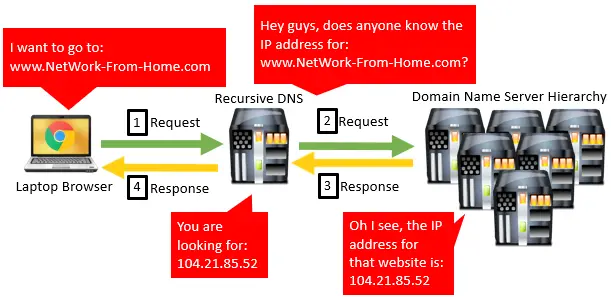
    To refresh your memory, your recursive DNS is the domain name server that acts on your behalf to get the IP addresses of the internet sites you want to access.

    Whenever you enter a fully qualified domain name (FQDN) for a website into your browser’s search bar, your recursive DNS will take that request and find the location for it on the web.

    Once the site location is found, your recursive DNS provides it to your browser, and your browser reaches out to that location with a request for the website you searched for. In response, the server at the identified IP address sends your browser the website you want.

    Now that you have the background information you need, let’s dive in and talk about your situation as it pertains to DNS.

    What DNS am I using now?

    By default, most internet devices will have the recursive DNS set to be automatically assigned. What this means is that your recursive DNS is most likely provided by your Internet Service Provider, or ISP (e.g. AT&T, Verizon, etc.).

    If this is the case, there is no reason to fret. I’m sure your internet performs just fine using the DNS that your ISP has automatically assigned.

    With that said, you can do better.

    Actually, you should do better.

    There are much better public DNS that you can use, and it is a free and easy change to make.

    How can I improve my DNS?

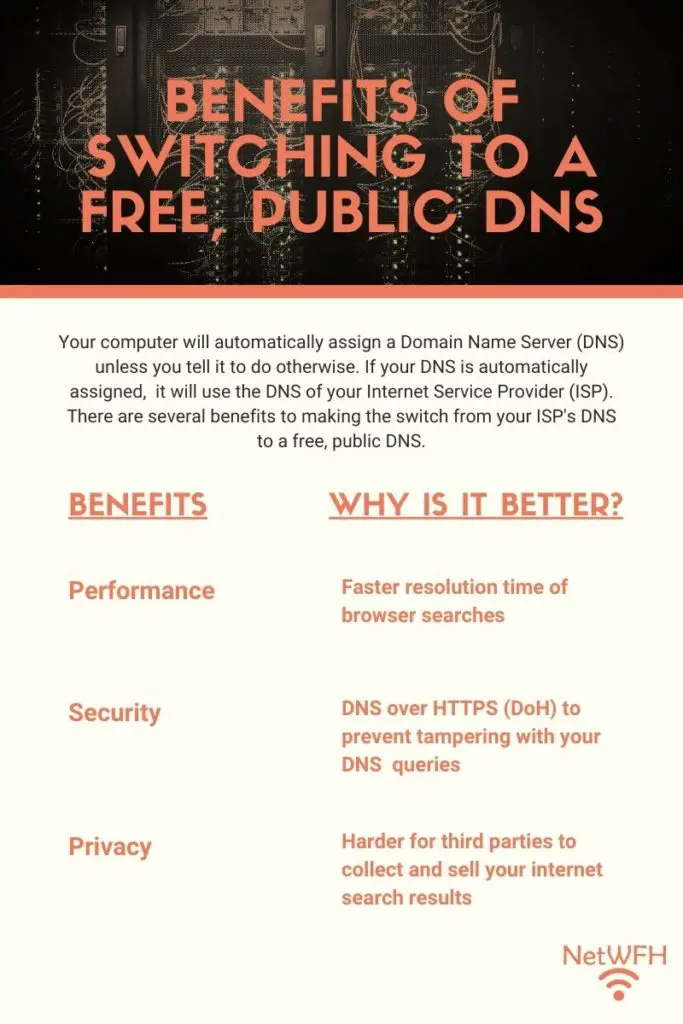
    The benefits of using a public DNS that is different from your automatically assigned DNS come down to three categories: performance, security, and privacy.
    Benefits of switching DNS

    DNS performance

    By changing your DNS to something other than what your ISP provides, you can actually improve your internet search speed.

    The problem with a DNS that is provided by your ISP is that they are often slow and can be outdated. Combine that with the fact that there may be thousands of people using the same DNS at one time (other subscribers of the same ISP in your area) and you can see how they may get bogged down and congested.

    Another item to pay attention to is that an ISP DNS is assigned to you regardless of your geographic location.

    Huh? Why is your location important?

    Importance of DNS location

    When you make an internet request, it is sent to your recursive DNS over high speed wires. I’m sure it is not surprising to hear that the closer this recursive DNS is to you, the faster your internet search will be. By performing a test of public DNS options, you can most likely find one that is located closer to you (and less congested).

    So yes, changing your DNS will likely improve your internet speed.

    DNS security

    Another benefit of using a DNS other than the one that your ISP provides is that you can choose one that is more secure.

    There are several companies that provide DNS offerings focused on their user’s security.

    How can your DNS security be enhanced?

    For one, DNS can help protect you from malicious websites that contain viruses and other harmful content. If a website is known to be harmful and you try to access that page, you will be taken to a different page with a warning saying the site you tried to access is not safe. This process is called DNS filtering.

    Your DNS safety can also be enhanced by a public DNS through a development called DNS over HTTPS (DoH).

    What is DoH?

    First and foremost, I am not talking about Homer Simpson here.

    DNS over HTTPS is a protocol that is used to encrypt your DNS searches. It is used for communication between your computer’s browser and your DNS.

    This basically means that your browser and DNS are the only two things that can read your DNS requests, regardless of who else may be listening in. To anyone else trying to see what websites you are going to, they will see scrambled characters that are useless to them.

    How does DoH affect my internet security?

    DoH makes your DNS searches more secure by preventing hackers from changing them.

    This is best explained in an example.

    Say you wanted to access network-from-home.com. Your laptop would send a request to your recursive DNS asking for the IP address of network-from-home.com.

    Seems normal enough right?

    What if a hacker was able to intercept your DNS request and rather than send you the IP address for network-from-home.com, he or she sends your browser to the location of a fake site?

    What if this fake site looked identical to the one you wanted but contained a virus that you computer downloaded when you visited it?

    Your computer would access the bad site and download the virus. If the hacker is skilled enough, you might not even notice the difference.

    Yeah, this is not good.

    Here is a visual example of this scenario:
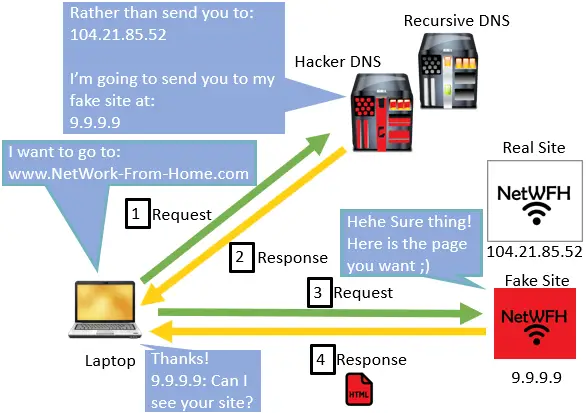
    DNS Man in the Middle Attack Example

    The good news is with DoH enabled on both your browser and DNS, you can prevent the above situation from happening. If the hacker can’t read the information sent between your computer and DNS, they will not be able to intercept and alter your requests.

    Although this change will not make a noticeable impact on your internet searches, it should give you peace of mind because they will be more secure.

    DNS search privacy

    Every time you make a DNS request to search for a website’s location without using DoH, the site you are looking for is not secret. In other words, that part of your search is unencrypted. Even if you are using a secure browsing protocol like HTTPS (instead of HTTP), this information is still sent in plain text.

    What does that mean in terms of privacy?

    It means that your ISP can see and track every website that you search for. This is also true when you use other WiFi networks in places like airports or coffee shops; whoever is operating that public network can see every site that you access. They may not be able to see the contents of your searches and the information you enter into those sites, but they can see that you accessed them.

    Why is this a privacy issue?

    Well for one, your ISP can build a profile of all the sites you have accessed. This information is very valuable to advertisers and other third-party companies trying to sell you things. Your ISP will sell your information to these companies and make a profit off of your data.
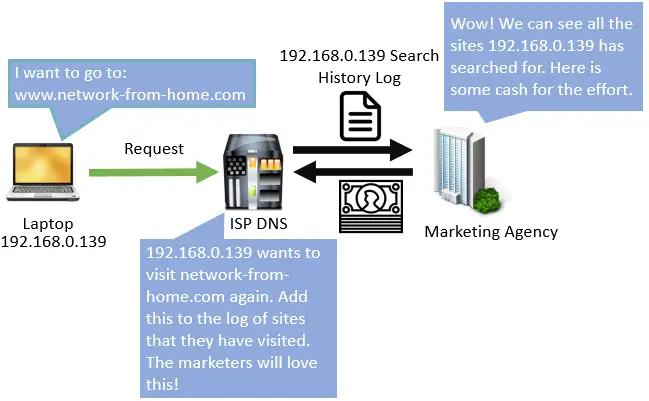
    ISP Selling Your DNS Searches

    Would you want other people looking at all the things you searched for on the internet?

    Neither would I.

    Thankfully DNS over HTTPS (DoH) has you covered in this regard as well. I must caveat this by saying your ISP may still be able to track your internet searches through other methods, but this at least makes it harder on them.

    At the very least, any other third-party trying to listen in on your internet searches will be out of luck.

    How does DoH make my DNS searches more private?

    By encrypting the contents of your DNS requests over an HTTPs connection, DoH hides your requests from your ISP. In addition, DoH cuts down on the information that is sent to other DNS when trying to find the location of a website. By only providing the information that is relevant to each particular DNS, it makes it even more difficult to log the sites you visit.

    In summary, DoH makes your internet searches much more private than they have been in the past.

    I can’t imagine why you wouldn’t want something like this.

    Do all public DNS use DoH?

    Unfortunately there is a catch.

    Due to the fact that DoH is still relatively new, not every public DNS supports it.

    A few of the most popular public DNS that support DoH are as follows:

    • Google Public DNS
    • Cloudflare
    • OpenDNS
    • Quad9

    In addition, DNS over HTTPS will only work if both your web browser and DNS support it. This is due to the fact that DoH uses an encrypted connection between your browser and DNS. If they both don’t support it, you will not be able to create the encrypted connection required.

    As of today Google Chrome, Microsoft Edge, and Mozilla Firefox browsers support DoH.

    What is the best DNS for me?

    The good news is there are tools to make it easy to find which DNS will work best for you.

    There are several tools out there, but the one I used is called NameBench. NameBench is a tool that can be used on Windows or Mac OS. It automatically tests popular DNS servers for you and gives you performance statistics on each. Based upon the results from the test, you can decide which DNS you want to choose.

    You can download NameBench here. If you are using Windows you will want to choose the .exe download at the top of the list. For Mac OS you will want to choose the most recent .dmg file.

    Setting up the NameBench DNS test

    Once the file downloads, open the .exe (or .dmg if you are on a Mac OS) file and click Extract:
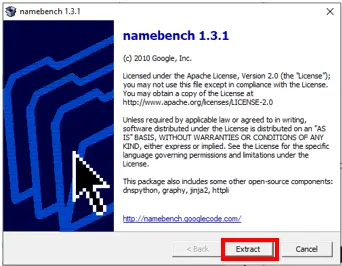
    NameBench.exe Extract Button

    Once the extraction is complete, a new window will open. On this window you do not need to change any settings. You can simply click Start benchmark:
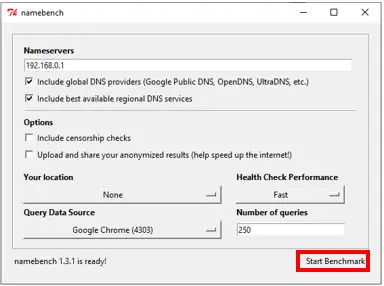
    NameBench Start Benchmark Button

    This will start your DNS test. The test will include the performance of your current DNS that is assigned by your ISP. You can tell by the 192.168.0.1 in the Nameservers entry. This means the test will use the DNS that your router tells it to. If your DNS has been automatically assigned, this will be your ISP’s DNS.

    The test can take 10 minutes or so because it tests a handful of different DNS for response times. The NameBench window will indicate the status of the test at the bottom of the window.
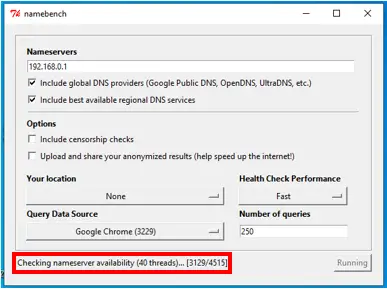
    Namebench in Progress Window

    When the test has completed, you will get a summary of the mean response duration from the fastest DNS:
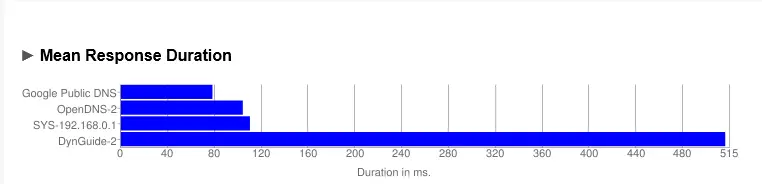
    Namebench Mean Response Duration

    You will also receive a summary of the DNS tested:
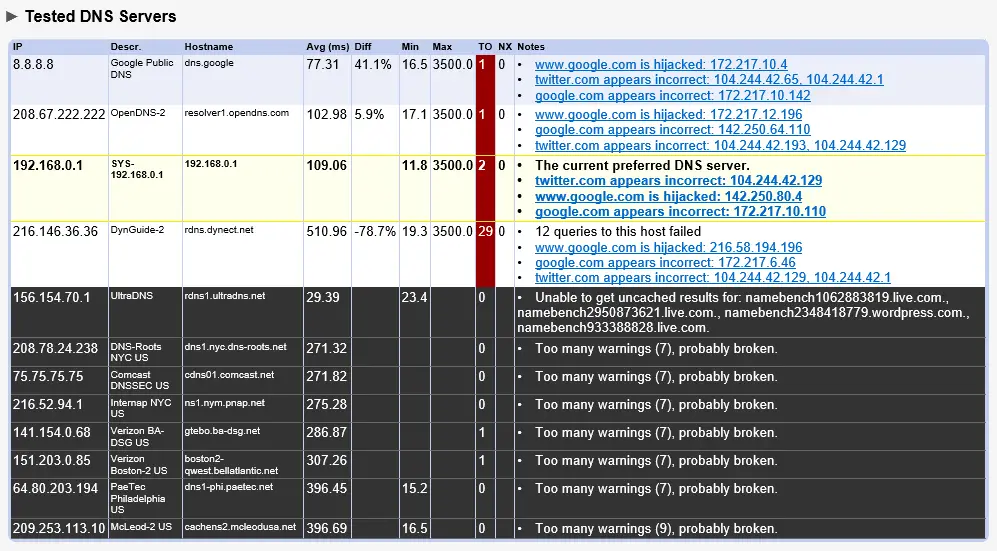
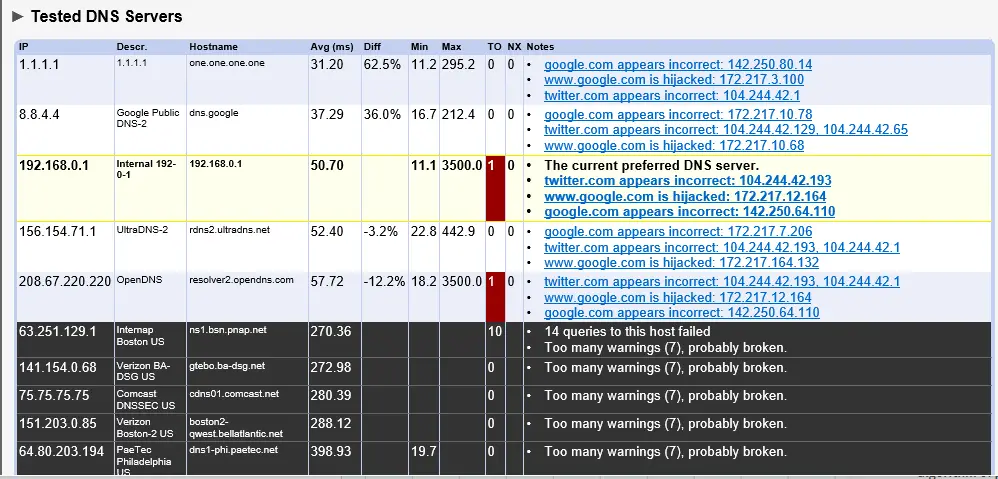
    Namebench Tested DNS Results

    What does all this mean?

    For one, looking at the mean response duration you can tell that there are faster DNS than the one I am currently using (the ISP’s). Remember that the DNS I am using is listed as 192.168.0.1 which is the DNS assigned by my router. Looking at the DNS summary statistics in the Diff column, it looks like Google Public DNS is 41.1% faster than my current DNS.

    That is significantly faster.

    These results got me excited. One thing I did notice in the results, however, was that there were other popular public DNS that were not included in this test.

    How to test other DNS with NameBench

    The good news is that NameBench allows you to manually input other DNS to include in the DNS test.

    You can do this by entering the IP address of the other DNS you want to test. In this case, I wanted to test Cloudflare’s DNS because they have a good reputation from both a speed and security standpoint.

    All I had to do was enter the IP address of Cloudflare’s DNS (1.1.1.1) into the Nameservers entry field in NameBench and run the test.
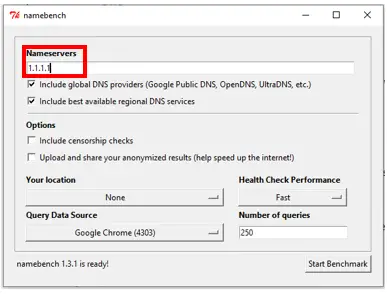
    Cloudflare DNS NameBench Configuration

    After running the test with Cloudflare’s DNS included, here are the results I got:

    Cloudflare Namebench Results Mean Response Time
    Cloudflare Namebench Tested DNS Results

    Cloudflare’s DNS is 62.5% faster than my current DNS server! At this point I was really starting to like the results of these tests.

    Although my DNS test resulted in Cloudflare’s DNS being the fastest, your results might be different.

    As a reminder, a factor in the speed of a particular DNS will depend upon how close you are to it. There may be other DNS that are closer to you that will result in faster resolution times.

    Other DNS considerations

    It can be very easy to select a public DNS that provides the fastest speed, but I urge you to consider the security aspect of your DNS as well.

    In my case I was lucky because Cloudflare was the fastest DNS I tested but they are also very focused on security. On their website they promise to clear any logs of your DNS searches within 24 hours. This is another reason for me to go with Cloudflare, because I have their promise that they are not selling my DNS search data. This is a level of comfort I don’t have when I use my ISP’s DNS.

    I say all this to recommend that you choose a DNS that supports DoH. That way, you will have a faster DNS that also provides you with more privacy and security.

    Here is a list of the most popular public DNS that you should test with NameBench:
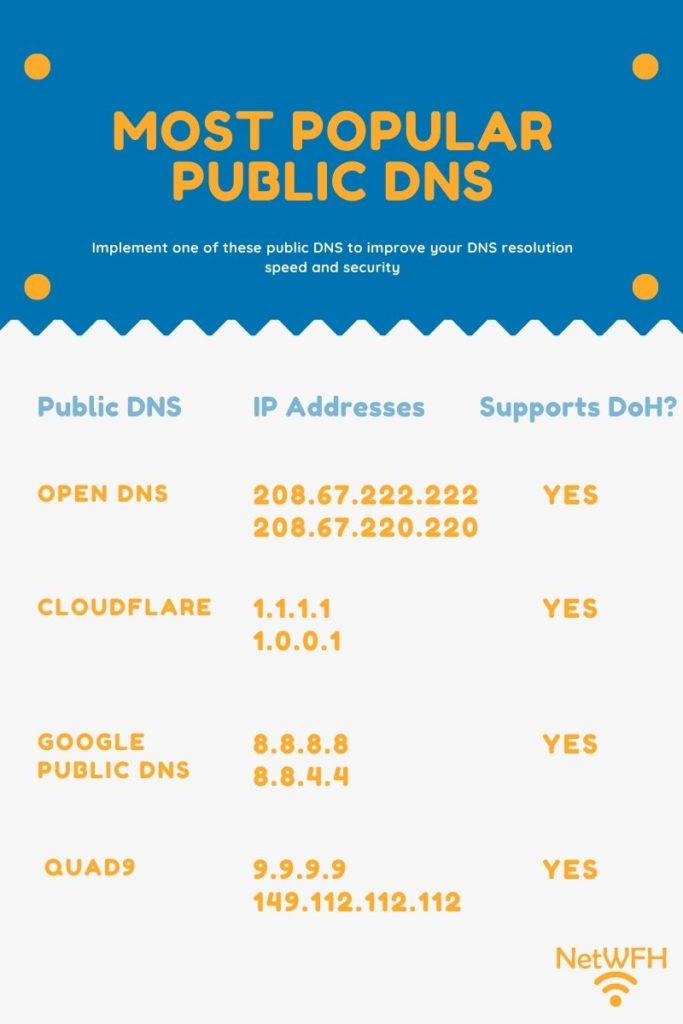
    Best Public DNS Summary

    How to change DNS settings on your router

    Ok at this point you have determined which DNS you want to use.

    What next?

    On your home network, you will want to change the DNS on your router.

    Why change the DNS on your router?

    This makes it easier for you. By changing the DNS on your router, all the devices on your home network will use the new DNS. Most of the time these devices will be connecting to the internet on your home network, and some of them will only connect through your home network (think Smart TVs, desktop computers, etc.)

    To put it simply, your router will tell all the devices on your network to use the new DNS. You will not have to go onto each individual device and change the DNS settings. You may want to do that on your laptop and mobile devices, but we will get to that later.

    Steps for changing your router’s DNS

    In order to change the DNS of your router, you will first need to log into it. For many people you can do this by entering 192.168.0.1 into your search browser. You will then be prompted to enter the username and password for your router.

    You will often find a sticker on your router detailing the address you can enter into your browser to change your router settings.

    Upon logging into your router, you will need to find the advanced internet settings page.
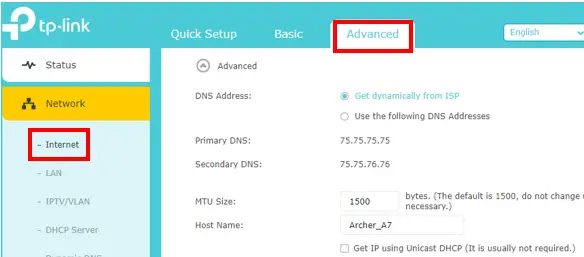
    TP Link Archer A7 Advanced Internet Settings

    Here you can see that the Primary and Secondary DNS fields show the currently assigned DNS. I have a TP-Link router so your settings menu may look completely different than mine. That being said, there should be similar options for you.

    From this window I can select “Use the following DNS addresses”. You can enter the primary and secondary IP addresses of the DNS you want (in my case Cloudflare’s).
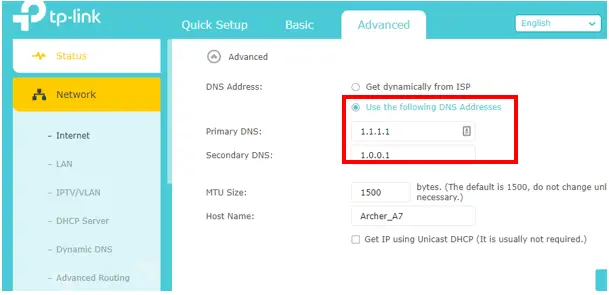
    TP-Link DNS Settings Change

    After making these changes I suggest you reboot your router.

    Nice work, you have improved the internet experience for all your home devices. Every time you are connected to your home network, you will now be using the new DNS you chose.

    How to change the DNS settings of your mobile devices

    Unfortunately, changing the DNS on your router does not account for all the times you connect to the internet.

    Think about the devices you take with you away from your home network.

    I’m talking about your cellphone and laptop computer to name a few.

    When these devices connect to an internet network other than your home network, they will use the DNS that the router of that network tells them to. In many cases, this will be the ISP’s DNS. Which means you will be open to someone tampering with your DNS searches or selling your search data to marketers.

    You can get around this by changing the DNS on the device itself. This will overrule what DNS the router tells your device to use.

    If you change the DNS on your device itself, no matter what internet network you are connected to, you will always use the free and public DNS that you like. This ensures your DNS searches are always secure, even when you are away from home.

    How to change your laptop’s DNS

    I will show you how to change your DNS using Windows 10. If you have a Mac, there are many other sites available showing how to change your DNS.

    https://www.youtube.com/watch?v=MtQKR1PvD68

    To change the DNS on your Windows 10 device, first you need to open the Control Panel. You can do this by typing Control Panel in the search bar at the bottom of your screen.
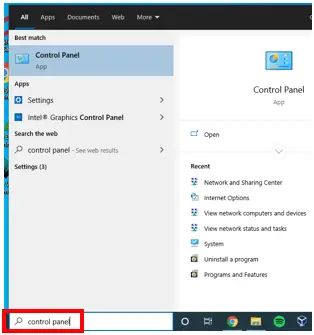
    Control Panel in Windows 10 Search Bar

    From there you will want to select Network and Internet.
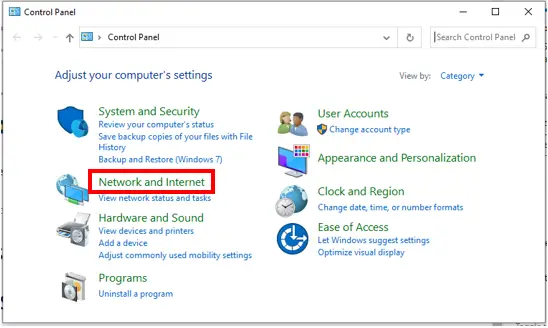
    Windows 10 Control Panel Network and Internet

    In the next window select Network and Sharing Center
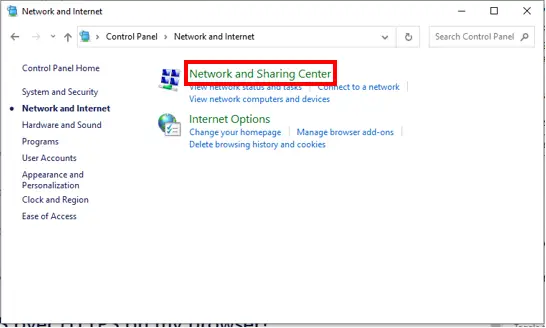
    Windows 10 Network and Sharing Center

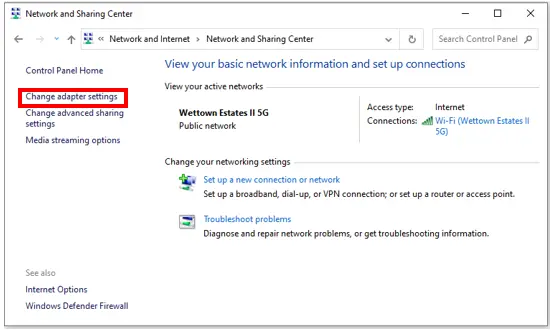
    On the next window select Change adapter settings.
    Windows 10 Change Adapter Settings

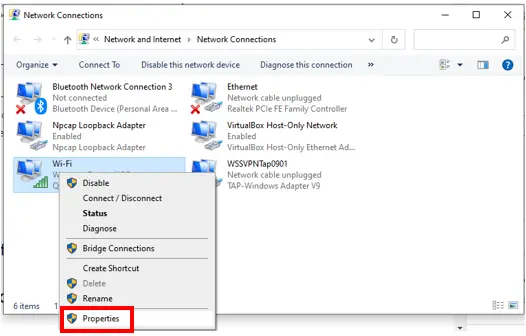
    On the next window that opens, right-click the adapter that you are currently using to connect to the internet. For example, if you are connected to the internet over WiFi, right-click Wi-Fi and select Properties.
    Windows 10 Wi-Fi Properties

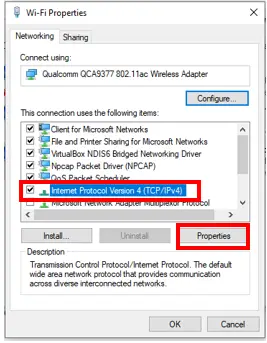
    On the window that opens select Internet Protocol Version 4 and click Properties.
    Windows 10 Wi-Fi IPv4 Properties

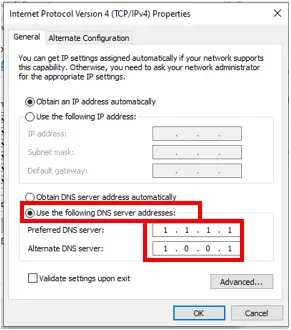
    Now select Use the following DNS server addresses. In the Preferred DNS server and Alternate DNS server fields, enter the primary and secondary IP addresses of the DNS you would like to use. Then press OK.
    Windows 10 Wi-Fi Changed DNS

    At this point, every time you are connected to the internet over WiFi you will use the DNS that you just entered.

    With some of your devices like your laptop, you may connect to the internet with a wireless (WiFi) or wired (ethernet) connection depending upon the situation. In this case you will want to switch the DNS for your ethernet adapter as well.

    If you want to use the same DNS when you are on an ethernet connection, you will need to repeat the above steps for your Ethernet adapter. Your ethernet adapter can be selected from the network connections window.
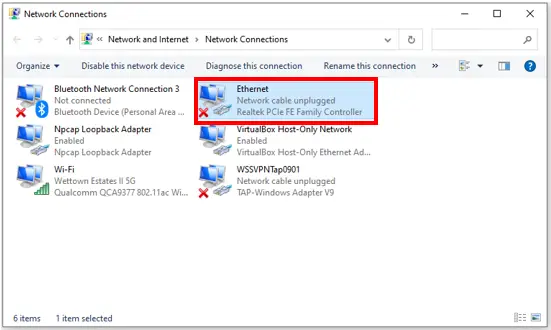
    Windows 10 Ethernet Adapter Settings

    Once you have changed the DNS for your ethernet and WiFi adapters, your computer will use these DNS however it is connected.

    How to change your phone’s DNS

    It is easier and faster to change the DNS on your phone than on your computer. Also, because phones can only connect to the internet over WiFi, you only need to change one adapter setting.

    Let’s get started. I will show you the steps to change your DNS on an iPhone, but if you have an Android there are many other sites detailing steps to change your DNS.

    On an iPhone, you first need to go into the Settings menu. In the Settings menu, select Wi-Fi.
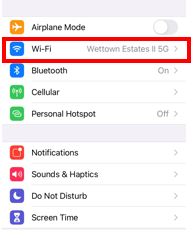
    iPhone Settings

    Next tap the information button next to the internet network you are currently connected to.
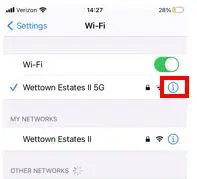
    iPhone WiFi Information

    On the next screen select Configure DNS.
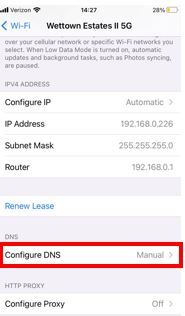
    iPhone DNS Settings

    In the next screen, select Manual instead of Automatic. Then enter the primary and secondary IP address of the DNS you want to use. Make sure you delete the IP address of your router. That way, the only IP addresses listed are the primary and secondary DNS of the public DNS you chose.

    When you are done your screen will look something like this:
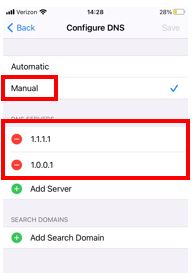
    iPhone Configure DNS Settings

    Now, whenever you connect your iPhone to a WiFi network, it will use the DNS you want. You should never have to change this setting again.

    In addition, if you have an Android or Apple tablet, the steps to change your DNS will be very similar.

    Doesn’t that give you peace of mind? I know it does for me.

    How do I enable DoH on my browser?

    Now that you have configured your devices to use the DNS you want, there is one last thing to do.

    Assuming you chose a public DNS that has DoH enabled (this is in your best interest), you will need to make sure that your browser has DoH enabled as well.

    The good news here is as long as you have Google Chrome version 83 or newer, DoH is enabled by default.

    In addition if you have Mozilla Firefox (and are a United States resident), DoH has been enabled by default since February of 2020.

    The bad news is if you have Safari, you are out of luck. Safari does not enable DoH by default. That means if you have an iPhone with Safari installed, there is not much you can do in terms of DoH. Your options are to write your own app, or enable DoH directly in an app if that feature is offered.

    I wouldn’t want to do that either.

    Personally, I would just download Firefox or Chrome on your phone and ditch Safari.

    What we have learned about DNS

    Congratulations! Now you should have all the information you need to start using a public DNS.

    You will now be browsing the internet more privately, safely, and faster than before.

    Hopefully you have learned:

    • That changing to a public DNS will increase the privacy, security, and speed of your internet searches
    • What the most popular public DNS are and if they support DoH
    • How to test which DNS is best for your unique situation
    • How to change the DNS on your router, phone, tablet, and computer

    I hope this information has inspired you to take the few minutes to change your DNS.

    If you go through the exercise of finding which DNS is best for you, I would love to hear about your results.

    Let me know how much your DNS resolution speed increased by switching to a public DNS.

    As always, feel free to reach out to me if you run into any problems or have any questions.

    Good luck and happy surfing!
  • How Does a DNS Query Work?

    How Does a DNS Query Work?

    DNS Query Title Picture

    One of the most underappreciated aspects of the internet today is the domain name server (DNS). We use them many times a day to get to our favorite websites. What most people don’t understand is that when we type a site into our internet browser search bar, we are querying a domain name server for the location of the site we want. So how then, does a DNS query work?

    In this post we will cover all you need to know about domain name servers and their purpose on the internet.

    My goal is for you to walk away from this post with a complete understanding for how DNS queries work. It wouldn’t hurt if you walked away with some appreciation for domain name servers too.

    Alright, let’s take it from the top.

    What is a Domain Name Server?

    Domain name servers are essentially address books for the internet. They contain the locations of all the websites on the internet.

    Every device that uses the internet is assigned an IP address. You will recognize an IP address as a series of four numbers separated by dots (e.g. 192.168.0.1). These four numbers detail the location of each device connected to the internet (it is also called an IPv4 address). Computers identify the computer or device they want to talk to by their IP address.

    This is very much like our mail system today. You need to know the address of the person you want to send a letter to. If you don’t, your letter will never arrive at its intended location.

    So how do computers know the IP addresses of the devices they want to communicate with?

    We have domain name servers to thank for that. If it weren’t for domain name servers, we would have to memorize the IP addresses of all the websites that we go to.

    That would get complicated.

    Fully Qualified Domain Name

    Rather than make everyone memorize the IP addresses of their favorite websites, the internet decided to make it easy by assigning a fully qualified domain name (FQDN) to each IP address. A FQDN is essentially a recognizable name that is linked to each IP address.

    For example, the FQDN for the IP address of 172.217.10.238 is “google.com”.

    What is easier to memorize? 172.217.10.238 or google.com?

    I thought so.

    What does DNS have to do with this?

    Domain Name Servers are responsible for keeping track of which FQDN matches to each IP address.

    It is important to note that one domain name server is not responsible for keeping a record of every single website on the internet. It is a shared responsibility by a network of domain name servers. These DNS work together to get you where you want to go on the internet.

    How does a DNS query work?

    When you type the FQDN of a website into your browser search bar (e.g. network-from-home.com), your request gets sent to a network of Domain Name Servers. The DNS network takes your request and attempts to look up the location of www.network-from-home.com based upon its IP address.

    This process of translating an FQDN into an IP address is called domain name resolution. This is the primary service that domain name servers provide.

    DNS structure

    Before we discuss the different components that make up the DNS network, it is worth mentioning the structure of the domain name service.

    The domain name service that is implemented on the internet is a hierarchy. As you will see, this hierarchy is a way of separating each domain (or address book of IP addresses) into logical groups. This makes it easier and faster for your DNS to find the IP addresses you are looking for.

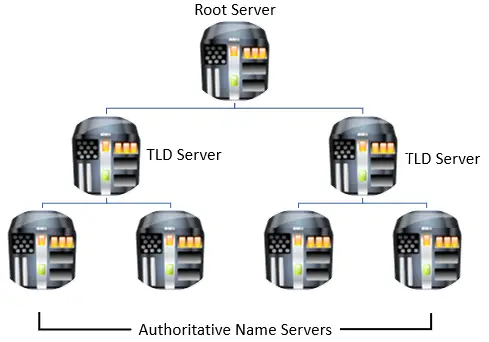
    At the top of the hierarchy you have what is called a root server. Below the root server you have top level domain (TLD) servers, and beneath TLD servers you have authoritative name servers. The authoritative name servers will hold the IP address information of the FQDN you are looking for. That being said, each of these DNS servers are important because they help you get closer to the IP address you are looking for.

    Here is a visual representation of the DNS hierarchy:

    DNS Hierarchy

    It is important to keep in mind that the visual above is a scaled down version of what the DNS network really looks like. In reality, there are thousands of servers that make up this network.

    Now that we have explained the DNS hierarchy, let’s learn more about the different players in the DNS query process.

    Recursive DNS

    The recursive DNS is the domain name server that carries out your IP address search for you. When you type an FQDN into your browser search bar, your recursive DNS is the one your browser contacts first.

    Your recursive DNS will then take your request and ask the domain name server hierarchy what the IP address of your site is.

    Here is an oversimplified visual of the recursive DNS’ role:

    Recursive DNS

    Recursive DNS are usually assigned by your internet service provider (ISP). They are often slow and insecure. What’s more is your search history is not private when using the ISP’s DNS.

    The good news is you can choose which recursive DNS you want to use. There are many available that are much faster, more private, and more secure than what you are using now. Most of them are free and it is an easy change to make as well.

    If you want to make your internet searches faster, more private, and more secure, check out our post: Will Changing Your DNS Improve Your Internet Speed?

    Root server

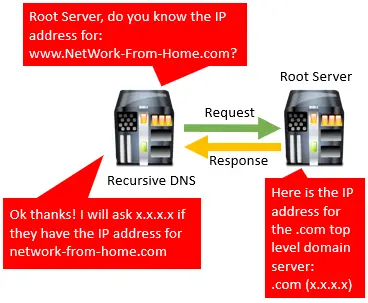
    The root server is the first DNS that your recursive DNS will talk to when trying to find the IP address of the site you want to access.

    The root server will not know the IP address that the recursive DNS is looking for, but it will point the recursive DNS in the right direction. It does this by sending the recursive DNS the IP address of the top level domain server that pertains to the site you are looking for.

    With the IP address of the top level domain server, the recursive DNS can ask the TLD if they know the IP address of the site you want. This continues the trip down the DNS hierarchy.

    The interaction between a recursive DNS and root DNS looks something like this:

    Root DNS and recursive DNS interaction

    There are currently 13 DNS root servers and more than 1,500 top level domains that are stored on each root server. All the root servers hold a copy of these same 1,500+ top level domains. This allows the root servers to double check each other and make sure the information they are storing is accurate. Errors in the root server would prevent you from being able to search for sites on certain domains.

    What are the top level domains? Read on to find out.

    Top level domain server

    Top level domain servers help guide your recursive DNS toward the IP address it is looking for. The TLD servers start the process of separating large groups of IP addresses into hierarchies. Based upon which hierarchy the website you are looking for falls into, that is the TLD that your recursive DNS will question.

    You will have a better understanding of this once we provide some examples.

    Top level domains are separated into two main categories: organizational hierarchies and geographical hierarchies.

    Organizational hierarchies

    Organizational hierarchies are divided by the purpose of the domain. This is why you see universities with .edu at the end of their website names. Most university websites will end with .edu and this is an example of an organizational hierarchy.

    Other examples of organizational top level domains are:

    Organizational domain examples

    Geographical hierarchy

    Geographical hierarchies are divided by the location of the domain. This is why you see other countries with different endings for their websites. An example of this is Australian-based websites ending in “.au”.

    Other examples of geographical top level domains are:

    Geographical Domain Examples

    As you can see, the top level domain servers only care about the ending of the website you are looking for. This is the first major category that helps point your recursive DNS down the right path.

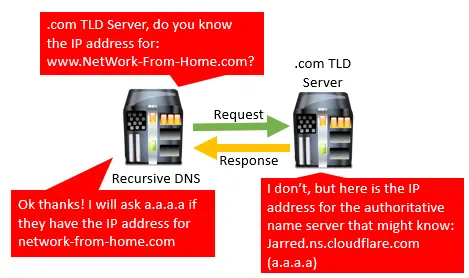
    To recap, the root server will send your recursive DNS the IP address of the TLD server that pertains to the site it is looking for (e.g. the .com TLD). Your recursive DNS will then ask the .com TLD if they have the IP address of the site you are looking for.

    Once the top level domain server is asked for the IP address of a specific site in its domain, it points the recursive DNS further down the DNS hierarchy to an authoritative nameserver.

    TLD DNS and recursive DNS interaction

    Let’s take a look at the authoritative nameserver.

    Authoritative nameserver

    The authoritative nameserver is the lowest level of the DNS hierarchy. This is the server that actually knows the IP address of the site you want to visit.

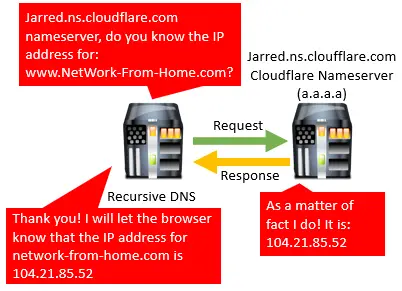
    Authoritative nameservers are responsible for storing the IP addresses of the different locations in a given domain. In this example where we are trying to find the IP address for network-from-home.com, the authoritative nameserver is jarred.ns.cloudflare.com.

    The network-from-home.com website is hosted by Cloudflare, which explains why the Cloudflare nameserver knows its IP address.

    When the recursive DNS asks the Cloudflare nameserver what the IP address is, it responds with the IP address for network-from-home.com because it has that information stored on it. No further steps are required.

    Authoritative nameserver interaction with recursive DNS

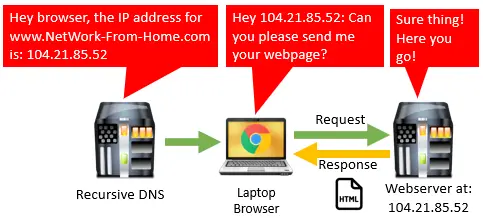
    With the IP address of network-from-home.com in hand, the recursive DNS can respond to the browser with this information.

    This ends the DNS hierarchy lookup process.

    Internet browser

    What happens after your recursive DNS delivers the IP address to your browser?

    At this point your browser does what you wanted it to in the first place. It contacts the website you want to access by reaching out to its IP address.

    Once your request is received from the web server, it sends your browser the webpage you want to look at.

    Browser and Web Server Interaction

    At long last, your browser will show you the webpage you wanted.

    DNS name resolution process

    I know that was a lot of information to take in all at once.

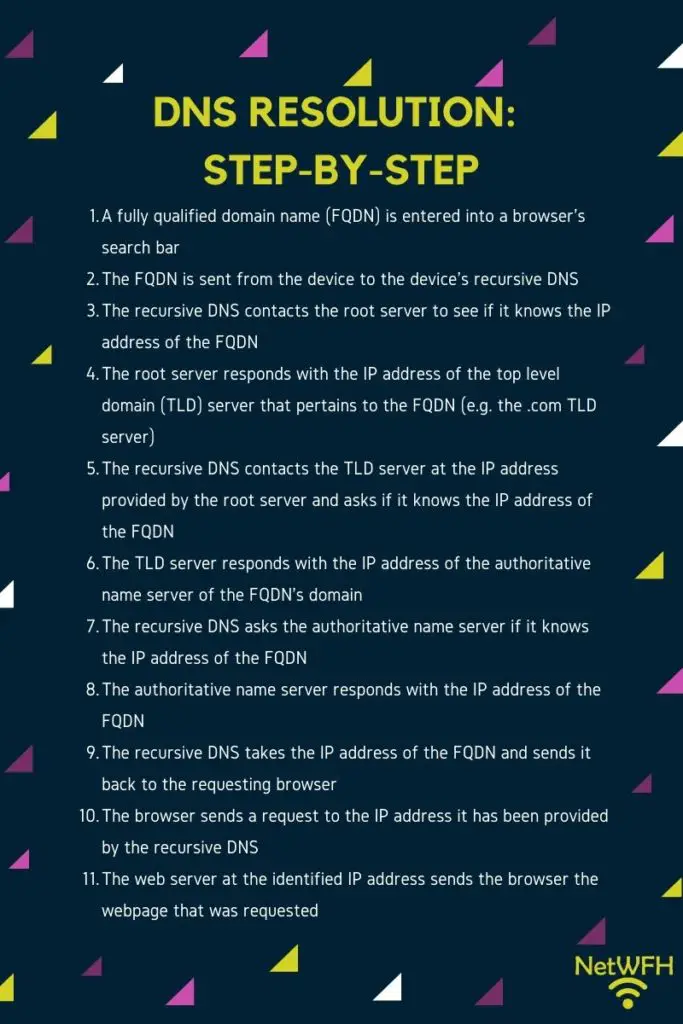
    To make things easier, let’s break down the steps of a DNS query in one place so it is easier to follow along:

    DNS Resolution Step-By-Step

    See, it’s not so bad.

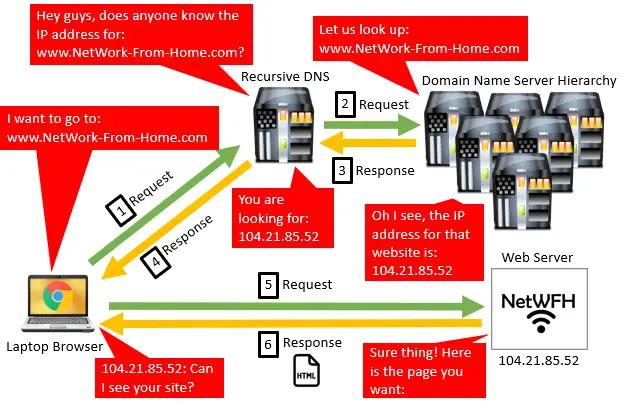
    If a visual example is easier for you to follow, here is a high-level view of the process:

    DNS Query Process

    When you consider this all happens in less than a second, you realize how amazing domain name resolution is.

    DNS are some of the most underappreciated pieces of equipment on the internet, and the internet is very easy to use because of them.

    Let’s move on before I nerd out too much about the benefits of DNS.

    Does DNS resolution occur every time I search for a site?

    Despite the fact that DNS resolution happens very quickly, it will not happen every time you go to a different website.

    If every device on the internet had to perform DNS resolution for every website they visited, the DNS hierarchy would quickly become overwhelmed. This would result in slower resolution times. No one would be happy about this.

    DNS cache

    To prevent this problem and further speed up resolution times, your device’s operating system keeps a copy of all your recent website searches. This is called your DNS cache.

    For any website that you have recently accessed, your operating system will remember the IP address for the fully qualified domain name. This prevents your recursive DNS from having to find the IP address for you. This makes it much faster to get to websites that you frequently visit.

    On top of that, DNS cache reduces the burden on the DNS hierarchy. With less people querying the DNS hierarchy, the hierarchy can quickly respond when devices need to find an IP address.

    Even if your operating system doesn’t have an IP address in its cache, your recursive DNS has a cache of IP addresses as well. Thousands of people use the same recursive DNS, so if someone else recently searched for the same website that you want to get to, the recursive DNS will have the IP address in its cache. When your device asks for the IP address of a website, it will respond with the IP address without having to ask the DNS hierarchy.

    Talk about efficiency!

    What if I have the IP address of a site? Can I skip the DNS resolution process?

    So far in this post we’ve discussed finding an IP address when you know the fully qualified domain name of the site. What if you only have the IP address and not the fully qualified domain name?

    Unfortunately there are no shortcuts here. You can’t avoid DNS resolution simply by typing the IP address of the site you are looking for into the browser.

    The reason for this is that some IP addresses host many different websites. The web server you are contacting can only tell what site you are trying to reach by the FQDN that is sent to it. This is included in your request for the web page. When you type an IP address into a browser search bar, the FQDN for the IP address will be found by the DNS.

    The process of finding the FQDN for an IP address is called reverse DNS.

    I know. Not very original is it?

    Anyway, the process for reverse DNS is different than the forward DNS process of finding an IP address for a FQDN. Although the steps involved in reverse DNS are out of the scope of this post, there are some good articles online explaining how it works if you want to learn more.

    Wrap up

    Hopefully you now have a thorough understanding of DNS and how a DNS query works.

    If you are looking to learn more about the recursive DNS you are using (and how to change it), check out our post: Will Changing Your DNS Improve Your Internet Speed?

    As always, if you have any questions about DNS feel free to leave a comment below or reach out to me via the Contact Me page.

  • Does an Old Computer Affect Your Internet Speed?

    Does an Old Computer Affect Your Internet Speed?

    Does an old computer affect your internet speed?

    I’ve analyzed how routers, modems, and ethernet cables affect your internet connection, but what about your computer?

    Can your computer affect your internet speed as well? This is the next logical question to answer.

    An old computer can be the cause of a slowed internet connection. If the wired and wireless network adapters on the computer can’t support the internet speed provided by the internet plan (or the network adapter drivers are outdated), it will limit the computer’s internet speed.

    I know this may sound confusing.

    Fear not. In the article below I’ve broken this down to explain exactly what it means.

    How Does a Computer Connect to the Internet?

    Before we dive into how a computer can affect your internet speed, we should first break down how computers use the internet.

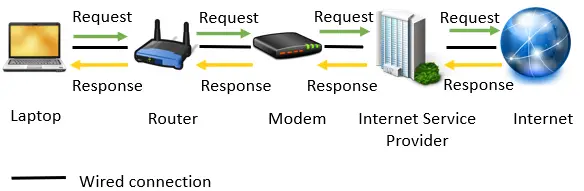
    Computers connect to the internet through a wired (ethernet) or wireless (WiFi) connection to a router. They use the bandwidth provided by your internet service provider (ISP), which is delivered to your computer with the help of a modem and router.

    When you enter a website into your web browser, a router and modem help your requests get to the ISP. The ISP then retrieves the requested information on the internet and returns it to your computer.

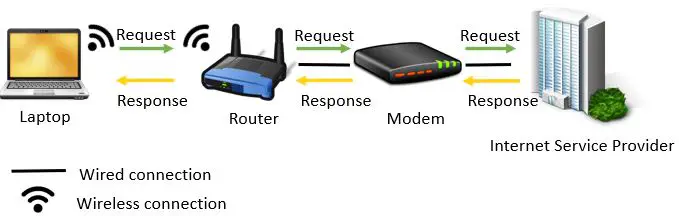
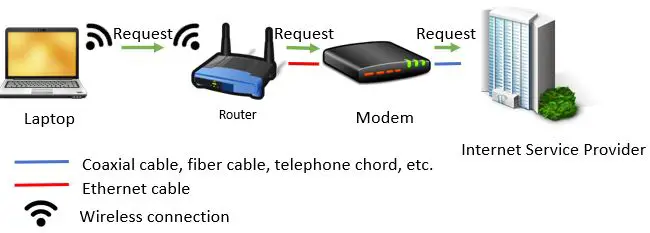
    In a wireless internet connection your computer connects to your wireless router through the air using radio waves. The wireless networking technology that is used for this wireless connection is called WiFi (as I’m sure you already know). Once your router receives your request over WiFi, it ensures your request gets sent out to the ISP and the site you requested gets sent back to you.

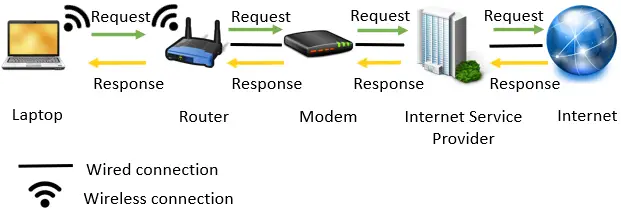
    The path followed by your request in a wireless internet connection looks something like this:

    Wireless Internet Flow Diagram
    Data flow of a wireless internet connection request

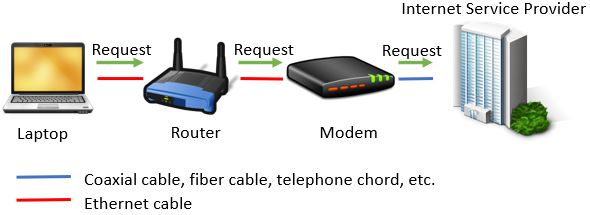
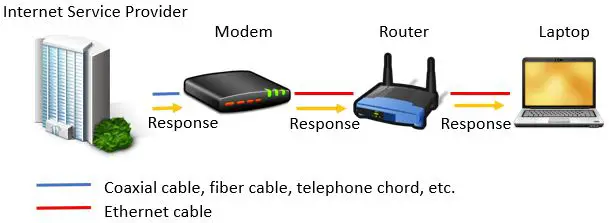
    In a wired connection, your computer is directly connected to a router with an ethernet cable. Your internet request is sent from your computer to the router over the ethernet cable, where it’s then forwarded to the ISP for resolution.

    A request sent over a wired connection takes the following path:

    Wired Internet Flow Diagram
    Data flow of a wired internet connection request

    In order to communicate through wired or wireless connections, computers use devices called network adapters.

    What exactly are network adapters?

    I’m glad you asked.

    What Is a Network Adapter?

    Network adapters, also known as Network Interface Cards (NICs) are devices that allow your computer to connect to the internet or other computers and devices. Today, many computers have the ability to connect to the internet with both WiFi and wired connections. As a result, they have two network adapters installed in them. One adapter is dedicated to wired connections and the other is dedicated to wireless communications.

    Let’s take a look at the two different types of adapters.

    What Are Wireless Network Adapters?

    Wireless network adapters are used in most internet-connected devices today. They are responsible for taking the digital signals that computers generate and converting them to analog signals. These analog signals are then sent through the air to a router when the device wants to connect to the internet. In order to send analog signals over WiFi, wireless network adapters have small antennas built in them. This is a major difference between wireless and wired network adapters.

    Examples of devices with wireless network adapters are:

    • Smart TVs
    • Apple TVs
    • Desktops/laptops
    • Gaming systems
    • Printers
    • Mobile phones

    In the majority of cases, wireless network adapters come preinstalled in internet devices when they are purchased. If you have an old computer that doesn’t have a wireless adapter, there are many wireless adapters you can purchase that plug into the USB port of your device (like this one for example).

    What Is a Wired Network Adapter?

    Wired network adapters are available in many of today’s internet devices as well. Examples of devices that incorporate wired network adapters are:

    • Apple TVs
    • Desktops/laptops
    • Gaming systems
    • Printers

    Wired network adapters are the devices that are responsible for taking the digital signals produced by computers and transmitting them over an ethernet cable. As previously mentioned, wired network adapters don’t come with built-in antennas, as they don’t need to transmit anything wirelessly. They are dedicated to wired communication.

    Today, wired network adapters are usually incorporated into the motherboard of the computer.

    Can Old Computers Affect the Speed of Your Internet?

    Now that we have that background information out of the way, let’s get to an answer for our question.

    I provided an explanation of how network adapters work because they play a major part in your internet experience.

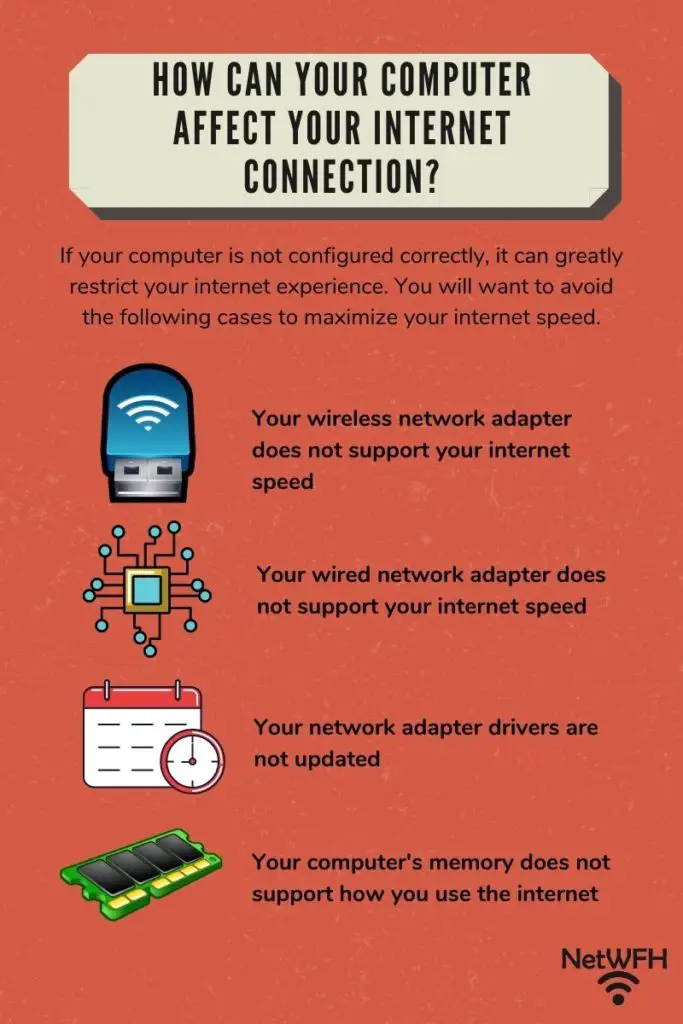
    The ways your computer can affect your internet connection are as follows:

    • Your network adapters (wired/wireless) don’t support your internet speed
    • The network adapter drivers on your computer are outdated
    • Your computer’s memory doesn’t support how you use the internet
    Ways your computer can affect your internet connection

    We will be diving into each of these cases and providing steps you can take to avoid them.

    Your Internet Connection Can Be Slowed if Your Computer’s Network Adapters Don’t Support Your Internet Plan

    If you don’t have a network adapter that supports the speed of your internet plan, it could limit your internet experience.

    This is especially a cause of concern on older computers. There have been many advancements in internet technology in recent years, and newer network adapters have been developed to support these advancements. Old computers will have older network adapters installed in them, and they may not be able to keep up with modern internet speeds.

    Let’s go through the steps required to see if your network adapters are up to the task.

    What Wireless Network Adapter Do I Have?

    To find out if your network adapter is the cause of your slow internet, you need to find out what wireless network adapter is installed in your computer.

    This may sound daunting, but it’s easier to figure out than you may think.

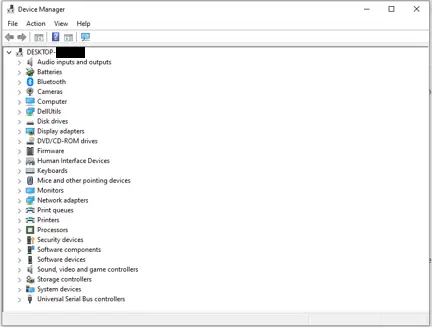
    The first step is to find the Device Manager on your computer. If you have Windows, you can simply type “Device Manager” into the search box of your taskbar. The Device Manager window will look something like this:

    Windows Device Manager
    Windows Device Manager

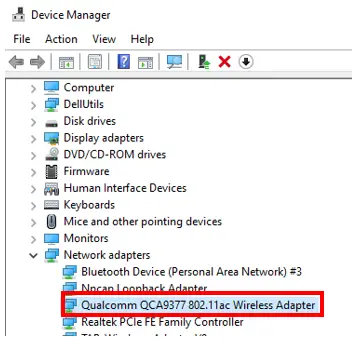
    When you click the arrow next to Network adapters, it will display all the network adapters on your computer. Your wireless adapter should be clearly marked.

    Dell Inspiron 3580 Device Manager Network Adapter

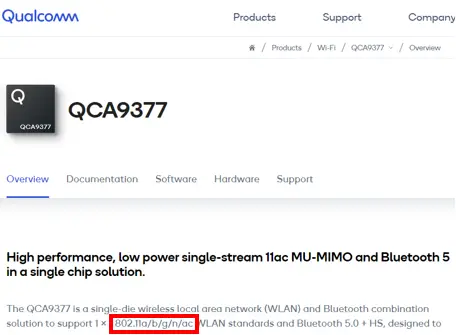
    It looks like I have a Qualcomm QCA9377 wireless adapter in my computer.

    What does the 802.11ac portion mean?

    802.11ac identifies the wireless standard that my wireless adapter supports.

    What Are Wireless Standards?

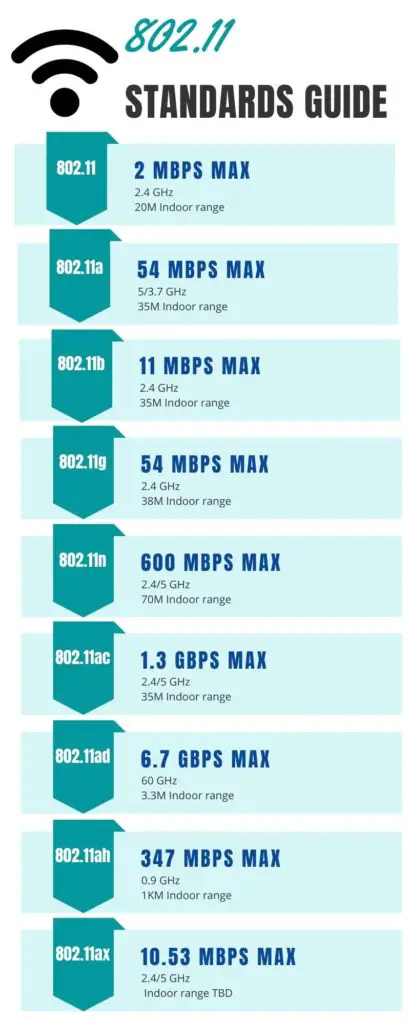
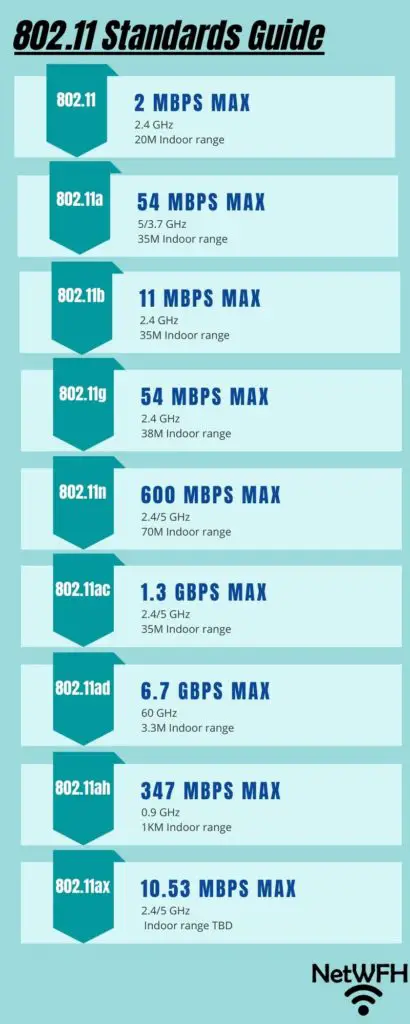
    Wireless standards are the different guiding principles that have been created for WiFi as advancements to the technology have been made. Each wireless standard is designed for different internet speeds and ranges. As a reminder, here’s an ultimate guide of the internet speeds that each standard supports:

    Ultimate 802.11 standards guide

    How to Determine What Internet Speed Your Wireless Adapter Supports

    Returning to the example of my computer, I know I have a wireless adapter that supports the 802.11ac wireless standard. Based upon the wireless standards guide above, this means that my adapter was built to support speeds up to 1.3 Gbps (1,300 Mbps).

    What if the Device Manager Doesn’t Provide the Wireless Standard My Network Adapter Supports?

    What should you do if your Device Manager doesn’t list the wireless standard that your adapter supports?

    Easy, just look up the specifications of your adapter on the manufacturer’s website.

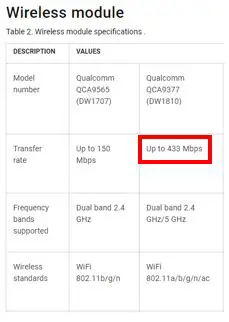
    You can see that on the Qualcomm website they confirm that my adapter supports the 802.11ac standard.

    Qualcomm QCA9377 Manufacturer Website Specs

    Take note of what speed your wireless network adapter supports. This will be important later on when we’re looking at the big picture of your computer’s internet connections.

    We will now determine what kind of wired network adapter you have.

    What Wired Network Adapter Do I Have?

    As I mentioned earlier, many wired network adapters are built into the motherboard of your computer. As a result, it may be harder to find out what wired network adapter you have.

    Thankfully you don’t need to have this information to find out the speed of your wired network adapter.

    How to Determine What Internet Speed Your Wired Network Adapter Supports

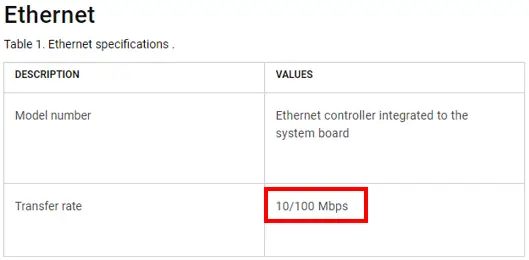
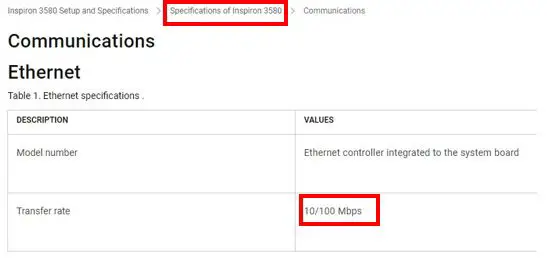
    By going to my computer manufacturer’s website (Dell) and looking up the ethernet specifications of my computer, I was able to confirm the speed of my wired network adapter.

    Dell Inspiron 3580 Ethernet Card Information

    The transfer rate of my ethernet port is 10/100 Mbps, meaning that it can support up to 100 Mbps of internet speed.

    Most ethernet ports today will support either 100 Mbps or 1,000 Mbps (1 Gbps). Very old computers may only support 10 Mbps ethernet connections.

    Identify What Internet Plan You Have

    Now that you know the internet speeds that your wired and wireless network adapters support, you need to look at what internet speed you’re paying for.

    As I have explained in other articles, you can do this by calling your ISP or looking at your latest internet bill.

    Current Internet Speed from Statement

    As you can see, my ISP will provide me with up to 600 Mbps as part of my plan.

    Do Your Network Adapters Support Your Current Internet Plan?

    It’s time to determine if your network adapters support your internet plan. Using my case as an example, I’m paying for an internet plan of 600 Mbps.

    My wireless network adapter supports speeds up to 1,300 Mbps.

    My wired network adapter supports speeds up to 100 Mbps.

    Does this mean my wired internet adapter is limiting my internet speed?

    At first glance, you might think that’s the case. However, even though my wired connection is limited to 100 Mbps, that’s more than enough for my needs.

    The most internet-intensive task I run on my computer is streaming and watching YouTube videos, which won’t need more than around 30 Mbps for the highest quality videos. 100 Mbps suits me fine and I have no issues when using my wired internet connection.

    If I was on a wired connection and I was experiencing slow internet, I could always switch to a wireless connection because my wireless adapter supports much faster speeds.

    What to Do if Your Wireless Network Adapters Don’t Support Your Internet Plan

    Let’s say I had an older computer with a wireless adapter that supported the 802.11a (54 Mbps), 802.11b (11 Mbps), or 802.11g (54 Mbps) standards. If my internet plan provided much higher internet speeds and I wanted to make sure I wasn’t paying for speeds that I couldn’t use, what could I do?

    I will start by saying that even though your computer may not support the maximum speed of your internet plan, it may still fit your needs. If you are getting 54 Mbps on your computer you shouldn’t have any problem streaming or surfing the web.

    I get it though. If you are paying for a fast internet plan, you want to make sure your devices are able to use it.

    In order to upgrade the wireless internet capabilities of your computer you have a few options. You could:

    • Buy a new computer
    • Buy an external WiFi adapter that plugs into your computer’s USB port
    • Replace the existing wireless adapter on your computer with a newer adapter

    If you wanted to keep your current computer, thankfully you can buy a good external WiFi adapter for less than $20. This would probably be the easiest solution. You would just need to plug it into an open USB port of your computer.

    If you plan on keeping your old computer for a longer period of time, it might make sense for your to replace its wireless adapter with a new adapter. I wouldn’t advise you do this unless you have some experience working with computers or are willing to pay professionals to do it. You will also want to keep in mind that computer parts don’t last forever and it’s risky to continue using computers that are very old.

    What if Your Wired Network Adapters Don’t Support Your Internet Plan?

    As mentioned above, wired network adapters usually support 10 Mbps, 100 Mbps, or 1000 Mbps. If your computer supports 10 Mbps over ethernet connections and you want to upgrade it, your most likely options would be to:

    • Buy a new computer
    • Buy a USB to ethernet adapter
    • Use only wireless internet connections

    An easy solution would be to buy a USB to ethernet adapter online like this one. These are cheap devices that are easy to use. If you have a really old computer, you just need to make sure your USB ports are fast enough for the internet connection you want. You’ll also want to ensure the adapter supports the current Operating System you’re running on your computer.

    The easiest solution would be to resort to wireless connections for the internet if your wireless network adapter supports faster speeds. This may not be feasible for some people who want the low latency of a wired connection, but for many this would be a good alternative.

    Your Internet Connection Can Be Affected if the Drivers of Your Network Adapters Are Outdated

    Your computer can also be the cause of a slow internet connection if the drivers of your network adapters aren’t updated. If your network adapters support the speed of your internet plan but your internet is still running slowly, you may need to update your drivers.

    What Is a Device Driver?

    Device drivers are the software that allow the different pieces of hardware on your computer to function. Without drivers, none of your computer components would work.

    A few examples of this would be your computer’s:

    • Microphone
    • Speakers
    • Network adapters
    • USB drives
    • CD-ROM drive

    Just like any application, they need to be updated as technological advancements are made and bugs are fixed.

    Updating Your Computer

    I should start by saying that if you routinely update your computer when prompted, this will more than likely result in updated drivers for your network adapters. It’s important to update your computer on a regular basis so that your computer components are kept up-to-date and working as they should.

    However, if you’ve been slacking with your computer updates, you’ll want to see if there are updates available for your network drivers.

    How to Update Your Wireless Adapter Driver

    To update your wireless adapter driver, you need to go back to the Device Manager like we did earlier.

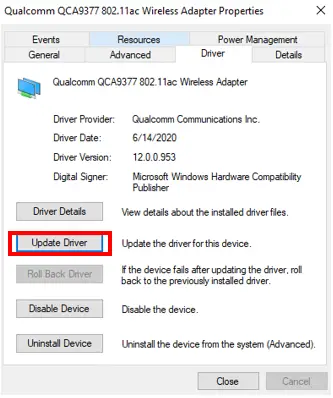
    Within the Device Manager, bring up the properties of your wireless adapter. Then click on the Driver tab.

    Click Update Driver.

    Qualcomm QCA9377 802.11ac Wireless Adapter Properties

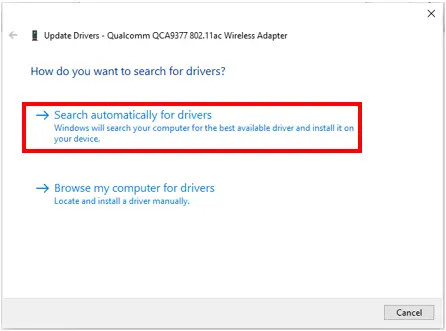
    On the resulting window, select Search automatically for drivers

    Qualcomm QCA9377 802.11ac Wireless Adapter Updates

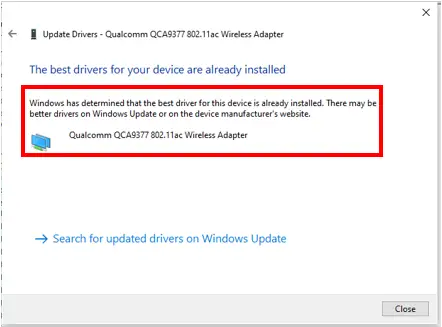
    If there are any available updates for your network adapter driver, you’ll be able to install them. However, if your computer can’t find any updates for your driver, you’ll get the following notification:

    Qualcomm QCA9377 802.11ac Wireless Adapter Update Search Results

    If you get this notification and still want to check for updates, you can search for them online on the manufacturer’s website. In my case this would be Qualcomm’s website.

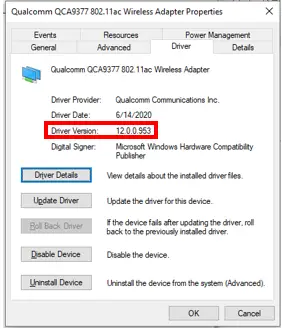
    Before you do this, you will want to verify the version of the driver you have installed. This can be found back in the Driver tab for the network adapter.

    Qualcomm QCA9377 802.11ac Wireless Adapter Driver Details

    It looks like I have version 12.0.0.953 installed for my Qualcomm wireless adapter.

    When I went to Qualcomm’s website, I received a notification saying that they don’t provide drivers to end users and that I should check my computer manufacturer’s website.

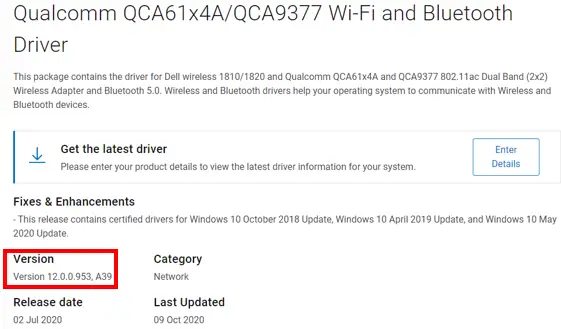
    Next I searched Dell’s website, where I found that the latest driver they had for my wireless adapter was the one I have installed.

    Qualcomm QCA9377 Latest Driver on Dell Website

    At this point I knew the driver for my wireless adapter was up-to-date.

    These steps will be similar regardless of the model of wireless adapter you have. Feel free to leave a comment at the bottom of this post if you have any questions or run into any trouble.

    How to Update Your Wired Network Adapter Driver

    When updating the driver for your wired adapter the process is very similar to the process of updating your wireless adapter.

    The hardest part is determining which driver includes your wired network adapter.

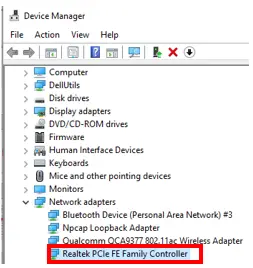
    In my case, after doing a little research I learned that the Realtek PCIe FE Family Controller was the network adapter that contained the wired adapter.

    Realtek PCIe FE Family Controller Device Manager Location

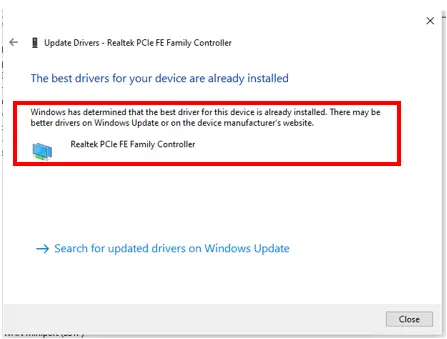
    I followed the same process of automatically checking for driver updates under the Driver tab.

    Much like the wireless adapter, I got the same results.

    Realtek PCIe FE Family Controller Automatic Driver Update Results

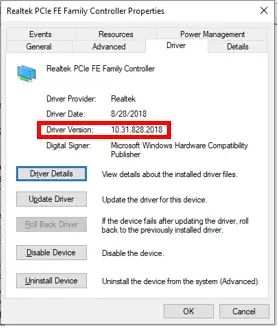
    I then went to the Realtek website to double check that no new driver updates existed. Before I did, I verified the driver version that was currently installed on my computer:

    Realtek PCIe FE Family Controller Driver Details

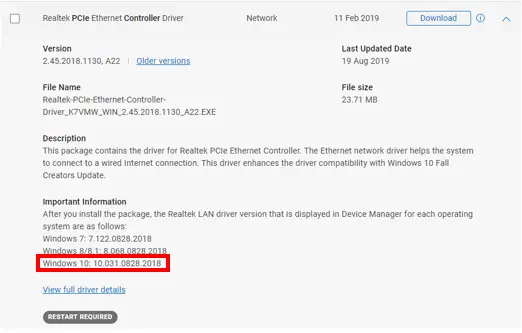
    On the Realtek website, I was able to confirm that I had the most recent driver update.

    Realtek PCIe FE Family Controller Dell Website Driver Update Results

    Although my network adapter driver was up-to-date, this is the process you would follow to make sure yours are updated as well.

    Your Internet Can Be Affected if Your Computer’s Processor Does Not Support How You Use the Internet

    The last way in which your computer could slow your internet speed has nothing to do with your network adapters.

    Surprisingly enough, it has everything to do with the memory your computer has.

    I’m talking specifically about the random access memory (RAM) of your computer.

    What Is the Purpose of RAM?

    RAM is the memory that’s used by a computer to store things on a short-term basis. Your computer stores anything that’s actively running in RAM so it can quickly access it when you need it.

    The amount of RAM you have on your computer closely aligns with your computer’s performance. The more RAM you have, the faster your computer can run.

    When buying a laptop, it will most likely come with 4, 8, 16, or 32 gigabytes (GB) of RAM.

    How Does RAM Impact Your Internet Speed?

    RAM doesn’t have a direct impact on the internet speed your computer is getting, but it can have an impact on how fast your internet seems.

    Internet browsers (especially Google Chrome) can take a lot of computer resources to run. This is especially true if you are one of those people that has many tabs open at once. If you have a lot of browser tabs open and not enough RAM to support them, it will make your internet (and entire computer) run really slowly.

    As an example, there are multiple articles online stating that if you only have 4 GB of RAM on your computer and you try to open 50 tabs of Google Chrome, your computer will lock up. If this happens it will seem like you have a really slow internet connection. In reality, it’s your computer’s memory that’s causing the problems.

    In most cases you will only have issues if you have 4 GB of RAM, but this is something to be aware of if your internet (and computer) seems to be running slowly.

    How to See How Much RAM You Have

    It’s very easy to check how much RAM you have installed on your computer.

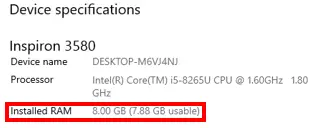
    If you have Windows, you just need to type “view processor info” into the search box on your taskbar. The resulting window will show how much RAM is currently installed.

    Dell Inspiron 3580 Installed RAM

    I have 8 GB of RAM so my computer doesn’t slow down if I have multiple tabs open.

    If I Have 4 GB of RAM What Can I Do to Prevent a Slow Internet Experience?

    If you have 4 GB of RAM and your internet slows down when you have a lot of internet tabs open, your RAM could be the cause.

    In this case you can:

    • Buy a new computer with more RAM
    • Install more RAM on your computer
    • Restrict yourself to using a small number of browser tabs

    If you’re going to be buying more RAM, you can buy another 4 GB of DDR3 or DDR4 RAM for $15-$50. You’ll just need to make sure that you get RAM that’s compatible with your computer (either DDR3 or DDR4) and you have an open RAM slot for the stick. Most computers come with additional open slots so this is usually not an issue. The additional RAM will also make your computer run faster in general.

    If your computer has 4 GB of RAM, you won’t be disappointed if you add 4 more gigabytes to it. I promise.

    Verdict

    In conclusion, your computer (especially an old one) can cause your internet to run slowly. If you don’t have the proper network adapters, your network adapters are outdated, or you don’t have enough RAM, your internet connection may be restricted.

    In providing the above factors that may affect your computer’s internet speed, there are some assumptions that were made that must be called out.

    Your Internet Plan, Router, Modem, and Ethernet Cables All Need to Provide the Computer With Adequate Bandwidth

    When it comes to a home or office network, there are many factors that affect the internet speed your computer receives.

    If you don’t have an internet plan that provides enough bandwidth, your computer will never be able to provide a good internet experience. It won’t matter how old your computer is or the network adapters it has. Having a good internet plan is first and foremost.

    All the downstream components from your ISP (your router, modem, and ethernet cables) need to support the internet bandwidth you are getting from your ISP. I have previously provided an in-depth analysis of how this equipment affects your internet performance in the following posts:

    Does a Router Affect Your Internet Speed?

    Does Your Modem Affect Your Internet Speed?

    Can Ethernet Cable Speeds Slow Your Internet?

    Your computer uses the bandwidth it’s provided to connect to the internet. If your computer isn’t provided with the proper bandwidth from your home network, it can’t provide you with the internet experience you want.

    Your Computer Can’t Your Computer Cannot Affect the Internet Speed of Your Other Devices on Your Network

    Another important factor to keep in mind is that your computer can’t affect the internet for the other devices on your network.

    If your computer is slow and doesn’t have the proper network adapters, the only device that will be impacted is your computer. Assuming your other devices are provided with the proper internet speed, they’ll be able to use the internet without any problems.

    The only way your computer can slow the internet speed of other devices is if you’re not getting enough speed from your ISP and your devices are fighting over limited bandwidth. In this case the computer isn’t the root cause of the issue. You’ll need to reduce your internet needs or get a better internet plan.

    Your Computer Can’t Increase the Internet Speed It Receives

    Much like it can’t slow down your other devices, your computer can’t boost its internet speed either. In the earlier example it was determined that my wireless adapter could support speeds up to 1,300 Mbps.

    My current internet plan provides speeds up to 600 Mbps.

    In this case, my wireless internet speed on my computer will not be 1,300 Mbps. It’ll be the maximum speed provided by my ISP: 600 Mbps.

    Although your computer can limit the amount of bandwidth it can use, it can’t do the opposite. This highlights the importance of having a computer that’s designed to meet your internet needs. It can be helpful to “future proof” your computer so that you don’t need to buy a new one if you upgrade your internet plan, but you don’t want to buy something that’s much more than you’d ever need.

    With my wireless adapter supporting speeds up to 1,300 Mbps, I’ll be able to upgrade my internet plan in the future without having to worry about my computer not being able to support it.

    Wrap Up

    I hope you found this article helpful. Feel free to reach out to me via the Contact Me tab with any questions you may have about this topic.

    If you like this content and would like to get more of it, subscribe to the monthly newsletter by entering your information in the sidebar of this post.

    Thank you and happy surfing!
  • Does a Router Affect Your WiFi Speed?

    Does a Router Affect Your WiFi Speed?

    Router affect wifi title picture

    We have previously discussed whether your modem or ethernet cables have an impact on your internet, but what about routers? Does a router affect your internet speed as well, or is it only these other components that we have to worry about?

    A router can affect the WiFi speed of a home network. If a router is used that does not fit the needs of the network and the internet plan that is in place, it can greatly reduce the speed of the entire network.

    Routers can affect your WiFi speed if:

    • Your router is older and doesn’t support the internet plan you have
    • You place your router in the wrong location in your home or office
    • The channel your router is communicating on is congested with other traffic
    • You have not updated your router’s firmware to the most recent version

    In this post we’ll dig into each of these scenarios in more detail and provide tips to ensure you’re getting the most out of your router.

    What Is the Purpose of a Router?

    Before we detail how a router can affect your internet speed, let’s start with the basics.

    A router is a piece of equipment that’s used to help your devices connect to the internet.

    Here’s a picture of my Archer A7 router. If you have a standalone router it’ll probably look similar to this.

    Archer A7 router
    Archer A7 Router

    Your router works in tandem with your modem. You need both of them in order to use the internet. That’s why you may see modems and routers combined into one device when you shop for them online.

    Routers Coordinate Requests From the Devices on Your Network

    Your router identifies where your internet requests should be sent to, and your modem translates the requests so they can be sent over the internet to the right destination. If you need a refresher on how modems work, check out my previous post this topic: Does Your Modem Affect Your Internet Speed?

    Without a router, the requests sent by your devices wouldn’t get sent to the right destination and you wouldn’t be able to do anything on the internet.

    In this sense, a router is like a post office. It slaps an address on all of your outgoing requests so this “mail” arrives where it’s supposed to.

    Routers Provide a Wireless Network for Wireless Devices

    More often that not, the routers that you see in home and office applications are wireless. This means that internet devices can communicate with them and connect to the internet without using ethernet cables.

    How much of a pain would be it to connect all your internet devices (tablets, smart TVs, laptops, etc.) to your router with a wire?

    Yeah I wouldn’t want that either. Thankfully your router has you covered.

    Wireless routers take the data that your modem has received from the internet and sends it over radio signals (WiFi) to your devices. When your devices send requests to the internet, they send them via WiFi to the router. Your router then passes this information to your modem to be translated and sent over the internet.

    Router Data Flow Diagram

    How Does a Router Affect Your WiFi Speed?

    Routers are vital to your internet connection. As a result, you need to make sure it’s not a bottleneck to your network.

    Let’s take a look at the different ways your router can affect your internet speed.

    What Happens if a Router Doesn’t Support Your Internet Plan

    Since WiFi was created in 1997, many advancements have been made to the technology and new standards have been created. WiFi standards are created by a group called the Institute of Electrical and Electronics Engineers (IEEE). The standards themselves are referred to as the IEEE 802.11 standards.

    I won’t get too far into the specifics of each standard in this post, but it’s important to understand the internet speeds that each standard supports.

    Ultimate 802.11 standards guide

    Why are these WiFi standards important?

    The reason it’s important to know these standards is because routers are built to support them. If you have an old router it may be built for older WiFi standards. When a router is built to old WiFi standards, it may not be able to support the bandwidth you’re paying for from your internet service provider (ISP). If this is the case, your router will be limiting the speed of your internet connection.

    In general, not having the right router can have the biggest impact on your WiFi speed. A router that’s not built to support your internet speeds will slow down the internet for all of your wireless devices, because they all share the bandwidth that your router puts out over WiFi. You need to make sure you get this right.

    To help visualize this, let’s look at a few examples.

    Example of Router Limiting WiFi Speed

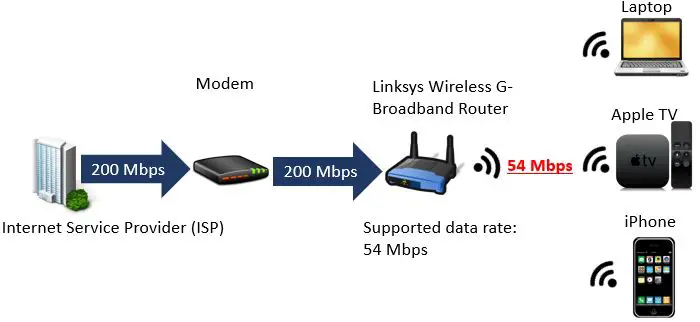
    Let’s say you have a router that’s built to older WiFi standards, for example a Linksys Wireless G-Broadband router. Referring back to the ultimate 802.11 standards guide diagram above, you can see that a router built for 802.11g has a maximum speed of 54 megabits per second (Mbps).

    What if you were paying for an internet plan that provided 200 Mbps?

    Router Slowing Internet Connection Example
    Example of a router limiting the speed of an internet connection

    In this case even though you’re paying for 200 Mbps, you’re only getting 54 Mbps to share among all your wireless devices. To put it simply, you’re wasting your money paying for a 200 Mbps internet plan because your router can only handle 54 Mbps.

    In this case, if you wanted to get the speed that you were paying for, you’d need a router built to (at least) the 802.11n standard.

    Routers Do Not Increase Internet Speed

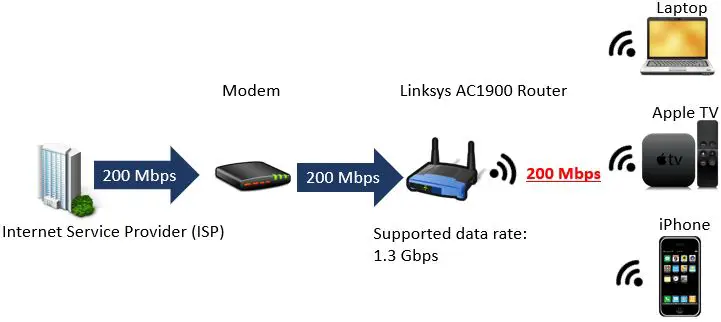
    What if we looked at another scenario where you had a Linksys AC1900 router. This router is built to the 802.11ac standard which provides a maximum speed of 1.3 Gbps (on the 5GHz frequency band).

    Let’s say you were paying for the same internet plan as the previous example that provided 200 Mbps. How much bandwidth would you have to share among all your devices?

    Routers do not increase internet speed example
    Routers do not increase the internet speed provided by an ISP

    As you can see in the above diagram, just because your router is built to support faster internet speeds than what your ISP is providing, it won’t increase the speed of your connection.

    This isn’t necessarily a bad thing though. In this example if you were to upgrade your internet plan in the future to gigabit internet (1 Gbps), you wouldn’t need to buy a new router as well. This is called “future proofing”.

    As you can probably tell by now, you want to make sure your router can support at least the speed that your ISP provides.

    It’s also safe to say that 802.11 standards will continue to improve as time goes on, and internet speeds will only get faster (and cheaper). As a result, it’s usually a smart move to buy a router that has some buffer in terms of the bandwidth it can support. This will allow you to upgrade your internet plan in the future without needing to buy a new router.

    Router Location

    The location of your router in your home or office can have an impact on the internet speed your devices get.

    WiFi Coverage Range

    In general, the farther away from your router you are the slower your internet connection will be.

    A general rule of thumb for distance from the router and internet speed is: when you double the distance between your internet device and your router, your internet speed decreases by one-third.

    The longer the distance between your devices and router, the longer the radio waves between the two devices have to travel. This greatly increases the chances of something disrupting the signal. Some examples of things that can block your WiFi signal are:

    • Concrete and brick walls
    • Thick wooden walls
    • Water (e.g. aquariums or water-based heating systems)
    • TVs

    Because WiFi signals struggle to get through these things, it’s smart to keep your router close to the devices that will be using it.

    In situations where your WiFi signals don’t reach to all the areas in your home or office that need an internet connection, you can use a signal repeater or mesh router to increase your WiFi coverage. You can learn more about those devices here.

    If most of your internet devices are in the living room, make sure your router is in an open area in your living room. The closer you are to the router when using WiFi, the less chance there is of objects disrupting the signal.

    Easy enough right?

    Router Placement

    The placement of your router is important when it comes to your internet speed.

    As previously stated, you need to make sure the signals from your router aren’t blocked by the surrounding environment.

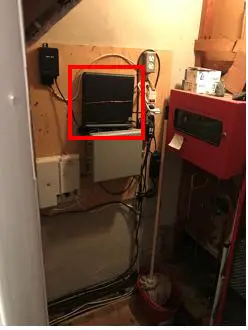
    I can’t count the number of times I’ve seen routers behind TVs, in closets with closed doors, or even underneath couches.

    Here’s a good example:

    Bad Router Placement

    The router in the picture above was secured to the wall of a closet.

    Please don’t be this person.

    The people using the internet in your house will thank you.

    I’m sure you can guess by now that you want your router placed in an open area with minimal obstruction. Even better, placing your router on an elevated surface will improve your WiFi signal as well.

    WiFi Channel Selection

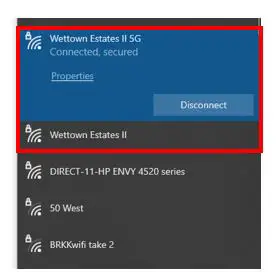
    Most of today’s routers provide WiFi signals on two different frequencies: 2.4 GHz and 5 GHz. Each of these frequencies will show up as their own WiFi network you can connect to.

    2G and 5G Wireless Networks Example
    Example of 2.4 GHz and 5 GHz WiFi signals

    These two radio frequencies are divided into channels that allow your wireless devices to send and receive data.

    The 2.4 GHz band has 11 WiFi channels and the 5 GHz band has 45 channels that can be used.

    What does this have to do with the speed of your internet?

    Well, if many devices are using the same WiFi channel at once, it will slow your internet down.

    Your router typically chooses your WiFi channel automatically when it’s first turned on and set up. While this might be great at the beginning, this channel can become congested as time goes on. For example, you could have new neighbors move in and start using the same WiFi channel on their network.

    How Can I Find the Best WiFi Channel?

    If your router and other network equipment are suitable for your internet plan but you’re still experiencing slow internet speeds, the wireless channels you’re using might be the culprit.

    If this is the case for you, I would recommend downloading an app that can analyze WiFi signals. A free tool that I use is Acrylic Wi-Fi Home.

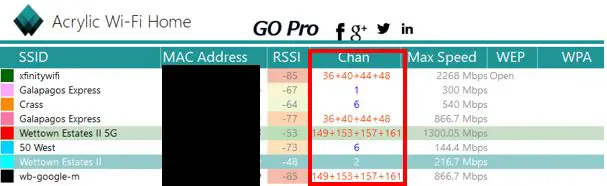
    Acrylic Wi-Fi Home will show you all the wireless networks in your immediate area and the channels they’re using.

    Acrylic Wi-Fi Home Channel Overview
    Acrylic Wi-Fi Home Channel Overview

    As you can see, it looks like my 5G network (Wettown Estates II 5G) is using the same channels as the nearby “wb-google-m” network. Is this a cause for concern? Only if my internet is experiencing slow speeds.

    Let’s dig deeper.

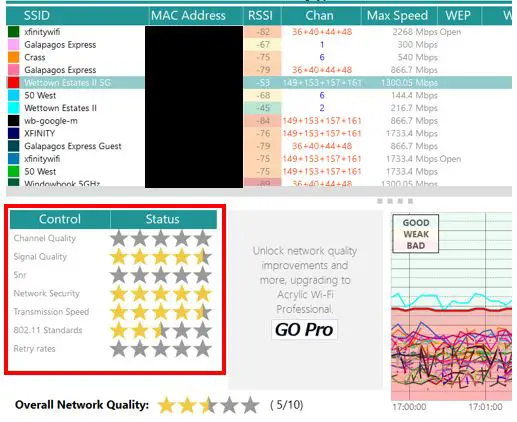
    When you click on a network in Acrylic Wi-Fi Home, it’ll show you how it ranks in certain criteria.

    Acrylic Wi-Fi Home Network Scores
    Scores for the Wettown Estates II 5G WiFi Network

    As you can see above, although my 5G network shares the same WiFi signals as another network, the signal quality and transmission speed rank very highly. I don’t need to make any changes to my WiFi channels because I’m not experiencing slow internet speeds.

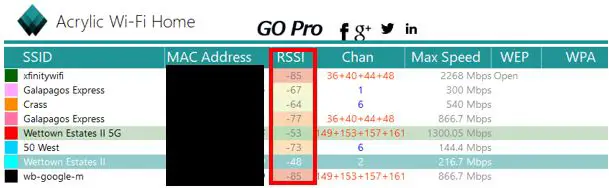
    Another key tip about Acrylic Wi-Fi Home is that the RSSI column shows you the strength of your wireless signal in a particular area of your house. The lower the negative number, the stronger the signal is. This will help you determine if there are any areas of your house where you get a weak WiFi signal.

    Acrylic Wi-Fi Home Strength of Signal Scores
    Acrylic Wi-Fi Home Strength of Signal Scores

    How to Change the Channel on Your Wireless Router

    If your investigation reveals that you need to change your WiFi channels (or you want to experiment with them), you can do so by logging in to your router. You can get to your router screen by entering your router’s IP address in the search bar of your internet browser. For me (and many other routers), my router’s IP address is 192.168.0.1.

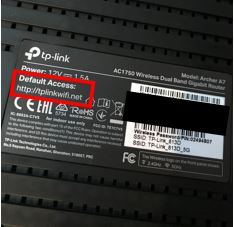
    Also, the sticker on the router itself may indicate how you can log in.

    I have a Tp-link router, so I can also log in to my router by typing https://tplinkwifi.net into my browser.

    The interface of everyone’s router might be a little different, but the settings should be similar.

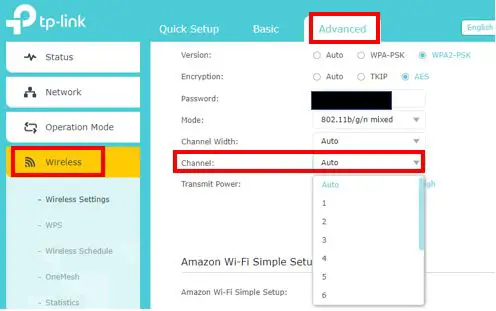
    Once I log into my router, I can access my WiFi channel settings by navigating to the Advanced Wireless Settings tab.

    TP-Link Wireless Channel Settings
    TP-Link Wireless Channel Settings

    On this page you’re able to manually select the channels that your WiFi network is using. Many routers will be set to auto channel selection by default, but if you’re experiencing a slow internet connection feel free to manually try a few different channels. You can always change them back at a later time so it doesn’t hurt to try a few different channels. For 2.4 GHz networks it’s said that channels 1, 6, and 11 perform the best, so you may want to try those first.

    Router Firmware Needs to Be Updated

    The last way that your router can affect your internet connection is if it has outdated firmware.

    The firmware of your router is the software that’s coded onto it.

    As I mentioned earlier in this post, there are advances to wireless technology happening all the time. To prevent you from having to buy a new router every time a small advancement is made, router vendors push out firmware updates for you to install.

    If new router upgrades are developed by the vendor and you don’t upgrade your router, your internet performance may suffer. These upgrades may fix bugs or inefficiencies in the way your router operates, so you want to make sure it’s up-to-date.

    How to Update Router Firmware

    You can check to see if your router has firmware updates available by logging in to your router again.

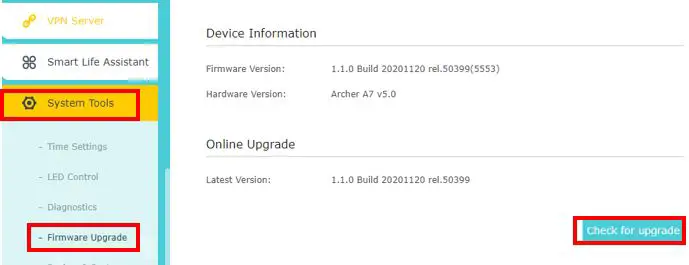
    On my router I navigate to the Firmware Upgrade screen in the System Tools tab.

    Archer A7 Router Firmware Upgrade Screen

    By clicking Check for upgrade, the router will check to see if there are any firmware upgrades available for it. If there are, you’ll be able to download the new firmware and restart your router.

    When you’re going to upgrade your router firmware, it’s very important that you connect the internet device you’re using to your router with an ethernet cable. If you lose an internet connection while you’re updating the firmware of your router, your router may no longer work. An ethernet connection will ensure you don’t lose connectivity during the upgrade.

    What Router Do I Need?

    Now that we’ve discussed how a router can affect your internet speed, let’s make sure you have the right one.

    So how do you know if your router fits your needs?

    It’s always best to start by identifying the speed of your internet plan. This will help you determine if your router supports the plan you have.

    You can find the maximum internet speed of your plan by looking at your most recent bill or by calling your ISP.

    Current Internet Plan Speed

    As you can see, my internet plan provides a maximum download speed of 600 Mbps.

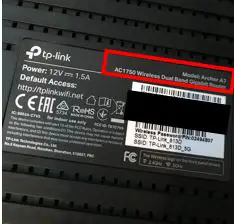
    Once you know the maximum internet speed of your plan, you should look up the specifications of your router. If you’re not sure of your router’s make and model, you can usually find that information on a sticker on the router itself.

    Linksys Archer A7 Router Model Information

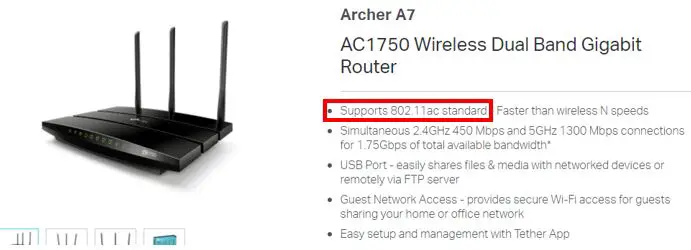
    I have a Tp-link Archer A7 AC1750 router. With this information, I can go online and search for the specs of this router.

    Tp-link Archer A7 Router Specifications
    Tp-link Archer A7 Router Specifications

    On Tp-Link’s official website it provides the specifications for the Archer A7 router. The Archer A7 router supports the 802.11ac standard for WiFi speeds. In looking back at our WiFi standards diagram, we can see that the 802.11ac standard supports internet speeds up to 1.3 Gbps.

    With my router supporting speeds up to 1.3 Gbps and my maximum internet speed being 600 Mbps, I know that my router won’t be slowing down my internet connection. It’s now on me to make sure my router:

    • Uses WiFi channels that aren’t congested
    • Is located in an open area away from obstructions (e.g. my TV)
    • Isn’t far from the devices that will be using the internet most
    • Has updated firmware

    What if I Have to Get a New Router? What Router Should I Get?

    If your current router is slowing down your internet connection, you’ll either have to scale back your internet plan or get a new router.

    Assuming you’ll get a new router, it’s important to take into consideration everything that was discussed in this post.

    Some of the questions you’ll want to ask yourself are:

    • What internet speed does my router need to support?
    • Are my internet needs going to change in the near future?
    • Do I want to future proof my router so I don’t need to buy a new one if I upgrade my internet plan?
    • How large of a living area do I need to provide internet access to? How many floors is it?
    • If I have a large area or multiple floors, do I need a WiFi range extender or should I get a mesh router network?
    • What’s my budget for a new router?
    • Do I want a standalone modem and router or a modem/router combination?

    Answering these questions will help you decide what kind of router you need.

    If you haven’t guessed, I personally love my TP-Link Archer A7 router. It’s very inexpensive, and I know it has me covered in the future if I want to upgrade my internet plan.

    If you’re willing to spend a little more money on your router, the Linksys EA6350 router is another popular choice.

    If you do your homework and make sure your router meets all the needs of your unique situation, there’s a high probability that you’ll love your home internet experience.

    Wrap Up

    Has anyone had any problems with their router slowing down their internet connection? I’d love to hear your stories. Feel free to post your experiences in the comment section below, or send me an email via the Contact Me page.

    If you’d like to read more about similar topics, check out the following articles that I’ve previously published:

    Can an Ethernet Cable Slow Your Internet Speed?

    Does Your Modem Affect Your Internet Speed?

    Does an Old Computer Affect Your Internet Speed?

    How to Update Your Router: The Ultimate Guide

    Does a Router Have to Be Connected to a Computer to Work?

  • Is an Ethernet Cable Faster Than WiFi?

    Is an Ethernet Cable Faster Than WiFi?

    Is using an ethernet cable faster than WiFi when connecting to the internet?

    -Internet User

    I can’t count the number of times I have seen this question on the internet.

    Well, I finally decided to test this on my own.

    I am glad I did, as I learned a few things in the process.

    Hopefully you will learn something as well.

    What is the difference between ethernet and WiFi?

    Before I share the results of my experiment, let’s start by breaking down the difference between ethernet and WiFi.

    What is an ethernet cable connection?

    An ethernet connection to the internet is also known as a wired connection.

    In a wired connection, an ethernet cable is connected from a router to the device that will be accessing the internet. This device could be:

    • A desktop computer
    • An Apple TV
    • A modern gaming system
    • Any other device that connects to the internet with an ethernet port

    Whenever a request is sent from the device to the internet, electrical signals are sent through the ethernet cable to the router. From the router, the signal is sent to the modem where it is translated into an analog signal and forwarded out to the Internet Service Provider (ISP). Depending upon the setup of your network, your request will follow a path similar to this:

    Wired Connection Request to ISP
    Example of wired connection request to an ISP

    The ISP is responsible for finding what you requested (e.g. website, YouTube video, etc.) and returning it back to you so you can view it on your device. The response from the ISP will take the following path:

    Wired Connection Response from ISP
    Example of a wired connection response from an ISP

    There are multiple types of ethernet cables that can be used to connect your device and router. As you can see in the pictures above, ethernet cables are also used to connect your modem and router if they are separate devices.

    Can an ethernet cable affect internet speed?

    You should be aware that the type of ethernet cable you use can have an impact on your internet speed. I have previously written an in-depth post explaining the different types of ethernet cables if you would like to learn more.

    What is WiFi?

    WiFi stands for wireless fidelity and it is said to have been used as early as 1999. This is the name stuck in the tech industry. It does not have much literal meaning when it comes to wireless internet connections.

    A WiFi connection to the internet is also known as a wireless connection.

    In a wireless connection, there is no ethernet cable between the router and the device that will be accessing the internet. The device and router connect to each other using radio waves that are sent through the air.

    The internet request from your device will look something like this:

    Wireless Connection Request to ISP
    Example of wireless connection request to an ISP

    Once the ISP handles your request, they will send a response to your device along this path:

    Wireless Connection Response from ISP
    Example of a wireless connection response from an ISP

    When sending a request over WiFi, your device sends its request to the router via radio signal. The radio signal is sent with a frequency of either 2.4 or 5 gigahertz (GHz). This is why modern routers have 2 different networks you can connect to:

    2G and 5G Wireless Networks Example
    2.4 GHz and 5 GHz connections on a wireless network

    For example, on my network there is an available 5 GHz connection (Wettown Estates II 5G) and 2.4 GHz connection (Wettown Estates II).

    I will explain the difference between a 2.4 GHz and a 5 GHz wireless connection in another post.

    Ethernet cable vs. WiFi speed test

    My expectations

    I will admit I went into this experiment with an idea of what the results would be.

    All the articles I had read about the speeds of ethernet and WiFi indicated that ethernet connections are much faster. What I didn’t realize was that the equipment you use in your internet connection can affect your results.

    Don’t know what I mean? You will understand what I am talking about as I walk you through my results.

    Let’s get started.

    Dell Inspiron 3580 speed test

    The first thing I wanted to do in this experiment was compare the bandwidth of ethernet and WiFi connections.

    A bandwidth test is a test of a connection’s pure speed. Think of this as a measure of how fast someone can sprint during a 40 yard dash.

    How fast can data move from the internet to your device?

    WiFi speed test

    The first test I performed was a bandwidth test on my 5 GHz wireless network. As a note, 5 GHz wireless networks are generally faster than 2.4 GHz connections. I wanted to see what my fastest possible WiFi connection was so a 5 GHz connection was the logical choice for this test.

    I used the online speed test from Ookla for my experiment. If you want to run this experiment yourself, check out their site.

    Before showing my results, it is important to note that my internet plan with my ISP provides a maximum download speed of 600 megabits per second (Mbps). In other words, my maximum data rate for any of my devices would be 600 Mbps.

    My results for the wireless speed test for my personal laptop (Dell Inspiron 3580) were as follows:

    Wireless Speed Test Results Dell Inspiron 3580
    Wireless Speed Test Results Dell Inspiron 3580

    As you can see, my personal laptop was getting about 219 megabits per second (Mbps) over WiFi. This is plenty of bandwidth for any of my internet needs on my laptop.

    Ok now we have a data point to compare with the bandwidth of a wired internet connection.

    Ethernet speed test

    Next I connected a Cat5e ethernet cable to my personal laptop to test my wired internet connection. For your reference, a Cat5e ethernet cable can support speeds up to 1,000 Mbps (1 Gbps). I used a Cat5e cable because it supports speeds greater than my maximum internet speed (600 Mbps) and therefore wouldn’t restrict my internet connection.

    I used the same speed test that I used for my wireless speed test for consistency. My results were as follows:

    Cat5e Wired Speed Test Results Dell Inspiron 3580
    Cat5e Wired Speed Test Results Dell Inspiron 3580

    Speed test results comparison

    The results were in: I got 219 Mbps with a wireless connection and about 46 Mbps for my Cat5e wired connection.

    Wait, what? I thought ethernet cable internet connections were supposed to be faster than wireless connections?

    There had to be something wrong. Everything I had read stated that ethernet was much faster than WiFi.

    What gives?

    I decided to dig into this to find out what the problem was. It turns out my own computer was the bottleneck.

    Why was my wired ethernet connection so slow?

    When conducting the ethernet connection test, I assumed that all computers are built to handle all ethernet speeds.

    What I didn’t realize that the hardware of a computer can greatly impact your ethernet connection experience.

    I looked up the specs of my personal computer to see why my ethernet connection was so slow compared to WiFi. In short time I found the ethernet port capabilities on my Dell Inspiron 3580:

    Dell Inspiron 3580 Ethernet Port Specs
    Dell Inspiron 3580 Ethernet Port Specs

    The maximum ethernet connection speed of my personal laptop is 100 Mbps. That explains why my ethernet connection was not faster than my 219 Mbps wireless connection.

    I was not expecting that.

    Ethernet ports on your devices

    Although a WiFi connection was faster than an ethernet connection in this case, it does not mean that the ethernet connection would not meet my internet needs.

    The most bandwidth-intensive thing I do on my Dell Inspiron 3580 is stream YouTube videos and Netflix. With 46 Mbps from my ethernet connection, I can do both of those things in ultra-high definition without any issues. In other words, I can use an ethernet cable or WiFi to connect to the internet and have an unrestricted internet experience.

    It is more convenient for me to connect wirelessly, so I will use WiFi without thinking twice.

    Another example of this is your Apple TV.

    Apple TVs have an ethernet port that only supports 100 Mbps connections.

    Apple TV ethernet port specs
    Apple TV ethernet port specs

    Why is this? Why doesn’t it support 1 Gbps?

    The reason is because it doesn’t have to. Similar to my laptop, the most bandwidth-intensive thing an Apple TV has to do is stream video. You can stream anything you want without restriction with much less than 100 Mbps. There is no need to have an ethernet port that supports anything faster.

    Conclusions from the Dell Inspiron 3580 bandwidth test

    The results from this bandwidth test made me realize that an ethernet connection is not always faster than a WiFi connection. It largely depends on the hardware you are using to connect to the internet. In my case, my laptop is a few years old and it did not break the bank when I bought it.

    Lastly, if a wireless connection is faster than ethernet it does not mean that the device won’t meet your needs of it.

    But what if I used a more modern computer for my test? Would I see the same results?

    I decided to find out.

    HP Elitebook 840 speed test

    To try the bandwidth test again, I got my hands on an HP Elitebook 840 G6 laptop. This laptop is newer and more expensive than my personal laptop, so I figured it would be good for the retest.

    I looked up the specs of the ethernet port on the Elitebook 840 to make sure it had an ethernet port that supported faster speeds than my personal computer.

    HP Elitebook 840 G6 Ethernet Port Specs

    Unlike my Dell Inspiron 3580, the HP Elitebook 840 G6 has an ethernet port that supports 1 Gbps. This removes the bottleneck from the previous experiment.

    Now let’s run the full test again.

    WiFi speed test

    I ran a wireless speed test on on the same 5 GHz wireless connection that I used in the previous test.

    Wireless Speed Test Results HP Elitebook 840
    Wireless Speed Test Results HP Elitebook 840

    As you can see, I got much faster wireless connection speed with this laptop at 405 Mbps. Not only is the ethernet port better on this laptop, but the wireless adapter is better as well.

    Wireless adapter comparison

    On my Dell Inspiron 3580 I have a Qualcomm QCA9377 wireless adapter which is capable of up to 433 Mbps.

    Qualcomm QCA9377 Wireless Adapter Specs
    Qualcomm QCA9377 Wireless Adapter Specs

    On the more expensive HP Elitebook 840 there is an Intel AX200 wireless adapter capable of up to 2.4 Gbps.

    Intel AX200 WiFi Adapter Speed
    Intel AX200 WiFi Adapter Speed

    As expected, my maximum wireless internet connection speed is higher on the better internet adapter card on the HP Elitebook 840.

    What about the ethernet connection speed? Would that top the speed of the wireless connection?

    Ethernet speed test

    I ran the ethernet bandwidth test with the same Cat5e cable I used on the other test.

    The results were much better than what I saw with the Dell Inspiron 3580.

    Cat5e Wired Speed Test Results HP Elitebook 840
    Cat5e Wired Speed Test Results HP Elitebook 840

    The HP Elitebook 840 saw about 440 Mbps with an ethernet connection.

    Speed test results comparison

    That is more like it.

    On the Elitebook 840 an ethernet connection got 440 Mbps while the WiFi connection saw 405 Mbps.

    From a pure speed perspective, it is true that an ethernet connection can be faster than a wireless connection, but only if the ethernet port of the device you are using can support it.

    So is that it? Has our investigation concluded? Can we definitively say that ethernet is faster than WiFi?

    Actually, there is another aspect of these connections we can investigate.

    I’m talking about latency.

    What is internet latency?

    Latency is another term that is used when analyzing the speed of an internet connection. It describes the time it takes for one device to respond to another device. In other words, latency is the amount of time from when a device sends a request until the time it receives a response. It is often referred to as “ping” and it is measured in milliseconds (ms).

    If a bandwidth test is the speed that someone can run a 40 yard dash, latency is how quickly the person starts moving after the starting gun goes off.

    For a visual example of latency:

    Latency Example
    Latency example

    Why is latency important?

    Latency can affect the performance of any real-time activity on the internet.

    Example of real-time activities are:

    • Online gaming
    • Skype or Zoom video conferences
    • Voice calls over the internet

    Latency may be more important than bandwidth during these activities.

    For example if you are voice calling someone over the internet, a high latency would mean that the person on the other line says something and you don’t hear it right away. This often results in people talking at the same time because they hear silence from the other end of the call.

    In online gaming, latency can cause you to shoot at someone on your screen but in reality they are no longer there. This is often referred to as lag.

    Latency is important because users want instant feedback from the other end when they perform an action. High latency leads to a poor experience and frustration for everyone involved.

    With that said, what has higher latency? Ethernet or WiFi connections?

    That was the next factor I investigated.

    Ethernet cable vs. WiFi latency test

    My expectations

    Similar to what I read about bandwidth, I read that there is less latency in ethernet connections. Less latency means there is less delay from when a request is made until a response is received.

    After the results of the bandwidth test I performed, I wasn’t so sure.

    For the latency test I continued using the HP Elitebook 840 as opposed to the Dell Inspiron 3580. I felt the HP Elitebook would provide more accurate results because the ethernet port would not limit the ethernet connection.

    HP Elitebook 840 latency test

    To test the latency of a connection a ping test can be performed. Anyone can perform a ping test on their computer by opening the command line interface. This can be done by entering “cmd” in the search bar of a Windows computer.

    A ping test can be performed by completing the following steps:

    1. Open a command prompt
    2. Type “ping” followed by the device or location you want to ping and pressed enter
      • E.g. “ping google.com” will give you statistics on your latency for connecting to google.com
      • You can also ping your router if you know its IP address

    The device or location will be pinged 4 times and the statistics of the test will be shown.

    If you are a visual learner I created a YouTube video detailing how to complete a ping test.

    How to Perform a Ping Test

    WiFi latency test

    In order to compare the latency of an ethernet and WiFi connection, I decided to perform the ping test to my router. The router is the first device that receives an internet request that comes from a laptop, so I felt it would allow me to directly compare the difference between a WiFi and ethernet.

    The results for the ping test to my router were as follows:

    Wireless Ping to Router Test Results HP Elitebook 840
    Wireless Ping to Router Test Results HP Elitebook 840

    The average latency between the HP Elitebook 840 and my router was 2ms. Not bad!

    Ethernet latency test

    For the ethernet latency test, I used the same Cat5e ethernet cable that was used for the bandwidth test.

    I performed the ping test to the router for consistency:

    Wired Ping to Router Test Results HP Elitebook 840
    Wired Ping to Router Test Results HP Elitebook 840

    0ms! Is that even possible?

    Technically no, as all communications between devices take at least a fraction of a millisecond. We can safely say that the ping from the HP Elitebook to the router using the ethernet cable took less than 1ms.

    Latency test results comparison

    For the wireless connection, an average of 2ms was experienced between the laptop and router. For the wired connection there was an average latency of less than 1ms.

    It looks like ethernet has won this battle as well.

    To take this experiment one step further, I pinged Google on a wired and wireless connection to see if anything changed. I also pinged Google 10 times instead of 4 so the average latency would not get distorted by a bad ping.

    With a wireless connection:

    Wireless Ping to Google Test Results HP Elitebook 840
    Wireless Ping to Google Test Results HP Elitebook 840

    The average latency was 30ms.

    And for the Cat5e wired connection?

    Wired Ping to Google Test Results HP Elitebook 840
    Wired Ping to Google Test Results HP Elitebook 840

    There was an average latency of 17ms.

    The results agree with our initial test. Therefore we can confirm what I had read: ethernet connections experience less latency than WiFi connections.

    Ethernet and WiFi upload speeds

    The experiments I performed all pertain to the download speed on a device.

    What about the reverse direction? What about the upload speeds of these connections?

    To summarize my findings, it did not appear that the type of internet connection greatly affected the upload speed.

    For your reference, the upload speed is included as part of the Ookla bandwidth tests that I ran.

    Upload Speed Test Results Example
    Upload Speed Test Results Example

    Here is a summary of the test results:

    Summary of Upload Speed Test Results
    Summary of Upload Speed Test Results

    As you can see no matter what connection or device was used, there was an upload speed of about 18 Mbps.

    If you frequently upload to the internet (e.g. large files or live streaming), I would recommend using an ethernet connection. WiFi connections transfer their signals through the air and these signals can be interfered with by other electronic devices (e.g. monitors, microwaves, etc.). Ethernet connections are more resistant to this interference from other electronic devices and therefore offer a more reliable connection.

    To put it simply, ethernet cables are much less likely to have a dropped connection than a WiFi connection.

    What do these test results mean?

    The experiments I performed indicate that ethernet connections provide higher bandwidth and lower latency connections to the internet.

    In light of these results it is important to note that just because ethernet connections can be faster than WiFi (with the right equipment), it does not mean that wireless connections are too slow to meet their intended function.

    In most cases, a WiFi connection will fit your internet needs if you have the right internet plan. However, if you’re an online gamer or frequently need the internet for real-time communication, you’ll want to use an ethernet connection to minimize latency.

    If reading this post has given you the urge to pick up more ethernet cables for your home, I would recommend these Cat5e cables or these Cat6 cables.

    Wrap up

    Have you tested your connections and had findings similar to mine? I would be interested to hear about your results.

    Feel free to share them in the comment section below or send me an email to discuss.

    If this information was helpful to you, check out some similar posts I’ve written:

    Can an Ethernet Cable Slow Your Internet Speed?

    What is an Ethernet Switch Used for?

    Does a Router Affect Your WiFi Speed?

    Does Your Modem Affect Your Internet Speed?

    Does an Old Computer Affect Your Internet Speed?

  • Does Your Modem Affect Your Internet Speed?

    Does Your Modem Affect Your Internet Speed?

    Does your modem affect your internet speed?

    When analyzing the speed of their internet, most people do not even look at their modem. The truth is, your modem is one of the most important pieces of your internet connection. Without it, you wouldn’t be able to access the internet.

    Ok, so a modem is required for an internet connection.

    Will any modem fit the bill, or does your modem affect your internet speed?

    Using the wrong modem can significantly affect the speed of an internet connection. If the modem is not rated to support the speed of the current internet plan, the internet speed of the network will be reduced to the maximum speed the modem can support.

    In this post we’ll take a close look at modems and what you can do to make sure your modem is helping to optimize your internet connection.

    What Is the Purpose of a Modem?

    Modems act like translators for your devices. They take the signals that come to your house from the Internet Service Provider (ISP) and make them usable by your internet-connected devices. Without a modem, you wouldn’t be able to do anything with the internet connection coming from the ISP.

    Why Do Modems Have to Translate Signals?

    Depending upon the type of internet connection you have, you’ll have a different line coming to your house that connects you to the internet:

    Internet Connection Signals Infographic

    The different lines all provide your house or office with the same type of signal (analog), but your devices aren’t able to use the analog signal directly. That’s where the modem comes in.

    As you may be familiar, computer devices communicate through a series of 1s and 0s, or binary code. Unfortunately, analog signals that are received by the ISP aren’t in this format.

    It’s the modem’s job to take the analog signals received by the ISP (regardless of the internet connection type you have) and translate them into 1s and 0s for your devices.

    What does this look like?

    Essentially modems take this:

    Analog Signal Example
    Analog Signal

    And make it look like this:

    Digital Signal Example
    Digital Signal

    Why Don’t Computers Just Use Analog Signals?

    This is a complex topic but I’ll provide a brief explanation.

    Computer processors are made up of billions of transistors. Transistors can either be in an “on” state or an “off” state, much like a light switch. The position of these transistors indicates a specific value in binary code: 1 for an “on” state and 0 for an “off” state.

    The 0 and 1 positions of all the transistors in a processor make up the binary code that computers use to execute.

    Because transistors can only be “on” or “off”, computers struggle with analog signals. Analog signals are continuous signals with varying voltage. If you refer back to the previous diagram, you see that much of the time the voltage is something other than 0 or 1. Transistors would be confused by this because they wouldn’t know if they should be on (1) or off (0) when the voltage is between 1 and 0.

    Modems smooth out the analog signal so the transistors know what position they should be in.

    If you want to learn more about how computers use binary and digital signals to function, check out this article.

    How Often Are Modems Making These Conversions?

    Conversion of the analog signal from the ISP into a digital signal for your devices is done every time something is retrieved from the internet. To name a few examples, this occurs every time you:

    • Land on a new web page
    • Stream a TV show
    • Open an email

    Translation occurs in the opposite direction from digital to analog every time you send a request to the internet. This can be when you:

    • Add an item to your shopping cart on Amazon
    • Click “Send” on an email you wrote
    • Click on a hyperlink on a website or in an email

    As you can see, this translation is happening all the time when you’re using the internet.

    When you consider that your modem is doing all of this work, you’ll realize how important its role is in your internet connection.

    If your modem can’t keep up with all the translating it has to do, it’ll slow down your connection.

    How Does My Modem Affect My Internet Speed?

    Modems Can Limit Your Internet Speed

    To help visualize how a modem can limit your internet speed, let’s take the example of a translator:

    Modem Translator Limiting Speed Example

    Let’s start with Karin the translator. She’s a very good translator that can translate 100 words/minute.

    In this example, let’s say she’s given 500 words/minute to translate. Although she’s given 500 words/minute to translate, she’s only able to translate 100 of them.

    In other words, she’s only capable of translating 100 words/minute no matter how many words are given to her each minute.

    This is the same case with a modem:

    Modem Decreasing Internet Speed Example

    If an ISP is providing speeds of 500 Mbps to the modem but the modem can only support 100 Mbps, only 100 Mpbs will be passed to your router. This means your internet speed will be capped at 100 Mbps.

    A modem can’t provide internet speeds faster than what it’s rated for.

    Modems Cannot Increase Your Internet Speed

    If we go back to the translator example, what if Karin is only given 80 words per minute to translate?

    Modem Translator Not Increasing Internet Speed Example

    If she’s able to translate 100 words per minute but is only given 80 words per minute to translate, she’ll only translate 80 words per minute.

    She can only translate the words at the rate that she gets them. She can’t translate more words per minute than she’s given.

    Applying this to our modem example:

    Modem Not Increasing Internet Speed Example

    If your modem can support 100 Mbps but your ISP is only providing you with 80 Mbps, your maximum internet speed will be 80 Mbps.

    A modem can’t increase the speed of your internet above what the ISP is providing.

    What Does This Mean for My Modem?

    The examples above illustrate the importance of a modem in your network.

    If you’re not using the right modem for your network, it can limit the speed of your internet. On the other side of the coin, a modem can’t increase the speed of your internet.

    At the very least, you should make sure your modem supports the data rate of your internet plan. Many people buy modems that support speeds faster than their current internet plan so they can upgrade their plan in the future without having to buy a new modem.

    We’ll discuss that later.

    What Does a Modem Look Like?

    If you’re renting your router from your ISP, it’ll most likely have the modem built into it. This makes it difficult to identify what speed the modem is rated for. If you want to optimize the speed of your internet and the plan you are paying for, it is best practice to buy your own router and modem. This is a discussion that I will dive into in another article.

    If you bought your own modem and router and they’re separate devices (which I recommend), your modem will look something like this:

    This is a Netgear CM600 modem for a cable internet connection.

    You’ll find the following connections on the back of your modem:

    • A power cord that connects to an outlet
    • A cable that connects to your internet source (in this case a coaxial cable wall jack for my cable internet)
    • An ethernet cable that connects to your router

    It should look something like this:

    Back of a Netgear Modem

    Modems come in many shapes and sizes but for the most part they’ll have the same connections on the back.

    Now that you’ve identified your modem, let’s make sure it supports the speed of your internet plan.

    How Do I Know if I Have the Right Modem?

    You’ll need to look up a few things to determine if your modem is a good fit for your internet plan. You’ll need to know the following:

    • The data rate of your current internet plan
    • The data rate that your modem supports

    How Do I Check What Internet Plan I Have?

    Your most recent internet bill will tell you what your maximum data rate from your ISP is.

    Current internet speed from monthly statement

    The maximum data transfer rate I can expect from my current plan is 600 Mbps.

    What Is My Modem Speed?

    In looking at your modem, you won’t be able to determine what internet speed it supports. You’ll need to look up the make and model to see what the specifications are.

    There will be a sticker on your modem that indicates its make and model. This sticker is on the bottom of the base of my modem:

    Netgear Modem Label
    Netgear Modem Label

    As you can see, I have a Netgear CM600 cable modem.

    The next step for me is to Google the CM600 modem to determine its specs.

    On the Netgear website it details the download speed that the CM600 is rated for:

    Netgear Website Modem Specs

    My modem is rated for 1 Gbps maximum download speed. I have a 600 Mbps internet plan with my ISP so I know my modem isn’t limiting my internet connection.

    What Modem Should I Buy if I Have to Replace My Modem?

    If your modem doesn’t support the speed of your current internet plan, it’s limiting your internet speed. You should buy a new modem.

    What modem should you get?

    To determine the right modem for you, you’ll need to take your current internet plan into account. You’ll also need to account for any upgrades that you may make to your plan.

    Notes About Your Current Internet Speed

    It’s important to note that you’ll rarely get the maximum data rate that the ISP advertises for your plan. Everyone in your area with the same internet provider is sharing the same wired connection back to the ISP. If there are many users connected to the internet at the same time, the maximum data rate will be lower than the maximum rate of your plan. This is normal and should be expected.

    In my case, the internet plan I am signed up for has a maximum download speed of 600 Mbps, but I frequently see only 200 Mbps at a given time.

    Internet speed test results
    Speed Test Results

    Even though you won’t be getting the maximum internet speed of your plan, it’s good practice to buy a modem that can (at least) support your maximum data rate.

    If you buy a modem that supports speeds greater than your current plan, you’re “future proofing” your network. In other words, you won’t need to buy a new modem if you upgrade your plan in the future. This is good practice and I highly recommend doing this.

    As stated previously, my internet plan is for 600 Mbps, but my modem supports download speeds up to 1 Gbps. If I upgrade my internet plan so that I’m getting 1 Gbps, I won’t have to upgrade my modem as well.

    I feel comfortable that my modem will support my internet needs for the next few years, so it was worth the investment to spend a little extra to get a faster modem.

    Standalone Modem vs. Router/Modem Combination

    I would recommend buying a modem that is separate from your router.

    This will allow you to buy a modem that is tailored to your specific internet plan.

    You’ll also be able to upgrade your modem separately from your router if you need to. Router technology seems to be advancing faster than modem technology, so you don’t want to upgrade your modem each time your upgrade your router.

    Depending upon your unique situation, there are some benefits offered by modem and router combination devices that should be considered as well.

    It may be slightly more expensive to buy your modem separate from your router, but the flexibility it provides you is well worth it.

    Make Sure Your Modem Supports Your ISP

    When buying a modem you should also make sure it supports internet from your ISP.

    Netgear CM600 Data Sheet compatible ISPs
    Netgear CM600 Data Sheet

    I have XFINITY Comcast internet, so when I bought my modem I had to make sure it supported XFINITY. Modems may also support different maximum speeds from different ISPs, so you’ll want to look into that as well.

    For example, my Netgear CM600 supports speeds up to 960 Mbps for XFINITY Comcast, but only 400 Mbps for Spectrum internet. You need to be aware of this when making your decision.

    Alternatively, most ISPs will have a list of modems that are compatible with their plans on their website. For example, XFINITY Comcast has a site where you can search to see if your modem is compatible with their internet.

    If you buy a modem that’s not compatible with an ISP, it won’t work.

    Modem Purchase Recommendations

    Let’s bring this all together. Your modem does indeed affect your internet speed, so you need to make sure you make the right choice.

    If you need a modem for your home network, you should consider:

    • Buying your own modem as opposed to renting from the ISP
    • Buying a standalone modem as opposed to buying a modem/router combination
    • Ensuring your modem is compatible with the type of internet connection you have (e.g. a fiber-compatible modem for a fiber internet connection, a cable-compatible modem for a cable internet connection, etc.)
    • Your current maximum internet speed
    • Your current ISP and the modems that are compatible with your provider
    • The amount of money you’re willing to spend on a modem (include savings due to “future proofing” in your calculations)

    If you want recommendations on specific modem models and vendors, there are many articles online that have been written detailing your best options. I’ll give you a few ideas as well.

    Good Value

    As I mentioned previously, I really like my Netgear CM600 modem. It supports high speed internet (up to 400 Mbps), and it’s not as expensive as some of the other models.

    I have had this modem for at least two years and I haven’t had any problems with it. If you only have a few people in your house and you don’t have any crazy internet needs, this modem will do just fine.

    The Next Step Up

    If you’re willing to spend a little more and you want to really future proof your home internet, the Netgear CM700 is a great choice.

    The CM700 supports internet speeds up to 800 Mbps. Chances are, this modem can support your current internet needs no matter your home internet situation.

    If you buy this modem, you can feel good about not having to replace it anytime soon.

    Budget Friendly

    For a budget-conscious option, you can’t go wrong with the Motorola Model MB7420.

    It’s more affordable than the other two options I recommend, but will still provide enough firepower if you have basic internet needs.

    This modem supports internet speeds up to 686 Mbps (even faster speeds than my CM600). This’ll be more than enough if you have multiple people in your household and a fast enough internet plan.

    Wrap Up

    I hope this guide helps you find the right modem for your internet needs. If you’d like to learn how your other home internet devices affect your internet speed, check out the following articles:

    Does an Old Computer Affect Your Internet Speed?

    Does a Router Affect Your WiFi Speed?

    Can an Ethernet Cable Slow Your Internet Speed?

    Is an Ethernet Cable Faster than WiFi?

    Does Any Modem Work With Any Internet Provider?

    Please contact me or comment below with any specific questions your might have about your modem.

    Good luck and happy browsing!
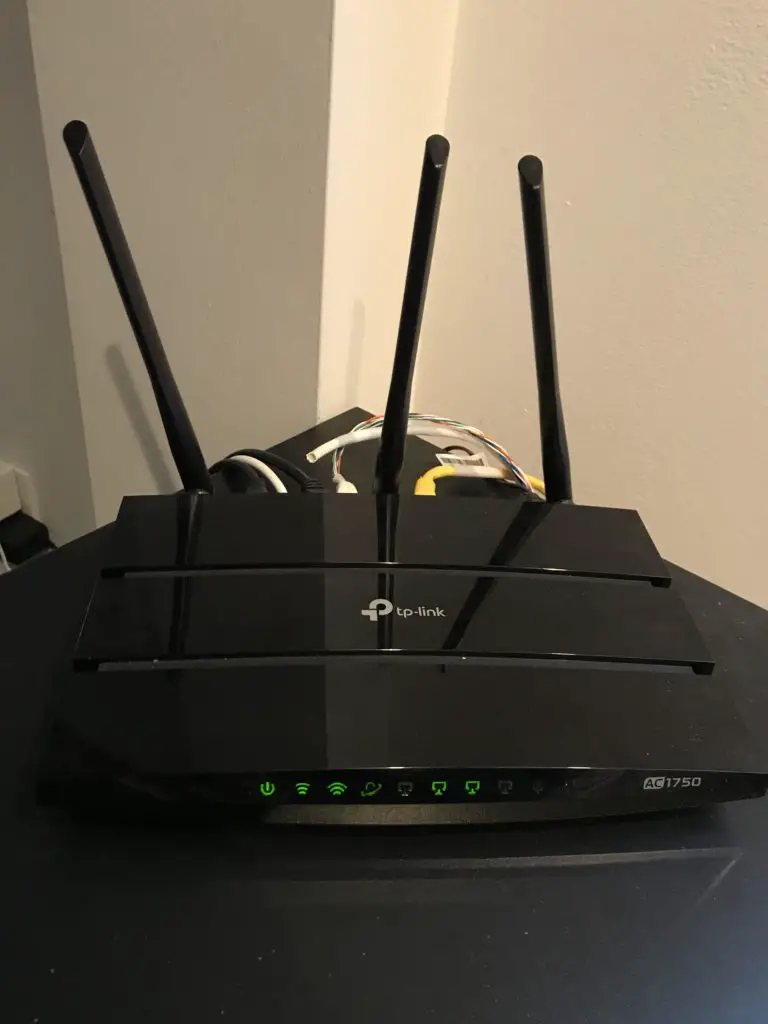
  • Can an Ethernet Cable Slow Your Internet Speed?

    Can an Ethernet Cable Slow Your Internet Speed?

    Can an ethernet cable slow internet speed title picture

    Did you know that an ethernet cable can drastically slow your internet speed?

    Ethernet cables are often an overlooked aspect of a home network. Many people use them every day without thinking about them. This is dangerous, because ethernet cables can have a direct affect on their internet speed.

    If an ethernet cable is not rated to support the speed of an internet plan, it will slow down the internet speed of the network. To ensure that ethernet cables are not limiting the internet speed of a network, it is extremely important that they are designed to support speeds faster than the internet plan in place.

    Granted, ethernet cables can be confusing because they come in a variety of types and categories, but it’s important to know that some are better than others depending upon what you’re using them for.

    The good news for you? We’re going to take a deep dive into the different types of ethernet cables. Not only that, but I’ll detail what these cables are used for and how you can tell what type you’re using.

    What Do Ethernet Cables Look Like?

    Does this look familiar?

    CAT5e Ethernet Cable
    A CAT5e Ethernet Cable

    The above picture is a CAT5e ethernet cable. The other end of the cable looks identical to the end you see here (which is a male RJ45 connector). As you’ll find out, the vast majority of ethernet cables will look like this.

    Now that we know what these cables look like, let’s dig deeper to find out what they’re used for.

    What Do Ethernet Cables Do?

    Ethernet cables are used to connect computers to the internet with a wired connection.

    Additionally, ethernet cables can be used for communication between computers and other devices such as printers and fax machines. They’re also used to connect your modem to your router (if they’re separate devices). To provide a visual of what a home network might look like:

    Home Network Ethernet Cable Diagram Example

    As you can see, ethernet cables can be used for a majority of the devices in your home.

    Why Should Ethernet Cables Be Used?

    Ethernet connections offer a more reliable connection than if you were to wirelessly connect your devices.

    Wireless connections (i.e. WiFi) are subject to interference that ethernet connections don’t experience (e.g. walls, other electronic devices using the same radio channel, etc.). In fact, your internet connection will be faster over ethernet than if you were to use a wireless connection.

    But only if you use the right cables.

    I know what you are thinking:

    What’s the big deal? It’s just a cable. How can it play such a big factor in my internet speed?

    How Can an Ethernet Cable Slow Your Internet Speed?

    As of this writing, ethernet cable speeds of up to 10 Gbps can be expected, while the newest versions of WiFi can only offer maximum speeds of 867 Mbps (802.11ac) and 150 Mbps (802.11n). That’s a significant difference.

    It’s important to note here that simply using ethernet cables will not result in 10 Gbps internet. You need to make sure you have the proper internet equipment in your home. You also need to make sure you’re getting sufficient bandwidth from your Internet Service Provider (ISP).

    The most important aspect of ethernet cables is you need to make sure they’re not the bottleneck of your network.

    What do I mean by this?

    What Is an Example That Will Help Me Visualize This?

    Picture your home internet like a system of water pipes. If the water flow from the street is 20 gallons/minute but your pipes can only handle 5 gallons/minute of water, your shower will only receive 5 gallons/minute of water. The pipes in this example are your ethernet cables, and your shower is your device (laptop, smart TV, etc.)

    Perhaps a diagram will help you visualize this:

    Ethernet Cable Restricting Data Rate Example
    Pipes can restrict the flow of water

    The point here is that if you’re paying for gigabit internet (1 Gbps) but your ethernet cables can only support 10 Mbps, your device will only have access to 10 Mbps. You can’t force data through the cables faster than what they’re designed for.

    Let’s use the water piping example again. If the flow of water from the street is 5 gallons/minute and your pipes are able to handle 20 gallons/minute of water flow, your shower will only have 5 gallons/minute of water flow.

    Ethernet Cable Not Increasing Data Rate Example
    Pipes don’t make the flow of water faster

    The pipes don’t increase the flow of water. If you want to optimize the flow of water to your shower, the pipes in your house need to be designed for the flow of water coming from the street.

    How Does This Apply to Ethernet Cables?

    The same is true for ethernet cables. You need to ensure they can support the bandwidth (i.e. speed) that’s being provided to you by the ISP. Ethernet cables don’t make your internet faster, but they sure can slow it down if the wrong cables are used.

    Make sense?

    In order to determine what speeds your ethernet cables need to support, you need to look at:

    • The speed of the internet plan that you’re signed up for
    • The bandwidth supported by delivery devices in your home network (e.g. modem and router)
    • The bandwidth needed for your devices to function properly (e.g. smart T.V., laptop, etc.)

    I will make this process very easy for you, but first let’s take a look at the types of cables available:

    Ethernet Cable Category Comparison

    Types of Ethernet Cables

    There are multiple categories of ethernet cables. Some categories are no longer used and as a result I’ll only go over them briefly. The categories you should pay attention to are the ones that are in use today, and the ones that will be used in the future.

    Let’s get started:

    Category 1 (CAT1)

    CAT1 ethernet cables are no longer used. They were previously installed in analog telephone wire installations prior to 1983. At the time, they were only designed to carry voice communications. This makes them unusable in computer networking applications.

    What’s more, the organizations that establish the standards for the ethernet cable categories (TIA/EIA) do not officially recognize CAT1 cables.

    Should I Use CAT1 Cables in My Network?

    No. This above background is merely for your information. You will not need to use CAT1 cables in your internet network. In fact, I will be shocked if you come across CAT1 ethernet cables in your travels.

    Category 2 (CAT2)

    CAT2 ethernet cables are an improvement over CAT1 cables, but only marginally.

    Unlike CAT1 ethernet cables, CAT2 cables are designed for computer networking and digital voice communication. The bad news is they support very low speeds (up to 4 Mbps) for computer communication. This is molasses in today’s world.

    Similar to CAT1 cables, the TIA/EIA did not establish standards for CAT2 cables as an official ethernet category.

    Should I Use CAT2 Cables in My Network?

    No. As you can guess, these cables are no longer used for networking. However, you may still be able to find them in some (really) old telephone systems today.

    Category 3 (CAT3)

    CAT3 cables were introduced in the early 1990s and were widely used in local area networks (LANs). In simpler terms, CAT3 cables were used to connect computers and devices to allow for communication between them.

    They enabled data transmission rates up to 10 Mbps, which was more than double what CAT2 cables could provide. The speed of CAT3 cables was a big improvement at the time, but their dominance was short lived; in the mid 1990s superior cables were developed and CAT3 cables were replaced.

    CAT3 cables are recognized by TIA/EIA as an official ethernet cable category. They were the first category of ethernet cable that the group developed standards for.

    Should I Use CAT3 Cables in My Network?

    No. Although these cables were improvements over the ones that came before them, you won’t see them in use today. 10 Mbps won’t support the speeds required in today’s world.

    Category 4 (CAT4)

    Although category 4 cables were developed for computer communications, they ended up being used more in telecom-based communications.

    They supported faster speeds than CAT3 cables (up to 16 Mbps) but never gained traction in the computer networking world. As a result, you’ll only find them in very old communications systems that haven’t been recently upgraded.

    Although CAT3 cables were recognized by TIA/EIA as an official category of ethernet cables, CAT4 cables were not.

    Should I Use CAT4 Cables in My Network?

    No. You’ll very likely never cross paths with CAT4 cables, and there are much better options available to you. Even if they were widely used, you wouldn’t want to use them because you’ll need data rates faster than 16 Mbps.

    Category 5 (CAT5)

    When CAT5 cables were developed, they were a huge upgrade over previous ethernet cables. They support speeds up to 100 Mbps. This was a huge upgrade in performance at the time.

    Unlike CAT4 cables, they were widely used for computer communication in the 1990s. They were developed for telephone and video signals as well, but they were mostly used for computer networks.

    TIA/EIA recognized CAT5 cables as an official category, although they published a newer CAT5 standard in 2001.

    Should I Use CAT5 Cables in My Network?

    Most likely not. As I’m sure you can guess, better performing ethernet cables have been developed and CAT5 cables have mostly been replaced as a result. Although 100 Mbps isn’t horrible, you can find cheap alternatives that provide significantly higher performance. I would advise you to use better cables in your network.

    Category 5e (CAT5e)

    As mentioned in the previous section, the CAT5e standard was developed in 2001 to provide improvements to CAT5 cables. This category of cable provides performance improvements over CAT5 cables, as well as faster data rates. CAT5 cables had issues with crosstalk, which is caused by the alignment of the wires within the ethernet cable. Crosstalk was minimized by twisting the wire pairs within the cables, which we’ll get to later.

    CAT5e cables enable data rates of up to 1,000 Mbps (1 Gbps).

    Should I Use CAT5e Cables in My Network?

    Yes. Now we’re talking. 1,000 Mbps is a sufficient data rate for many home networks, even if you have fiber internet. This is widely used in many businesses and home internet setups, and will be a good option for most people. I use CAT5e cables in my home network, as well as CAT6 cables (read on!).

    Category 6 (CAT6)

    CAT6 ethernet cables take CAT5e cables to another level. Similar to CAT5e cables they’re assembled to minimize any crosstalk interference that may occur by twisting the cable pairs. To further reduce interference, CAT6 ethernet cables have two mechanisms for providing additional insulation to the cables:

    • Including an insulating spline in the center of the cable to further separate each individual wire
    • Providing foil shielding for each individual pair of twisted wires in the cable

    Here’s a picture of the shielding inside a CAT6 cable:

    Shielded ethernet cable inside

    Category 6 cables are rated for speeds up to 10 Gbps at short distances, so they’re faster than CAT5 cables as well.

    Many datacenters, government websites, and hospitals utilize CAT6 cables as a result of their massive data transfer needs.

    TIA/EIA has developed the standards for CAT6 cables and recognize it as an official category of ethernet cable.

    Should I Use CAT6 Cables in My Network?

    Yes. CAT6 cables enable data speeds that’re most likely more than what you’d need at home. That being said, they’re not extremely expensive. They will allow you to “future proof” your internet because internet speeds will continue to increase in the future and you know you won’t have to replace your ethernet cables when that happens. I have some CAT6 cables in my home network for this reason.

    In short, you can’t go wrong using these cables for your network as long as you are willing to spend some extra money for them.

    Category 6A (CAT6A)

    CAT6A cables take CAT6 cables a step further. The “A” in CAT6A stands for “augmented” as they’re an improvement over CAT6 cables. The differences between CAT6 and CAT6A are as follows:

    • CAT6A cables support the same data rates as CAT6 (up to 10 Gbps), but over longer distances (up to 100 meters). CAT6 cables support 10 Gbps up to 55 meters.
    • CAT6A cables are built to tighter specifications than CAT6 cables. This further prevents potential crosstalk in the wires.
    • CAT6A cables are thicker than CAT6 cables, which makes them less flexible. Less flexible cables makes it harder to install them in tight spaces (like offices). It also makes CAT6A cables more expensive to install than CAT6 cables.

    TIA/EIA revised the CAT6 cable standard in 2008, leading to the introduction of CAT6A.

    Should I Use CAT6a Cables in My Network?

    Most likely not. If you’re setting up a home network or small office, CAT6A will probably be overkill. In most recreational cases you won’t need ethernet cables longer than 55 meters.

    This is the reason why I use CAT6 cables in my home network and not CAT6A; I only need about 10 feet of ethernet cable and CAT6 cable supports the same data rates. There was no reason for me to spend the extra money on CAT6A cables.

    Category 7 (CAT7)

    You may think that Category 7 cables are an improvement over CAT6A cables, but it’s actually the opposite. The standard for CAT7 cables was developed in 2002 (before CAT6A standards were established).

    CAT7 cables were developed as a standard by a group of companies, and not by TIA/EIA like most other cables. As a result, there are several differences between CAT7 cables and CAT6:

    • These cables don’t use the traditional RJ45 connector that most other cables use. CAT7 cables use the GG45 connector which isn’t backwards compatible with RJ45 connectors
    • They have stricter specification requirements for limiting crosstalk
    • They enable the same data rates as CAT6 cables (up to 10 Gbps) but for up to 100 meters

    The IT industry didn’t widely adopt CAT7 cables because of their GG45 connectors. The TIA/EIA developed CAT6A standards to account for this.

    What is an RJ45 Connector?

    For your reference, this is what an RJ45 connector looks like:

    Ethernet Cable with RJ45 Connector
    RJ45 Connector

    CAT6A cables provided the same performance specifications as CAT7 cables but they used RJ45 connectors. In addition, the IT community felt more comfortable with CAT6A cables because TIA/EIA signed off on them as an approved ethernet cable standard. As a result CAT6A cables were widely adopted and CAT7 cables were not.

    Should I Use CAT7 Cables in My Network?

    No. Don’t let the fact the fact that CAT7 seems better or newer than CAT6A fool you. If you need high data rates in your network over a long distance (up to 100 meters), go with CAT6A cables. You’ll want the same connector on all your ethernet cables for simplicity.

    That being said, CAT6A/CAT7 specifications will be overkill in most applications.

    Category 8 (CAT8)

    CAT8 cables enable the fastest data rates. They can support speeds up to 40 Gbps for up to 30 meters. Although they’re faster than all other cables, they support data rates over shorter distances.

    They’re an IEEE standard (not TIA/EIA) that uses RJ45 connectors like most other cables. They’re designed for use in datacenters as a result of the data rates they support. The cables are configured to almost eliminate crosstalk. Their configuration makes them the hardest to install in tight spaces because they aren’t flexible.

    Should I Use CAT8 Cables in My Network?

    No, unless you’re looking to configure a data center. CAT8 cables are mostly used between switches in datacenters, which can’t afford interference. This type of cable won’t be your best choice in any other application.

    Ethernet Cable Configurations

    When looking to buy ethernet cables, you’ll most likely see the terms “twisted pair”, “untwisted pair”, “shielded”, and “unshielded”. It’s important to know the differences between the performance of these configurations.

    Untwisted Pair Cable

    In all ethernet cables used today (CAT5 and above), the wires in an ethernet cable are twisted. This helps reduce interference between the wires in the cable. Each wire has electricity running through it, which creates a magnetic field in the cable and can interrupt the electric signals in the other wires next to it.

    To visualize this, look at the image below. In an untwisted pair configuration, the pairs of wires blue-white, orange-white, etc. wouldn’t be twisted together. They would simply be side-by-side within the cable.

    You won’t see untwisted cables used today so this is just for informational purposes.

    Twisted Pair Cable

    In twisted pair cables, each pair of wires in an ethernet cable is twisted. This is what it looks like inside the cable:

    Picture of an Unshielded Twisted Pair Ethernet Cable (with sheath removed)
    Unshielded Twisted Pair Ethernet Cable (sheath removed)

    As you can see, the pairs of orange-white, green-white, brown-white, and blue-white are twisted within the ethernet cable.

    Twisted pair cables will experience less crosstalk interference and therefore better performance. The twists in the wire pairs ensure that the electromagnetic forces in the twisted wires don’t affect the other pairs in the cable.

    Any ethernet cable you purchase today will be twisted pair assuming it’s CAT5 or above.

    When it comes to twisted pair cables, there are 2 types: shielded twisted pair (STP) and unshielded twisted pair (UTP)

    Shielded Twisted Pair (STP) Cable

    Some ethernet cables have a layer of foil wrapped around all the pairs of cables inside it. Looking at the picture above, you can see a foil wrapper around all the twisted pairs.

    The purpose of the shield is to prevent interference from the electric fields of nearby electronic devices (or the other wires in the cable). This will improve performance, but it comes with a few drawbacks:

    • It’s more expensive than unshielded cable
    • It’s less flexible than shielded cable
    • If there are no other electronic devices around causing interference, it’s slower than unshielded cable

    Shielded cables are best used in datacenters and other applications where they’ll be close to other electronic devices or cables.

    Unshielded Twisted Pair (UTP) Cable

    Ethernet cables that are unshielded do not have foil around the pairs of twisted wires.

    Picture of Unshielded CAT5e Cable
    Unshielded CAT5e Cable

    As you can see, there are only twisted pairs of wires in the sheath.

    In contrast to shielded cables, unshielded cables:

    • Are cheaper
    • Are more flexible
    • Can be faster than shielded cables if there is no nearby electronic interference

    In most home applications and offices (outside of the server room/datacenter), you’ll probably be fine with unshielded cables.

    How Do I Know What Ethernet Cable I Have?

    It’s impossible to tell what kind of cables you have just by looking at their appearance.

    For example, look at this picture:

    CAT5e vs. CAT6 Ethernet Cable Side-by-side Comparison
    CAT5e vs. CAT6 Ethernet Cable

    One of the cables is CAT5e and the other is CAT6. Can you tell which one is which?

    The answer is no.

    Thankfully, the ethernet cables have labels printed on their side to help identify them.

    CAT5e Cable Labeling
    CAT5e Cable Labeling

    As you can see, the above cable is a CAT5e cable. What’s more, you can see that the wires inside the cable are unshielded twisted pairs (UTP).

    I recommend you double check all the ethernet cables in your network so you know what you have. This will give you an idea of what you need to replace as well.

    Does Ethernet Cable Length Affect Internet Speed?

    Most of the time, the answer is no.

    In most cases you won’t experience any loss in speed or reliability based upon the length of ethernet cable you get. You’ll only have to worry about this if you are installing a network in a large office building where cables are longer than 100 meters.

    This application is not the case for the majority of people. If you’re looking to install longer runs of cable, it’ll be best to use CAT6A cables (if they fit your data rate requirements).

    What Ethernet Cables Should I Get?

    My advice with ethernet cables would be to air on the side of caution.

    For example if you have a home internet plan with the following:

    • 100 Mbps from the internet service provider
    • A modem rated for 100 Mbps (or greater)
    • A router rated for 100 Mbps (or greater)
    • You’ll only need shorter ethernet cables for your setup (less than 55 meters)

    You should get either CAT5e or CAT6 cables.

    Could CAT5 cables provide you with the speed you need? Most likely.

    Would they allow you to upgrade your internet plan at any time as they get faster and cheaper? No.

    If you have a fiber internet plan with the following:

    • 1,000 Mbps from the internet service provider
    • A modem rated for 1,000 Mbps (or greater)
    • A router rated for 1,000 Mbps (or greater)
    • You will only need shorter ethernet cables for your setup (less than 55 meters)

    You should get either CAT5e or CAT6 cables.

    CAT5e and CAT6 cables are pretty cheap compared to your internet plan. You should make sure you build in room to upgrade your internet without having to buy new cables as well.

    This’ll ensure that your often-overlooked ethernet cables aren’t the bottleneck of your internet connection. Let other people deal with that problem.

    If you’re looking to buy ethernet cables, I’d recommend these Cat5e cables, or these Cat6 cables. You can get them in a variety of lengths and colors depending upon your home internet setup.

    Wrap Up

    As always, feel free to reach out to me via the Contact Me page or the comments section below if you have any questions or you would like to share your experience.

    If you would like to learn more about how other aspects of your home network could affect your internet speed, check out our other posts on this topic:

    Does Your Modem Affect Your Internet Speed?

    Does a Router Affect Your WiFi Speed?

    Is an Ethernet Cable Faster than WiFi?

    Does an Old Computer Affect Your Internet Speed?

    Does Ethernet Cable Length Affect Network Speed?

  • Different Types of Internet Connections

    Different Types of Internet Connections

    Different types of internet connections

    Are you aware of the different types of internet connections that are available to you? If not, you have come to the right place. I am going to break down all the possible options and explain what you can expect from each one. With this guide, you will be able to determine which options will most likely suit your internet needs.

    Depending where you live, some options may not be possible for you. You will need to do some research on your own to determine what is available in your area. That said, this post will give you an idea about which connection is best for you before you even begin your search.

    Furthermore, I am confident that most of you will find there are only a few types of internet connections that will get you the bandwidth you want.

    Before we take a closer look, here is an introduction to the internet connection types available:

    Types of Internet Connections Infographic

    Types of Internet Connections

    Dial-up

    Dial-Up Internet Image of a Telephone

    Dial-up internet uses phone lines to connect to the internet. This was the first method for connecting to the internet and was popular in the 1990s. Now, dial-up internet is largely obsolete and there are better options out there for you. In any case, I have provided more information about dial-up internet in case you are curious…

    To connect to the internet, your computer calls into the Internet Service Provider (ISP) (e.g. Verizon, Xfinity, AT&T, etc.). The ISP will then connect you to the internet and allow you to browse.

    The trouble with this connection is that if you only have one phone line in your home, you cannot be connected to the internet and have a phone call occur at the same time. If someone picks up the phone to call someone while you are connected to the internet, you will lose your connection.

    Dial-up internet is widely available. It is an internet connection option for many people, but it should only be used if there are no other options to choose from. This will most likely be the best option for those living in rural areas who do not want to pay for satellite internet.

    Speed

    Dial-up internet is extremely slow (by today’s standards), clocking in at a blazing 56 kilobits per second (kbps). It is only used by about 3% of Americans today.

    Cost

    If you are already paying for a phone line, you can use it to connect to the internet at no additional cost. If you do not have a phone plan in place, you will have to sign up for one (they cost $42/month on average). Also, if you do not already have a telephone jack in your house, you will need to have one installed.

    At this price point, it is obvious to see much faster and cheaper options are available (keep reading!)

    For a dial-up internet connection, you need:

    • A dial-up internet modem and router
    • A landline telephone line to connect to your modem
    • A phone plan with an Internet Service Provider (no separate internet plan is required)

    What can you do with a dial-up internet plan?

    Not much. At 56 kbps per second, you will only be able to perform very limited browsing of websites. You can forget about streaming your favorite episode of Gossip Girl with speeds like this.

    Also keep in mind that only one person can use the internet at a time for each phone line to your house. Since most houses have only one phone line, you will most likely be restricted to having one person on the internet at a time.

    Digital Subscriber Liner (DSL)

    DSL Cable Internet Telephone Pole

    Similar to dial-up internet, DSL uses a phone line to connect to the internet. The difference is that DSL allows you to both make phone calls and browse the internet at the same time.

    Speed

    With DSL you can expect speeds between 5-35 Megabits per second (Mbps). Although it is much faster than dial-up internet, it still provides speeds on the lower end of the spectrum. You will need to check with you ISP to determine the DSL speeds you can expect.

    Other benefits of DSL include the fact that it is widely available (similar to dial-up internet), and it is usually cheaper than other options that may be faster (such as cable and fiber).

    Cost

    DSL will be an option for many people that also have the option of dial-up internet. This is a better option than dial-up if you are willing to pay the additional cost ($42.66/month on average for a DSL plan).

    For a DSL internet connection, you need:

    • A DSL modem and router
    • A landline telephone line to connect to your modem
    • An internet plan with an ISP (you don’t need to have a phone plan)

    What can you do with a DSL internet plan?

    You should have no problem if one person is browsing the internet, checking email, and using social media websites. If multiple people are using the internet at the same time, you may experience slow load times.

    In addition, depending upon the specific bandwidth available to you, one person using the internet may be able to stream clearly. If you plan on streaming with other people using the internet at the same time, you should look into some of the other available options (cable or fiber).

    Satellite

    Satellite Internet Image

    You are probably most familiar with satellite internet from your experience on airplanes. Satellite internet is one of the two ways that airlines can provide internet access (via WiFi) to their customers.

    Satellite internet is also a useful option in remote areas where other landline internet options are not available (e.g. DSL, dial-up, etc.).

    It works by using satellites that are orbiting earth to relay the internet messages from your modem/router/device to a location on the ground that can carry out your request.

    These satellites can be reached from any location on earth, so satellite internet is an option for everyone. With that said, it is not usually the fastest option and is only used when limited (if any) other options are available.

    If you think about it, your internet requests travel from your device to the satellite in space, and then back to the earth’s surface where your request is carried out. A response is then sent back to the satellite, where it is relayed back to your device.

    Satellite-Internet-Connection-Diagram
    Example of a satellite internet connection

    That is a lot of ground to cover for each request you send. This makes any real-time communication like Skype calls really difficult.

    Speed

    Delivering speed up to 100 Mbps, satellite internet is faster than dial-up and can even be faster than Digital Subscriber Line (DSL) depending upon your location. This option can’t compete with some of the faster land-based options like cable or fiber-optic internet, but it is a good option in terms of speed when these options aren’t available.

    Cost

    On average, satellite plans cost about $100/month. This is one of the most expensive internet options available, which is another reason why it should only be utilized when suitable landline options aren’t available.

    For a satellite internet connection, you need:

    • A modem and router
    • A cable internet plan with a satellite internet provider
    • A stationary satellite device

    What can you do with a satellite internet plan?

    Your internet experience can be very similar to DSL with a satellite internet plan. You should have no problem surfing the internet or using social media. You will likely have trouble with streaming and any real-time communication with this service, however.

    Another factor to keep in mind is that although satellite internet can be very reliable (if you are in an open area), bad weather can negatively affect your connection. The weather is out of your control, so your internet connection is a victim of the conditions surrounding you. This is just another data point to consider if you are looking at a satellite internet plan.

    Cellular Internet

    Cellular Internet Cell Tower

    Cellular internet uses the same channels as your cell phone to access the internet. Radio waves from your phone are sent to a cell tower, which connects to the internet for you and relays your requests.

    Cellular-Internet-Connection-Diagram
    Example of a cellular internet connection

    You have probably used this type of connection when browsing the internet using your cell phone’s data plan, or if you have used a hotspot before.

    This will most likely be a good option for you if you want to use internet devices (e.g. tablets) that do not have cellular plans and you are away from home. It is rarely used as a home internet option unless there are limited options and you have minimal internet needs.

    Speed

    Using cellular internet, you can get speeds up to 53.3 Mbps. The speed you get depends upon the strength of the cellular signal in your area. You will most likely get around 35 Mbps or less so you need to take this into account.

    Cost

    If you are going to use your phone as a hotspot, you will be using the data plan of your cellphone. There will be no additional cost unless you overrun your monthly data limit.

    If you are going to purchase a hotspot, you will need to buy the physical device. In addition to the hotspot device, you will need to buy a data plan for it. Cellular providers have different data plans based upon your needs (anywhere from $10-$100 monthly), similar to a cellphone. If you are going to go this route, you will need to contact your cellular provider for more information.

    For a cellular internet connection, you need:

    • A hotspot device (unless you will use your cell phone)
    • A cellular plan with a cellular provider

    What can you do with a cellular internet plan?

    Depending upon the plan you sign up for, you should be able to perform most basic tasks on the internet. You should be able to have a few people browsing the internet, checking email, and using social media websites at the same time. You may also be able to support streaming for one person. Overall this is a good option for one person who needs internet access at random times while he/she is away from home.

    Cable Internet

    Cable Internet Picture of Cable Television

    This is one of the most common types of connections. Cable internet connections use the same coaxial cable provided by the ISP for your cable television subscription.

    It is widely available in most urban areas of the United States and will be an option for most people.

    Speed

    With cable internet, you can expect speeds much faster than DSL and dial-up. Speeds for cable internet range from 10-500 Mbps. These speeds are generally more than enough for multiple people to use the internet at the same time.

    Cost

    A monthly cable subscription is usually more expensive than DSL, but if you can afford it you will have a much more enjoyable experience. On average, cable internet plans cost about $58/month.

    One item of note is that ISPs usually offer multiple plans for cable internet, each with different available bandwidths. This gives you the opportunity to select the plan that best fits your needs. It goes without saying, the faster connections are more expensive.

    For a cable internet connection, you need:

    • A modem and router
    • A cable internet plan with a cable/internet provider (for most providers you don’t need to have a cable television plan as well)

    What can you do with a cable internet plan?

    Depending upon the plan you sign up for, you should be able to do most things on the internet. You should have no problem with many people browsing the internet, checking email, and using social media websites at the same time. Your cable internet connection should also be able to support multiple people streaming/online gaming at once.

    Fiber Optic Internet

    Fiber Optic Strands Example

    Fiber-optic cable internet is the cream of the crop when it comes to internet connections. It offers blazing fast speeds that should meet all your internet needs. To learn more about the benefits of fiber internet, check out this video:

    https://www.youtube.com/watch?v=1l8wrmqtcfQ

    Fiber optic internet utilizes fiber cables instead of the copper wires used by cable, DSL, and dial-up internet. These fiber cables transfer data with light waves instead of electricity, which is what the other internet connection methods use.

    Most ISPs already utilize fiber-optic cables to transfer the data you send over the internet. These cables transfer data over long distances much faster than copper wires can. This is the only way ISPs can provide you with the seamless internet experience you want. Fiber-optic cable internet takes this one step further.

    With fiber-optic internet, rather than using fiber-optic cables for just the backbone of the internet, ISPs use fiber-optic cables to deliver the internet to your home as well.

    This will only be an option for you if an ISP has installed fiber-optic cables to your area. For many people, this has not been done yet. In some cases however, you will be able to schedule and pay for the installation of fiber to your home.

    In terms of availability, about 40% of the United States has access to fiber-optic internet. It is still a fairly new technology and the infrastructure is not yet in place to offer it across the U.S.

    Speed

    When it comes to speed, there is no better option. Fiber-optic cable internet speeds can range from 250-1,000 Mbps (1,000 Mbps is equal to 1 Gigabit per second).

    Another benefit of fiber internet is the fact that upload speeds are usually the same as download speeds. Upload speeds are important when you are either streaming live video from your home to the internet, or you have to consistently upload large files to an external website for work or school.

    Cost

    Surprisingly, fiber-optic internet is not the most expensive internet option. For the areas where the infrastructure is in place, plans cost about $56/month on average. There are a variety of options and pricing plans for fiber-optic internet based upon the provider and the infrastructure they have in place, so you will want to contact your provider for specific speed/pricing plans.

    One thing to keep in mind is that fiber-optic internet prices are expected to fall in the future as it becomes more widely available with the advent of 5G technology. If fiber internet is currently not an option for you (or is too expensive), you have something to look forward to.

    For a fiber internet connection, you need:

    • A fiber-compatible modem and router
    • A fiber internet plan with an ISP
    • Fiber installation to your home from ISP (depending upon your location and fiber availability)

    What can you do with a fiber internet plan?

    The better question is probably: what can’t you do with fiber internet? Fiber internet should provide you with the ability to do anything you want on the internet. Especially with upload speeds that are equal to download speeds, you should be able to livestream without disruption, if that is something you are into. If the price of fiber-optic cable is not an issue and it is available in your area, I promise you will not be disappointed if you go with this option.

    Which internet type is best for me?

    So which connection type should you choose? Hopefully the information presented above will allow you to narrow your choices. Some of the factors you should consider when picking the best option are as follows:

    • What providers/plans are available to me?
    • What do you use the internet for? Browsing? Social media? Streaming? Live communications?
    • How many people will need to use the internet at once?
    • What is my budget for my monthly payment?

    This site will help you determine which options are available to you. Just enter your zip code and click “Search Providers”

    Another important item to note is that you will rarely get the top internet speed that providers advertise. There are a multitude of reasons for this (your modem/router, signal interference, congested lines, etc.). The bottom line is that you should subscribe to a plan that has a safe cushion on top of what you think you will need during peak internet usage. You need to plan for your highest internet demand and make sure your plan can support it if you want a seamless internet experience.

    To summarize the expected speed and monthly costs of the different types of internet:

    Type of ConnectionSpeedMonthly Cost
    Dial-Up45 kbps$42 (average)
    DSL5-35 Mbps$42.66 (average)
    SatelliteUp to 100 Mbps$100 (average)
    Cellular53.3 Mbps (average)$10-$100 (based upon data plan)
    Cable10-500 Mbps$58 (average)
    Fiber-Optic250-1,000 Mbps$56 (average)
    Speed and Monthly Cost of DIfferent Internet Connection Types

    What is the most commonly used internet connection?

    Most households in urban areas either opt for cable or fiber internet because they provide the best experience. People are reliant on the internet more than ever before, and they need connections that support their needs.

    Nothing is more miserable than watching a YouTube video and having it stop because you don’t have enough bandwidth.

    Or being on a Skype call with coworkers and not being able to understand them because of low bandwidth.

    Or not being able to game online with your friends because your parents are watching Netflix.

    Spend the money for proper bandwidth. It will make your life much easier, I promise.

    Wrap up

    I hope this guide gets you one step closer to being able to enjoy the internet without restriction.

    If you found this information helpful, check out some other posts I’ve written on similar topics:

    Does an Old Computer Affect Your Internet Speed?

    Does a Router Affect Your WiFi Speed?

    Does Your Modem Affect Your Internet Speed?

    Can an Ethernet Cable Slow Your Internet Speed?

    Please feel free to contact me if you have any specific questions about your needs.