
Author: Ross Ricky

  • Do You Need Upload Speed for Gaming? Why You Shouldn’t Worry

    Do You Need Upload Speed for Gaming? Why You Shouldn’t Worry

    Do you need upload speed for gaming Title Picture

    If you’re an online gamer, it’s essential that you know the different aspects of your gaming connection.

    After all, the last thing you want is a laggy or delayed gaming experience.

    The first aspect of an internet connection that online gamers analyze is usually their download speed. The download speed is an important part of the gaming experience (and internet experience in general), and it usually gets all the attention when talking about internet connections.

    With that said, the aspect of your internet connection that’s less frequently evaluated is your upload speed.

    So is upload speed needed for online gaming, or can that part of your internet connection be ignored?

    An internet connection with upload speed is required for all online gaming sessions. If an online gamer has an internet connection with poor upload speed, the session will lag and cause a poor gaming experience.

    In this post, I’ll explain why upload speed is needed for online gaming. I’ll also discuss why you shouldn’t be worried about the upload speed of your internet connection.

    What Is Upload Speed Used for While Gaming?

    To start at a high level, it’s essential that you have upload speed when you’re online gaming. To take it one step further, you need upload speed for any functioning internet connection.

    The reason for this is due to the nature of internet activity. All internet activity involves data moving in two directions.

    Let’s take a device requesting a web page for example.

    When a user types a website URL into the web browser of their device, a request is sent from the device to the internet. Once the requested web page has been retrieved, it’s sent from the internet to the device that requested it.
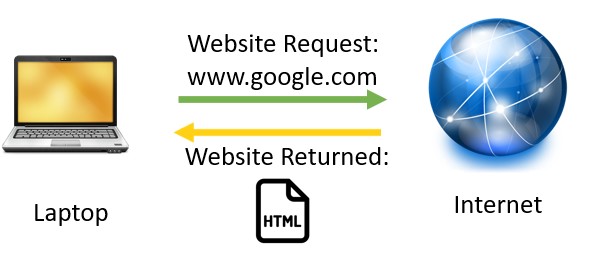
    Internet request for web page
    Requesting a webpage from the internet requires data being sent to the internet, and the requested item being returned to the device

    In this interaction, both an upload and download occurs. An upload occurs when the request for a web page is sent from the device to the internet (website request). At the end of the transaction, a download occurs when the web page is returned to the device (website returned).

    Regardless of what’s being requested, any request sent to the internet is considered an upload. Online gaming is no exception.

    In online gaming, there’s a constant flow of uploads happening. Depending upon the game being played, each mouse movement or keystroke will result in an action in the game. In order for these actions to be registered to the other players that’re in the gaming session, that input needs to be sent to the server that’s hosting the game.

    Without breaking a sweat, I’m sure you can think of many actions during a gaming session that will result in an upload to the internet. To name a few, this list includes actions such as:

    • Any input in the game itself (e.g. moving a character, performing an action in the game, etc.)
    • Communicating with other players over a microphone
    • Messaging with other players
    • Joining or leaving a particular session

    All of these actions will require that your internet connection has a certain amount of upload speed. The question is, how much upload speed do you need?

    How Much Upload Speed Do You Need for Online Gaming?

    Ok, so we’ve established that online gaming involves a lot of upload actions. As a result, you might think that a lot of upload speed is needed to support your gaming sessions.

    The good news here is that’s not actually the case.

    In fact, the majority of online games say that less than 5 megabits per second (Mbps) of upload speed is required for satisfactory gaming performance. The reason why such a low upload speed is required for online gaming is due to the fact that most of the actions I detailed in the previous section don’t require a lot of bandwidth.

    The inputs or actions sent to a gaming server during a gaming session don’t involve large amounts of data. Although these actions are happening constantly, they’re all low-data actions that don’t add up to a large amount of total data being uploaded at a given time.

    A key distinction to understand here is that when you’re gaming online, you’re not live streaming your screen to the gaming server. What’s actually happening is you’re sending your inputs to the game that’s hosted on the gaming server on the internet. This gaming server is then sending you the result of that action, where it’s displayed on your screen.
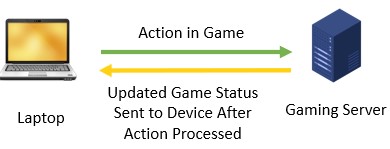
    Gaming action process
    Input from a gamer is sent to the gaming server, and the gaming server provides an updated game status after registering the action

    If you were live streaming your gaming session to the public, however, you’d need much more upload speed (at least 10 additional Mbps of upload speed).

    How Do I Know if I Have Enough Upload Speed for Online Gaming?

    If you’re worried about not having enough upload speed for your online gaming sessions, you shouldn’t be.

    The fact is, most internet plans provide more than 5 Mbps of upload speed. Most of the internet plans I’ve seen provide upload speeds of at least 10 Mbps. This should be more than enough to support a good online gaming experience.

    If you’d like to find out the maximum upload speed of your internet plan, you may have to do some digging. That’s because the upload speed of a given internet plan isn’t usually widely broadcast. In my case, I can’t even see how much upload speed my internet plan provides by looking at my monthly bill. It only shows the maximum download speed of my plan:
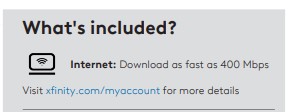
    Internet plan bill with download speed
    My monthly internet bill only details the maximum download speed of my plan

    If your goal is to find out the maximum upload speed of your internet plan, you may have to call you internet provider. Based upon the internet plan you have, they can tell you what your maximum upload speed is.

    If your goal is to simply ensure you have more than 5 Mbps of upload speed, you have another option. You can just run a speed test of your internet connection. Just enter “speed test” into your browser search bar, and you’ll be provided with plenty of speed test options to choose from.

    When running a speed test of my internet connection, I saw that I was getting double the upload speed I needed for a good online gaming experience.

    Internet plan speed test results
    A speed test of my internet connection revealed that I was getting close to 12 Mbps of upload speed

    The bottom line is, in most cases you shouldn’t have anything to worry about when it comes to upload speed. This is especially true if you have a cable or fiber internet plan. If you have a DSL internet plan, you’ll want to run a speed test to ensure you’re getting at least 5 Mbps of upload speed. DSL internet plans use phone lines to access the internet, and they generally provide slower upload speeds than cable or fiber internet plans.

    Wrap Up

    When it comes to online gaming, the upload speed of your internet plan shouldn’t be an issue. If you’re experiencing lag or a delayed response while gaming, you should run a speed test of your internet connection first just to make sure your upload speed isn’t limiting your experience. If you’re getting enough upload speed, you should probably evaluate both your download speed and the capabilities of your system/device. Those are the more likely culprits of a poor online gaming experience.

    If you have any questions about this information, please leave a comment below.

    If this information was helpful to you, here are some other posts that are similar that you should check out:

    Does a Modem Affect Upload Speed? Why You Shouldn’t Worry

    Can a Router Affect My Upload Speed? What to Look At Instead

    Does a Modem Matter for Gaming? What to Watch Out For

    Does Using an Ethernet Cable Matter for Gaming?

  • Does a Modem Affect Upload Speed? Why You Shouldn’t Worry

    Does a Modem Affect Upload Speed? Why You Shouldn’t Worry

    Does a modem affect upload speed title picture

    Are you experiencing slow upload speeds in your home network?

    If so, you’re probably wondering what’s causing this. In cases like this, many people look to blame their modem. They assume that the modem they’re using is causing their poor upload experience.

    So the question is: is this frustration pointed in the right direction? Can a modem affect the upload speed of your home network?

    In general, a modern modem will not affect the upload speed of your network. The vast majority of modems are designed to support upload speeds much greater than the maximum upload speeds delivered by internet providers.

    In this post, I’ll break down the impact your modem has on the upload speed of your network. I’ll also discuss how modems support your network’s upload speed.

    Can a Modem Slow the Upload Speed of a Network?

    Is it possible for your modem to slow the upload speed of your network?

    Yes.

    Is it likely that your modem is slowing the upload speed of your network?

    Absolutely not.

    The bottom line is that there’s a very low likelihood that your modem is the cause of a slow upload speed. This is because of the internet speeds that modems are designed to support (as you’ll find out later). Chances are, your modem is designed to support upload speeds that’re much faster than the upload speed provided by your internet plan.

    The only scenario where your modem would restrict the upload speed of your network is if it supported a slower upload speed than the upload speed provided by your internet plan.

    To illustrate how unlikely this scenario is, we need to take a look at the basic structure of internet plans.

    The Difference Between Upload and Download Speeds in an Internet Plan

    When you sign up for an internet plan with your internet provider, the focus is always on the download speed that the plan provides. The upload speed provided by the plan is usually mentioned as an afterthought.

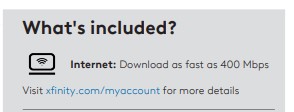
    In fact, my monthly internet bill doesn’t even mention the upload speed of my plan.

    Internet speed provided by internet plan
    My internet bill only mentions the download speed of my internet plan

    The reason for this is that the majority of internet activity involves downloading data as opposed to uploading it.

    For context here, when the devices on your home network connect to the internet, data can move in two different directions.

    When data is downloaded from the internet, a device is reaching out and pulling something from the internet.

    Some examples of activity on the internet that involves downloading include:

    • Accessing websites with an internet browser
    • Streaming movies or television
    • Watching videos on YouTube
    • Streaming music from a music provider (like Spotify or Pandora)
    • Downloading files or applications

    On the other hand, when data is uploaded, a device is sending data in the other direction. In other words, upload activity includes sending data to the internet as opposed to pulling from it.

    Some examples of activity that involves uploading to the internet include:

    • Video teleconferencing (your video stream)
    • Live streaming a gaming session
    • Uploading a video to YouTube
    • Uploading a file to a location on the internet

    When it comes to upload and download activities, most internet users partake in download activities much more often than upload activities. As a result, internet providers create internet plans that provide much faster download speeds than upload speeds.

    In fact, it’s not uncommon to see internet plans providing 600 megabits per second (Mbps) of maximum download speed and only 20 Mbps of maximum upload speed.

    To test out the difference between your internet plan’s upload and download speeds, perform a speed test in your internet browser. Your download speed will be much higher than your upload speed.

    Internet plan speed test results
    A speed test of my network reveals that my download speed is three times higher than my upload speed

    As you can see, I’m getting a blistering 12 Mbps of upload speed with my current internet plan.

    When you consider the fact that some internet plans today support download speeds close to 1,000 Mbps, it’s easy to see that 12 Mbps of upload speed is not very fast in comparison.

    So if you’re experiencing slow upload speeds, this is most likely due to the limitations of your internet plan.

    Even with an internet plan providing a slow upload speed, how do you know that your modem isn’t restricting this speed?

    Let’s take a closer look at the design of your modem to find out.

    Why Your Modem Is Not Affecting Your Upload Speed

    As I mentioned previously, it’s likely that your modem is designed to support upload speeds much faster than what your internet plan provides.

    To illustrate this point, we need to take a look at a modem’s available channels.

    At a high level, a modem’s channels allow the device to connect to your internet provider. All modems will have a certain amount of upload and download channels. The more channels a modem has, the faster the speed it can support for that given activity (download or upload).

    If you’re interested in a deep dive on what modem channels are, check out the previous post I wrote that details all you need to know on the topic.

    When it comes to the upload speeds that modems support, we’ll use cable modems as an example. Cable modems are used for cable internet plans, which are the most widely used internet plans today. Depending upon the standard that the cable modem was built to, it’ll support a different maximum download and upload speed.

    In this example, we’ll use the older standard for cable modems. This standard is called DOCSIS 3.0 (DOCSIS stands for Data Over Cable Services Interface Specification). With the DOCSIS 3.0 standard, a modem will have 4 upload channels and either 4 or 8 download channels. Here’s a breakdown of the maximum speeds these channels support:

    DOCSIS 3.0 StandardUploadDownload
    Number of Channels44 or 8
    Speed108 Mbps172 Mbps or 344 Mbps
    Maximum speed limits of DOCSIS 3.0 cable modems

    As you can see, a DOCSIS 3.0 modem supports upload speeds of 108 Mbps. I’m willing to bet your current internet plan doesn’t provide 108 Mbps of upload speed. In other words, your modem has more than enough capacity to support the upload speed your internet provider is providing.

    To further emphasize this point, the DOCSIS 3.0 standard was developed in 2006. In addition, any modem made to the newer DOCSIS 3.1 standard will support faster maximum upload speeds than modems made to the previous DOCSIS 3.0 standard.

    So as long as your modem was made after 2006 and your internet plan provides less than 124 Mbps of max upload speed, you know your modem isn’t limiting your upload speed.

    Wrap Up

    At this point, it should be clear that your modem isn’t the cause of the poor upload speed. If you have any questions about this information, please leave a comment below. For more information on similar topics, check out these other blog posts I’ve previously written:

    What Are Modem Channels? How They Affect Network Speed

    How Does a Modem Connect to the Internet? A Breakdown

    Modem Speed Limits: What You Might Be Missing

    Different Modem Types: Which Is the Most Common?

    What Does a Modem Look Like? What You Should Look For

  • Can a Router Affect My Upload Speed? What to Look At Instead

    Can a Router Affect My Upload Speed? What to Look At Instead
    Can a Router Affect My Upload Speed Title Picture

    In recent years, upload speed has become a more important part of internet plans.

    More than ever before, people are connecting to the internet to:

    • Participate in video conferences
    • Upload documents to a shared location when working from home
    • Upload videos to YouTube
    • Stream live gaming sessions

    The common requirement of all of these activities is the need for upload speed. An increased frequency of these activities has led to more analysis of a network’s upload speed than ever before.

    When poor upload performance is experienced, the first device people blame is their router.

    So the question is, does your router affect the upload speed of your home network?

    In most cases, a router will have no impact on the upload speed of an internet plan. Most routers can support internet speeds much faster than the maximum upload speed provided by an internet plan. As a result, the router is almost never the reason for poor upload performance.

    In this post, I’ll discuss why your router shouldn’t impact the upload speed of your internet plan. I’ll also talk about the main factor that determines the upload speed of your network.

    Will Your Router Impact the Upload Speed of Your Network?

    To put it simply, you shouldn’t be looking at your router as the reason why you have a low upload speed.

    The reason you have low upload speed in your home network is because of your internet plan. Your internet provider likely provides a low upload speed when compared to the download speed it supports as part of your internet plan. This is by design due to the nature of how people use the internet in their homes.

    Why Your Router Does Not Affect Your Upload Speed

    Routers are designed to support the heavy download requirements of a given home network. This is why you’ll see routers that can support internet speeds of 600 megabits per second (Mbps) or faster.

    As an aside, if you’re curious about finding out the speed your router can support, check out the article I wrote that details what you need to do to find out.

    So let’s say you have an internet plan that provides up to 600 Mbps of download speed. An internet plan with that kind of download speed probably supports a maximum upload speed of about 10 Mbps.

    For an example of the major difference between upload and download speeds provided by an internet plan, look no further than my internet.

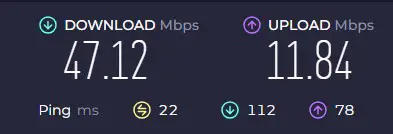
    I ran a speed test on my home network and these are the results I got:

    Upload and download speed test results
    The download speed of my network is more than four times faster than the upload speed

    As you can see, the download speed of my home network is much faster than the upload speed of my network.

    Keep this difference in mind when thinking about what your router is designed to do. Your router is designed to support the fastest speed of data through your network, regardless of the direction the data is going in (to or from the internet provider).

    If a router can’t support the maximum speed of a given internet plan, it’ll serve as a bottleneck and slow down the entire network.

    So if a router can support the maximum download speed of an internet plan, it won’t have any problem supporting the upload speed of the plan. This is why routers are designed to support the maximum download speed of an internet plan.

    This is also why your router won’t have any impact on the upload speed of your network.

    In my case, my router would have to support a maximum internet speed of less than 10 Mbps in order for it to affect my upload speed.

    They don’t even make routers that supports speeds that slow anymore. Not to mention, I wouldn’t be able to do much on the internet if my router supported download speeds of less than 10 Mbps.

    So if your router won’t affect the upload speed of your network, what will?

    What Impacts the Upload Speed of a Network?

    When it comes to your network’s upload speed, there’s really only one variable that matters.

    I’m talking about your internet plan.

    As I previously mentioned, you don’t have to worry about your router’s limitations reducing your upload speed. This means that your router will support just about any upload speed that your internet provider can handle.

    All the other variables that may impact the download speed of your internet plan won’t come into play with your upload speed because of how slow upload speeds are in comparison.

    Namely, I’m referring to your modem and ethernet cables here. It’s possible that these things can limit your download speed if they aren’t sized properly. The fact of the matter is, even the slowest modem and ethernet cable can support upload speeds of 10 Mbps. You’re much more likely to see your modem or ethernet cables limit the download speed of your internet plan than your upload speed.

    So if you’re looking to increase the upload speed of your network, you need to look at your internet plan.

    How Do I Improve the Upload Speed of My Network?

    If you’re currently unsatisfied with the upload speed of your network, your only choice is to look at upgrading your internet plan.

    Unfortunately, your options might be limited here.

    You may have to pay significantly more for a marginal increase in upload speed (10-20 Mbps). Simply put, internet providers don’t support fast upload speeds as part of their traditional internet plans. You will likely find this to be the case with the most common types of internet plans like cable and DSL internet plans.

    With that said, if you have a need for blazing upload speeds, you might have another option.

    You might be able to upgrade to a fiber internet plan.

    Fiber internet plans are different from cable and DSL internet plans because they support upload speeds that are equal to the download speeds of the plan.

    In other words, if your fiber internet plan supports 1 gigabit per second (1,000 Mbps) of download speed, it’ll support 1 gigabit per second of upload speed. This is due to how fiber optic internet cables transfer data when compared to DSL and cable internet plans.

    That’s a topic for another day.

    Before you get too excited, you should know that fiber internet plans aren’t available to everyone. Although the availability of fiber internet plans is improving, the Fiber Broadband Association (FBA) indicated that 43% of the United States has access to fiber internet in 2022.

    Even if fiber is available in your area, in many cases it doesn’t come cheaply. Chances are, you’ll have to pay more than your current DSL or cable internet plan if you want to upgrade to fiber.

    With limited other choices for improving the upload speed of your network, you might find it worth the price.

    Wrap Up

    You don’t have to worry about your router limiting the upload speed of your network.

    If you’d like to improve your network’s upload speed, the only variable you need to look at is your internet plan. You’ll need to increase the maximum upload speed of your internet plan if you want better upload performance.

    If you have any questions about the information I presented in this post, please leave a comment below.

    If you’re interested in learning more about similar topics, check out these other articles I’ve previously written:

    What Speed Can My Router Handle? What You Need to Look At

    Do Cable Modems Work With Fiber? The Device You Really Need

    Will a New Router Increase Internet Speed? An Explanation

    Does a Router Affect Your WiFi Speed?

    Can I Move My WiFi Router to Another House?

  • Do Cable Modems Work With Fiber? The Device You Really Need

    Do cable modems work with fiber title picture

    If you’re making the switch from cable internet to a fiber optic internet plan, it’s important to know what will change in your home network.

    One common question that comes along with moving to a fiber internet plan is if you need to change any of your home networking equipment, like your modem for example.

    So, if you’re moving from a cable internet plan to a fiber internet plan, can you use the same cable modem you previously used? Or do you need to get a new modem to support a fiber internet connection?

    Modems designed for cable internet will not work with fiber internet plans. Cable modems do not come with the necessary fiber optic cable port that allows them to be used with a fiber internet connection. As a result, an ONT (Optical Network Terminal) device must be used with fiber internet plans.

    In this post, I’ll discuss how you can determine if your modem will support a fiber connection. I’ll also detail what changes you need to make when moving from a cable to fiber internet plan.

    Is There a Difference Between a Cable Modem and a Fiber Modem?

    Let me start by saying that all modems do the same thing in a home network.

    Modems are responsible for translating the digital signals that come from the devices in your home network into a format that allows them to be passed over the public internet.

    The only difference between different types of modems is the format that they translate this digital data into.

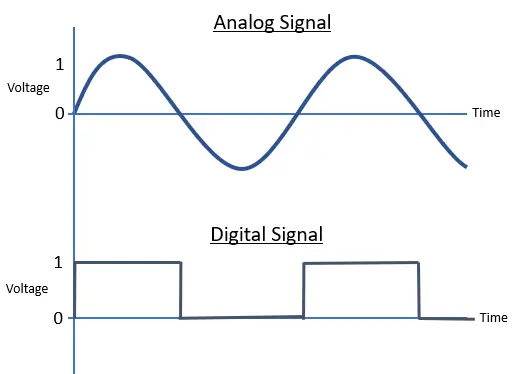
    For example, DSL and cable modems translate the digital signals from your devices into analog signals.

    Analog to digital signal conversion
    DSL and cable modems translate analog signals into digital signals (and vice versa)

    This allows them to send messages over phone lines (DSL modem) and coaxial cables (cable modem) that connect your home to your internet service provider (ISP).

    Fiber optic modems, on the other hand, translate the digital signals from your devices into fiber optic signals. In other words, they transfer the signals into pulses of light.

    These pulses of light are sent through fiber optic cables that connect your home to your ISP.

    So how does this make a cable and fiber modem different?

    These two types of modems are translating data into different signals, so they need to have different configurations. Specifically, each type of modem is manufactured to support the cable that they’re sending data over.

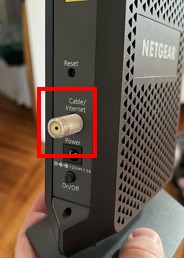
    As I mentioned, cable modems translate digital data into analog signals that are sent over coaxial cables to the internet. As a result, cable modems are made with a coaxial cable port.

    Cable modem coaxial cable port
    The coaxial cable port on a cable modem

    On the other hand, fiber optic modems convert digital data into light pulses that are sent over fiber optic cables.

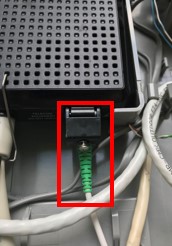
    As you may have guessed, this means that fiber modems will have a connection port for a fiber optic cable to connect to.

    ONT device fiber modem connection
    A fiber optic cable connection port on a modem

    Although they may function the same way, cable and fiber modems are outfitted with different connections due to the cables that they send data over.

    How Do I Know if My Modem Supports Fiber?

    If you’re not sure if your modem supports a fiber internet connection, there are a few things you can do to find out.

    Look at a Modem’s Connection Ports to See if It Supports Fiber

    One method to determine if your modem supports fiber internet is to look at the device’s connection ports.

    As I mentioned in the previous section, the connection port on the modem will indicate what type of internet connection it supports.

    The key here is that modems won’t have multiple types of connection ports. They’ll only have a connection port for the type of internet service they support.

    In other words, a fiber modem will have a fiber optic cable connection port.

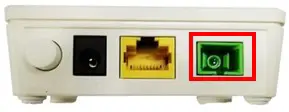
    So what does a fiber optic port look like? Here’s an example for reference:

    ONT device fiber connection port
    An example of a fiber connection port on this ONT device

    So if you see a modem with any other type of port (i.e. a phone port or coaxial cable port), you know it won’t support a fiber connection.

    If you’re still not sure if your modem supports fiber, there’s another method you can use to find out.

    Look at the Informational Sticker on the Modem to Determine if It Supports Fiber

    Another way to determine if your modem supports fiber is to look at the informational sticker on the device itself. Home network devices like modems and routers usually have stickers on them that give you important information about the device.

    They’ll usually provide the:

    • Make and model of the device
    • Location where the device’s settings can be accessed (i.e. the IP address of the device)
    • MAC address of the device
    • Default username and password for the device

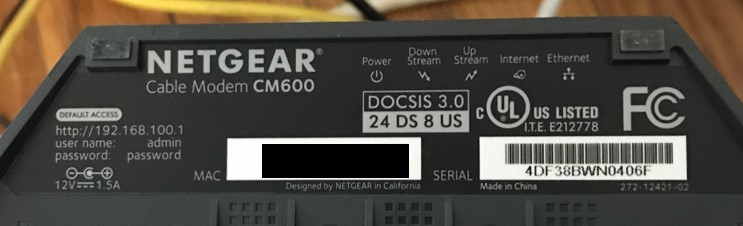
    For reference, here’s what the informational sticker looks like on my modem:

    Informational sticker on modem
    The informational sticker on my modem

    On the informational sticker, you can usually find what type of internet connection the device is made for.

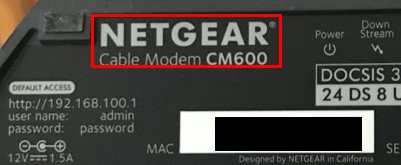
    Netgear modem type identifier
    The sticker on my modem identifies it as a cable modem

    As you can see on my device, it says that I have a Netgear Cable Modem CM600. The key word here is “Cable”. This is an indication that my modem is made for cable internet plans.

    In other words, it won’t support fiber internet.

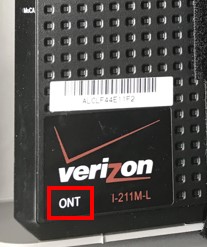
    On the other hand, if your modem has a label indicating that it’s an “ONT” device, you know your modem supports fiber internet. That’s because modems that support fiber internet are special devices that are different from cable and DSL modems.

    ISP ONT device label
    An example of a label identifying an ONT device made for fiber internet

    Let’s get into this a bit more.

    What Kind of Modem Do I Need for Fiber Optics?

    As I previously mentioned, modems are made for a specific type of internet connection. What’s even more unique about modems that support fiber optic internet is the fact that they’re identified differently.

    Rather than being referred to as a modem, they’re called ONT devices. ONT stands for Optical Terminal Network.

    Despite the fancy name for fiber optic modems, don’t be fooled. In the end, ONT devices are essentially just modems.

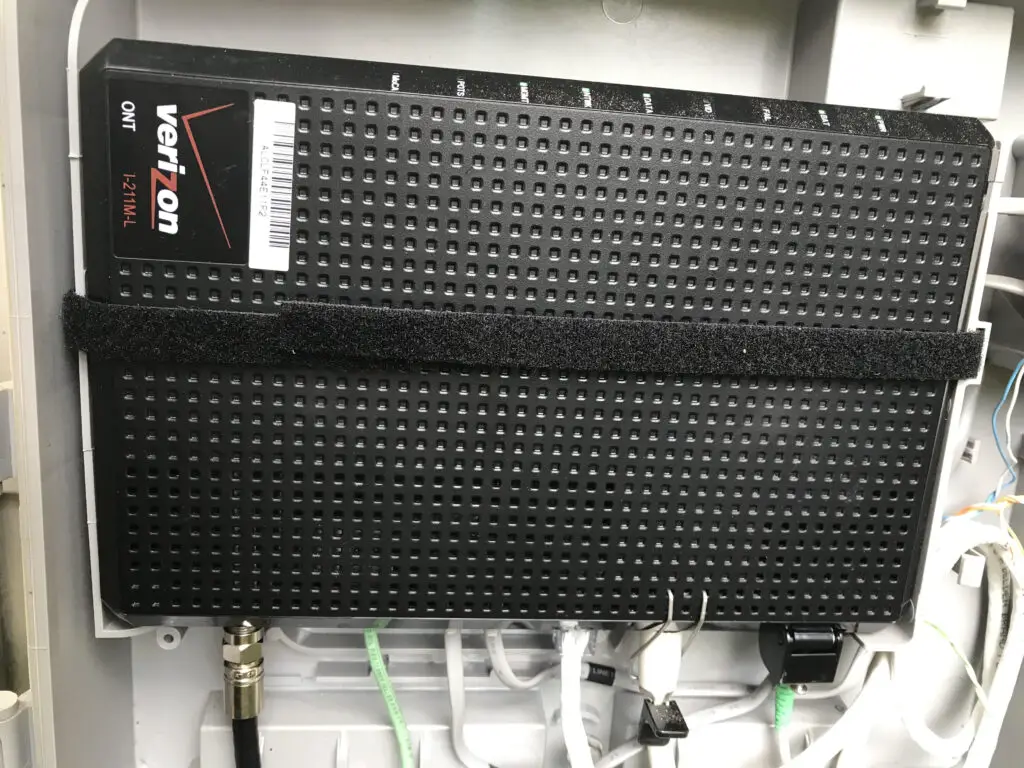
    ISP fiber internet ONT device
    An example of an ONT device

    After all, they’re doing the same thing that cable or DSL modems do. They translate signals from your ISP into digital signals so your devices can communicate with them. The only difference is that ONT devices translate light signals (instead of analog signals) into digital signals .

    Upon signing up for a fiber internet plan, in most cases your ISP will provide your ONT device for you. On top of that, they’ll most likely send a technician to your house to install the device at your home.

    ONT devices are usually installed in a protective cabinet outside of your home. This makes it easier for your ISP to connect the fiber cable that’s coming from the street to your device. Your ONT device will then be connected to the router in your home with an ethernet cable that’s wired into your house.

    So if you’re thinking of signing up for a fiber internet plan, talk to your ISP to ensure they’ll provide the ONT device for your home. With your ISP providing your ONT device, you can most likely get rid of the DSL or cable modem that the ONT device will be replacing.

    After all, your cable and DSL modem won’t be able to connect to a fiber cable anyway.

    Wrap Up

    You should now have a good understanding of what type of modem you need for a fiber internet plan. If you have any questions about this information, or you’d like to share your personal experiences with setting up a fiber internet plan, please leave a comment below.

    If you’d like to read more about similar topics involving your home networking equipment, these articles that I’ve previously written might be of interest to you:

    Can a Modem Be in a Cabinet? Where You Should Hide a Modem

    Do You Need to Activate Your Modem? What You Need to Do

    What Does a Modem Look Like? What You Should Look For

    How Does a Modem Connect to the Internet? A Breakdown

    Does a Modem Provide WiFi? The Facts You Should Know

  • Does a Router Encrypt Data? What Settings You Should Look at

    Does a Router Encrypt Data? What Settings You Should Look at

    Does a Router Encrypt Data Title Picture

    In this day and age, just about everyone uses wireless devices to send sensitive and personal information over WiFi.

    The risk that comes with this activity is that it provides hackers with the opportunity to steal this information as it’s sent through the air between devices.

    Thankfully, there are devices in your home network that can help protect you when you’re sending data wirelessly.

    Your router is a perfect example of this.

    So how does your router protect your personal information that’s sent over WiFi? Does a router encrypt your data, or is there a different way that it protects your communications?

    In general, all modern routers encrypt communications with devices connected to their wireless networks. Encrypting communications between devices on the network ensures that data sent over WiFi cannot be read by nearby devices that are not intended to receive it.

    In this post, I’ll break down how routers protect their communications using encryption. I’ll also talk about how you can verify that your router’s encryption settings are configured correctly.

    How Do I Know if My Router Is Encrypted?

    When it comes to router encryption, I have some good news and bad news.

    I’ll start with the good news first.

    The good news is that your router most likely has encryption enabled by default. In other words, your router will automatically encrypt communications between it and your devices.

    And the bad news?

    The bad news is, even if your router has encryption enabled, your data might not be totally safe.

    The reason for this is because the safety of your devices’ communications depends upon the type of encryption that your router is using.

    Unfortunately, not all encryption is created equal.

    The fact is, some encryption methods don’t do a great job of protecting your data because they can be cracked by hackers.

    For example, if a given encryption key isn’t strong enough, hackers can actually reverse engineer the encryption key that’s being used. Once they’ve figured out the encryption key used in a message transmission, they can read the messages between your device and your router.

    It doesn’t matter that the communication was encrypted.

    So even if your router has encryption enabled, you need to verify that the right encryption settings are in place.

    If any of this information is confusing to you, don’t be overwhelmed. The next sections will hopefully clear up any confusion you have.

    How Does Router Encryption Work?

    When it comes to protecting your data, your router has quite a bit of functionality.

    Of utmost importance is it’s ability to protect the data that’s sent between it and your devices.

    This is where encryption comes in.

    So how exactly does a router encrypt your data?

    Router encryption starts with the identification of the devices it trusts. Although this might sound complicated, it’s really not.

    Your router trusts the devices that’re able to connect to it by providing the correct password for its wireless networks. After all, the only devices that’re connected to a router in the first place should be the ones that have been trusted with the password for the network.

    This highlights the need for unique passwords for your router’s wireless networks, but that’s a topic for a another time.

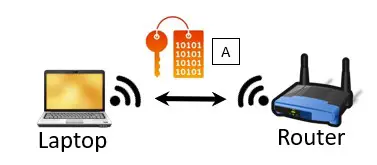
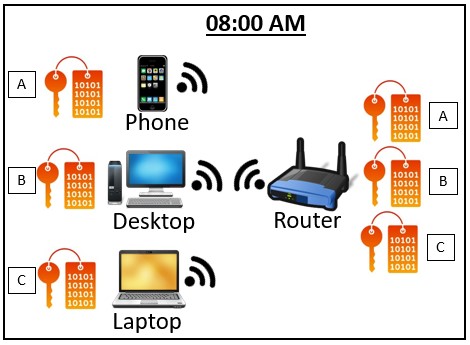
    When a device joins a router’s wireless network, an encryption key is established between the device and the router. This encryption key is used to scramble the data that the two devices send to each other.

    Shared encryption key between router and device
    When a device joins a router’s network, an encryption key is shared between the devices

    Think of the encryption key like a decoder ring.

    When data is sent from a device to the router, the decoder ring is used to scramble the message. When the router receives the message, it uses the same decoder ring to translate the message so that it’s readable.

    This is what prevents a hacker or malicious user from listening in on your device’s conversation with your router. They’re welcome to listen in on the conversation between your device and your router, but the messages won’t be useful.

    In other words, the hacker doesn’t have access to the decoder ring that your device and router used to scramble the message.

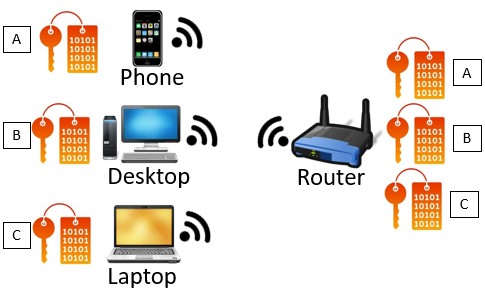
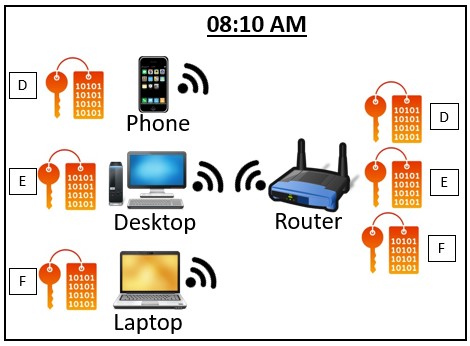
    To make things more secure, each device that connects to the router will have a different encryption key (or decoder ring) to scramble the data between the two devices.

    Router encryption keys used are different for each connected device
    A router uses different encryption keys for each device connected to it

    On top of that, depending upon the type of encryption that’s used, the router and device connected to it will periodically change the decoder ring they’re using.

    Talk about a headache for anyone that’s trying to listen in on the conversation.

    That’s exactly the point.

    What Does Router Encryption Protect?

    There’s an important distinction that needs to be made when it comes to your router’s ability to encrypt communications with your devices.

    You need to understand that router encryption will only protect communications on your local network. To put this another way, your router’s encryption will not protect your devices’ communication on the open internet.

    Let me break this down.

    As I previously mentioned, when a device joins a router’s network, the device and router share an encryption key.

    The key here (pun intended) is that this encryption key only protects WiFi communication between that device and the router.

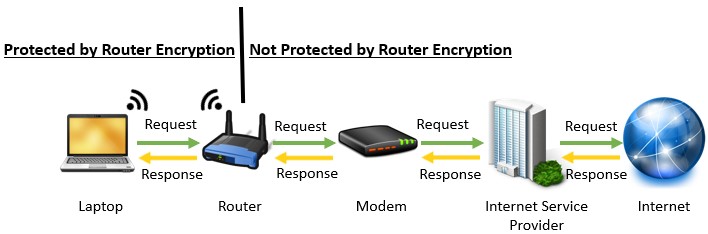
    Any communication that happens beyond the device and router communicating directly with each other isn’t protected by the router’s encryption.

    For example, when a router sends an internet request to a router, the router only encrypts the request coming to the router. Once that request is passed to the public internet, the request is no longer protected by the router’s encryption. That’s because this communication isn’t happening over WiFi. It’s happening over the internet’s backbone of wired connections.

    Router encryption protection diagram
    Router encryption only protects WiFi communications between the router and the device

    To put this another way, if your device is accessing a website on the internet, this traffic could still potentially be stolen by hackers on the open internet.

    There’s a totally separate encryption method for communication between devices and web pages, which is called Transport Layer Security (TLS).

    If TLS is in place on a website, the communication between your device and the website will be protected as well.

    TLS is a topic for another post, but the bottom line here is that you should recognize that a router using encryption doesn’t mean all your traffic is protected.

    It just means that the local communication over WiFi between the router and device will be protected.

    How to Check Your Router’s Encryption Settings

    If you’re not sure what your router’s encryption settings are, you should verify that it has the proper encryption configuration is in place.

    There’s too much at stake with your personal data to risk not encrypting your data with the strongest encryption keys.

    To do this, you first need to access your router’s settings.

    If you’re not sure how to log in to your router’s settings, fear not. I have included the necessary steps for logging in to your router in a previous post I’ve written about updating your router. Check out this post for guidance on how to log in to your router’s settings.

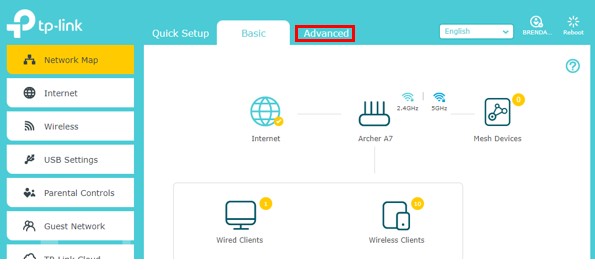
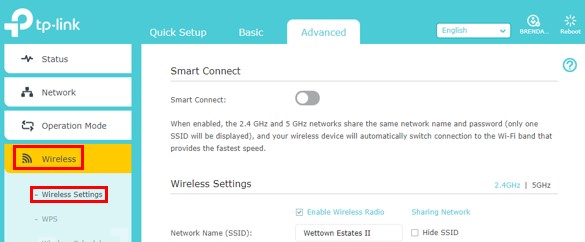
    Once you’ve logged in to your router’s settings, you need to go to the Advanced Settings tab.

    Router advanced settings tab

    In the Advanced settings tab, I had to go under the “Wireless” header and select “Wireless settings”. This brought me to my router’s encryption settings.

    Router advanced wireless settings tab

    Accessing your router’s encryption settings might be slightly different for you depending upon the make and model of your router. With that said, it’s a safe bet that the encryption settings will be in the Advanced settings section.

    Now that you’ve accessed your router’s encryption settings, we need to make sure they’re set correctly.

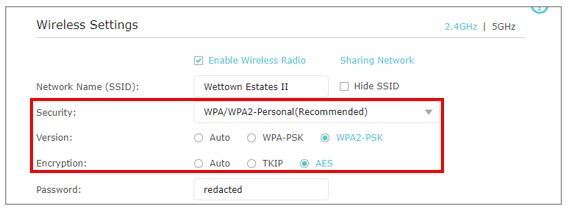
    Router encryption settings
    The router encryption settings you should be concerned about are the security setting, the version of encryption, and the encryption algorithm

    The settings you should have in place on your router are as follows:

    • WPA/WPA2-Personal for the security setting. If the router you’re configuring is for your home network, you’ll want to select “Personal” here. The “Enterprise” security version is for routers that are used in businesses and offices.
    • WPA2-PSK (WiFi Protected Access 2 Pre-Shared Key) for the encryption version. WPA2 was developed more recently than WPA-PSK and it provides security advancements to better protect your communications.
    • AES (Advanced Encryption Standard) for the encryption algorithm. This is the strongest available encryption algorithm available.

    As a side note, you don’t want to select “Auto” for any of these options.

    When Auto is selected, it lets the device determine the encryption method and algorithm that’s used.

    You want to ensure that the strongest encryption standards are always used for communication between your devices and your router. That’s why you should explicitly select the settings above. This puts your router in control of the encryption methods used to protect your data.

    Wrap Up

    At this point, you should be able to access your router’s settings and ensure that the strongest encryption settings are in place.

    If you have any questions about the information presented in this post, please drop a comment below.

    For more fascinating information on similar topics, check out these other posts I’ve written:

    Will a New Router Increase Internet Speed? An Explanation

    What Speed Can My Router Handle? What You Need to Look At

    Do You Need an Internet Connection if You Have WiFi?

    Router Ethernet Ports: Everything You Need to Know

    How Does a Router Connect to the Internet? The Basics

  • Can a Modem Be in a Cabinet? Where You Should Hide a Modem

    Can a Modem Be in a Cabinet? Where You Should Hide a Modem

    Can a modem be in a cabinet title picture

    One of the challenges of setting up a home network is figuring out where to keep your modem once it’s set up.

    Especially when you consider the fact that your modem isn’t the most beautiful device around.

    So what do people do in these situations?

    They try to hide their modem.

    The question is, does it matter where you keep your modem, or can you hide it in a cabinet and not have to worry about it?

    In general, modems should not be placed in enclosed spaces like cabinets or closets. Closed spaces like cabinets or closets can restrict the flow of air through the device. This increases the chance of the modem overheating.

    In this post, I’ll talk about the places you should avoid keeping your modem. I’ll also talk about some strategies you can use if you want to conceal your modem.

    Where Should I Not Put My Modem?

    It’s a good idea to think about where you’re going to put your modem once it’s up and running.

    Before you do that, though, you should know about the places where you definitely shouldn’t be placing your modem.

    The bottom line is that you need to be careful about where you put your modem. In drastic cases, your modem can fail if you put it in the wrong place.

    So where are the places you shouldn’t be putting your modem?

    Simply put, you should avoid putting your modem in closed areas. I’m referring to places like:

    • In a closet with a lot of other things in it
    • A full cabinet
    • A small drawer with cluttered items in it

    These are all the worst places to put your modem.

    Not far behind these places is putting your modem on the floor in a corner of your home.

    What do all these places have in common?

    All these places are cramped areas that don’t get much airflow.

    But why does that matter for your modem?

    It all has to do with your modem’s temperature.

    Why Your Modem Should Not Be In a Closed Area

    As you may know, modems generate heat when they’re powered on. In other words, they’re just like all other electronic devices.

    The problem with this is if a modem gets too hot, it’ll stop working properly. For example, your internet speed may slow down, your connection to the internet may be spotty, and all the internet users in your home will most certainly complain.

    To prevent a modem from overheating, it’s very important that the device gets proper airflow. Air flowing through the vents on your modem will take away the heat it’s generating.

    Netgear CM600 modem side vents
    The small holes on the sides of my modem allow air to cool the device

    This is how it ensures its internal components don’t get too hot.

    While we’re on the topic, if you’d like to learn more about how to tell when your modem is overheating, check out the article I’ve previously written about this.

    Let’s bring this back to the places where you shouldn’t have your modem.

    If you keep your modem in a cluttered cabinet, closet, or box because you think it looks ugly, you might be doing more harm than good.

    These closed areas don’t get great airflow, and as a result the air around your modem will be warmer than it should be because of the heat your modem is generating.

    In turn, this will make it harder for your device to properly cool down. This is what can lead to your modem overheating if the situation gets bad enough.

    And that’s not even considering the dust problem.

    As you may have guessed, dust makes the situation worse because it can further restrict the air flowing through a modem.

    This is why having your modem on the floor is a bad idea as well. It’s much more likely that dust will clog up the vents and make your modem run hotter than it should.

    So when you’re thinking about where to keep your modem, keep it out of cluttered, dusty places.

    While you’re at it, keep it away from the heaters in your house as well.

    What Can I Put My Modem On?

    Ok, now that we’ve covered the places you should avoid with your modem, let’s talk the best places to put your modem.

    As I mentioned in the previous section, our concern here is that the device gets proper airflow. With that said, bonus points will be awarded if we can hide our modem as well.

    So what are our options here?

    A popular placement choice for a modem is on a shelf or a bookcase.

    This keeps the device off the floor, and if it’s out in the open it’ll get plenty of airflow. The bonus here is that you can put other items around the modem so it doesn’t stick out as much.

    Modem in open
    My modem on a shelf surrounded by other items to hide it

    Tacky?

    Maybe so.

    At least with this option your modem is much less noticeable than if it were standing on its own on a shelf.

    Another great option is an open basket or container. These items aren’t completely enclosed, so your modem should still get pretty good airflow. In addition to that, you can pretty much hide the device from plain site.

    I’m by no means an interior decorator, but here’s an example of what I’m talking about:

    Modem in basket
    Putting a modem in a basket provides for proper airflow and hides the device from plain sight

    See?

    Maybe my arrangement isn’t the prettiest around, but hopefully you get the picture. If you look hard enough, I bet you can buy a container that better fits the size of your modem and make it look pretty nice.

    At the end of the day, as long as you put your modem in a location where it gets enough airflow, you shouldn’t have any problems.

    Even if you put your modem in a large closet that has a lot of open air and isn’t too cluttered, you’ll probably be ok. You should treat this as a last resort, however.

    The main takeaway here is that as long as you make sure your modem gets enough airflow, you have some flexibility in terms of where you place it.

    Does Your Modem’s Location Affect Your Internet Connection?

    Now, I know what you’re thinking.

    You might be surprised to hear that the greatest concern when it comes to the placement of your modem is how much airflow it gets.

    Not once have I mentioned anything about how your modem’s location affects your internet connection.

    The truth is, that isn’t something you need to be worried about.

    That’s because where you place your modem has no impact on the strength of your internet connection.

    I should note that I’m talking about a situation where your modem and router are separate devices. If your modem and router are combined into one device, all the more reason to keep your device out in the open.

    If you have a modem and router combination device and you keep it in an enclosed space, it can disrupt the WiFi signals that the router portion of the device is emitting. This can have a negative impact on the wireless internet connections of the devices in your home network.

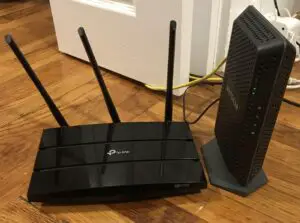
    But let’s say your modem and router are separate devices, which is what I have in my home network.

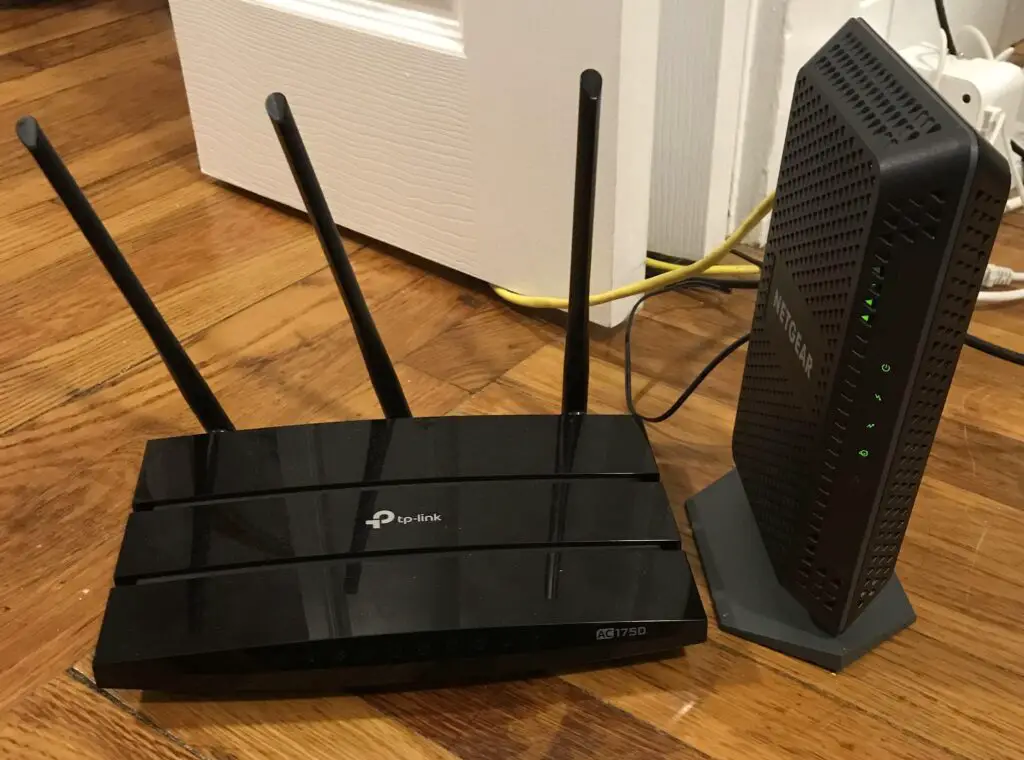
    Standalone modem and router
    My router (on the left) and modem (on the right) are separate devices in my home network

    If this is your situation, you don’t have to worry about blocking the wireless internet signal from your modem.

    That’s because your modem doesn’t provide a wireless internet signal.

    That the responsibility of your router.

    If you’re curious about this and would like to find out about how the WiFi works in your home network, check out the article I wrote that goes into detail about this.

    So feel free to put your modem in any container you want. As long as it has enough airflow, it’ll have no impact on the wireless internet signal in your home network.

    Wrap Up

    After reading this article, hopefully you have some good ideas about where to put your modem.

    If you have any questions about your specific home network, please leave a comment below.

    If you’d like to learn more about similar topics, check out these other articles that I’ve written:

    Can a Modem Overheat? What to Look For

    Does a Modem Provide WiFi? The Facts You Should Know

    Do You Need to Activate Your Modem? What You Need to Do

    What Does a Modem Look Like? What You Should Look For

    How Does a Modem Connect to the Internet? A Breakdown

  • Do You Need to Activate Your Modem? What You Need to Do

    Do You Need to Activate Your Modem? What You Need to Do

    Do you need to activate your modem title picture

    When you buy a new modem for your home, getting it set up can be confusing.

    The biggest challenge is that this effort is high stakes. If you don’t set up your modem correctly, your home won’t have access to the internet.

    One question that frequently pops up when a new modem is purchased is if you have to activate it with your internet service provider (ISP) before you can use it.

    So, is this a requirement? Do you have to activate your new modem with your ISP, or will your internet connection be unaffected by swapping out your modem?

    You need to activate your modem with your internet service provider in order to get a working internet connection. In most cases, you can activate your modem with the internet provider’s mobile application or through the provider’s webpage.

    In this post I’ll break down why you need to activate your modem with your ISP. I’ll also discuss the different ways you can activate your modem.

    Does a Modem Need to Be Activated?

    In short, your modem needs to be activated with your ISP before it’ll have a working internet connection.

    What’s happening behind the scenes here is that your internet provider associates your modem with your internet plan.

    That’s how they keep track of who has an active internet plan with them, and who doesn’t.

    So when you change the modem that you’re using in your home, to the internet provider it looks like someone new (who doesn’t have an internet plan) is trying to use their services.

    So what does the internet provider do in these situations?

    They cut off their internet services to that device until they can be sure that it belongs to one of their paying customers.

    When you think about it, this certainly makes sense. The internet provider isn’t going to give people free access to their internet services.

    So if you buy a new modem for your home network, you need to let your internet provider know what your new device is.

    That way, they can associate your new modem with your existing internet plan that you have with them.

    As you may have guessed by now, you do that by activating your device.

    How Do I Activate My Modem?

    Ok, so you have a new modem you’d like to use in your home network.

    How do you go about telling your ISP about your new modem?

    You do this through the activation process.

    Years ago, you’d have to call your internet provider and give them specific information about your new modem.

    Thankfully, things are much easier (and faster) today.

    Most internet providers allow you to register your new device with an app on a mobile device (like your phone). Many of them allow you to register your device on their website as well.

    In my case, my internet provider is Xfinity. Xfinity forces me to use their mobile app to activate my modem. I can’t activate my modem on their website even if I wanted to.

    Before you start the activation process for your modem, your should make sure you have all the required information on hand.

    For one, you’ll need the login username and password for your account with your internet service provider. If you’re not sure what this is, you can probably call your ISP or access their website for this information.

    On top of that, you’ll need the Media Access Code (MAC) address for your modem.

    The MAC address for your modem is a unique identifier that’s assigned to the device when it is built.

    If you’re not familiar with the MAC address of your modem, I’ve previously written a post on how to find your modem’s MAC address. You’ll want to check this out before moving forward here.

    Once you have the above information in hand, you can begin the modem activation process.

    Let’s use my internet provider as an example.

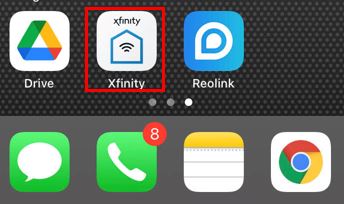
    To activate my modem, I first had to download the Xfinity app on my phone.

    Xfinity Phone App
    I had to download the mobile application for my internet service provider in order to activate my modem

    After opening the app, I had to log in with the username and password for my account with my ISP.

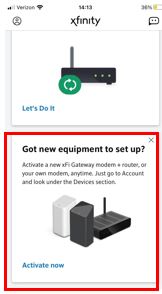
    After logging in, the device asked what I would like to do. I selected that I wanted to set up (i.e. activate) a new device.

    Set up new equipment screen
    To activate my modem, I selected that I had new equipment to set up

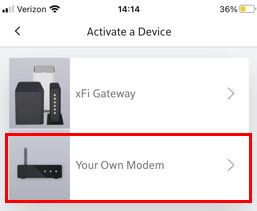
    On the following screen, I identified that I wanted to set up my own modem. If I was renting my home networking equipment from my ISP, I’d select the other option here.

    Set up new equipment screen
    I selected that I wanted to set up my own modem (as opposed to a rented device from the ISP)

    The next screens walked me through some basic steps to ensure my device was connected properly.

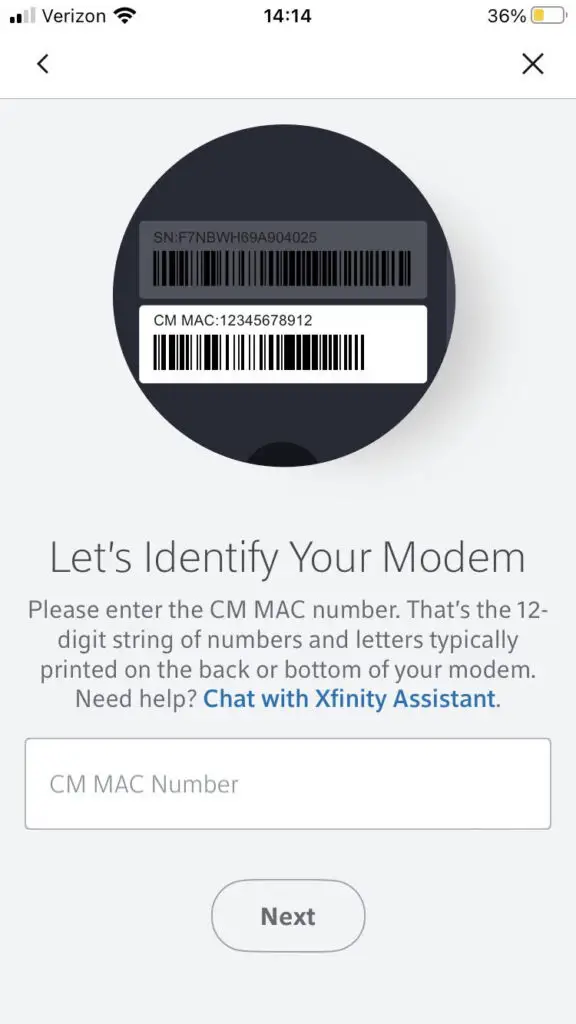
    One of these setup screens is where the MAC address of my modem was needed. In order for my ISP to associate my internet plan with my modem, I had to provide the MAC address for my device.

    Modem MAC address prompt

    Upon providing the MAC address of my modem, my modem was activated with my ISP. Shortly after I was notified that my modem was successfully activated, it had an active internet connection.

    The takeaway here is that it’s a pretty quick process to activate your modem.

    This’ll be the case whether you activate your modem with an app or through your ISP’s web page.

    In fact, if you activate your modem through your ISP’s web page, you’ll most likely follow the exact same process that you go through when activating your modem with the mobile application.

    How Do I Know if My Modem Is Activated?

    After you’ve gone through the activation process with your ISP, how do you know if your modem has been activated?

    The obvious answer here would be that you have internet access in your home.

    That’s the easiest thing to try. Just try accessing a website from a device that’s connected to your home network.

    If it can’t reach the web page, your modem probably hasn’t been activated yet.

    Another way to tell if your modem has been activated is by looking at its status lights.

    If your modem doesn’t have a connection to your ISP, the lights on the device should indicate this.

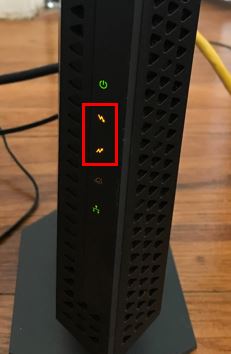
    For example, here’s what my modem looked like before it was activated:

    Modem with no internet
    The upstream and downstream lights on my modem were amber before it was activated

    These two amber lights on my device are the upstream and downstream status lights for my modem.

    These lights identify if your modem has the ability to send (upstream light) and receive (downstream light) data to and from your ISP.

    If these lights are amber on your modem, it probably means your modem hasn’t been activated yet. Either that or there’s an issue at your internet provider that’s preventing you from accessing the internet.

    On the other hand, once your modem has been activated, the lights should look like this:

    Modem with green upstream and downstream status lights
    My modem with green upstream and downstream lights after it was activated

    If both the upstream and downstream lights on your modem are green, you know it’s activated and you have a connection to the internet.

    If you’d like to learn more about the lights on your modem, or you’re curious about the other status lights on your modem, you’re in luck. I’ve written an article detailing all the lights on your modem and the different states of each one that you might find useful.

    How Long Does It Take To Activate a Modem?

    Ok, so now that you know how to activate your modem, how quickly can you start using the internet once your modem is activated?

    The good news here is you won’t have to wait long.

    It usually doesn’t take more than a five minutes for your ISP to recognize your new modem and activate your internet connection.

    From my personal experience, I’ve found it to take less time than this.

    I went through the modem activation process to test how long it would take. When I got to the activation screen, the ISP provided an estimated wait time of 5 minutes:

    Xfinity provided me with an estimated five minute wait time to activate my modem

    I timed the duration of this screen, and it actually took much less time for my modem to be activated.

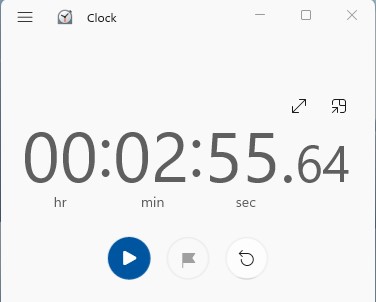
    In total, it took 2:55 for my modem to activate.

    Modem activation time with Xfinity app
    It took Xfinity two minutes and fifty-five seconds to activate my modem once I completed all the necessary steps

    Chances are, everyone’s experience will be slightly different, but this is probably a good ballpark to use.

    In any case, you should be up and running in no time once you go through the activation process. If for some reason your modem takes ten minutes or longer to activate, it might be worth calling your ISP to see if they can help.

    Wrap Up

    There you have it folks.

    That should be just about everything you need to know about activating your modem with your ISP.

    If you have any questions about activating your modem, or you’d like to share your personal experience with activating your modem, please leave a comment below.

    For more interesting information on similar topics, check out some of the other posts I’ve written:

    Modem MAC Address: All Your Questions Answered

    What Do the Lights on My Modem Mean?

    What Does a Modem Look Like? What You Should Look For

    How Does a Modem Connect to the Internet? A Breakdown

    Does a Modem Provide WiFi? The Facts You Should Know

  • Do I Have to Rent My Router? What You Can Do Instead
    Do I Have to Rent My Router? What You Can Do Instead
    Do I Have to Rent My Router title picture

    When a contract for an internet plan is established with an internet service provider (ISP), the ISP usually provides you with a router as part of the service.

    After a contract is signed, the internet provider sends a technician to your house to activate your internet plan and set up the router for you.

    Chances are, you won’t think twice about this interaction.

    What you might not realize is that you’re renting (and paying for) the router that the technician set up for you in your home.

    The question is, does it have to be this way? Do you have to rent your router from your ISP, or are there other options?

    The router in a home network does not have to be rented from an internet service provider. As an alternative, a router can be purchased and used in a home network instead of renting a router from the ISP.
    In this post, I’ll detail all your options when it comes to the router in your home network. I’ll also talk about why there might be better options instead of renting your router from your ISP.
    Can You Buy a Router Instead of Renting?
    When it comes to setting up your home network, you have more options than you think.

    For many people, it’s convenient to have a technician from their ISP come to their home and set up a router for them.

    That way, they have a working internet connection when the technician leaves. They don’t have to worry about configuring anything.

    In these scenarios, the routers that’re set up by the technician are owned and managed by the ISP. For the convenience of not having to set up or manage the device, an additional monthly fee is added to the internet plan for the rental of the router

    Although this may be the most convenient option for establishing a home network, it’s not the only option.

    Rather than renting a router from your ISP, you can provide your own.

    In other words, you have the option of buying the home networking equipment that will give you a connection to the internet.

    You’ll still have to purchase a monthly internet plan from your ISP, but you’ll be in control of everything else in your home network.

    What Is the Point of Buying Your Own Router?

    So why would you buy your own router instead of renting one in the first place? Are there any benefits to buying your own router instead of renting one from your ISP?
    The answer here is yes.

    There can most certainly be benefits to using your own router in your home network. It all depends upon what you’re looking for out of your internet experience.

    As you’ll see, there are tradeoffs that you need to consider when making this decision.
    Let’s take a closer look at a few different aspects you should think about.

    You Can Save Money in the Long Run by Buying Your Own Router

    The most obvious factor when buying your own router is the financial impact of the decision.

    As I mentioned previously, if you rent a router from your ISP, you’ll have to pay a monthly fee.

    Depending upon your internet provider, this can add up in the long run.

    For example, some internet providers charge $10 a month (or more) for renting a router from them.

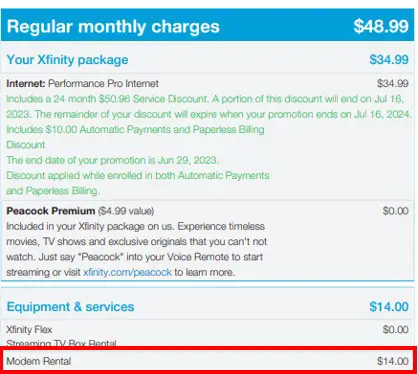
    For example, when I was renting my home network devices from my ISP they were charging me $14 per month:

    ISP Modem Rental Fee from internet bill
    My internet service provider charged me $14 per month to rent home networking equipment from them

    Think about what that means over the course of a year.

    That means every year, I was paying $168 just to use my internet provider’s equipment.

    After a few years, I’m sure you can see how these fees add up.

    This is where there’s tremendous value in purchasing your own router.

    As a side note, the equipment that you rent from an ISP is actually a modem router combination device. A modem and router combination device is essentially a device that functions as both the modem and router in your home network.

    modem router combo example
    An example of a modem router combination device rented from an ISP

    If you’re not familiar with what modem router combo devices are and you’d like to get a better understanding of them, check out the previous article I’ve written that breaks down these devices.

    You may be wondering why I’m mentioning this, but the context is actually important when considering the finances of buying your own equipment.

    Rather than renting a modem and router combination device from your ISP, you could buy your own modem and router combo and use that in your home network.

    Approximately how much would that cost?

    As an example, a top-of-the-line modem and router combination device is the Netgear Nighthawk CAX30S. This modem is one of the highest performing modem router combination devices you can buy, and at the time of this writing it costs about $350.

    Even if you bought a standalone modem and router (which you’ll find out more about in the next section), you’d be able to find a high performing pair for less than $350.

    This means that if you rented your modem and router from your ISP for more than two years, you’d be spending more than if you bought a Netgear Nighthawk CAX30S.

    Adding insult to injury, you can definitely find a high-performing modem and router combo that fits your internet needs for much less.

    Most people plan on using the internet for the foreseeable future, and buying your own home networking equipment instead of renting from you ISP will save you money in the long run.

    Buying a Router Is More Customizable Than Renting From an ISP

    Another aspect to consider when deciding if you want to buy your own equipment is how much you want to customize your home network.

    When you rent from an ISP, your ISP still owns the equipment.

    This means they’re responsible for the configuration and updating of the device.

    In other words, your ability to make changes to the device and customize your internet experience is limited.

    For some people, that’s more than ok. They aren’t technical people and they just want the internet to work in their home.

    If this sounds like your mentality, you might consider renting from your ISP instead of buying your own equipment.

    On the other hand, modem and router combination devices are very easy devices to set up and configure, so you could save money and have a more customizable internet experience by buying your own device.

    For those that want to get the most out of their internet plan, you have the option of buying a standalone modem and router for your network.

    Standalone modem and router
    An example of a modem (right) and router (left) as standalone devices

    When you buy a modem and router that’re separate devices, you have the unrestricted ability to customize your home network. You’re responsible for setting up, configuring, and making sure the devices get updated.

    With the ability to customize your network, you’ll be able to tailor it to the unique needs of the internet users in your home. This usually results in better internet performance compared to what you get when you rent equipment from your ISP.

    Which leads me to my next point…

    Buying Your Own Internet Equipment Can Result in a Better Internet Experience

    The last major thing to think about when deciding if you want to rent or buy your home networking equipment is what kind of internet experience you want.

    If you rent your equipment from an ISP, you’ll have a working internet connection that’ll hopefully meet your needs.

    If you buy your own equipment, you can maximize your internet plan and ensure you’re getting the performance you want.

    This has to do with the equipment you’re using in your home network.

    When you rent a modem and router combination device from your ISP, it’s not usually top-of-the-line equipment.

    Think of it like a rental car.

    Rental cars usually aren’t brand new cars when you rent them. On top of that, they might not always be in the best shape.

    It’ll get the job done, but it probably won’t be exactly what you want.

    The same goes for a rented modem and router combination device.

    When you rent equipment from your ISP, you don’t have any choices. They assign you a device to be installed in your home.

    They’re usually older devices, and they’re certainly not tailored to your individual internet plan and needs.

    As a result, you’ll be able to access the internet, but you probably won’t be maximizing your internet speed.

    When you buy your own equipment, however, it’s a different story.

    You can buy a modem and router that’re designed for your internet plan. On top of that, your purchased equipment will offer more features and be much more customizable than a rented device.

    With purchased home network equipment, you know you’re getting the most out of your internet plan. With rented equipment, you’re just hoping it doesn’t cause you any problems.

    Although it takes a little bit more effort to set up purchased equipment, the improved internet experience is well worth it (in my opinion).

    Wrap Up

    When it comes to your home networking equipment, you have the freedom of choice.

    Rather than paying monthly to rent your internet equipment, you have the ability to save money and improve your internet performance by buying your own.

    If you have any questions about this information, or you’d like to share your experience with making the decision between renting and buying a modem and router, please leave a comment below.

    For more information about similar topics, check out these other posts I’ve previously written:

    What is a Modem Router Combo?

    Do Routers Need to Be Updated? What You Should Be Aware Of

    What Does a Router Look Like? How to Identify Your Device

    How Does a Router Connect to the Internet? The Basics

    What Speed Can My Router Handle? What You Need to Look At

  • Do Routers Need to Be Updated? What You Should Be Aware Of

    Do Routers Need to Be Updated? What You Should Be Aware Of

    Do Routers Need to Be Updated title picture

    In this day and age, it’s common to have to update our home network devices when new software is developed for them.

    To name a few, the devices that require updates include your:

    • Computer
    • Smart phone
    • Gaming system
    • Smart TV

    All of these devices are similar in that they’re run by software located on the device.

    In this sense, your router is not unlike all of these devices in your home network. Routers also have software that tell them how to operate, just like the other smart devices in your home.

    With that said, does your router need to be updated like the rest of the devices in your home network? Or can you forget about your router once it’s set up?

    Routers need to be updated on a periodic basis. When security vulnerabilities or operating efficiencies are identified by a router manufacturer, firmware updates are developed and issued. These firmware updates must be installed on the router in order to provide benefit to the device.

    In this post, I’ll talk about what’s involved when it comes to updating your router. I’ll also talk about who is responsible for updating your router.

    Let’s get started.

    Routers Need to Be Updated

    Yes, it’s true.

    Your router needs to be updated.

    You shouldn’t be too upset about this, however. Updating your router actually protects you (and the device) in the long run.

    Before we get too far into that, let’s talk about why routers need updates in the first place.

    This all has to do with how routers operate.

    Routers are run by software. This software is embedded on computer chips that are located inside the device. Another term for this software is “firmware”.

    When a router is purchased, it comes loaded with the original firmware that the router manufacturer created when the device was released to the public for purchase.

    After a new router is released for purchase, customers expect the router to last for years.

    Think about it.

    When you bought your router, were you expecting to buy another one any time soon?

    I didn’t think so.

    During these years that a given router is in operation, quite a bit can change in the environment around it.

    There are two main areas we should look at here.

    Routers Need to Be Updated to Provide Security Enhancements

    Security is the most important reason for router updates.

    In today’s day and age, cybersecurity threats are ever-evolving. According to Packetlabs, there were an estimated 2,200 cybersecurity attacks every day in 2022.

    What does this statistic tell you?

    First and foremost, it tells you that cybersecurity threats are evolving every day. The cybersecurity threats we were faced with two years ago aren’t the same ones we face today.

    This is relevant to routers because router software is created to address the cybersecurity threats that were common at the time the router was first developed. Not the cybersecurity threats the router will face a few years down the road.

    In short, routers are faced with new cybersecurity threats each year, and they need to be updated to address the new threats that arise while they’re in operation.

    As a result, router manufacturers need to update the software for their routers to address the latest and greatest cyber attacks.

    When it’s identified that a router has a potentially vulnerability to a new cyber attack, the router manufacturer updates the router’s code. These software updates protect the router (and your network) from these vulnerabilities.

    Routers Need Updates to Improve Their Functionality

    The other main reason routers need updates is to ensure they continue to operate smoothly once a customer buys the device.

    Similar to the cybersecurity threats I detailed in the section above, advancements in technology are happening just as quickly.

    Once a router is released for sale to the public, a lot can change in the years that follow.

    For example, software bugs could be found in the router firmware after the router is already on the shelves.

    What’s the best way to fix the bugs?

    Issue a software update.

    Also, the router manufacturer could develop new features for the router that improve its performance.

    What’s the best way to get those feature enhancements into their products?

    By issuing a software update.

    As you hopefully have noticed by now, firmware updates are the way that router manufacturers can ensure their products run smoothly after they’re released to the public.

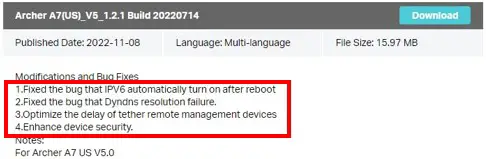
    As I detailed above, most of these firmware upgrades are for functionality improvements and security reasons. For evidence of this, look no further than the notes about the latest firmware update for my router:

    TP-Link Archer A7 Firmware Update Modifications
    The latest firmware update for my router included bug fixes and security enhancements

    As you can see, the latest firmware update for my router was issued for exactly these reasons.

    Who Is Responsible for Updating My Router?

    Ok, so we’ve established your router needs to be updated.

    The next question is, who’s responsible for updating your router?

    That all depends upon your situation.

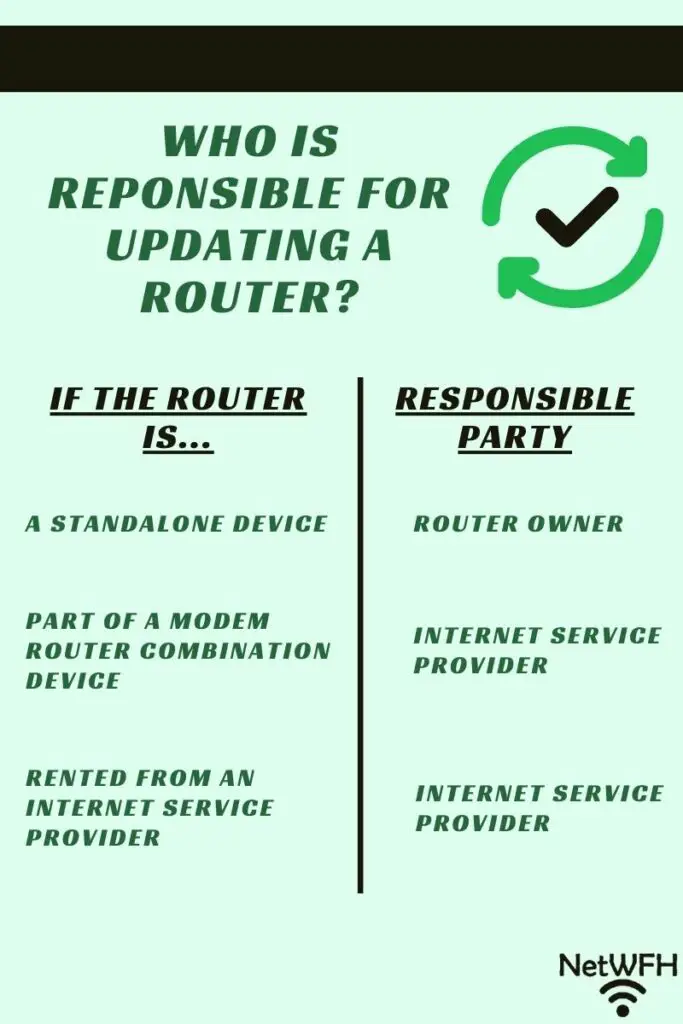
    Who is Responsible for Router Updates

    Who Is Responsible for Updating a User Owned Standalone Router?

    For example, if you own your own standalone router, you’re responsible for updating the device.

    To be clear, I’m talking about routers that are separate devices from the modem in a home network.

    Before you get overwhelmed by this responsibility, I should say that updating your router is extremely easy.

    For a breakdown of how to update your router’s firmware, I’ve detailed these steps in an article I’ve previously written that you might want to check out.

    Ok, so if you own your own standalone router you’re responsible for updating it.

    Are there any other scenarios you need to consider when it comes to router updates?

    You bet there are.

    Who Is Responsible for Updating a Rented Router?

    If you rent your router from your internet service provider (ISP), you’ll be off the hook for updating it. Most ISPs will automatically push software updates to the devices that you rent from them.

    After all, when you rent a router from an ISP, your ISP doesn’t allow you to make changes to the router’s settings. As a result, they have to update the device simply because you aren’t able to.

    Who Is Responsible for Updating a Modem Router Combination Device?

    This same principle applies if you bought a modem and router combination device.

    If you’re not familiar with modem and router combo devices, hold up a second. I’ve written another post that covers modem and router combination devices that’ll help you understand what I’m referencing here.

    Ok, back to the topic at hand.

    If you have a modem and router combination device, your ISP will automatically provide firmware updates to your device.

    These updates happen without you having to do anything. When your router’s manufacturer publishes a new version of firmware, your ISP will send it to your device over the internet to update it.

    Although this might sound nice at first, I’ve seen reviews for modem and router combo devices that have had bad experiences with their ISP updating their device. On occasion, your ISP might push a bad update to your device, or the update might fail during installation.

    This is just something to keep in mind if you’re in the market for a new router. Sometimes it’s nice to be in control of your own updates.

    How Do I Know if My Router Needs to Be Updated?

    If you own your own router and you’re responsible for updating it, it can be difficult to tell when there’s an update is available for it.

    On occasion, you may be able to tell based upon your router’s performance.

    If you notice your internet performance starting to drag, your router might need an update. This might also be the case if your internet connection starts to become inconsistent and you haven’t updated your router in a while.

    These situations might give you an idea of when your router needs a performance update.

    The troubling thing is, if your router has a security update available, you won’t know it based upon how the router is functioning. That’s because a lot of security updates have little effect on how the router operates on a daily basis.

    With this in mind, it’s best practice to periodically check to see if your router has any updates available for it.

    Every four months or so, log in to your router’s settings and see if there’s an update available for it.

    It only takes a minute to do this, and your certainly won’t regret it.

    After all, router updates can only make your device work better and operate more safely.

    Wrap Up

    At this point, it should be crystal clear that your router has to be updated. You should also have a good understanding of who is responsible for updating your router.

    If you have any questions about the above information, please leave a comment below.

    If you found this information useful, here are some other posts I’ve written on similar topics that might interest you:

    How to Update Your Router: The Ultimate Guide

    What is a Modem Router Combo?

    What Does a Router Look Like? How to Identify Your Device

    How Does a Router Connect to the Internet? The Basics

    Are All Routers Compatible With All Modems?

  • What Does a Router Look Like? How to Identify Your Device

    What Does a Router Look Like? How to Identify Your Device

    What Does a Router Look Like title picture

    There are a lot of different settings on your router that you can change to enhance your internet experience.

    But before you go about customizing your router, you need to be able to find it in your home network.

    So how do you know which device is your router? What does your router look like?

    Most routers are black in color and usually about 10 inches wide, 6 inches long, and 2 inches tall. In addition, they usually have multiple antennas extending from the device that are between 6 and 9 inches in length. Most routers will also have multiple status lights on the front of the device.

    In this post, I’ll break down all the different ways you can identify the router in your home network. I’ll also talk about how you can tell the difference between your router and modem.

    How to Identify Your Router in Your Home Network

    So you want to figure out which device in your home network is your router?

    You’re in luck.

    There are multiple things you can look at that’ll help you identify your router.

    For example, you can look at:

    • The informational sticker on the device
    • The size and shape of the device
    • How many ethernet ports the device has
    • What the lights on the device look like

    Any of the above choices is a viable option for identifying your router.

    With that said, you should start with the easiest option first.

    Identifying Your Router by Looking at Its Informational Sticker

    The shortcut for identifying the router in your home network starts with looking at the physical device itself.

    If you think you know which device is your router, go pick it up.

    Next, look for a sticker on the device that provides information about it.

    You can usually find this sticker on the bottom of the router. Here’s an example of what the sticker on the bottom of my router looks like:

    Sticker on bottom of router
    The informational sticker on the bottom of my router

    If the device you’re looking at has a sticker on it, take a closer look. If the device is a router, it’ll more than likely say that on the sticker.

    Identification sticker on router

    As you can see, the sticker on my router clearly identifies what type of device it is.

    It’s really that easy.

    Even if you’re not sure if a device in your home network is your router, it’s worth inspecting it. If it has a sticker on it, chances are the sticker will tell you what type of device it is.

    In the case where the devices in your home network don’t have stickers, or you still can’t tell which device is your router, there’s no reason to worry.

    There are plenty of other ways to identify your router.

    Let’s take a look at some of these options.

    Identifying Your Router by Its Size and Shape

    Let’s start at a high level here.

    Hopefully, you’ll have a good idea of which device is your router just by looking at it.

    Most routers are black rectangular boxes that have multiple external antennas on them.

    Here’s an example of what my router looks like.

    Router on a table

    The dead giveaway here should be the antennas on the device. Most other devices in your home network won’t have antennas like a router does.

    As you can see from the picture above, my router has three adjustable antennas.

    While we’re on the topic, you may be wondering why a router needs multiple antennas in the first place. If you’d like to learn more about your routers antennas, you should check out the post I’ve written on this topic.

    In addition to a router having antennas, its good to have an idea of the approximate size of your router.

    In most cases, your router will be about ten inches wide, by six inches deep:

    When it comes to the height of the device, they usually aren’t very thick. For example, my router is less than two inches thick.

    Router device height

    When it comes to your router’s antennas, you can expect them to be about ten inches tall or less.

    Router antenna height

    Now that you have an idea of the approximate size of your router, let’s take a closer look at the device itself.

    Identifying a Router by the Number of Ethernet Ports It Has

    Another easy way to identify your router is to look at the number of ethernet ports on the device.

    For those of you that need a quick refresher, an ethernet port allows an ethernet cable to be connected to your device. This allows devices to communicate with each other directly over the ethernet cable (as opposed to wirelessly).

    Chances are, your computer has an ethernet port that can be used for reference.

    Laptop ethernet port
    The ethernet port on my laptop

    Ok, back to the task at hand.

    The dead giveaway for a router is that it’ll have multiple ethernet ports on it. These ethernet ports are usually on the back of the device.

    To be more specific, routers usually have five ethernet ports on them.

    Ethernet ports on a router

    If the device you’re looking at has multiple ethernet ports on it and meets the description of the previous section, chances are it’s your router.

    Are you curious about what these ethernet ports are for?

    If so, check out the previous post I’ve written that details what the ethernet ports on a router are used for.

    Identifying a Router by the Lights on the Device

    Another way to identify your router is to look at the lights on the device.

    Your router will most likely have status lights on the front of the device.

    Router lights
    The status lights on a router

    When it comes to the lights on your router, you just need to be careful here.

    The challenge is that your router probably won’t be the only device with lights on the front of it. You’ll see what I mean in the next section.

    As a result, you need to make sure that you take a close look at what each of the lights indicate.

    For example, your router will most likely have the following lights on it:

    • A power status light
    • WiFi network status lights (e.g. 2.4 GHz and 5 GHz)
    • An internet connection status light
    • Ethernet port connection status lights
    • A USB port connection status light
    • A WiFi Protected Setup (WPS) status light

    If the device you’re looking at has all (or most) of the lights above, it’ll be a router.

    By the way, if you’re not sure what all the lights on your router are for, I’ve written a post on that topic as well that you might want to check out.

    How to Tell the Difference Between a Router and Modem

    Modems and routers often get confused with one another in a home network. This makes a lot of sense, as these two devices are needed to provide your home with an internet connection.

    Now that you know what a router looks like, it shouldn’t be too difficult to tell the two devices apart.

    It’s especially easy when you consider the major differences between the two devices.

    For a complete breakdown of what a modem looks like, you can check out the post I wrote for more information.

    So what are the main differences between a modem and router, exactly?

    You Can Tell the Difference Between a Modem and Router by Their Informational Stickers

    For one, if there’s any confusion about what device you’re looking at, you should first go to the informational sticker on the device.

    As I previously mentioned, the sticker on your router will identify which device is your router.

    Your modem is no different.

    Your modem should also have an informational sticker on it that details what type of device it is.

    This is the easiest way to tell the difference between your modem and router.

    Identifying a Modem and Router by Their Antennas

    Another easy way to tell the difference between a modem and router is to look at their antennas.

    A router will have external antennas that are impossible to miss.

    A modem, on the other hand, won’t have any antennas at all. This is because they aren’t able to communicate wirelessly with other devices. As a result, there’s no need for a modem to have antennas.

    This results in modems have a much more streamlined shape when compared to a router.

    Netgear Modem Front Image
    A modem will not have antennas like a router

    Identifying a Modem and Router by the Number of Ethernet Ports They Have

    The next major difference between a modem and router is the number of ethernet ports they have.

    While a router will usually have at least five ethernet ports, a modem won’t have that many.

    In fact, a modem will only have one ethernet port.

    Modem ethernet port
    The ethernet port on a modem

    So if you look at the back of a device and it has multiple ethernet ports, you know the device is a router.

    Identifying a Modem and Router by the Lights on the Devices

    The last way to tell the difference between a modem and router is to look at the lights on the devices.

    As I mentioned earlier, this is where you need to be careful. Both a modem and router will have lights on the front of the device.

    The difference is in the number and types of lights they have.

    Modems usually have less status lights on them than routers. On top of that, modem lights are meant to provide different statuses than router lights.

    For example, a modem won’t have lights on it for the WiFi networks it’s broadcasting like a router will. That’s because modems don’t broadcast WiFi networks.

    If you’d like a reference of the lights on a modem, you’re in luck. I’ve written an article that details all the lights you can expect to find on a modem.

    The bottom line is if you have an idea of the lights you’ll find on a modem and router, you should be able to tell the devices apart pretty easily.

    Wrap Up

    At this point, you should have problem identifying the router in your home network. You should especially have no problem telling the difference between your modem and router.

    If you have any questions, or are running into trouble identifying your router, please leave a comment below.

    If you found this information interesting, you might also like some of these other posts I’ve written:

    Why Do Routers Have Multiple Antennas?

    Router Ethernet Ports: Everything You Need to Know

    What Do My Router Lights Mean?

    What Does a Modem Look Like? What You Should Look For

    What Do the Lights on My Modem Mean?